Download
Introduction
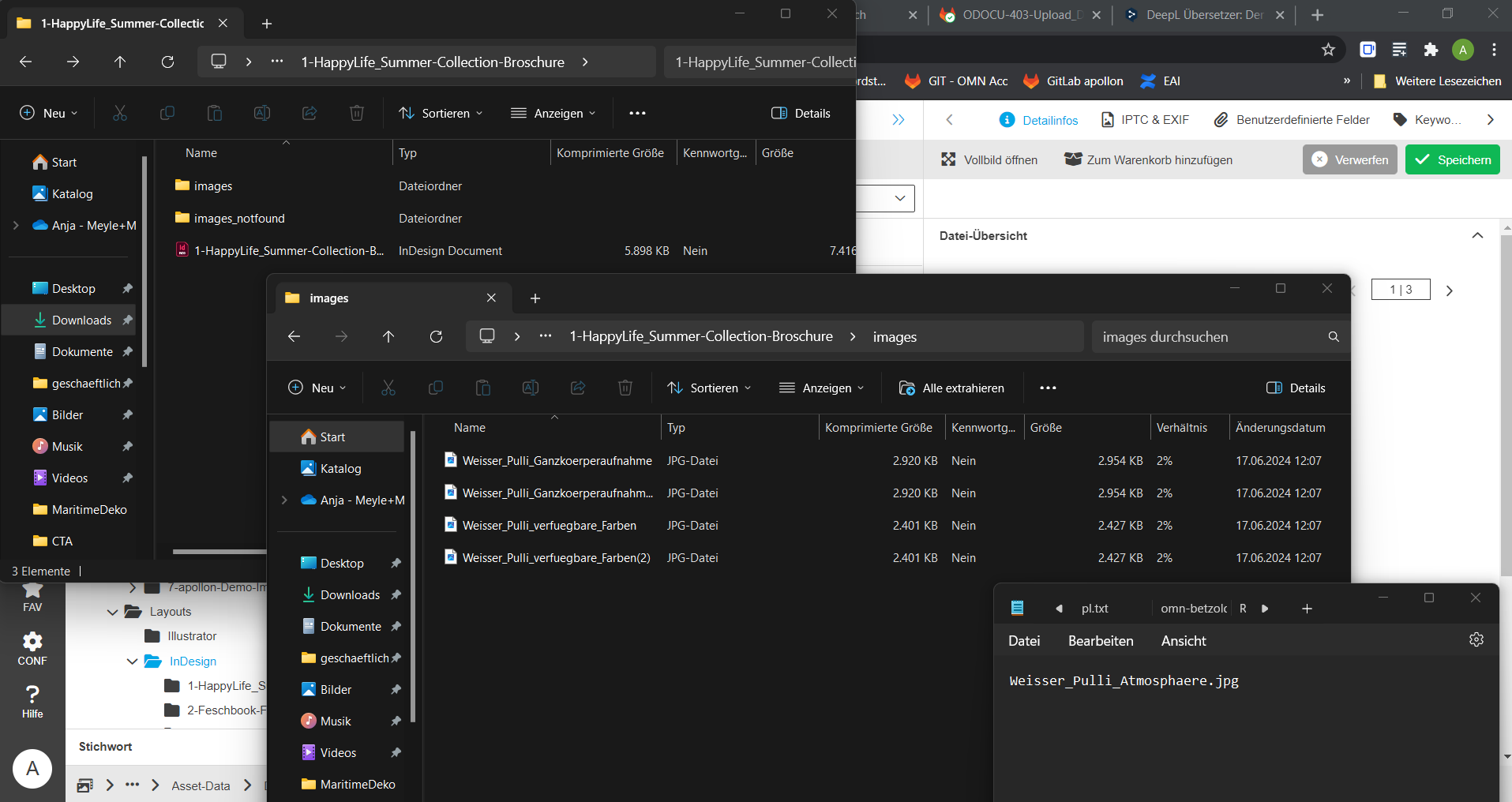
The download enables the user to transfer files from the OMN system to their local storage.
The downloads can be customized beyond the simple download function. For example, files can be checked out or individual files can be provided as a ZIP file.
When downloading pre-press files, the images contained in the document can also be downloaded. If desired, a text file can be supplied that lists missing images.
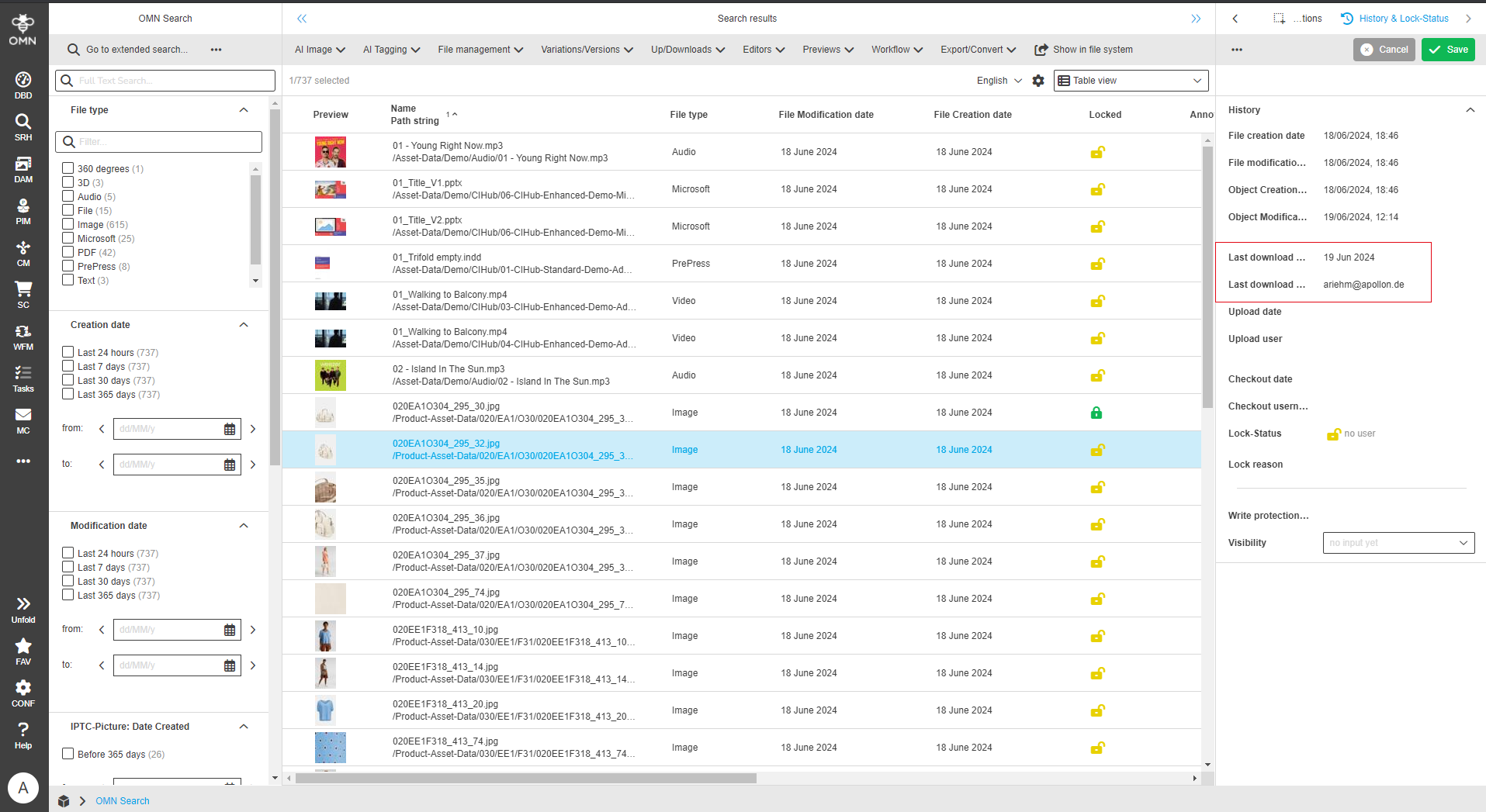
The user and the time of the download can also be noted on the asset and thus recorded.
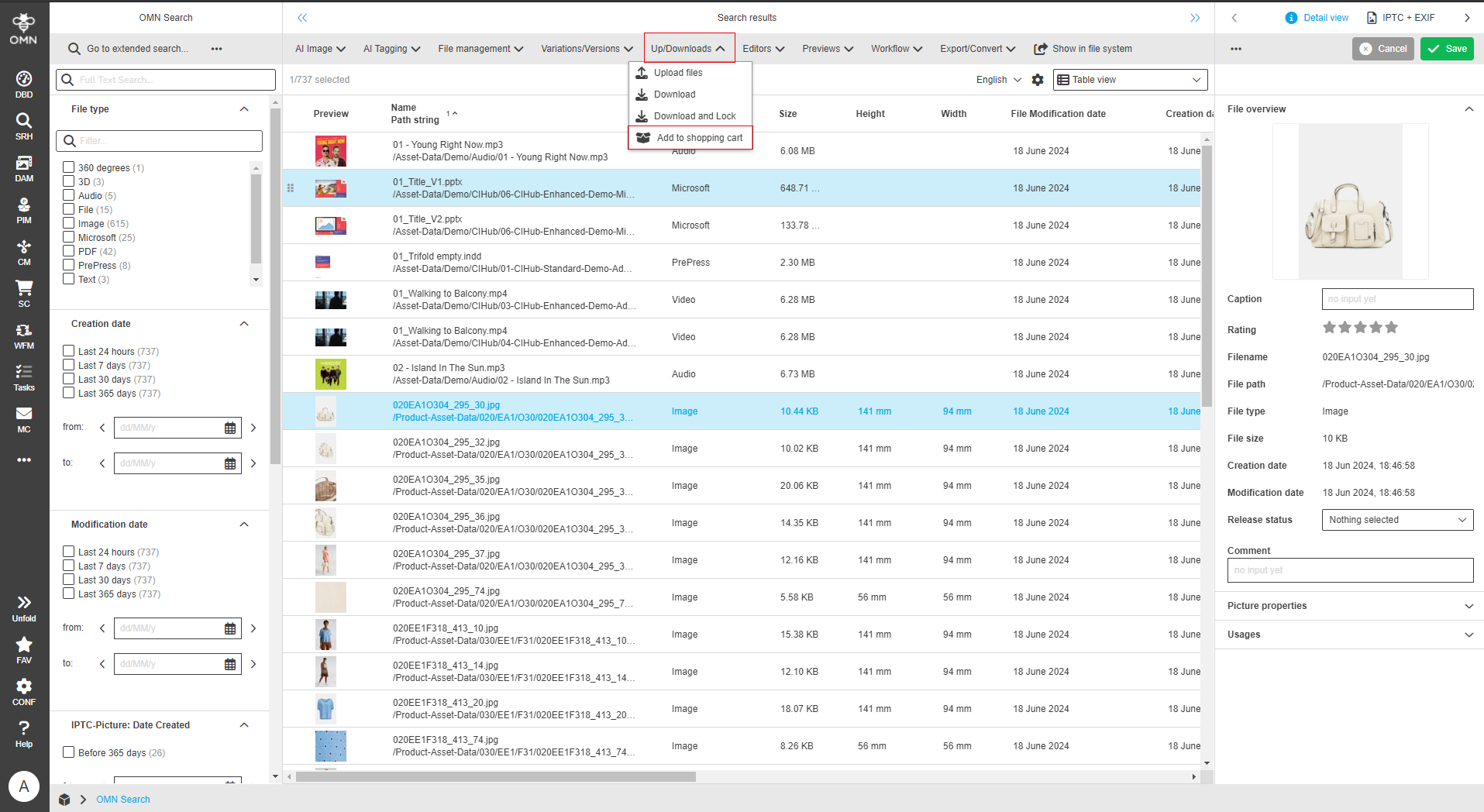
If files are to be downloaded from different paths, converted or sent directly by e-mail, the download described here is not suitable. In such cases, it is recommended using the shopping cart.
Further information can be found here.
Prerequisites and relations to other modules
To be able to download files in OMN, the "Download" function must be integrated in at least one of the following modules:
How to use
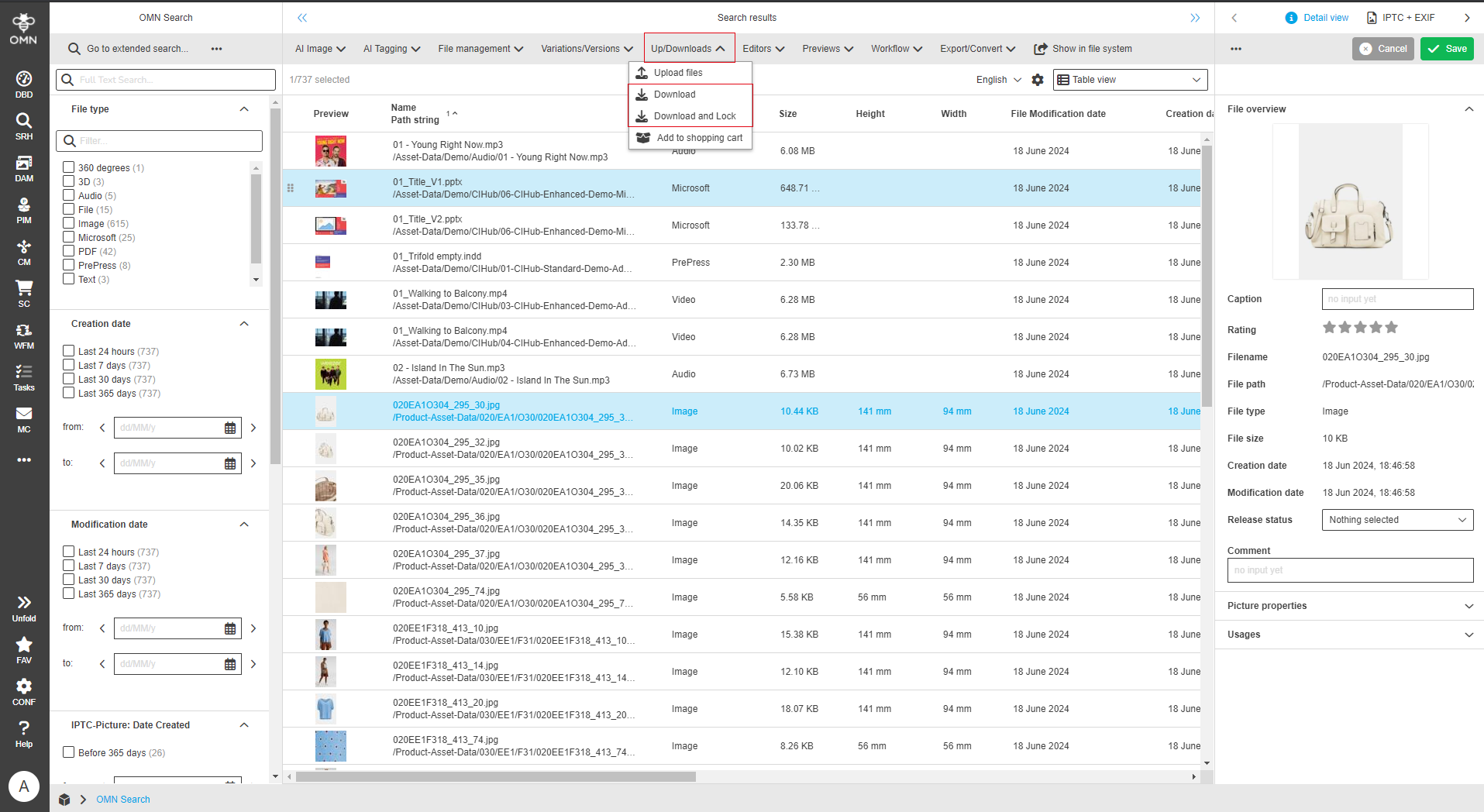
If the "Download" function is available, it is displayed in the toolbar after selecting a folder, asset or within a workflow.
The download offers various configurations, which are listed in the following chapters.
Lock files
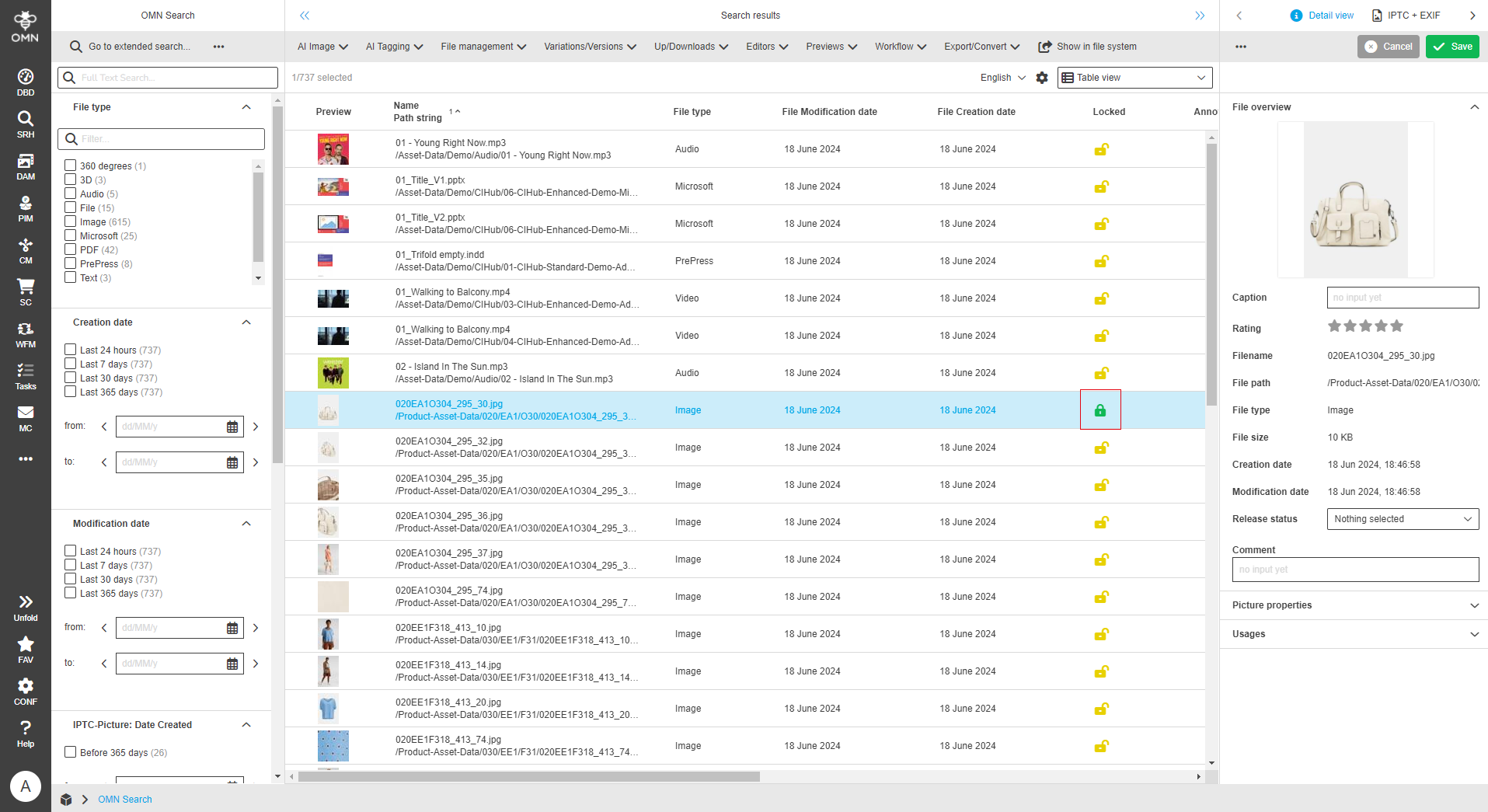
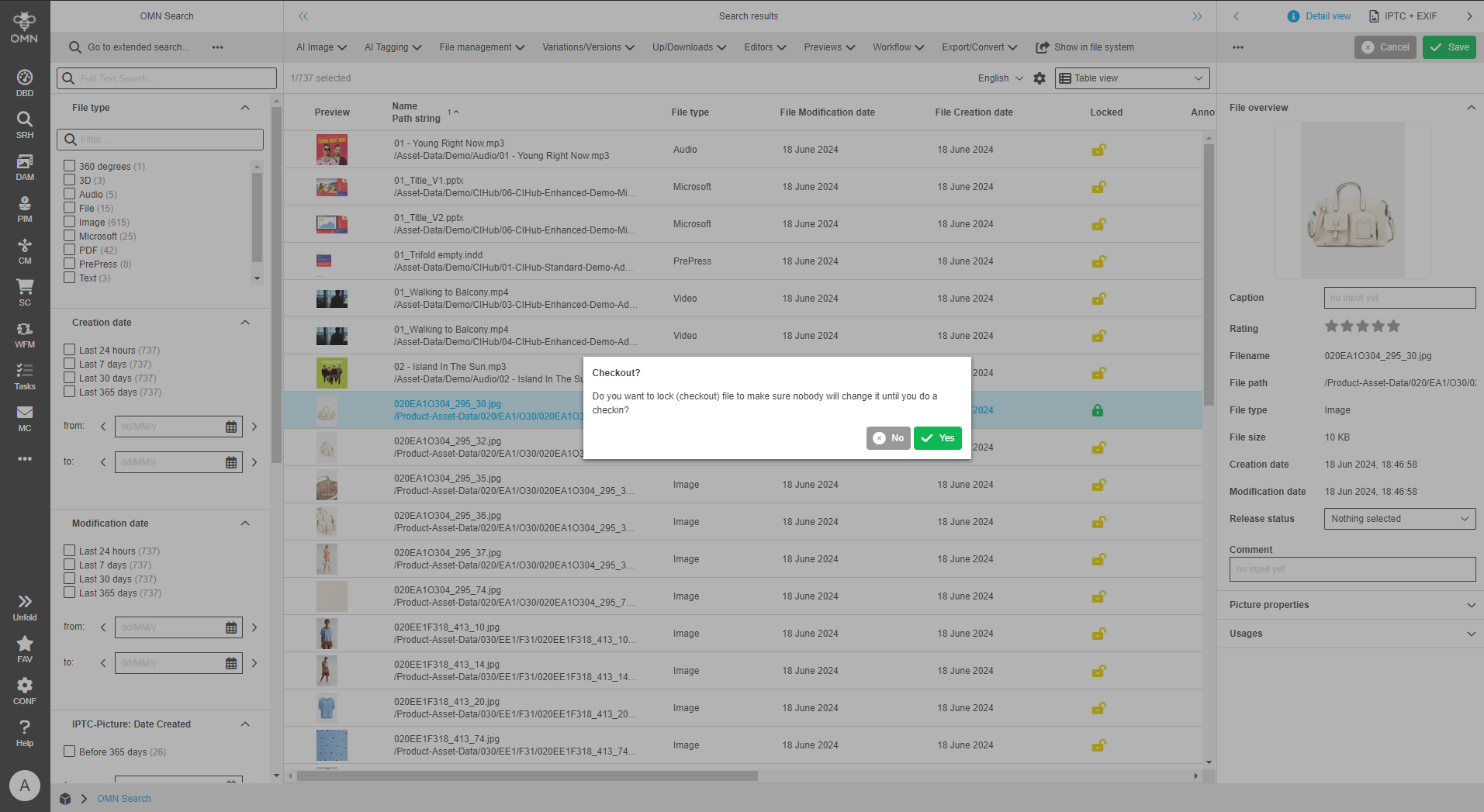
The selected files are downloaded and then locked in the OMN system, which is visually indicated by a lock symbol. This lock means that the file can only be edited by the download user until it is released again by the download user.
A message dialog is displayed in which the user must confirm that the file may be locked.
Provide files as a zip archive
All selected files are provided as a ZIP archive, even if only a single file was selected.
If multiple files are selected, they are provided as a ZIP file regardless of the setting.
| If the setting is not activated, individually selected files are downloaded directly. |