Working with Process monitor
The process monitor is a central tool in OMN with which you can monitor running and completed processes - for example when downloading, deleting or synchronizing files. You can observe processes, view their details and intervene if necessary, for example by canceling or restarting them.
Below you can find out how to call up the process monitor, what is displayed and how to work with the various functions.
Access and requirements
You will find the process monitor in the sidebar, usually in the Administration area.
For processes to appear in the monitor, they must already be started or completed.
Only standard processes are displayed - this includes processes from the DAM such as "delete", "move", "synchronize" or "download".
The default view includes a table with columns for process type, component, user, status, and progress. In addition, timestamps, references, file names, size information, and organizational information such as owner, priority, and client are displayed.
Structure of the process monitor
The process monitor consists of two areas:
-
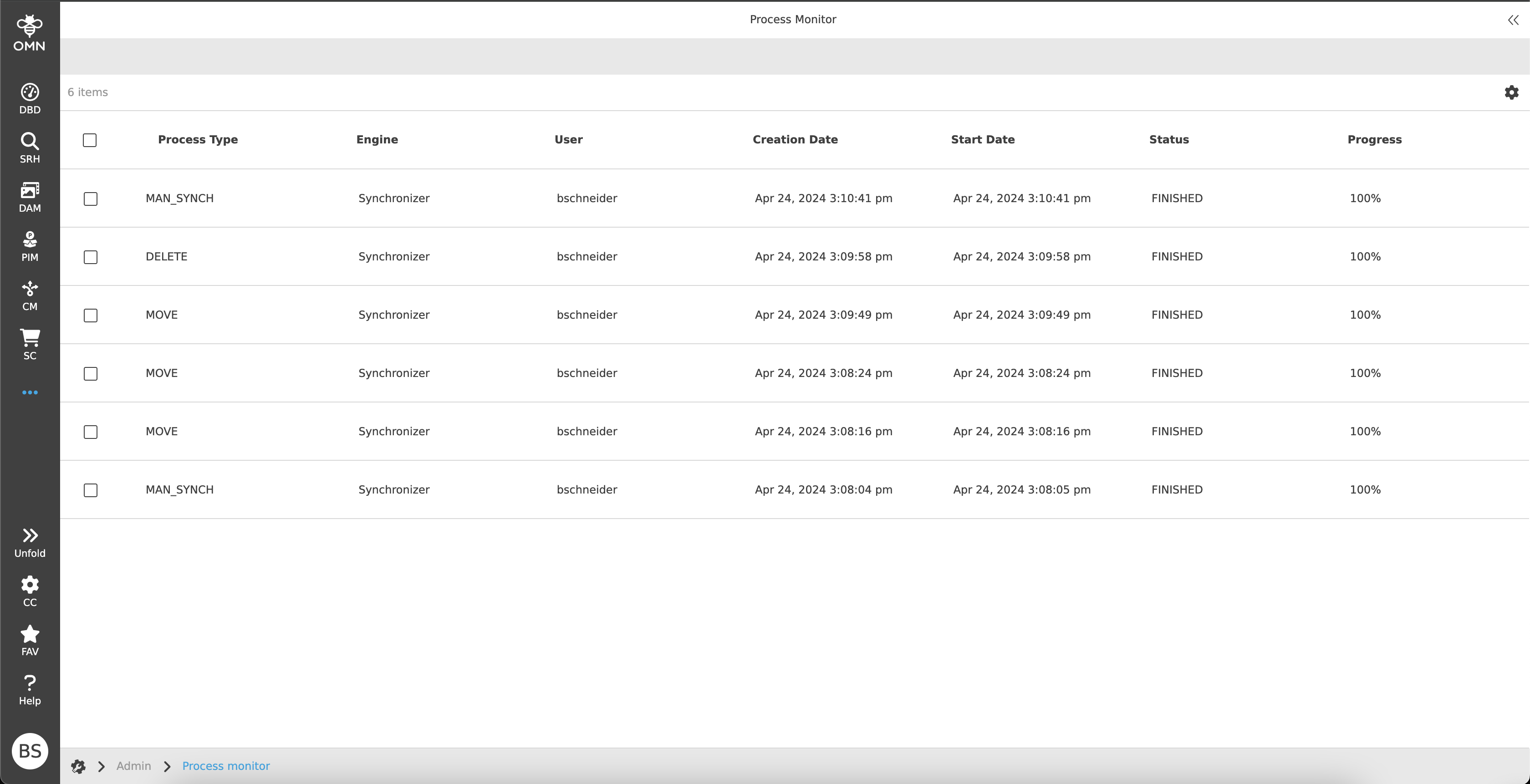
In the center view (Center View) you see a table with all visible processes.
-
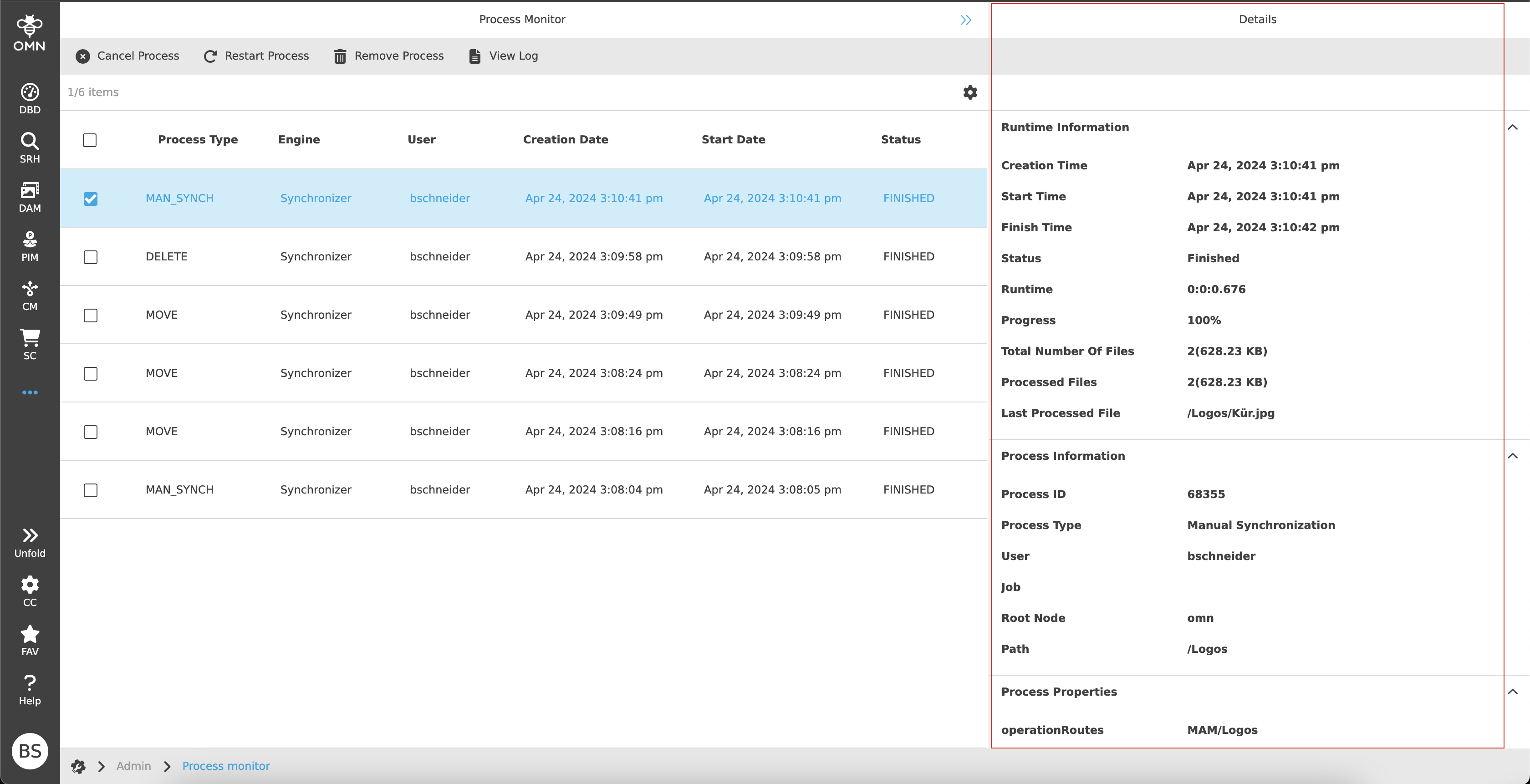
In the right view (Right View) you will find detailed information on the selected process.
Center View - The process overview
Processes are displayed in table form in the Center View. By default, processes remain visible for 4 weeks and then automatically disappear from the list.
Functions in the toolbar
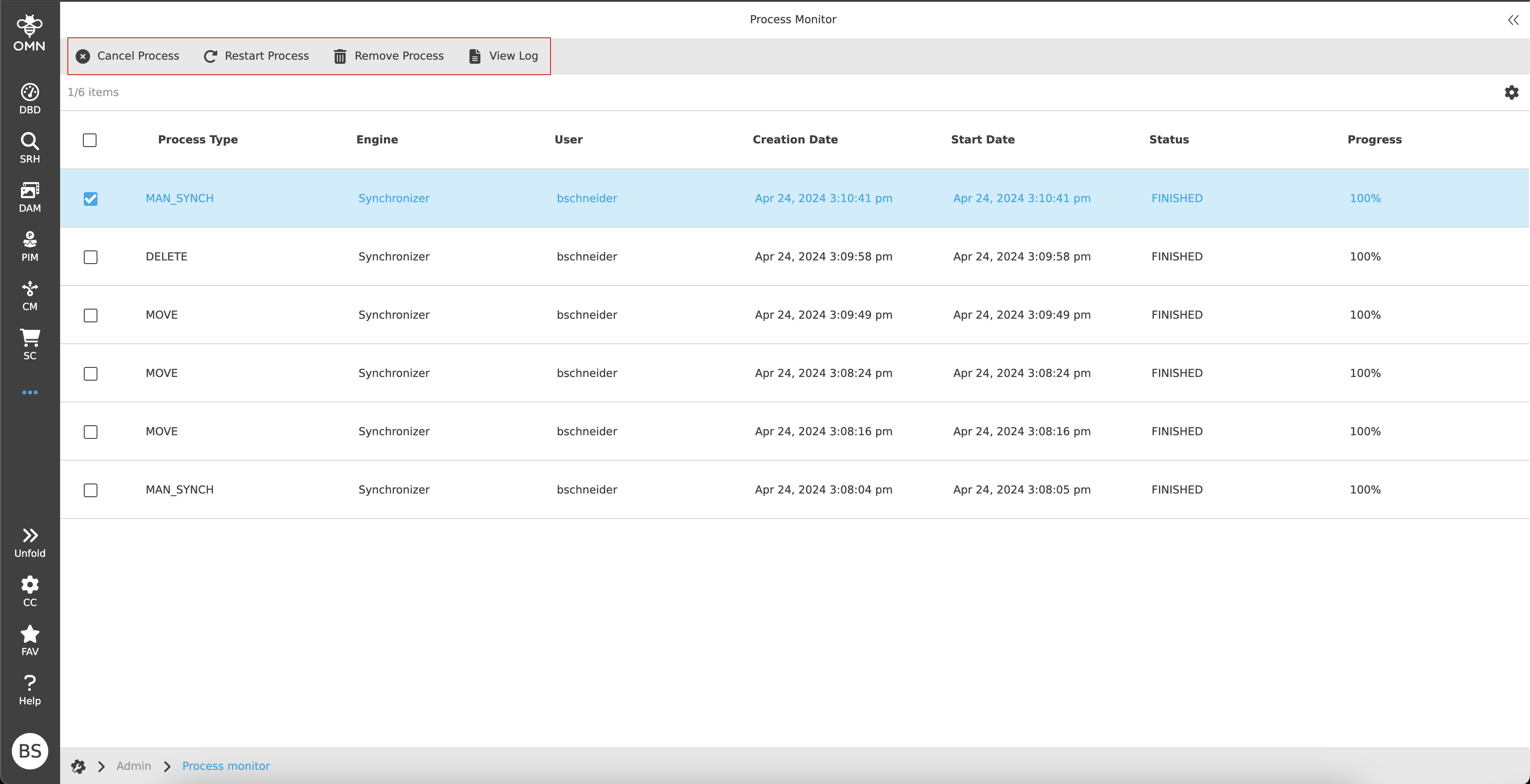
Above the table you will find various buttons for working with the processes:
-
Cancel Process
-
End a process that is still running.
-
Processes that have already been completed can no longer be terminated.
-
-
Restart Process
-
Only possible for certain completed process types such as "Archive", "Copy" or "Manual synchronization".
-
Faulty or still running processes cannot be restarted.
-
-
Remove Process
-
Removes the process from the list.
-
If the process is still running, it will be terminated beforehand.
-
-
View Log
-
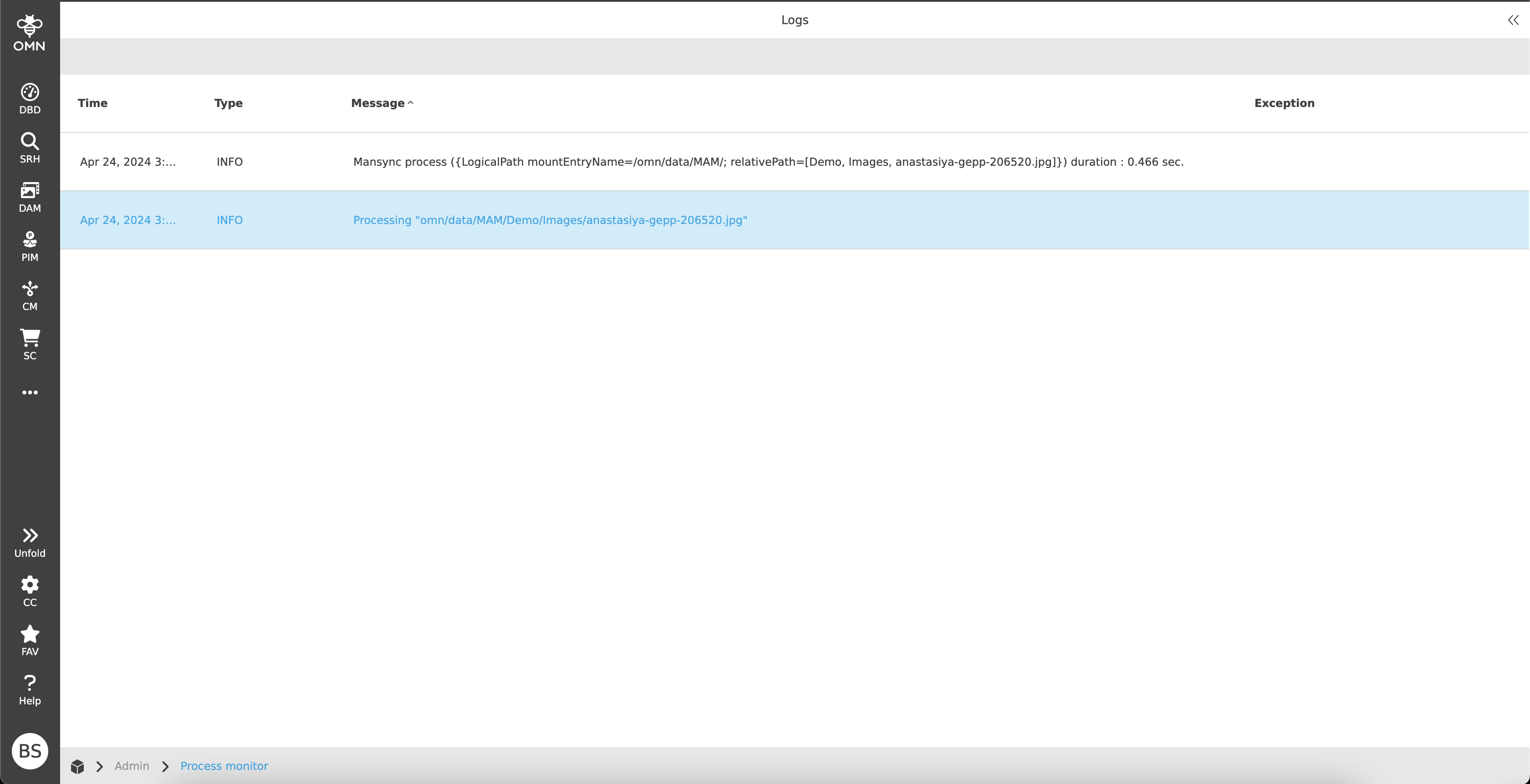
Opens a new browser tab with the log view of the process.
-
Here you can see all log entries including time, message type and error description.
-
Status bar & settings
In the status bar, you will find an object counter on the left-hand side. It shows you how many processes are displayed in total - and how many of them you have currently selected.
On the right-hand side, you will find the settings for the table display.
There you can adjust the number of pages, scrolling behavior and visible columns.
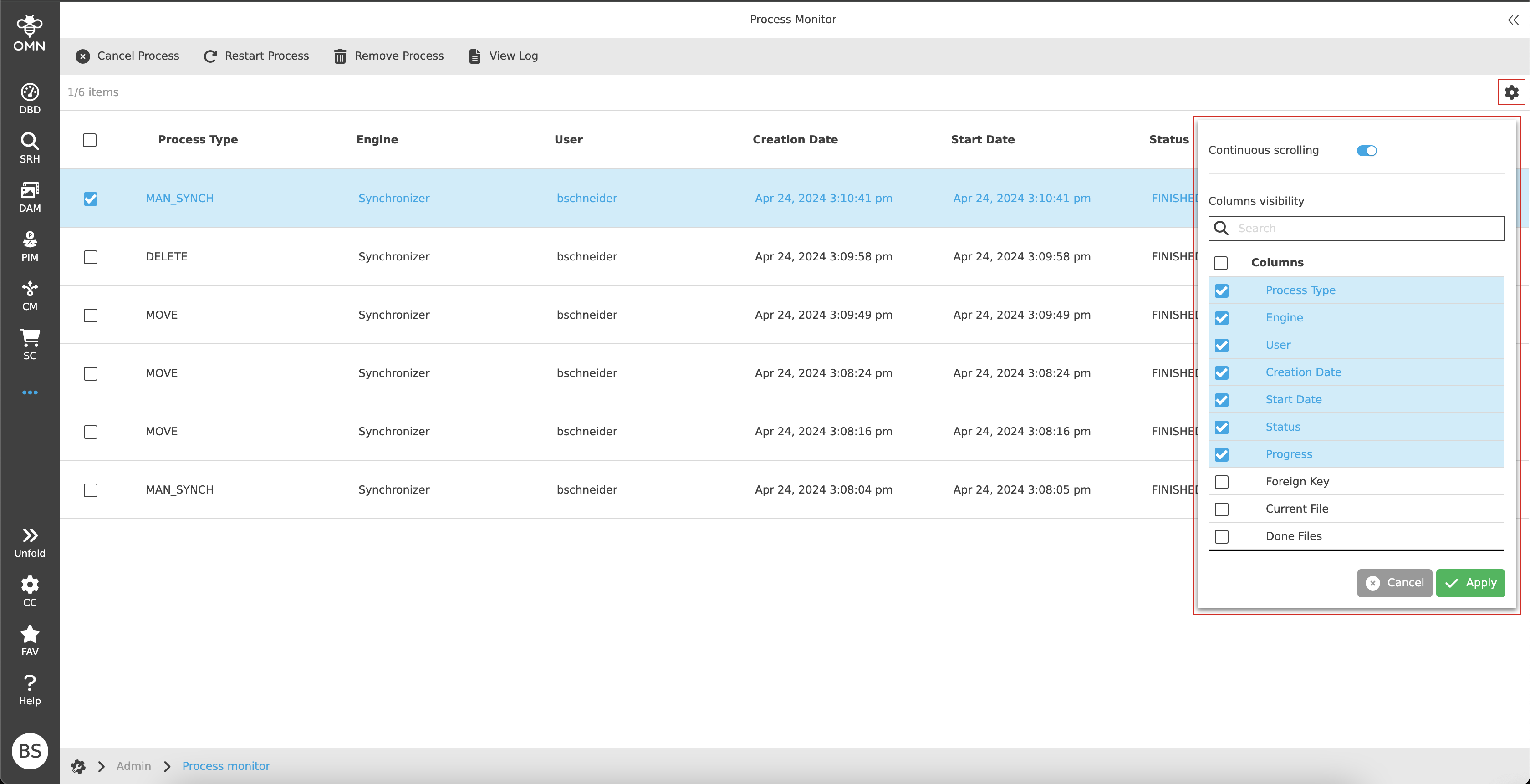
Columns of the table
By default, you will see the following columns:
-
Process Type
-
Engine
-
User
-
Creation Date
-
Start Date
-
Status
-
Progress
You can show many more columns via the settings, e.g:
-
Foreign Key
-
Current File
-
Done Files
-
Done Files Sizes
-
Finish Date
-
Overall Files
-
Overall Files Size
-
Overall Directories
-
Done Directories
-
Owner
-
Path
-
Priority
-
RNC Identifier
-
Mandator Identifier
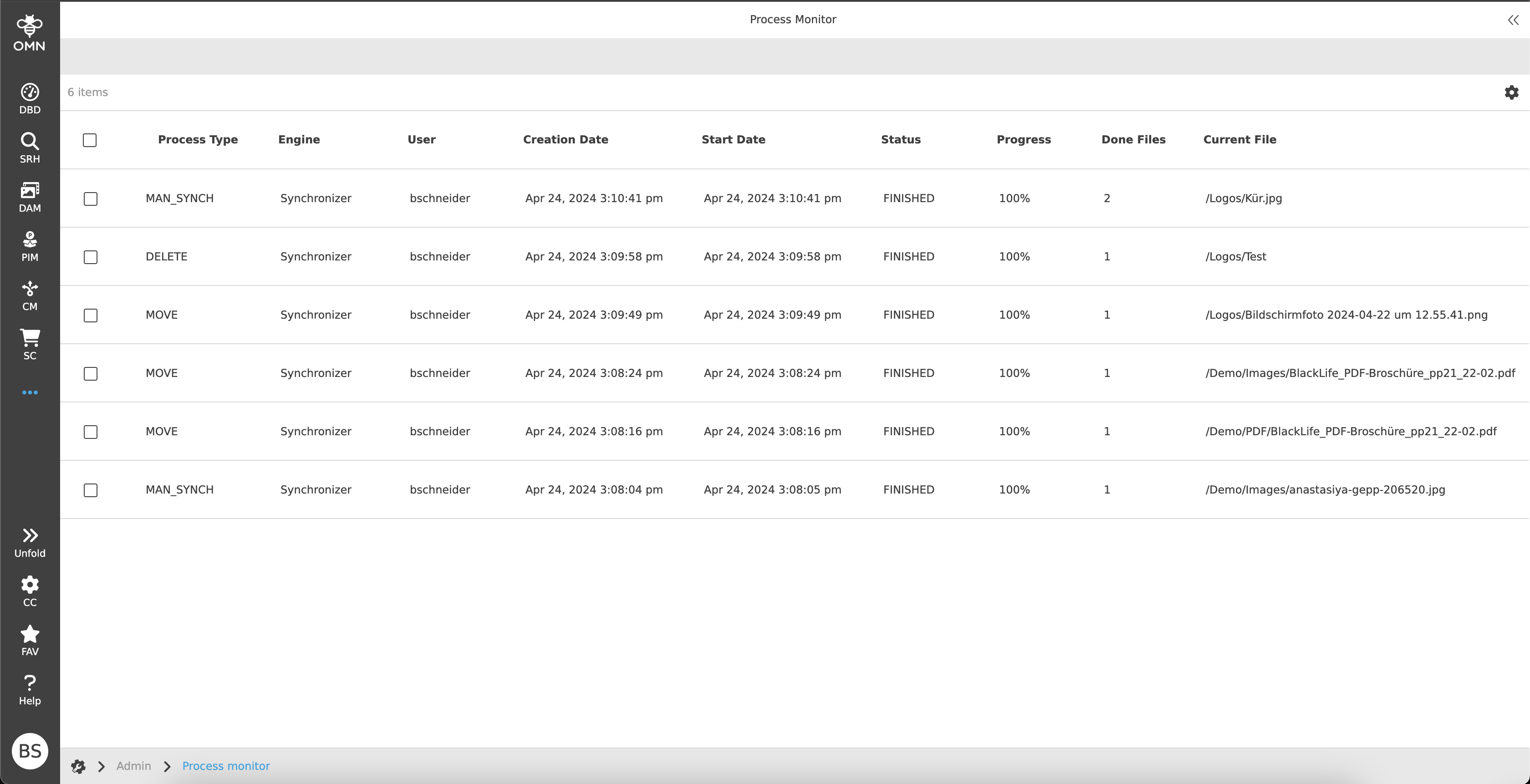
| Depending on how the configuration is set, you will either only see your own processes - or all processes in the system. |
Right View - Detailed information on a process
When you select a process, the so-called Right View is displayed on the right. It is divided into three expandable areas:
-
Runtime Information
-
Shows, among other things, creation time, start and end time, status, progress and the last processed file.
-
-
Process Information
-
Contains the ID, type, user name, job and other technical information about the process path.
-
-
Process Properties
-
Contains additional, process-specific properties that may differ depending on the type of process.
-