FTP Export and Import in OMN
The Camunda workflows for FTP import and export enable the user to either import or export data and structures from an external FTP server.
In the case of an import, the FTP folder can act as a hotfolder so that the data is kept synchronized between OMN and the external FTP server.
This documentation describes:
The configuration of the FTP export and import in the UI Administration
The following camunda deployments are available as workflow configurations in the Accelerator default, which can be orchestrated in the UI administration.
-
file-transfer-ftp-to-omn
-
Corresponding workflow configuration: F.WorkflowConfig.ACC.Transfer.FTP2OMN
-
-
file-transfer-omn-to-ftp
-
Corresponding workflow configuration: F.WorkflowConfig.ACC.Transfer.OMN2FTP
-
The user can configure the following parameters in the UI administration:
Data import from FTP
| Parameter | Meaning |
|---|---|
FTP-Host |
|
FTP-User |
|
FTP-Password |
|
FTP-Path |
|
Delete file from source |
|
Target folder flat |
|
Include subfolders |
|
One-time execution |
|
Executed workflow after transfer |
|

Data export to FTP
| Parameter | Meaning |
|---|---|
FTP-Host |
|
FTP-User |
|
FTP-Password |
|
FTP-Path |
|
Target folder flat |
|
Include subfolders |
|
One-time execution |
|

Login and usage of the data structures on an external FTP (using FileZilla)
This section briefly explains the interaction between your FTP server and OMN.
The documentation explains this using FileZilla as an example.
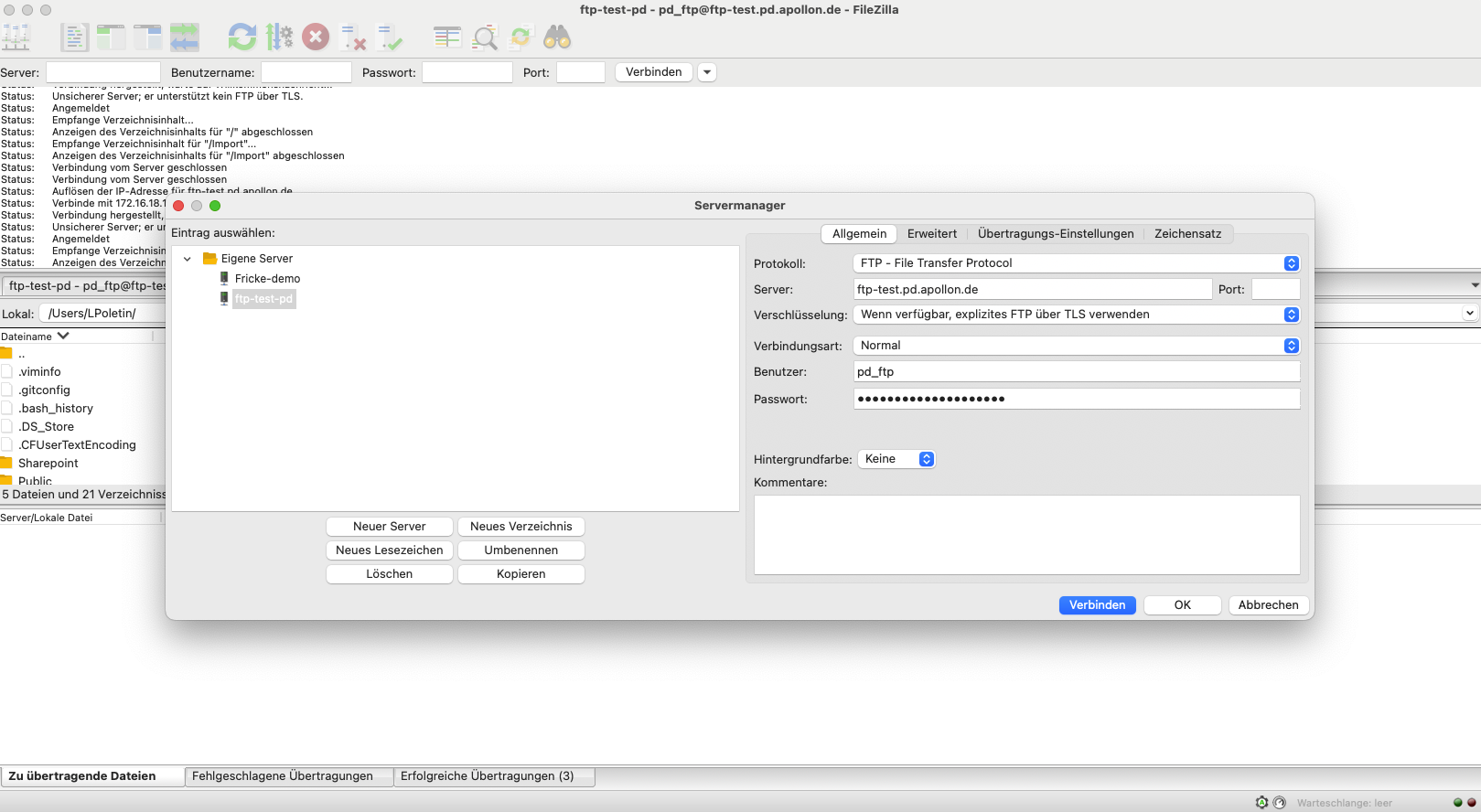
Establish a connection to your server by entering the hostname, username, password and port.
The connection information given here is the same information you need to enter in OMN.
Please note that you are using the FTP protocol.
This protocol is currently mandatory in the Camunda workflow.
| The protocol SFTP and FTPs will be supported soon. |
Execution of the export and import to folders in the DAM navigation
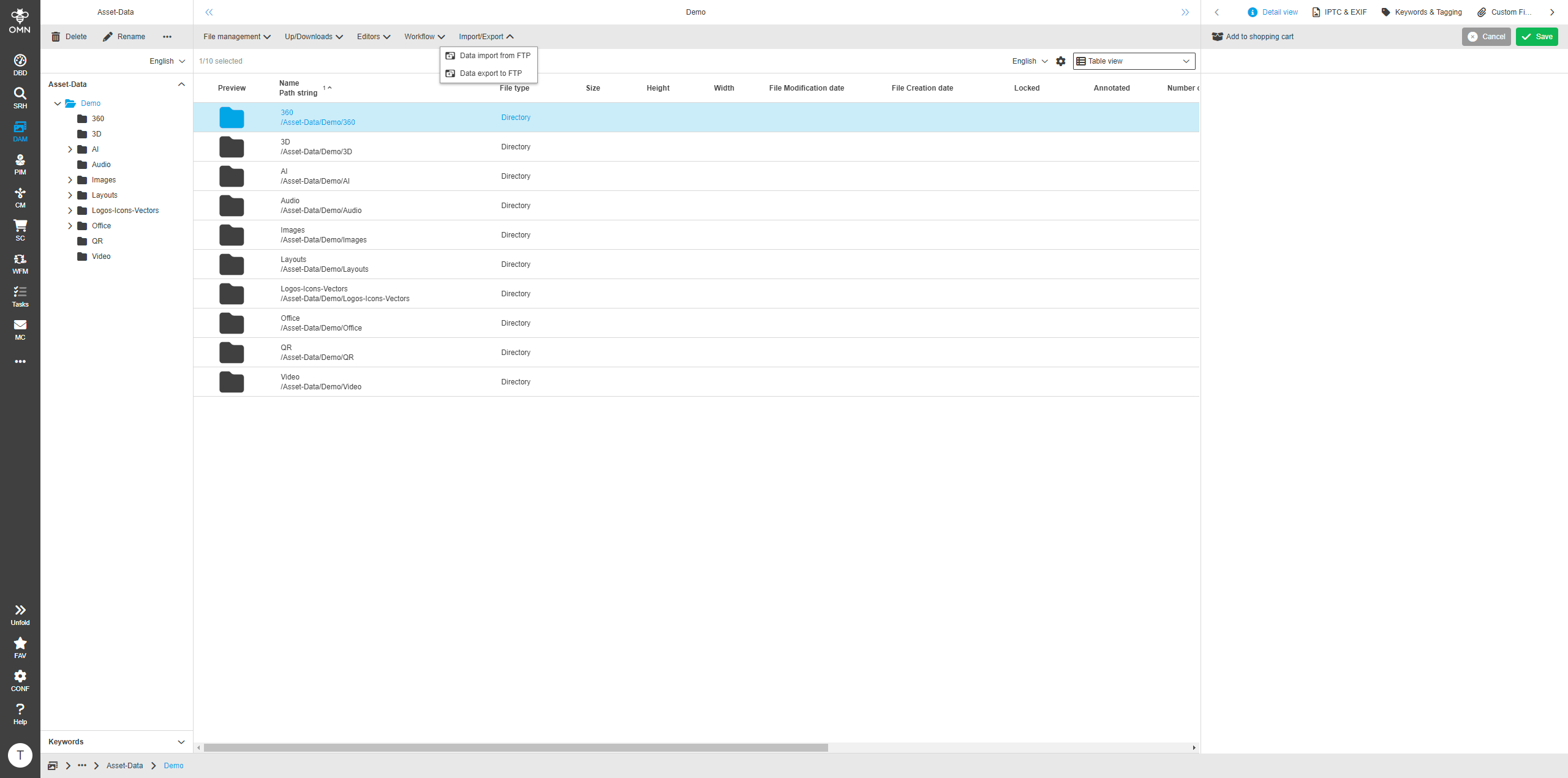
After the FTP server is setup, together with all required parameters, the data-export and -import can be started in the DAM navigation.
It’s important to keep in mind that the workflow configurations are always started on a selected folder and not on an asset.
If a folder is selected, both functions are available in the toolbar.
After clicking on the function, the process start modal is shown.
Here the user can review and change the parameters that are important for the process to start, if the needed settings don’t correspond to the default that were set in the configuration or UI administration.
Process start relevant parameters for the FTP import:
| Parameter | Meaning |
|---|---|
FTP-Host |
|
FTP-Path |
|
Delete file from source |
|
Include subfolders |
|
One-time execution |
|
Executed workflow after transfer |
|

Process start relevant parameters for the FTP export:
| Parameter | Meaning |
|---|---|
FTP-Host |
|
FTP-Path |
|
Target folder flat |
|
Include subfolders |
|

| Please keep in mind that the data export always tries to depict the complete data structure from OMN. |
|
Please keep in mind, that the import as well as the export can take quite a bit of time to complete. Refresh the folders in OMN to see the result of the data-import or -export. |