Sidebar
The Sidebar is the central control element in OMN. Users can access the main modules (such as DAM, PIM, CM, etc.) and User settings via the Sidebar. In addition, other modules such as the Shopping Cart or the Message Client can be selected directly.
The various areas of the Sidebar and their functions are described in detail in the following text.
General structure
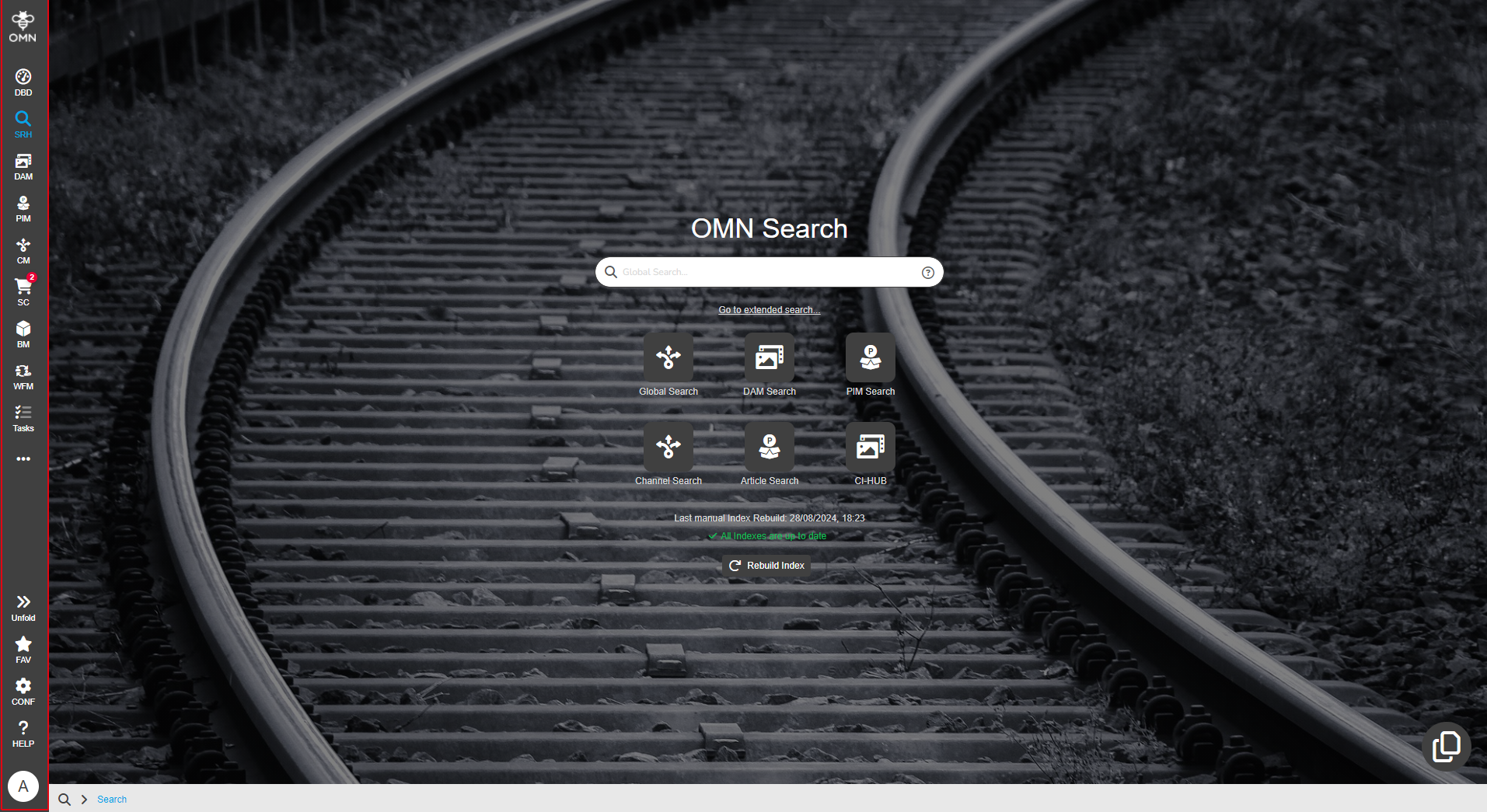
The Sidebar has the organized areas Top Bar, Button Bar and User settings.
Modules can be accessed via the Top Bar, while Help, Settings and additional functions are available in the Bottom Bar.
Modules/Functional Areas (Sidebar Navigation)
The display of the Sidebar elements depends on the user role to which your user is assigned.
Depending on the role(s) to which your user is assigned, the Sidebar can be displayed differently.
For example, a user with the role "User" has different options than an "Administrator".
Modules/Functional Areas are available in the OMN, which are defined by the Accelerator profile.

General adjustments to the Sidebar, e.g. use of other icons, are technically possible with the Configuration Client.
The following modules and functionalities are currently available in the Sidebar:
| Icon | Abbreviation | Module/function name | Use |
|---|---|---|---|
|
OMN |
Opening the start page
|
|
|
DBD |
Opens the Dashboard |
|
|
Search |
Opens the OMN Search to search for products, assets or channels |
|
|
DAM |
Opens the Digital Asset Management to manage your media data |
|
|
PIM |
Opens the Product Information Management module to manage your product data |
|
|
CM |
Opens Channel Management to manage your marketing output channels (Channels) |
|
|
SC |
Opens the Shopping Cart for collecting and providing media data |
|
|
WFM |
Opens Workflow Management for processing tasks within the framework of processes |
|
|
Tasks |
Opens the task module for processing simple tasks on assets and/or products |
|
|
MC |
Opens the Message Client for notifications from processes |
|
|
Extends the Sidebar with secondary/administrative/docked functions |
||
|
Admin |
Admin |
Opens administrative functions, such as User Management, Process Monitor oder UI Administration |
|
AREPO |
Opens the Annotation Repository for an overview of all annotations on assets |
|
|
TERM |
Opens the Terminology plugin for managing translation terms |
|
|
PLUG |
Download the OMN Page Preview Plugin for Adobe InDesign |
|
|
Unfold |
Unfold |
Folding out + fixing the Sidebar (the Sidebar is no longer folded in automatically) |
|
Fold |
Fold |
Collapse the Sidebar (the Sidebar is automatically collapsed) |
|
FAV |
Save opened area as a favorite |
|
|
CONF |
Configuration Client |
Access to the OMN Configuration Client (only with admin role) |
|
Help |
Access to the Help Page |
|
|
Access to personal User settings and logging out of the system |
||
|
Unstaple |
When a Sidebar element (Top Bar or Bottom Bar) is dragged, a detach icon appears. If the element is dropped on it, the icon is removed from the Sidebar. |


Customize the Sidebar
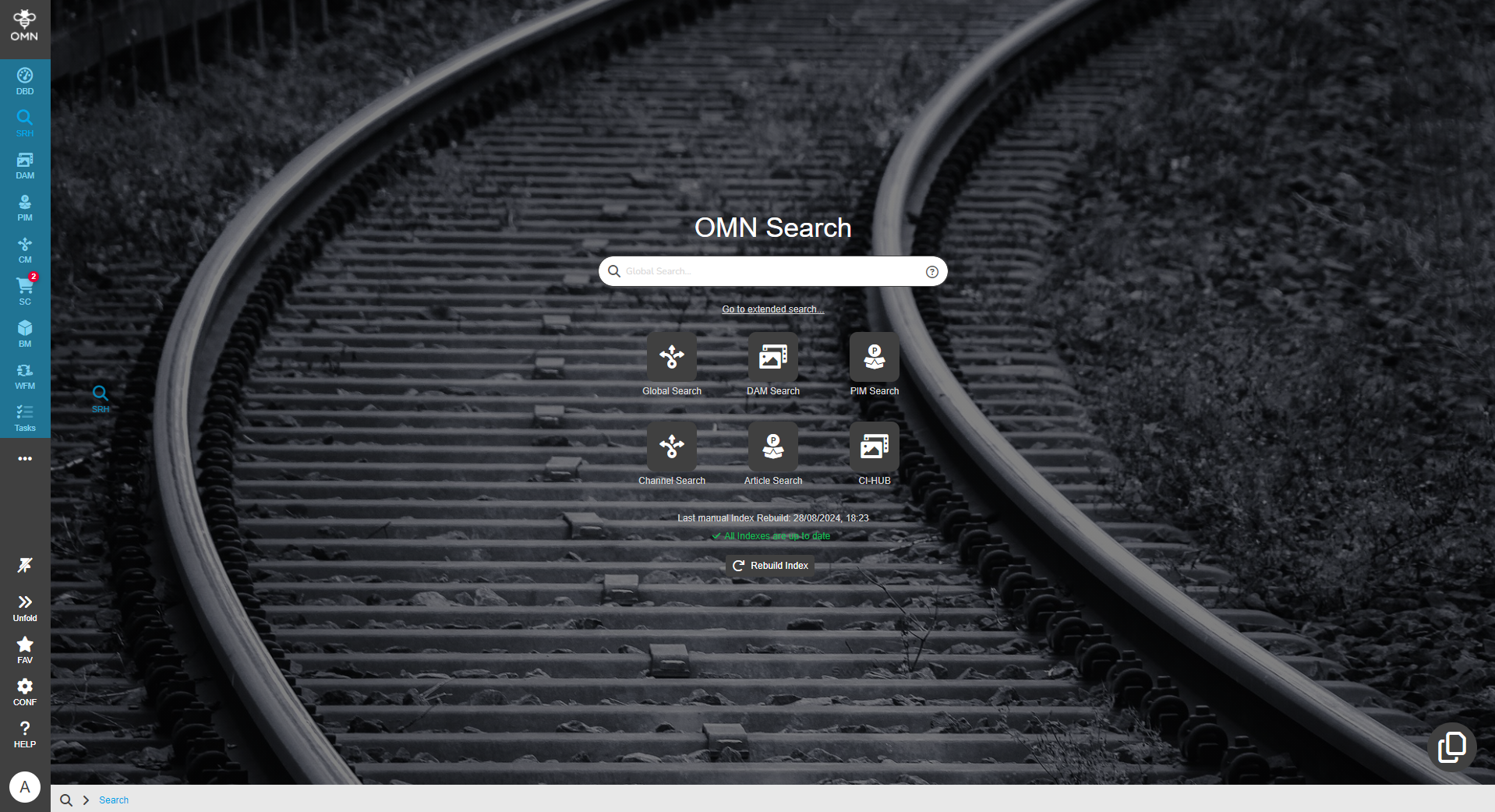
You can sort or undock visible elements in the Sidebar using drag and drop (DnD). To sort, hold down the left mouse button and drag the desired Sidebar element to the desired location. When you release the mouse button, the element is dropped at this location.
To undock an element, hold down the left mouse button and drag it to the “Undock” button and then release the mouse button.
| These changes are saved in the OMN in your user profile and are retained each time you access the OMN on other devices. |