Import Profile
Introduction
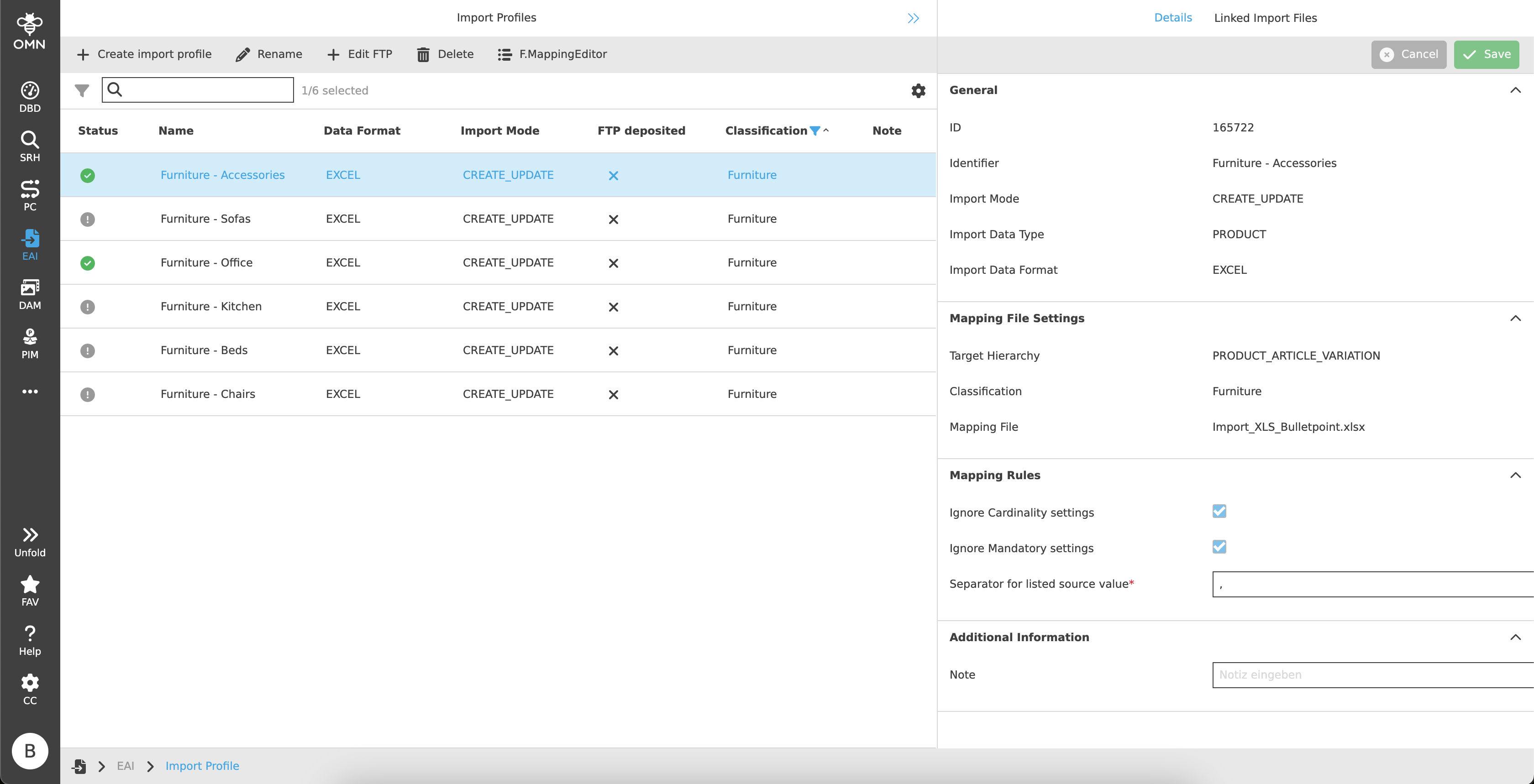
The Import Profile Plugin is used to create import profiles (currently limited to PIM product and attribute value imports) of different import modes (update, creation, creation and update).
Users can upload CSV or Excel files according to the settings and make them available for import.
As soon as the mapping in Mapping Editor has been successfully completed, the import can be controlled via the module.
Prerequisites and relations to other modules
An import can only be performed once a mapping has been successfully executed in Mapping Editor.
As soon as the import is complete, the history with the logs can be viewed in Process Controller.
How to access
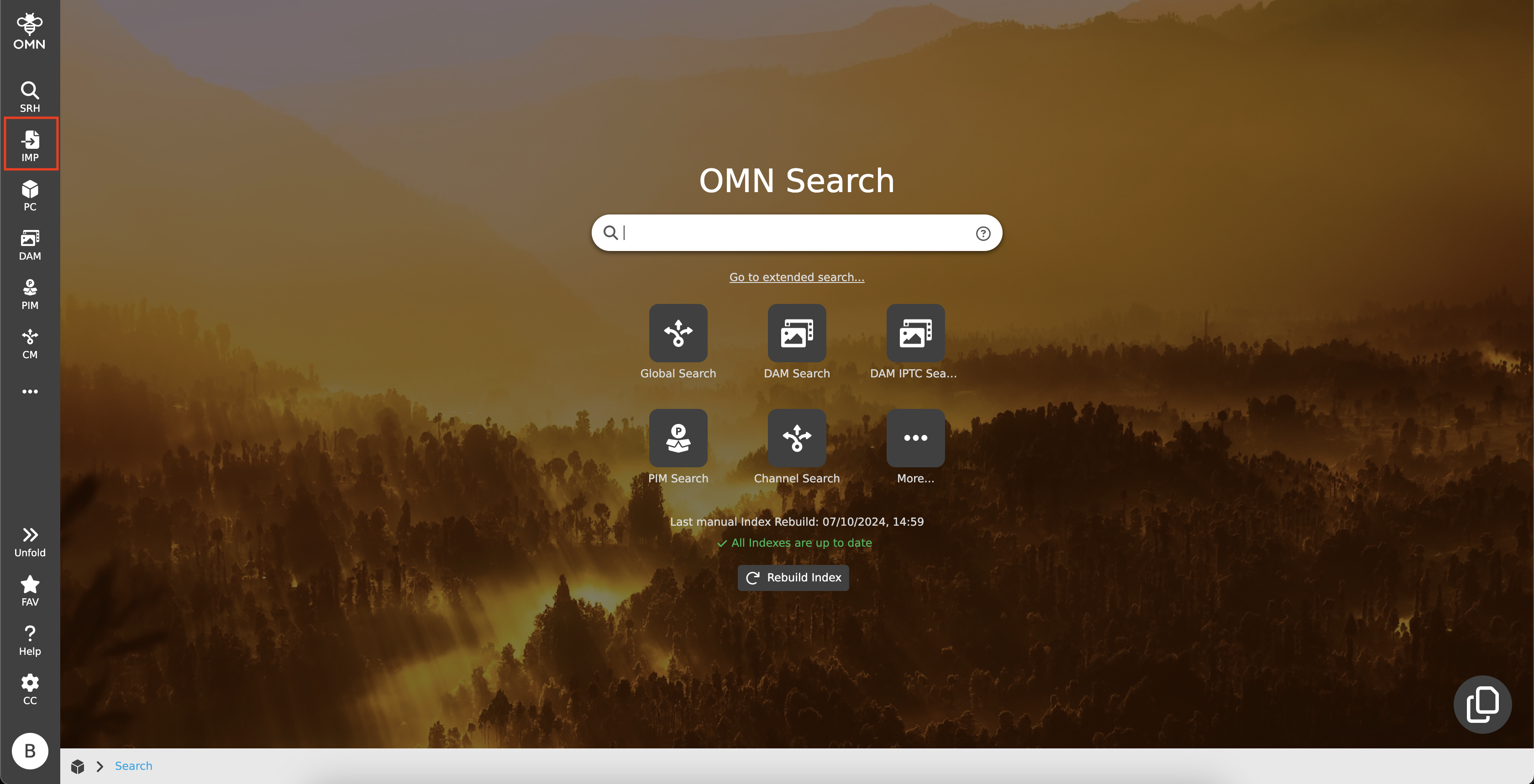
The Import Profile module can be opened directly via the sidebar.
How to use
The Import Profile module consists of a center and right view.
-
Center View
Display of import profiles -
Right View
Details of the import profiles and linked import files
Center View
Import profiles can be created and displayed in the center view. The exact structure with its functionalities is explained in more detail in the following chapters.
Toolbar & Functions
The toolbar contains the following functions:
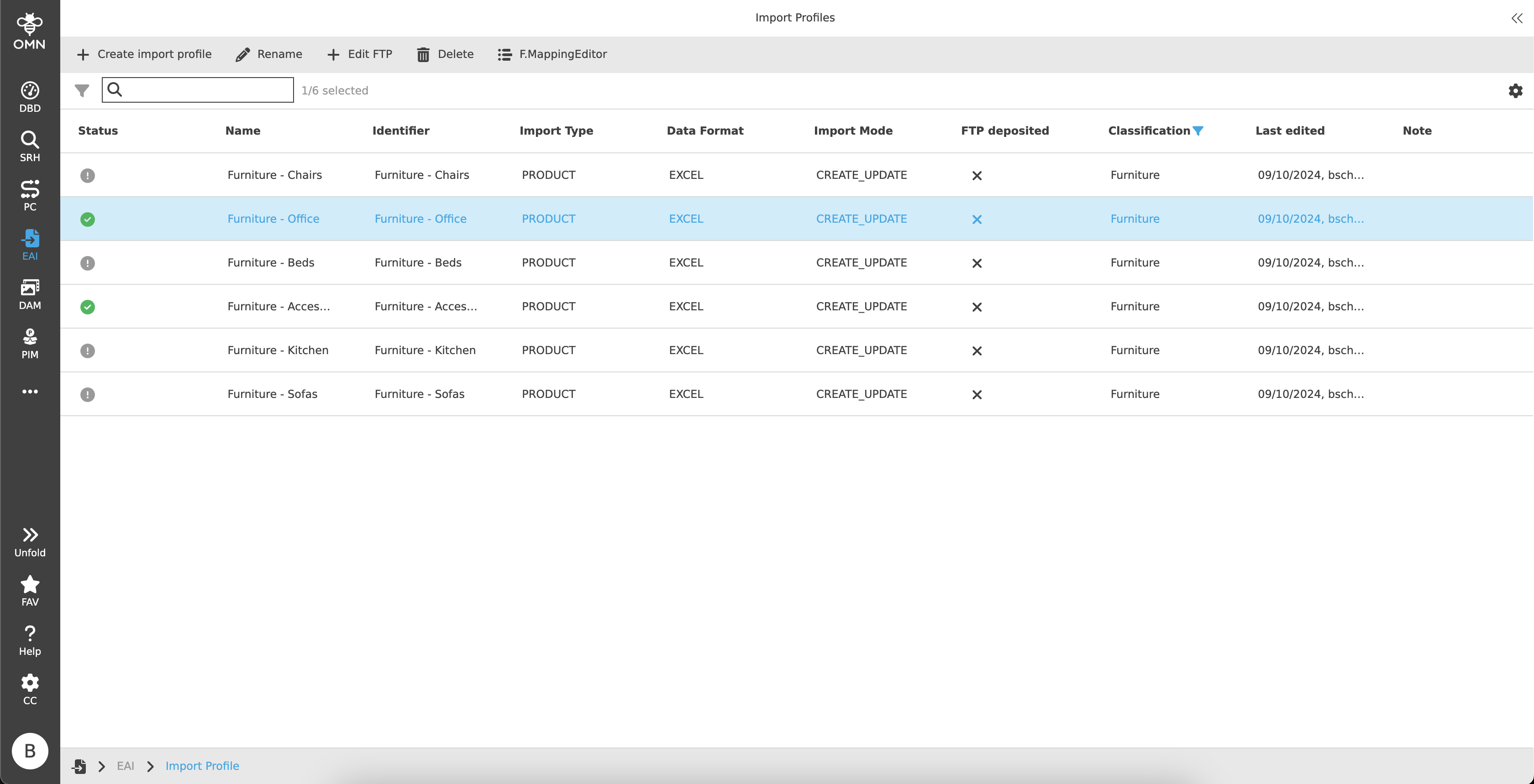
Create import profile
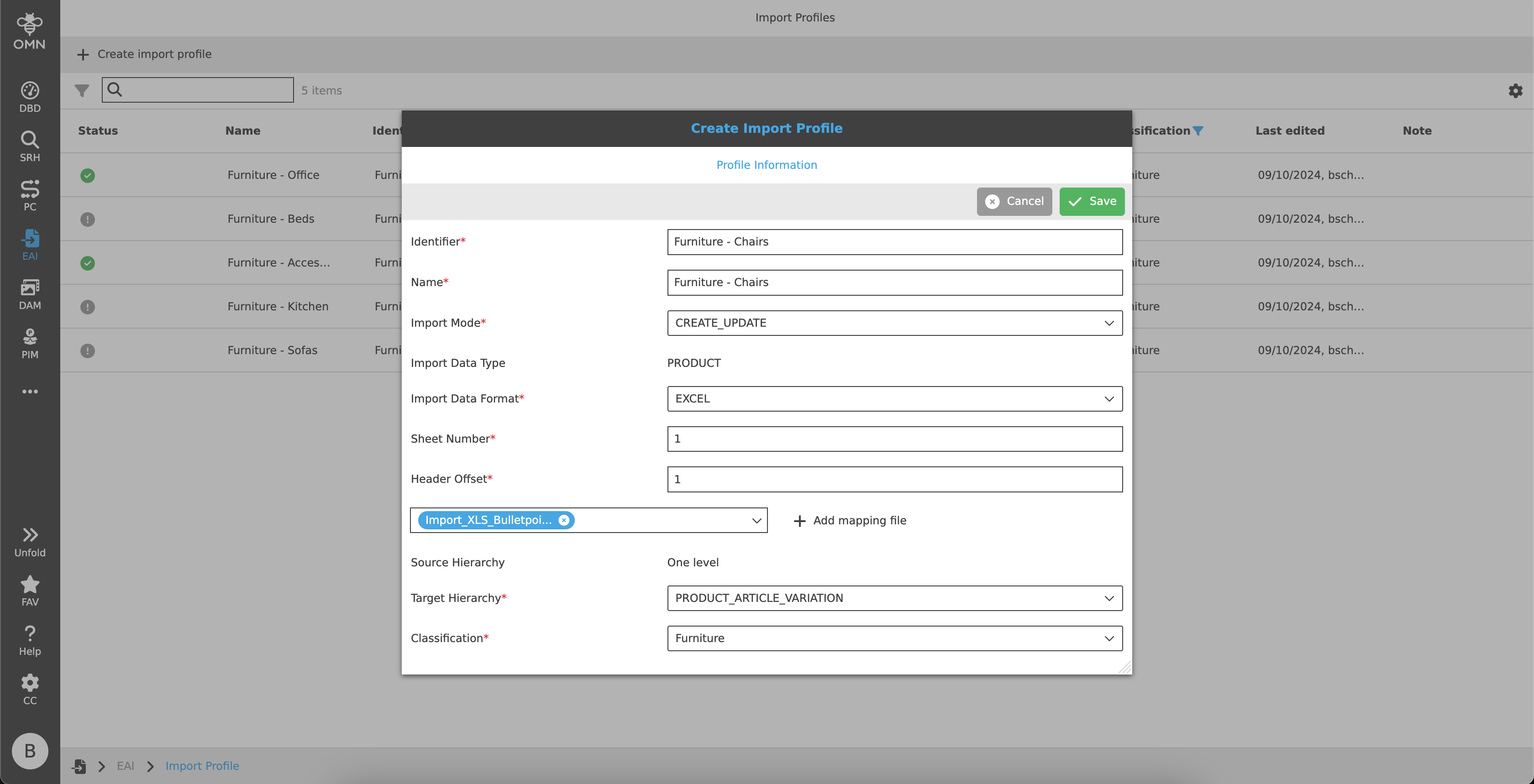
When the function is executed, a dialog opens with the following setting options:
-
Identifier
-
Import Profile Name
-
Import Mode
Dropdown to select the desired import mode-
Update
Update existing PIM items (Product, Article, Variant). -
Creation
Create new PIM items. -
Creation and Update
Create new PIM items and update existing PIM items.
-
-
Import Type
The selection is currently limited to "PIM Product and Attribute Value Import".
Further import types will follow in later versions. -
Data Format
Dropdown for selecting the desired data format-
CSV
-
CSV Delimiter The CSV delimiter specifies how the data is separated.
A semicolon (;) is always preset by default. -
Encoding The various encoding standards define which byte combination stands for which character.
Various encodings can be used, such as UTF-8, UTF-16, US-ASCII, ISO-8859-1, and many more.
UTF-8 is always preset by default.
-
-
Excel
-
Sheet Number If the Excel file contains several pages, the page that is to be imported is specified.
Page 1 is always preset by default. -
Header Offset The header offset indicates the line in which the headings are located.
The 1st line is always preset by default.
-
-
-
Mapping File Upload
-
An input field with an "Add mapping file" button is available.
-
Clicking on the button opens a dialog in which a file can be selected.
Depending on the data format, either a CSV or Excel file can be selected.
All other files cannot be selected. -
After selection, the file is displayed as a "chip" in the input field.
If this is to be replaced, the "Replace file" button must be used.
-
-
Source Hierarchy
Currently only "one level" is available. -
Target Hierarchy
Dropdown for selecting the desired target hierarchy in PIM (target structure in OMN PIM)-
Product
-
Product, Article
-
Product, Article, Variant
-
-
Classification
Dropdown with all available PIM classifications.
Open Mapping Editor
The Mapping Editor is opened.
Edit FTP
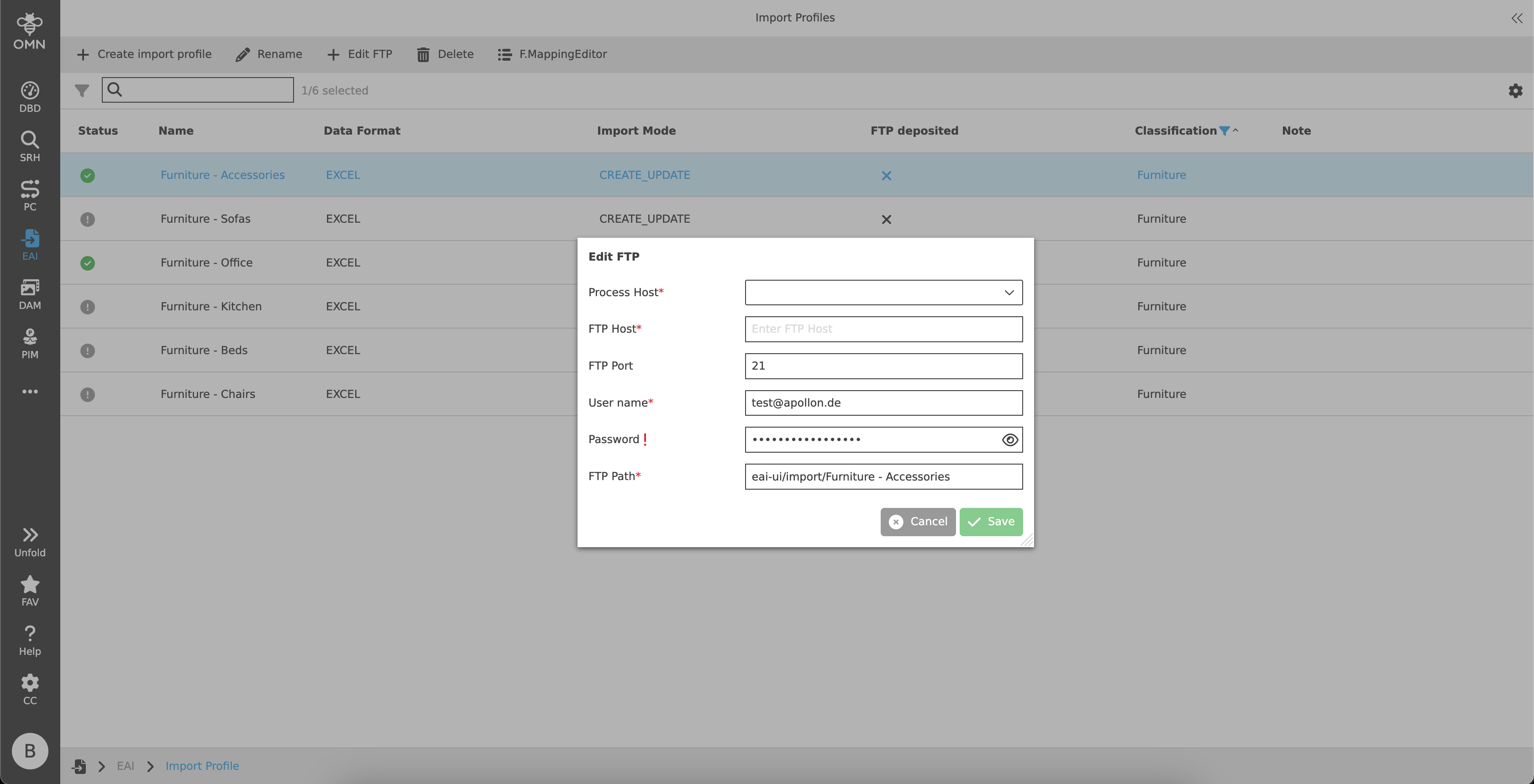
With this function it is possible to store files with products with maintained attributes not only in OMN but also on an external FTP server.
When the function is executed, a dialog opens with the following setting options:
-
Process Host
-
FTP Host
-
FTP Port
-
User name
-
Password
The password is hidden with asterisks, but can be made visible with the "eye" icon. -
FTP Path
Statusbar
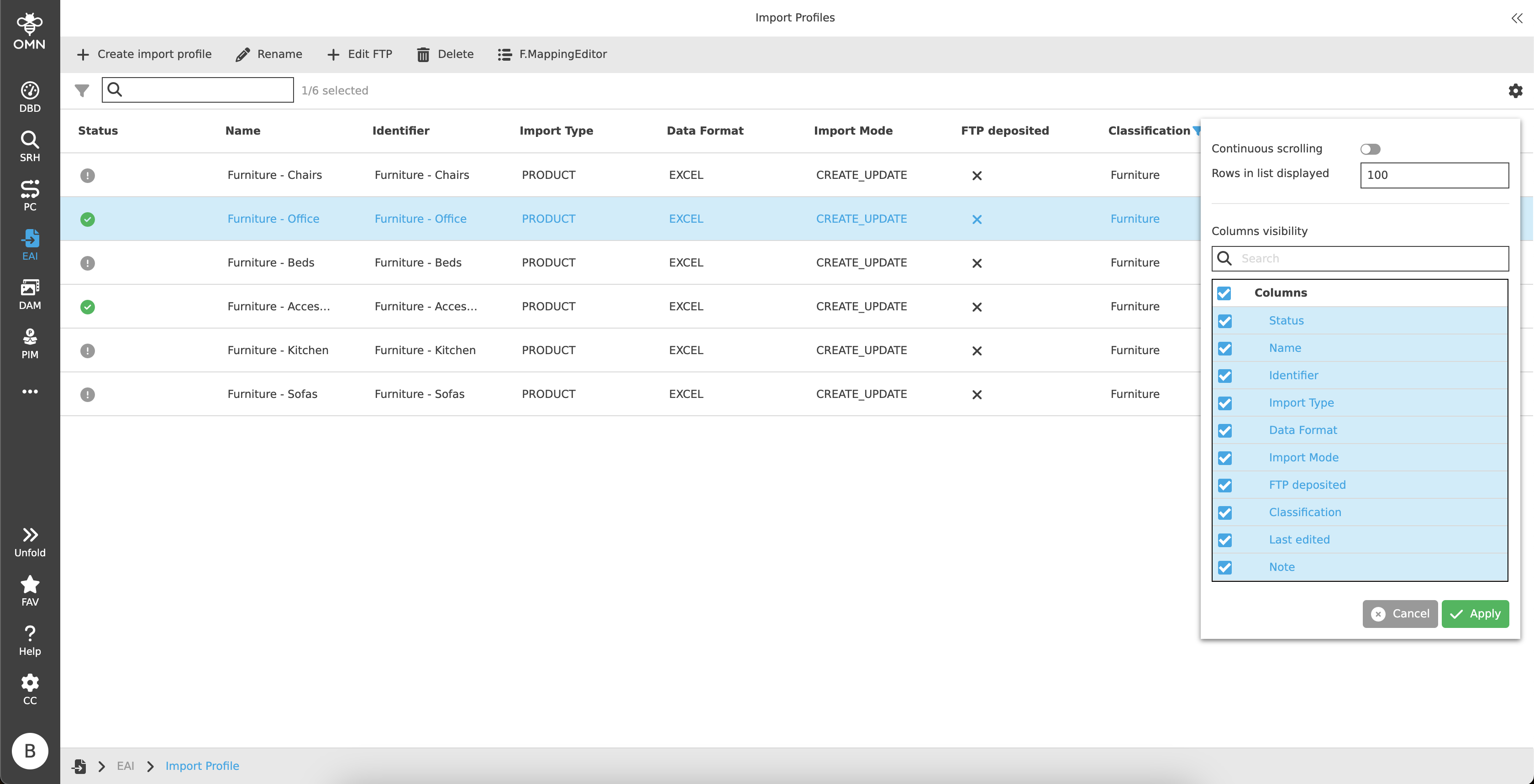
The statusbar contains a quick search with object counter as well as the statusbar settings.
Quick Search and Object Counter
A quick search is available to users to reduce content and simplify the search for specific import profiles.
One or more values can be entered here to find the desired profile.
Next to the quick search is an object counter, which displays the number of import profiles.
Canvas
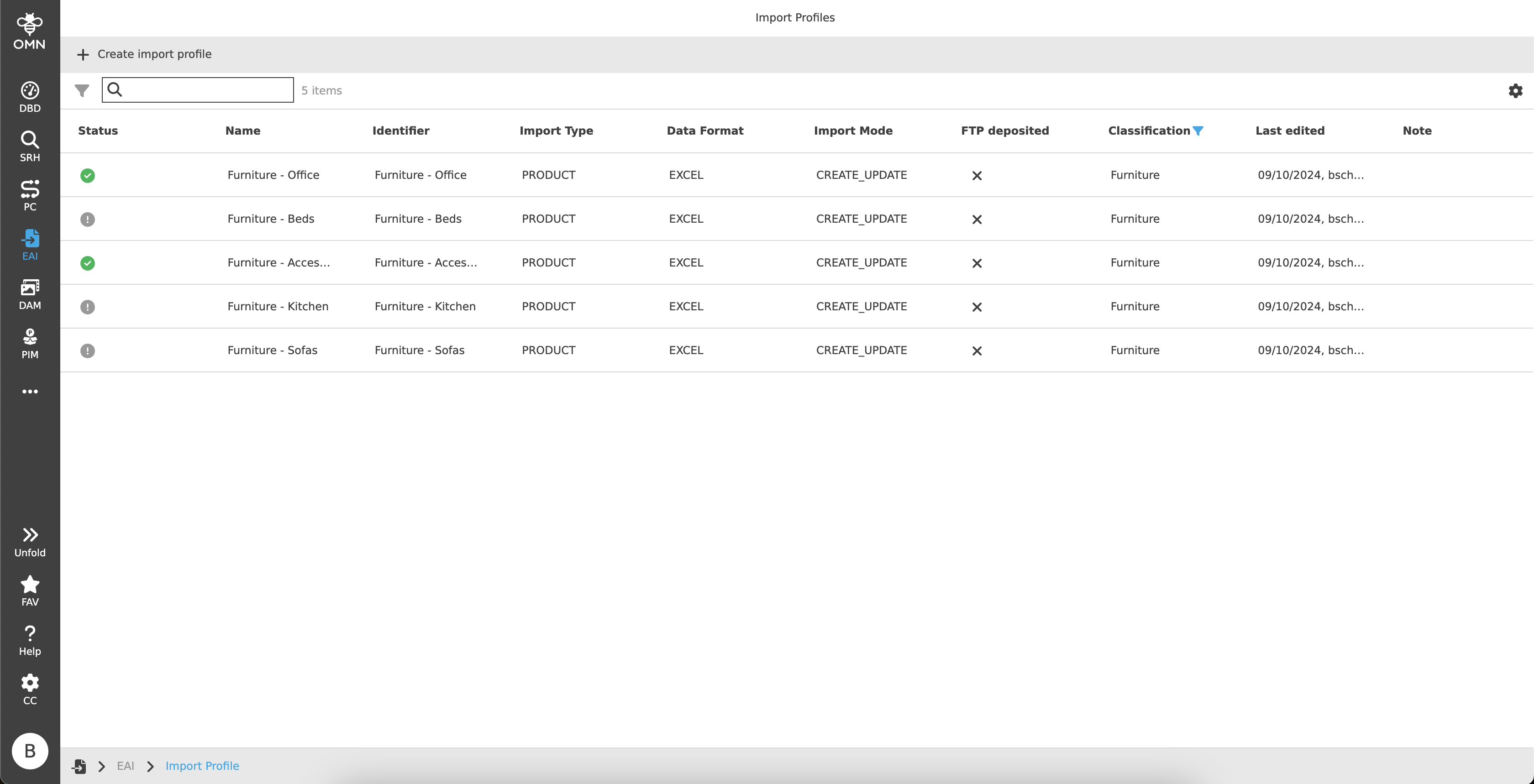
The workspace displays a table showing all available import profiles.
The table contains the following headings and content:
-
Status
The status indicates whether or not an import can be performed with an import profile.
Three different icons with the following meanings are displayed:-
gray:
Gray stands for a newly created import profile. No mapping has yet been done or it is not yet possible to start an import with this profile.
The following message is displayed when hovering over the icon:
"New import profile. It is not yet possible to import data.
This requires the Attribute Mapping, the Classification Path Mapping and at least one OMN attribute to be maintained." -
green:
The green status implies that the mapping has been completed to the extent that an import with this profile is possible.
The following message is displayed when hovering over the icon:
"It is possible to import data." -
red:
Red stands for a mapping error. This can be caused by an OMN attribute that is no longer available, among other things.
The following message is displayed when hovering over the icon:
"An error has occurred.
Please check whether the Attribute Mapping, the Classification Path Mapping and at least one OMN attribute have been maintained."
-
-
Import Profile Name
-
Identifier
-
Import Type
Only one import type is currently available.-
PIM Product and Attribute Value Import
-
-
Data Format
-
CSV
-
Excel
-
-
Import Mode
-
Update
-
Creation
-
Creation and Update
-
-
FTP deposited
-
deposited (check mark)
-
not deposited (X)
-
-
Classification
A PIM classification is assigned to each import profile. This determines which OMN attributes can be used in the mapping. -
Last edited
-
Note
| It is not possible to select more than one profile at the same time. Therefore, a function can only be executed on one line at a time. |
Right View
The view on the right is divided into two tabs:
-
Details
Detailed information on the selected import profile -
Linked Import Files
Import files linked to the selected import profile
Details
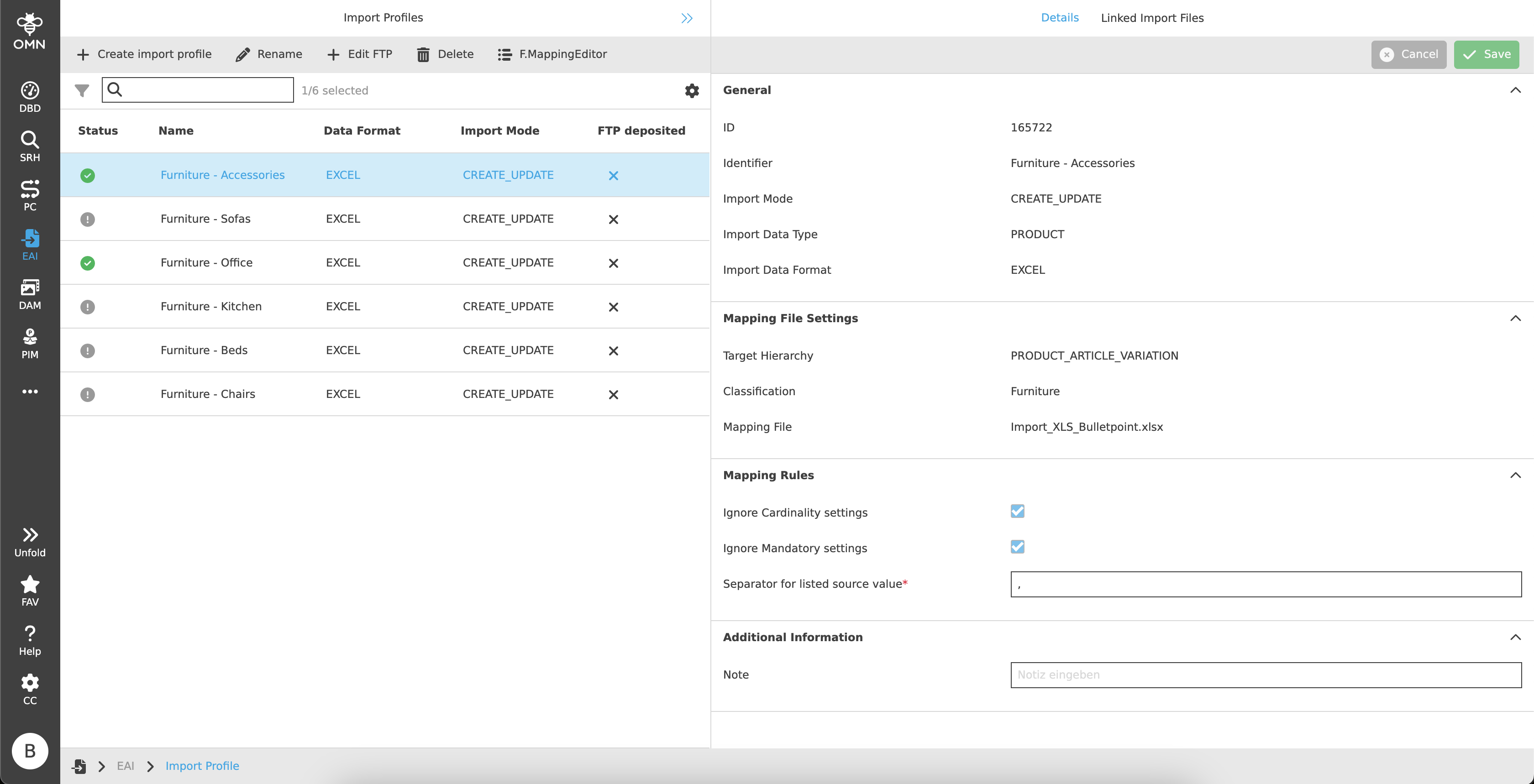
The Details tab consists of four accordions.
The respective accordions are described in more detail in the following chapters.
General
The first accordion contains general information about the import profile. These are:
-
Automatically generated ID
-
Identifier
-
Import Profile Name
-
Import Mode
-
Import Type
-
Data Format
Mapping File Settings
Information on the mapping file follows in second place.
A mapping file serves as a reference file for the subsequent mapping. The file is used in Mapping Editor to perform an exemplary mapping. All other import files must be structured according to this scheme.
| A mapping file can also be used as an import file, but is primarily used as an example/reference file. |
The accordion contains the following attributes:
-
Target Hierarchy
-
Product
-
Product, Article
-
Product, Article, Variant
-
-
Classification
A PIM classification is assigned to each import profile. This classification determines which OMN attributes can be used in the mapping. -
Mapping File
Name of the stored mapping file.
| It is not possible to change this information after creation of the import profile. |
Mapping Rules
There are three mapping rules in the third accordion:
-
Ignore Cardinality settings
The setting is active by default. The value cannot be changed and is therefore displayed as "disabled".
When importing into PIM, all cardinality settings of an OMN attribute are ignored. -
Ignore Mandatory settings
The setting is active by default. The value cannot be changed and is therefore displayed as "disabled".
When importing into PIM, all settings for mandatory fields of an OMN attribute are ignored. -
Separator for listed source value
When importing attributes with multiple values, which must be split as separate values in OMN, a separator must be used.
The user can choose the preferred separator, e.g. ",".
Linked Import Files
All import files, including the mapping file, which are linked to the import profile, are displayed within this tab.
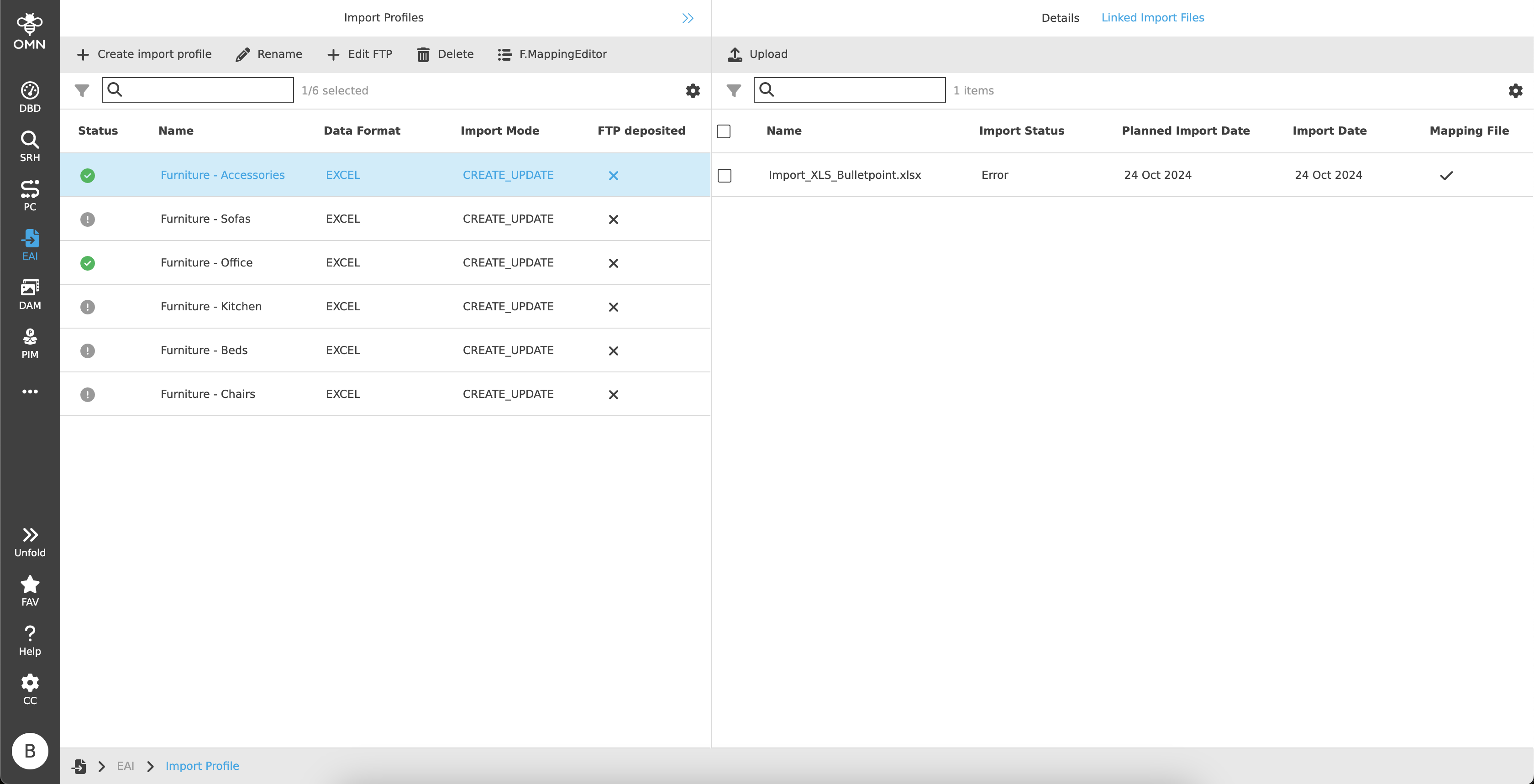
Toolbar & Functions
The toolbar contains the following functions:
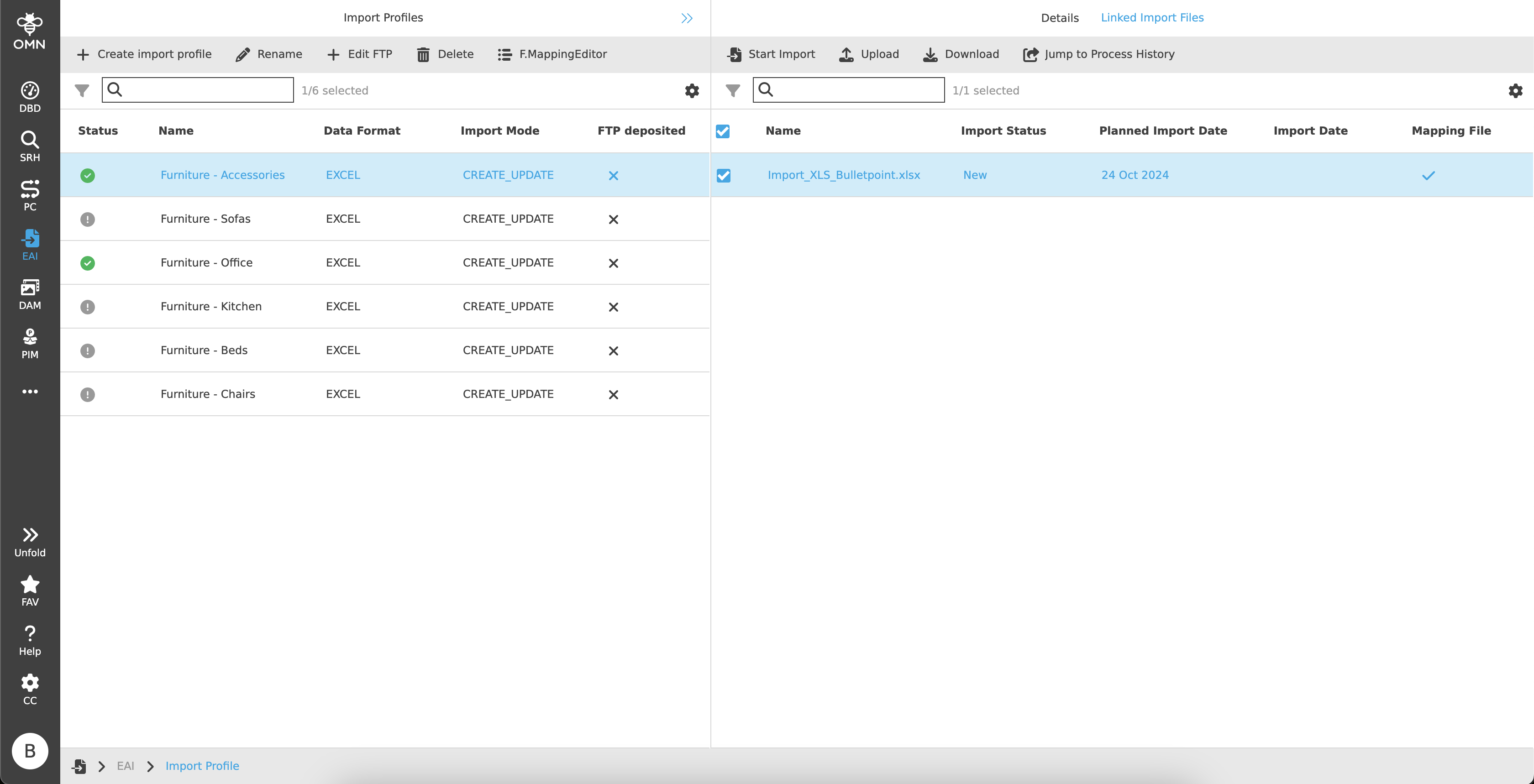
Start Import
The function is only visible if the import profile has a green status (Center View).
It is not possible to execute the function on several files at the same time. The function therefore does not appear if several files have been selected.
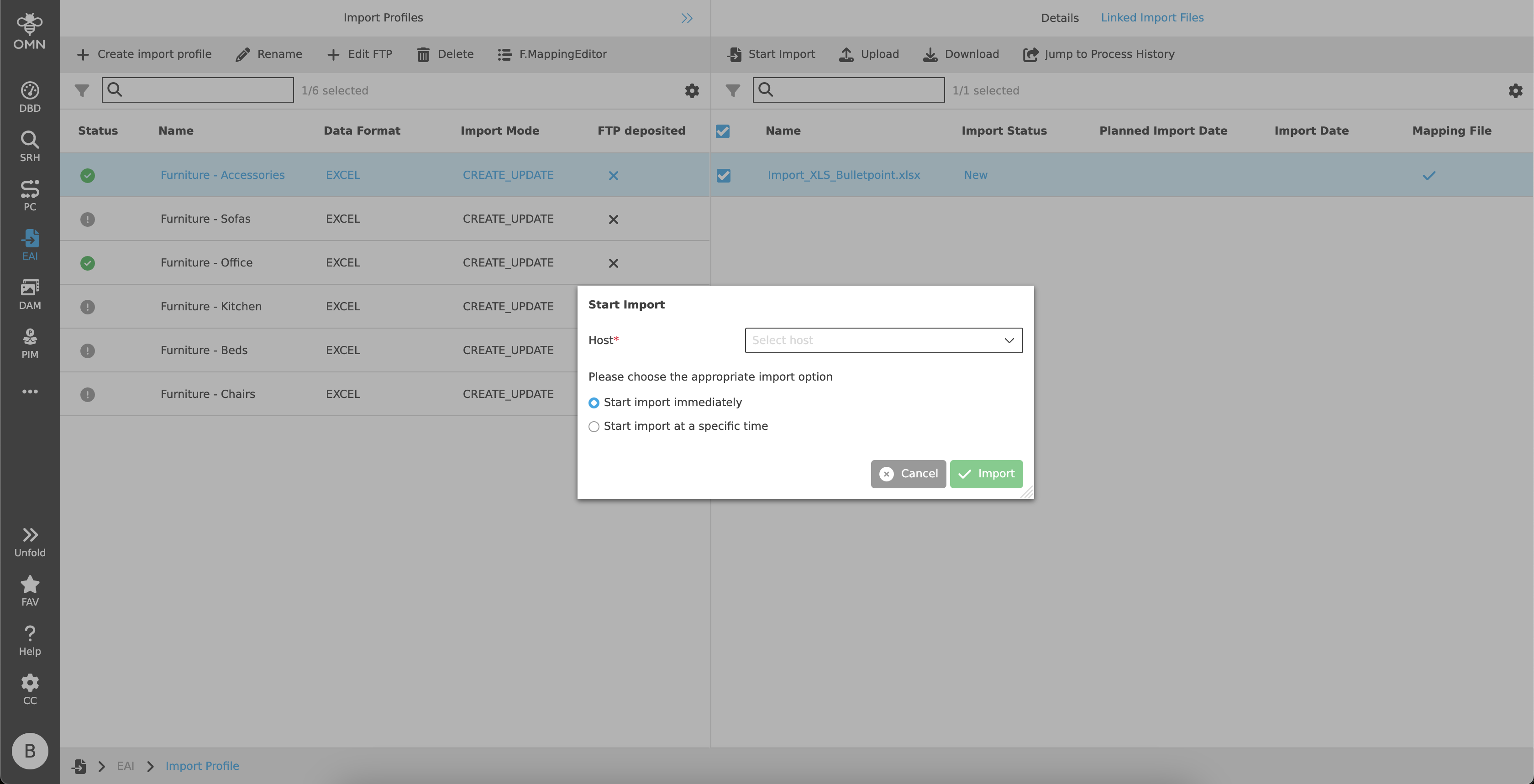
After clicking on the function, a "Start import" dialog opens:
-
Host
Dropdown to select the host. This information is mandatory. -
Choice between the following import options:
-
Start import immediately
-
Start import at a specific time
A date picker appears under the option, where both the date and time can be selected.
-
Upload
An upload dialog appears.
Only files in the corresponding file format (CSV or Excel) can be uploaded.
Delete
A dialog opens to delete the file.
| Both the file link and the original file (DAM) are deleted. |
Unlink file
The connection is removed, which means that the file is no longer visible in the import profile. The original file is retained in the DAM.
Jump to Process History
By clicking on it, the user jumps to the process history (Process Controller), where the file name is automatically pre-filtered.
Statusbar
The statusbar contains a quick search with object counter as well as the statusbar settings.
Quick Search and Object Counter
A quick search function is available to users to reduce content and simplify the search for specific files. One or more values can be entered here to find the desired file.
Next to the quick search is an object counter, which displays the number of linked import files.
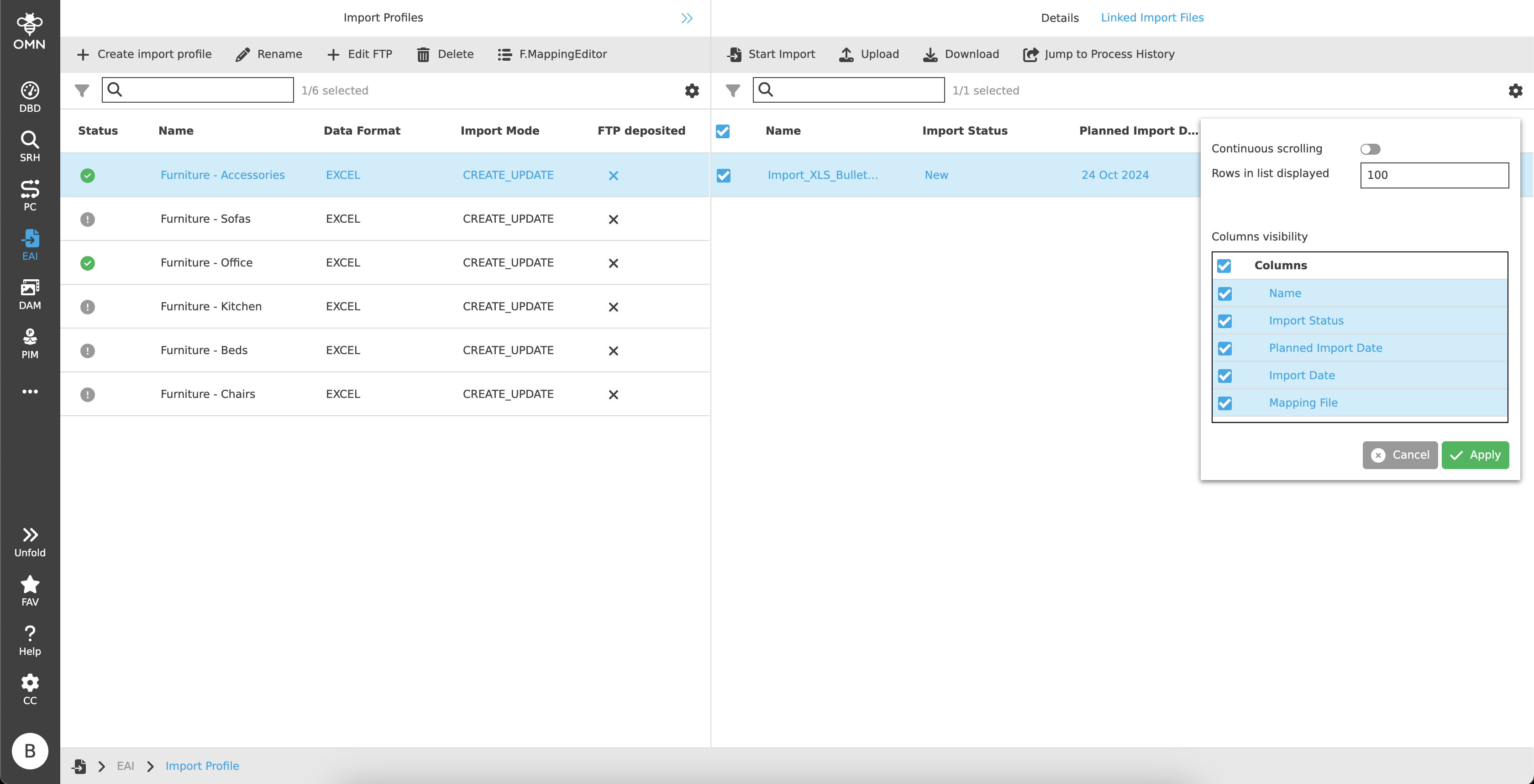
Canvas
The canvas shows all linked files that are/were used for import in tabular form.
The following columns are displayed:
-
Checkboxes (multi-selection allowed)
-
Name
-
Import Status
-
New Either no import has been planned yet or the import is planned and pending.
-
Success
The import was executed successfully. -
Warning
The import could only be carried out partially. For example, a product could be imported, but an underlying attribute could not be imported. -
Error
An error occurred during import (e.g. some products could not be imported).The "Jump to Process History" function can be used to find the source of the error as well as a file with unimported attributes.
-
-
Planned Import Date
If an import has been scheduled, this column shows the time at which the file is to be imported.
As a file can be imported multiple times, both the import date and the scheduled date can contain a value. -
Import Date
The column shows the time at which the last import of this file was completed. -
Mapping File
A check mark is displayed if the file is the mapping file.
There is only one mapping file, all other files are marked with an "X".