Global settings
Purpose
The Global settings contain different configuration options that influence the whole UI application.
General configuration
This is how the configuration looks like:
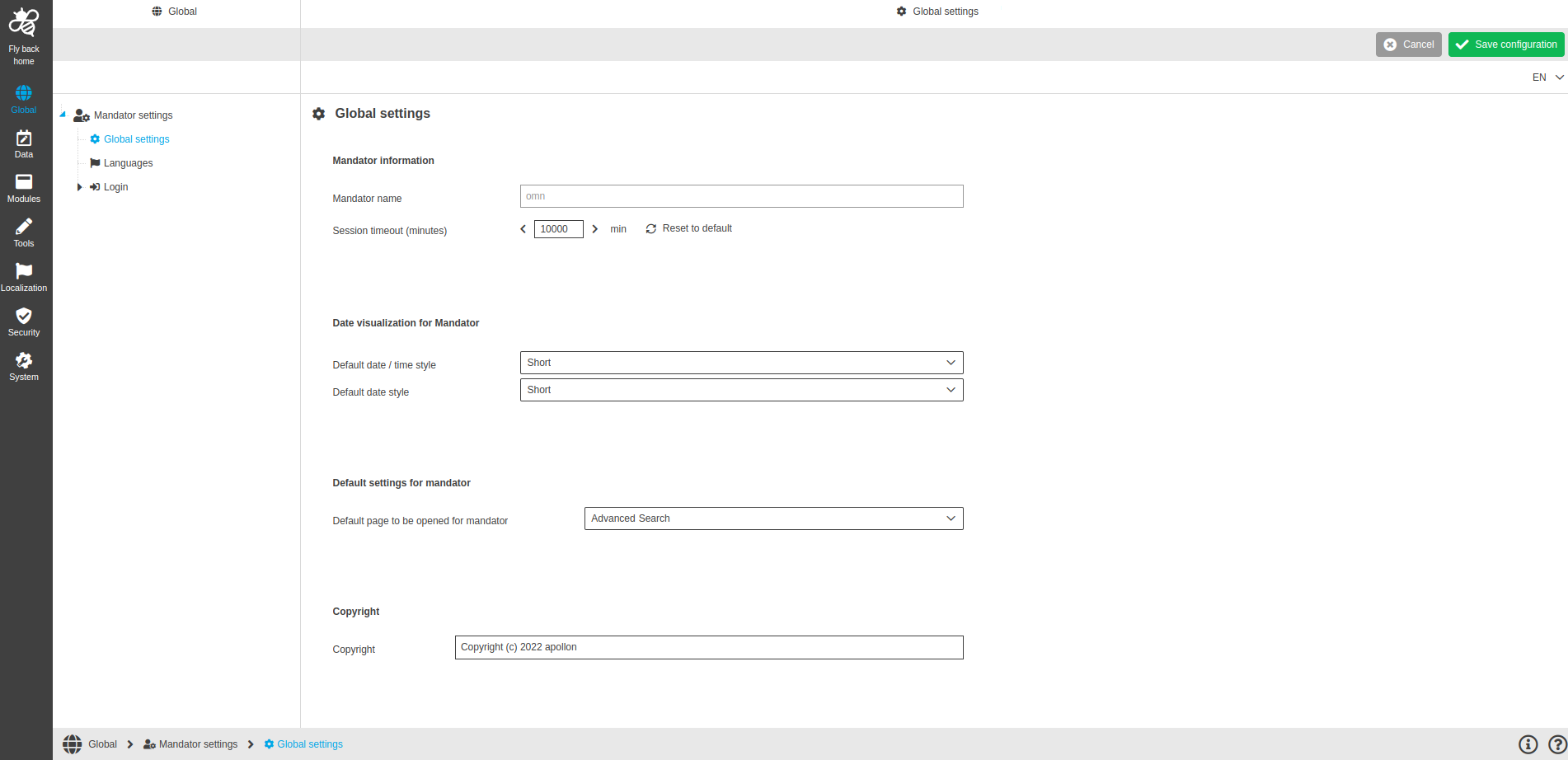
Image 1 Global settings page
The configuration of Global settings are divided into sections:
-
Mandator information
-
Date visualization for Mandator
-
Default settings for Mandator
-
Copyright
Mandator information
Name of option |
Description |
Mandator name |
You can see info about Mandator name of the currently opened Mandator in system. |
Session timeout (minutes) |
Here you can set the session timeout – this is an idle time (the period of time during which the user does not perform any action on the system) after which the user should be logged out from the application. Default value is 90 minutes. If you change it, you always have the possibility to set it back to default value. |
Date visualization for Mandator
Name of option |
Description |
Default date / time style |
Here you select a style of displaying the date/time data in the UI application. The options are :
|
Default date style |
Here you select a style of displaying the date values in the UI application. The options are the same as for date/time data:
|
| this configuration can be overwritten within configuration of FSTable and FSDetail for specific expressions. |
| Selected date styles from this configuration have no influence on dates in LightTable views, Bulk Editor and Reporting. |
Default settings for Mandator
Name of option |
Description |
Default page to be opened for Mandator |
Here you can select one of the page plugins that should be opened by default after the user logs into the system. This setting can be overwritten by the user in the User Settings of UI application. |
Copyright
Name of option |
Description |
Copyright label |
Here you can define the text of the copyright label. The label is shown in the section of system information in the User Settings of UI application. |