360 Degree Viewer
Purpose of the plugin
For the 360 Degree Viewer, many individual images of an object are strung together, creating a 3D effect. Depending on the image, it is possible to rotate this object by 180 degrees and thus view it from all sides.
Introduction
The 360 Degree Viewer makes it possible to view a 360 degree object (file composed of as many individual images as possible from different perspectives) in a 180 degree rotation.
A speed and the direction of rotation (left/right) can be defined for this.
The more images are used for the 360 degree file, the more realistic the 3D effect will be.
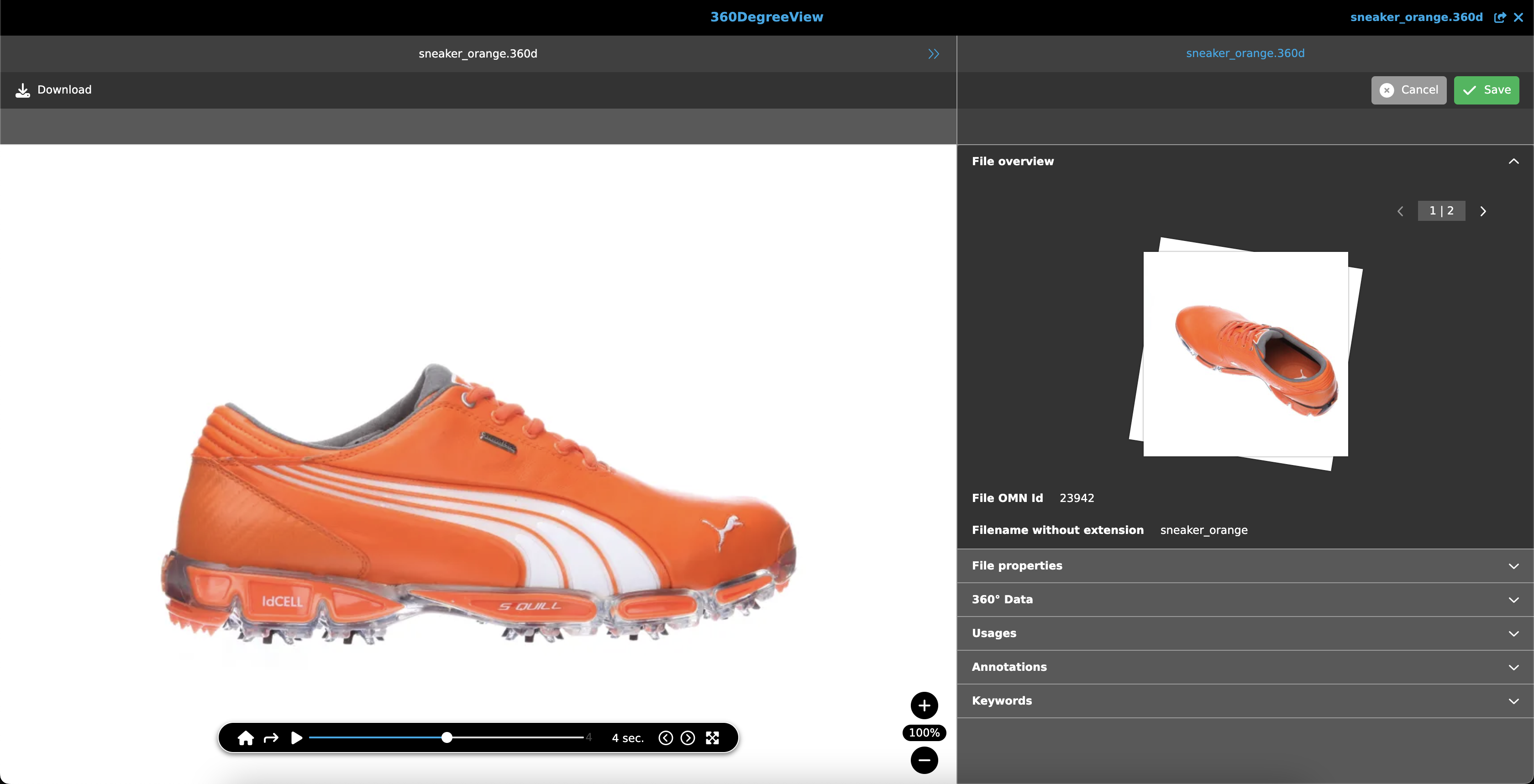
How to access
The plugin can be opened using a function in the toolbar both via the DAM and from the Product View.
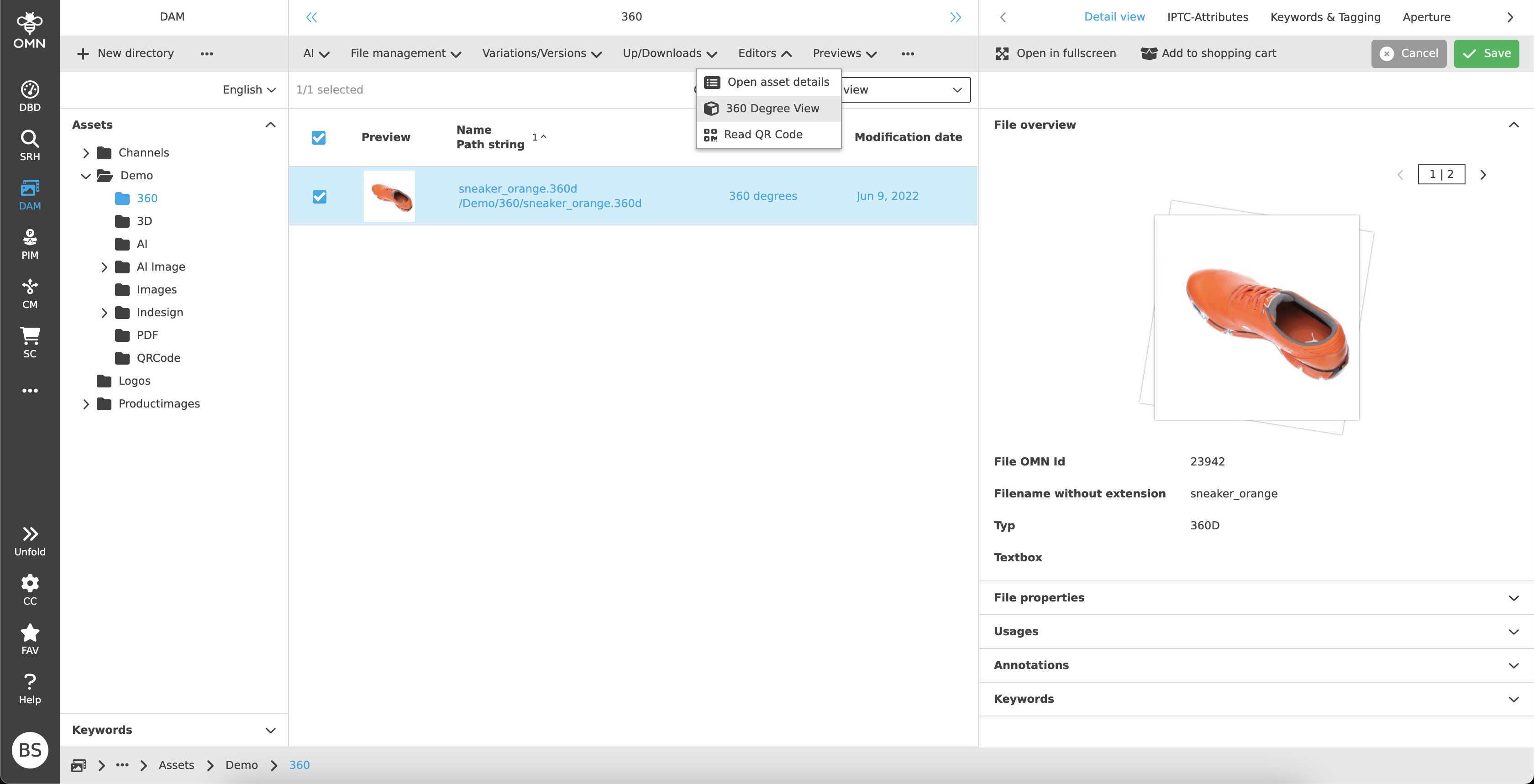
How to use
The 360 Degree Viewer consists of a center and right view.
Center View
Area in which the 360 degree file is displayed and played back
Right View
Detailed information about the file
Center View
The Center View displays the file with a 3D effect and can be viewed from all sides using a number of setting options.
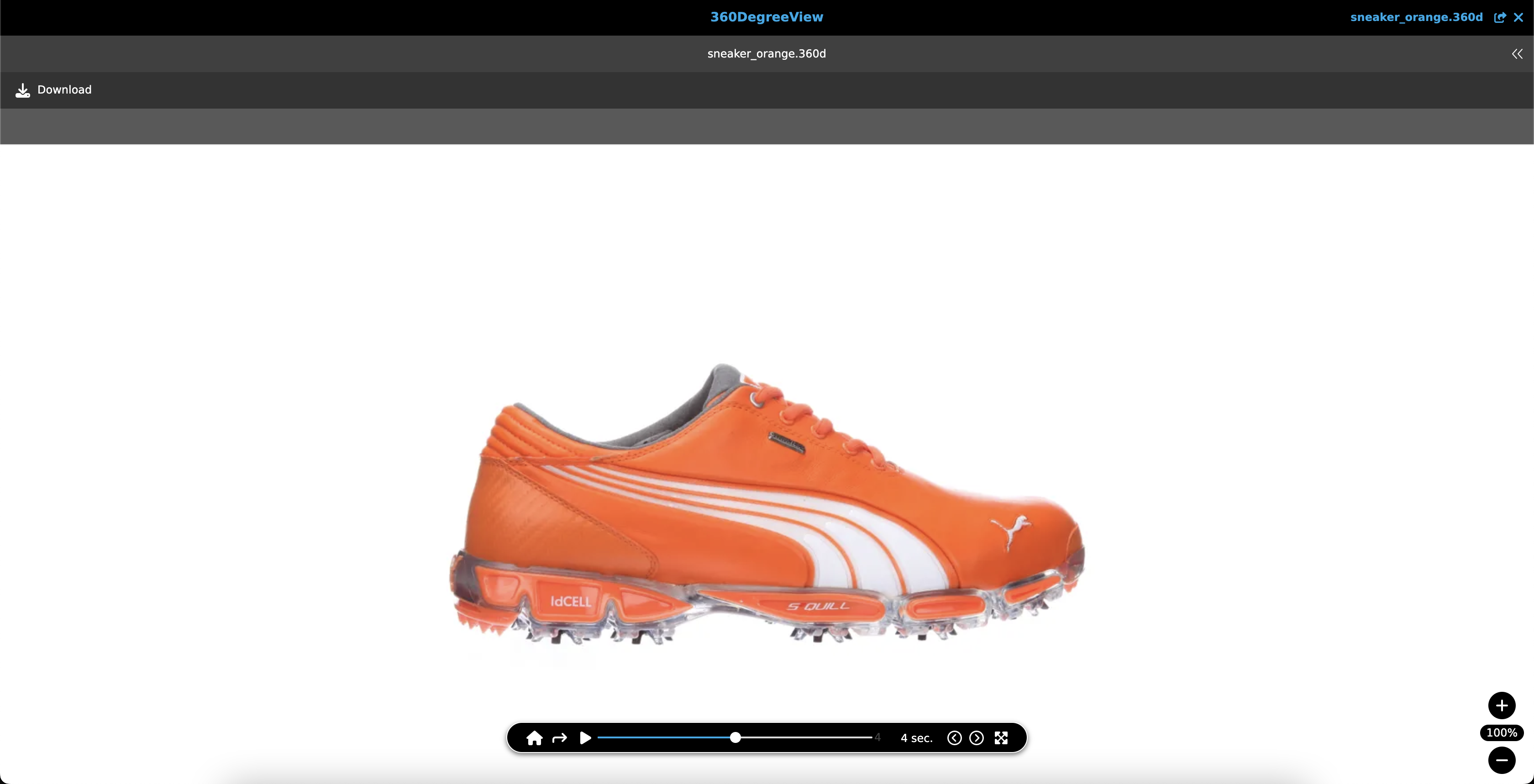
Canvas
The workspace displays the respective object in a 180° panoramic view.
A symbol bar is available at the bottom center for this purpose. This contains the following setting options:
-
 Default image
The view is reset to the default view. -
Rotation direction
Specifies the direction in which the object is to be rotated.-
 Clockwise
 -
 Counterclockwise
-
-
 Play
Play
Start of object rotation. -
Speed

Slider that specifies the speed. The selection is between one and seven seconds and is displayed next to the slider. -
Switch frames
Display of the previous or next frame.-
 Next left image
 -
 Next right image
-
-
 Full screen
In this mode, only the working area is visible, all bars and other views disappear. To close the full screen mode, either a user should press the button again or the ESC key.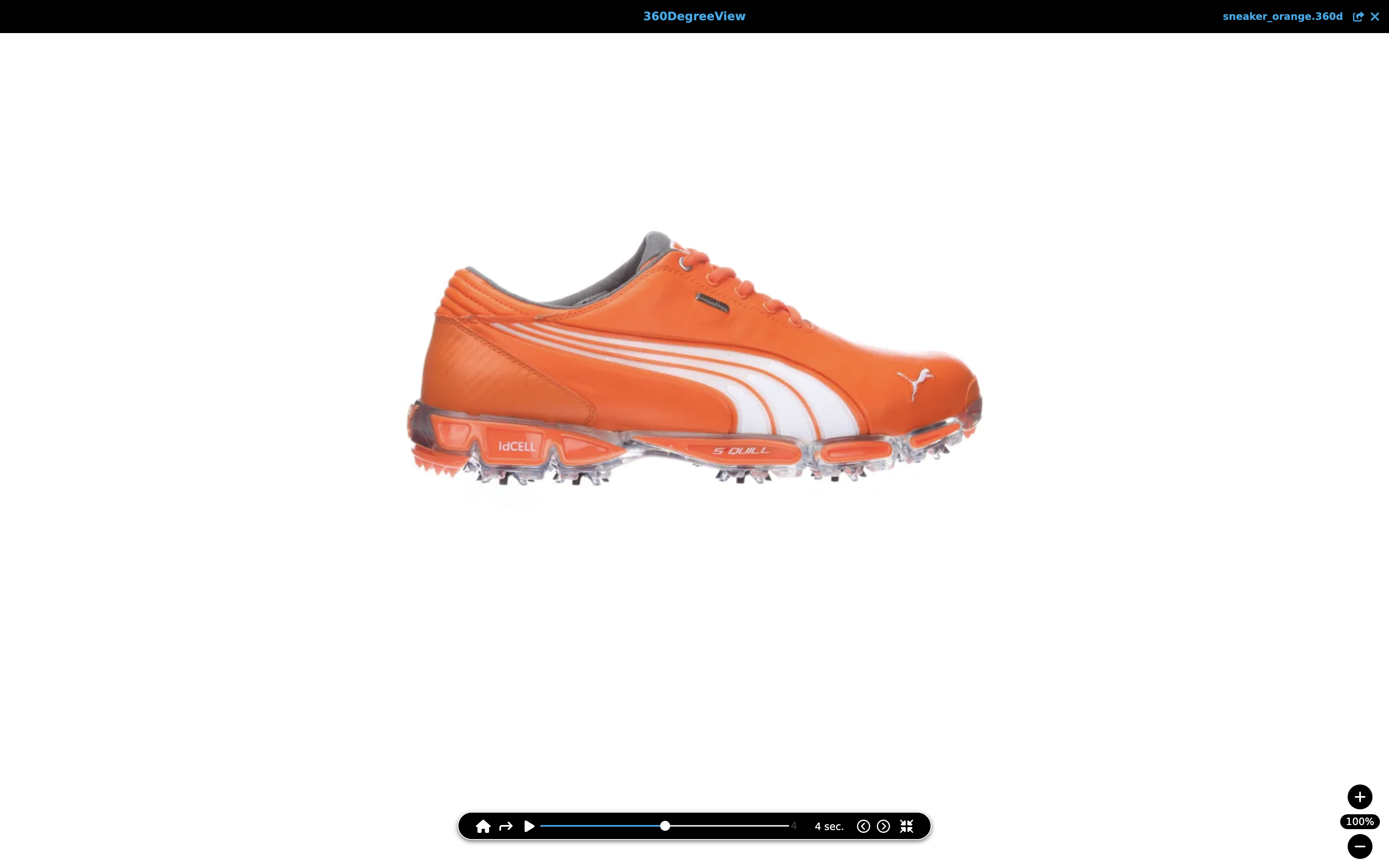 Figure 4. Full screen mode
There is also a zoom element that can be used to zoom in or out.