FTP Export and Import in OMN

The Camunda workflows for FTP import and export enable the user to either import or export data and structures from an external FTP server.
In the case of an import, the FTP folder can act as a hotfolder so that the data is kept synchronized between OMN and the external FTP server.

This documentation describes:

The configuration of the FTP export and import in the UI Administration

The following camunda deployments are available as workflow configurations in the Accelerator default, which can be orchestrated in the UI administration.

  • file-transfer-ftp-to-omn

    • Corresponding workflow configuration: F.WorkflowConfig.ACC.Transfer.FTP2OMN

  • file-transfer-omn-to-ftp

    • Corresponding workflow configuration: F.WorkflowConfig.ACC.Transfer.OMN2FTP

The user can configure the following parameters in the UI administration:

Data import from FTP

Parameter Meaning

FTP-Host

  • Enter the hostname of the FTP-server to connect to

FTP-User

  • Enter the name of your FTP-user

FTP-Password

  • Enter the password of your FTP-user

FTP-Path

  • Enter a relative path according to the folder structure on the FTP server

  • Please keep in mind that the path needs to point to a directory/folder

Delete file from source

  • Automatic deletion of the files in the given FTP-path after successful import into OMN. If "Include subfolders" is enabled, files in sub-directories are also deleted

Target folder flat

  • Currently always active

  • All data that is stored in nested structures on the FTP server path is imported flat into the OMN import target folder, this means that the data structures on the FTP server are not mapped within OMN, but only a pure file import takes place.

Include subfolders

  • If active, the data on the FTP-server is being retrieved recursively, meaning all data in subfolders are considered for the import.

  • If inactive, only data in the given FTP-directory (property "FTP-Path") are imported

One-time execution

  • When executed once, data is retrieved and imported from the FTP each time the process is started (by clicking on the corresponding toolbar function in the DAM navigation)

  • If deactivated, the given FTP-directory is being used as a hotfolder. OMN checks all files on the FTP-server in a regular interval for changes, which are then imported. By default, the FTP server is checked approximately every second. The interval can only be adjusted directly in the workflow BPMN, as not all parameters are mapped to the frontend configuration.

  • Please keep in mind that only long-running processes are displayed in OMN.

Executed workflow after transfer

  • After the FTP import successfully imported all files, a workflow can automatically be triggered which then modifies the files further.

User Guide workflow automations import ui admin
Figure 1. Data import from FTP - Settings in the UI administration

Data export to FTP

Parameter Meaning

FTP-Host

  • Enter the hostname of the FTP-server to connect to

FTP-User

  • Enter the name of your FTP-user

FTP-Password

  • Enter the password of your FTP-user

FTP-Path

  • Enter an absolute or relative path according to the folder structure on the FTP server

Target folder flat

  • All data with their structure (meaning subfolders) will be exported to the FTP server

Include subfolders

  • If active, subfolders and their contents will also be transferred to the FTP server

  • If inactive, only contents of the current directory will be transferred to the FTP server

One-time execution

  • The one-time execution is always active and disabled for the export, meaning that the process is started once, the data is transferred and then the process is completed. If additional data should be exported to the FTP server, the function needs to be run again.

  • Please keep in mind that one-time exports aren’t shown in the workflow statuslist or the tasklist.

User Guide workflow automations export ui admin
Figure 2. Data export to FTP – Settings in the UI administration

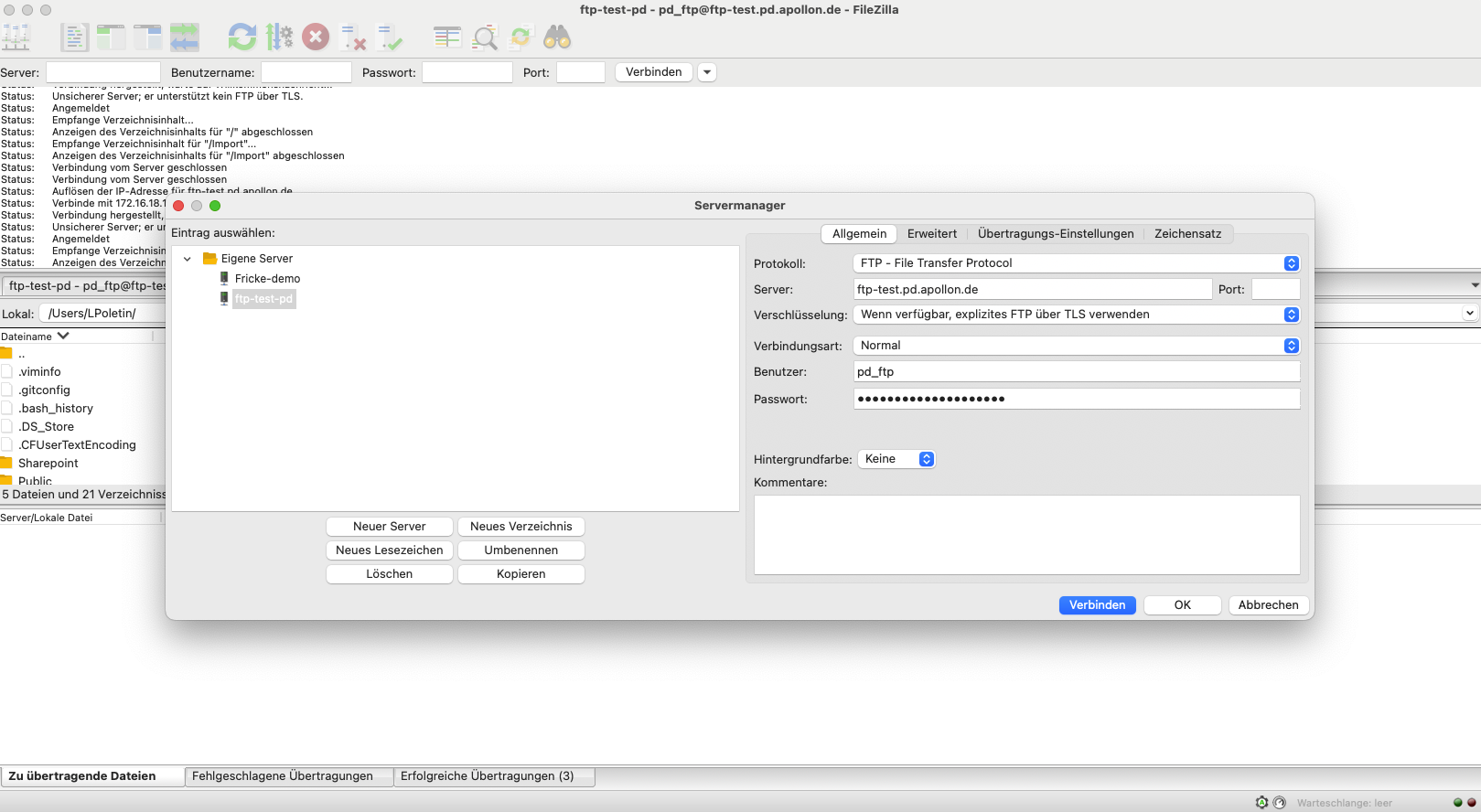
Login and usage of the data structures on an external FTP (using FileZilla)

This section briefly explains the interaction between your FTP server and OMN.
The documentation explains this using FileZilla as an example.
Establish a connection to your server by entering the hostname, username, password and port.
The connection information given here is the same information you need to enter in OMN.
Please note that you are using the FTP protocol.
This protocol is currently mandatory in the Camunda workflow.

The protocol SFTP and FTPs will be supported soon.
User Guide workflow automations ftp
Figure 3. Required login details and protocol on the FTP server

Execution of the export and import to folders in the DAM navigation

After the FTP server is setup, together with all required parameters, the data-export and -import can be started in the DAM navigation.
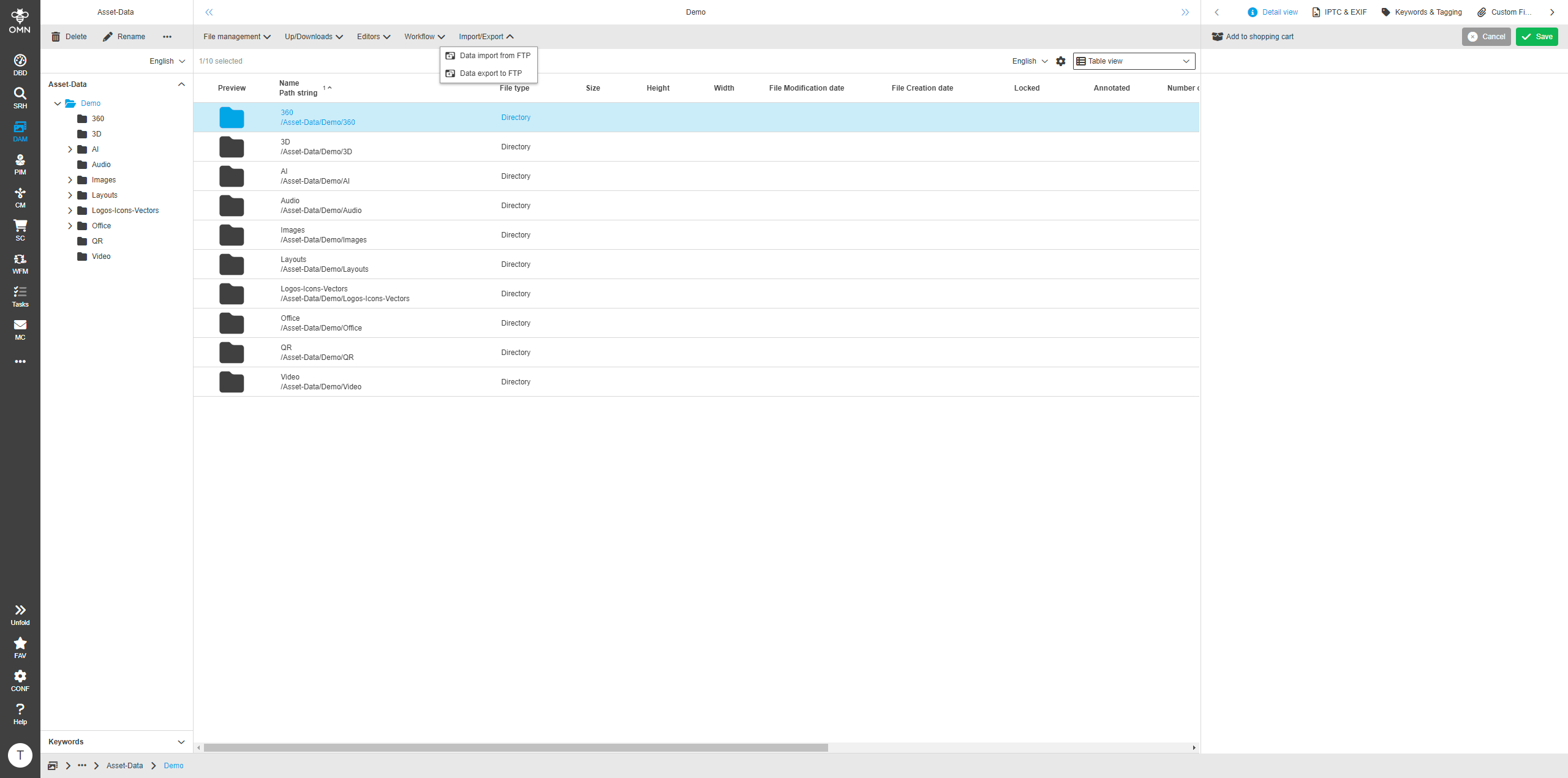
It’s important to keep in mind that the workflow configurations are always started on a selected folder and not on an asset.

If a folder is selected, both functions are available in the toolbar. After clicking on the function, the process start modal is shown.
Here the user can review and change the parameters that are important for the process to start, if the needed settings don’t correspond to the default that were set in the configuration or UI administration.
User Guide workflow automations functions
Figure 4. Toolbar functions for data-import and -export FTP

Process start relevant parameters for the FTP import:

Parameter Meaning

FTP-Host

  • Hostname of the FTP-server to connect to for the import (read-only information)

FTP-Path

  • Enter an absolute or relative path according to the folder structure on the FTP server

Delete file from source

  • Automatic deletion of the files in the given FTP-path after successful import into OMN. If "Include subfolders" is enabled, files in sub-directories are also deleted.

Include subfolders

  • If active, the data on the FTP-server is being retrieved recursively, meaning all data in subfolders are considered for the import.

  • If inactive, only data in the given FTP-directory (property "FTP-Path") are imported.

One-time execution

  • When executed once, data is retrieved and imported from the FTP each time the process is started.

  • If deactivated, the given FTP-directory is being used as a hotfolder. OMN checks all files on the FTP-server in a regular interval for changes, which are then imported. By default, the FTP server is checked approximately every second. The interval can only be adjusted directly in the workflow BPMN, as not all parameters are mapped to the frontend configuration.

  • Please keep in mind that only long-running processes (checkbox inactive) are displayed in OMN.

Executed workflow after transfer

  • After the FTP import successfully imported all files, a workflow can automatically be triggered which then modifies the files further.

User Guide workflow automations import process start
Figure 5. Process start modal for FTP data import

Process start relevant parameters for the FTP export:

Parameter Meaning

FTP-Host

  • Hostname of the FTP-server to connect to for the export (read-only information)

FTP-Path

  • Enter an absolute or relative path according to the folder structure on the FTP server

Target folder flat

  • All data with their structure (meaning subfolders) will be exported to the FTP server

Include subfolders

  • If active, subfolders and their contents will also be transferred to the FTP server

  • If inactive, only contents of the current directory will be transferred to the FTP server

User Guide workflow automations export process start
Figure 6. Process start modal for data export to the specified FTP server
Please keep in mind that the data export always tries to depict the complete data structure from OMN.
Please keep in mind, that the import as well as the export can take quite a bit of time to complete.
Refresh the folders in OMN to see the result of the data-import or -export.

Welcome to the AI Chat!

Write a prompt to get started...