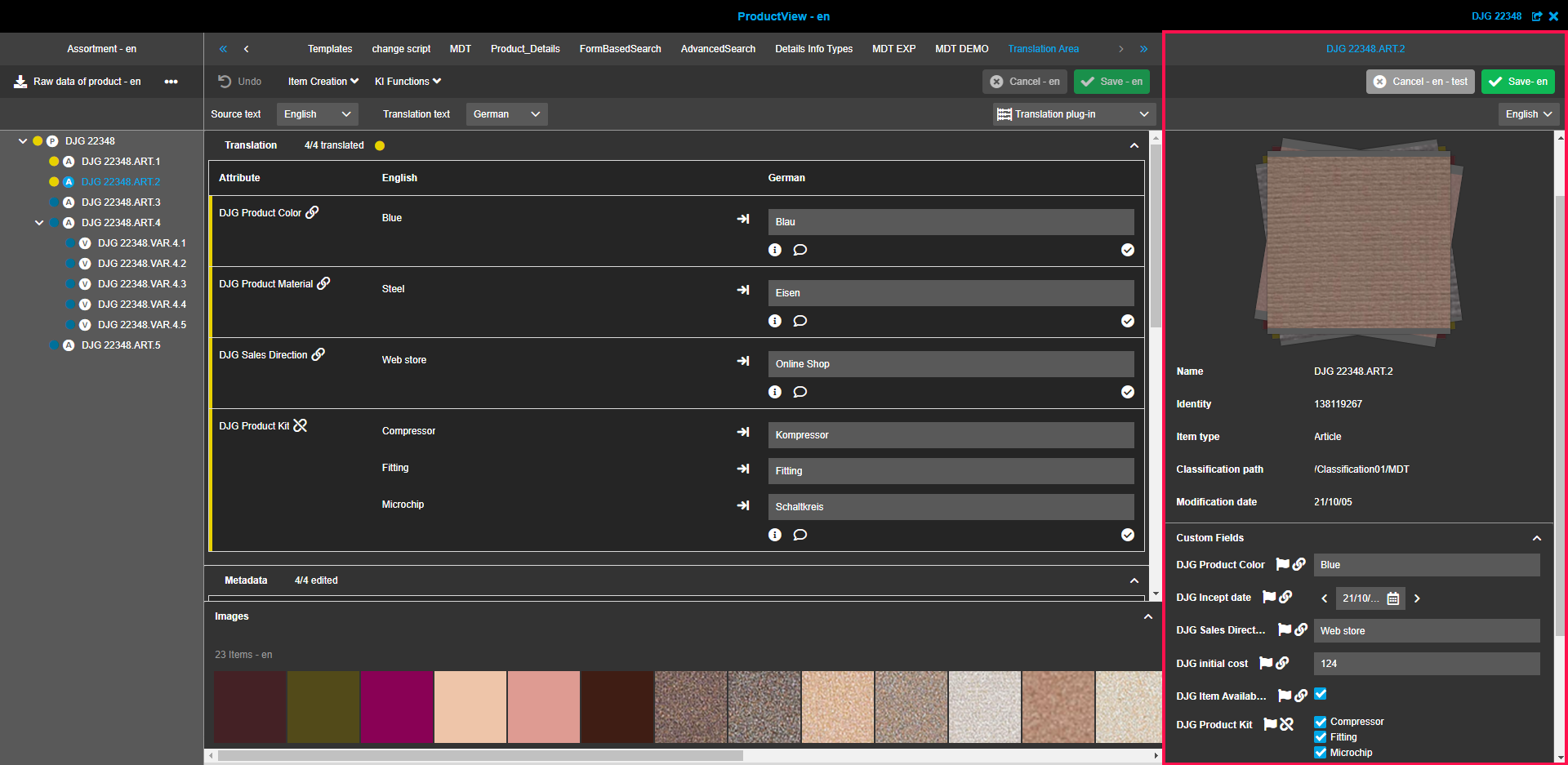
Metadata Translation
Purpose of the plugin
The Metadata Translation plugin allows text creators and translators to work simultaneously on preparing texts.
It can either be used to create text for various attributes or to translate these or existing texts.
Introduction
The Metadata Translation plugin can be configured in two view modes:
-
Text creation
The "Text creation" view mode is used by text creators to add or edit necessary texts for translation. -
Translation
The "Translation" view mode is used by translators to translate existing texts into other languages.
The plugin has different options to track the status of the text creation or translation progress:
-
Colorized statuses for each attribute on each inheritance level (product/article/variation) which are calculated automatically based on entered texts/translations
-
Separate translation status section where users can set predefined translation statuses manually
Users have the possibility to communicate during the work process by using "text notes" and "corrections", which display additional information (for example, the obligatory use of certain terms for translations or suggestions for improvement) for the editor.
Furthermore, with the "Approve" function, there is another level of control over the quality of the prepared texts by approving the provided translations.
Besides that, AI translation options, which can also be observed in other plugins, can be used in the context of Metadata Translation.
Prerequisites and relations to other modules
In order for the plugin to be used at all, it is a prerequisite that the Product View plugin is available in the system.
The Metadata Translation plugin has the ability to interact with the Terminology plugin. By providing a simple way to highlight terms and sentences (which are provided by and stored in the Terminology), the user is allowed to view and check given terminologies during the translation process within the Metadata Translation plugin and to decide which terms or sentences should be used for translation.
How to access
The Metadata Translation plugin is part of the Product View and is shown as one of the navigation tabs there.
By click on the corresponding tab, the plugin can be opened.
How to use
The Metadata Translation plugin is divided into a left, a center and a right view. It gives the user the possibility to translate configured attributes of selected products.
-
Left view
General assortment tree of the Product View -
Center view
View for text creation or translation with specific sections -
Right view
Available if Details or Table plugin is configured as part of Metadata Translation for the Product View
Left view
The left view of the Metadata Translation plugin is a general assortment hierarchy view which is part of the Product View and is the same for all plugins under it.
Center view
The center view is a main Metadata Translation container for editing product attributes and consists of the following sections:
-
Translation: used to manage attribute translations
-
Metadata: used to manage language dependent attributes that are not translatable
-
Content details: provides contextual information about the translation
-
Translation status: used to track the progress of the overall translation status
-
Images (related assets): provides information about linked assets
All sections are shown being expanded or collapsed depending on the state of "Expanded by default" configuration option (also see here) or based on the user-based settings. Sections can also be hidden by the corresponding option in the configuration.
| The section will be absent in case if there are no attributes configured for it. |
Within the Metadata Translation plugin it is possible to use one of the following view modes, which can be opened by the content switcher on the right side of the statusbar:
-
text creation mode (used for populating values which need to be translated)
-
translation mode (allows translating attributes which already have source values).
The structure and functionality of both view modes are in general the same, except that in the “Text creation” view mode the table inside the Translation section has only two columns: Attribute names and Attribute values.
There is only space for source texts inside this view mode.
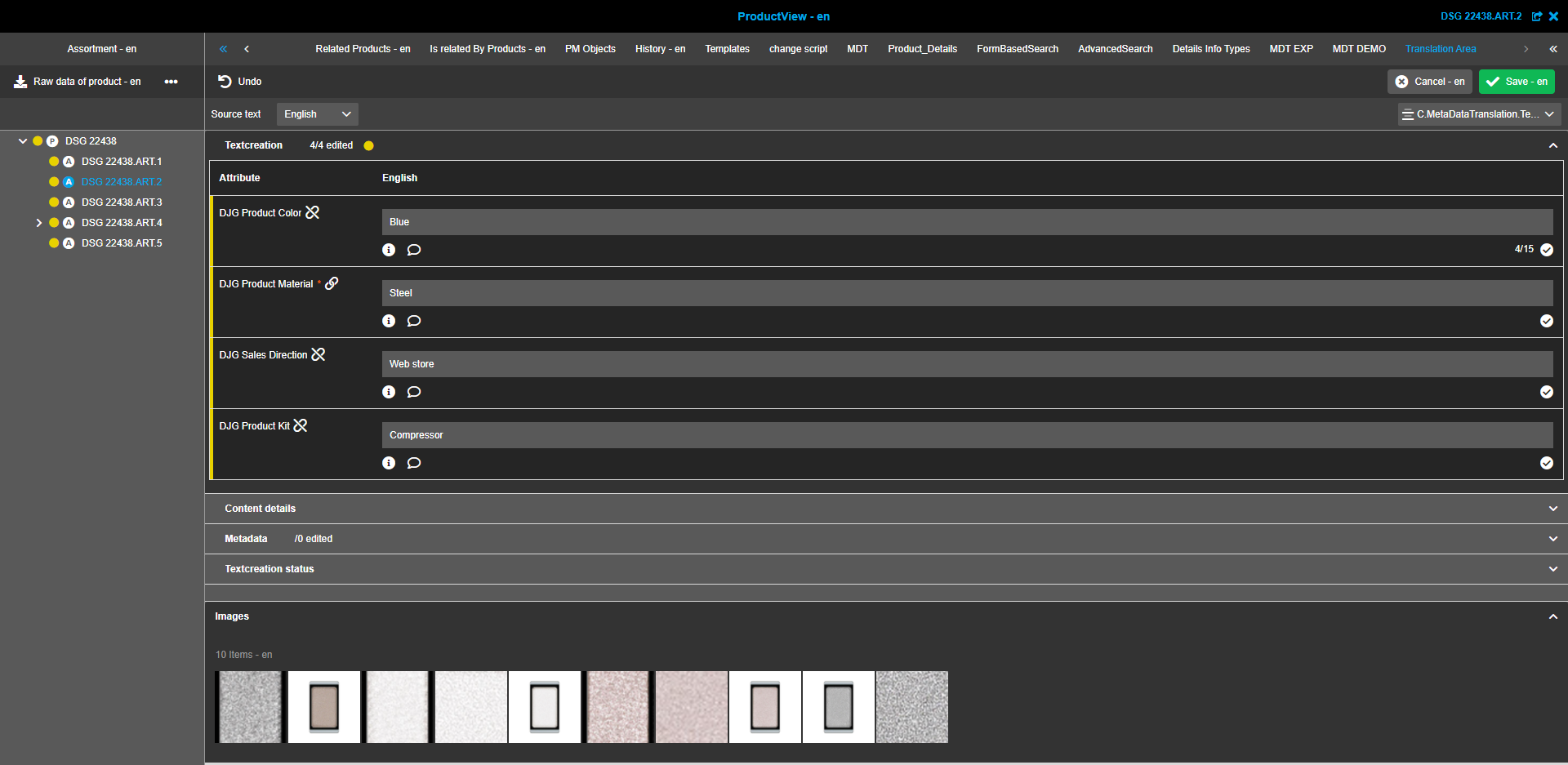
The center view offers various setting options and functions, which will be described in the following.
Toolbar
The toolbar of the center view contains only one not configurable “Undo” function which is shown in both view modes and is always visible. All other functions can be added as secondary action functions within the Product View plugin configuration.
Undo function
The "Undo function" discards all of a user’s last action in a field, which includes what the user did in the text field during the period after he set the focus on the text field and before he changed the focus from the text field.
Example: When a user enters “blue” in the color field and afterwards "123" in the price field, "123" will be removed after the first click on the "Undo function" and after a second click "blue" will be removed.
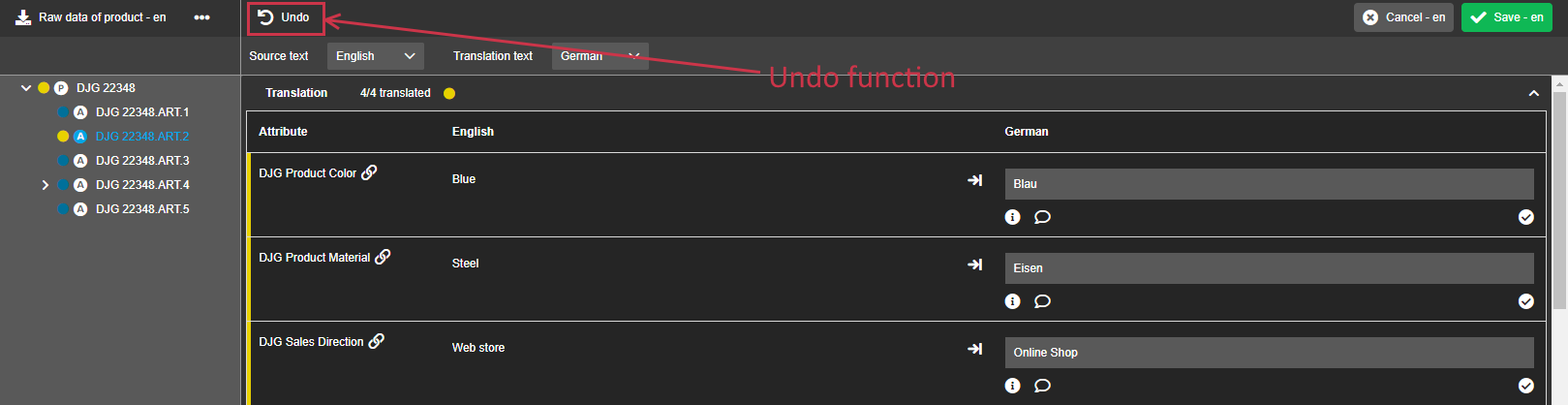
| The “Undo” button is always visible and may be enabled or disabled in accordance to existing saved or unsaved changes. |
Secondary action functions
It is possible to configure several secondary action functions for Metadata Translation which are displayed in the toolbar afterwards.
The behavior of toolbar functions is equal to their behavior in Product Details view.
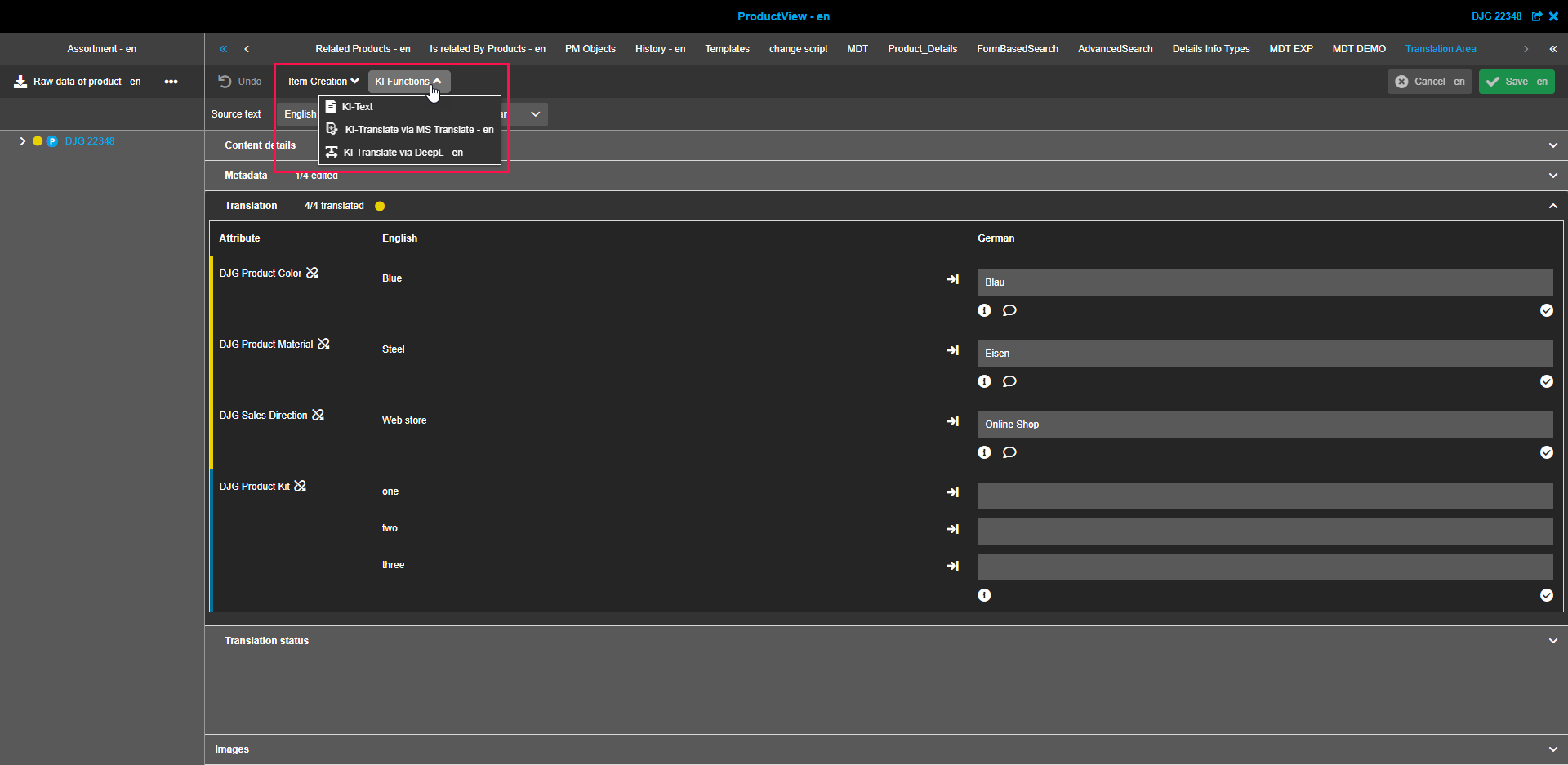
Exemplary and helpful functions are functions for automatic text creation or translation.
Users have the possibility to choose from a range of AI services, such as:
-
AI Text (Retresco textengine.io)
-
AI Translate via DeepL Translator
-
AI Translate via Google Cloud Translation
-
AI Translate via Microsoft Translator
-
AI Translate via SYSTRAN Translate
| For some functions users will see a green success message, but no changes within the center view. In this case, the refresh function (click on the "Metadata Translation" tab) must be clicked. Afterwards, the changes will be visible. |
Save/Cancel buttons
The buttons "Save" and "Cancel" are always present in the toolbar and initially inactive. They will become enabled if any changes are made in the Metadata Translation plugin.
Clicking on the button “Save” will save the current state of the Metadata Translation. If changes are saved successfully, the green toast message appears in the right upper corner of the screen.
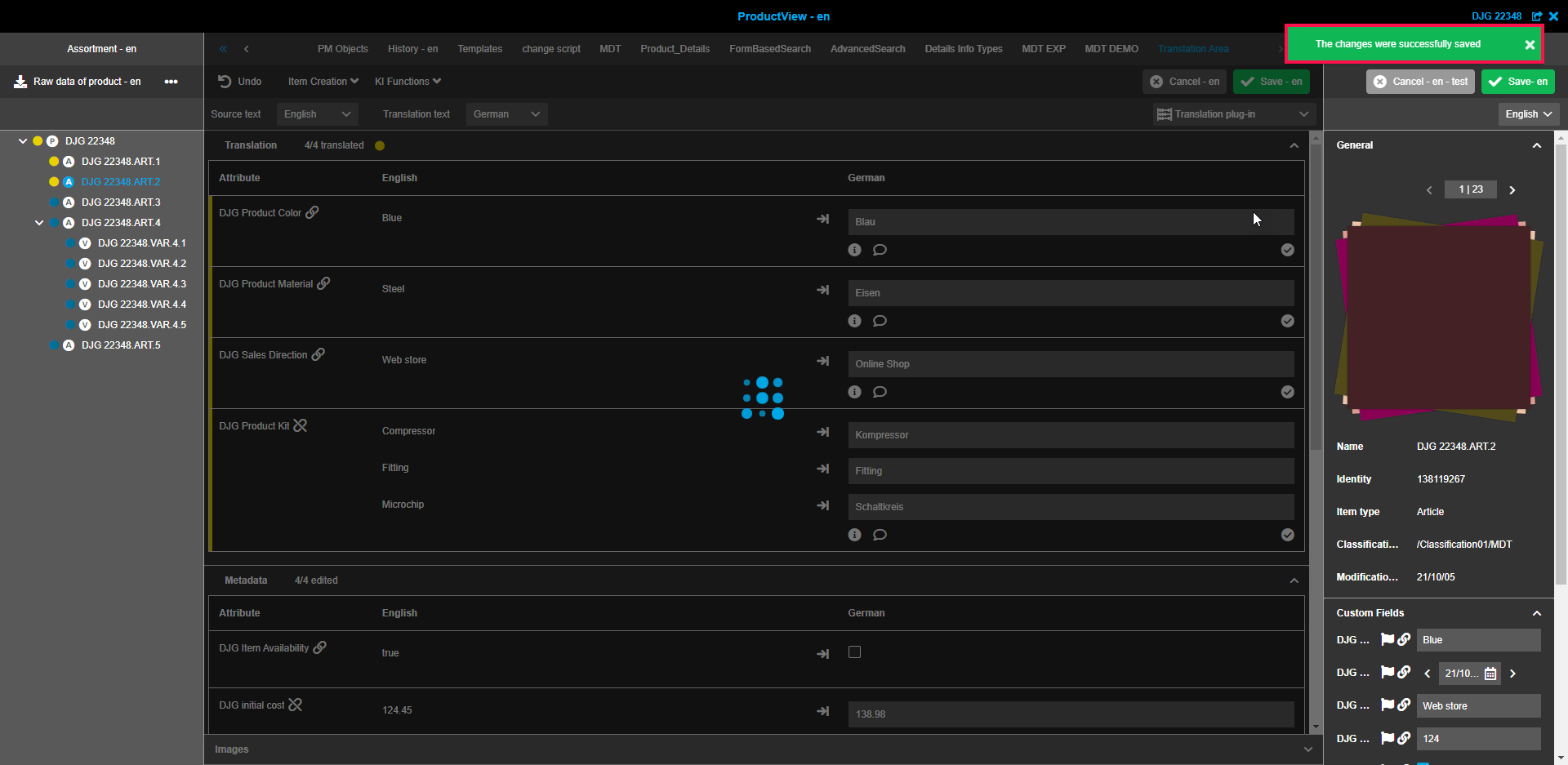
Clicking on the button “Cancel” will discard all unsaved changes.
If the Metadata Translation plugin has unsaved changes, the user will see a warning dialog to not miss data without warning.
If a user makes any change (for example: type a letter, remove a letter, change the status attribute) and try to exit from the plugin, the plugin will catch it and show the modal dialog with warning message:
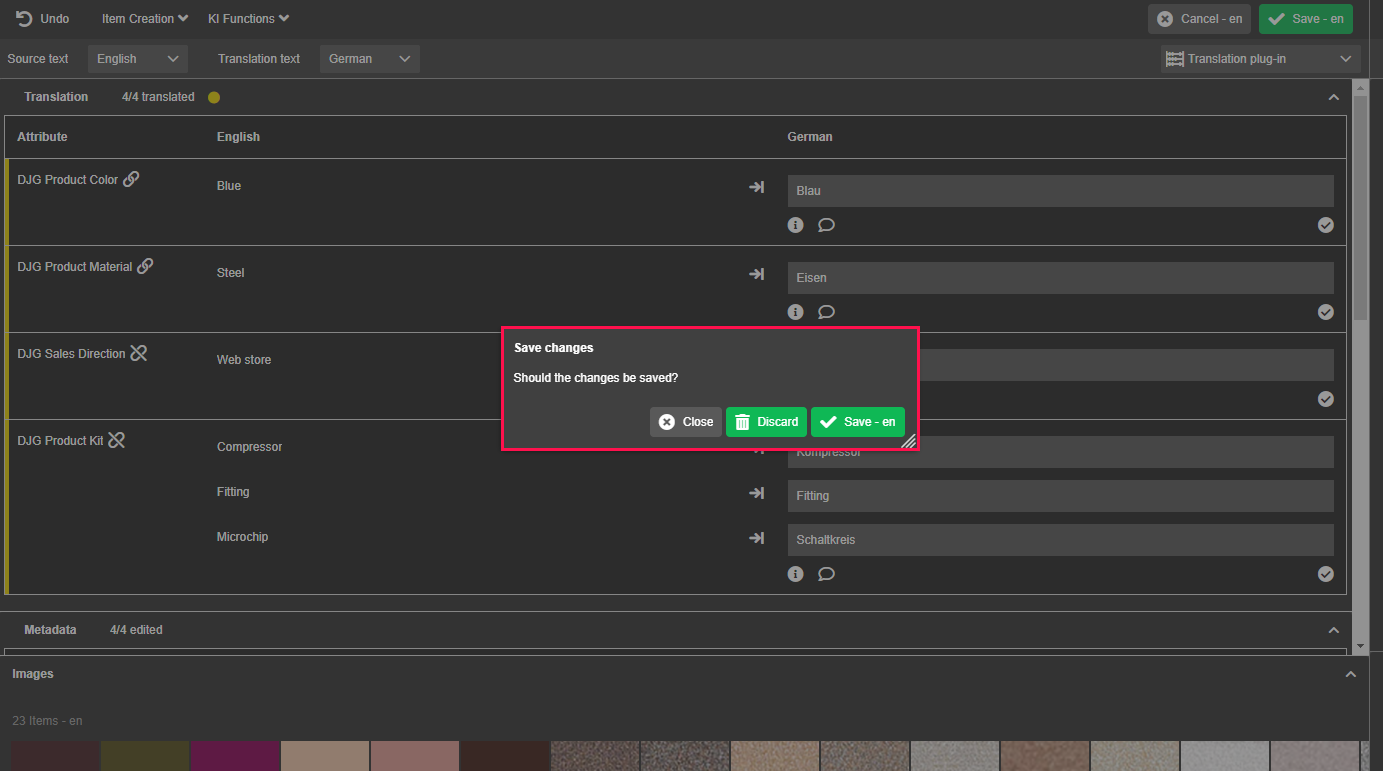
By clicking on the "Save" button changes will be saved. If the user wants to stay in the same state (nothing will happen and the modal will be closed) he can click "Cancel". Clicking on "Discard" will delete the changes.
This may be triggered through the following actions:
-
switching to another Product View tab
-
switching to another item from the hierarchy tree
-
switching the language to another one (source or target)
-
closing the Product View via "X" button
-
closing the browser tab
Statusbar
The statusbar of the center view contains language switchers and a content switcher.
Language switchers
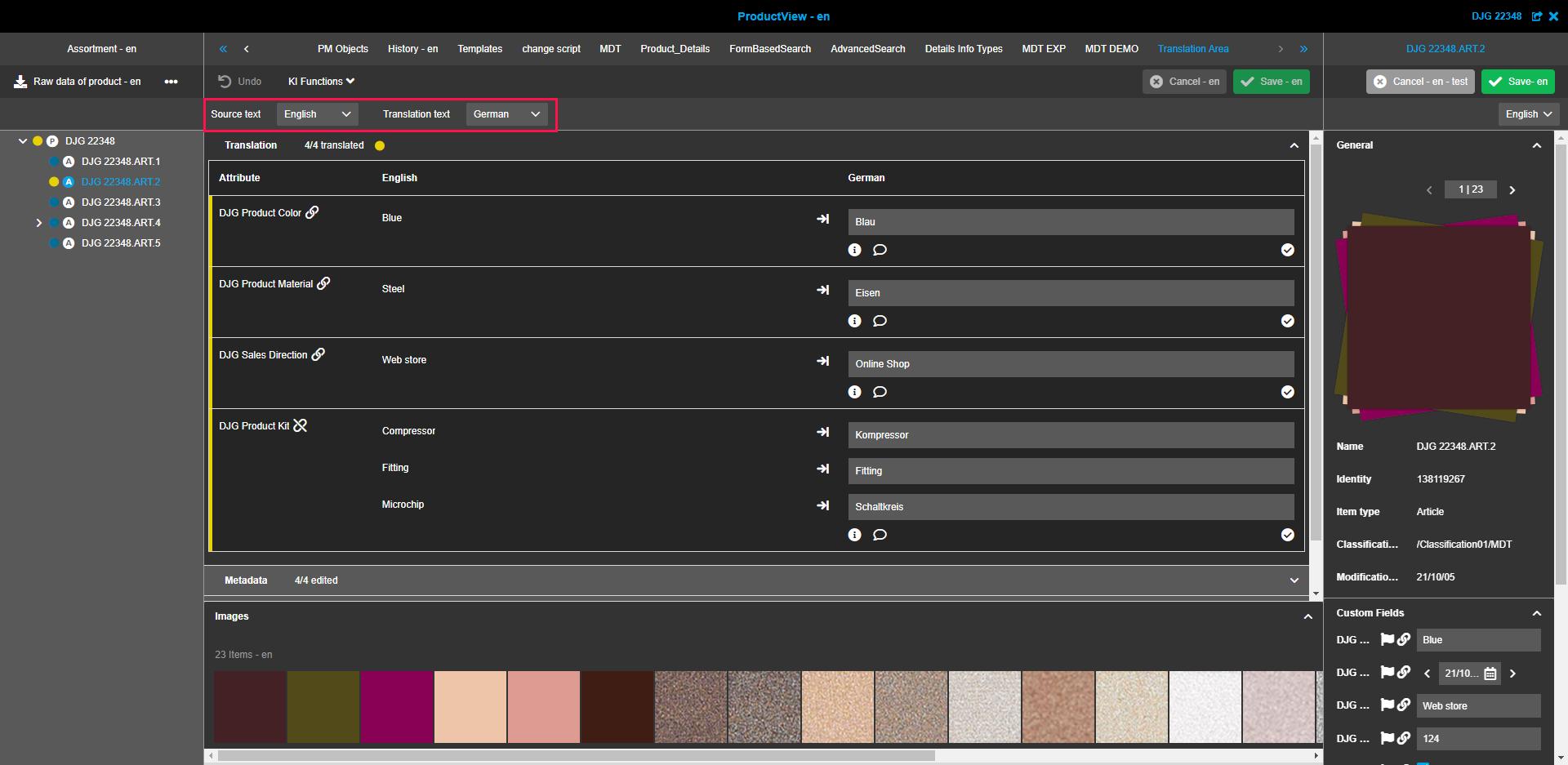
The user can define which content language will be used for the "Source text" and which one for the "Translation text" (target text) via dropdown lists.
The language switchers contain content languages enabled in the configuration and refer to all sections in the center view.
|
The default source language is taken from the settings within the user profile. The default translation (target) language is the first one from the remaining content languages. The dropdown "Translation text" cannot contain the same language as selected in the dropdown "Source text" (this language becomes hidden in the dropdown list with possible target languages). |
Content view switchers
The content view switcher allows a user to switch between different content views of the Metadata Translation plugin (such as Text creation or Translation view mode).
It will only appear if the configuration has multiple content views.
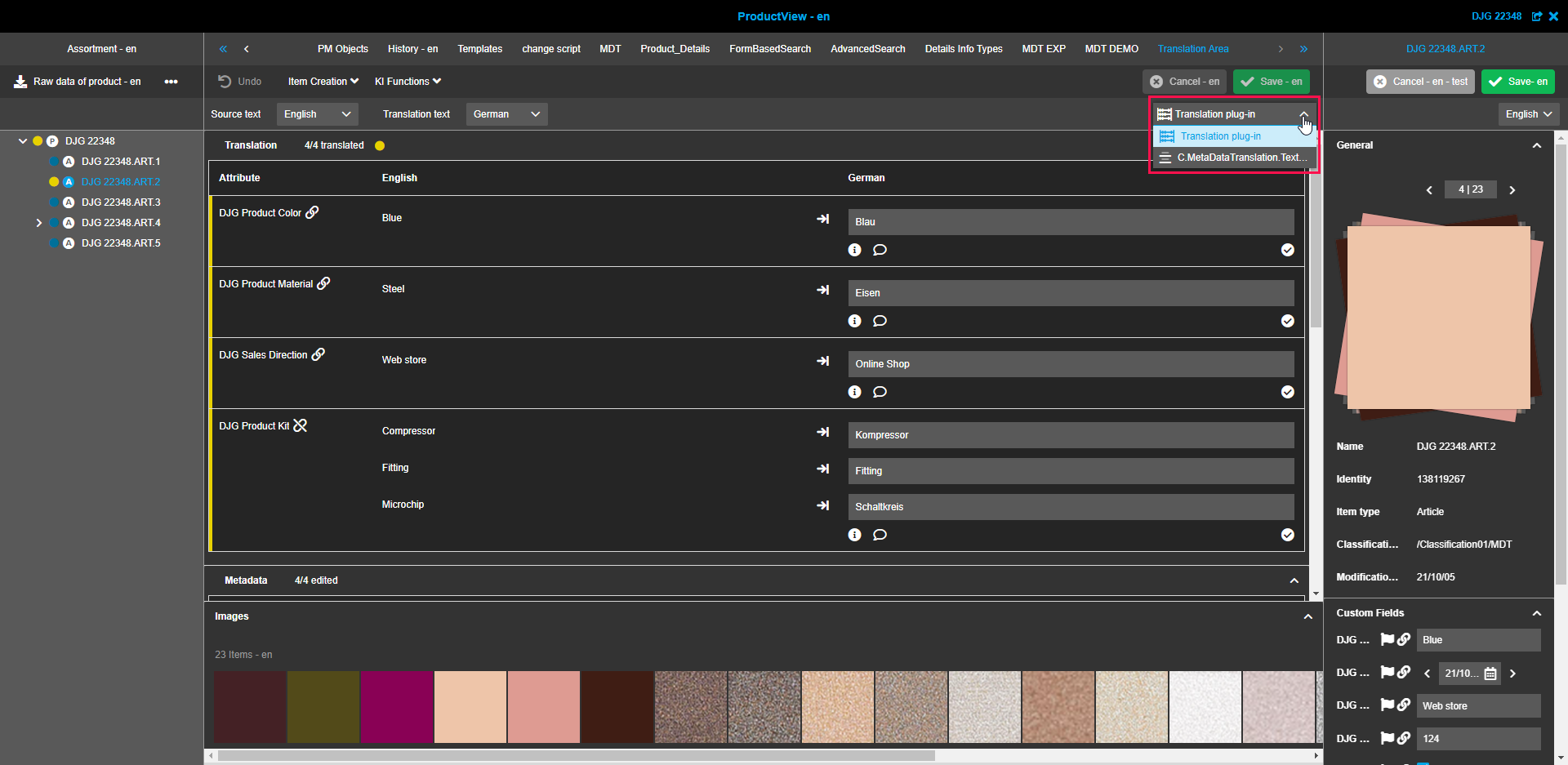
Each configuration has an icon which has been assigned in the configuration client.
Sections
The Metadata Translation plugin can contain up to 5 different sections (for translations, metadata, content details, translation status and images) depending on the configuration.
"Translation" section
The Translation section is used to manage the translations for the attributes by adding/editing values for translation languages.It contains a table with three columns:
-
Column with attribute names
-
Column with attribute values in the language selected in “Source text” dropdown list
-
Column with attribute values in the language selected in “Translation text” dropdown list
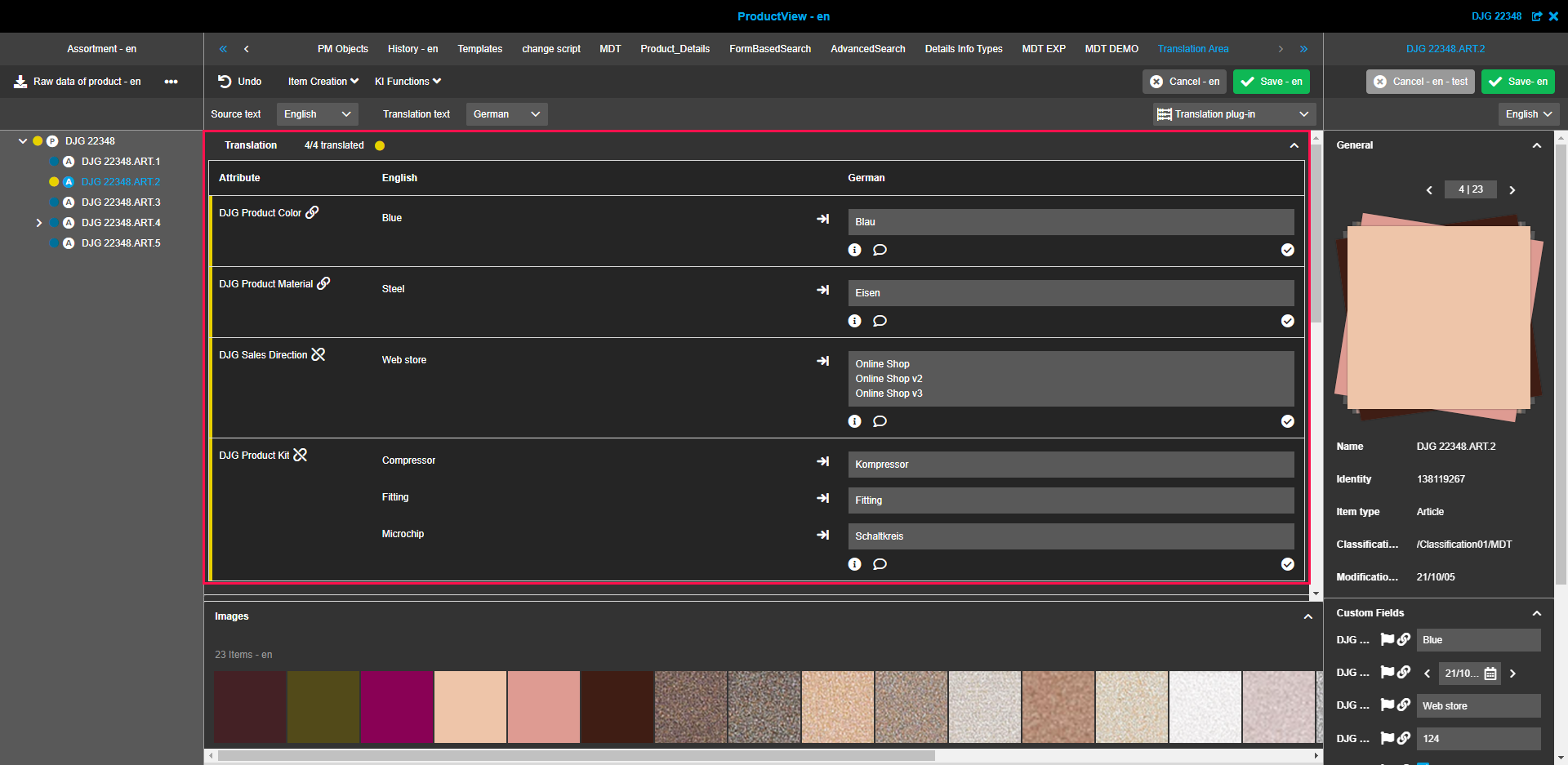
| It is not possible to add the target value if the source is blank. A user needs to populate value for source language first by using the “Text creation” view mode. Alternatively, the Management View or Product View Details tab can be used. |
The Translation section offers different options and functionalities, for example to help the users to communicate or copy texts easily.
These options and functionalities are:
Status indication
The sections "Translation", "Text creation" and "Metadata" have an indication of the number of translated or edited attributes next to the section’s name.
An attribute is considered "translated"/"edited" as soon as changes have been made in the respective input field, even if they have not yet been approved.
Example: "1/3 translated" means that just one of three available attributes has been edited.
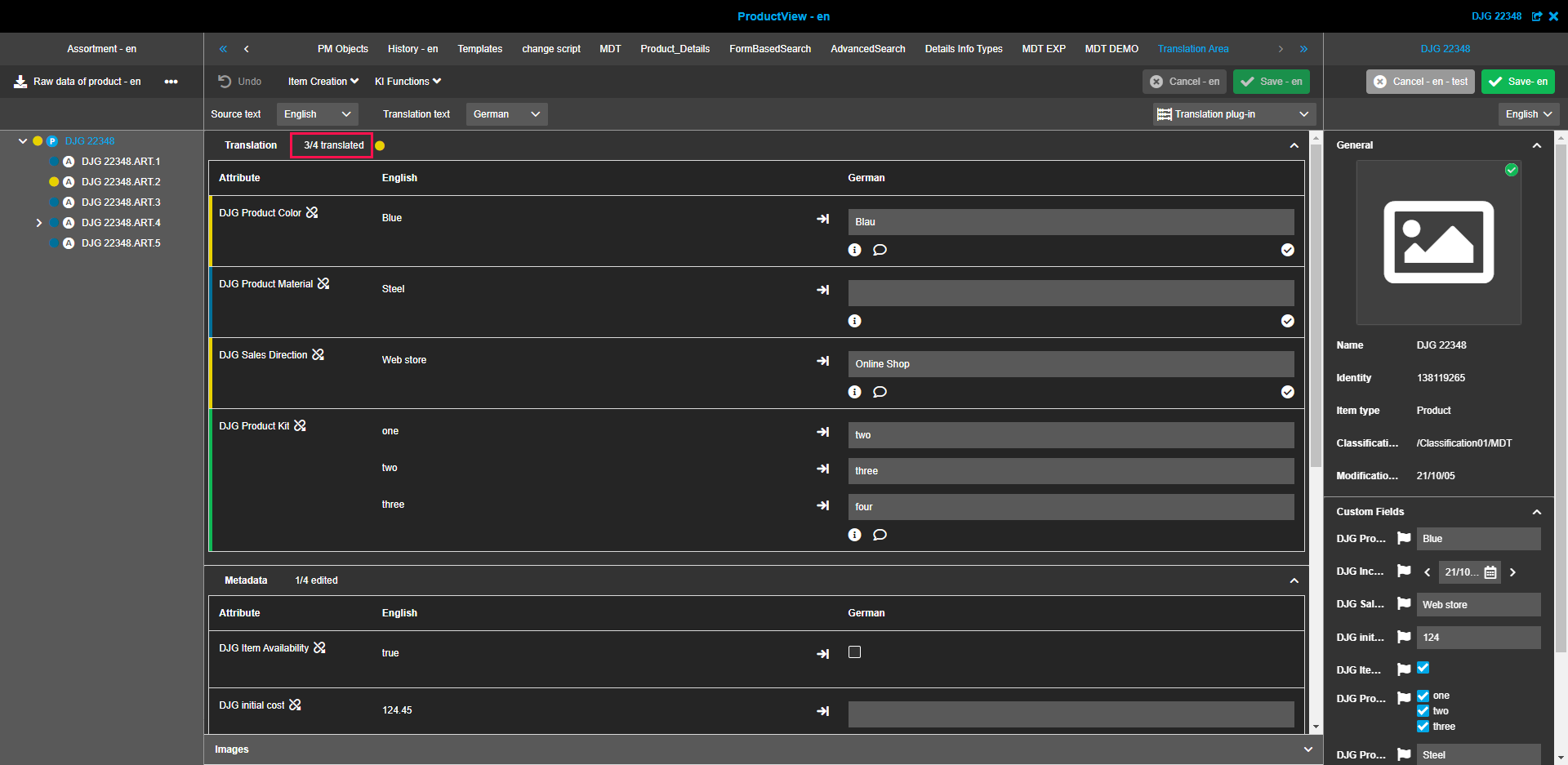
Colorized indication of translation status
Next to the general status indication there is a separate color indication for the overall translation status available.
Within the "Translation" and "Text creation" sections and also within the left view hierarchy users can see colorized markings to immediately recognize whether an attribute, the entire section or the product/article/variant is in the status "new", "edited", "in error" or "approved".
The attribute’s marking is located as coloured stripe at the left edge of each row.
The section marking is a colorized circle next to the status indication.
The overall hierarchy status is placed left next to the product/article/variant within the assortment tree.
There are four colors used:
-
Blue
The translation/text creation process is not started yet (no text available on the translation text side). -
Yellow
The translation/text creation process is started and not finished (either not completed, e.g. due to open corrections, or not manually/completely approved). -
Red
The translation/text creation process can’t be started, because no source text is available (only available within the translation view mode). -
Green
The translation/text creation process is finished (text or translation is completed and approved).
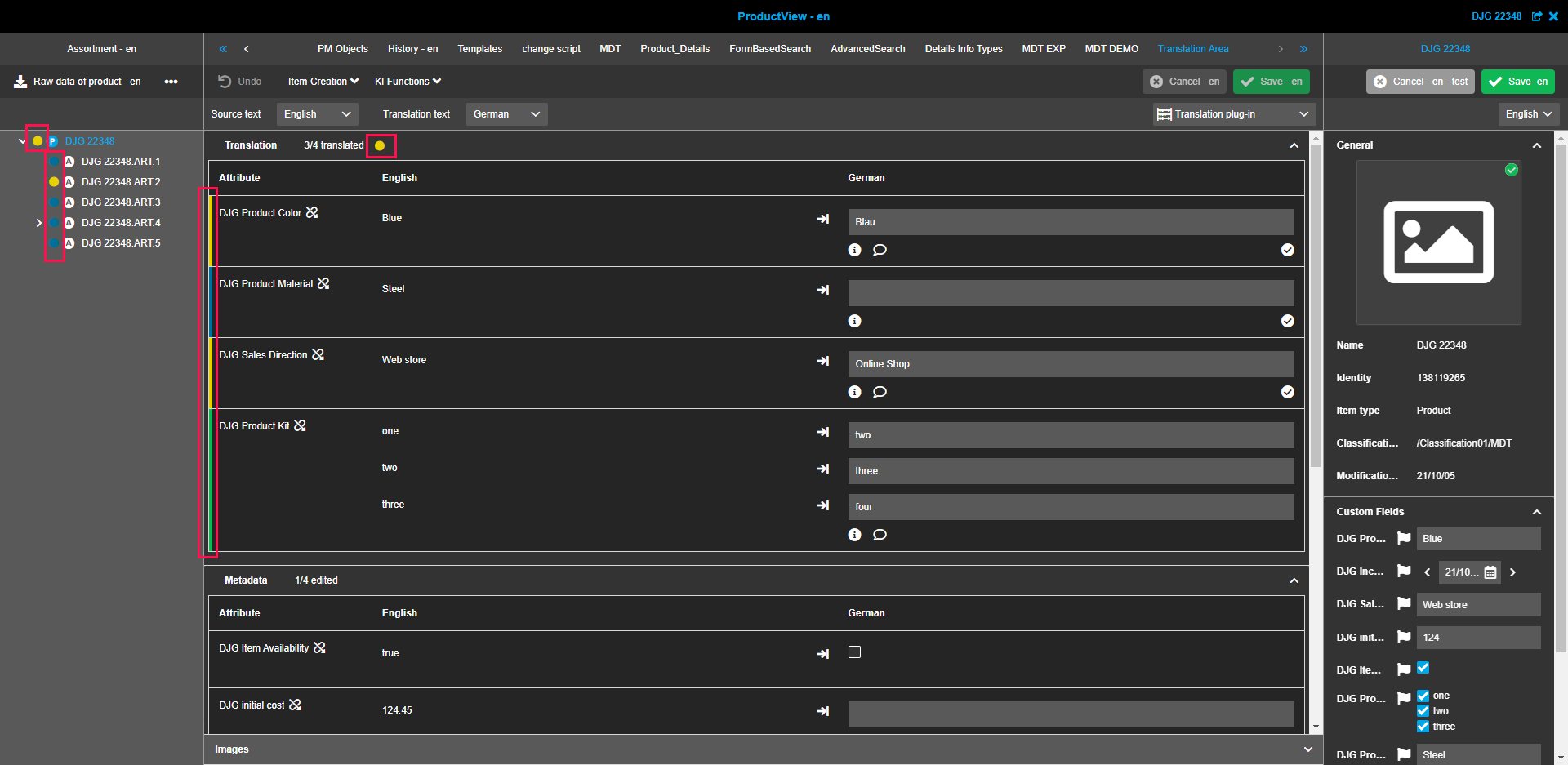
On attribute level the color indication is based on each attribute itself, on section and hierarchy level it is a summarized overall status.
This means that all statuses are combined into one status:
-
Blue is only shown in case that all attributes are in "New" status.
-
Yellow is shown as soon as minimum one attribute is edited.
-
Red is only shown in case that all attributes have no source text.
-
Green is only shown in case that all attributes are approved.
Inheritance mechanism
The inheritance mechanism of PIM attribute values is also supported by the Metadata Translation plugin, so that the attribute values will be displayed in accordance to OMN global rules of inheritance.
There are three inheritance types available:
| Inheritance type | Description |
|---|---|
Editable |
The values for an attribute can be maintained on the defined item type (product/article/variant) and all descandant items. |
Visible |
The value of the attribute is only editable on the defined item type, but it is shown as a label (disabled, not editable) on the descendant level(s). |
Not visible |
The value for the attribute is only visible and can only be maintained on the defined item type. |
Values are always inherited from the highest to the lowest level and the inheritance can be broken by clicking on the "link" icon (if possible).
The inheritance mechanism is also described here.
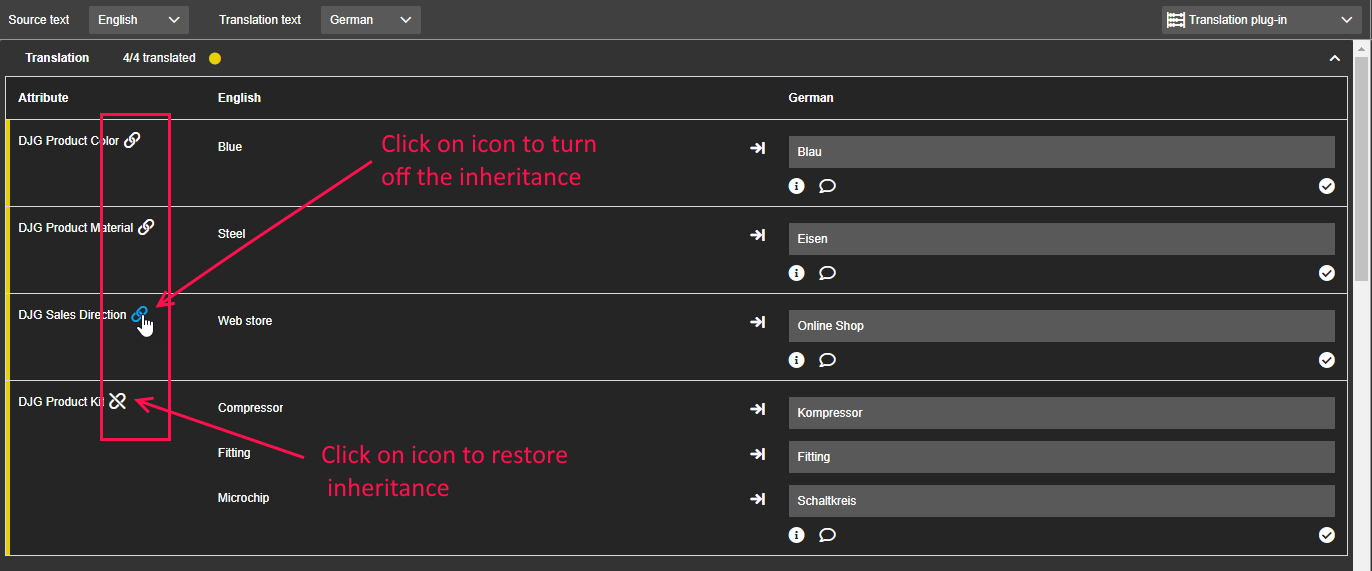
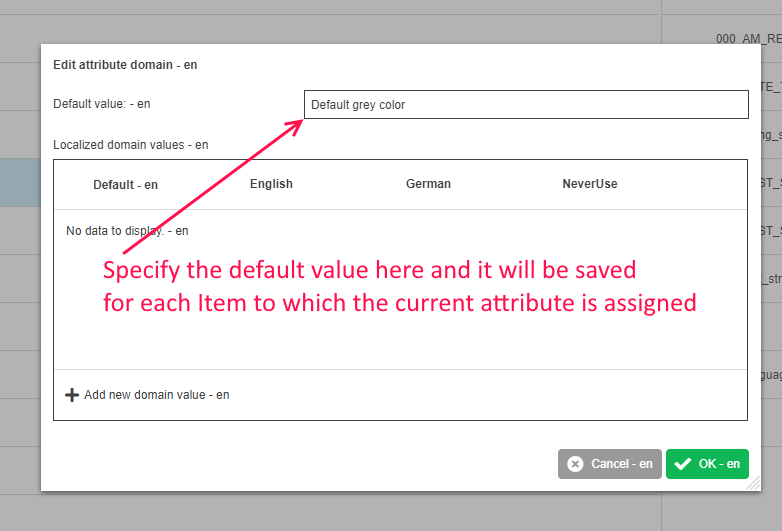
Default values
Default values are supported if they were set in the corresponding attribute definition.They are supported within both view modes.
If the user removes a value of an attribute which has a configured default value, the default value will be restored.
Terminology integration
The Metadata Translation plugin has the ability to interact with the Terminology plugin.
Terms and sentences which exist in Terminology glossaries and have translations in the required language will be highlighted in blue color in the source language column of Metadata Translation.
This will allow users to easily use existing translations from Terminology for their work by copying the required values.
| The option must be enabled in the configuration first. For more information also see here. |
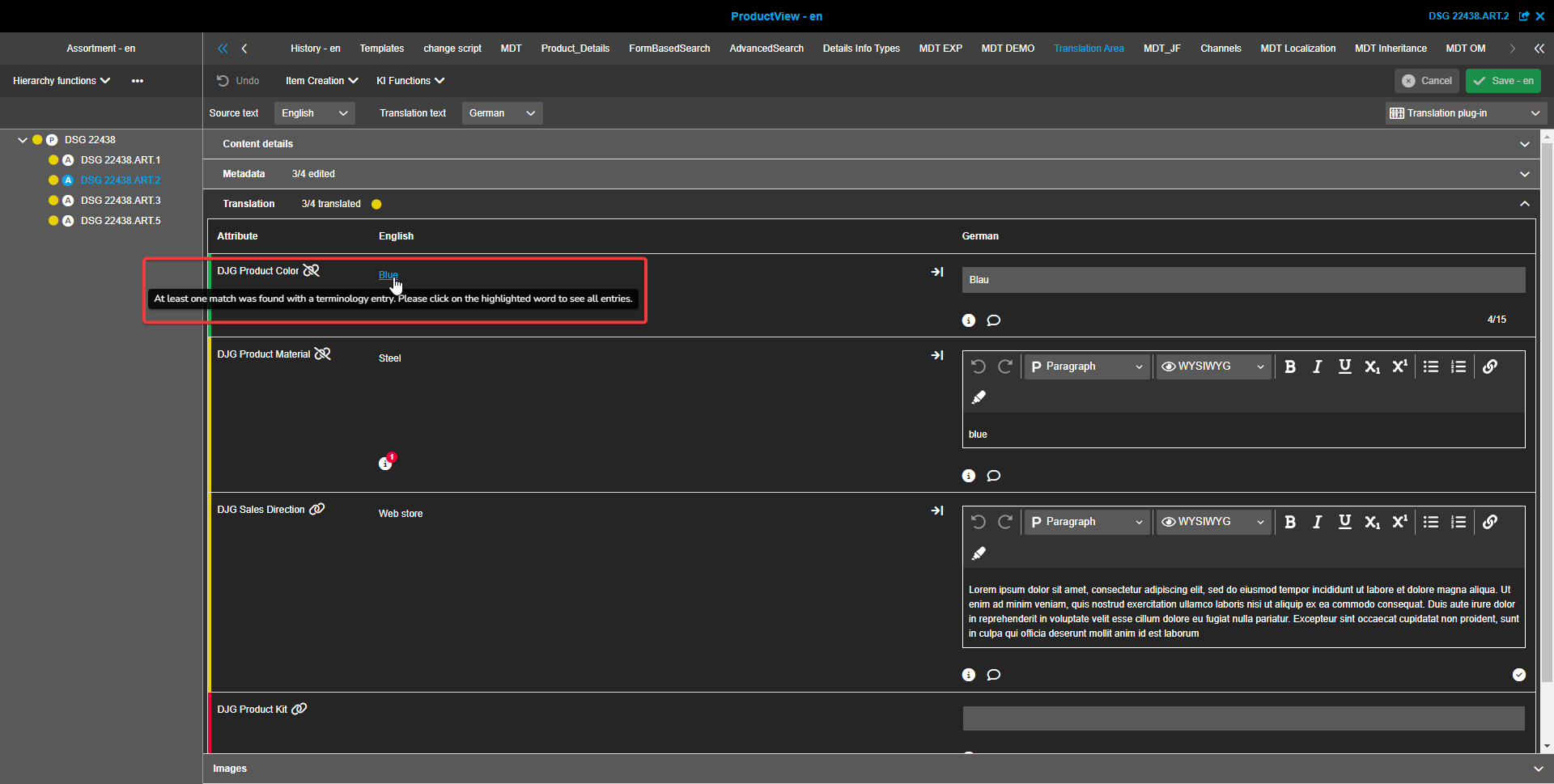
To see all available translations for the highlighted term or sentence, the user needs to click on it and a Terminology modal window will appear. It contains a table with the following columns:
-
Source text
Contains matching terms or sentences from the source language column of the Metadata Translation plugin. -
Translation text
Shows the available possible translation option(s) found in the Terminology. -
Glossary
Contains the glossary names which contain the matching terms or sentences.
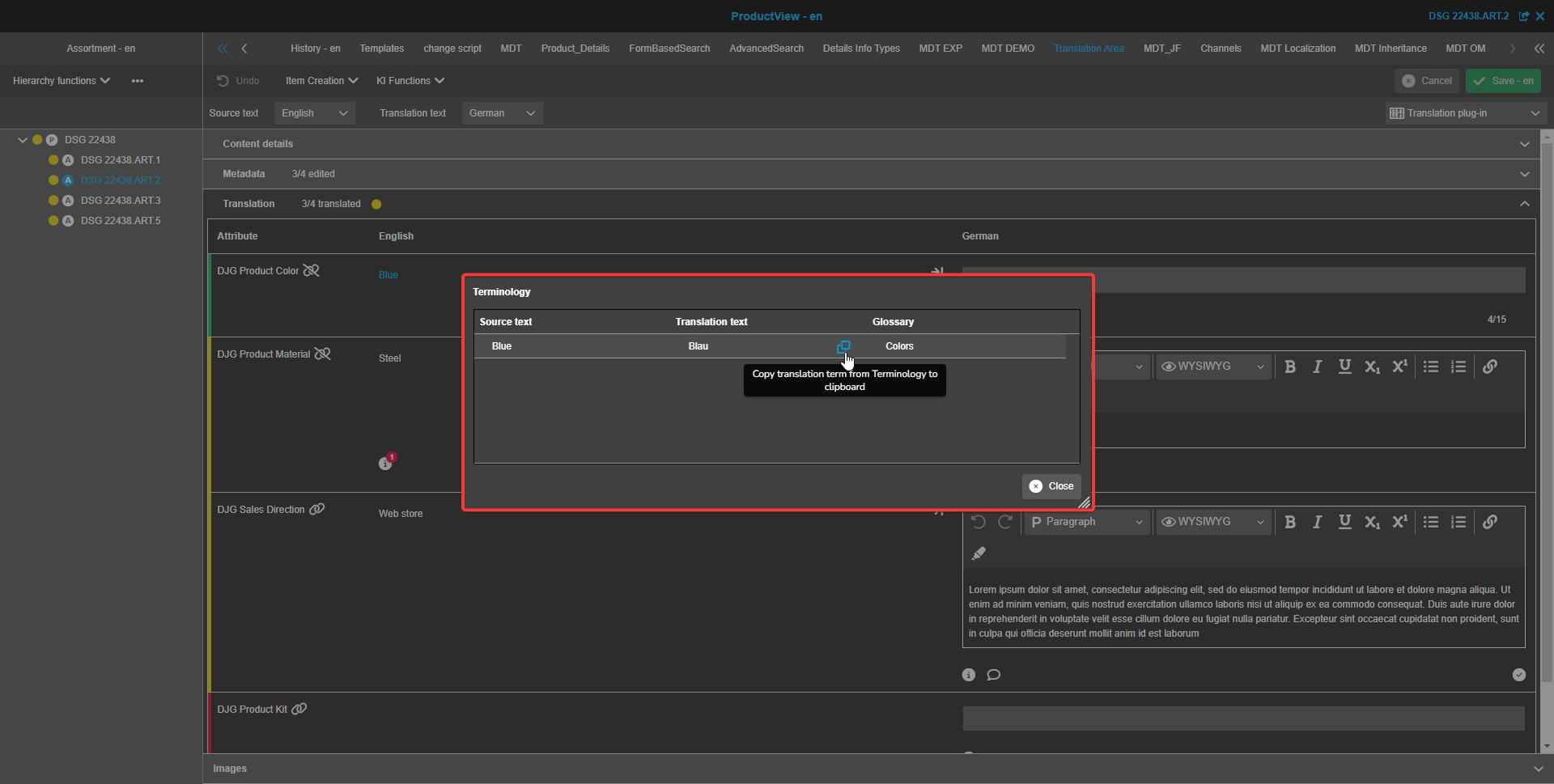
To copy the required translation, a user must click on the “Copy” button. The button appears between the “Translation text” and “Glossary” columns after hovering with the cursor over the desired row.
Clicking on it will copy the translation text to the clipboard.
| In case of multiple matching translations or if some entries are part of others, the largest overlap is highlighted and the Terminology modal contains all the translations. |
Copy function
If the "Enable equal values copying" option is activated in the Metadata Translation plugin configuration, the copy function will be available in the Translation view mode for all configured attributes in Translation and Metadata sections.
The button is placed between the source and translation language columns and after clicking on it, the value from the source language field is copied to the target language field. If there is no value in the source language field, there will be no copy button.
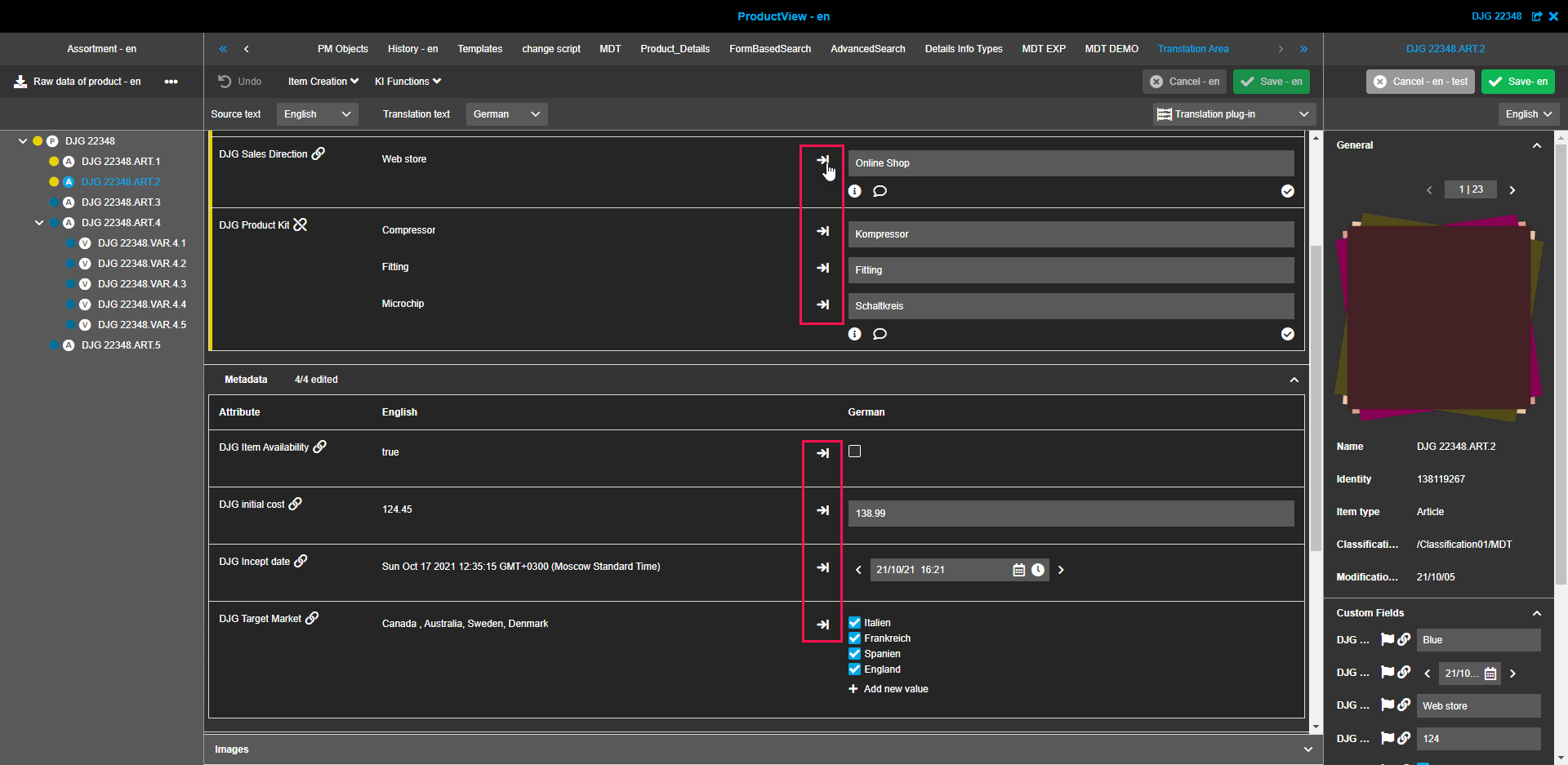
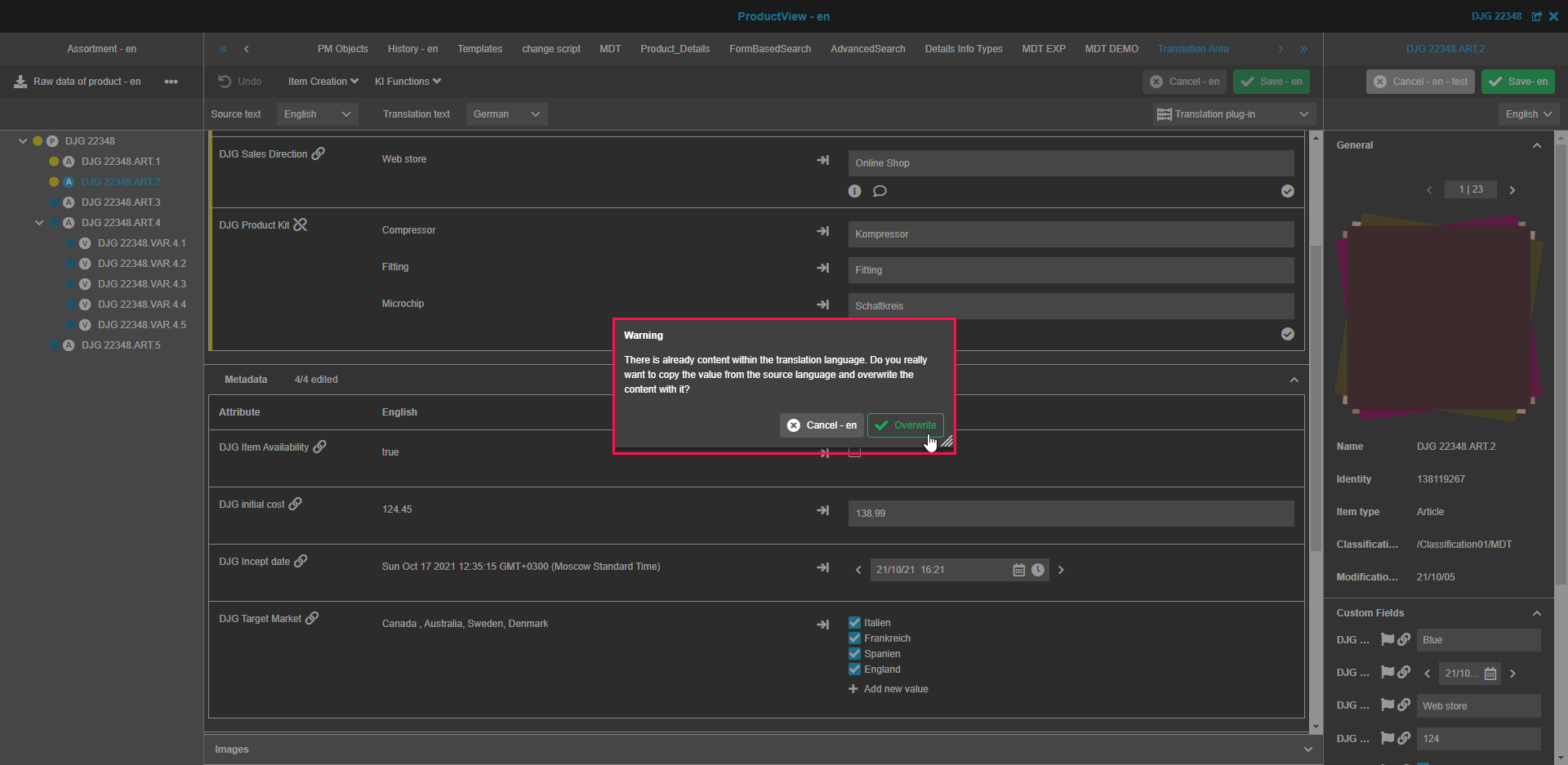
It is also possible to copy the source value to the translation text column even if text already exists. In this case, a confirmation dialog is displayed, and the existing text can be overwritten.
If the "Allow new values" option is enabled for a listable attribute which was added to the Metadata Translation configuration, the new value(s) from the source column will be automatically added to the translation column after clicking on the “Copy” button.
Error validation
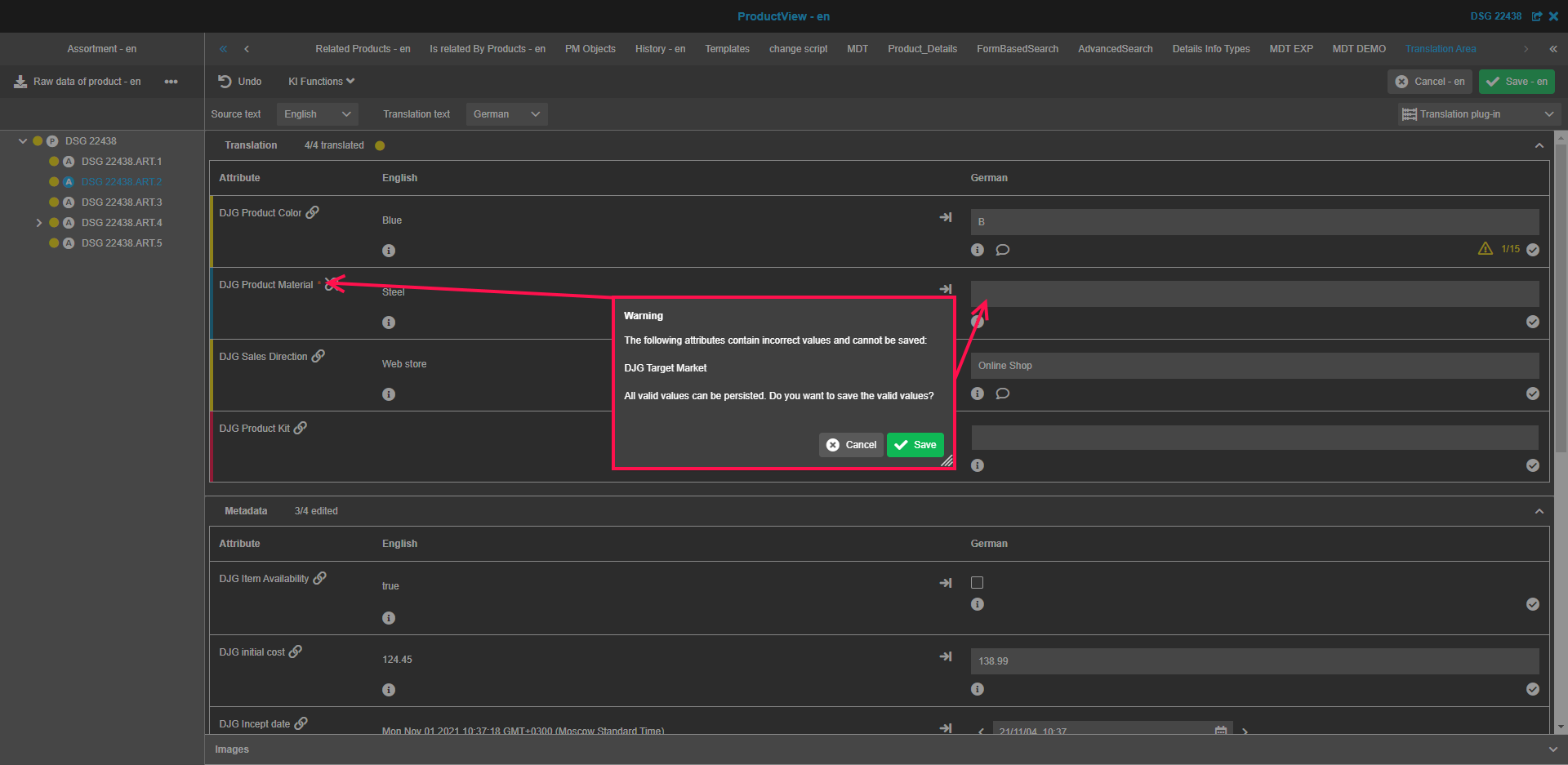
The error validation will apply if any input is incorrect. The Metadata Translation plugin supports three types of validation:
-
Domain values
The validation is executed as soon as domain values (configured in the Configuration View of PIM) are not correctly added. -
Text limitations (lazy/strict)
The validation is executed as soon as the minimum or maximum number of allowed characters is not fulfilled. See also section Character counter. -
Required settings
The validation is executed as soon as the requirement settings are not fulfilled:-
Required: Fields should be added, but not a must-have (warning info)
-
Mandatory: Fields must be added (error info)
-
Optional: There is no validation since it is neither mandatory nor required, but it is possible to configure the following option in Configuration Client
-
"Allow incomplete translations": In this case all fields will be automatically mandatory and must be added. Otherwise, an error is shown.
-
-
Character counter
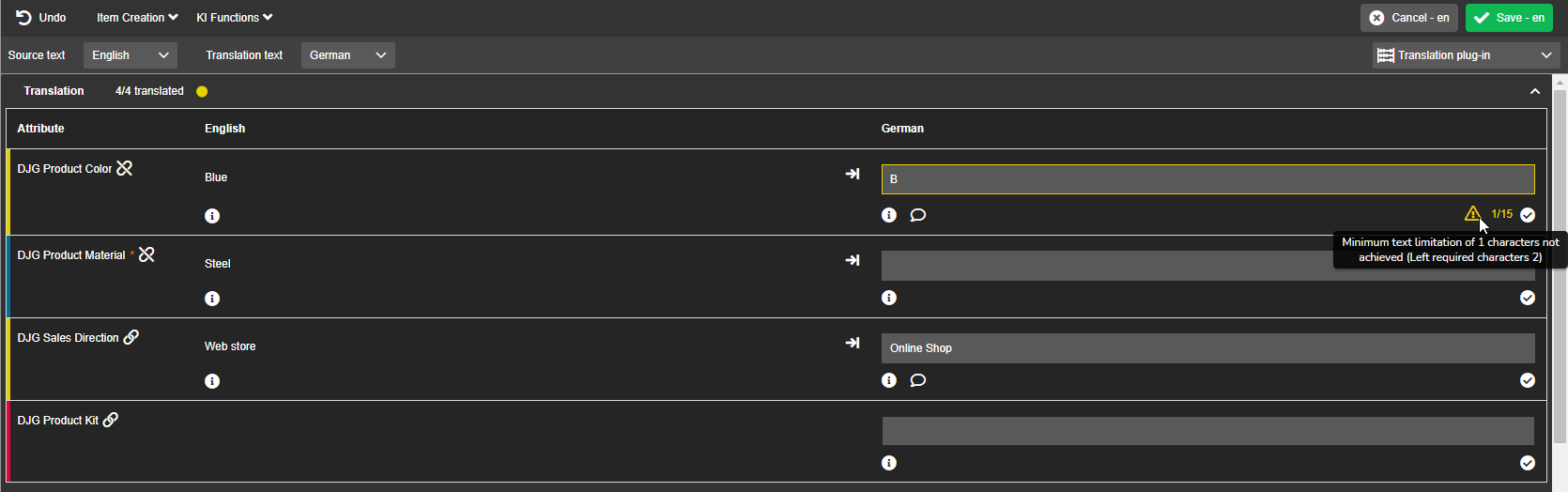
If lazy or strict limitation settings are configured, the counter of specified characters is available in both view modes of the Metadata Translation plugin.
In addition, if more or less characters than allowed are entered, it will be visualized depending on lazy (yellow - warning) or strict (red - error) configuration.


The format of the characters counter is the following:
{count of specified symbols} / {'max size' value for limitation}
On hover over the warning/error icon a tooltip with a message related to the maximum/minimum number will be visible.
Text notes
By using the “Text notes” function, it is possible to add information to the created texts and translations. These notes can be an additional information for text creation or translation (e.g. help for specific wordings, what needs to be included etc.) and for understanding how to complete the process.
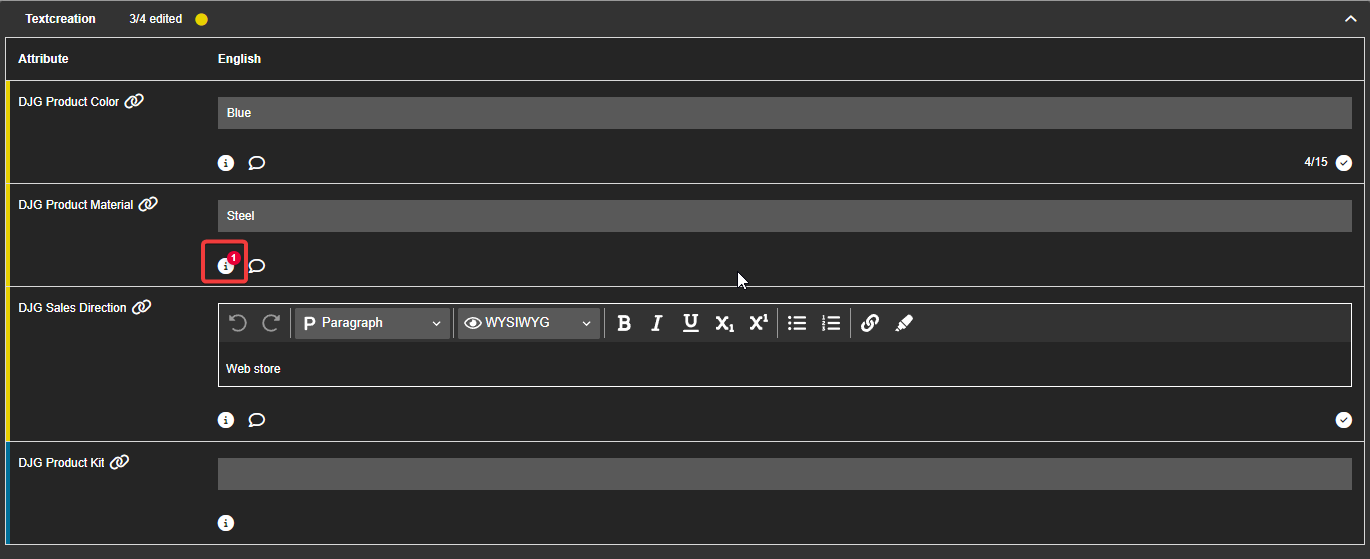
An info button is shown for the “Text notes” function and is always available in all Text creation rows (Text creation view mode) and in all Translation text rows (Translation view mode). It is placed on the left below the input field.
Within the Translation view mode only in specific cases the button can be available also in the Source text rows. Only if an information has been previously created in these lines in the text creation mode, the icon will be visible.
To create new or view existing text notes, the user needs to click on the button in the desirable row and the “Text notes” modal window will appear.
The main element of this window is a table which consists of the following columns:
-
Language: Specifies the language to which the note will be applied. All configured content languages are available in the corresponding dropdown. This column is only available in the Text creation view mode.
-
Note: Contains the note itself.
-
Created by: Shows an information about the date of creation and the user who has added the note.
-
Status: Indicates whether the note/task has been completed by a checkbox that is checked (done) or not checked (open task).
In the Text creation view mode the only row related to the source language can be checked in this column - other languages don’t have such a possibility.
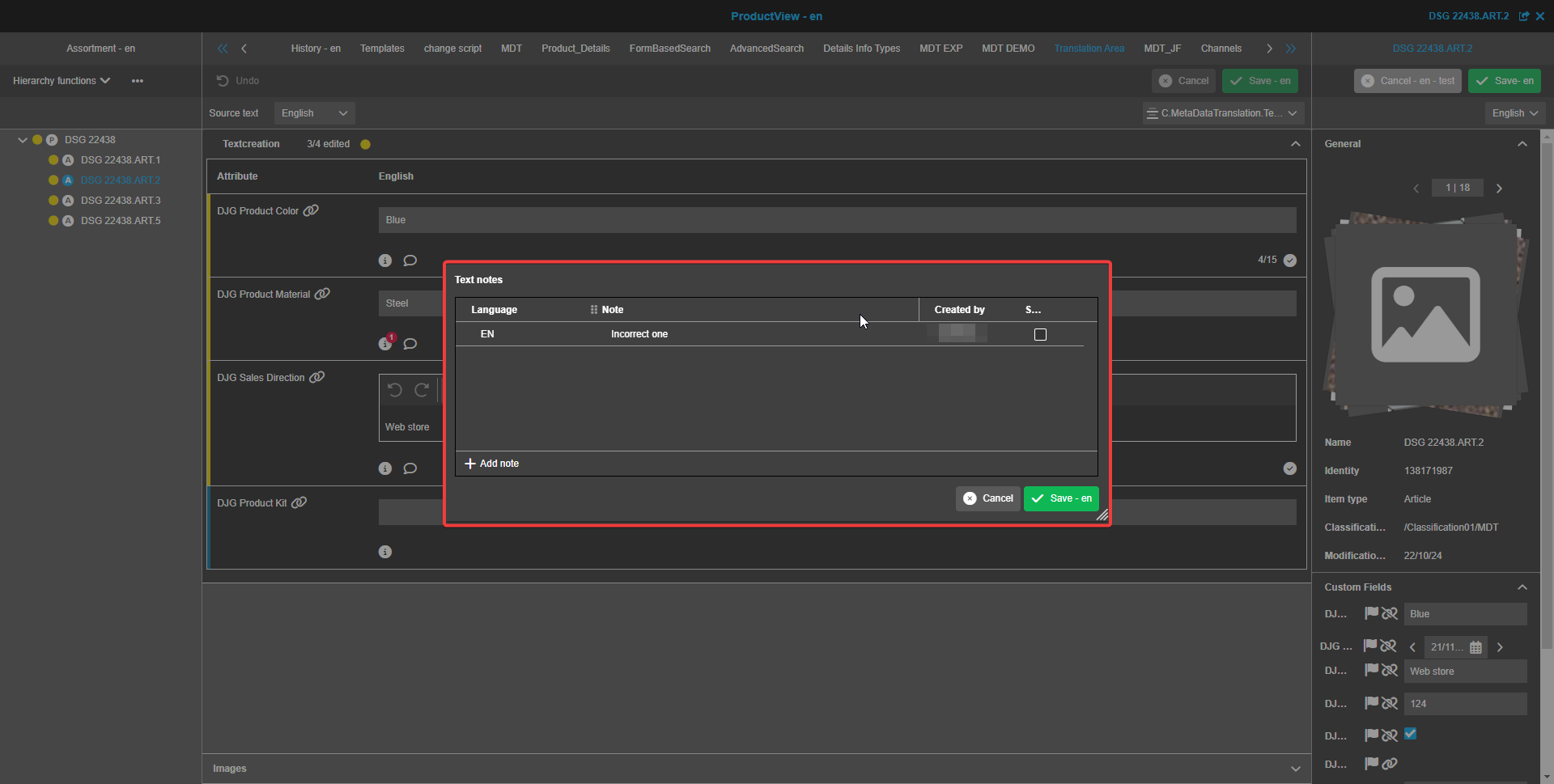
The "Add" and "Delete" buttons can be used to create new notes or delete existing notes. The visibility of these buttons depends on the configured permissions (access rights).
After entries or changes are made, the "Save" button should be clicked and the list of notes will be updated.
As soon as the modal is closed, the number of uncompleted notes/tasks is indicated by notification badges in the information icon.
| The translation for an attribute cannot be set as “Completed” (also see section Approve function) if there are unchecked notes in the modal/badges visible. |
Correction
It is also possible to correct values in a second step by placing comments on already created or translated texts by using the “Correction” function. With this, users can make changes in accordance with these comments.
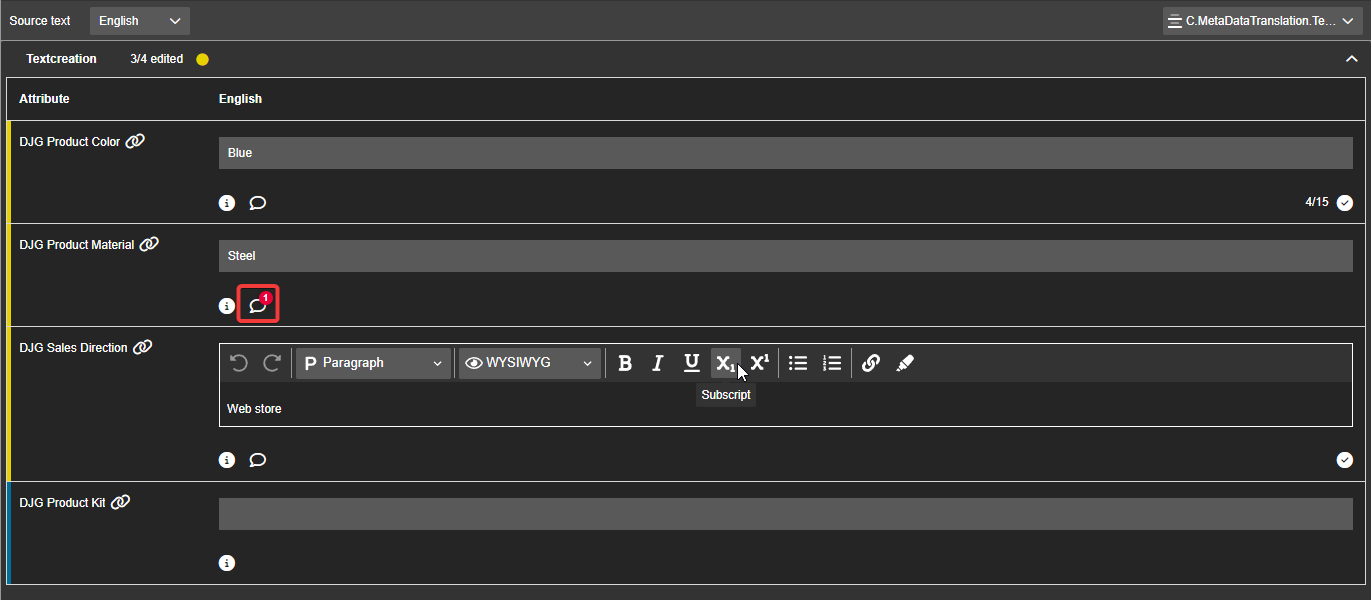
The “Correction” function button (speech bubble icon) is available in both view modes in all text creation/translation rows and appears next to the text notes icon as soon as something is written inside the text field (when the field is empty, there is no icon).
After clicking on the button, the “Correction” modal window with corrections related to text/translation in the current row will appear. The main element of this window is a table which consists of the following columns:
-
Note: Contains the information about the necessary corrections to be made.
-
Created by: Shows the date of creation and the user who has added the note.
-
Status: Indicates whether the correction has been made or not.
The user can create new corrections or delete existing ones by using the "Add" and "Delete" buttons, respectively. As with the “Text notes” function, the visibility of these buttons depends on the configured permissions (access rights).
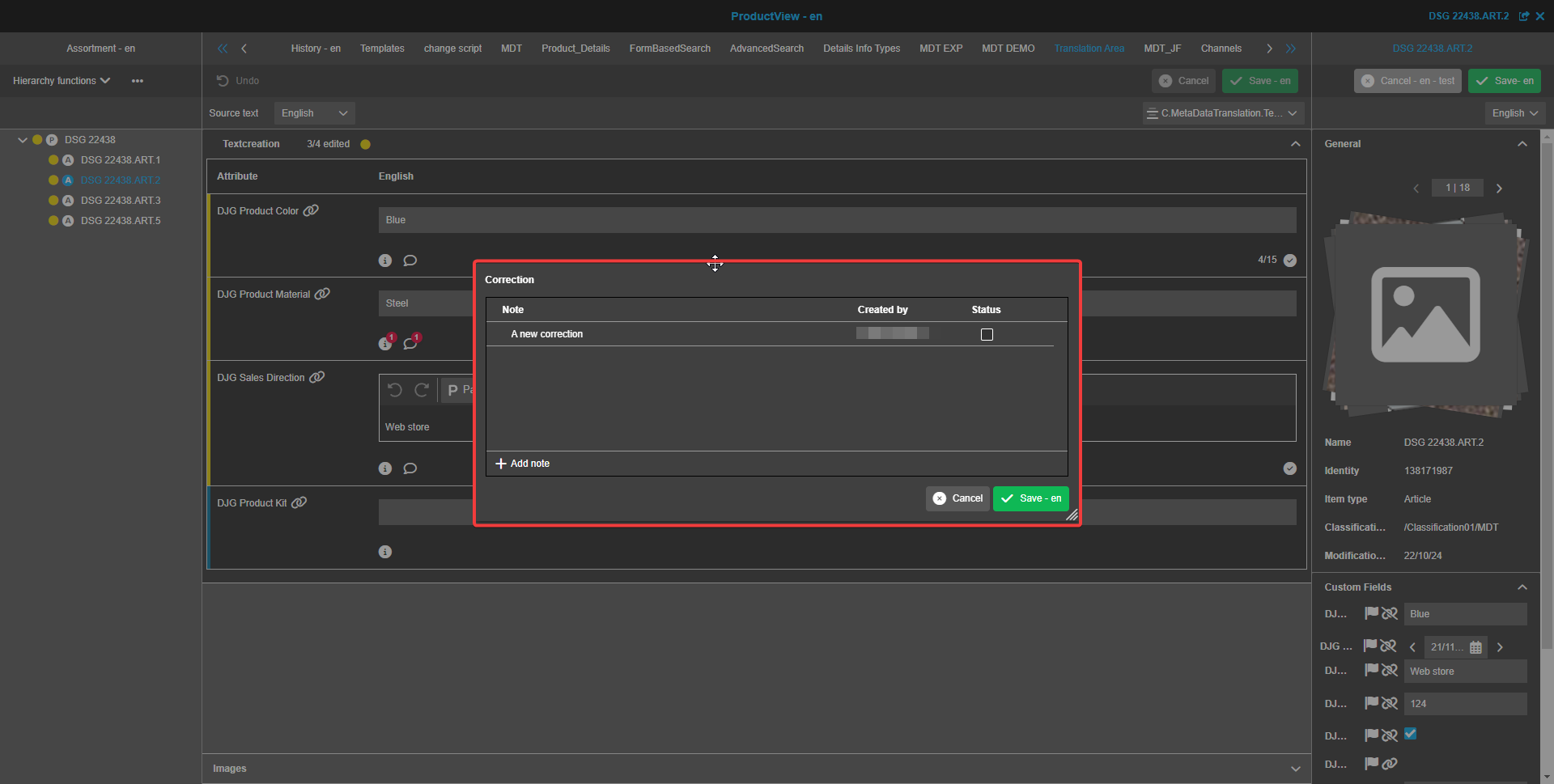
After changes are made, the "Save" button should be clicked and the list of corrections will be updated.
The “Correction” function has the same indication (notification badge) of not completed corrections as the “Text notes” function and the same impact on translation status calculation: the translation for an attribute cannot be set as “Completed” (green indicator) if there are unchecked corrections in the corresponding row.
Approve function
The functionality to approve created texts/translated values allows users to understand whether the created text/translation is accepted or not.
There are two possible ways how a text/translation can be approved depending on the configuration of the Metadata Translation plugin:
-
Automatic approval
If the "Enable Approve function" option is disabled in the configuration, then the translation becomes approved (marked with green color) as soon as there is text inside the input field and no text notes and corrections are to be done. -
Manual approval
If the "Enable Approve function" configuration option is enabled in the configuration and a user has the corresponding access rights, a check button to approve created texts/translations will be available for each row separately.
The "Approve" button is placed on the right side of the "icon row" (underneath the text field). After pressing the button, the status will turn green and the icon will disappear.
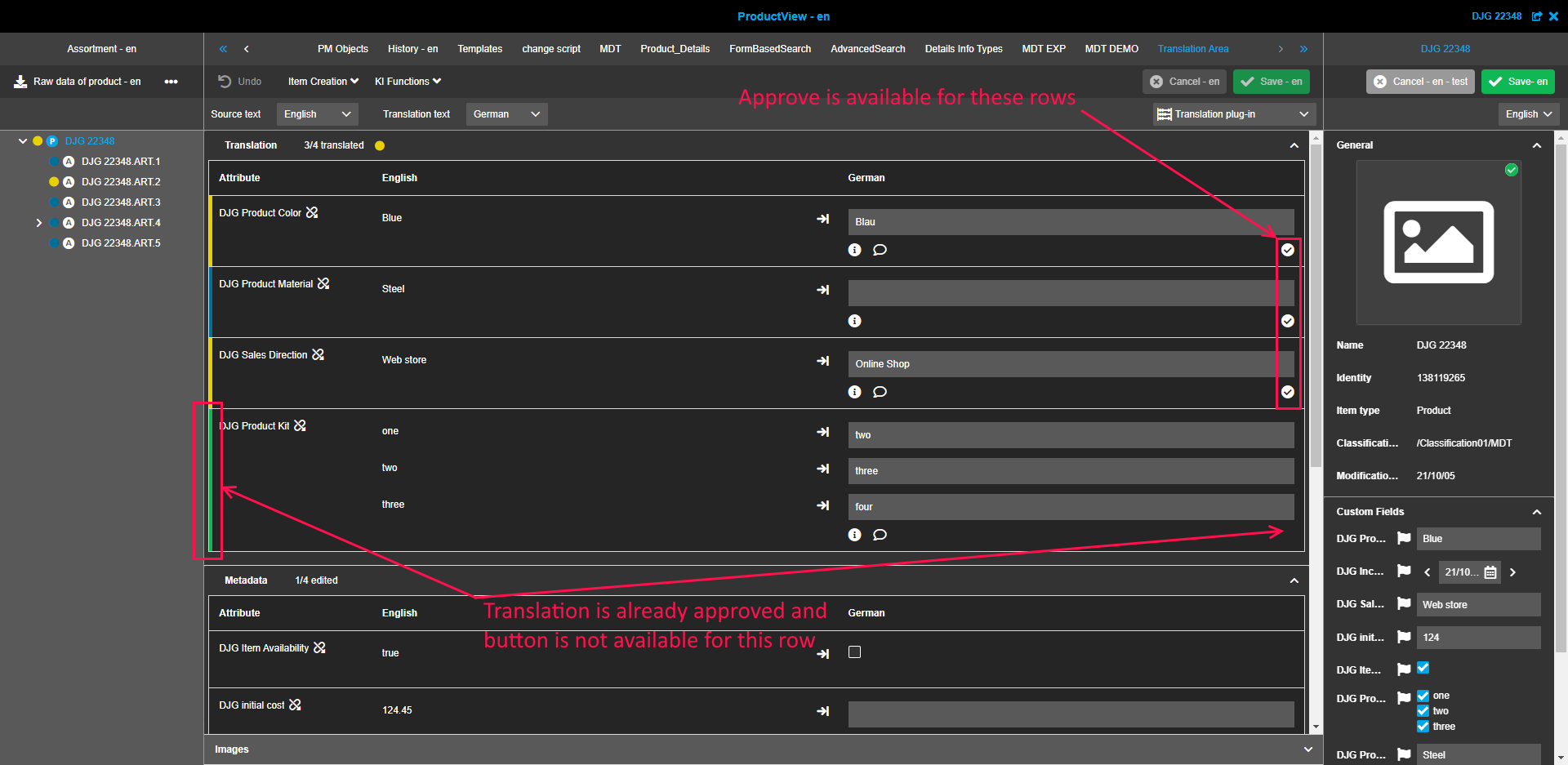
The "Approve" status will be saved immediately after clicking on the "Approve" button. After that the content refresh will be performed to update the colorized statuses.
If a user clicks on the "Approve" button after some changes has been made (changes are not saved at this moment), then a confirmation dialog is displayed. Selecting "Save" in the dialog window saves the changes.
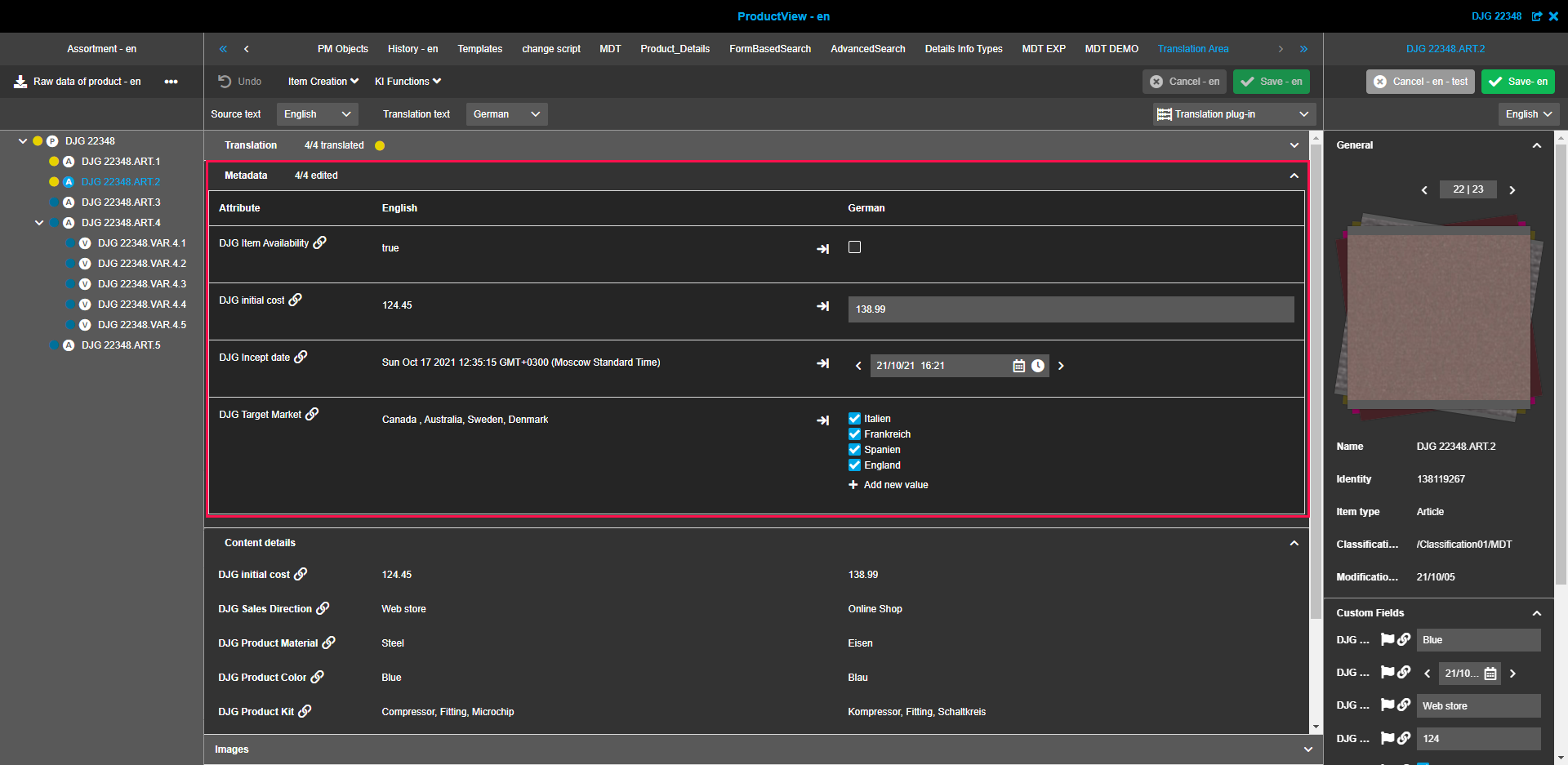
"Metadata" section
The Metadata section contains language dependent attributes that are not string types (except of listable string attributes).
The section is used to manage attributes that are not translatable in general (e.g. price) but are maybe different in context of each language.
With a few exceptions in general the Metadata section has the same structure and possibilities as the Translation section.
These are:
"Content details" section
The Content details section contains contextual information about the translation, so the user can easily find/review useful data supporting the translation work.
The data in the section cannot be edited since it just provides some auxiliary information which is related to the translation process, but not to manageable products directly.
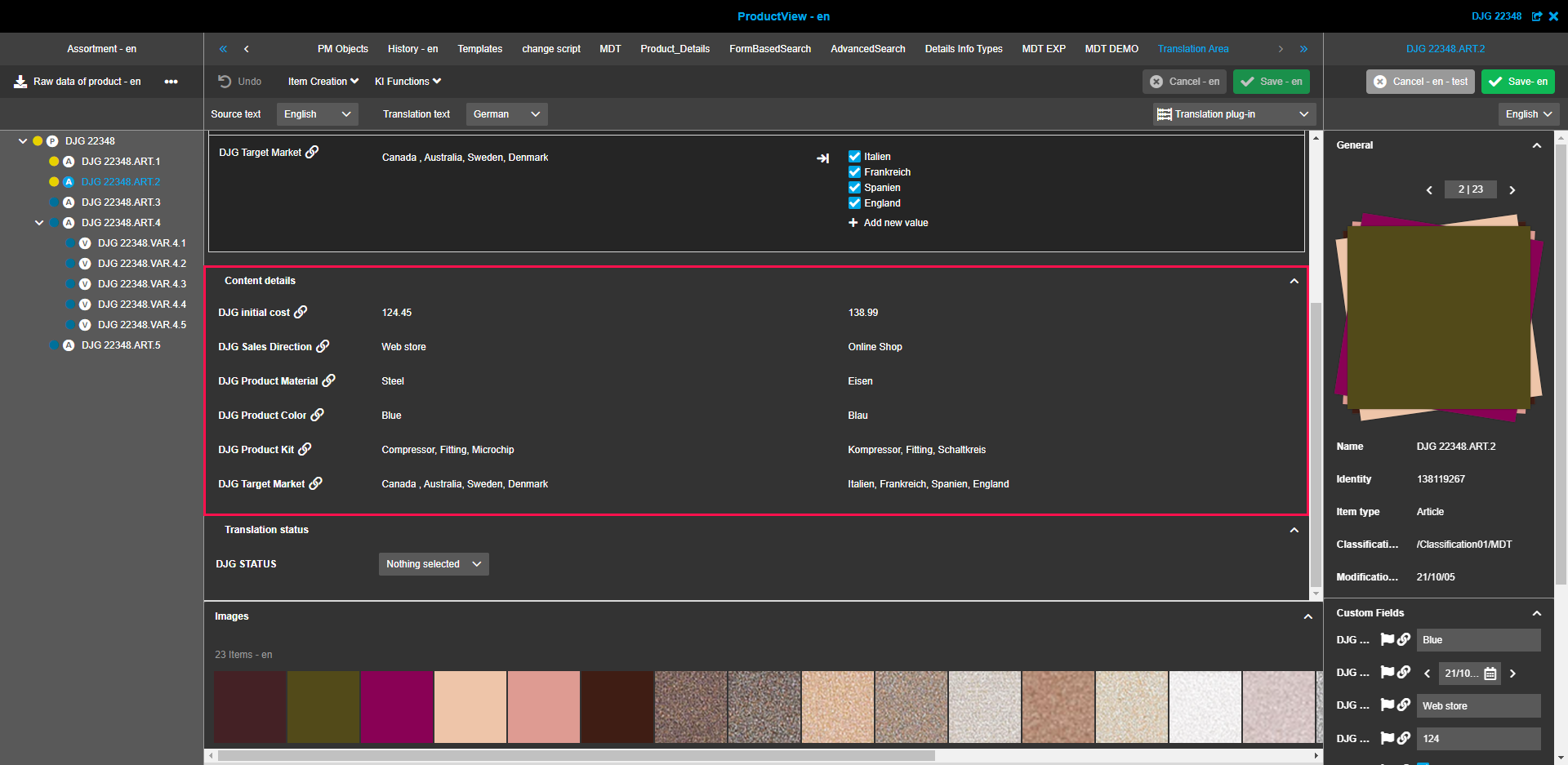
The section is shown in the localization corresponding to the selected languages.
"Translation status" section
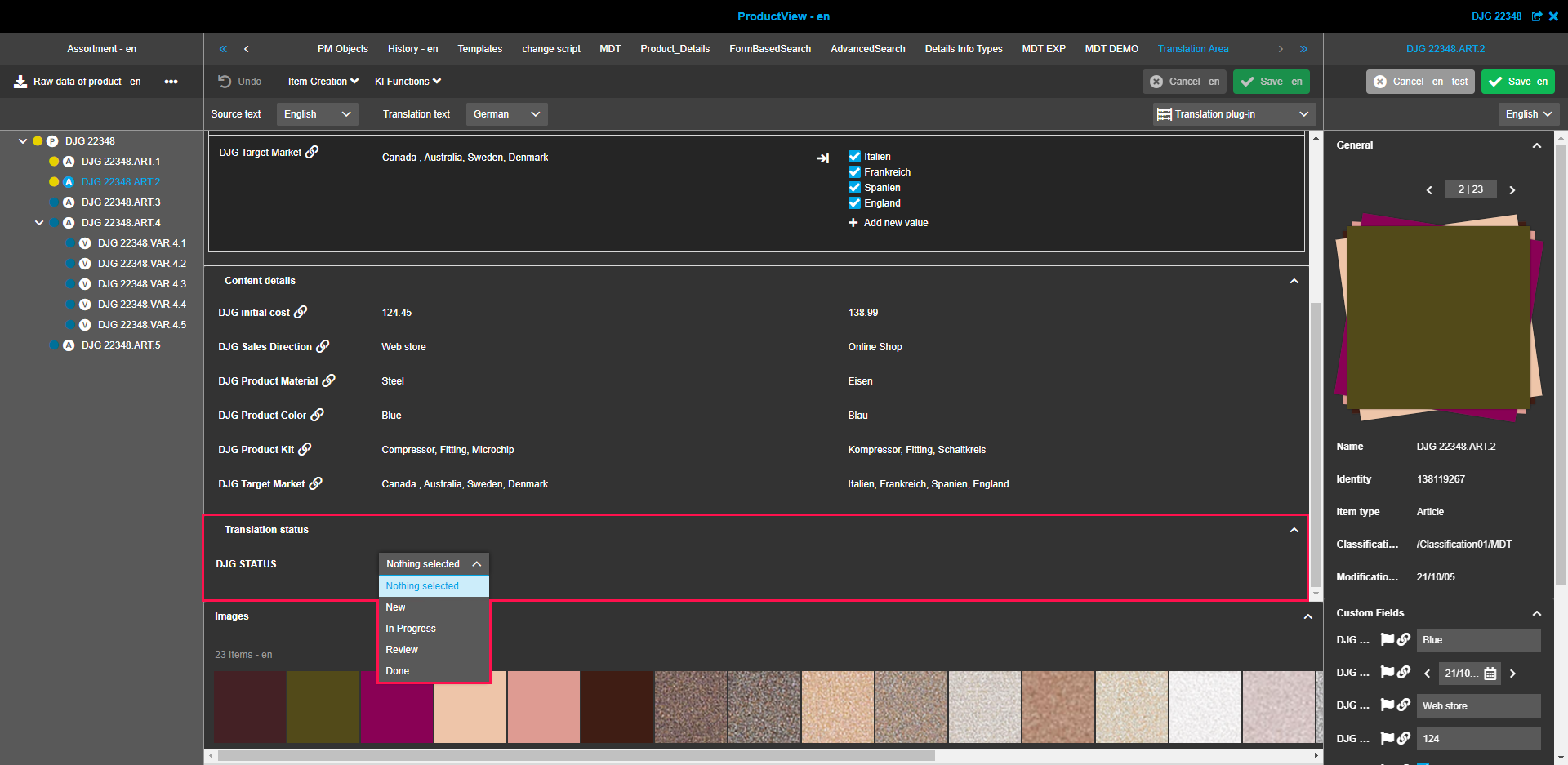
The Translation status section is used to track the progress of the overall translation status.
Unlike of the colorized translation statuses which are calculated automatically, this status must be set manually by the user.
This section always consists of string attributes which are only allowed to be shown as a dropdown list with single selection option only.
"Images" (related assets) section
The Images (related assets) section is located as a filmstrip at the bottom of the center view and contains all assets which are linked to the product.
The visibility of the section can be disabled through the Metadata Translation plugin configuration. Also, there is a possibility to choose the display mode for the assets: cropped image mode or mode with correct aspect ratio.
Additional section options
The Metadata Translation plugin provides higher-level functionality across the sections, including changing the section order, content filtering and user-based settings.
Change section’s order
To make work with the plugin more comfortable, users have the possibility to arrange the sections in the Center view according to their desire simply by using drag-and-drop.
Each available accordion corresponds to the configured sections (Translation, Metadata Attributes, Status, Content section) and has the order defined in the configuration.
| The “Images” section is not taken into account for reordering because it is a film strip. Therefore, it is always on the bottom of the page. |
Content filtering
Content filtering is possible in both view modes.
In case of the Translation mode, it is supported both in Translation and Metadata sections.
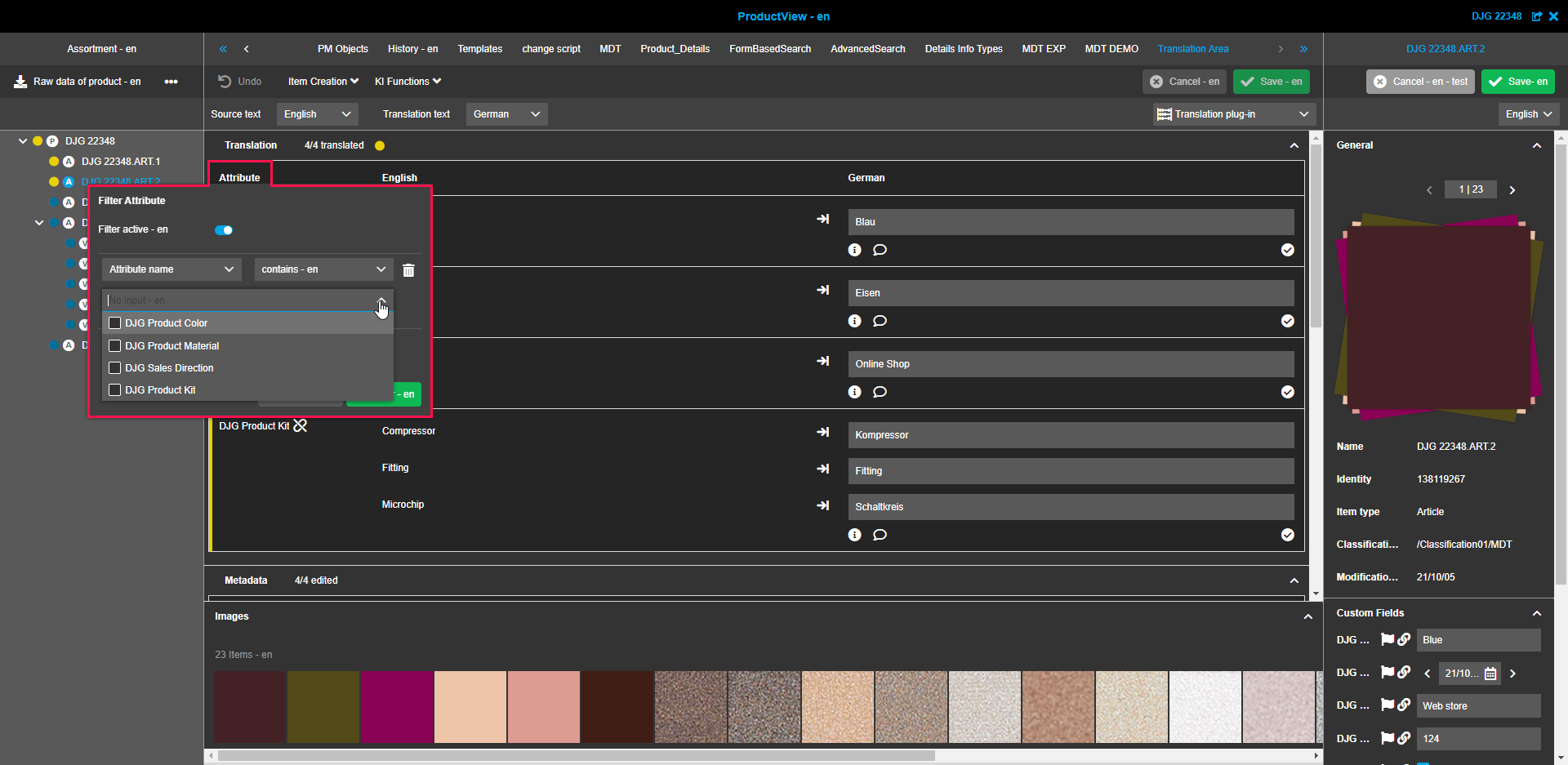
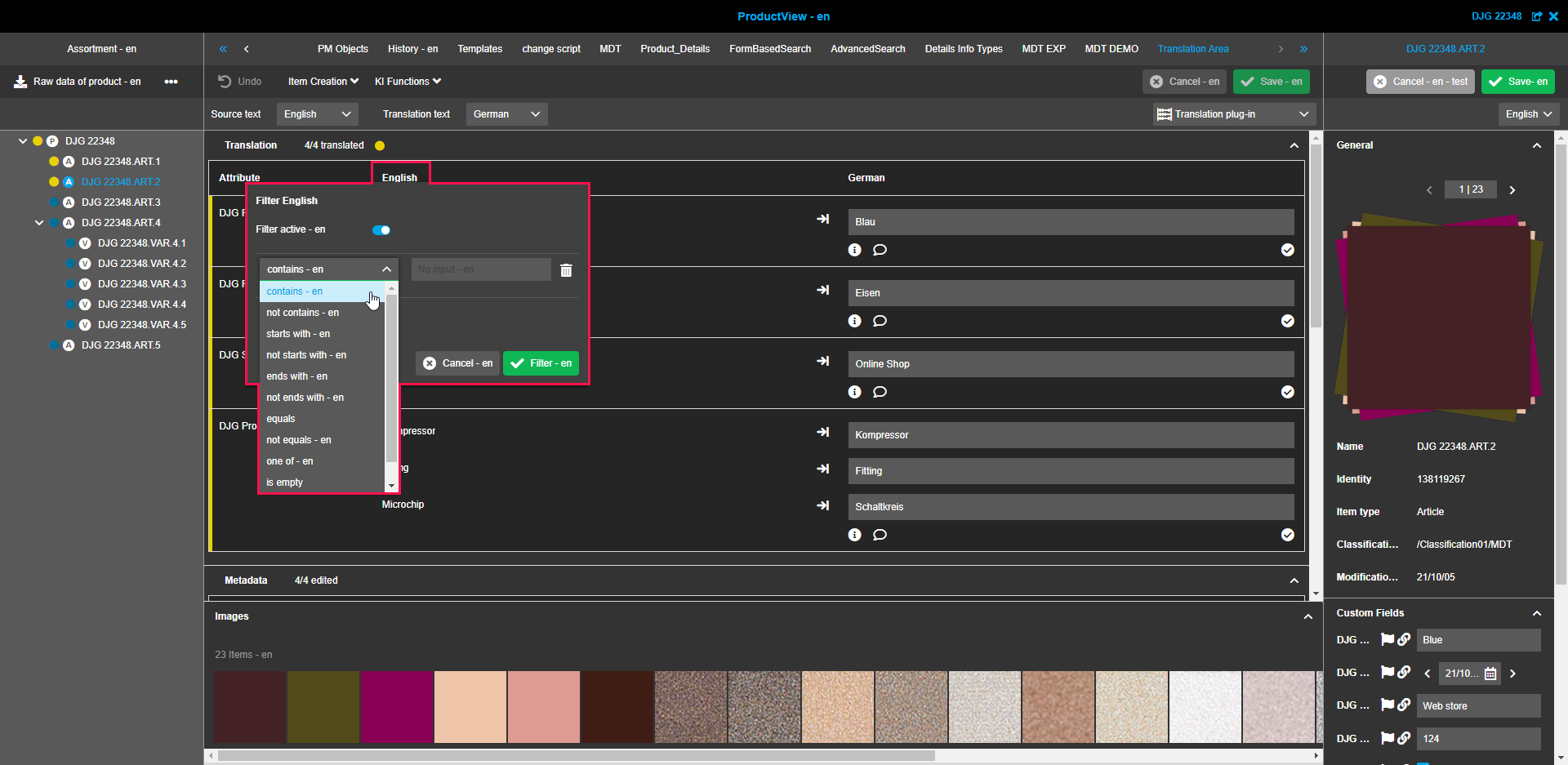
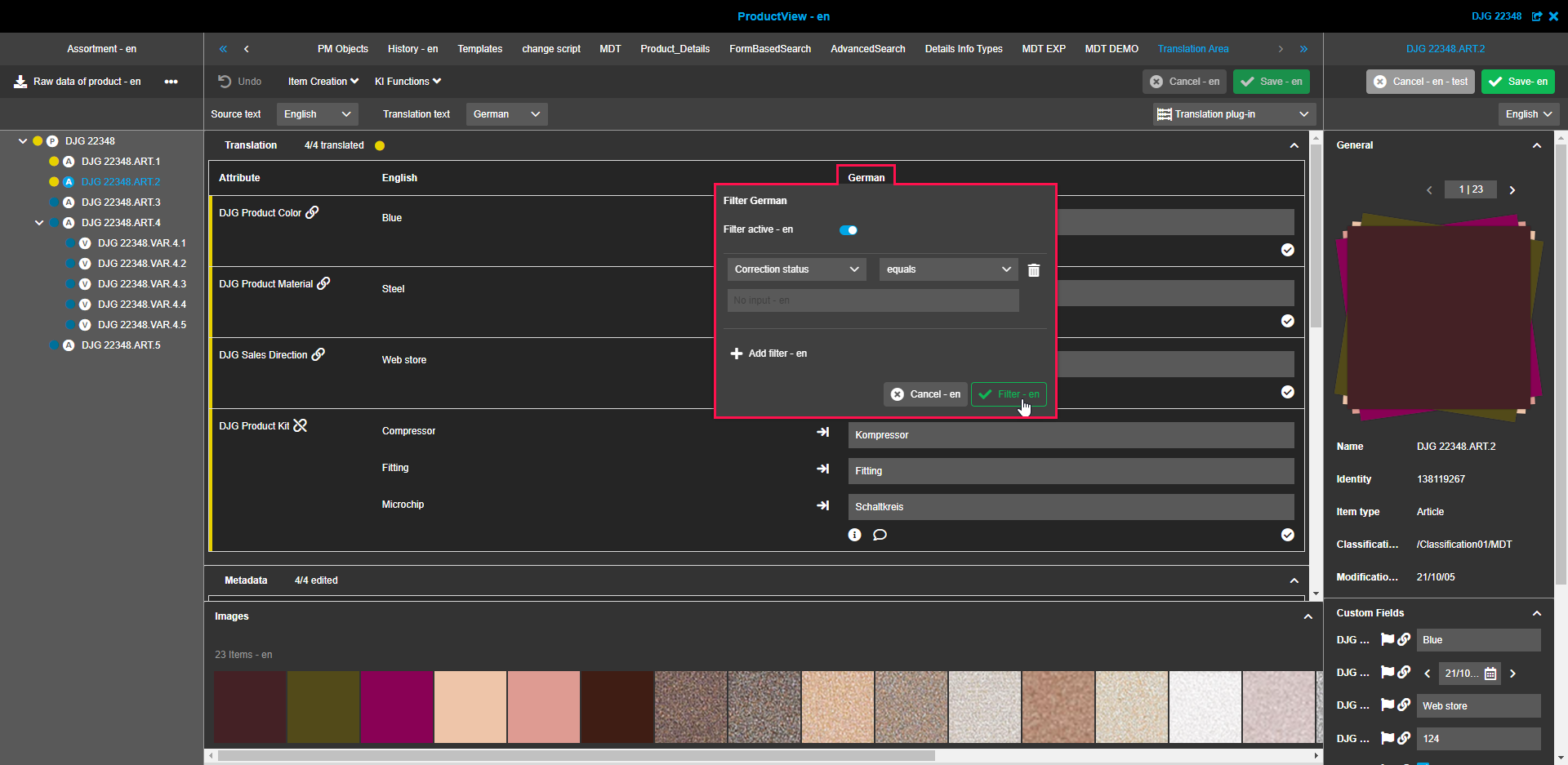
To apply filtering, the user needs to hover over the column title and wait for the filtering icon to appear. By clicking on the filtering icon a pop-over with filtering options will be opened. In the appeared pop-over the user can activate filters and then select the filtering operator and value. By clicking on the “Filter” button the pop-over will be closed and filtering is performed.
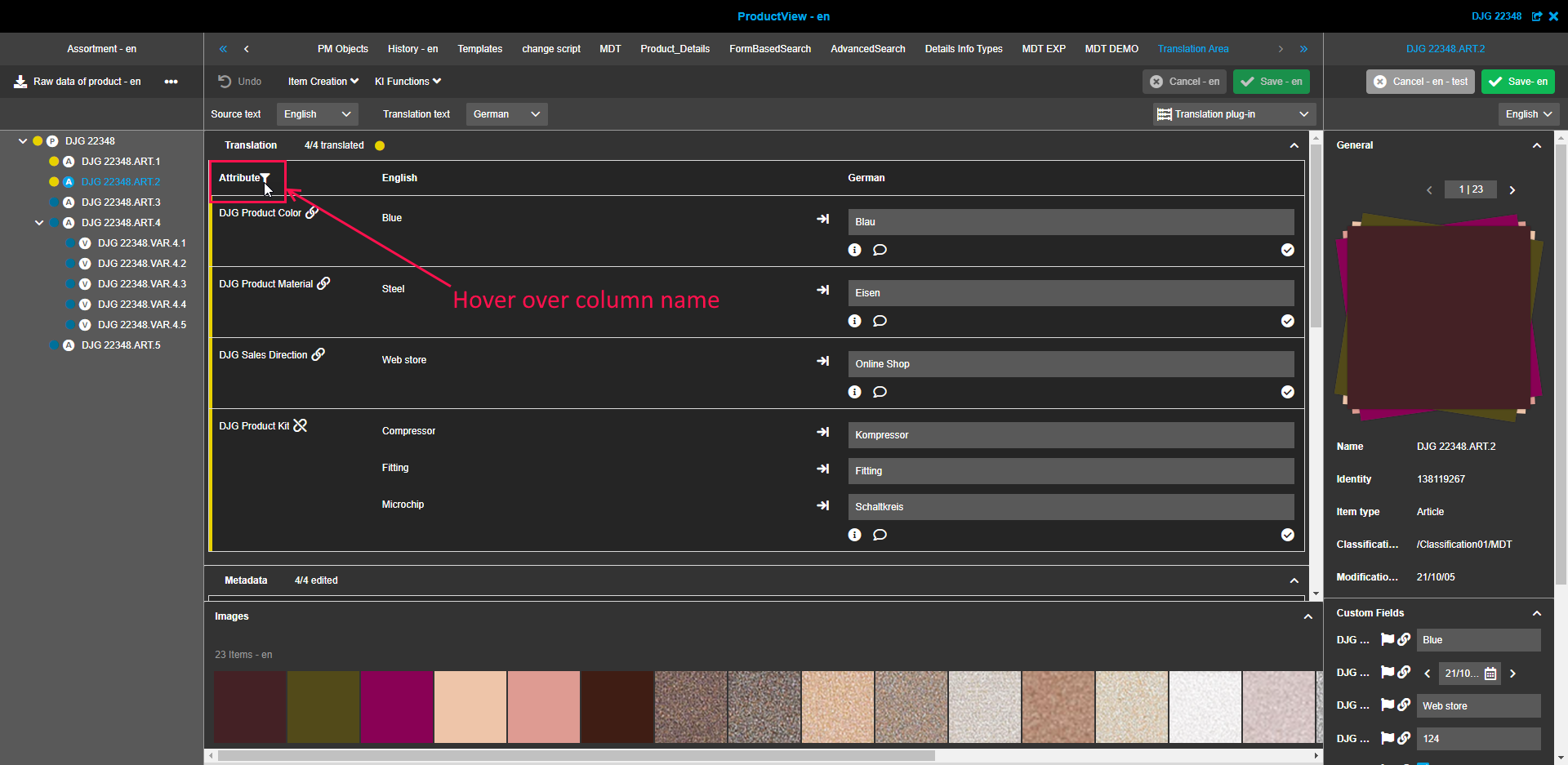
The "Attribute" column can be filtered by Status and Attribute name.
The column for source text can be filtered by Value.
The column with target text is filterable by Value, Correction status and Text note status.
Keeping user-based settings
The Metadata Translation plugin supports the usage of user-based settings for users who have enabled the “Save user-based settings” option in User settings.
The user-based settings include the following elements:
-
the order of configured sections in center view and their state (expanded or collapsed)
-
the state of the “Images” section (expanded or collapsed)
-
the language values in "Source text" and "Translation text" fields
-
applied filters
Changes made on the client-side will be applied at the moment they were set and will be saved up to the next changes in settings (even after re-logging in the application).
Right view
The right view for the plugin appears when the Details or Table plugin is configured as part of the Metadata Translation for Product View (see configuration page).
It allows users to view and edit product attribute values in the desirable language without switching to the Product Details tab which might be very convenient.