Parameter definitions
On this page, the user can assign attributes to the Workflow Configuration, remove attributes from the Workflow Configuration and define the availability of the attributes in the Process start modal and UI Administration. Also, the user can configure whether certain attributes can be editable in the UI.
| The column 'In the process start modal' is only shown, in case no detail-view has been configured for the Tab 'View' of this Workflow Configuration. |
| Before the attributes can be assigned within the Workflow Configuration, they must be created under Data → Attributes - Workflow Attributes. More info here. |
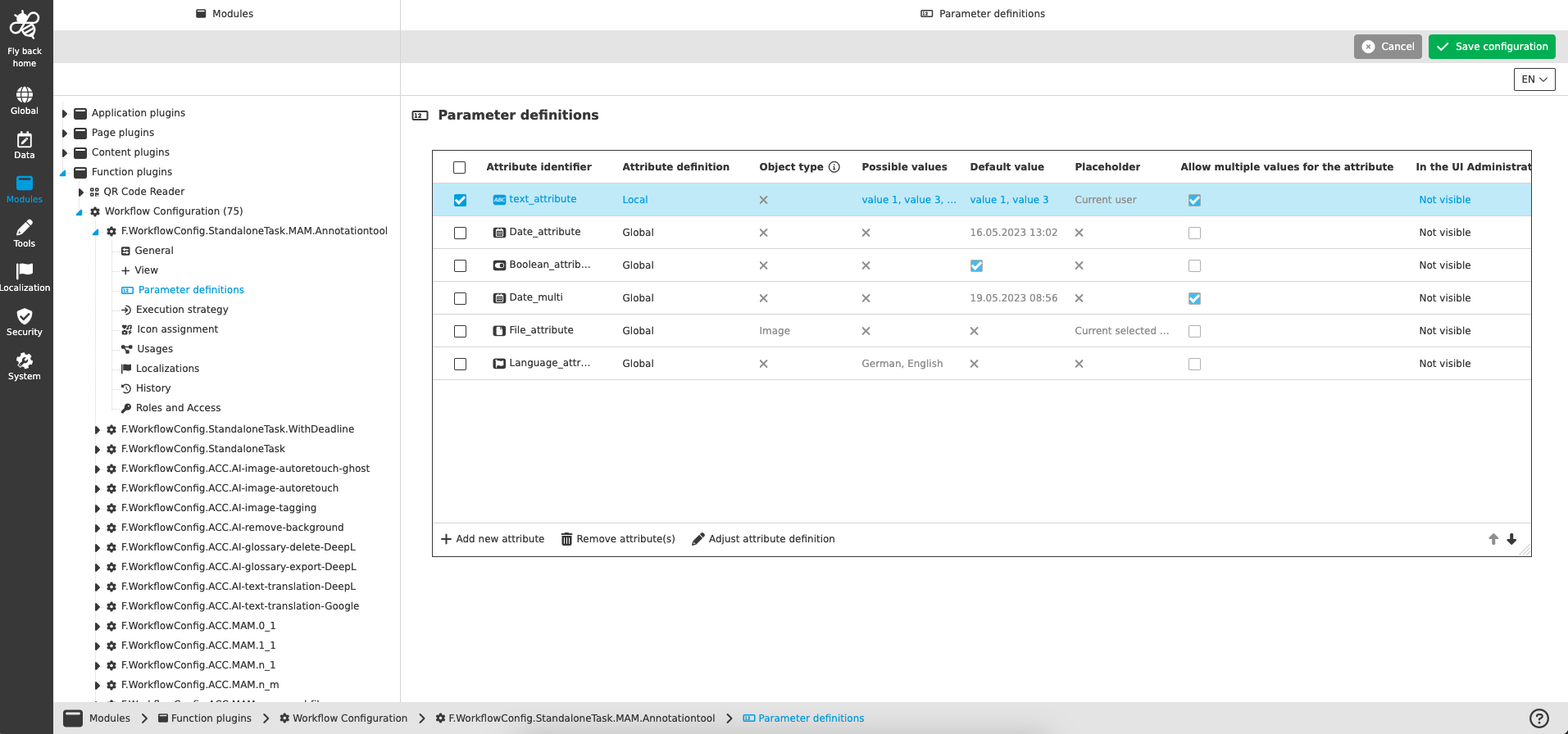
The Parameter definitions table provides the following information for assigned attributes:
| Name of option | Description | Note |
|---|---|---|
Attribute identifier |
Shows the attribute identifier of the added attribute, visualized with attribute type icon and identifier of the workflow attribute. |
The dropdown is searchable and can be reopened by hover and click to select another attribute. All workflow attributes, which are not yet configured in the Parameter definitions table are listed in the opened dropdown. |
Attribute definition |
Shows the information whether the global attribute definition is used within the workflow configuration or a modified local attribute definition. |
Global attribute definition means that the attribute is used exactly as it was created in the Data section (see: Workflow attributes) Local attribute definition means that the attribute has been customized specifically for the Workflow Configuration use case. This is possible via the function 'Adjust attribute definition' (described below). |
Object type |
Shows info of the defined exact object type for an asset that is intended for the file attribute e.g. for object type Image only. Images can be associated with the attribute. |
This information is only relevant for configured workflow attributes of type 'File' (see: Workflow attributes data types). |
Possible values |
Shows defined possible values of the configured workflow attribute, which will be transmitted to the process. |
This information is only relevant for configured workflow attributes of type 'Text', 'Number' and 'Language' (see: Workflow attributes data types). The values of the column can change by 'Adjust attribute definition' function (described below). |
Default value |
Shows defined default value of the configured workflow attribute, which will be transmitted to the process. |
This information is relevant for all configured workflow attributes types except of type 'File' (see: Workflow attributes data types). The value(s) of the column can change by 'Adjust attribute definition' function for attributes from data type 'Text', 'Number' and 'Language' (described below). |
Placeholder |
Shows defined placeholder of the configured workflow attribute, which will be transmitted to the process. |
This information is only relevant for configured workflow attributes of type 'Text' and 'File' (see: Workflow attributes data types). |
Allow multiple values for the attribute |
Shows if multiple values can be transmitted to the process. |
This information is only relevant for configured workflow attributes of type 'Text', 'Date', 'Number' and 'Language' (see: Workflow attributes data types). |
In the UI Administration |
Dropdown to define, if the configured attribute should be
in the UI Administration. |
'Not visible' means that the attribute cannot be viewed or edited within the UI Administration. 'Visible' means that the attribute is displayed in the UI Administration, but is not editable. 'Editable' means that the attribute is visible and can be modified in the UI Administration. If the attribute is changed and saved in the UI Administration, a local attribute definition is created, which only applies to this workflow configuration, but does not change the globally created attribute or other uses of the attribute. |
In the process start modal |
Dropdown to define, if the configured attribute should be
in the Process start modal, which will be opened in the UI, when executing the workflow configuration toolbar button. |
This column is only available, in case that no Detail view has been configured in View tab. 'Not visible' means that the attribute cannot be viewed or edited within the Process start modal. 'Visible' means that the attribute is displayed in the Process start modal, but is not editable. 'Editable' means that the attribute is visible and can be modified in the Process start modal. |
The following functions are available in case that table row (workflow attribute) has been selected:
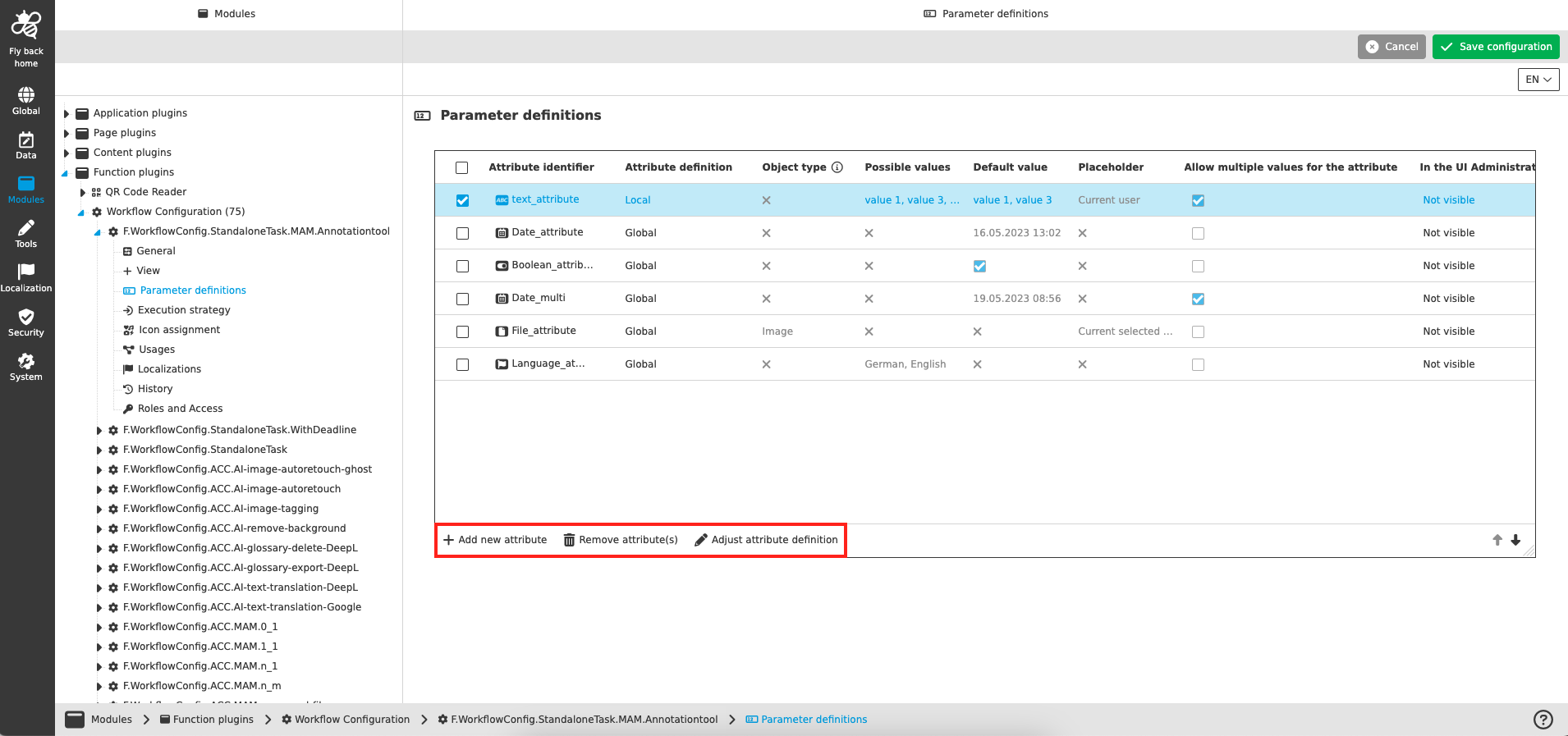
Add new attribute
This function is available at the bottom of the Parameter definitions table independent of selection.
-
Execute Add new attribute function
-
Search for workflow attribute in opened dropdown to configure the wished attribute
-
Select the attribute
-
See attribute definition detail of the configured attribute
-
Click on Save configuration to persist the added attribute
Remove attribute(s)
This function is available at the bottom of the Parameter definitions table in case one or multiple attributes have been selected.
-
Execute Remove attribute(s) function
-
See that selected attribute(s) have been deleted from the Parameter definitions table
-
Click on Save configuration to persist the removed attribute
Adjust attribute definition
This function is available at the bottom of the Parameter definitions table in case one attribute from type 'Text', 'Number' or 'Language' is selected.
-
Execute Adjust attribute definition function
-
Adjust current attribute definition in the opened modal
-
The following attribute definition can be adjusted within the modal
-
Possible values can be added, deleted, localized and sorted
-
Default value(s) can be changed
-
-
If the current attribute definition differs from global attribute definition, it is possible to restore the global attribute definition by using the corresponding toolbar function.
-
-
Click on Save in the modal to confirm your attribute definition changes
-
Click on Save configuration to persist the made attribute definition for the opened Workflow Configuration.
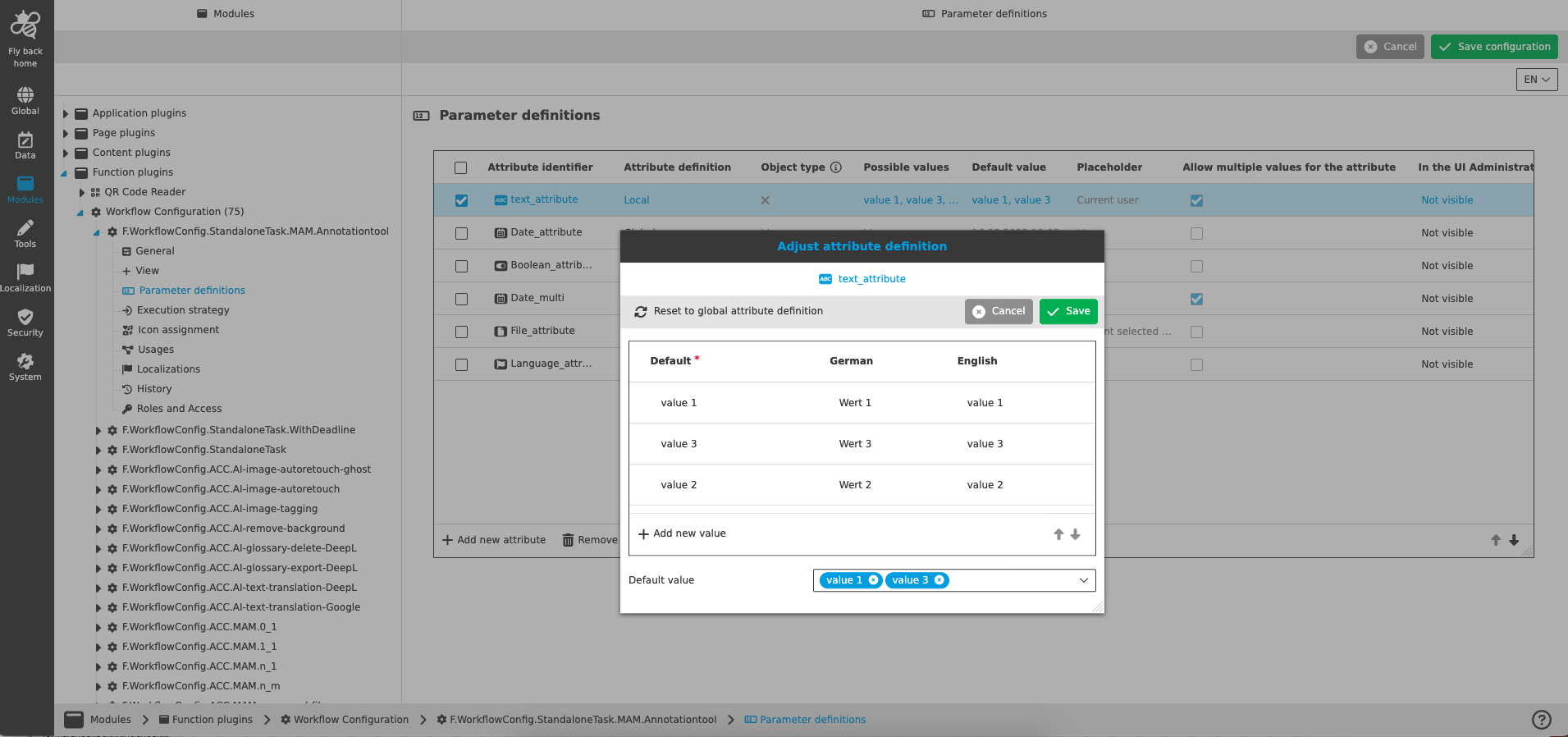
| In case that local attribute definition has been defined in the 'Adjust attribute definition' modal the table column 'Attriute definition' shows 'local' as value. |