Show in file system (Show in Navigation)
Purpose of the plugin
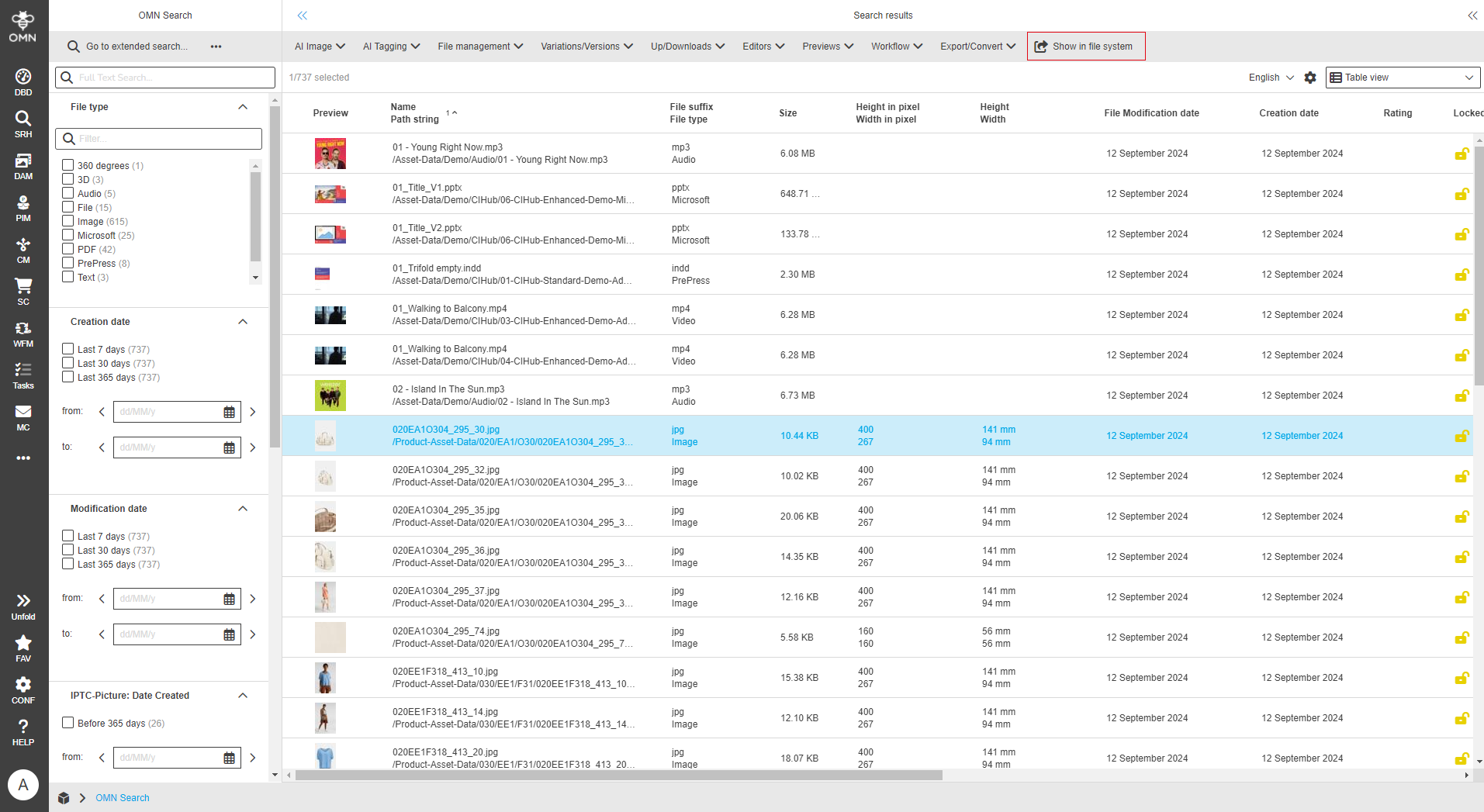
With the "Show in file system" function, a user can select a file within a module (e.g. PIM, Search, …) and switch directly to the storage location of the original file in the DAM.
Introduction
The "Show in file system" function allows the user to open files referenced to products or files found using the search function at the original storage location in the DAM, for example.
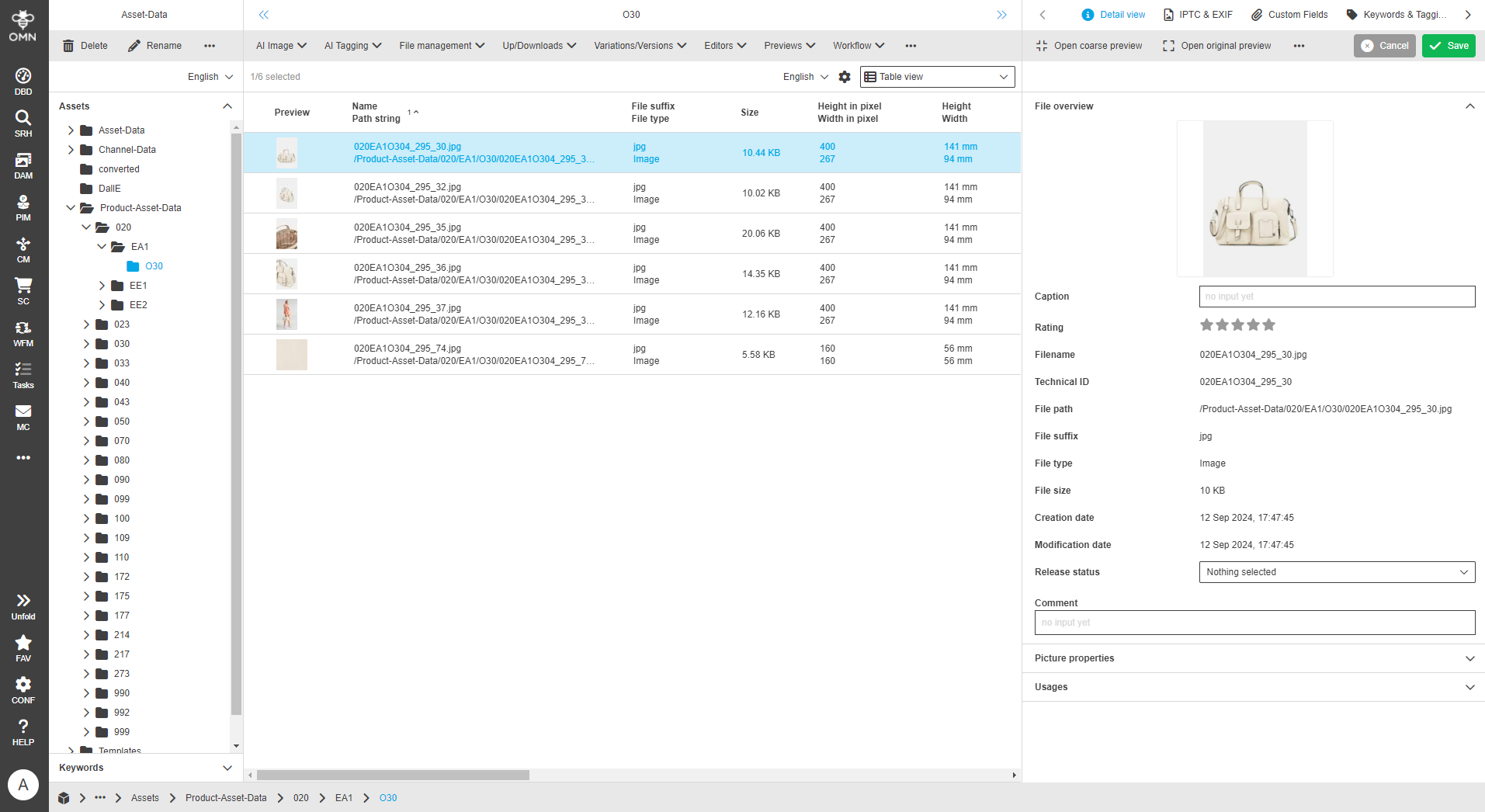
The storage location is opened in a new browser tab and the file is highlighted as selected.
Prerequisites and relations to other modules
To be able to open the storage location of files, the "Show in file system" function must be integrated in at least one of the following modules:
How to use
If the "Show in file system" function is configured, this is displayed in the toolbar after selecting at least one file.
If the function is applied to one or more files, a separate window opens for each file. In this window, the file is displayed at its storage location and is directly selected there. This allows users to find files quickly in the midst of many other files and work with the file immediately.
To make the whole thing clearer, here is a small example: A user is looking for the storage location of a file that he only knows begins with "020". The aim is to copy the file at the storage location, rename it and change its color. The user can use the DAM search to find the file, select it and use the "Show in file system" function to jump directly to its storage path. There the file can be edited further.
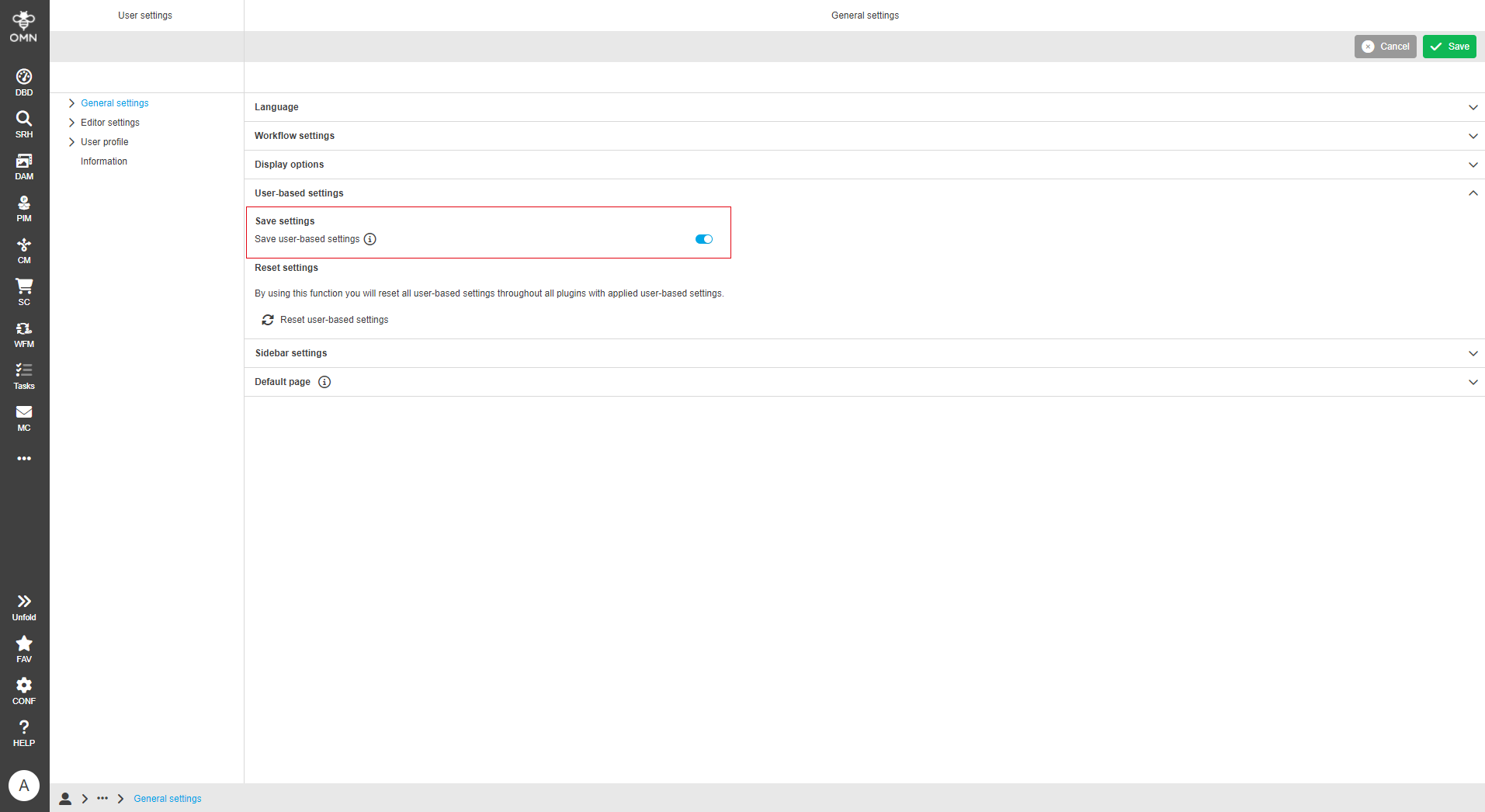
If the user-based settings are active, OMN saves in which area (file system structure or keyword structure) the user was last located.
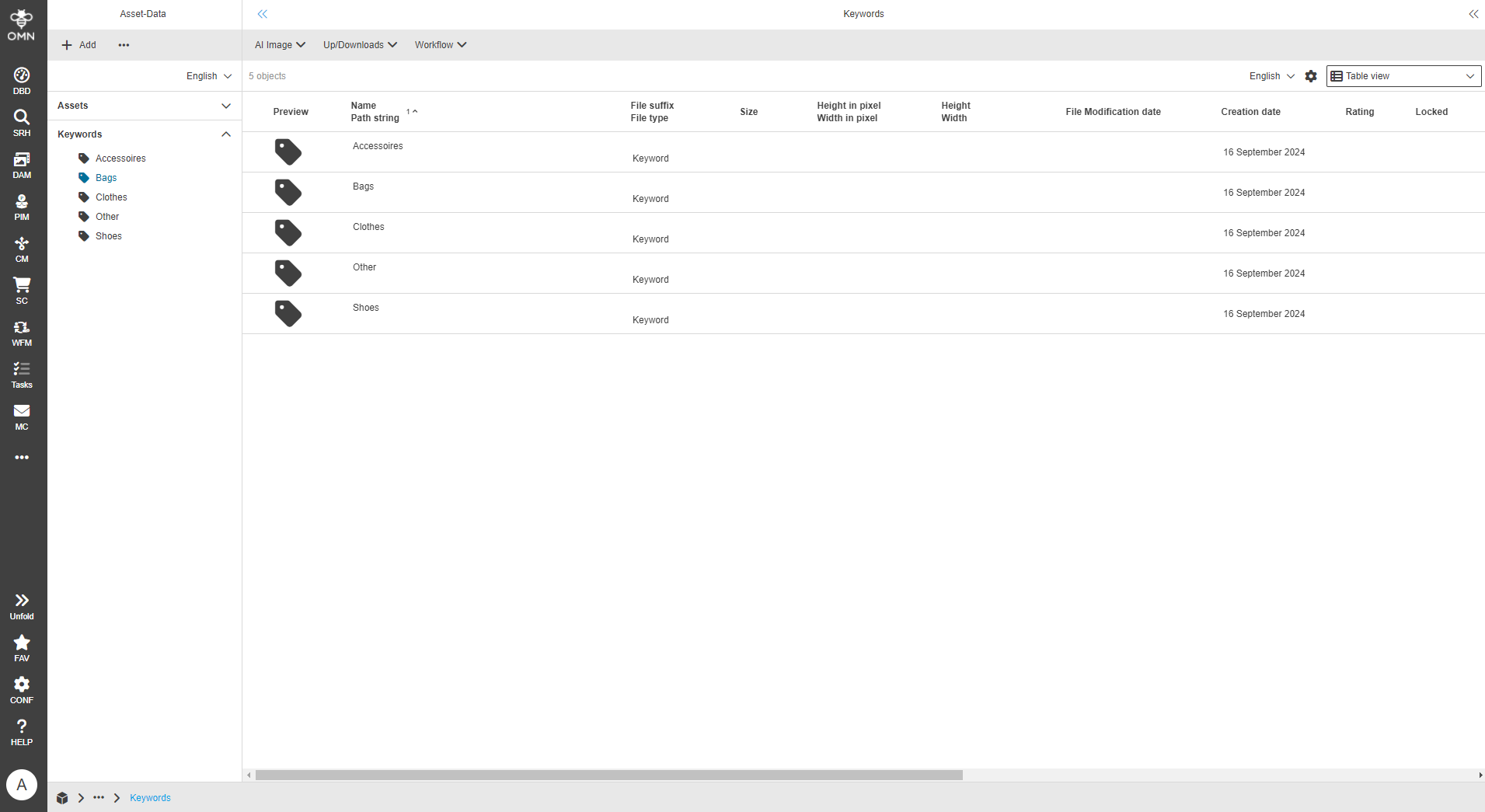
Depending on this, the "Show in file system" function opens the result either in the file system structure or in the keyword structure.
In the keyword structure, the keyword to which the selected file is attached is displayed and not the file itself
|