Custom Transition Icons
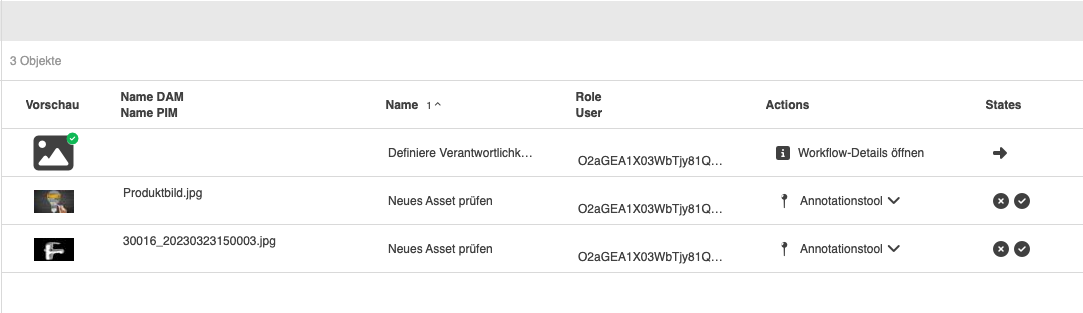
How to assign custom icons for Camunda
-
Open the Camunda Modeler and your workflow model.
-
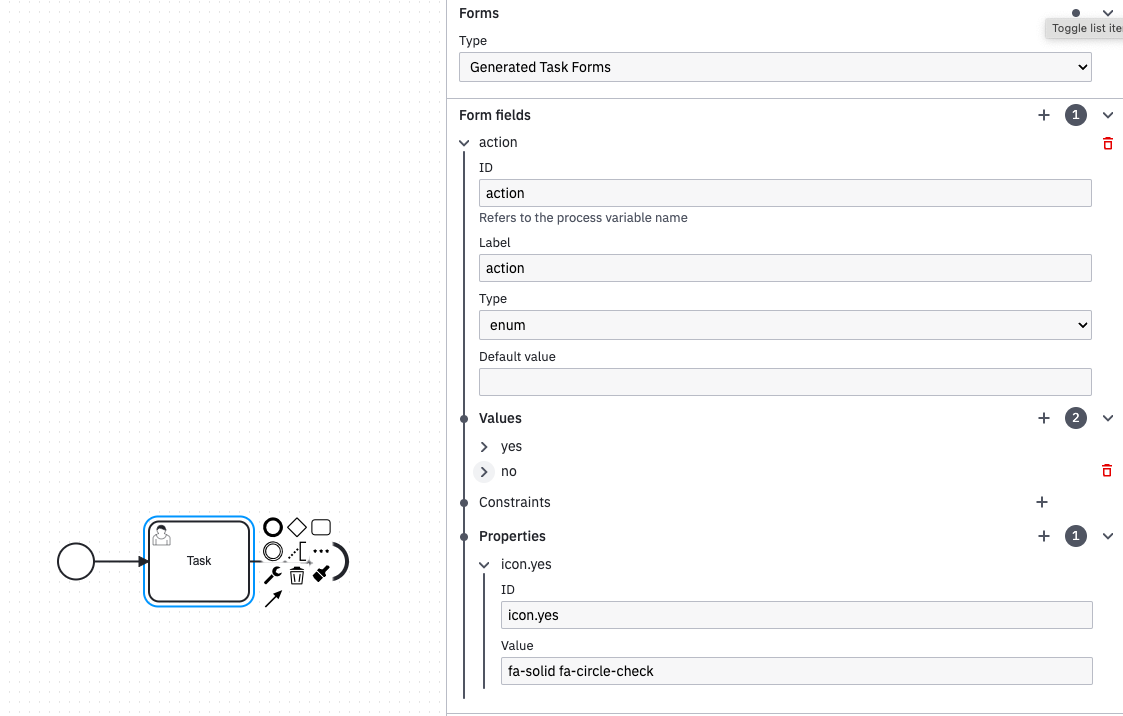
Select a user task and open the forms tab in the properties panel on the right side of the modeler.
-
Make sure to have a form field configured for the outgoing transition(s) from the user task to another BPMN element.
-
If not, you need to create a new form field here
-
-
At the bottom of the Form Field panel you will find the "Properties" section.
-
Add a new property using prefix "icon." followed by the id from the value section above as property id and add the suffix
-
Use your desired FontAwesome icon identifier as value.
-
Example
-
ID: icon.task1 Value: fas fa-angle-left
-
ID: icon.task2 Value: fas fa-angle-right
-
-
You can find these identifiers in a Fontawesome browser in the OMN config client.
-
Or use the official fontawesome.com website to browse for the desired icons.
-