General Structure
The Online Media Net generally follows a uniform page layout or structure to make it easier for a user to find their way around.
Page grid
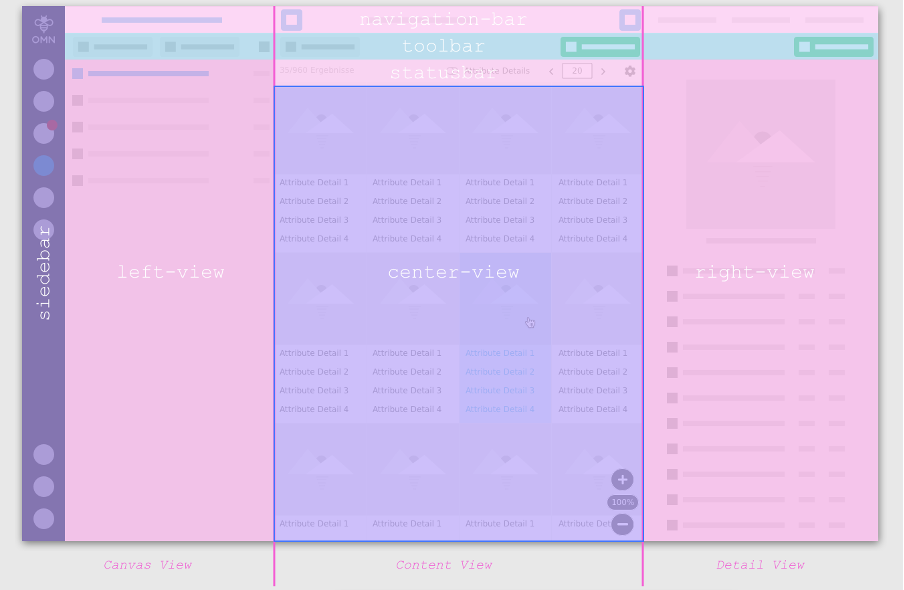
Basically, a module page consists of three columns: the left ("Left View"), middle ("Center View") and right column ("Right View").
The left view usually contains a folder structure that is used for navigation and with the help of which a user can move through different folders, chapters or saved searches, for example.
In the center view, the contents of these folder structures are displayed. These can be assets, which can be for example adapted to individual needs through different views (Table View, Single Object View, etc.).
In most cases, the right view contains detailed information about the selected objects from the center view.
The left and the right view can be expanded and collapsed if desired. If the user-based settings are activated in the User Settings, this state is also retained at the next login.
Bars
Besides this basic structure principle, there are other structural elements that can be found on almost every page. These are various bars that intercept certain functionalities.
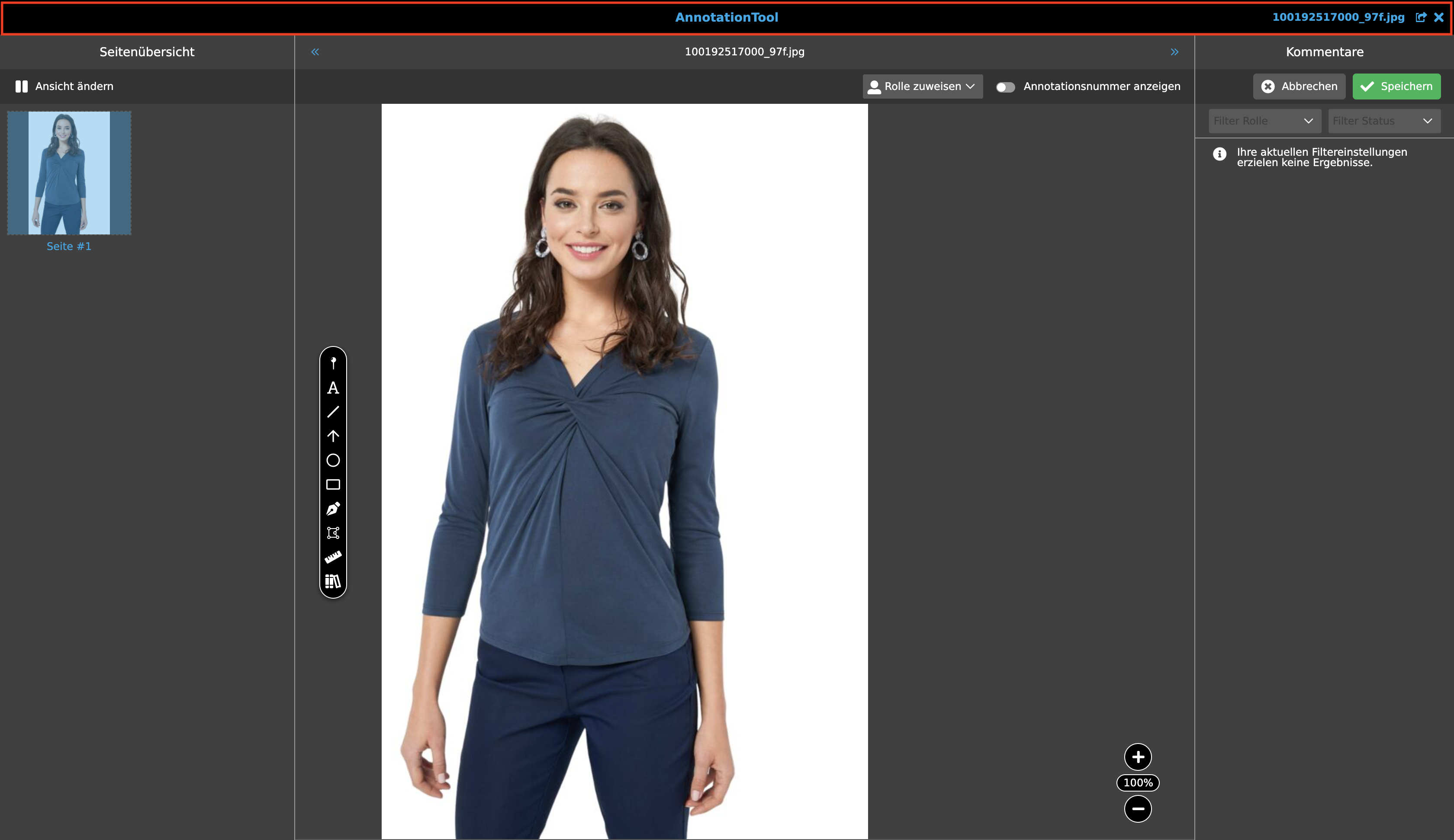
Titlebar
The titlebar is only used within editors or certain modals. It is used to identify which type of editor or modal it is, to switch between different assets or products (if it is possible) and to close the window again.
Navigation bar
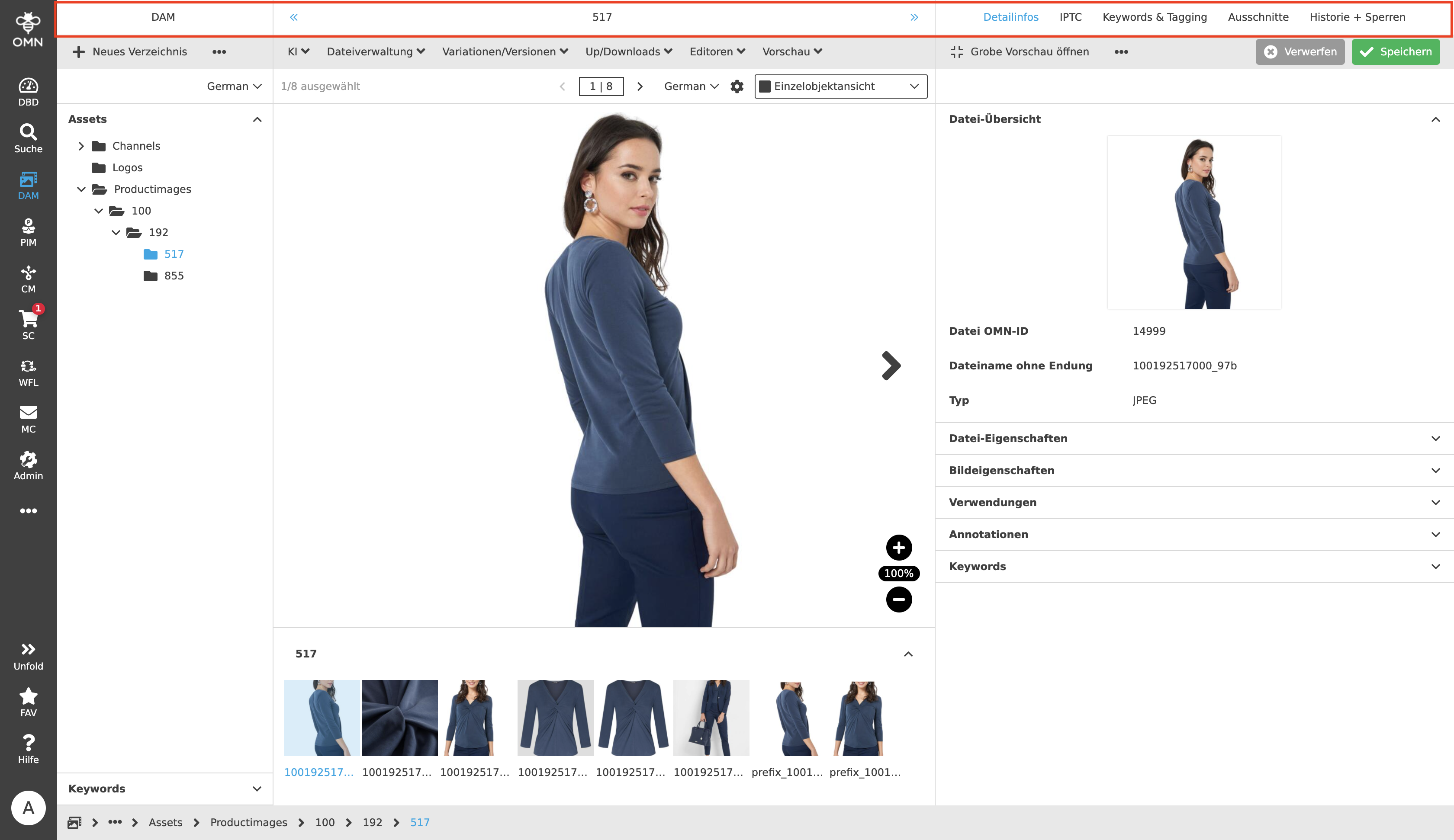
The navigation bar extends across the entire width of the page and is located at the top - with the exception of editors. It should inform the user in which module and on which folder structure he is currently located. Normally the title in the left view shows the selected module, the center view shows the selected folder and the left view shows the name of the file. Depending on the configuration, it is also possible that instead of a title there are different so-called "Navigation Tabs", whereby, for example, different FS Details can be displayed and opened. Via the navigation bar - by clicking on the title - it is also possible to refresh the page.
Toolbar
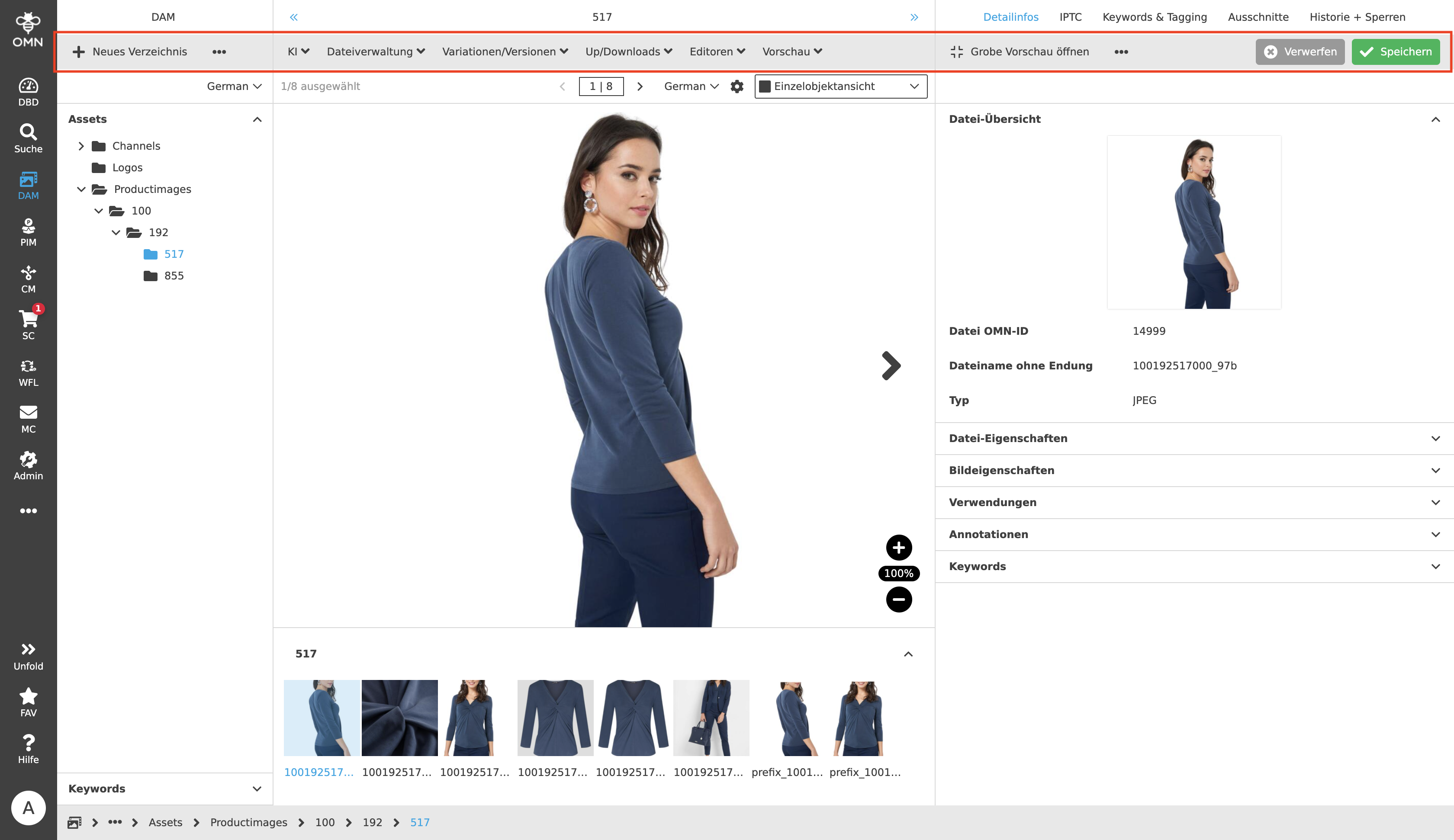
The toolbar is always located below the navigation bar and contains buttons with functions that can be executed on the page. There are functions that can be executed without context (e.g. upload, create item) or only in connection with a selection (e.g. open editor, download). Functions are only displayed if they can be executed at that time.
An example: The user is in the DAM module. No file is selected in the center view. There are already a few functions in the toolbar, such as a function to create a new folder. No context is needed for this. In the next step, one or more files are selected, which causes new functions to appear in the toolbar that can be used specifically for the selected assets, such as opening the file(s) in fullscreen.
Also found in the toolbar are the so-called "Call to Action" buttons. These can be seen when saveable changes are executable, such as in the Management View. These buttons can be used to both save and discard actions.
Statusbar
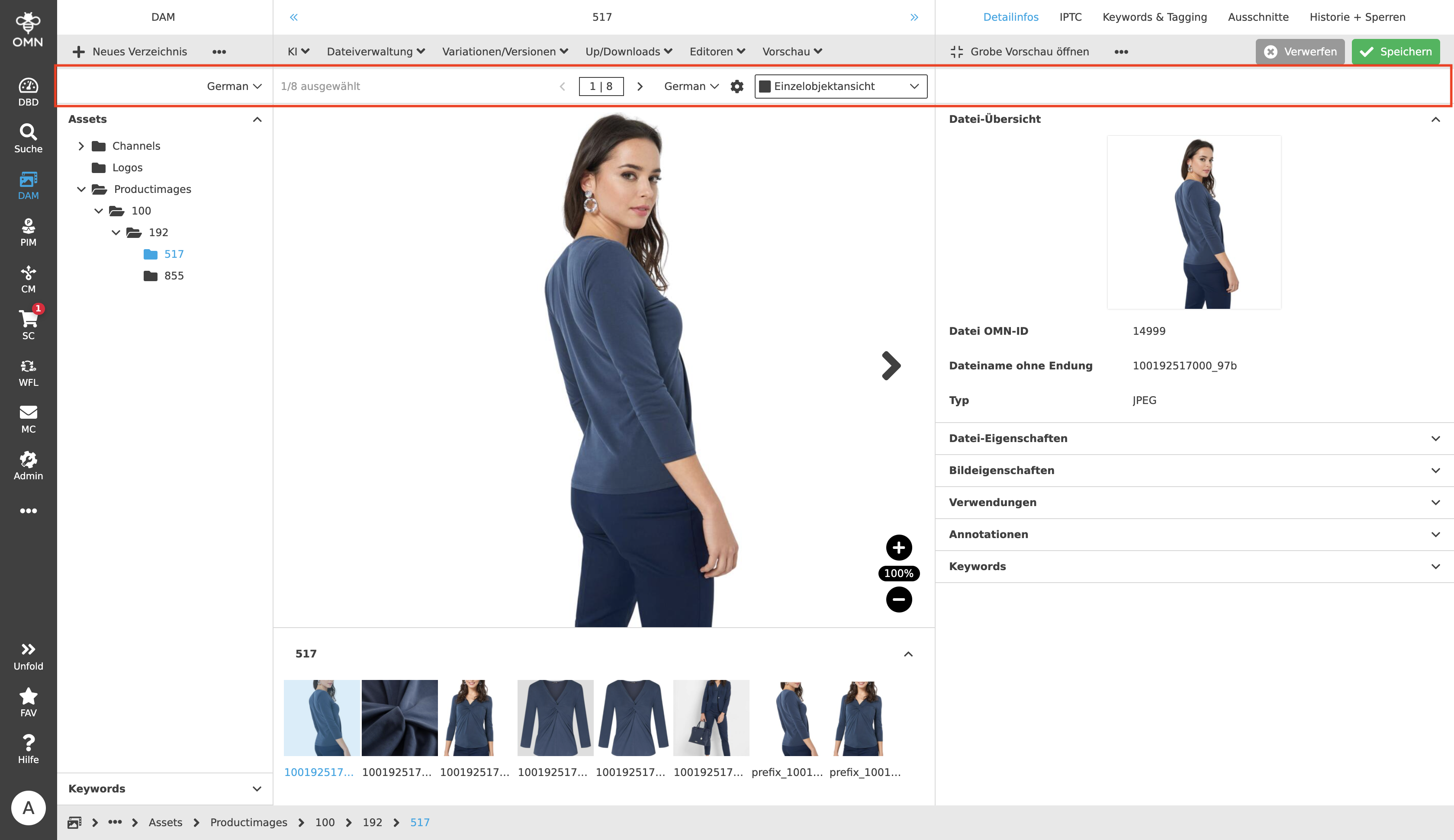
The statusbar is located below the toolbar and is used to convey content and display-specific information. Thus, the currently displayed or selected files are visualized in the statusbar, but also which language or view is currently set. In addition, the user can use the settings to make certain display changes, such as which columns or asset detail information should be displayed.
Sidebar
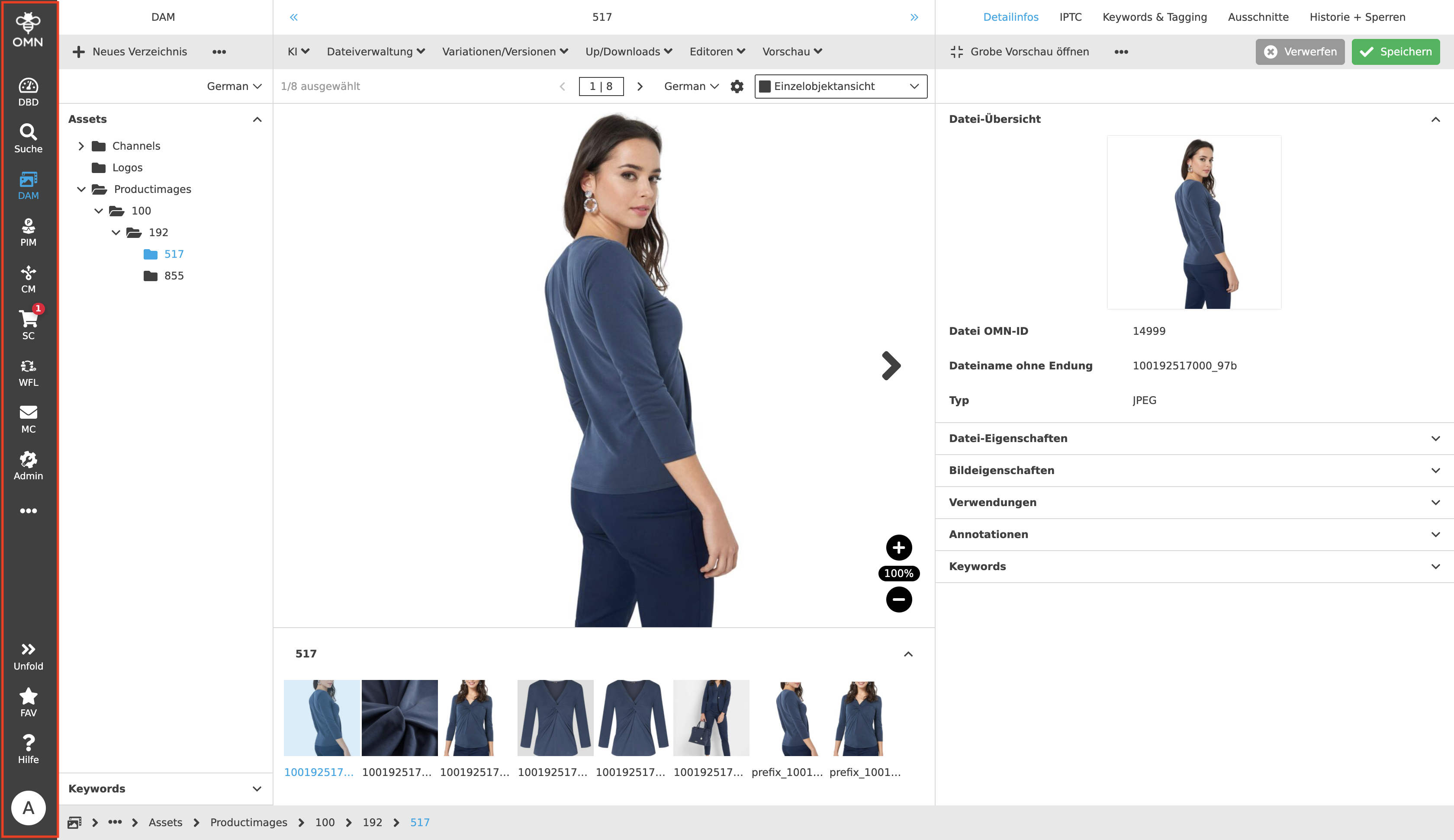
On the left side of the page, the sidebar is displayed (except for editors). Via it, the user can access the various OMN modules, such as DAM, PIM or CM. The sidebar is customizable, which means that menu items can be repositioned or exchanged by drag & drop. In addition, custom menu items can be created, which can be used to bundle individual menu items into one menu item.
In addition to the modules, the sidebar also contains a help, a favorites list and a jump to the user settings.
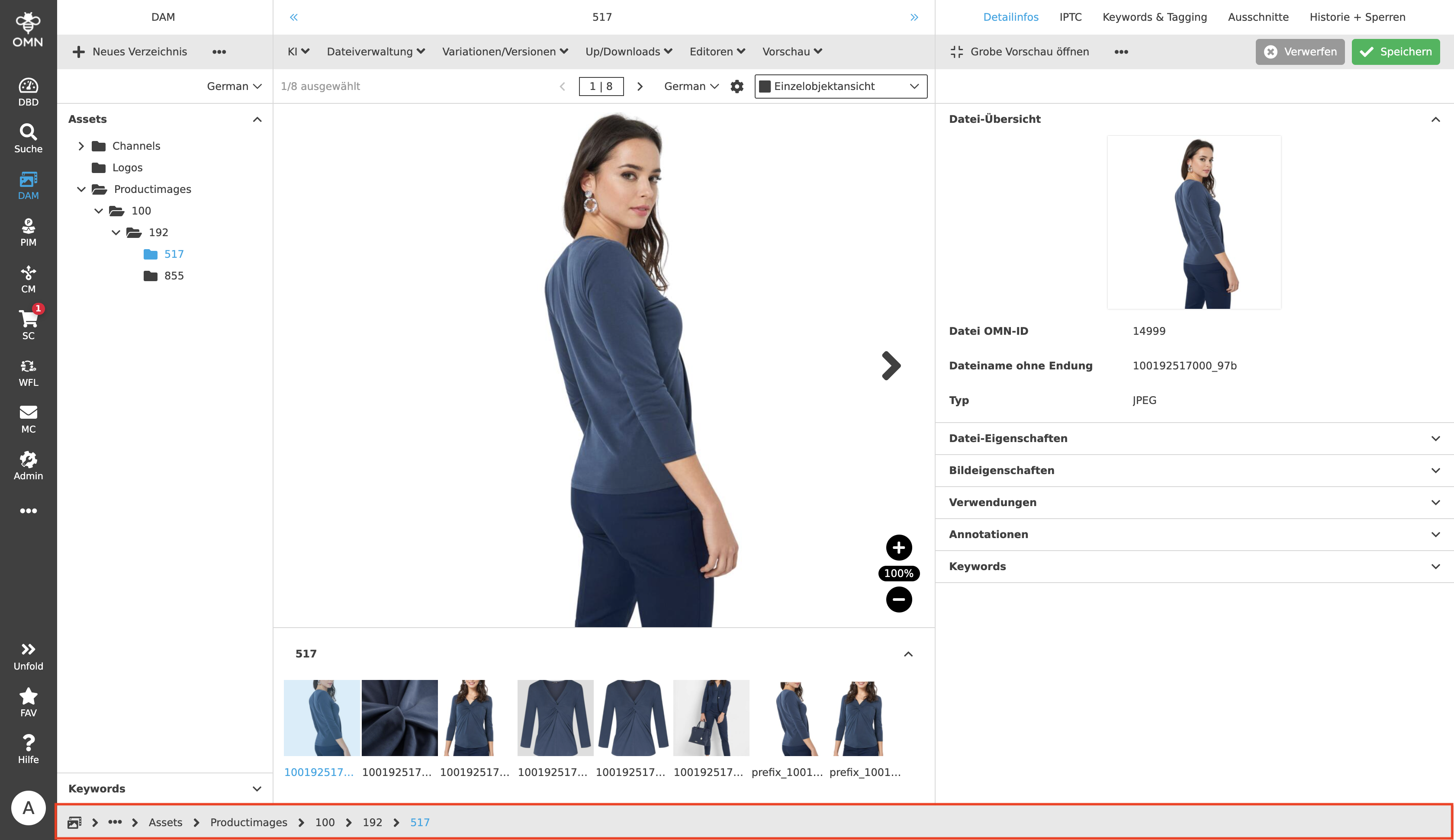
Breadcrumb
The so-called breadcrumb extends across the entire width of the page at the very bottom (except for editors). This provides an overview of all navigation steps taken within a module. Thus, each step is displayed, from the selection in the sidebar to the currently selected folder structure. By clicking on the last entry, a refresh of the page is performed and by clicking on a previous page, the user can jump back directly to this page.