Install CI HUB Connectors with OMN
With the CI HUB Connectors you have access to all your data stored in OMN from different desktop applications.
CI HUB Connectors are available for the following applications: Applications supported by CI Hub
Registration
To use the Connectors a one-time registration is necessary:g:
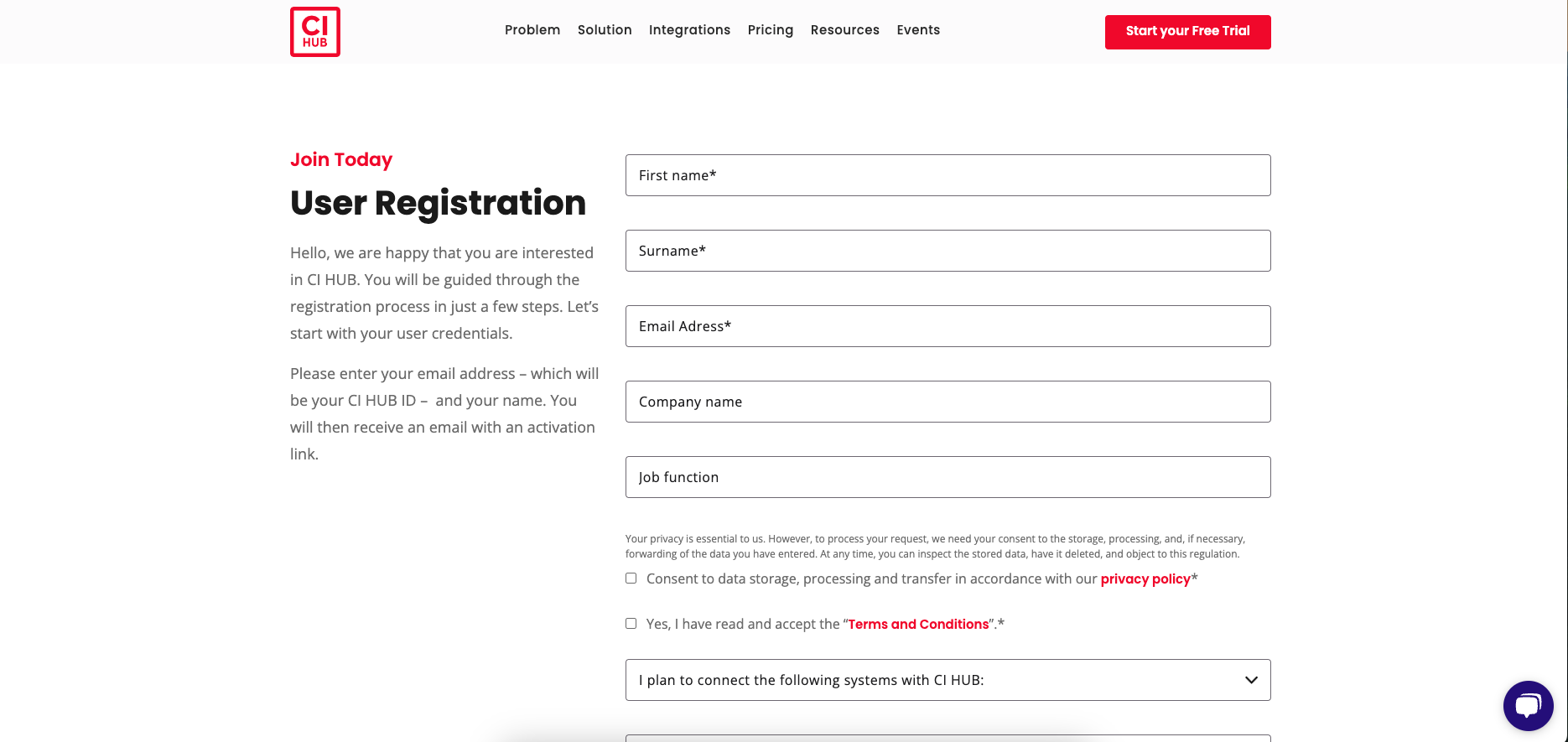
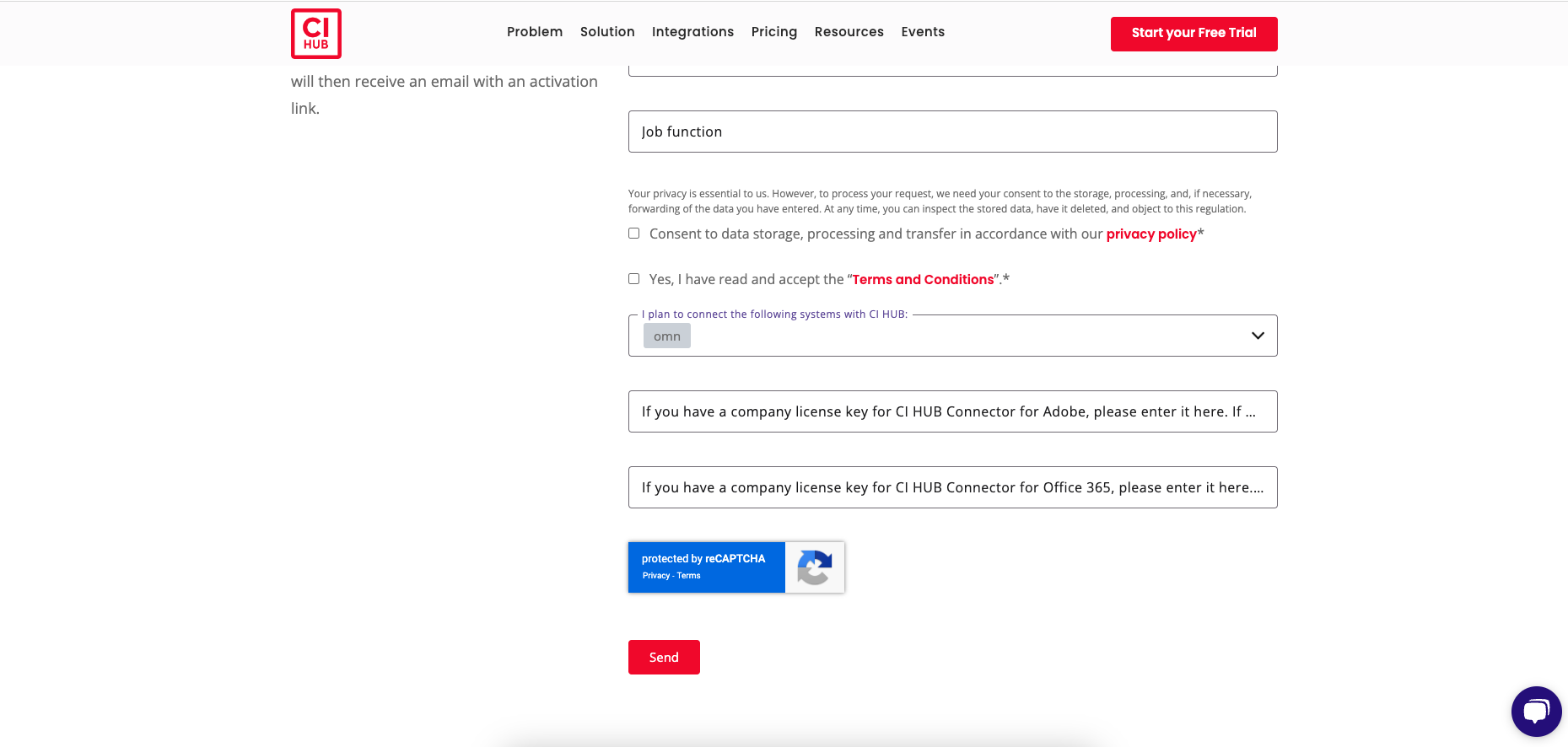
| In the registration form, please specify the OMN application as the desired system. |
Download of the desired connector
After the registration the desired plugins e.g. for Adobe, Microsoft etc. can be downloaded and are ready for local installation on the computer.
Adobe download and installation
Installation using Photoshop as an example
-
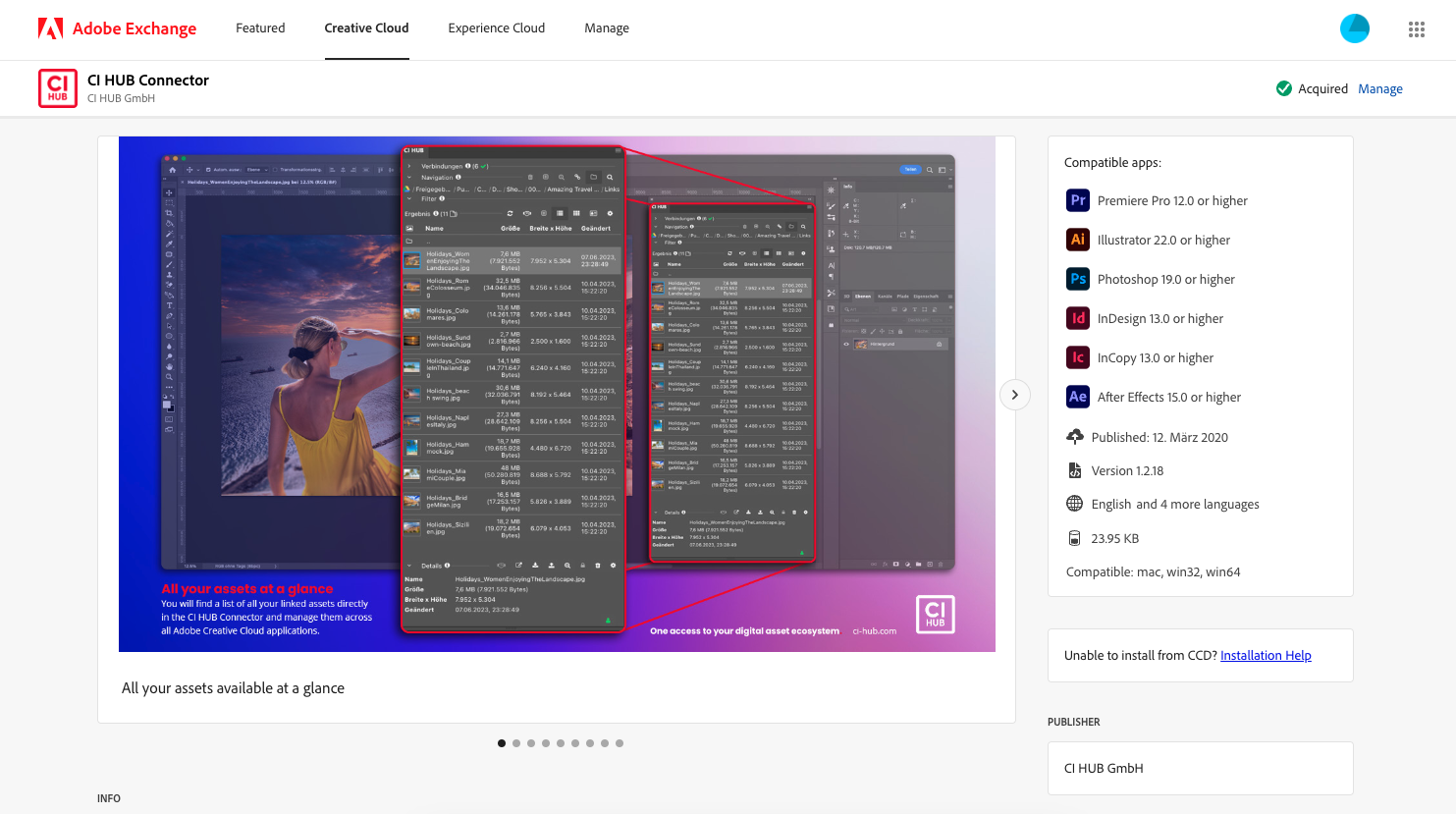
Click in the application overview on the desired program
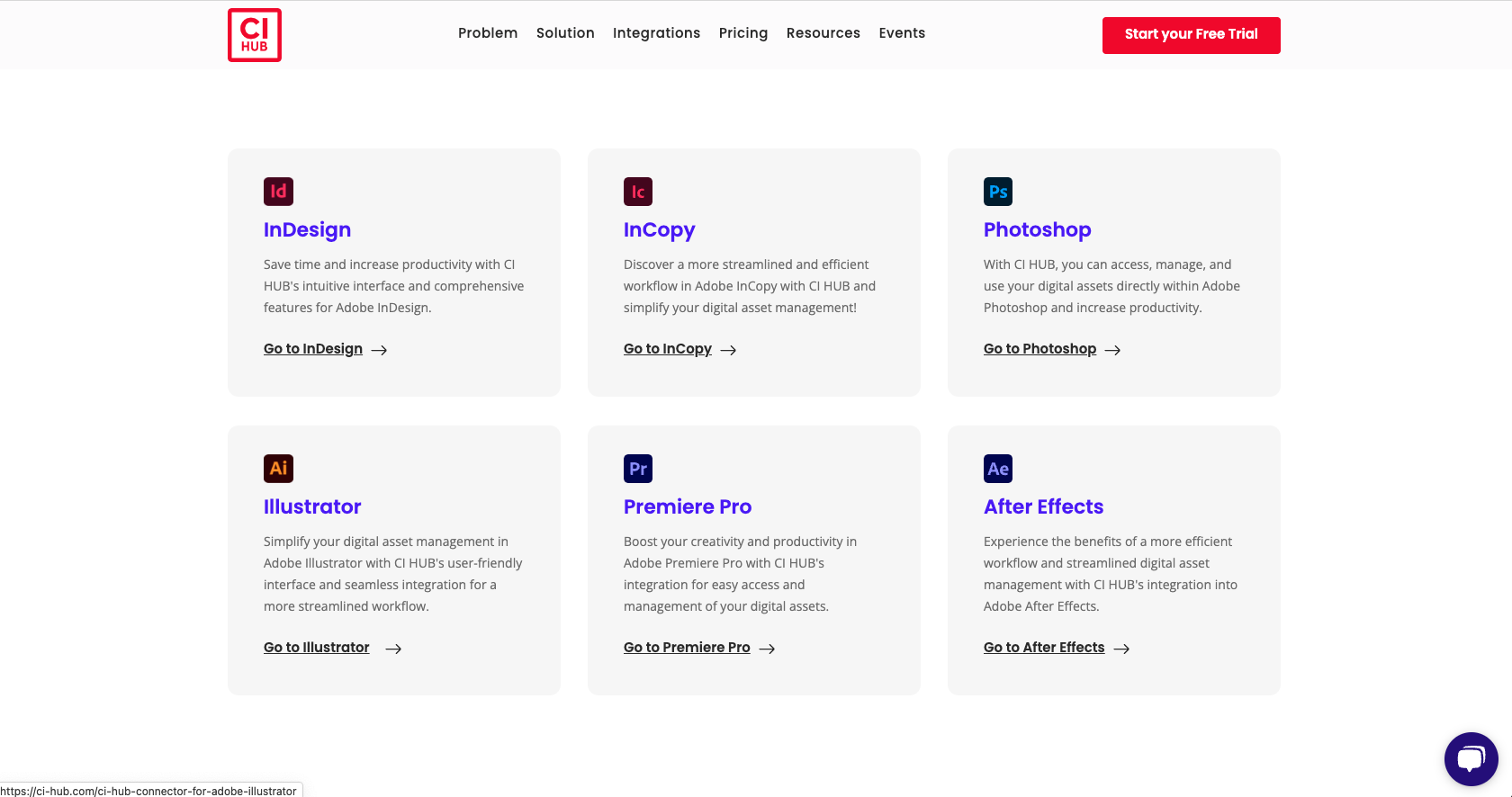
-
Start the download
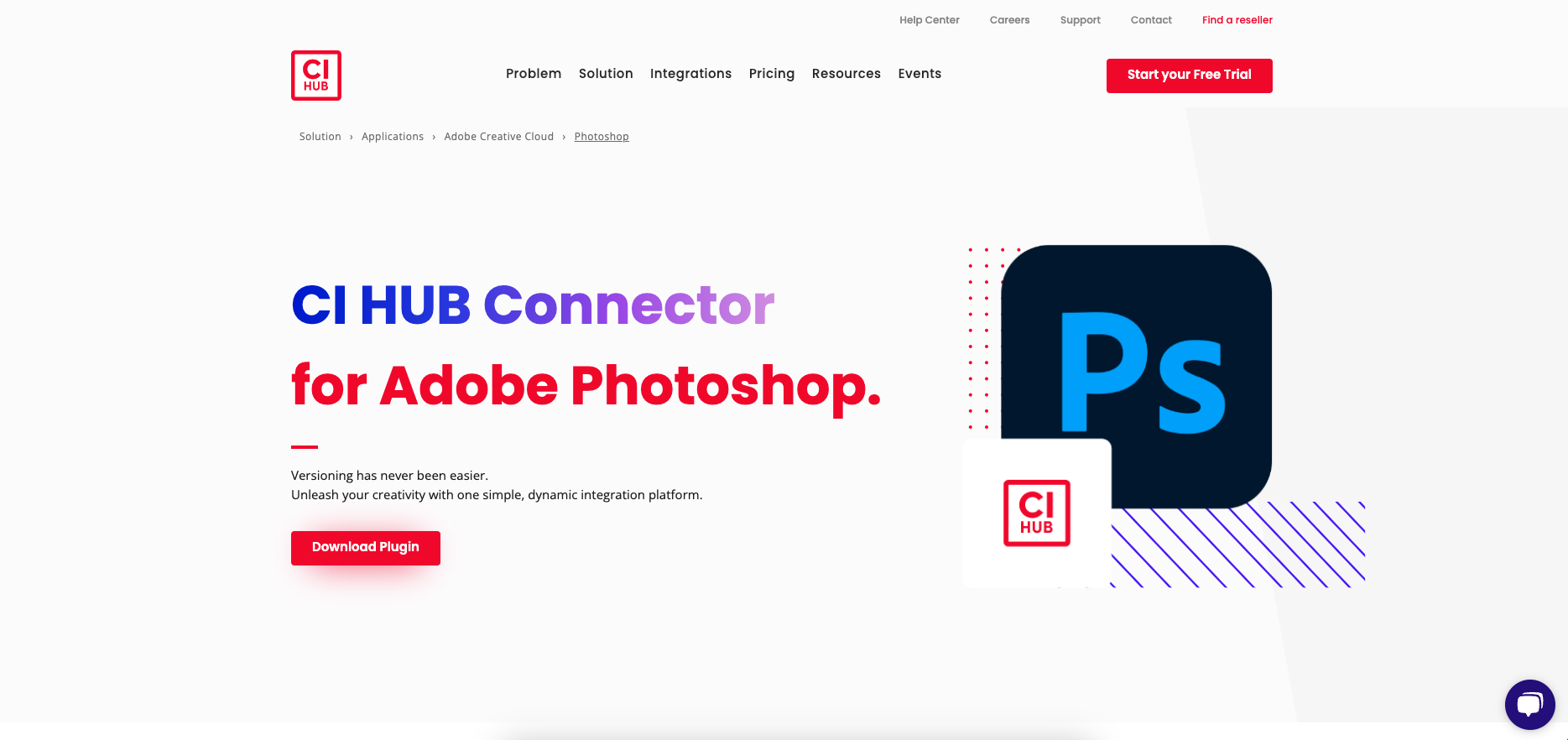
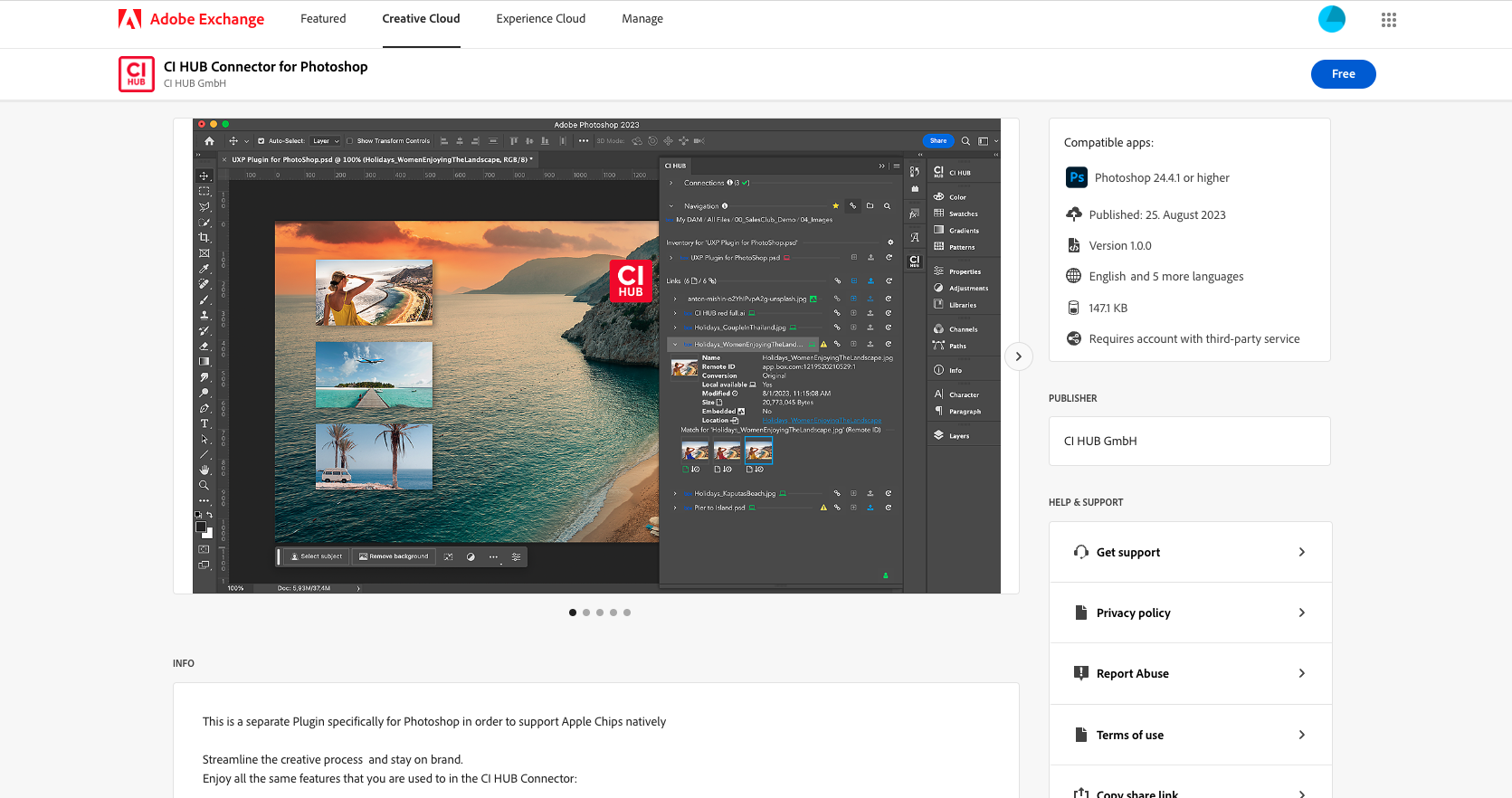
-
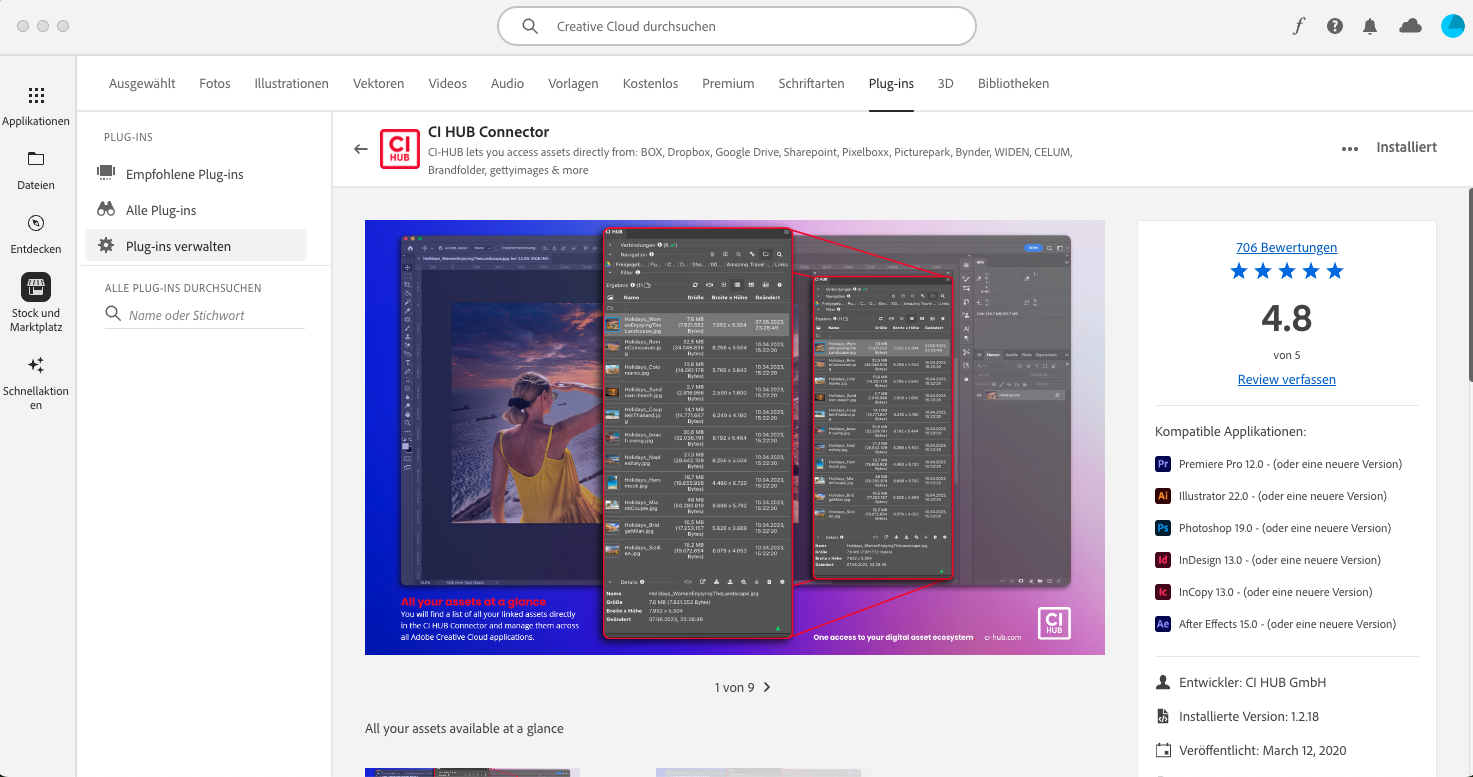
Open Photoshop and under Plug-ins you will find the CI HUB Connector.
-
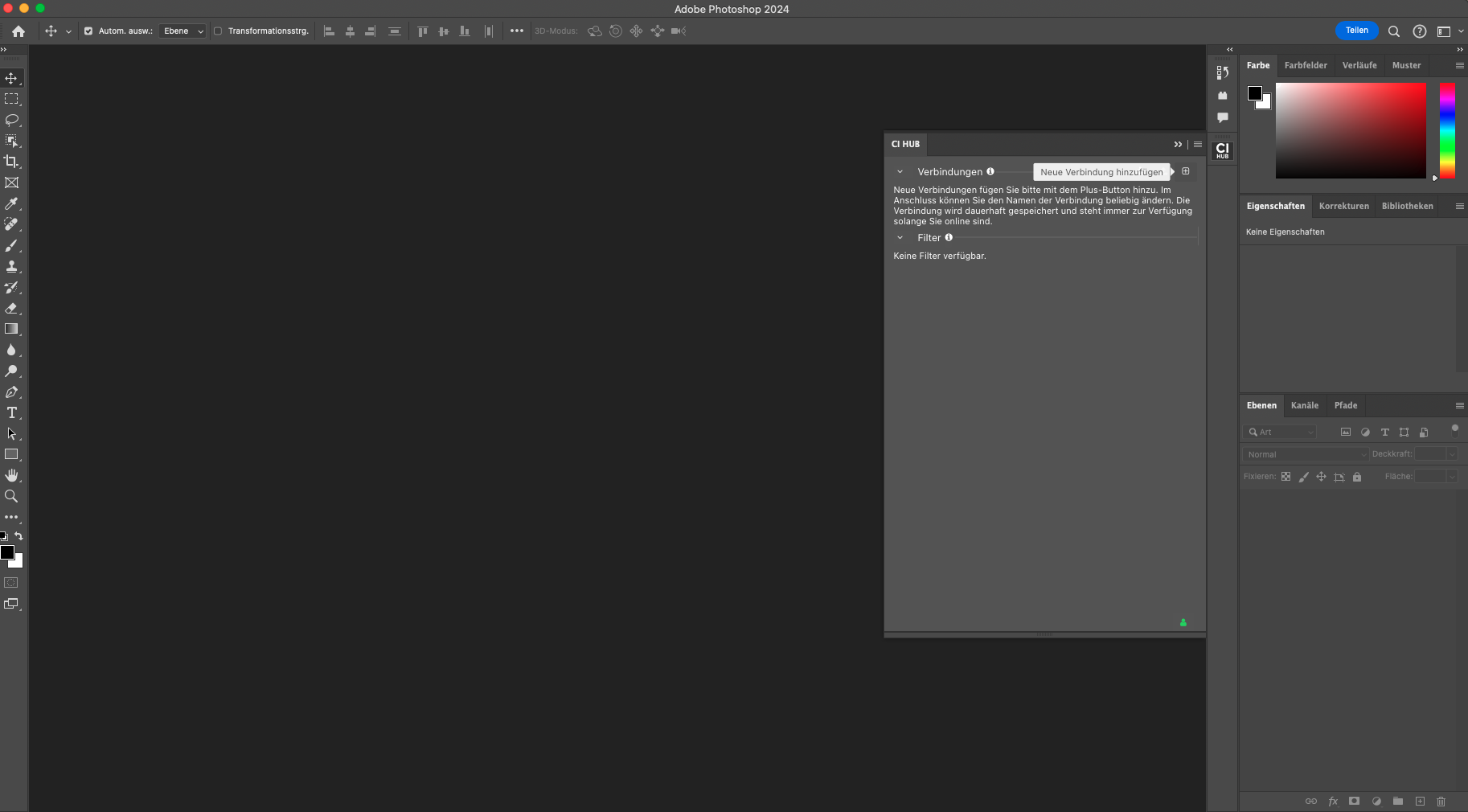
Open the plugin and click on the "+" symbol to establish a connection.
-
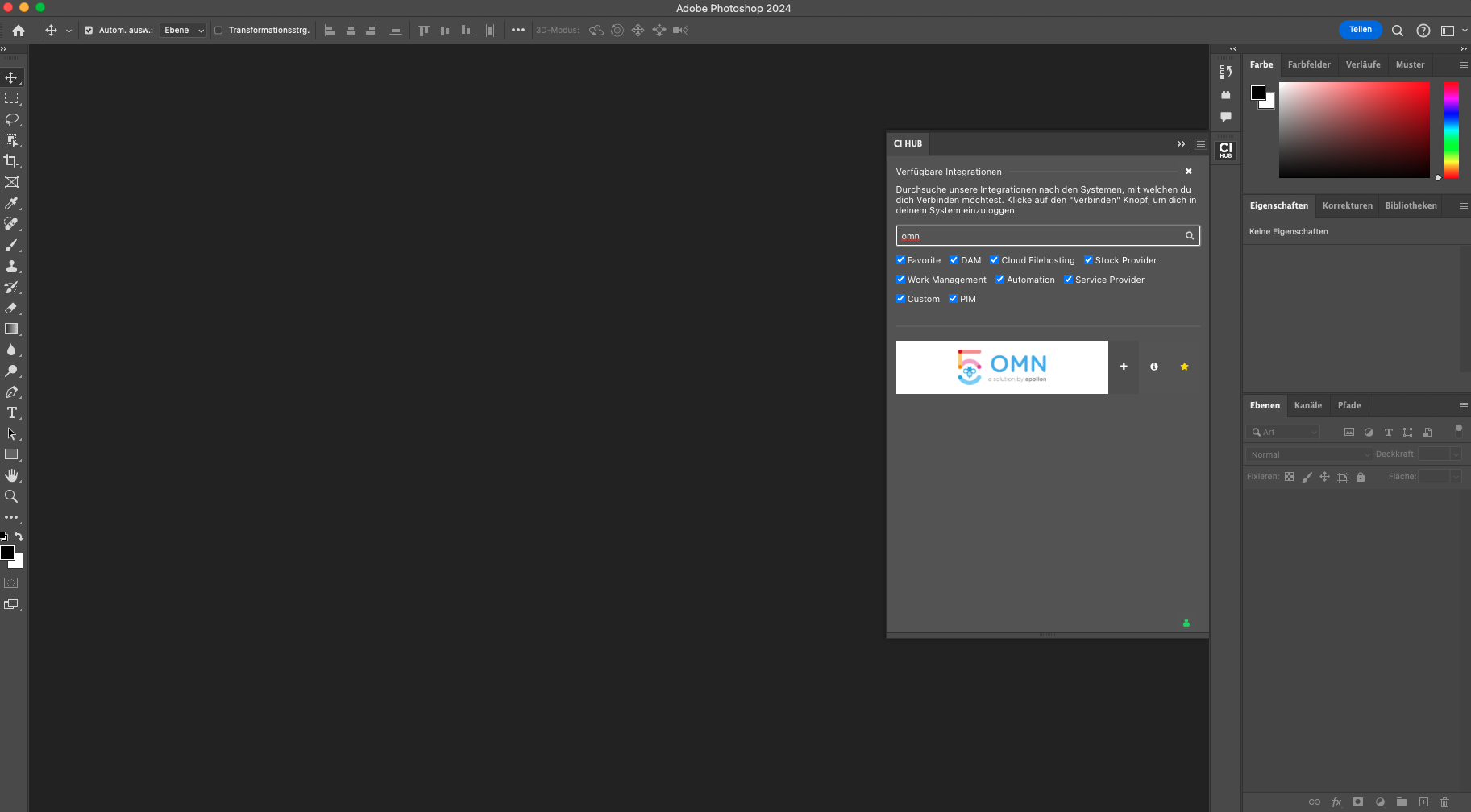
Search for OMN and add the connection via the "+" symbol
-
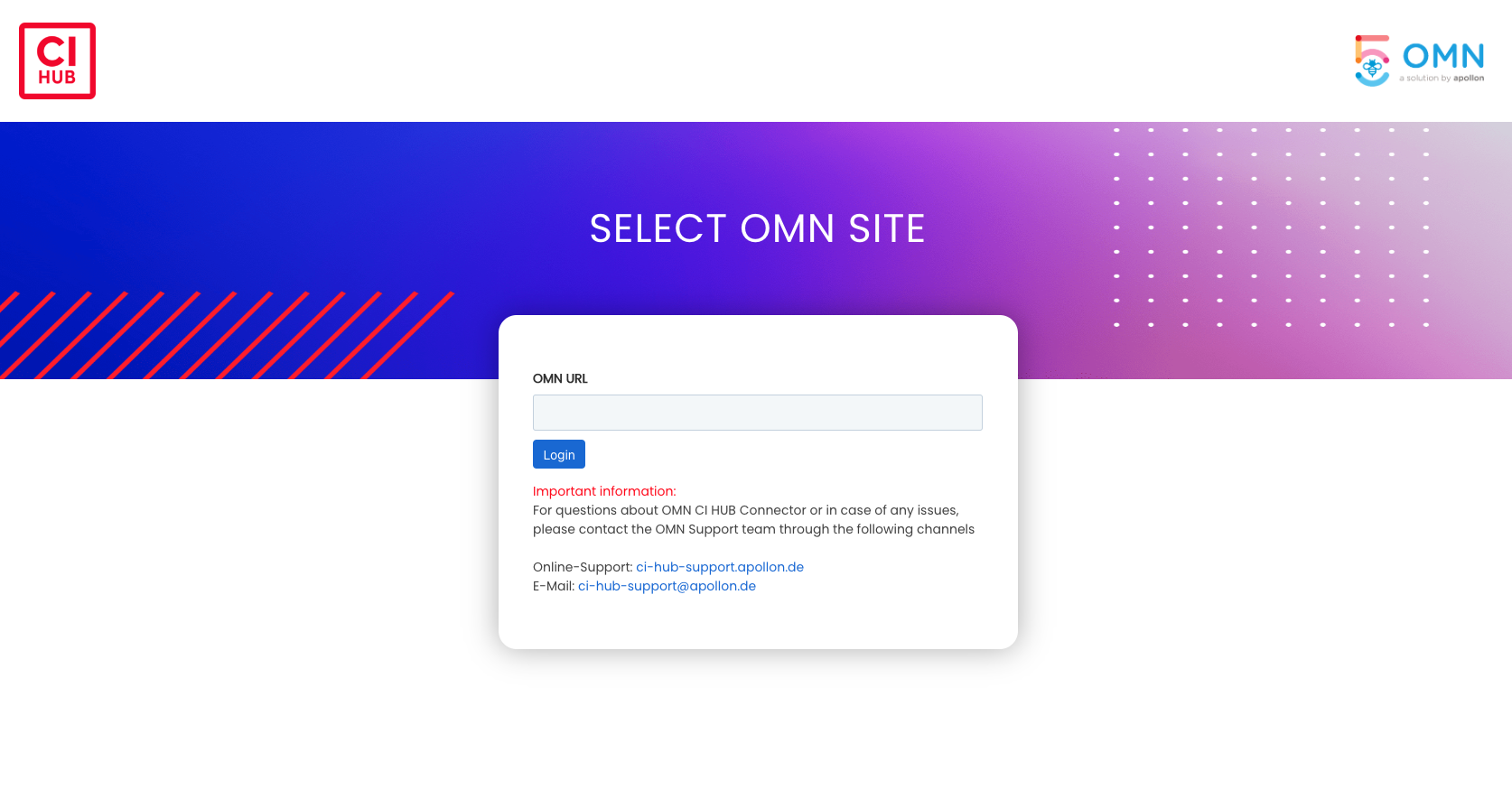
Enter the URL of the OMN system you would like to connect to
-
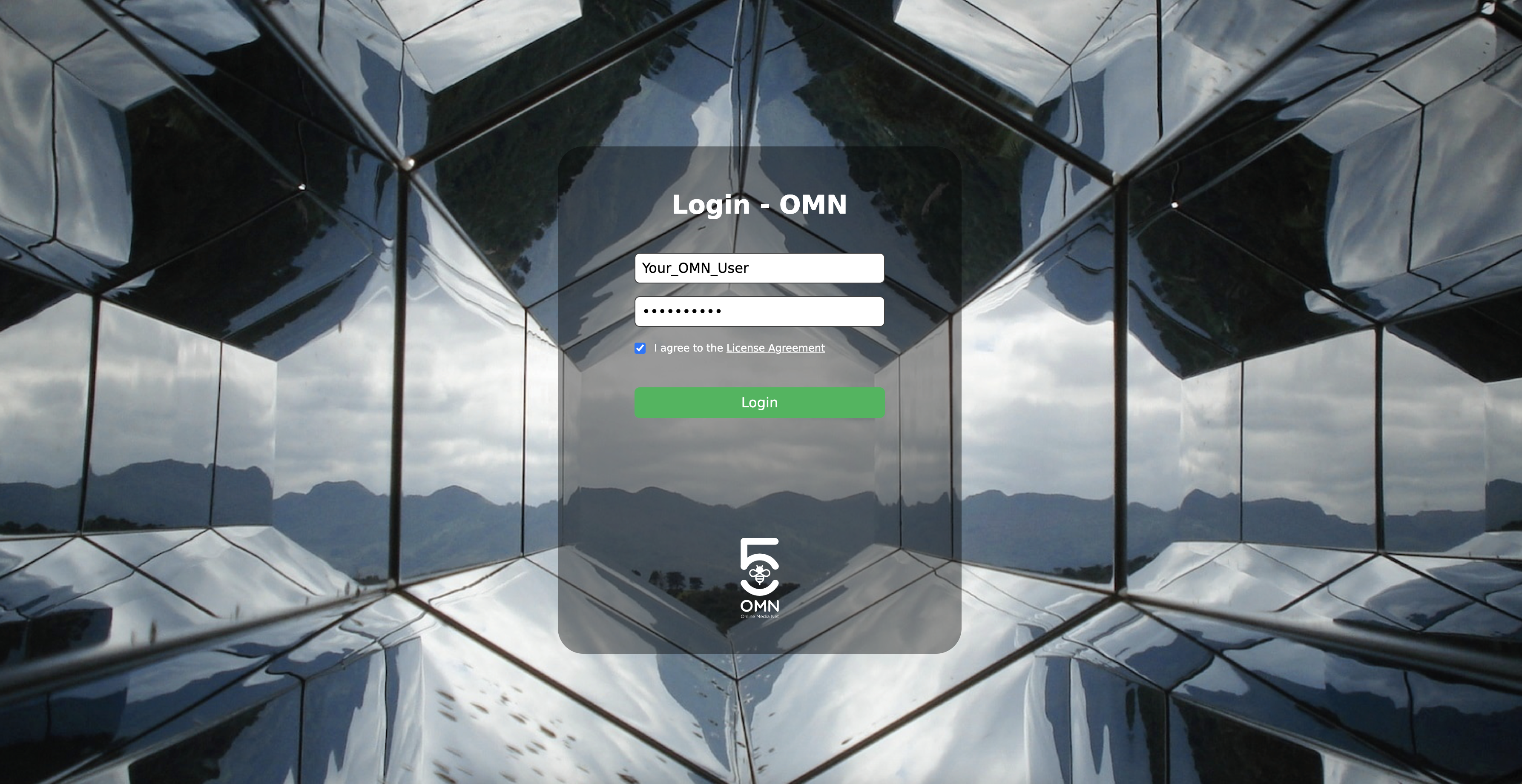
Log in with your access data and confirm our license agreements
-
Jump back into your Photoshop interface and navigate through your familiar OMN data structure
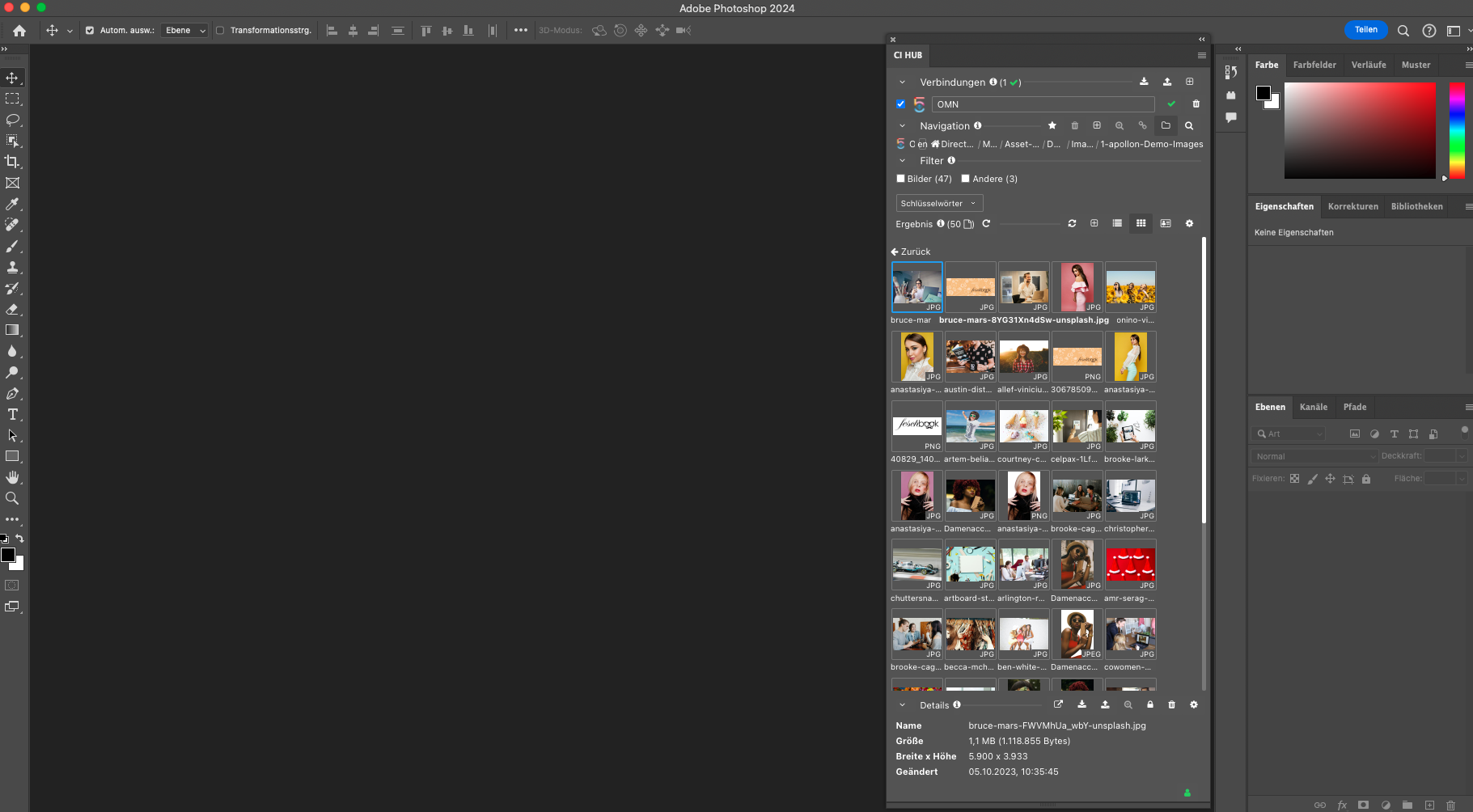
| Alternatively, you can download the Adobe plugins without Adobe CC. You can find a description here: CI HUB Adobe CC - Alternative Download |
For Adobe Express, the installation of the CI HUB Connector takes place directly in the web application.
An installation guide is available at the following knowledge base link: OMN CI HUB Connector for Adobe Express
Microsoft 365 Download and Installation
Installation using Word as an example
-
Click in the application overview on the desired program
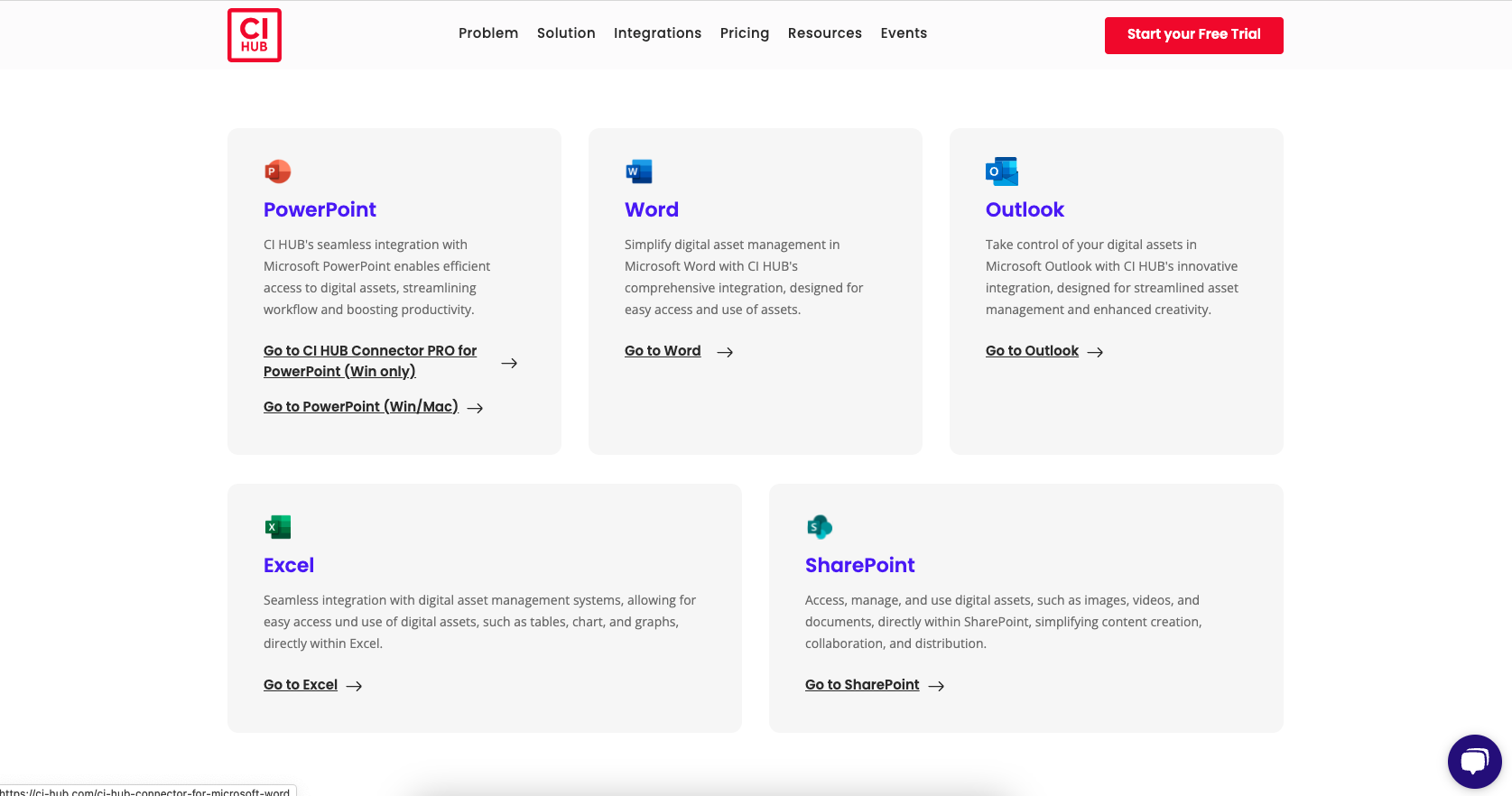
-
Start the download
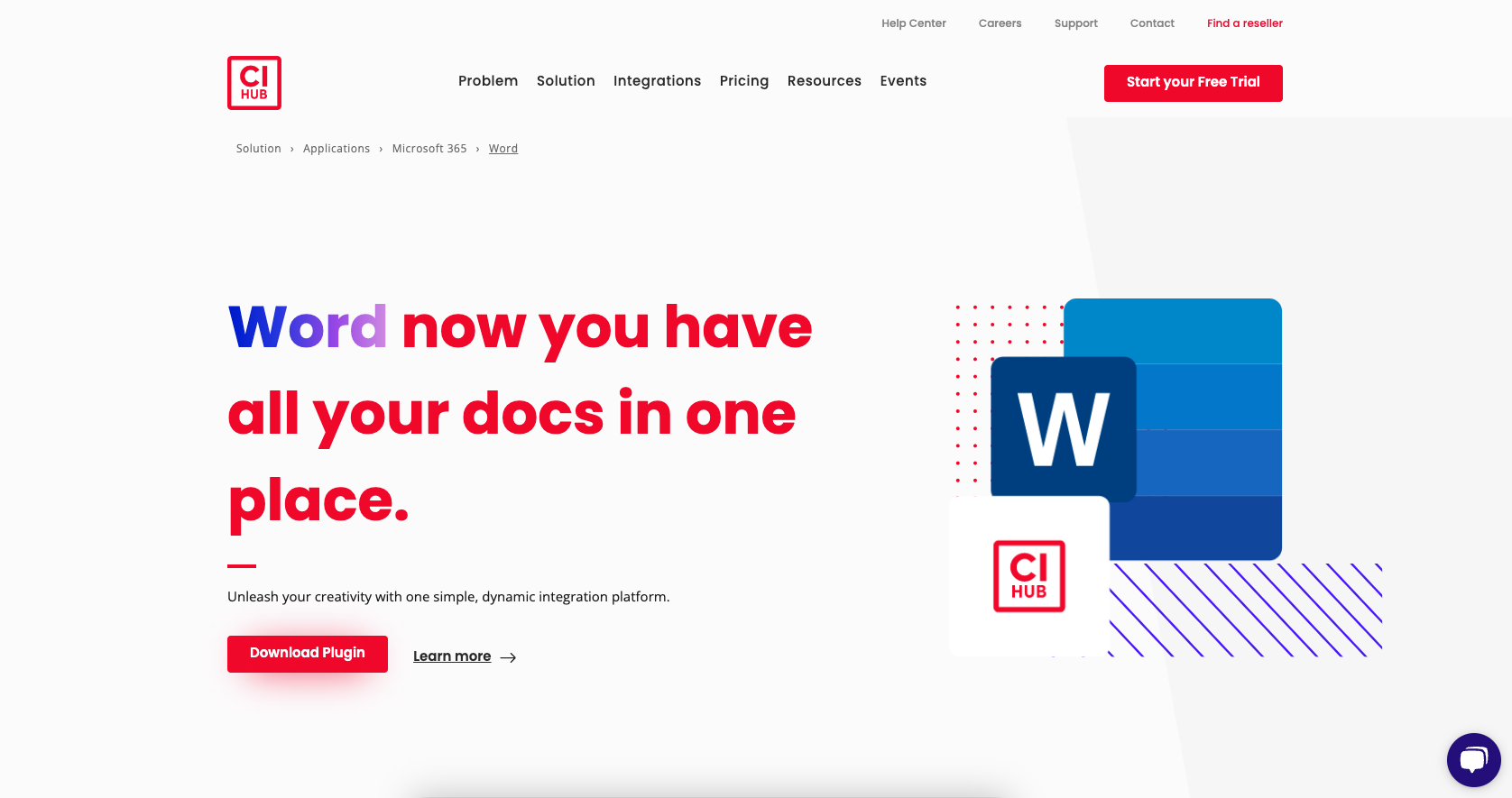
-
Verify your account with Microsoft
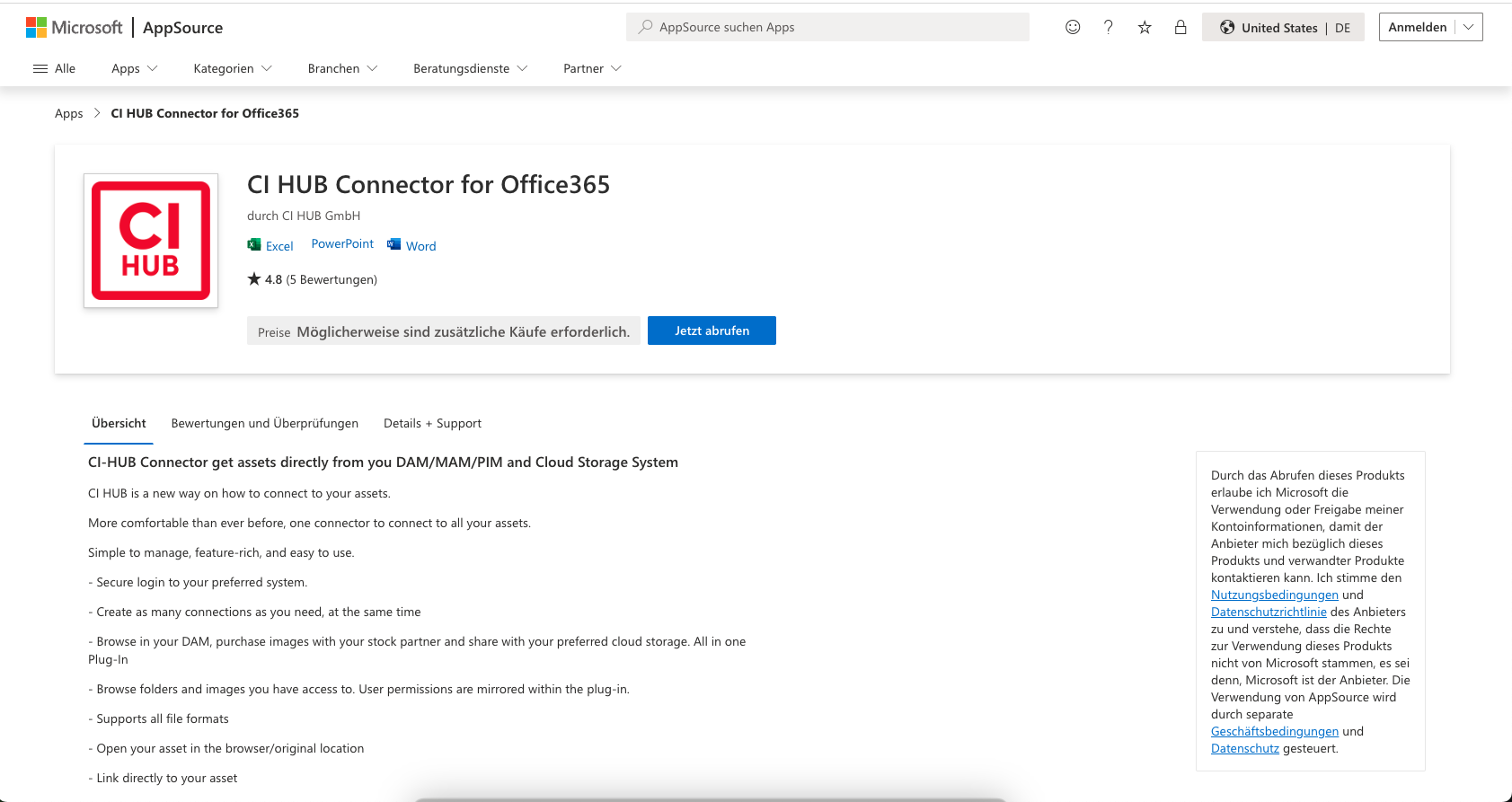
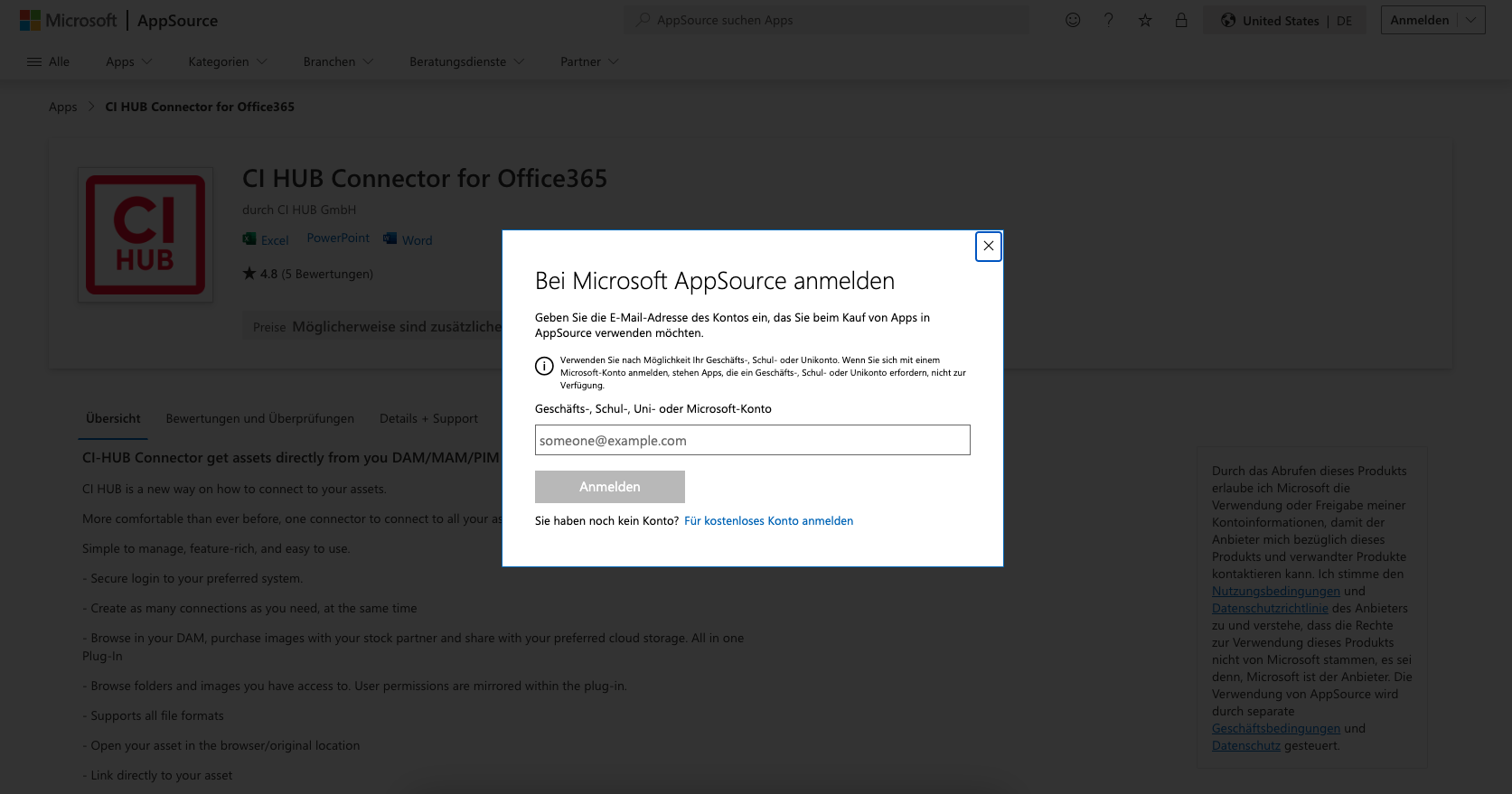
-
After signing in, all Office 365 applications are available in the Office Store, click on Word to open the program
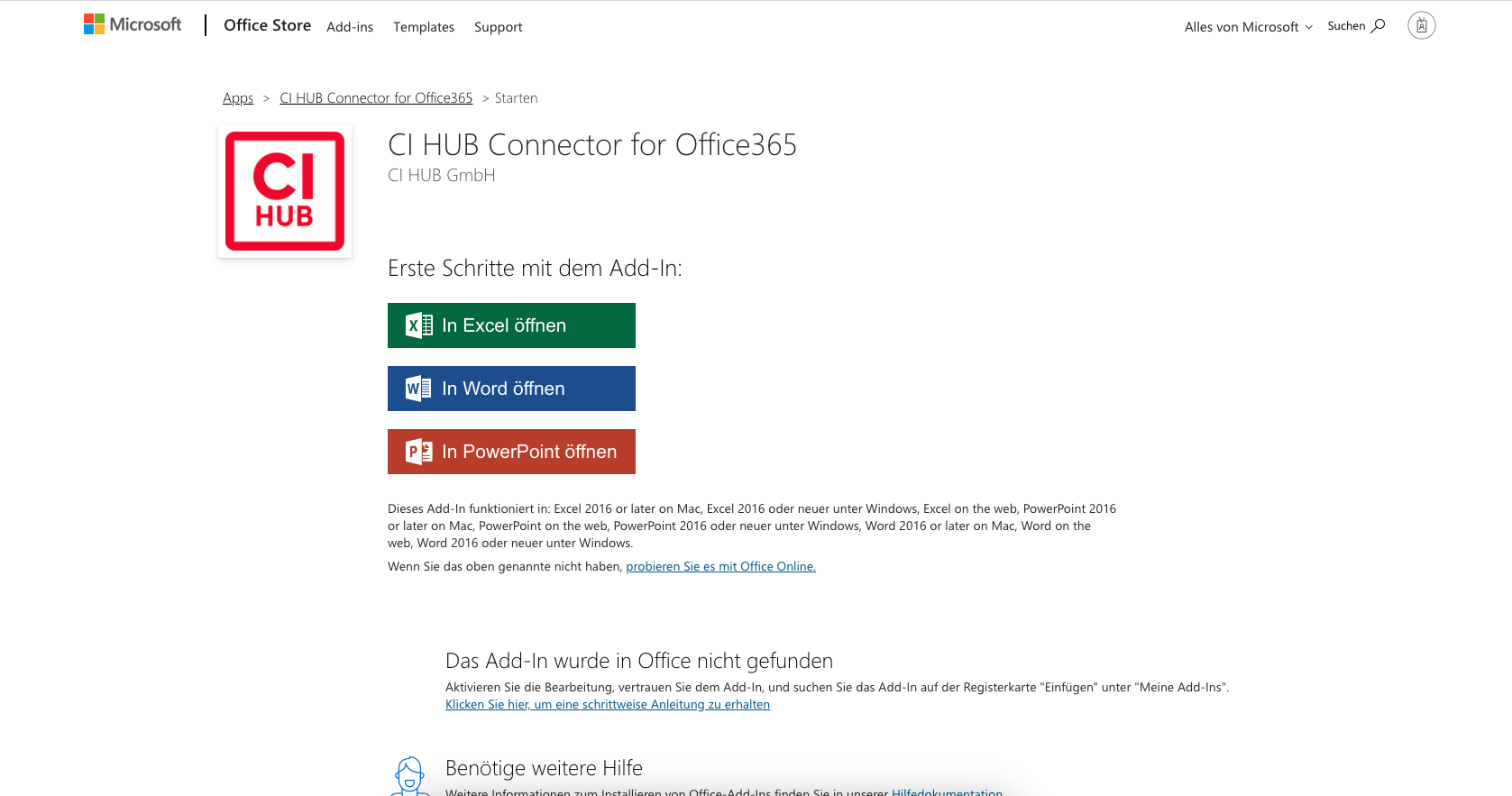
-
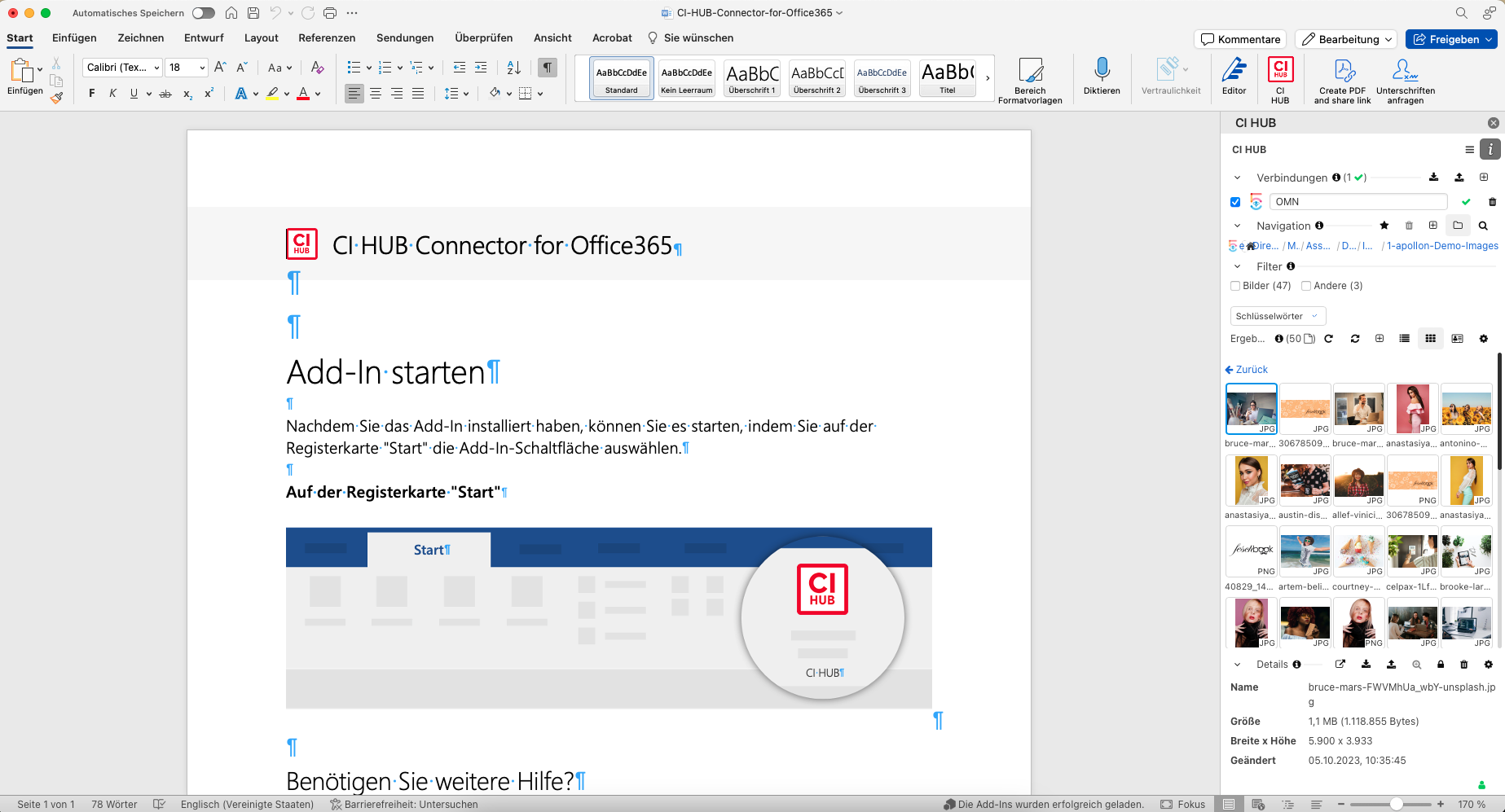
Open Word and under Start you will find the CI HUB plugin in the toolbar.
-
Open the plugin and click on the "+" symbol to establish a connection.
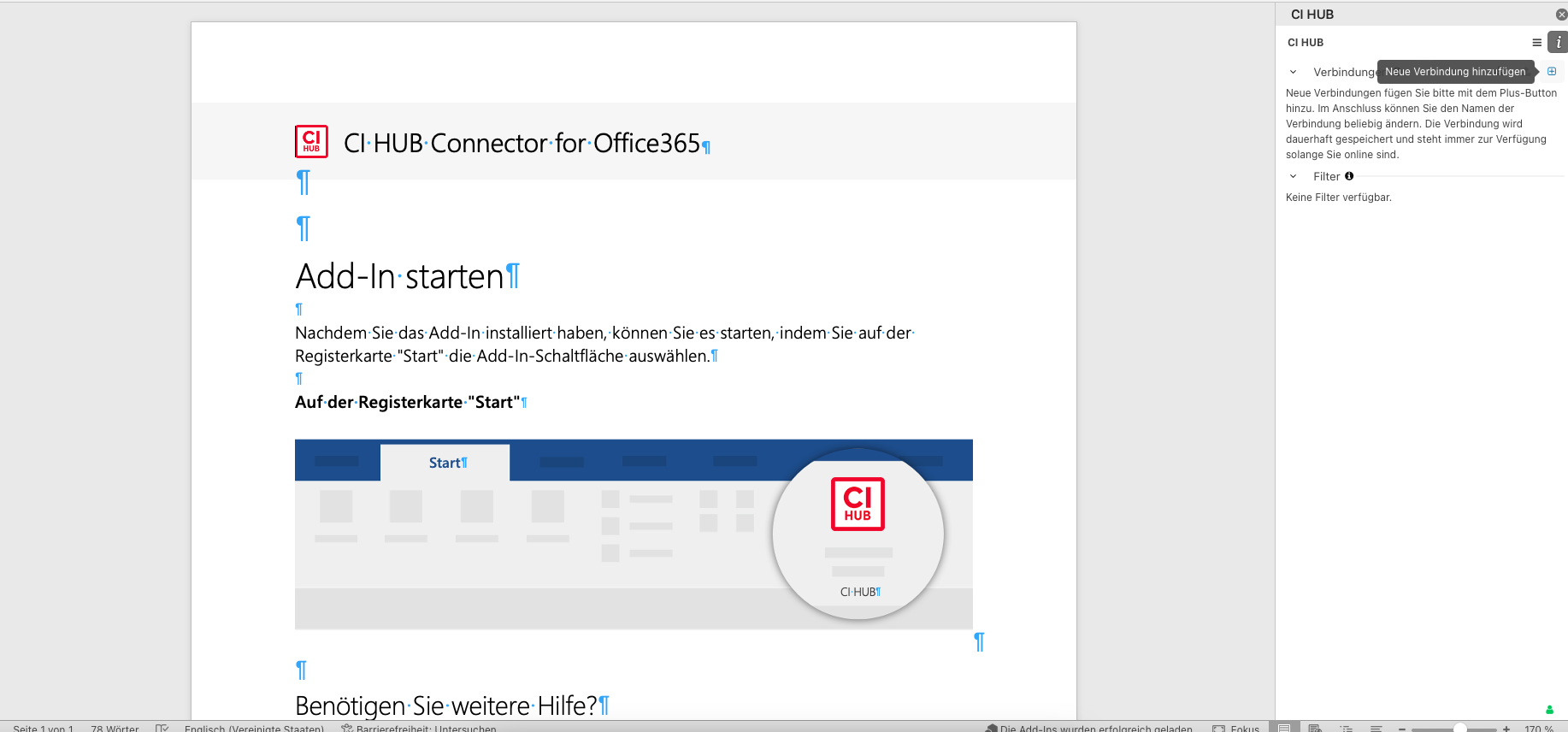
-
Search for OMN and add the connection via the "+" symbol
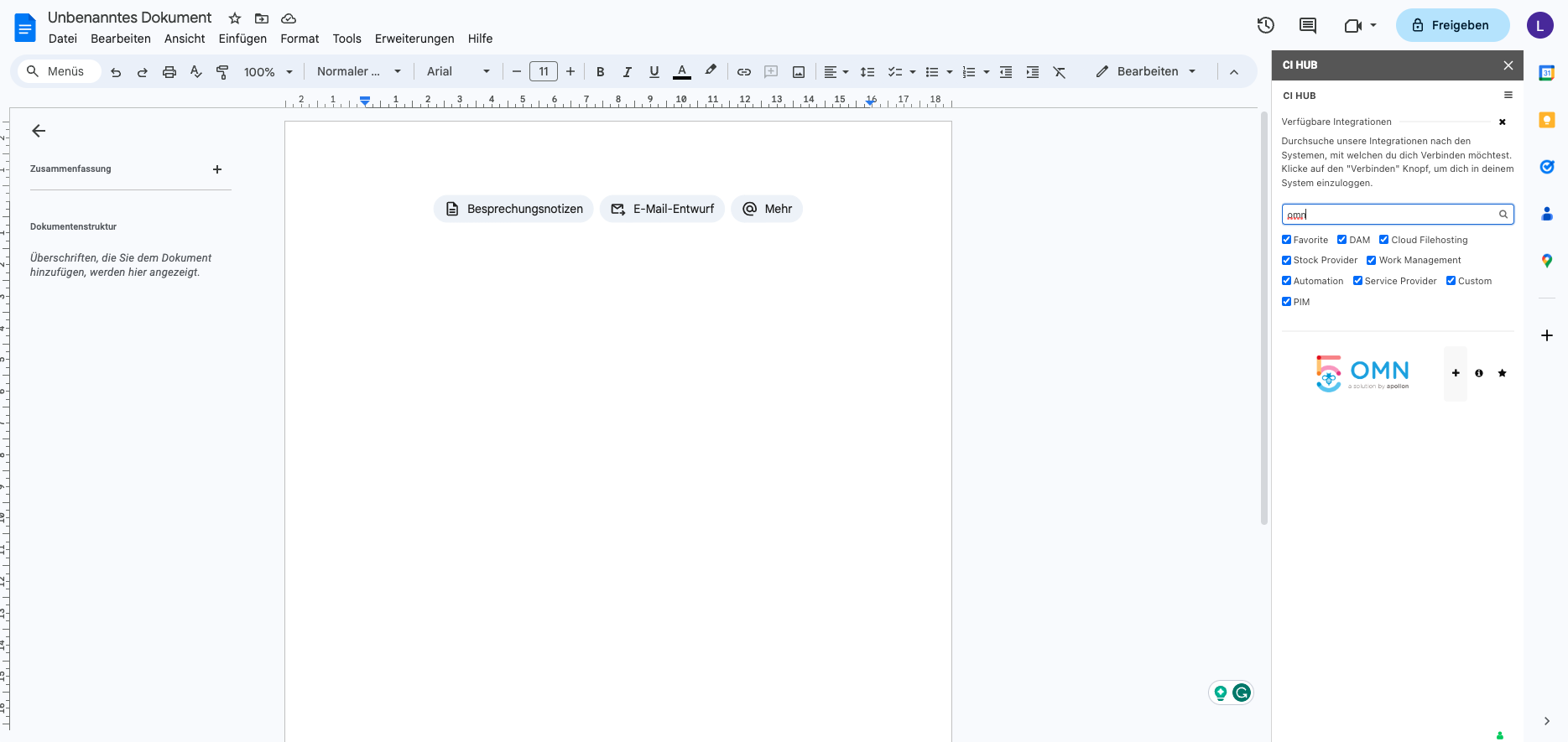
-
Enter the URL of the OMN system you would like to connect to
-
Log in with your access data and confirm our license agreements
-
Jump back to your Word interface and navigate through your familiar OMN data structure
| Alternatively, you can download the Adobe plugins without Adobe CC. You can find a description here: Office 365 - Alternative Download |
Google Workspace Download and Installation Guide
Installation using Google Docs as an example
-
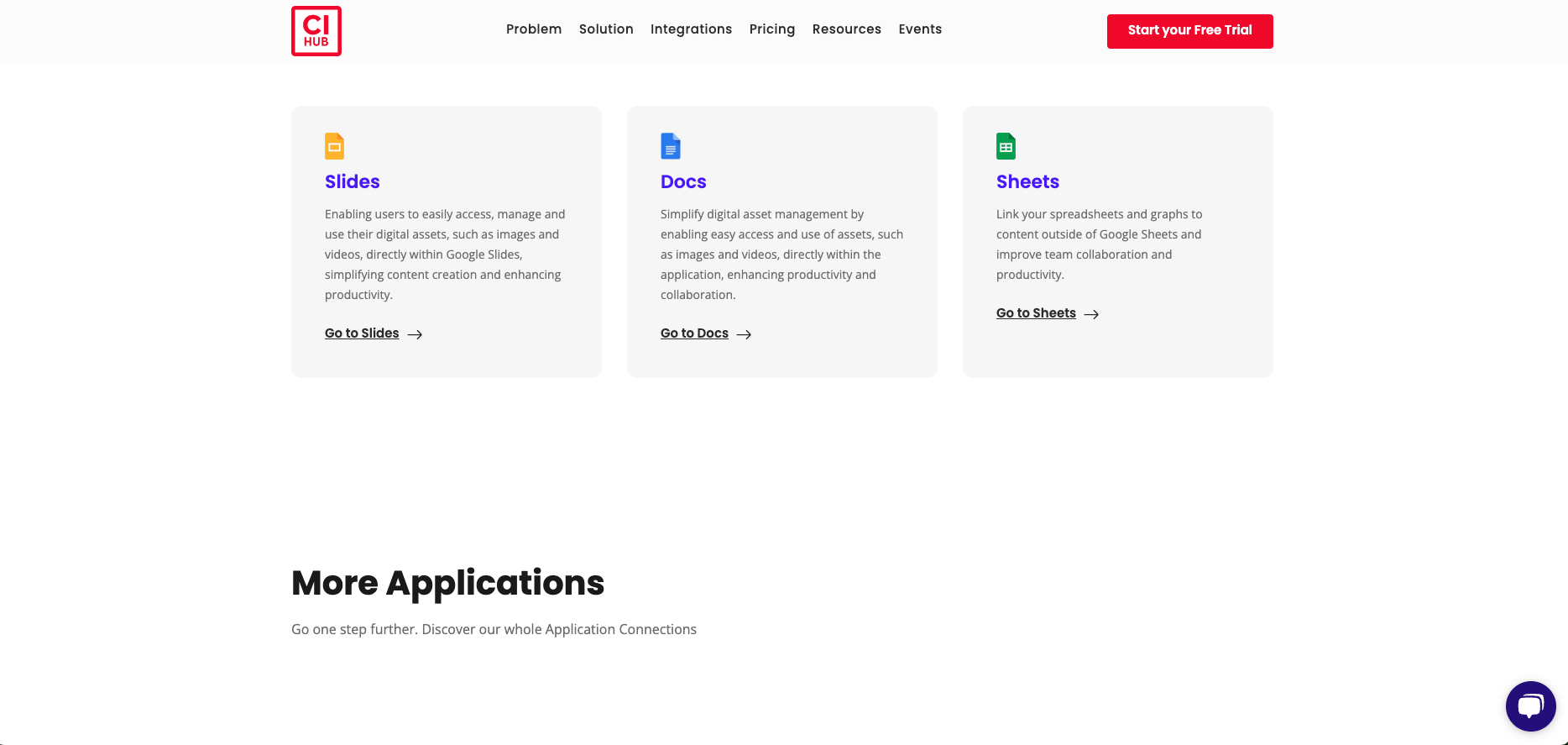
Click in the application overview on the desired program
-
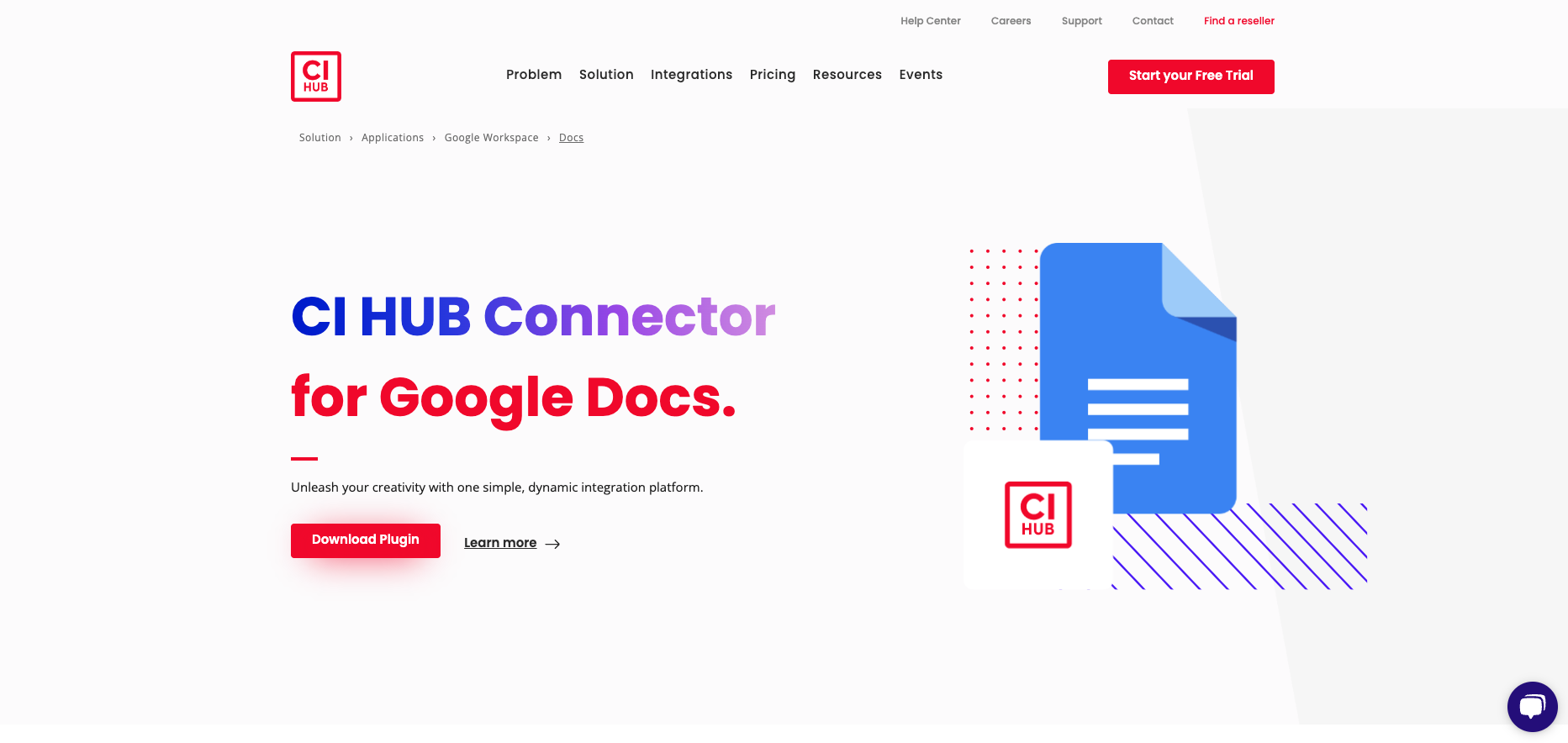
Start the download
-
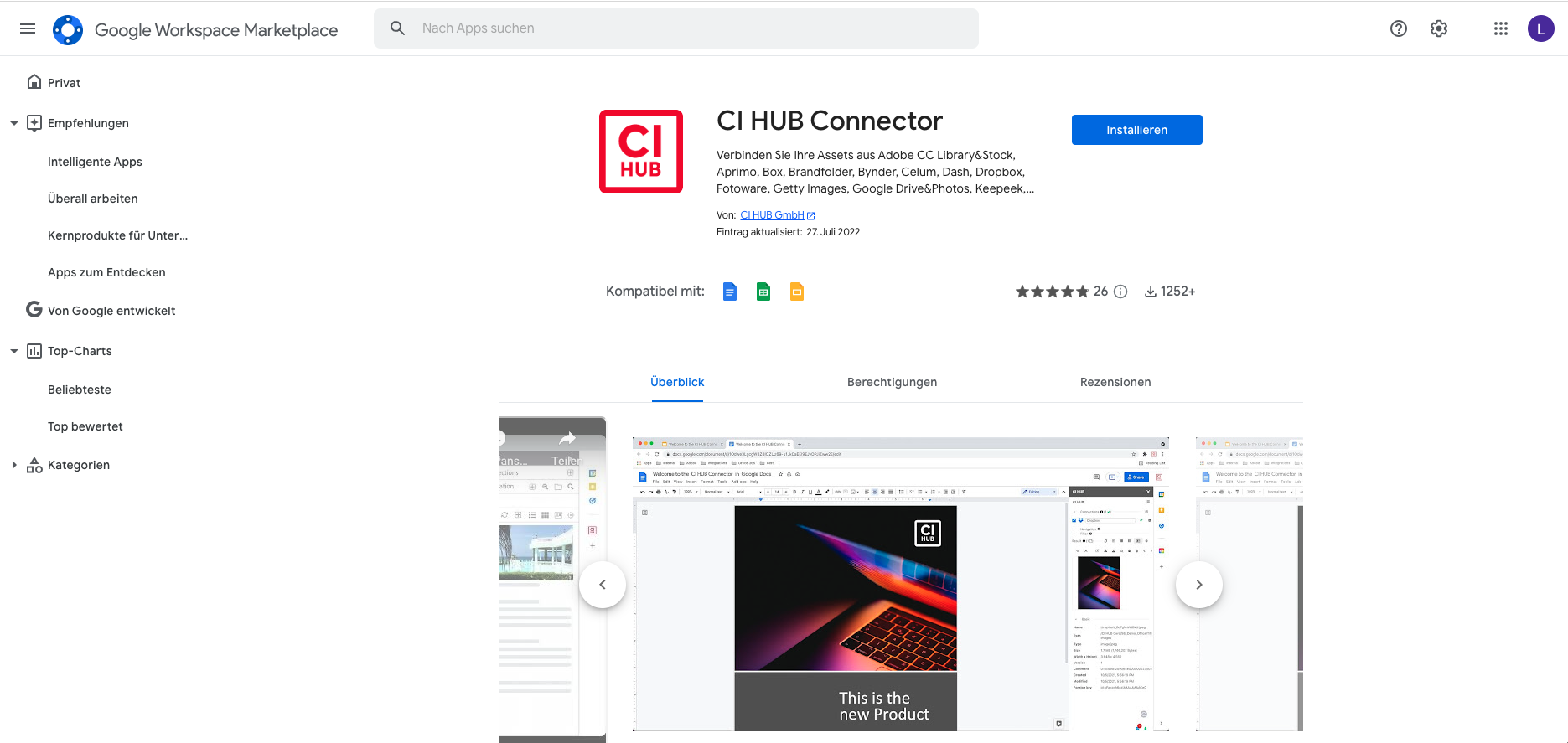
Confirm the installation in the Google Workspace Marketplace
-
Verify your account with Google
-
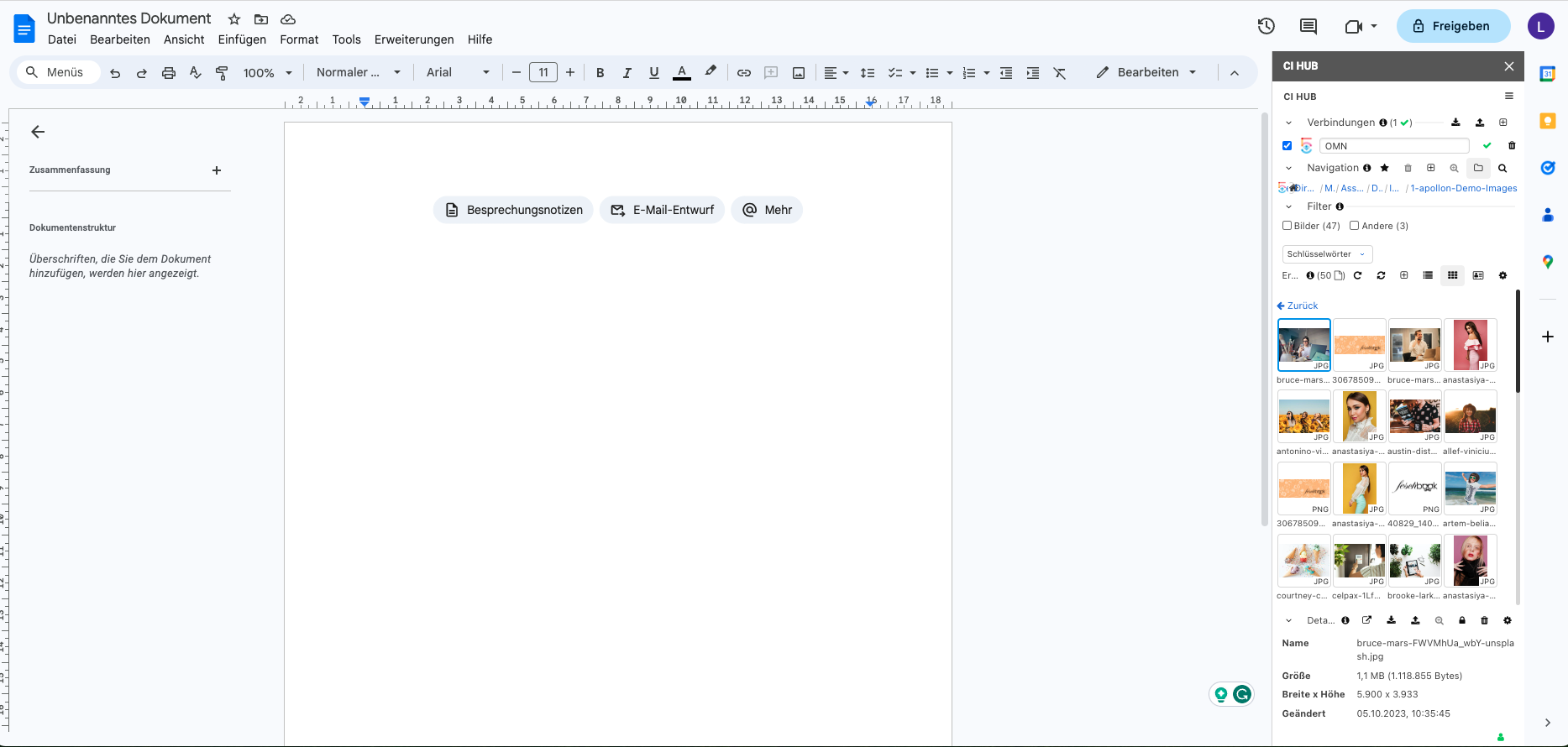
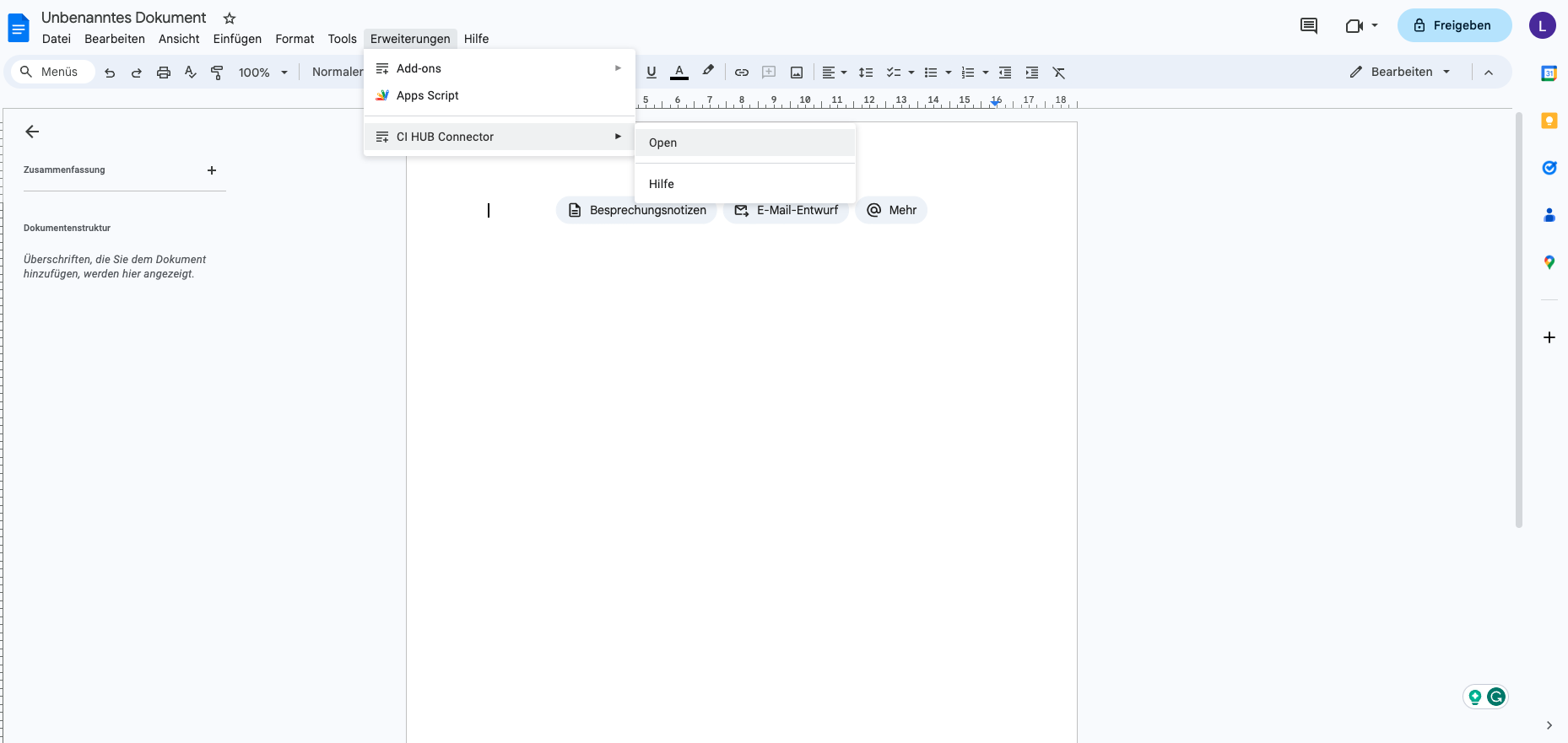
Open Google Docs and open the CI HUB Connector (found under Extensions).
-
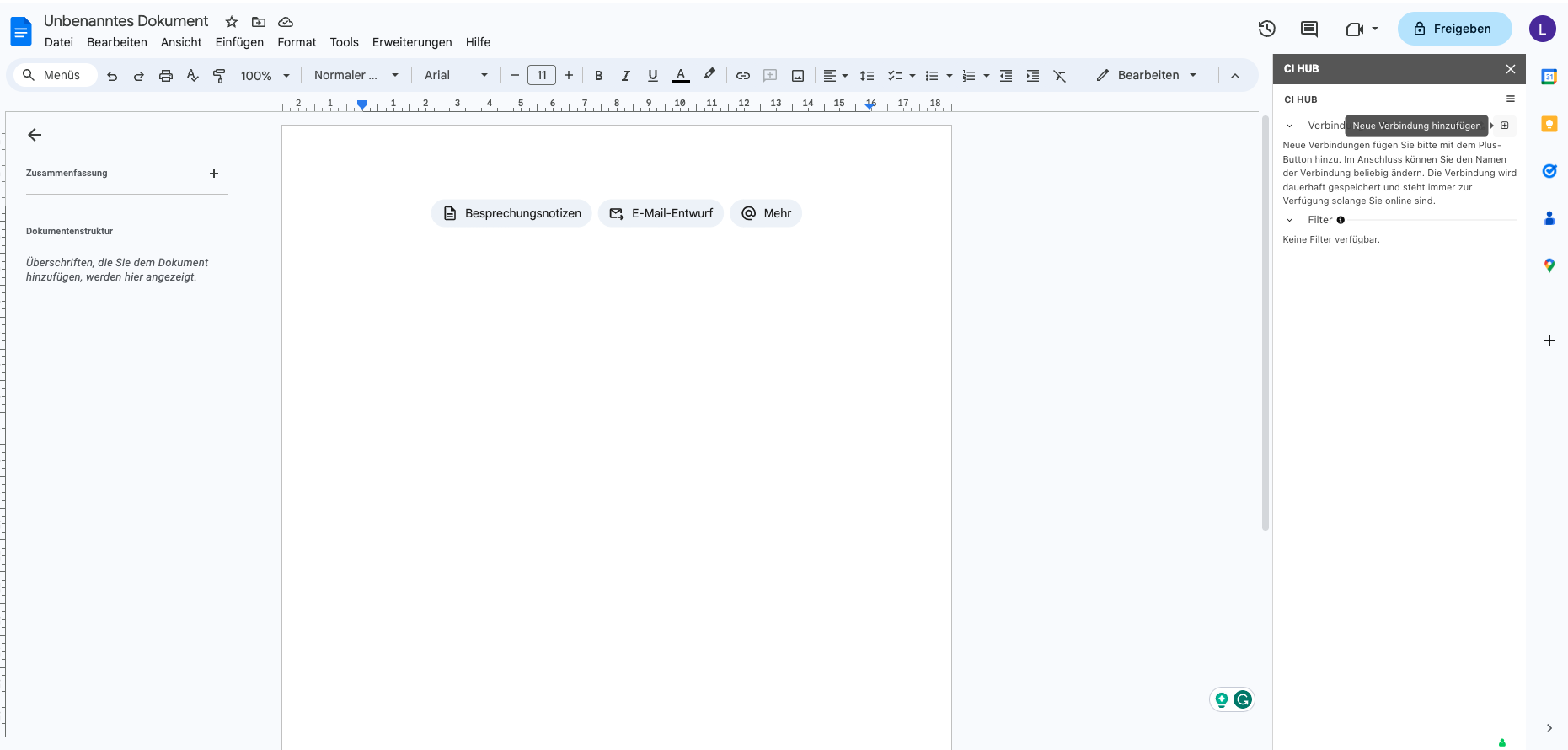
Open the plugin and click on the "+" symbol to establish a connection.
-
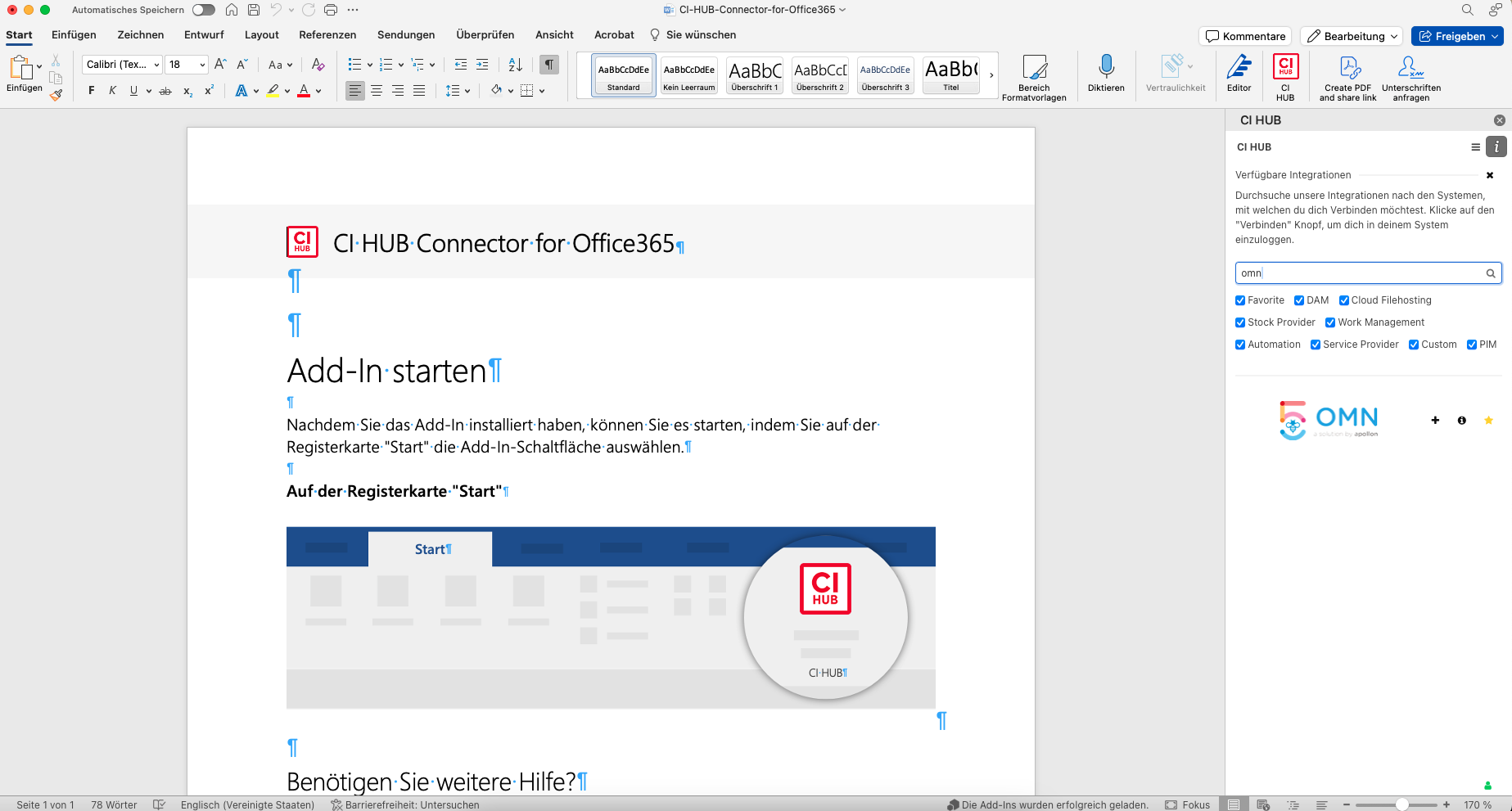
Search for OMN and add the connection using the "+" icon
-
Enter the URL of the OMN system you would like to connect to
-
Log in with your access data and confirm our license agreement
-
Jump back into your Google Doc and navigate through your familiar OMN data structure