Widgets
Widgets are small graphical user interface components which can be placed inside the columns of the dashboard. Each widget visualizes the data for a single business case. There are various forms of representation such as pie charts, bar graphs, tables and single values.
Predefined widgets
| Business case | Widget type | Configurable | Sender/Receiver |
|---|---|---|---|
Count of assets |
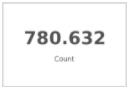
|
no |
- |
Count of assets by type |
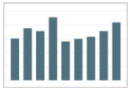
|
no |
- |
Count of channel objects by type |
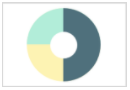
|
no |
- |
Count of assets by root node |
|
no |
- |
Last modified products |
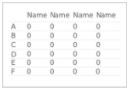
|
Sender |
|
Count of assets by size group |
|
no |
- |
Last modified assets |
|
Sender |
|
PIM objects count by type |
|
no |
- |
MAM upload activity |
|
- |
|
Statistic of asset objects by specific attribute |
|
- |
|
Statistic of channel objects by specific attribute |
|
- |
|
Statistic of product objects by specific attribute |
|
- |
|
Asset objects by specific attribute value |
|
Both |
|
Channel objects by specific attribute value |
|
Both |
|
PIM objects by specific attribute value |
|
Both |
|
Count of objects by query |
|
- |
|
Count of objects by query and grouped by specific attribute |
|
- |
|
List of objects by query |
|
Sender |
|
Count objects in index by specific attribute value |
|
Receiver |
|
Count objects in index by specific attribute value grouped by specific attribute |
|
Sender |
|
Average value of objects attribute in index by specific attribute value |
|
Receiver |
Configuration options
The title of every widget is adjustable.
Beside the title some widgets allow further customisations by editing its configuration.
Last modified products
| Option | Description |
|---|---|
Count |
Amount of products to be displayed within the table |
Preview column |
Display a preview image in the first column of the result table |
Columns |
Multiple product attributes can be added as columns to the result table |
Last modified assets
| Option | Description |
|---|---|
Count |
Amount of assets to be displayed within the table |
Root node |
Root node to which the assets should belong to |
Preview column |
Display a preview image in the first column of the result table |
Columns |
Multiple asset attributes can be added as columns to the result table |
MAM upload activity
| Option | Description |
|---|---|
Count |
Amount of days, weeks, months, quarters, years to be displayed |
Time period |
Aggregate the uploads by the specified time period (day, week, month, quarter, year) |
Statistic of asset objects by specific attribute
| Option | Description |
|---|---|
Attribute |
Asset object attribute by which the result should be aggregated |
Statistic of channel objects by specific attribute
| Option | Description |
|---|---|
Attribute |
Channel object attribute by which the result should be aggregated |
Statistic of product objects by specific attribute
| Option | Description |
|---|---|
Attribute |
Product object attribute by which the result should be aggregated |
Asset objects by specific attribute value
| Option | Description |
|---|---|
Count |
Amount of asset objects to be displayed within the table |
Sort attribute |
Asset object attribute by which the result should be sorted |
Sort direction |
Result should be sorted ascending or descending |
Attribute |
Asset object attribute by which the result should be filtered |
Attribute value |
Value of the asset object attribute by which the result should be filtered |
Preview column |
Display a preview image in the first column of the result table |
Columns |
Multiple asset attributes can be added as columns to the result table |
Channel objects by specific attribute value
| Option | Description |
|---|---|
Count |
Amount of channel objects to be displayed within the table |
Sort attribute |
Channel object attribute by which the result should be sorted |
Sort direction |
Result should be sorted ascending or descending |
Attribute |
Channel object attribute by which the result should be filtered |
Attribute value |
Value of the channel object attribute by which the result should be filtered |
Preview column |
Display a preview image in the first column of the result table |
Columns |
Multiple asset attributes can be added as columns to the result table |
PIM objects by specific attribute value
| Option | Description |
|---|---|
Count |
Amount of PIM objects to be displayed within the table |
Sort attribute |
PIM object attribute by which the result should be sorted |
Sort direction |
Result should be sorted ascending or descending |
Attribute |
PIM object attribute by which the result should be filtered |
Attribute value |
Value of the PIM object attribute by which the result should be filtered |
Preview column |
Display a preview image in the first column of the result table |
Columns |
Multiple asset attributes can be added as columns to the result table |
Count of objects by query and grouped by specific attribute
| Option | Description |
|---|---|
Information type |
TODO |
Query string |
TODO |
Group by |
TODO |
List of objects by query
| Option | Description |
|---|---|
Information type |
TODO |
Query string |
TODO |
Preview column |
Display a preview image in the first column of the result table |
Columns |
Multiple attributes can be added as columns to the result table |
Count |
Amount of objects to be displayed within the table |
Sort direction |
Result should be sorted ascending or descending |
Sort attribute |
TODO |
Count objects in index by specific attribute value
| Option | Description |
|---|---|
Information type |
TODO |
Attribute |
Object attribute by which the result should be filtered |
Attribute value |
Value of the object attribute by which the result should be filtered |
Use preview in table widget
To add a column with previews to a table widget, make sure to navigate to the settings of the table widget by clicking the three dots in the upper right corner of the widget and selecting "Edit" in the dropdown menu.

Activate the checkbox 'Preview column' and save the settings.

The preview column is now visible in the table widget.
