PIM 2.0 Module Features
PIM stands for Product Information Management.
-
Access the application module via Mandators → <Mandator name> → Application modules → PIM2
This is the structure of PIM2 application module:
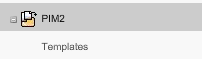
Details on the separate configuration page "Templates" can be found on the following page.
PIM2 application module’s configuration overview
Configuration of PIM2 application module contains two tabs with configurable options:
-
Basic configuration
-
Indexed fields configuration

| Tab | Description | Notice |
|---|---|---|
Basic configuration |
This tab contains basic options that have influence on whole module |
more details about configuration can be found here |
Indexed fields configuration |
This tab allows you to manage indexed fields for PIM2 products |
more details about configuration can be found here |
"Basic configuration" tab
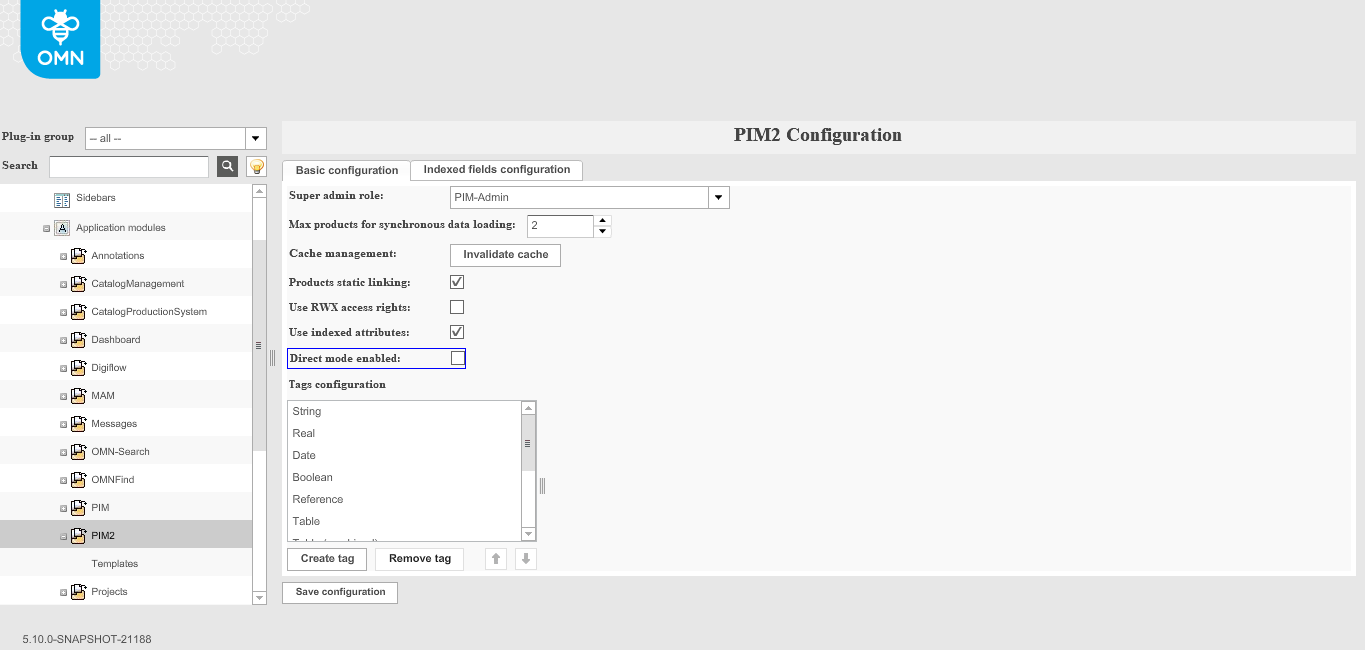
Here you can see how the configuration inside "Basic configuration" tab looks like:
| Field | Description | Notice |
|---|---|---|
Super admin role |
Allows to choose a role from the list. The chosen role will be considered as super admin for PIM2 module |
Users that belong to a selected role can execute all functionality of PIM2 module (ignoring access rights) |
Max products for synchronous data loading |
Allows defining max amount of products, for which attribute values will be loaded within the single chunk (in case of multi-selection). Minimum value is 1 |
Option has influence on Management page. In case the user selects more products than defined, their attributes will be loaded asynchronously, split between several chunks. |
Cache management |
Allows updating data in ConfigClient to actual version (e.g. for displaying all new attributes in “ClassificationView” page plug-in → ”Product listing”/”Column configuration” tabs) |
Cache should be invalidated each time when new attribute was added on the frontend client and you want to use it somewhere in configuration |
Products static linking |
This checkbox allows to set a necessary mode of linking products: - Static → assumes possibility to define product type of unclassified items - Dynamic → assumes definition of product type of the item according to information from item’s parent |
|
Use RWX access rights |
This checkbox allows to set a necessary type of used access rights. There are two types: - RWX access rights, if value set as “true” - Access rights based on security rules (set in Permissions in Security), if value set as “false” |
The option is not supported in the HTML5 client and the checkbox needs to be unchecked |
Use indexed attributes |
Allows choosing the place from where the values will be taken: - True → raw data will be loaded by demand only from database - False –> values will be taken from raw data only |
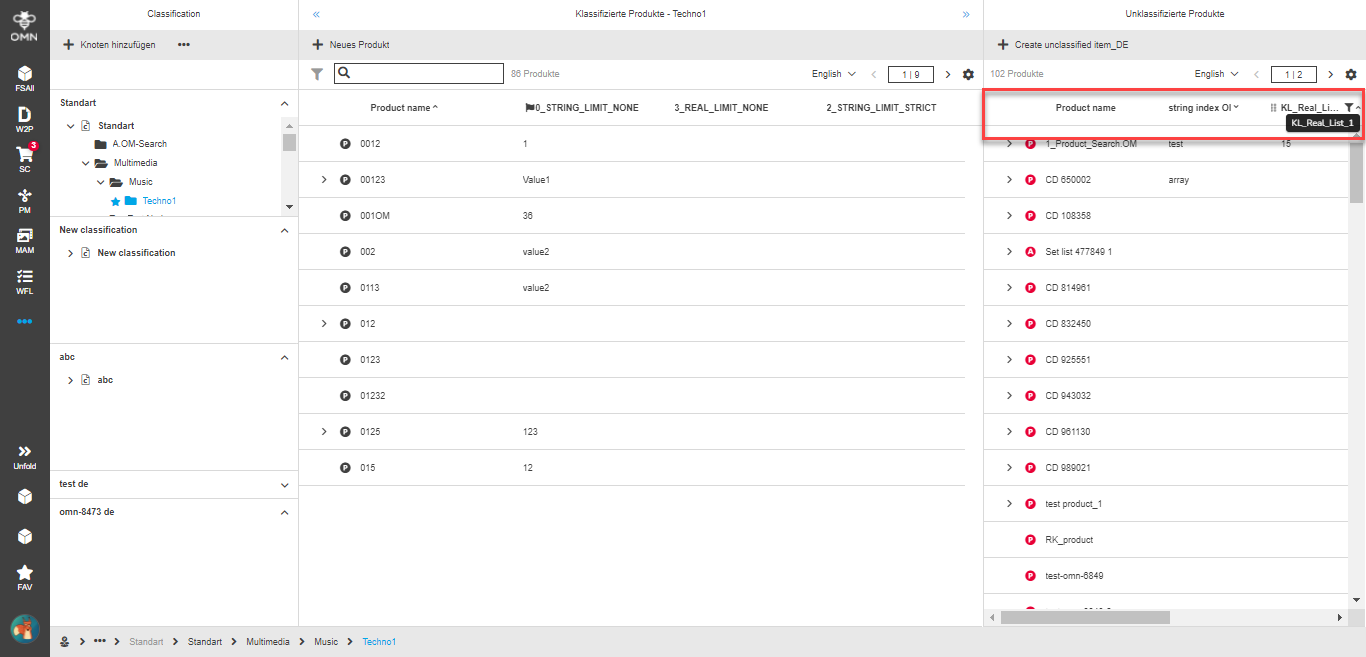
Additional influenced feature is sorting and filtering of unclassified products on the frontend client: * True → columns with indexed attributes can be sorted and filtered:
* False → columns with indexed attributes are not filterable and sortable |
Direct mode enabled |
This configuration option has influence only on old client |
|
Tags configuration |
Here all existing tags are shown. It’s possible to create/remove the tag via appropriate buttons “Create tag”/”Remove tag” |
All created tags are shown in the list on the frontend client in the 'Create attribute definition', 'Edit attribute definition' modal windows |
"Indexed fields configuration" tab
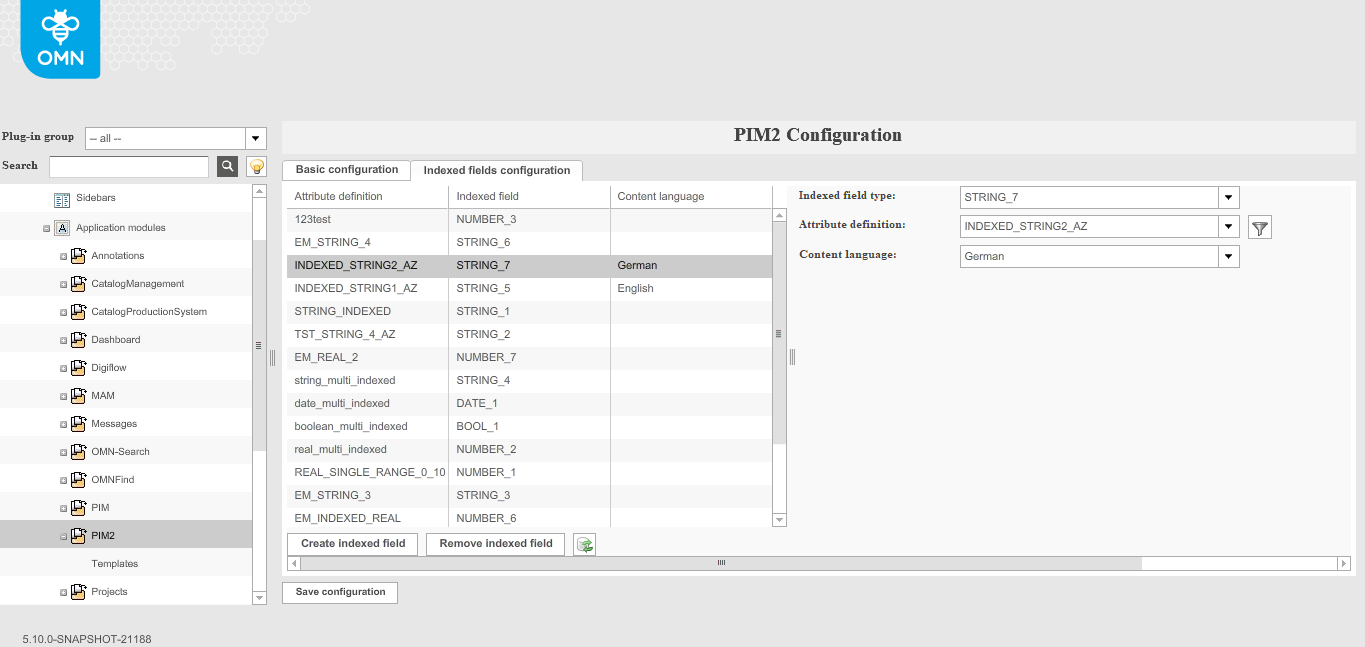
Here you can see how the configuration inside "Indexed fields configuration" tab looks like:
| Option | Description | Notice |
|---|---|---|
Table with indexed attributes |
The “Indexed fields configuration” tab contains configuration of the optimization table for PIM2.0 attributes. This table has commonly used attribute definitions of simple types: number, date, string, boolean. It is also possible to remove existing fields and to create new ones. Additionally, you can adjust the configuration of existing fields with field selection in the right panel. |
Every type of attribute can contain no more, than 10 indexed fields. Also, in the right view it’s possible to filter attributes by name via “Filter” button near the “Attribute definition” dropdown list |
Synchronize indexed field values |