Message List
The Message List (or Message Client) is the central data store for messages that can be received and sent through various actions. The messages are listed in the Message Client and can be viewed there by users and filtered according to various criteria.
View
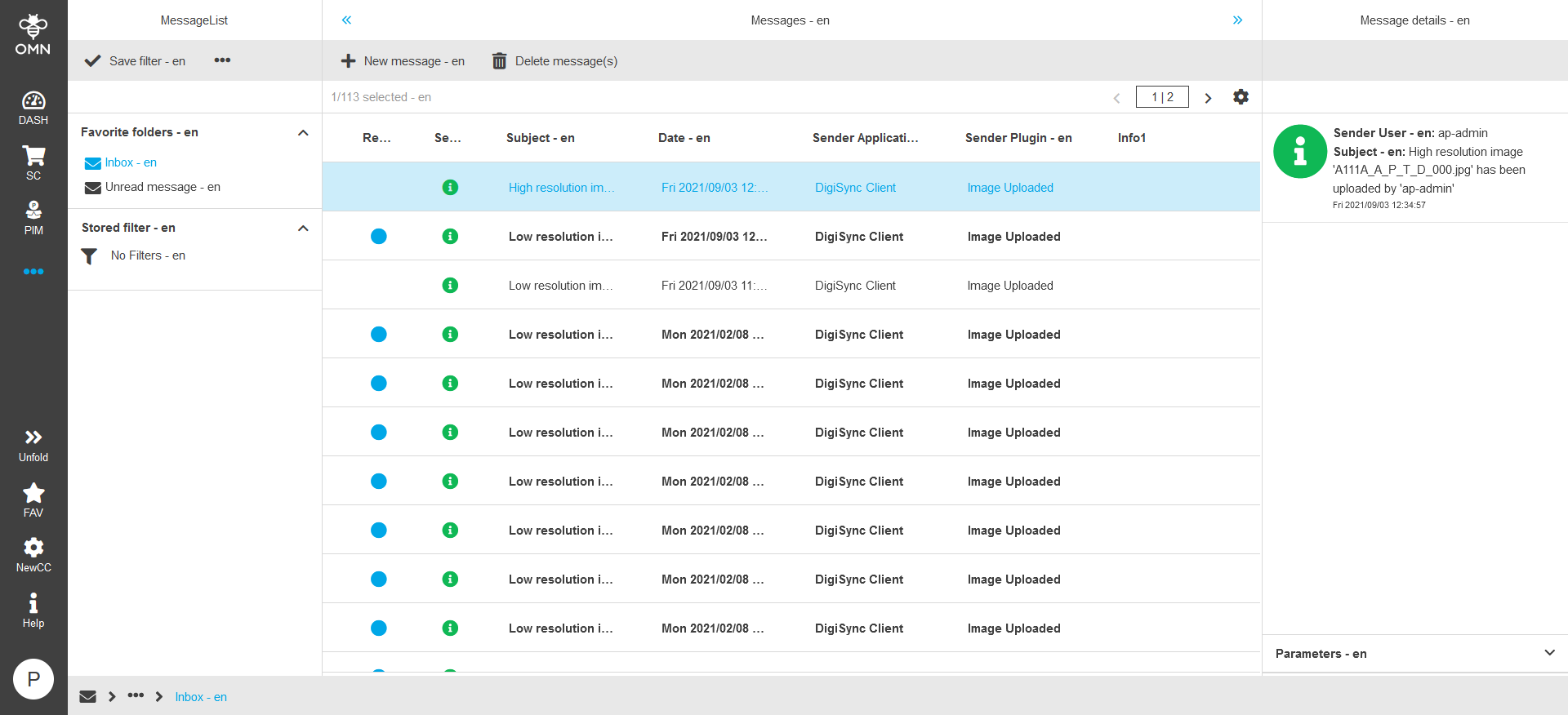
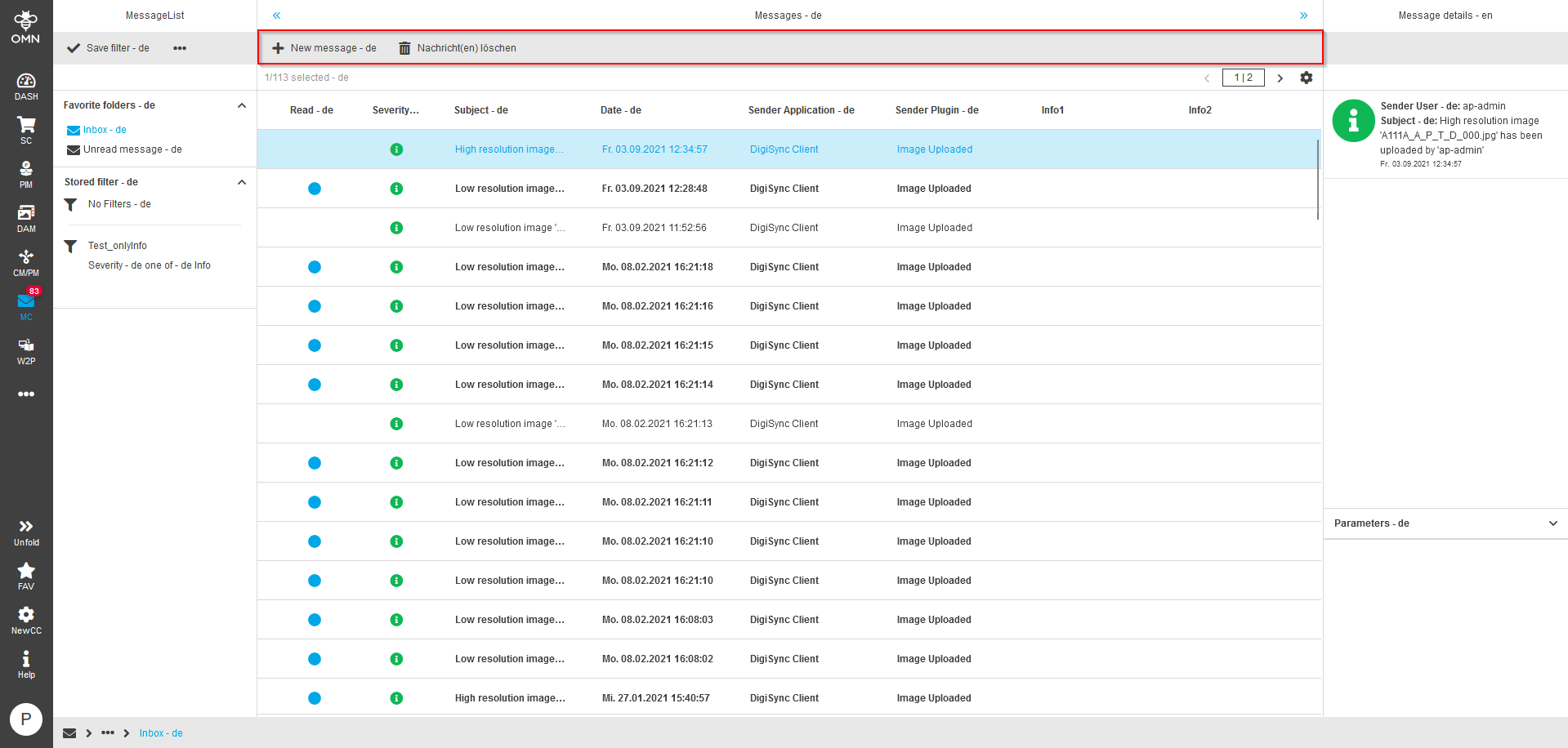
The Message Client consists of three columns, whereby the right-hand column only appears when a message is selected. The three columns contain:
-
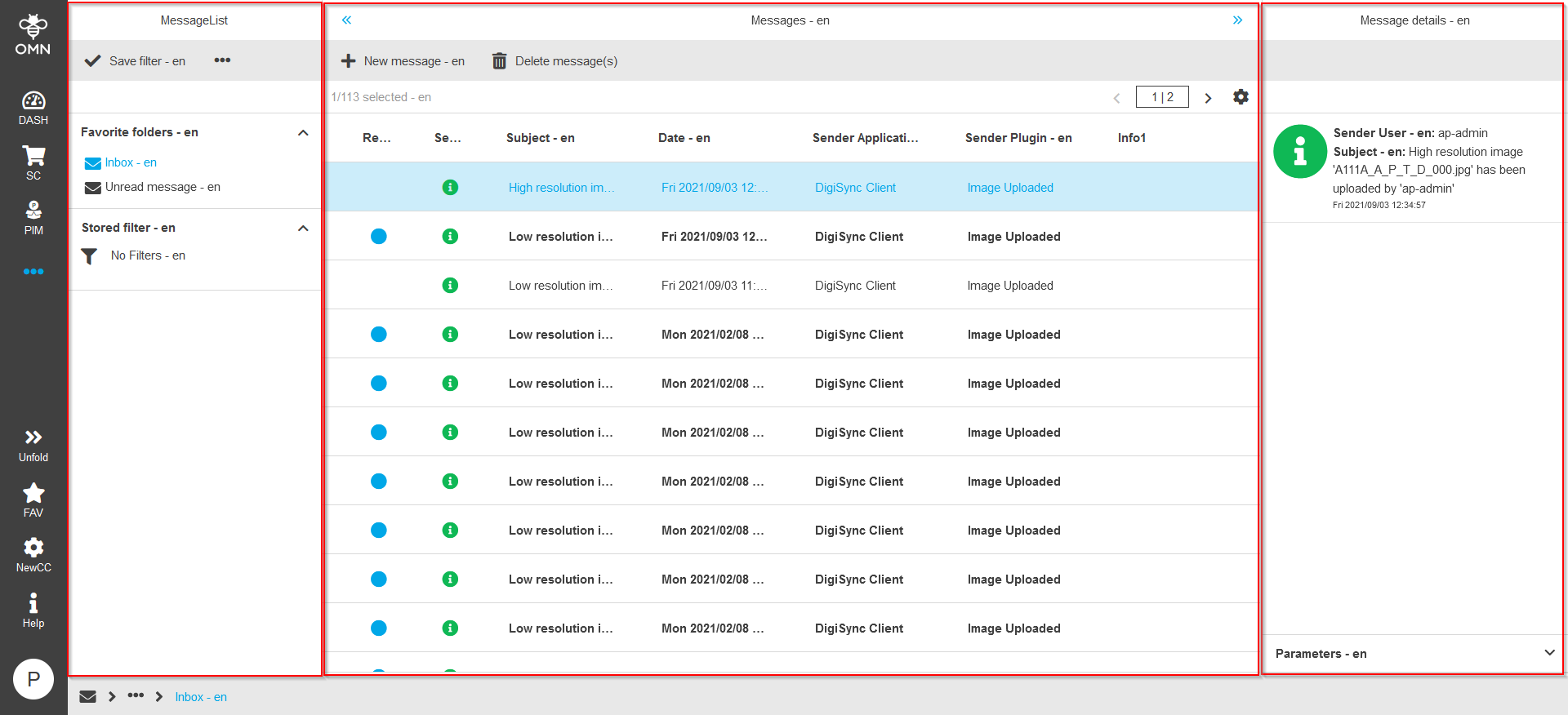
Left View – Navigation consisting of folders and saved filters
-
Center View – Workspace consisting of a table with various columns representing additional information of a message (e.g. severity, date, …)
-
Right View – Details of the selected message and the message itself
Navigation (Left View)
The left column of the Message Client consists of the following sections (accordions):
-
Folder for Inbox and Unread Messages
-
Stored filters
The toolbar also contains various functions for the filters, such as saving or renaming filters.
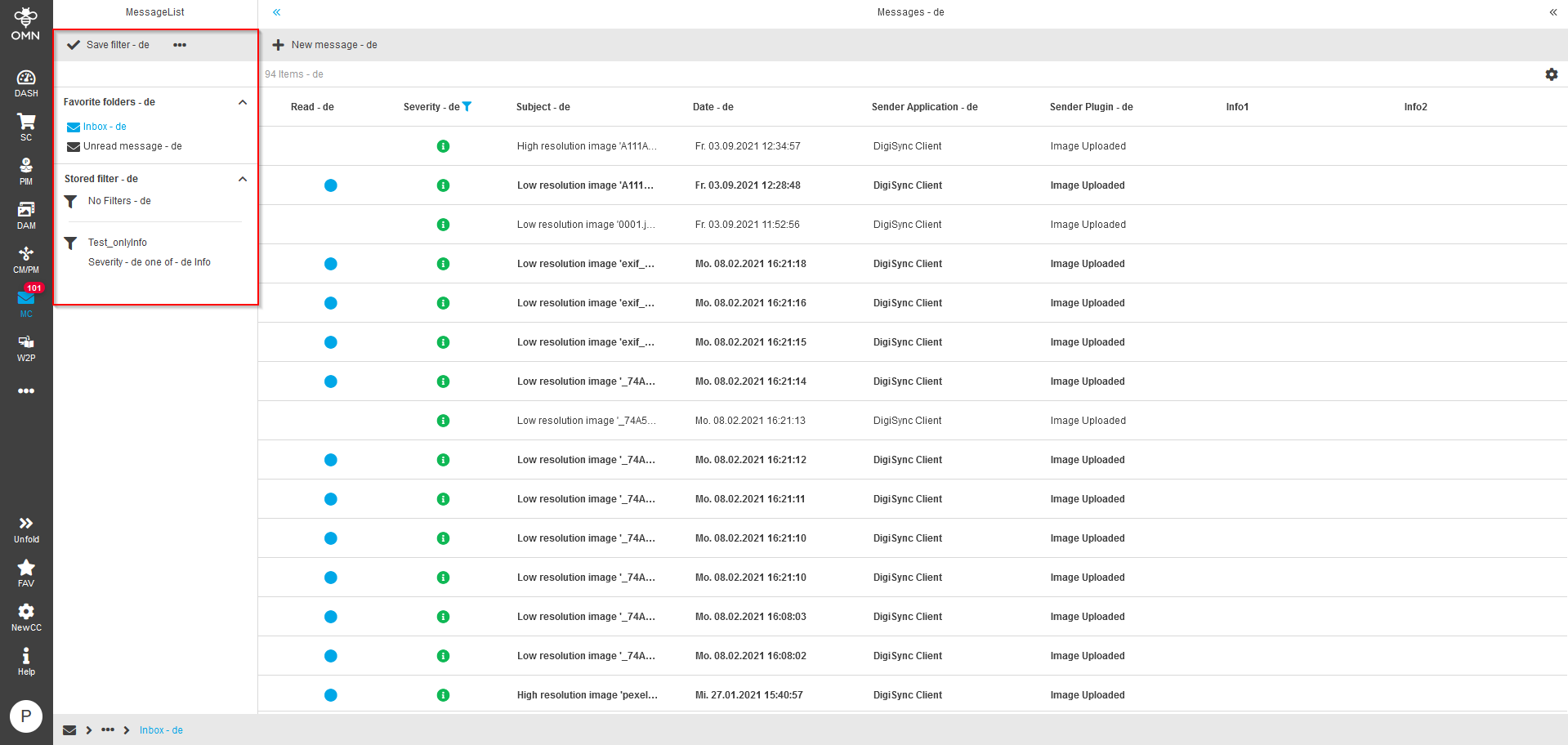
The "Favorite folders" section contains the two folders "Inbox" and
"Unread messages" by default.
The Inbox displays all messages, while the "Unread Messages" folder displays
only messages that have not yet been read.
In the "Stored filter" section, the "No Filters" filter is present by default.
If a user activates this, all filters are removed, regardless of which folder
is currently selected.
Additional filters appear in the list as soon as a user sets her own filters
in the table and saves them as a saved filter. As soon as these filters are
subsequently selected, the state with the filters set at the time of saving
is restored.
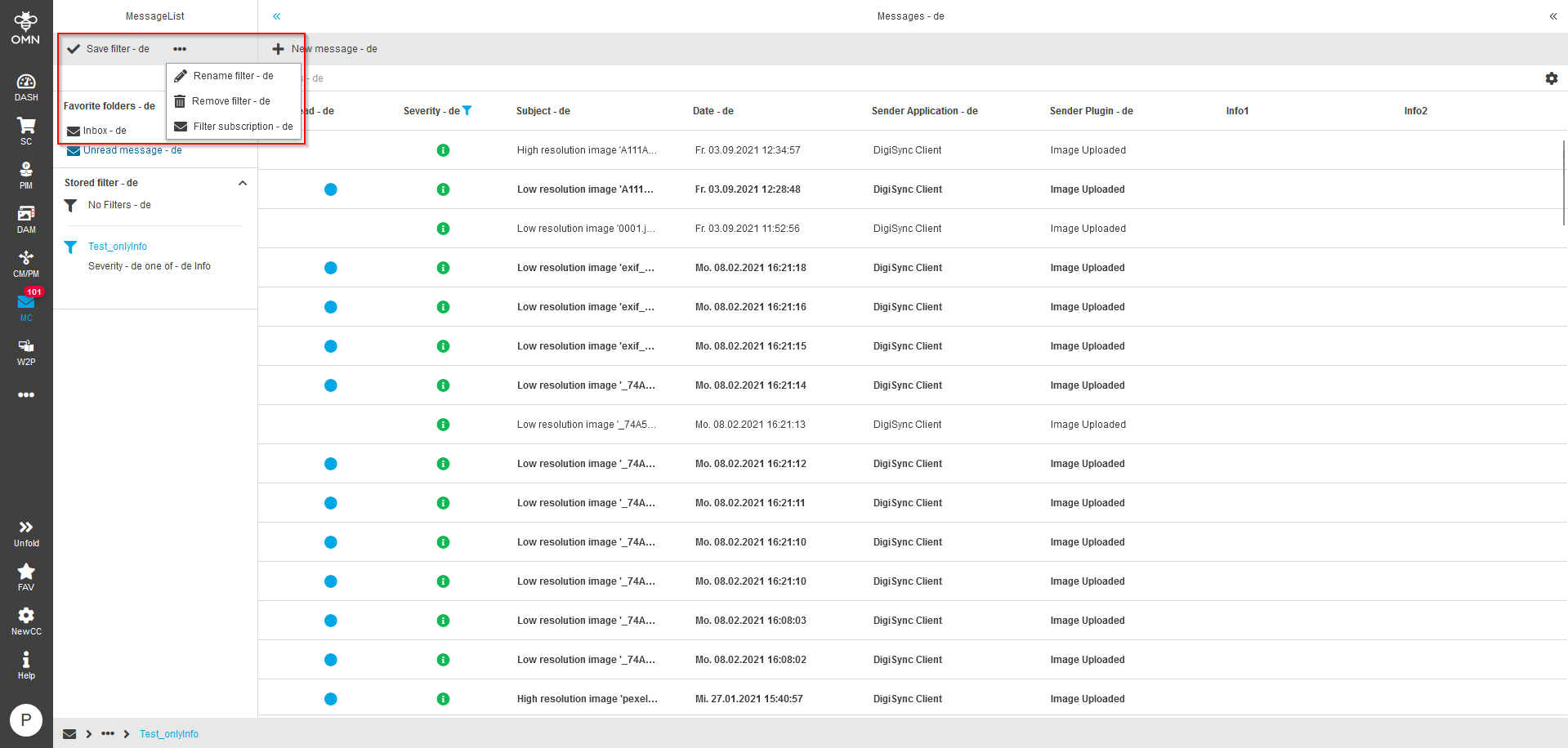
To be able to save or edit own filters, a user has the following functions to choose from in the toolbar:
-
Save filter – this allows all currently applied filters to be saved in a new stored filter
-
Rename filter – this allows renaming a stored filter
-
Remove filter – this enables the deletion of a stored filter
-
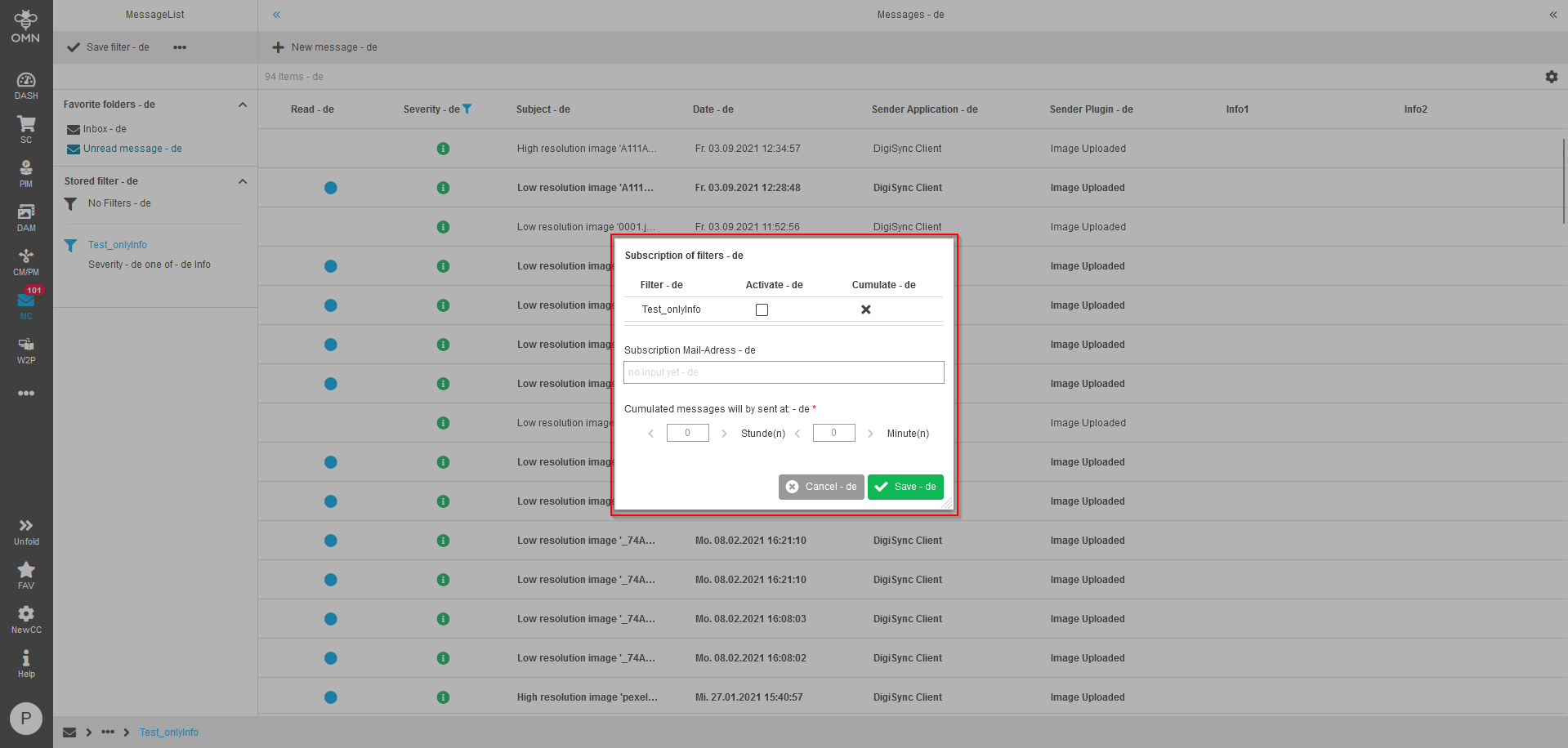
Filter subscription – this enables the setting of special rules to stored filters
The Filter Subscription makes it possible to add further rules to the stored filters by the following options:
-
Active – Activate filter(s) for abonnement
-
Cumulate – Switch to cumulative messages (cumulated messages will be sent via e-mail)
-
Subscription Mail-Address – Entering the e-mail address to which the messages are sent
-
Cumulated messages will be sent at – Restricting the time period after which messages are to be sent
Workspace (Center View)
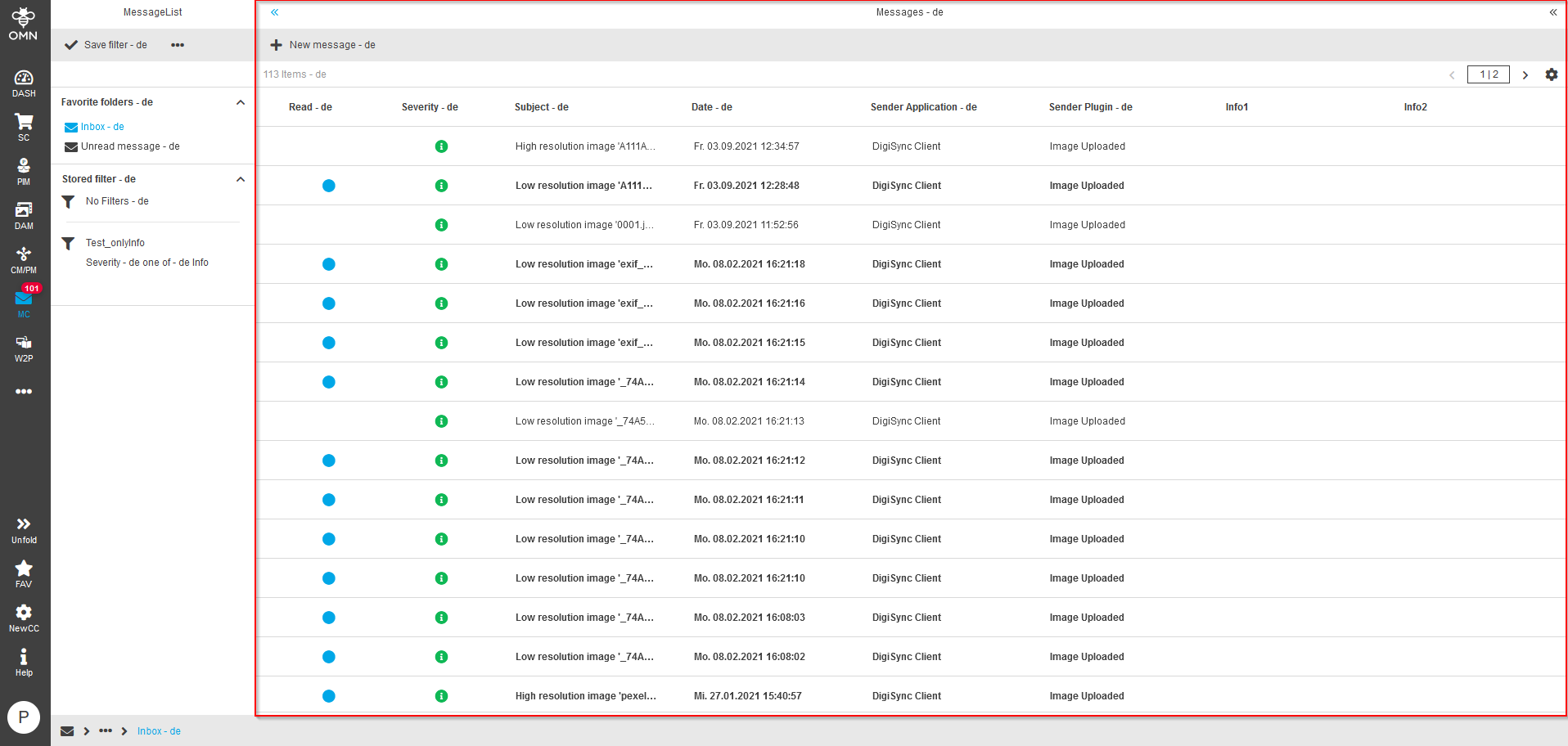
The center view of the Message Client consists of a table that displays various
information about a message with its different columns.
The columns contain the following information by default:
-
Read – Icon for "Read" status, for unread messages a blue circle appears and the information is displayed in bold
-
Severity – Symbol to indicate the severity of the message, divided into:
-
Info:

-
Warning:

-
Error:

-
-
Subject – Subject of the message
-
Date – Date of message receipt
-
Sender Application – Information about the origin of the message, either the name of the module or individual information of the sender
-
Sender Plugin – Information about the action performed or individual information of the sender
| Additional columns can be added by the administrator. |
Furthermore, The toolbar contains functions for creating or deleting messages.
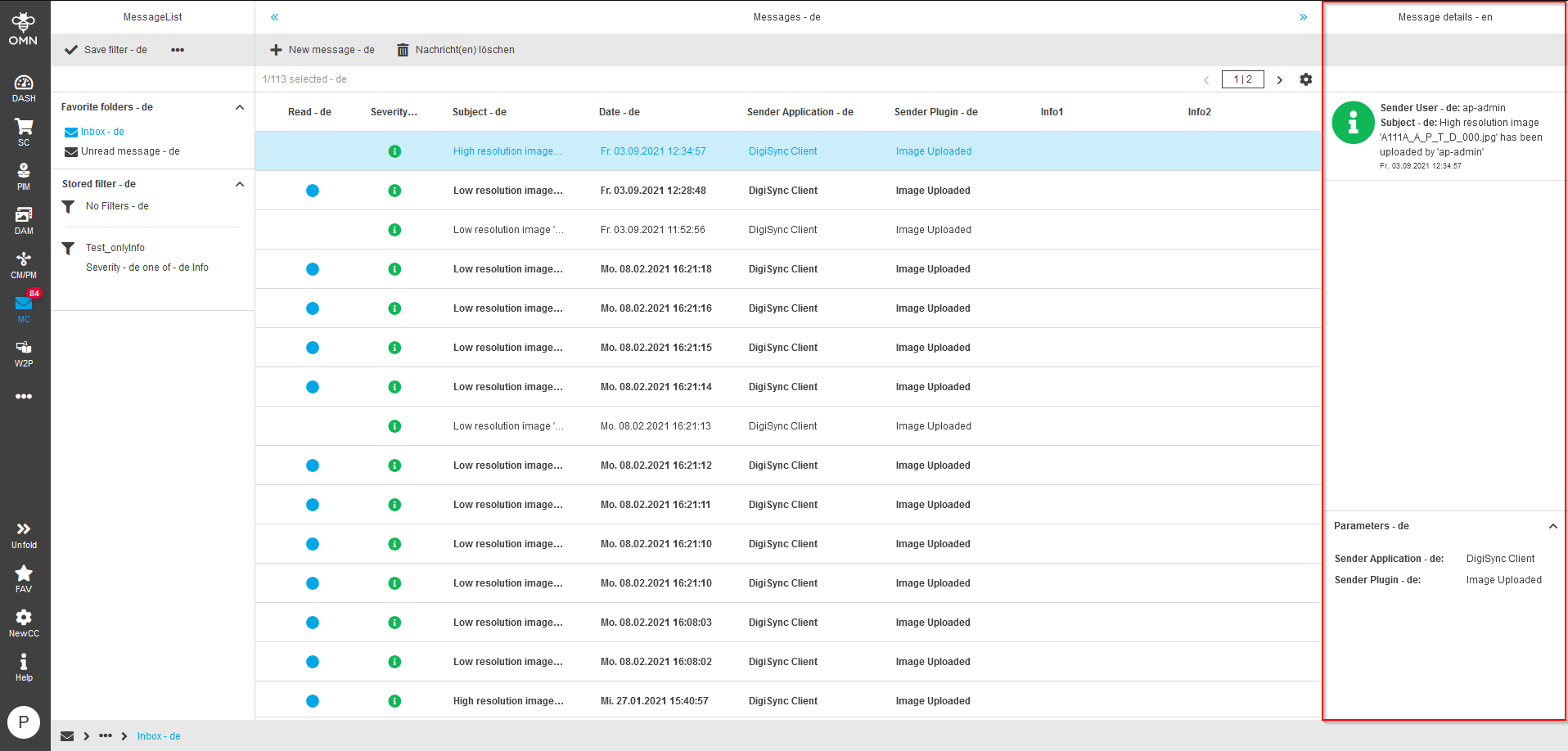
By using the function "New message", a dialogue window appears with various
input options for the message to be created. Some of the attributes displayed
are the same as those in the table columns.
In addition to the recipient and the role, the subject and a message can be
entered. Moreover, additional information, including sender application, sender
plugin and other self-"configurable" information can be entered, which will
later be displayed in the right view under "Parameters".
By clicking on "Send", the message is sent to the recipient(s).
Details (Right View)
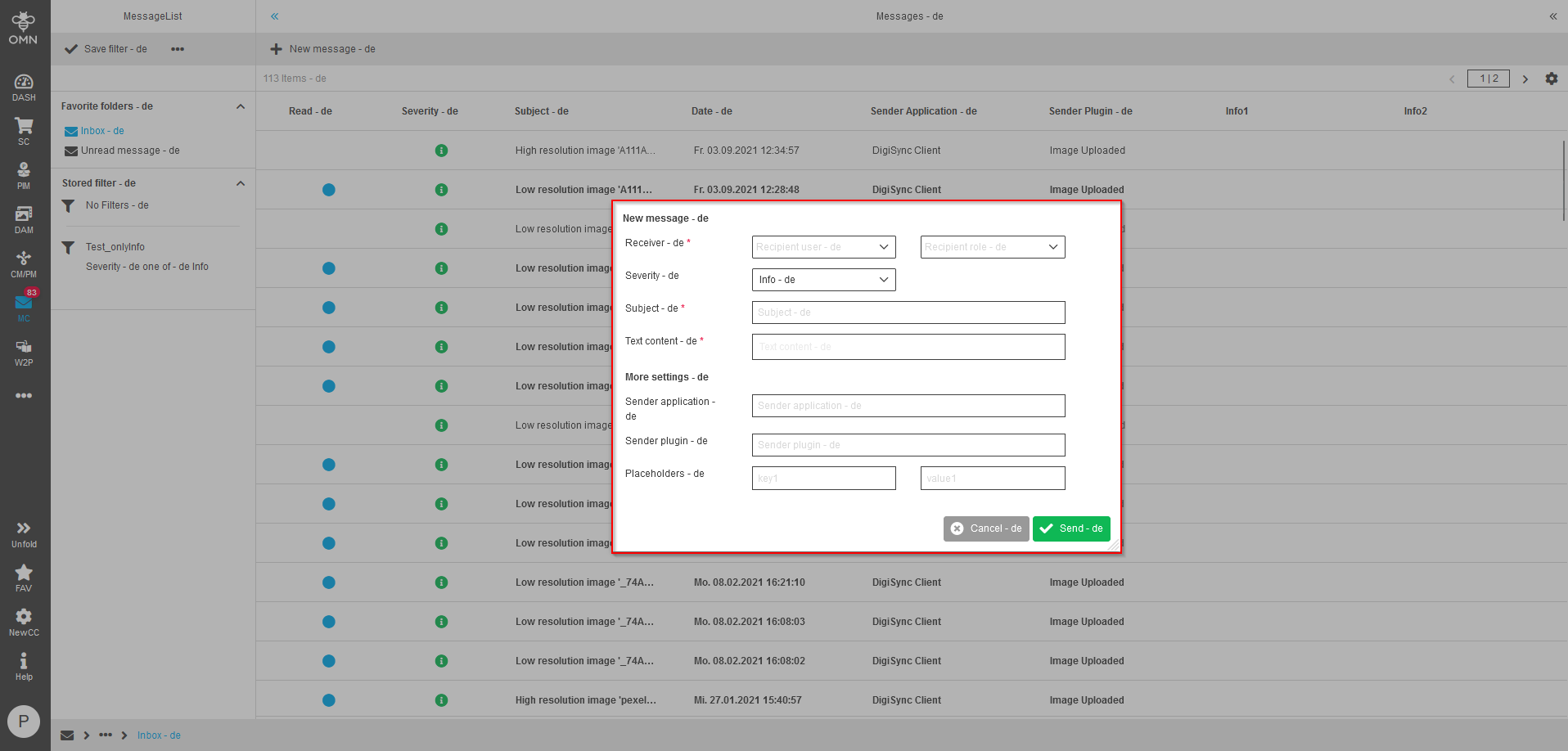
The right view of the Message Client consists of two sections, the message
itself and the parameters of the message.
The message itself is in the first place. It is not placed in a conventional
accordion and therefore cannot be hidden/collapsed. It shows the severity, the
sender, the subject and, if available, the content of the message.
Below this is the "Parameters" accordion, which displays additional information
such as sender application, sender plugin and specially configured content.
Working with the Message Client
The table of the message client is filterable and sortable, which means that a
user has the possibility to filter or sort according to the different
attributes, such as severity.
The general functioning of filtering and sorting
in tables is described in detail in the UI principles.
If a filter or a combination of filters is to be saved, they must first be applied and then saved using the "Save filter" function.