User registration
Activate the user registration to allow a user to register himself to the system via the mandator application.
Configuring the user registration
-
Access the user registration via Mandators → <Mandator name> → User registration
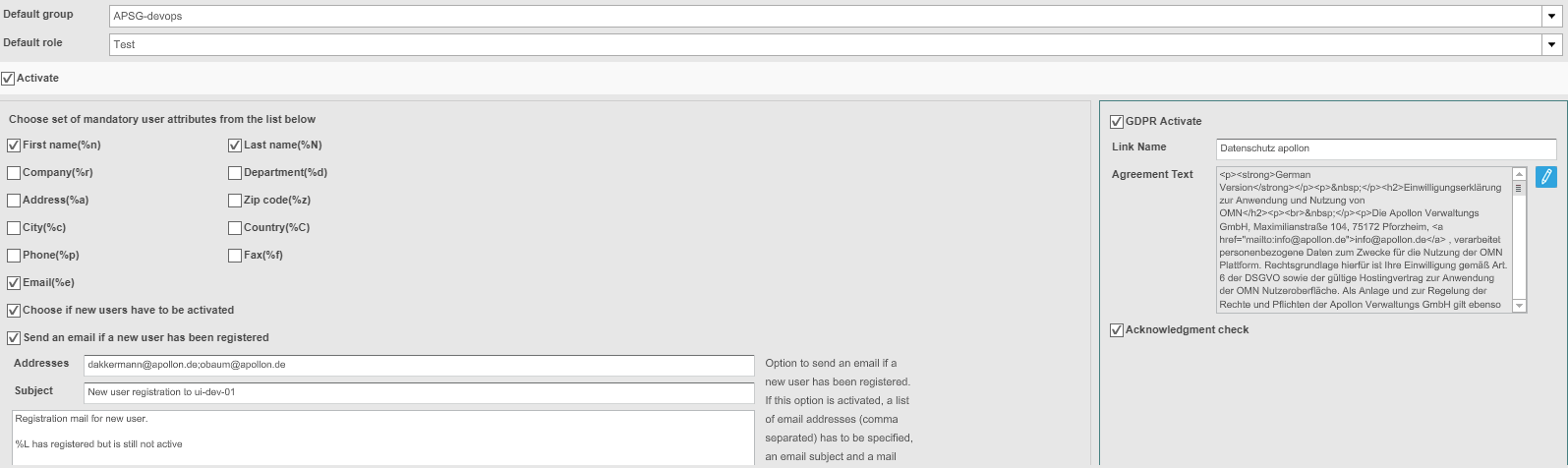
Here you can see how configuration of the User Registration looks like:
| Field | Description | Notice |
|---|---|---|
Default group |
Each self-registering user is automatically added to this group >> For better organization, create a group for each mandator and add all users to it |
Without a default group, the User Registration cannot be activated |
Default role |
Each self-registering user is automatically added to this role |
>> Configure roles as necessary (see section Configuring Usable Roles on the "Security" page) |
Activate |
>> Activate the checkbox to enable the User Registration |
|
User attributes |
>> Activate the checkboxes for attributes that are mandatory for the User registration |
The user cannot register without filling in the mandatory fields. |
Choose if new users must be activated |
Activate the checkbox if new users need to be unlocked by an administrator |
If activated, the user cannot directly log on right after his registration |
Send an email if a new user has been registered |
Activate the checkbox to send an email to a specified address after a new user registered |
>> Fill in the fields Addresses, Subject and the free text area |
Addresses |
For entering the email addresses the notification email is to be delivered to |
Use the comma as a separator for more than one email |
Subject |
For entering a subject for the notification email |
Text field can contain placeholders |
<free text area> |
For entering the text for the notification email |
Text field can contain placeholders |
GDPR activate |
>> Activate the checkbox to enable GDPR check |
GDPR check is used in user registration function |
Link Name |
For entering the link name which will be used in order to open agreement text |
The link name can be localized |
Agreement text |
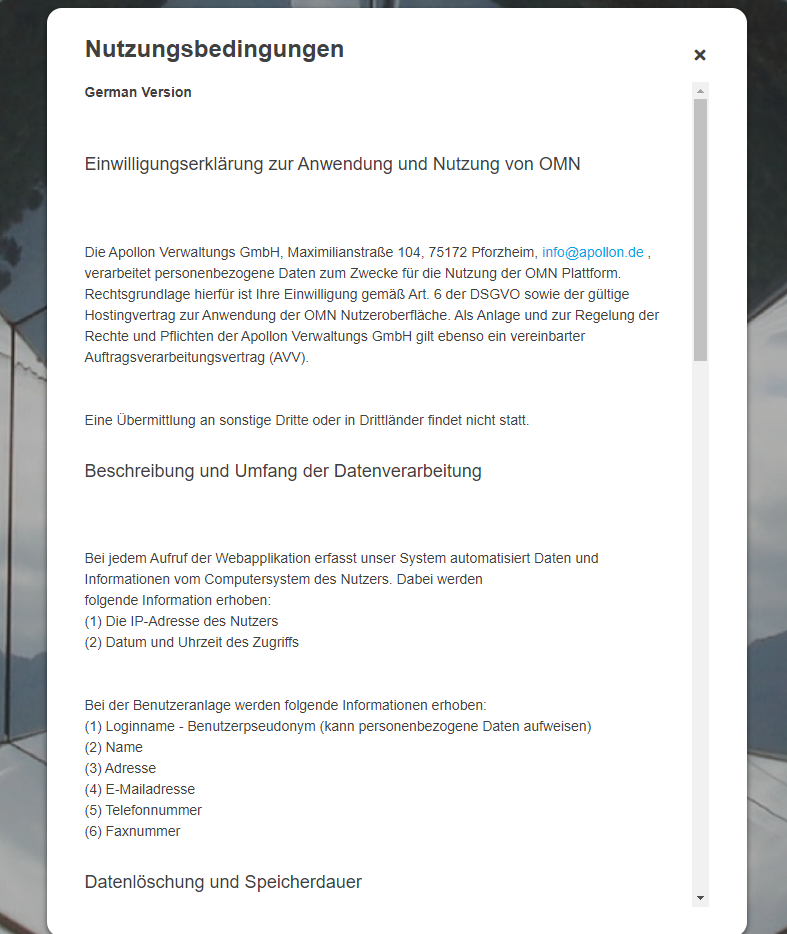
Contains the GDPR agreement text being used in Registration Form |
Default-Text can be changed according to the needs In the backend |
Acknowledgement Check |
Activate the checkbox to enable Acknowledgement Check |
If this option is enabled, the use has to read and confirm it in user registration once The information about acknowledgement will be saved in the OMN database |
Save User registration |
Saves the configuration and all changes made |
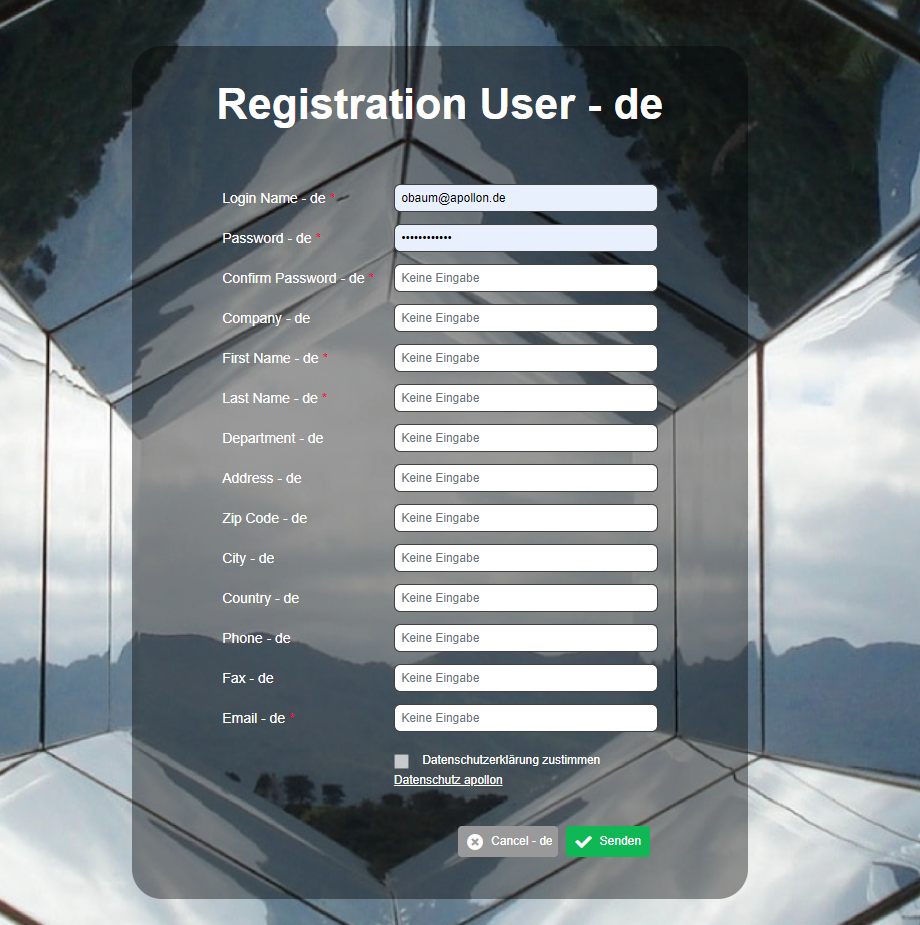
Here you can see the appearance of User Registration on the UI client: