EAI
Big picture
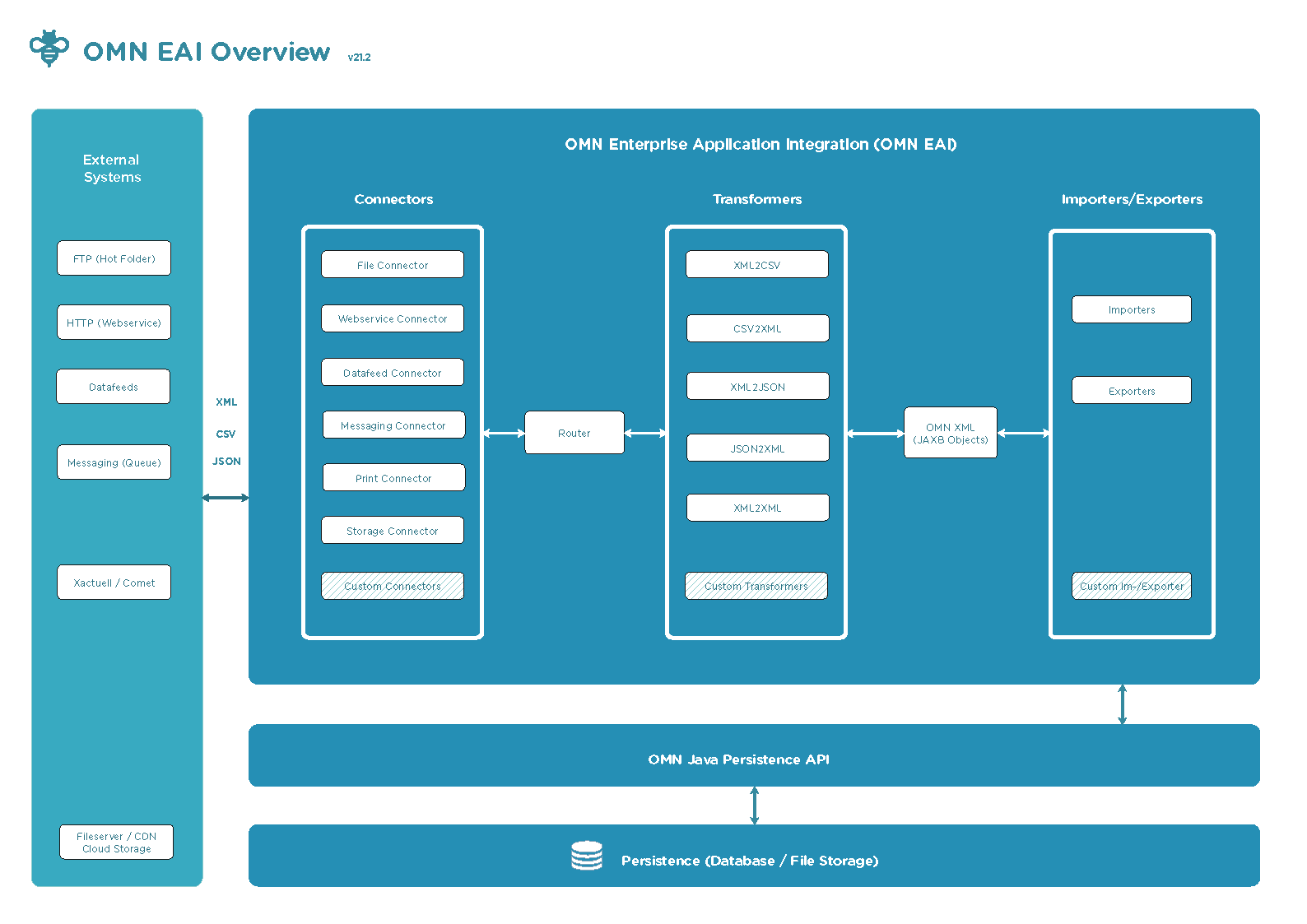
The Enterprise Application Integration (EAI) module of OMN consists an xml based data exchange format (OMN XML), connectors, optional transformers, importers and exporters based on OMN XML.
What’s New
5.1.0
Channel assets links
Links between channel objects and assets can now be exported and imported. The EAI schema definition is extended by a new complexType: "linksType".
Please check the XML Example for more detail:
<project tid="myprojectobject" type="print_page">
    <name>page_100200</name>
    <vals>
        <val attr="page_number">
           <itm>200</itm>
        </val>
    </vals>
    <links> (1)
        <itm key="sample_tid_mam_dir"/> (2)
        <itm key="sample_tid_mam_asset"/>
    </links>
</project>| 1 | Project objects can now contain a xml element "links". |
| 2 | Linked asset items are identified by the tid. The value of tid is here "sample_tid_mam_dir". |
<xs:complexType name="linksType">
    <xs:sequence>
        <xs:element type="itemType" name="itm" minOccurs="0" maxOccurs="unbounded"/>
    </xs:sequence>
</xs:complexType>omn.eai.exporter.cm.exportLinks=falseSet the value to true to export project together with linked assets.
5.5.0
-
Introduced the product attribute values export/import into csv format.
-
Introduced new
csv-ftp-connector. -
Triggers to start the csv export:
CsvAllProductsExport,CsvProductByClassificationExport,CsvProductExport. -
New table column EAI_EXPORT_JOB.FORMAT and correspond
MessageContentTypeenumeration were created. -
DoExportJobsTasknow transforms thePimTypeto the XML or CSV message due to the format of the export job.
5.8.0
-
Introduced extended export and import of project definitions: now project definition contains all OMN specific information like allowed functions, configured project views, creation plugin, project icons, scripts, etc.
-
Introduced export and import of metadata attribute definitions. Metadata attribute definitions would be exported and imported accordingly to their specializations and object types.
-
Introduced import of assets keywords and simple metadata attribute values. Import and export of language-dependent attribute values are supported.
-
Import of assets that are linked to project was extended - now it is possible to choose the import strategy: linked directories can be imported with child objects only or with all descendants (recursively), or import of linked assets can be disabled at all.
-
Added possibility to export and import directories.
-
Added JavaFunction for exporting the selected assets.
-
Added JavaFunction for exporting the selected projects.
Usage
Exporter
Export can be done in 2 ways - sync and async.
The sync way is realized with rest api into ws-connector.
The async is realized with the export jobs and the task to process the jobs. By default, the export job handling is disabled. It can be enabled with the property:
omn.eai.exporter.doExportJobsTask.enabled=true
The export job can be created manually by mean buttons (e.g. javascript function plugin) on the frontend.
Also the export job can be created automatically by the hibernate events. By default, this is disabled and can be enabled with the property:
omn.eai.exporter.event.enabled=true
Results of the sync export are returned to the user directly as the response.
Location of the async export result depends on the connector configuration. E.g.: for the csv-ftp-connector the
location is the folder on ftp environment/omn2fs_request_csv.
Importer
Product import
To classify product the user has to set <node> tag. E.g.:
...
      <product tid="tid1">
         <name>product1</name>
         <node>/Standard/node1</node>
...-
Node tag is missed into the xml.
-
Existing product will be updated.
-
New unclassified product will be created.
-
-
Node tag presents and is empty.
-
Existing product will be unclassified.
-
New unclassified product will be created.
-
-
Node tag presents and isn’t empty.
-
Existing product will be unclassified from other nodes and classified to the new node.
-
New product will be created and classified to the node.
-
Webservice Connector
| In the future, the EAI Webservice Connector will be consolidated into OMN’s REST API. |
| Endpoints of the Webservice Connector are not protected by any authentication. It should not be used for production environment. |
On DEV and TEST environments, the webservice connector can be installed to get a lot of useful endpoints for import/export operations.
Health Check
A health check for the EAI webservice connector can be done by sending a GET-Request to the following endpoint, it should return a list of meta information including the version of OMN and EAI in XML format.
curl <omn-host:port>/eai/export/meta
Available Endpoints
Please check the Webservice Connector documentation on Knowledge Base for more information. The content on Knowledge Based will be moved into this manual.
CSV FTP Connector
The csv-ftp-connector uses the csv files to exchanging between OMN and FTP. Configuration of the connector is into
CommonCsvFtpConnectorConfiguration java class. CONNECTION_STRING defines the connection string to the ftp server.
private static final String CONNECTION_STRING =
        "ftp://omn_eai_sys@ftp.apollon.de/%s/%s?" +
                "passiveMode=true" +
                "&move=archive" +
                "&readLock=changed" +
"&password=password";|
|
The connector can consume/supply files from/into the ftp folders:
| Folder | Description |
|---|---|
environment/omn2fs_request_csv |
The folder where the export CSV files will be supplied. |
environment/fs2omn_request_csv |
The folder where the import CSV files will be consumed from to the importing into omn. |
environment/fs2omn_response_csv |
The folder where will be supplied the XML responses with the import results |
environment into table is value of the omn.eai.common.environment omn-eai configuration property and by default is dev.
Csv format description
Product csv format
| u product | tid_product | tid_article | tid_variant | name | class_path | attribute1 | … | attributeN |
|---|---|---|---|---|---|---|---|---|
ptid1 |
my_product |
/root_node/leaf_node |
value11 |
… |
value1N |
|||
ptid1 |
atid11 |
my_article |
value21 |
… |
value2N |
|||
ptid1 |
atid11 |
vtid111 |
my_variation |
value31 |
… |
value3N |
||
… |
|
|
Header structure
1st column
Contains meta information about the csv file. The column has structure:
ACTION TYPE[mode=MODE]
where:
ACTION - string representation of CsvAction enumeration’s value: cu, u, d
TYPE - identifiers of ItemInformationType enumeration, e.g.: product, attrDefinition
MODE - string representation of MessageMode enumeration’s value: full, delta
|
Examples:
|
the csv for update products with delta mode |
|
the csv for update products with full mode |
Columns attribute1, …, attributeN
Each column contains information about the attribute definition name, its type, locale and the type postfix. The column has structure:
ATTRIBUTE[type=TYPE_POSTFIX|loc=LOCALE]
where:
ATTRIBUTE - name of the attribute definition
TYPE - string representation of ValAttributeType enumeration, e.g.: simple, multiple
POSTFIX - string representation of CsvTypePostfix enumeration, e.g.: key, value
LOCALE - locale for the value(s), e.g.: en_GB, de_DE
|
Examples:
|
column for values of simple |
|
column for values of multiple |
|
column for values for |
|
column for values for |
|
column with domain keys for |
|
column with translations for domain keys for |
Mapping ValueType to the csv columns and rows
Simple
<val attr="article_number">
    <itm>A001002565</itm>
</val>
...;article_number;... ...;A001002565;...
Localized
<val attr="description" type="localized">
    <itm loc="en_GB">
        Discover the brilliance of 4K HDR.
    </itm>
    <itm loc="de_DE">
        Entdecken Sie die Brillanz von 4K HDR.
    </itm>
</val>
...;description[type=localized|loc=en_GB];description[type=localized|loc=de_DE];... ...;Discover the brilliance of 4K HDR.;Entdecken Sie die Brillanz von 4K HDR.;...
Multiple
<val attr="target_group" type="multiple">
    <itm pos="0">Children</itm>
    <itm pos="1">Woman</itm>
</val>
...;target_group[type=multiple];... ...;Children|Woman;...
Multiple localized
<val attr="use_area" type="multi_loc">
    <i18n loc="en_GB">
        <itm pos="0">Outdoor</itm>
    </i18n>
    <i18n loc="de_DE">
        <itm pos="0">Home</itm>
        <itm pos="1">Garten</itm>
    </i18n>
</val>
use_area[type=multi_loc|loc=en_GB];use_area[type=multi_loc|loc=de_DE] Outdoor;Home|Garten
Simple domain
<val attr="t_shirt_size" type="domain">
    <itm loc="en_GB" key="S">Small</itm>
    <itm loc="de_DE" key="S"></itm>
</val>
...;t_shirt_size[type=domain_key|loc=en_GB];t_shirt_size[type=domain_value|loc=en_GB];t_shirt_size[type=domain_key|loc=de_DE];t_shirt_size[type=domain_value|loc=de_DE];... ...;S;Small;S;;...
Localized domain
<val attr="domain_drive_direction" type="loc_domain">
    <itm loc="en_GB" key="left">left</itm>
    <itm loc="de_DE" key="right">rechts</itm>
</val>
...;domain_drive_direction[type=loc_domain_key|loc=en_GB];domain_drive_direction[type=loc_domain_value|loc=en_GB];domain_drive_direction[type=loc_domain_key|loc=de_DE];domain_drive_direction[type=loc_domain_value|loc=de_DE];... ...;left;left;right;rechts;...
Multiple domain
<val attr="domain_occasion" type="multi_domain">
    <i18n loc="en_GB">
        <itm pos="0" key="wedding">Wedding</itm>
        <itm pos="1" key="birthday">birthday</itm>
    </i18n>
    <i18n loc="de_DE">
        <itm pos="0" key="wedding">Hochzeit</itm>
        <itm pos="1" key="birthday">Geburtstag</itm>
    </i18n>
</val>
...;domain_occasion[type=multi_domain_key|loc=en_EN];domain_occasion[type=multi_domain_value|loc=en_EN];domain_occasion[type=multi_domain_key|loc=de_DE];domain_occasion[type=multi_domain_value|loc=de_DE];... ...;wedding|birthday;Wedding|birthday;wedding|birthday;Hochzeit|Geburtstag;...
Multiple localized domain
<val attr="material" type="multi_loc_domain">
    <i18n loc="en_GB">
        <itm pos="0" key="cotton">Cotton</itm>
    </i18n>
    <i18n loc="de_DE">
        <itm pos="0" key="wood">Holz</itm>
        <itm pos="1" key="silk">Seide</itm>
    </i18n>
</val>
...;material[type=multi_loc_domain_key|loc=en_EN];material[type=multi_loc_domain_value|loc=en_EN];material[type=multi_loc_domain_key|loc=de_DE];material[type=multi_loc_domain_value|loc=de_DE];... ...;cotton;Cotton;wood|silk;Holz|Seide;...
Asset
<val attr="linked_asset" inheritance="false" type="asset">
    <itm key="C4EDE1B4-D753-4969-8B32-842FCA978CDC" pos="0">rnc1/image1.jpg</itm>
    <itm key="C4EDE1B4-D753-4969-8B32-842FCA978CDD" pos="1">rnc1/image2.jpg</itm>
</val>
...;linked_asset[type=asset_key];linked_asset[type=asset_value];... ...;C4EDE1B4-D753-4969-8B32-842FCA978CDC|C4EDE1B4-D753-4969-8B32-842FCA978CDD|... ;rnc1/image1.jpg|rnc1/image2.jpg|...
Product
<val attr="linked_product" inheritance="false" type="product">
    <itm key="ff968e28-46a9-498f-aacf-39d22c773ee0" pos="0"/>
    <itm key="ff968e28-46a9-498f-aacf-39d22c773ee1" pos="1"/>
</val>
...;linked_product[type=product];... ...;ff968e28-46a9-498f-aacf-39d22c773ee0|ff968e28-46a9-498f-aacf-39d22c773ee1;...