OMN-Search
OMN Search is a generic term for various supported ways of searching for objects in OMN. These ways are covered by different plug-ins.
This guide describes how to configure these plug-ins.
Background
Previously OMN-Search was based on an optional JAR file from OMN product and was only available if it is installed (global search parameters were also only available in the configuration if this optional JAR was installed). It allowed a fuzzy search over the supported object types (Projects, PIM2-Objects, and Objects/Asset) and displayed the found objects together in the global search results page.
Also OMN-Search used configurations from a JSON configuration file to provide the search via a sidebar element. This configuration was stored in a separate file app-config.json independent from the backend. The config file also defined the global search results page and its available functions. In this implementation of Elastic search, it used a once-per-frontend configuration of the functions and FSDetails that should be used in the frontend.
To conform the general OMN concepts OMN-Search Backend configuration was introduced. It enables making configuration settings for the new OMN-Search in the OMN backend instead of a local file so that this can also be done by a non-developer and no additional configuration at other places is needed.
Current OMN-Search can be tailored to the needs of a specific customer and provides various possibilities to search for a specific type of object using Advanced Search/Form-based Search/PEO Search/ Duplicate Search/Simple Searches configured in the backend and combined as needed in OMN-Search page plugin configuration.
Glossary
Term |
Explanation |
Advanced Search |
backend page plugin that
|
Case-sensitive Search |
the search that consider the case of a specified query and treats uppercase and lowercase letters as distinct; the type of search (case-sensitive/case-insensitive) is configurable in the OMN backend |
Custom attributes |
the additional attributes configured in FormBasedSearch page plugin directly and used to search in only in case of database search (not Elastic) |
Duplicate Search |
backend page plugin that allows search for duplicates (assets only) in OMN and is performed via database (not via ElasticSearch) |
Elastic Search |
the search that uses Elastic Search engine |
Expert Search |
the attribute-based search
|
Extended Search |
is the attribute-based Search over Elastic Search engine and not database; means the possibility to perform a sharp search for definable attributes and their combinations and uses configuration of AdvancedSearch/FormBasedSearch page plugins |
Facets |
the attributes from AdvancedSearch/FormBasedSearch configuration that are available on the search results page on the left and used for results filtering
|
Form-Based Search |
backend page plugin that
|
Form-Based Search over Database |
the Form-Based Search that is performed over database(not via ElasticSearch) by custom attributes from plugin configuration; for usage should be activated in the OMN backend |
Global Search |
the search performed in the Elastic Full Text Index across all object types (Asset, Product, Channel) |
Global search results page |
the page which shows found items of different object types on the base of seven common attributes
|
Index Rebuild |
the process of outdated indexes' update. In OMN can be performed both in OMN-Search application plugin configuration in the backend and on the OMN-Search page in the frontend |
OMN-Search Page |
the central search page of OMN in HTML5 client providing the following search possibilities (in different combinations depending on the backend configuration):
|
PEO Search |
backend function plugin that
Both in HTML5 and the old client no search results page is shown, found items are directly shown in PEO editor. |
Quick Search |
in fact, is the name of the component in the frontend
|
Simple Search |
backend function plugin that represents an attribute-based search for objects of a defined type by a defined attribute and uses AdvancedSearch/FormBasedSearch configurations to display search results
|
Type Ahead Search |
the search that supports autosuggestions which means that as a user is typing in the search bar, matches for the search term(s) are found and immediately presented (but is not restricted by security rules, so that found results are not guaranteed); for usage should be activated in the OMN backend |
Configuration guide
To perform any search in OMN the global OMN-Search page should be formed in the backend as a collection of search types available for each specific user. This includes such frontend search possibilities as quick searches, extended search, PEO search, etc. configured on the basis of existing search-related plugins:
Application plugin
Page plugins
Function plugins
In addition, with the new HTML5 implementation it is possible to run separate searches for different objects in OMN including:
-
search for assets
-
search for products
-
search for projects (channels)
-
global search (mixed search for assets/products/channels)
How to configure
Content views for search results pages
The first step of search configuration is to prepare content views on which basis future search results are supposed to be shown. The following content plugins can be used in the search context in HTML5 client:
-
center view:
-
FSTable
-
LightTable
-
FSSingleObject
-
AssetVariation
-
-
both center and right views:
-
FSDetail
-
The configuration of search content views does not differ from their configuration for other places, e.g. for FSNavigation. It is important to note that depending on the type of object for which the search is intended, the corresponding object type must be selected in a configured content view:
-
ISY Object - search for assets
-
PIM2Product - search for products
-
Projects - search for projects (channels)
-
Global search - search for any object
To perform the mixed search for assets, products and projects "Global search" object type is implemented and available in the configuration of content views. Found results are shown on the search results page on the base of 7 common global attributes. The configuration of FSTable/FSDetail of "Global search" type looks like:

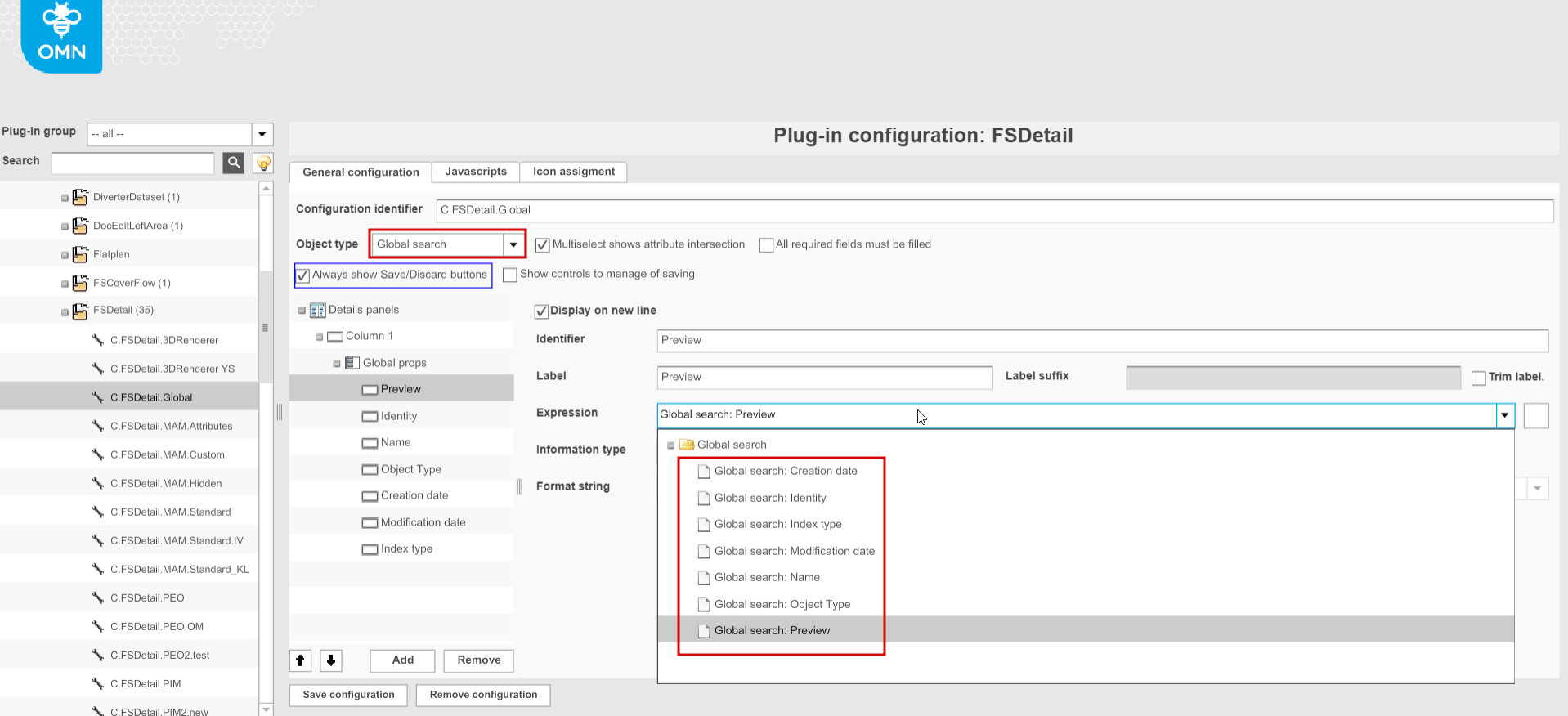
| "Global search" object type is configurable for FSTable and FSDetail content plugins only. |
| LightTable and FSSingleObject views can be configured for "ISYObject" and "PIM2Product" types. AssetVariation content view is configurable for "ISYObject" searches only. |
Search results pages: AdvancedSearch / FormBasedSearch page plugin
Advanced Search/FormBasedSearch configurations define search result pages for a specific object type, their center view, detailed representation (right view), executable functions for both of them as well as the available facets, according to which search results can be filtered on the left. Also, it is determined here by which expressions the extended search can be run. Both AdvancedSearch and FormBasedSearch require available configurations of related content plugins as a precondition (see Content views for search results pages).
Advanced Search configuration
(example for "Global Search" object type)
-
General settings
-
The width of the left and right panels ("Left panel width"/"Right panel width" options) can be modified
-
The "Object type" for a future search is selectable (ISY Object, PIM2Product, Projects, Global search).
"OMNFindIndex" type has no support in HTML5 client 
-
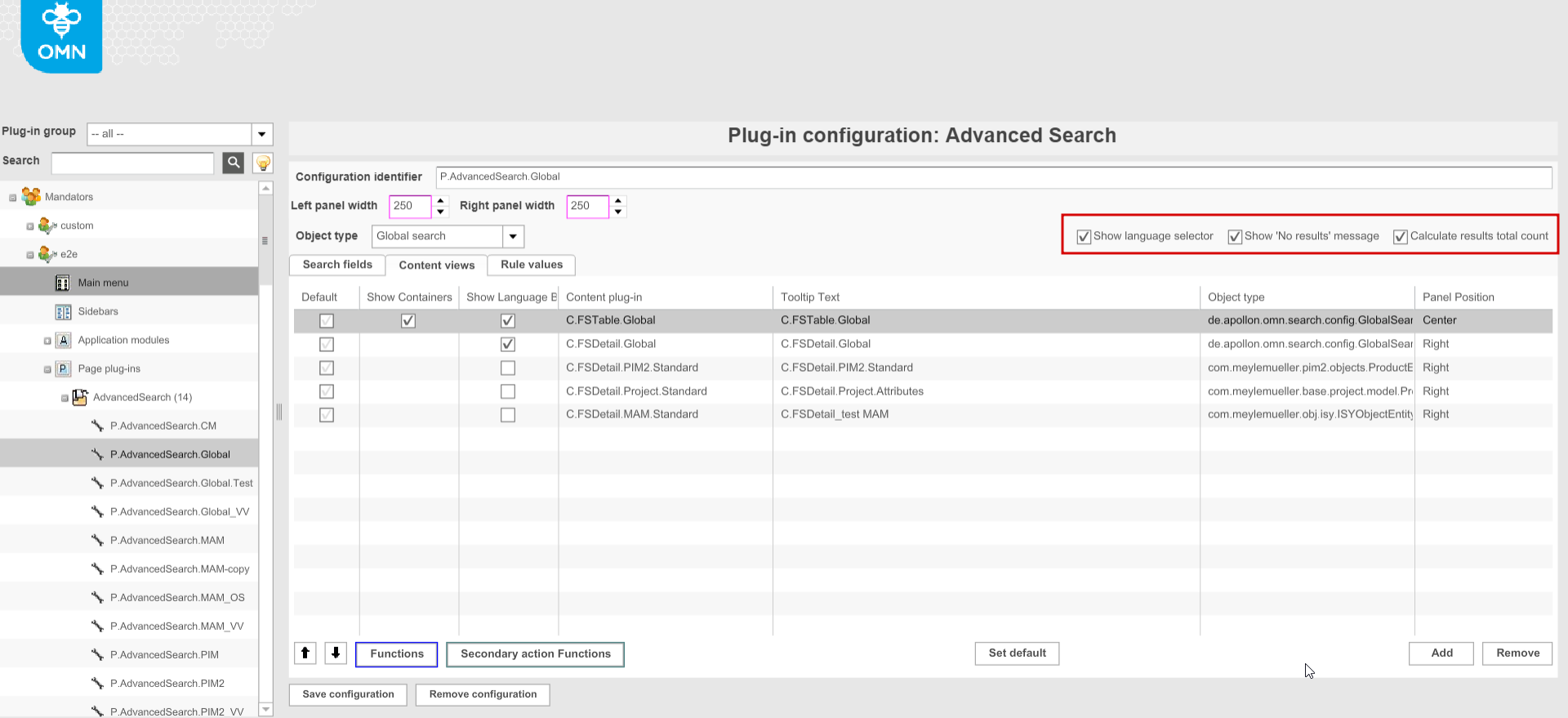
The following configuration options are not supported in HTML5 client
-
"Show language selector" (in old client language selector is shown on the search results page if the option is activated)
-
"Show "No results" message" (in old client "No results" message is shown in case of unavailable search results if the option is activated)
-
"Calculate results total count" (in old client total number of found objects is displayed if the option is activated)
-
-
-
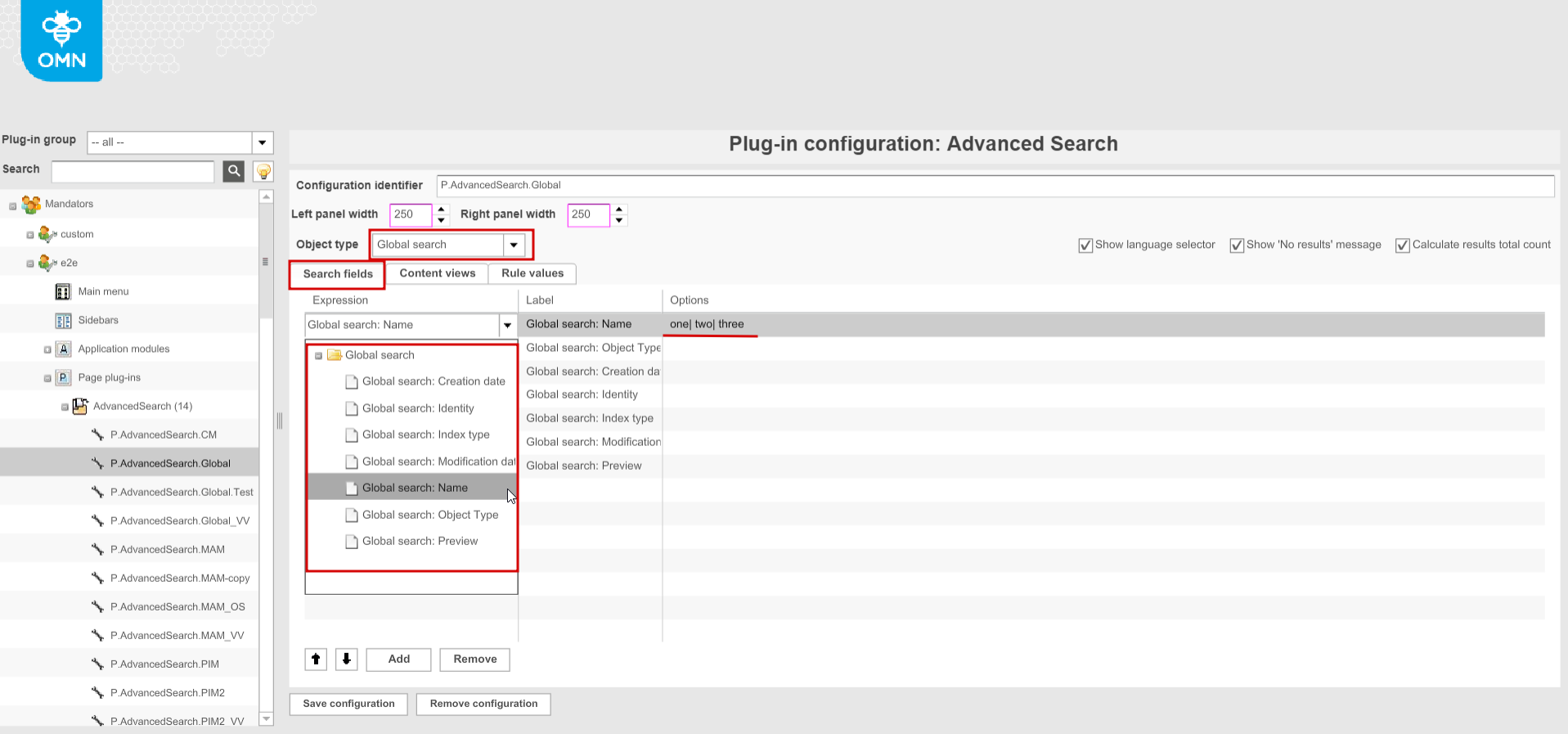
"Search fields" tab. A set of expressions to search in can be defined (only the ones corresponding to the selected object type are available for configuration). Configured expressions are shown as facets on the advanced search results page or in the modal window for the extended search on the client-side. It is possible to assign specific options separated with the pipe symbol ("|") for some of configured expressions ("Options" column). The added values are selectable as the dropdown options for the attributes on the HTML5 client.
-
"Content views" tab. Content views of the appropriate object type are configurable for the center and right views. They define how the search results are visible in the frontend. Set default option defines the start view of the result page. If multiple content views are configured it is possible to switch them in the content view switcher in the frontend. The panel position for FSTable, FSSingleObject, LightTable, AssetVariation views is always “Center” while FSDetail view may have both “Right” or “Center” position.
It is possible to configure FSDetail of any object type for the right view in Advanced Search with "Global search" type. 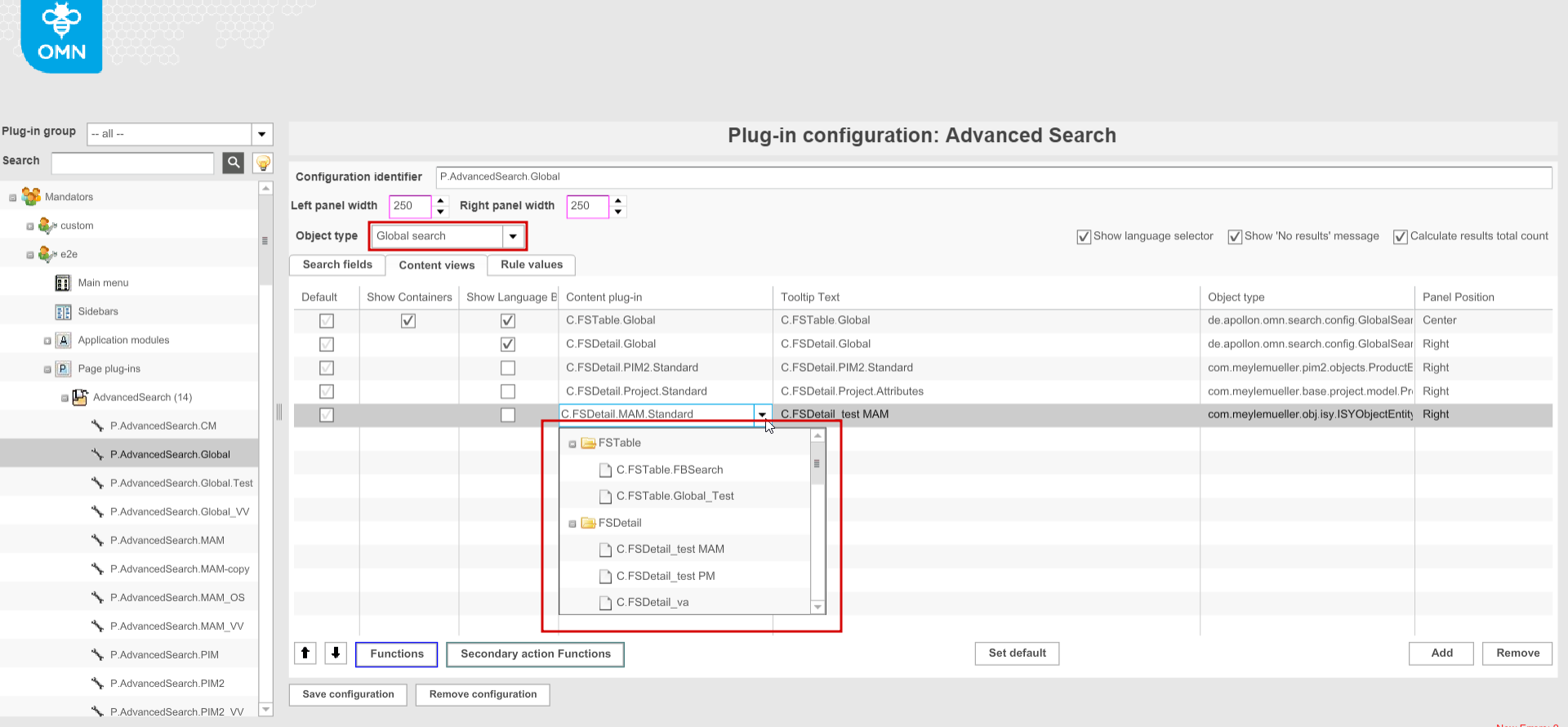
-
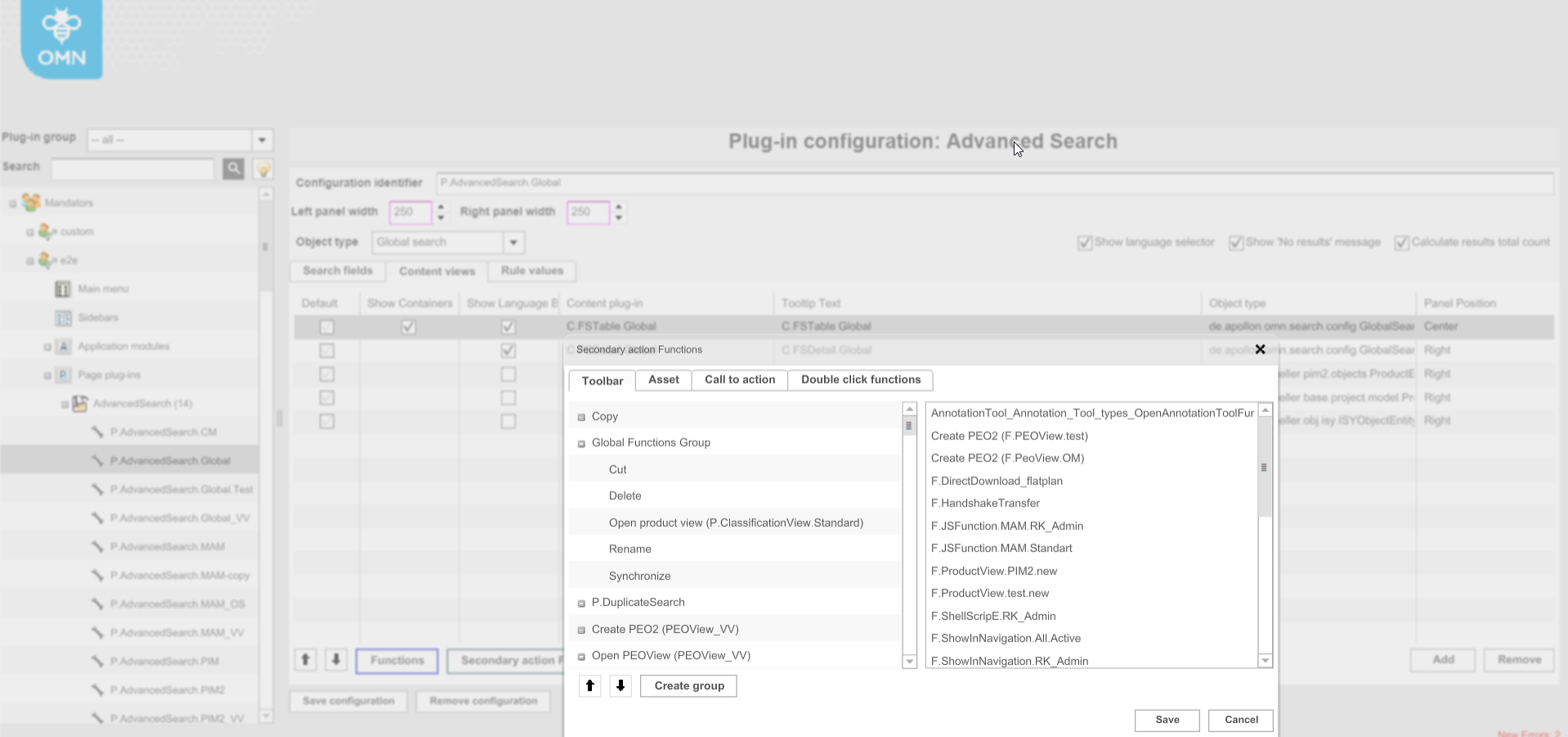
Functions for the configured Advanced Search are assigned to each specific content view as secondary action functions as usual in OMN
-
"Rule values" tab.
The configuration is not supported in HTML5 client (In general, a configured rule represents an additional search term. That means that the restriction a user made in the Frontend (search query) is extended with the rule specified in the configuration. A common example is to exclude a particular path or directories from the user’s search)
Form-Based Search
(example for "Project" object type)
Like Advanced Search the FormBasedSearch generally allows searching within attributes an object may have. The properties objects can be found with are also added in the backend configuration. The search for any object type is supported with FormBasedSearch. In contrast to the Advanced Search it uses pre-configured attributes and operators that cannot be changed in the frontend (users fill in a form of given search fields).
The plugin is configurable almost in the same way as Advanced Search. In addition, the following configuration options are available:
-
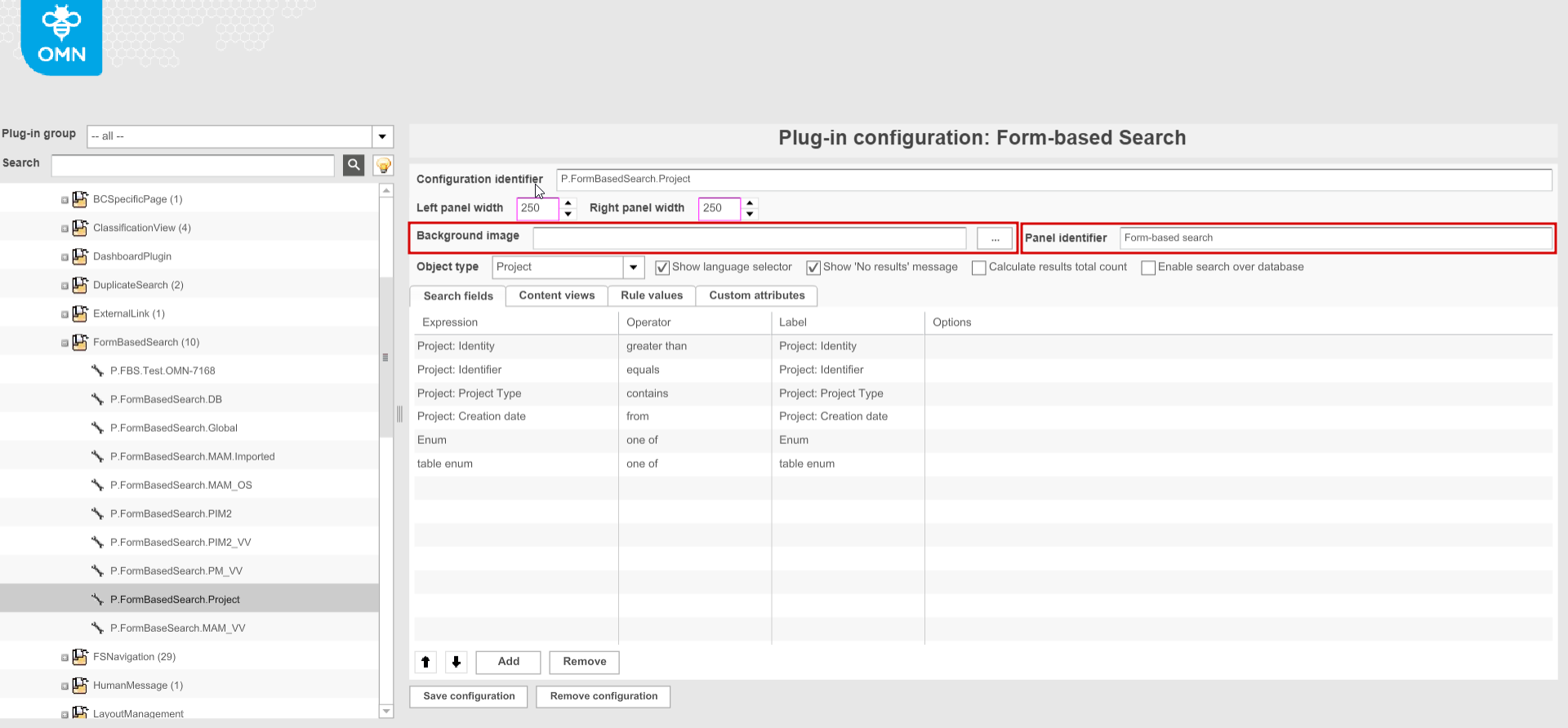
"Background image" option is not relevant for HTML5 client. In the old client the configured image is shown as a background on the search results page.
-
"Panel identifier" option is not relevant for HTML5 client. In the old client it defines the name of the left panel with facets on the search results page.
-
"Enable search over database" (HTML5 only) - checked option enables search over database by custom attributes (see FormBasedSearch over database)
-
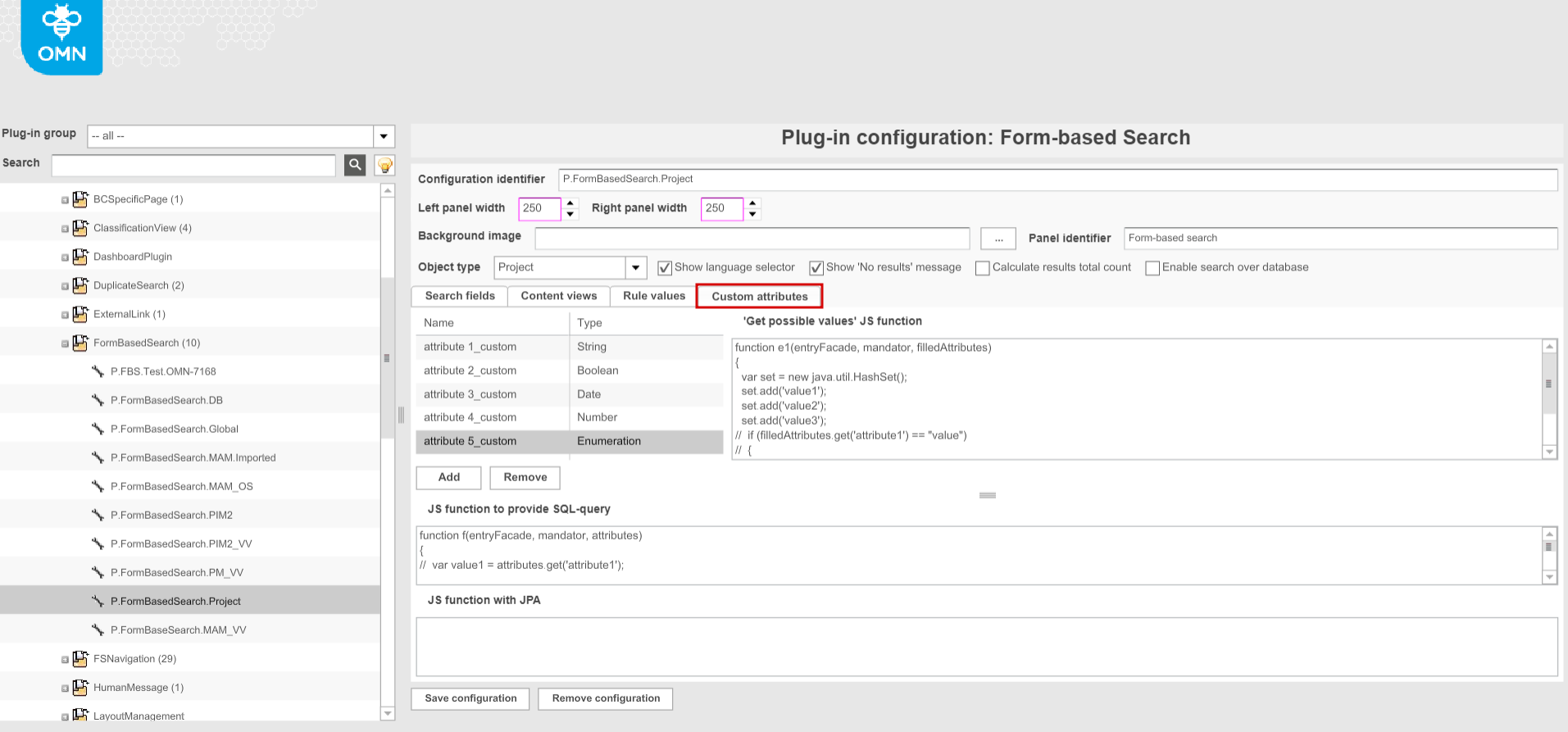
"Custom attributes" tab provides the configuration of additional attributes to search in. Configurable options:
-
Name - the name of the attribute
-
Type - information type (available values: string, boolean, date, number, enumeration)
-
'Get possible values' JS function - attribute values can be listed/adjusted (for "Enumeration" attributes only)
-
JS function to Provide SQL-query - prefilled if attributes added
-
JS function with JPA - prefilled if attributes added
If configured, the attributes can be added to the search fields.
the search by these attributes is possible only in case of checked "Enable search over database" checkbox. 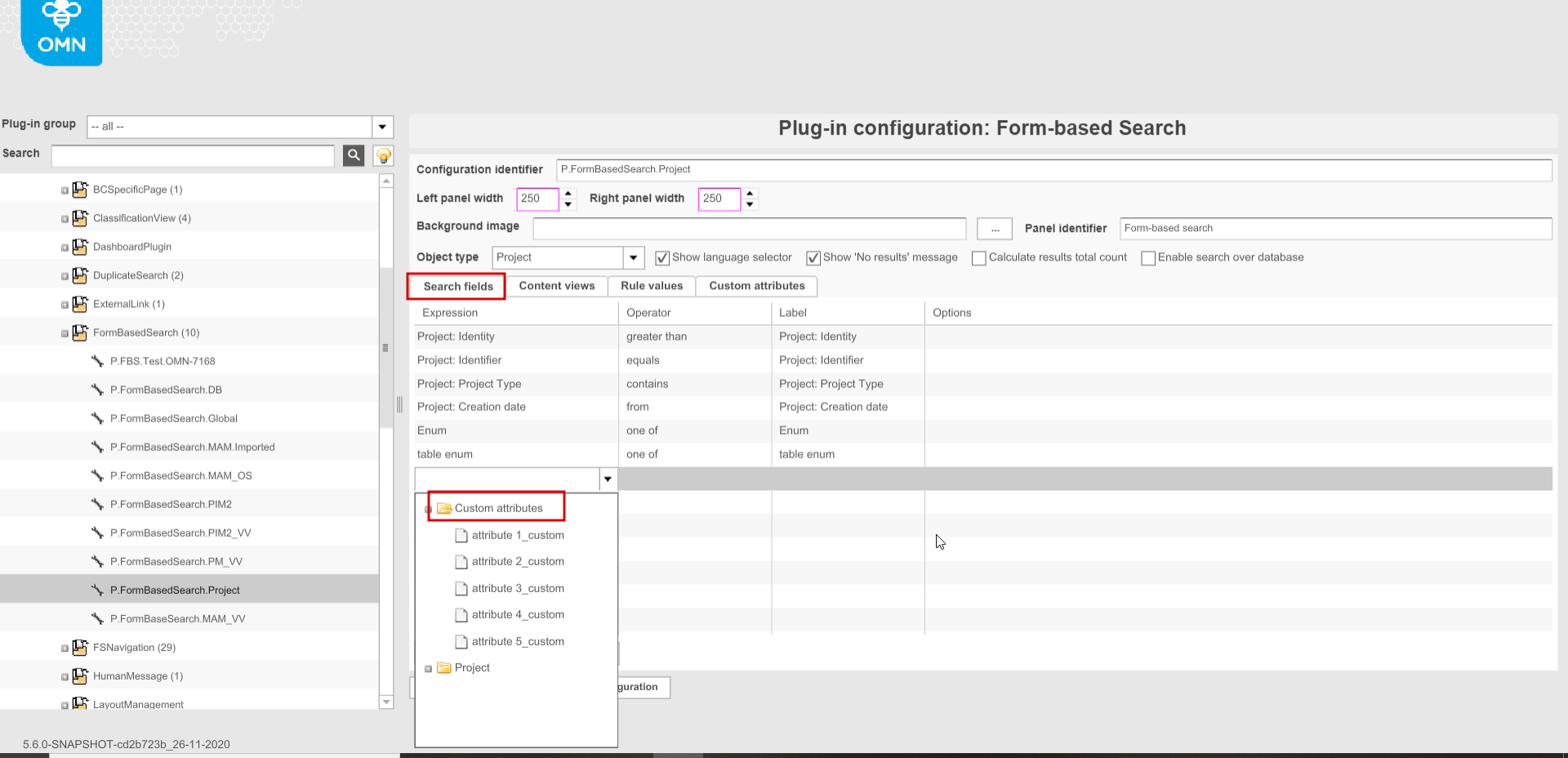
-
DuplicateSearch page plugin
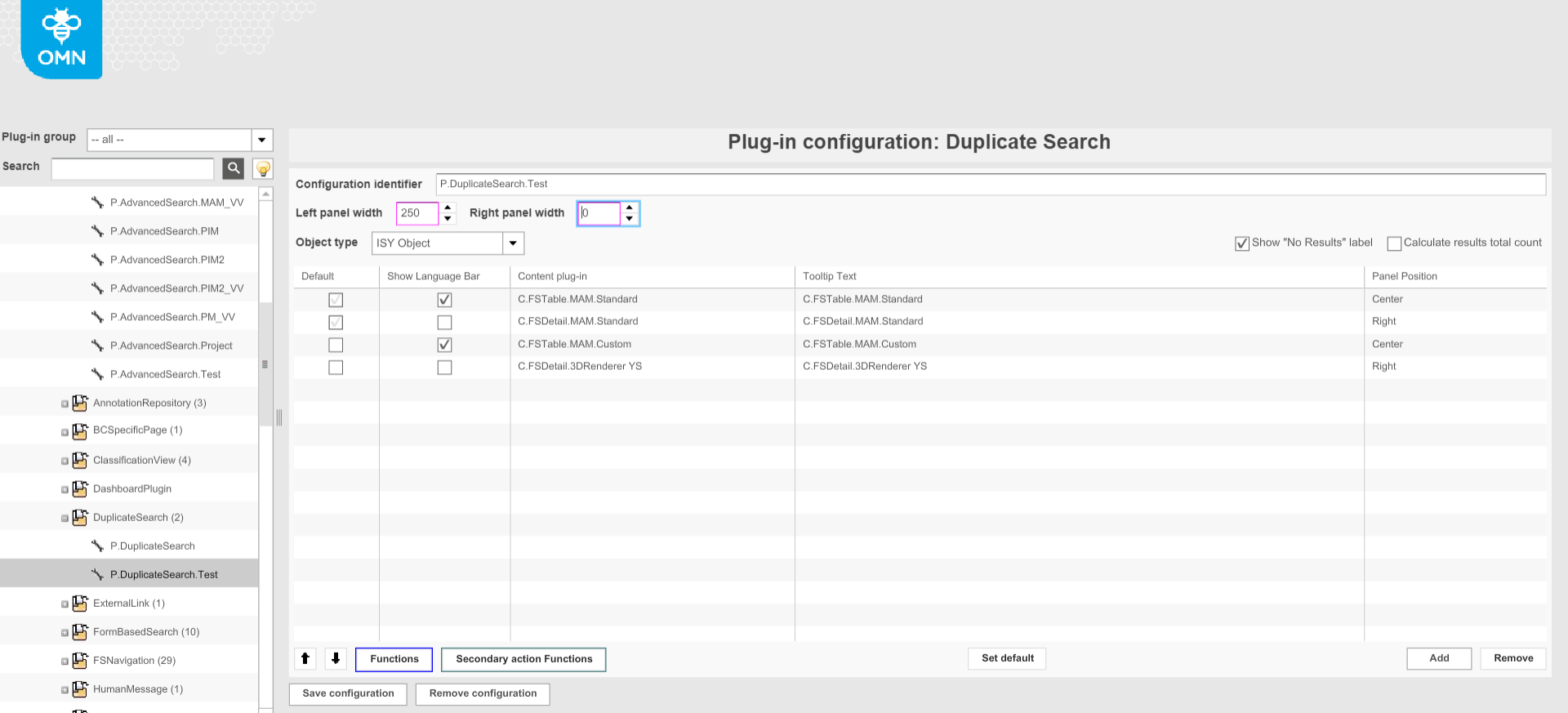
Duplicate Search represents the search for duplicated assets in OMN (the search can be configured for ISY object type only). The following options are configurable:
-
Left panel width/Right panel width
-
Object type (only ISY Object is available in the dropdown)
-
Show "No results" label - is not relevant for HTML5 client
-
Calculate results total count - if activated the total number of found objects is displayed in the frontend
-
Content views to display the search results in the frontend
-
Separate configuration of secondary action functions for the selected content views
Simple Search
The simple search needs a configuration of the AdvancedSearch/ Form-BasedSearch plugins as precondition because the results of the user’s search are visible in the center area of an AdvancedSearch/FromBasedSearch. SimpleSearches are configurable as function plugins.
To enable the configured searches on the OMN-Search global page the user has to create Simple Searches function plugin configurations first.
-
"Configuration Identifier". Set identifier is shown as a search name in the frontend
-
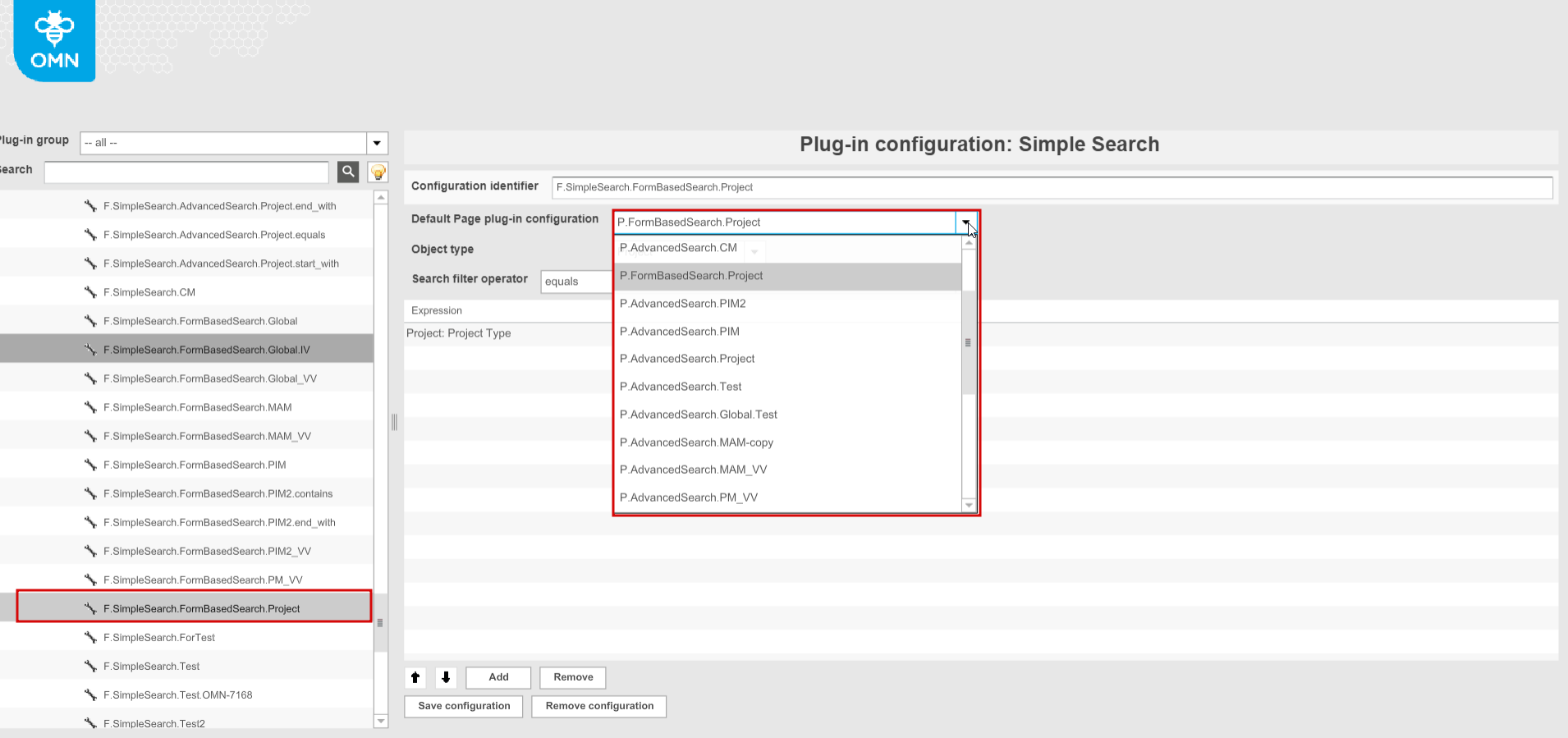
"Default page plug-in configuration". The page plugin configuration from the range of available Advanced and FormBased Searches should be set. Here it is chosen which search configuration is used to show the results.
-
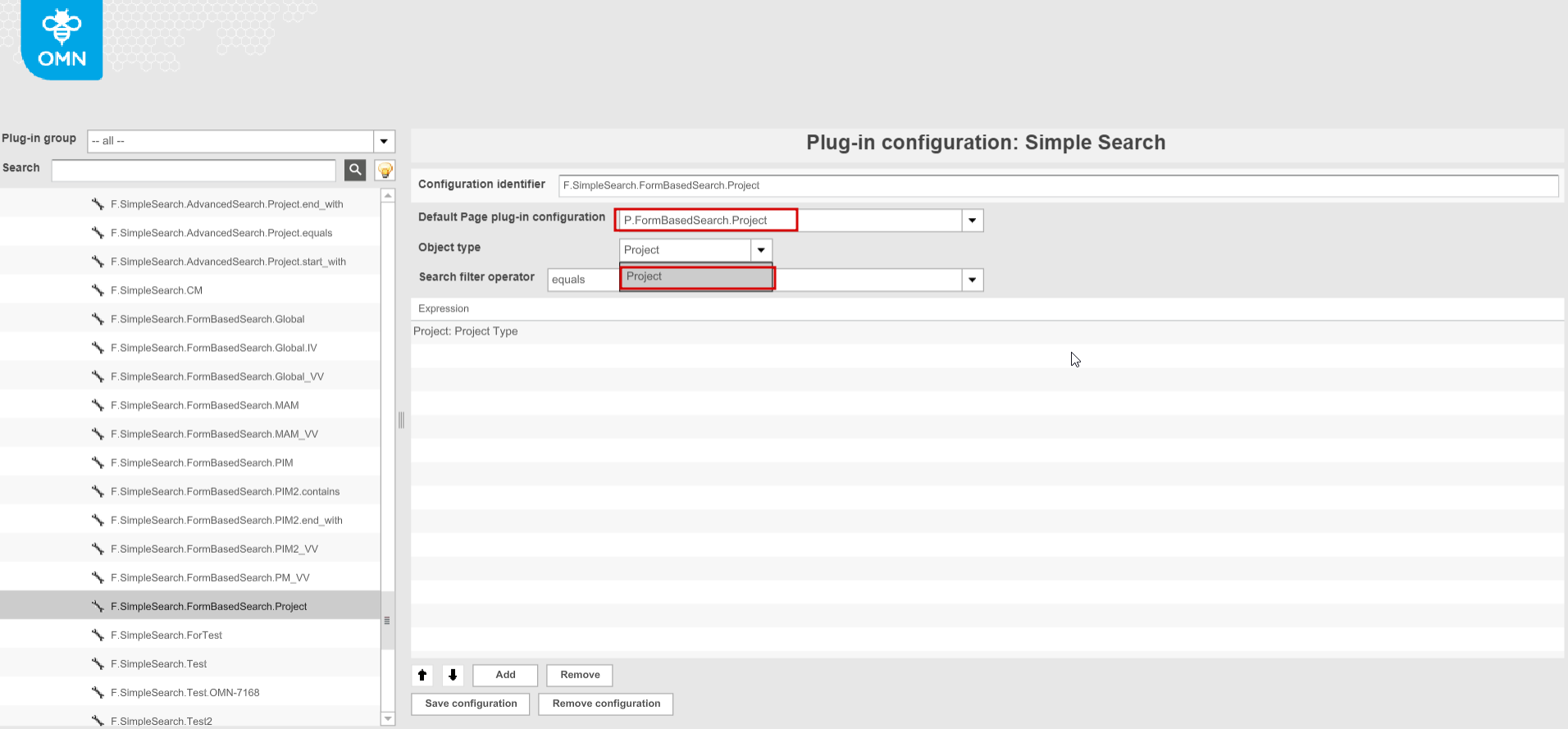
Set necessary "Object type". Limit the search to a particular object type. Available options depend on the object type of default page plugin assigned above(Objects in general, Image, Documents, File, etc.)
-
Set "Search filter operator" (contains, starts with, ends with, equals) to apply to search query
-
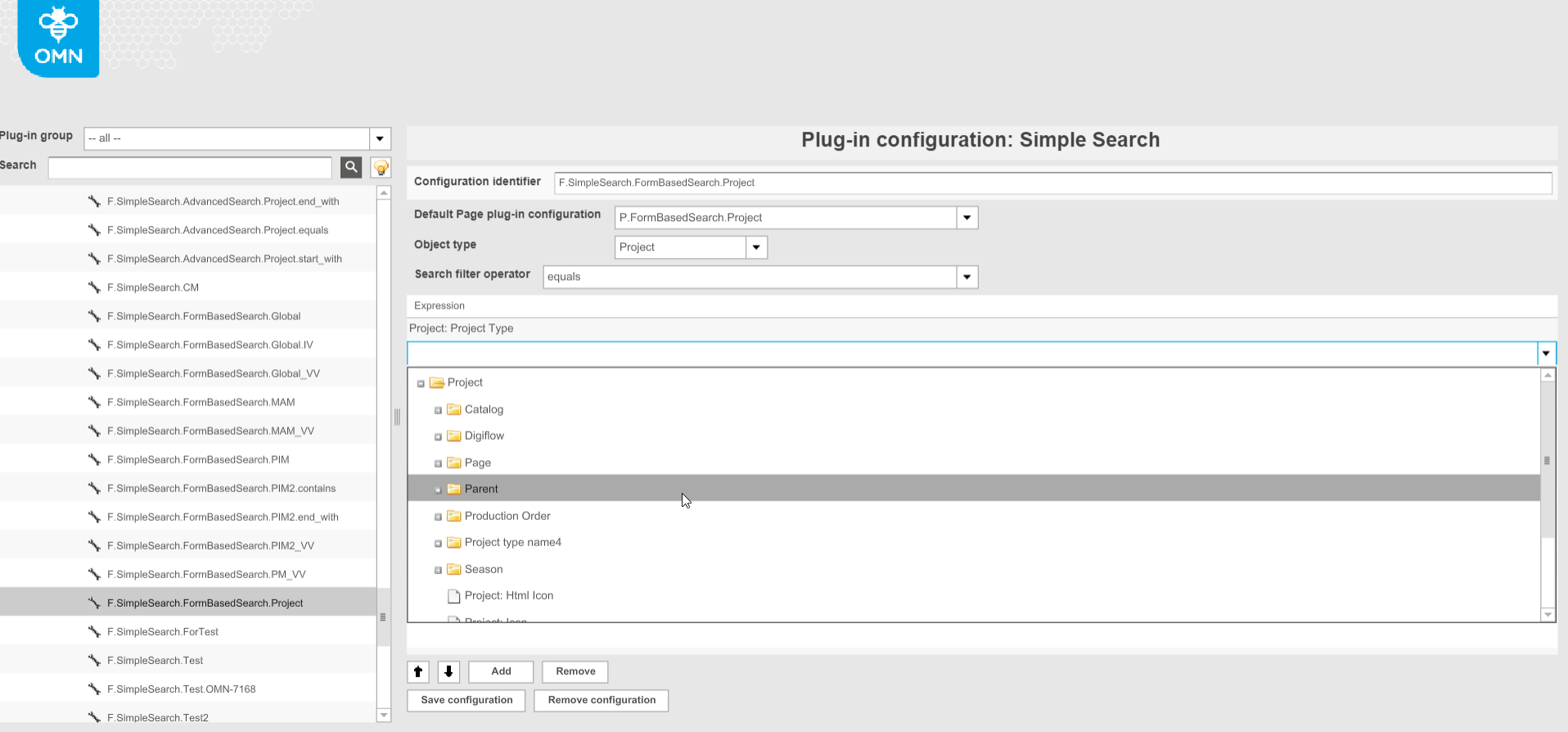
Add expressions corresponding to the selected object type to search in. The list of expressions contains the fields in which is searched for the value entered in the Frontend.
-
If you choose any expression and save the configuration, the search on base of the selected attribute will be performed on the frontend client.
-
If you don’t choose any expression or select several expressions and save the configuration, the fulltext search (search on base of all indexed attributes at once) will be performed on the frontend client.
-
| if AdvancedSearch/FormBasedSearch with "Global search" type is selected as a default page plugin, the "Object type" and "Expressions" fields are disabled. |
PEO Search
PEOSearch is essentially a two-step product search which does not imply a traditionally available search results page. At the first step, the search for products is performed by values of an attribute configured in the backend. The second step involves checking whether found products (or articles/variations) have PEOs that match the configured PEOView by the template. The described steps are actually hidden from the user who started PEOSearch and its visible result is the opening of PEOView editor with corresponding PEO(s) in case of successful search or the display of the error toast message when nothing is found
| In the old client when PEOSearch function plugin is configured it appears directly as Quick Search item in the frontend. PEOSearch uses OpenPEOByName function and opens only single found PEO. Otherwise, an error is shown. In HTML5 implementation it is possible to open multiple PEOs in PEOView if they match the template. |
To configure PEOSearch for HTML5 client a user has to specify the following options in plugin backend configuration:
-
Select necessary object type.
"PIM2Product" option should be used -
Specify a configuration identifier
-
Select a PIM2Product attribute by which value the search should be done ("Attribute to search in" option)
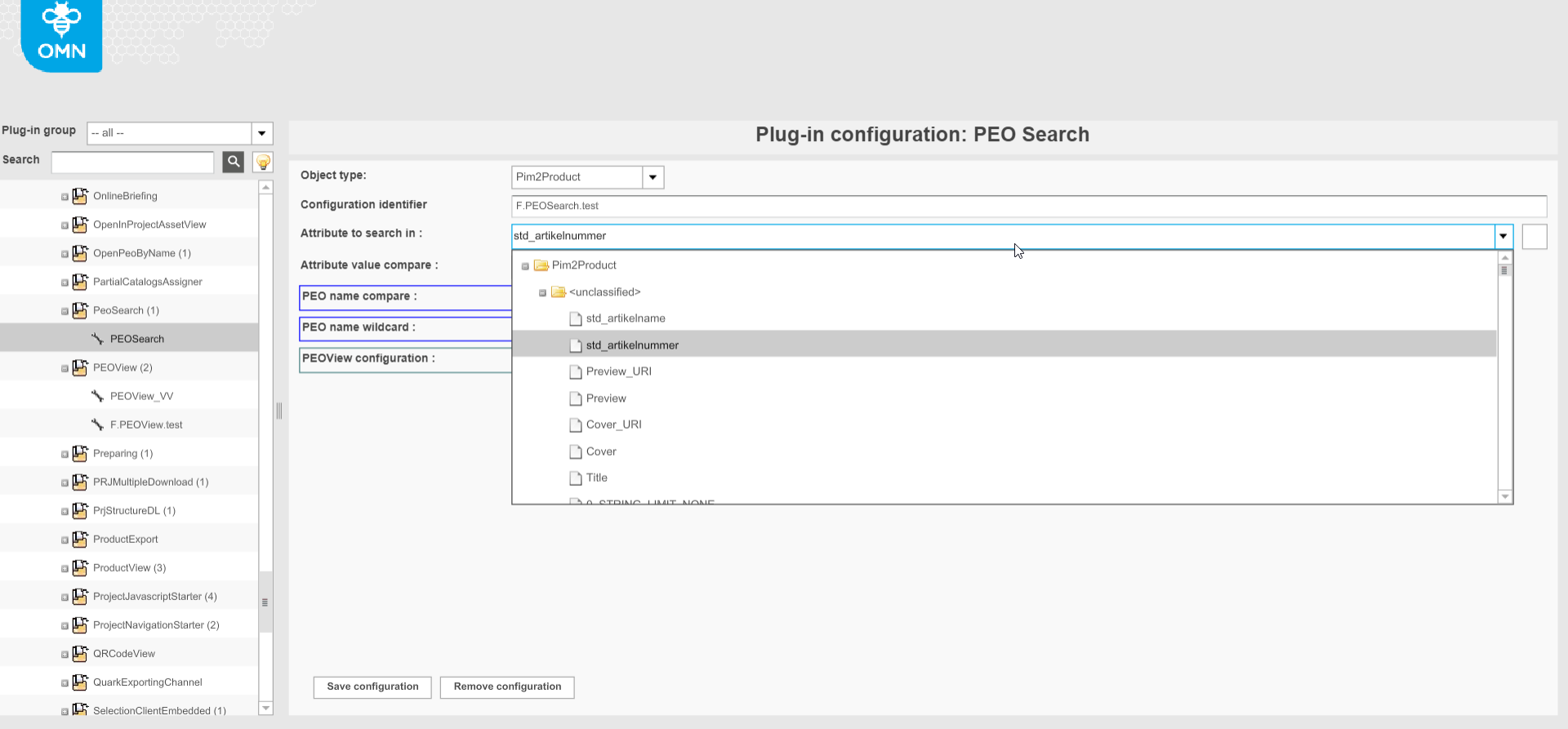
-
Specify a necessary comparator ("Attribute value compare" option).
"Equals" option allows to get the most accurate PEO Search result. 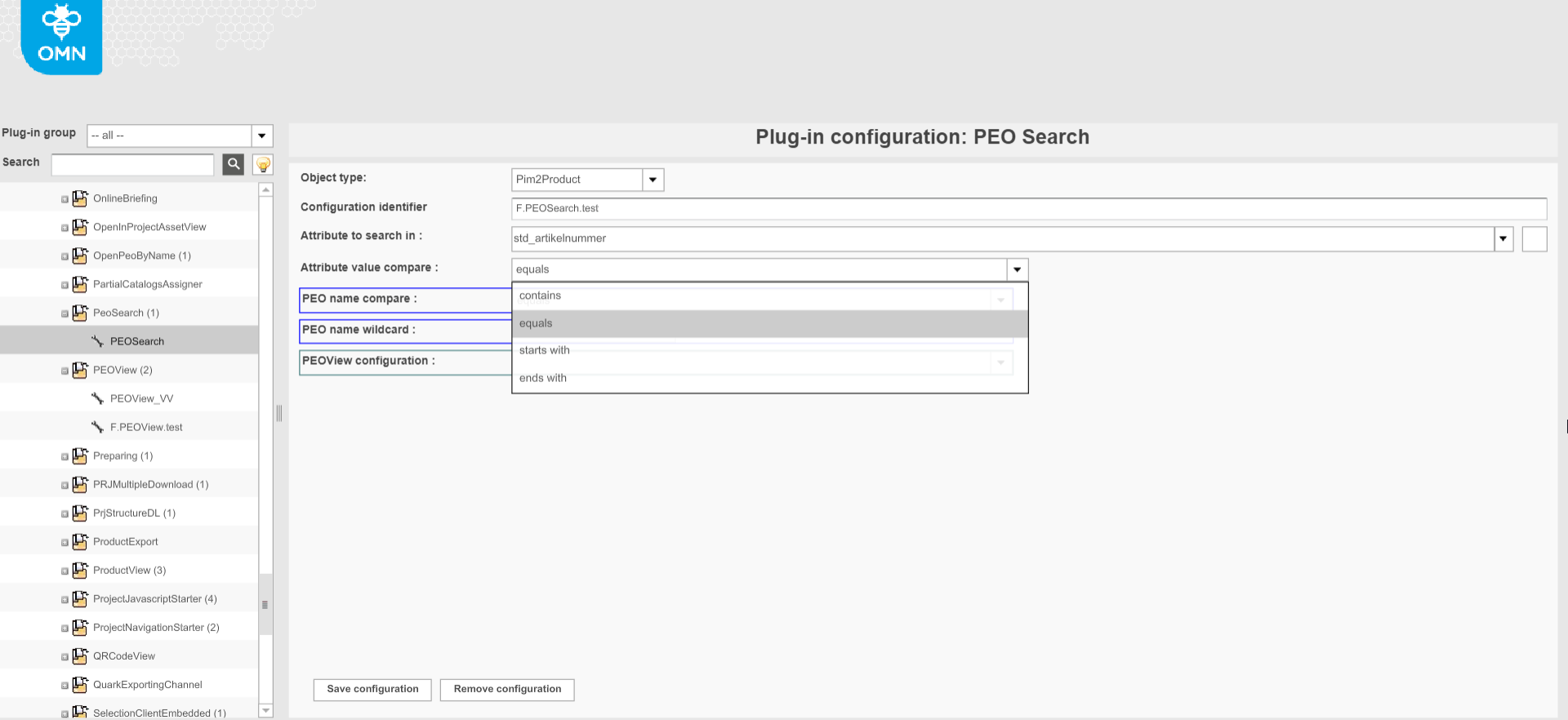
-
Set PEOView configuration (HTML5 specific). The template from the plugin configuration will be compared with templates of PEOs available for found products. PEOs with relevant templates will be opened in the PEO editor.
"PEO name compare" and "PEO name wildcard" are marked with blue border and are irrelevant for HTML5 client. 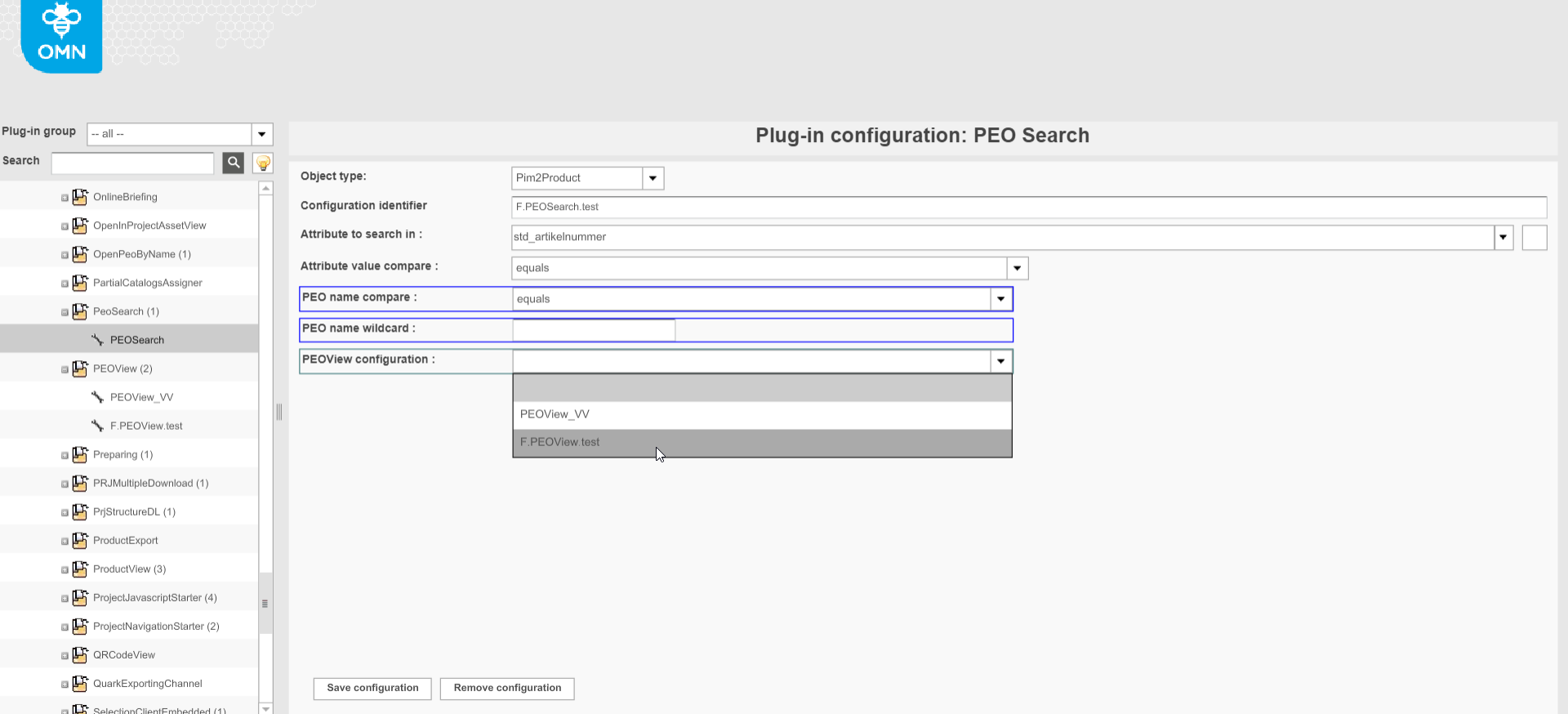
For further usage, a specific PEOSearch configuration has to be added to the Simple Searches in OMN-Search page plugin. If configured correctly PEOSearch is shown as a tile on the OMN-Search page in the frontend (set access rights are considered).
| "PEO name compare" and "PEO name wildcard" are not relevant for HTML5 client. |
OMN-Search page plugin
To appear in the frontend each configured search-related plugin should be enabled on OMN-Search page which represents all available searches at one place. OMN-Search page plugin bases on available AdvancedSearch/FormBasedSearch/SimpleSearch/DuplicateSearch/PEOSearch plugins' configurations. The following options are configurable in the OMN-Search page plugin:
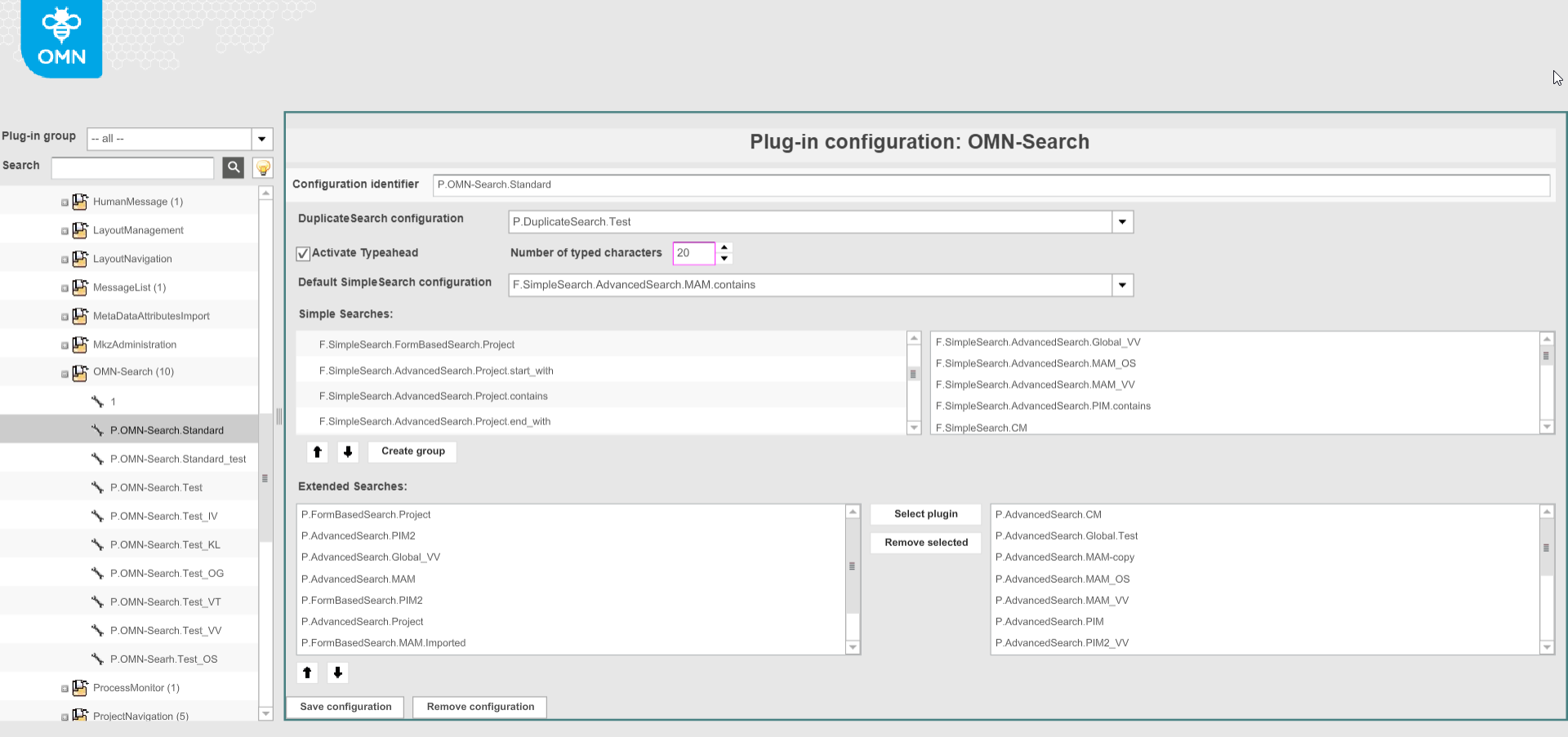
-
"DuplicateSearch configuration". The specific configuration of Duplicate Search page plugin can be set and if so it is available on the OMN-Search page in the frontend as an icon in the lower right corner.
-
"Activate Typeahead" option allows getting suggestions when typing search query into the search input field, if activated.
Provided suggestions are coming from ElasticSearch and cannot be restricted in accordance with security rules.
Meaning: the user can see a suggestion for an object he has no access to. Results of the search are controlled by security rules, so he will not find restricted object. -
"Number of typed characters" determines the number of characters to enter before the suggestions appear (disabled until the previous option is checked, equals 10 by default)
-
"Default SimpleSearch configuration" defines the search which is performed automatically after the query is specified and the search is run (if no tile with Simple Search or Duplicate Search is triggered).
Only SimpleSearches configurations added below are selectable in the dropdown and therefore should be configured first. -
"Simple Searches" defines a list of simple searches which can be used from OMN-Search page. Represented as tiles in the frontend. SimpleSearch and PEOSearch function plugins' configurations are selectable here. Multiple SimpleSearches can be assigned.
The simple searches defined in Mandator details → Quick search configuration are relevant for old client only -
"Extended Searches" defines the list of AdvancedSearch/FormBasedSearch which can be used for attribute based search.
Extended Search is launched by clicking on the link below the search bar and is represented as a modal window. All AdvancedSearch/FormBasedSearch configurations are selectable here. Multiple configurations can be assigned to extended search.
More details on the usage of Extended Searches can be found here.
OMN-Search application plugin
A new application plugin OMN-Search has been introduced in the backend in Application Modules → OMN-Search and contains general search configuration. A user can globally configure and enable OMN-Search in the backend to have the necessary Search-Index. The following settings are present here:
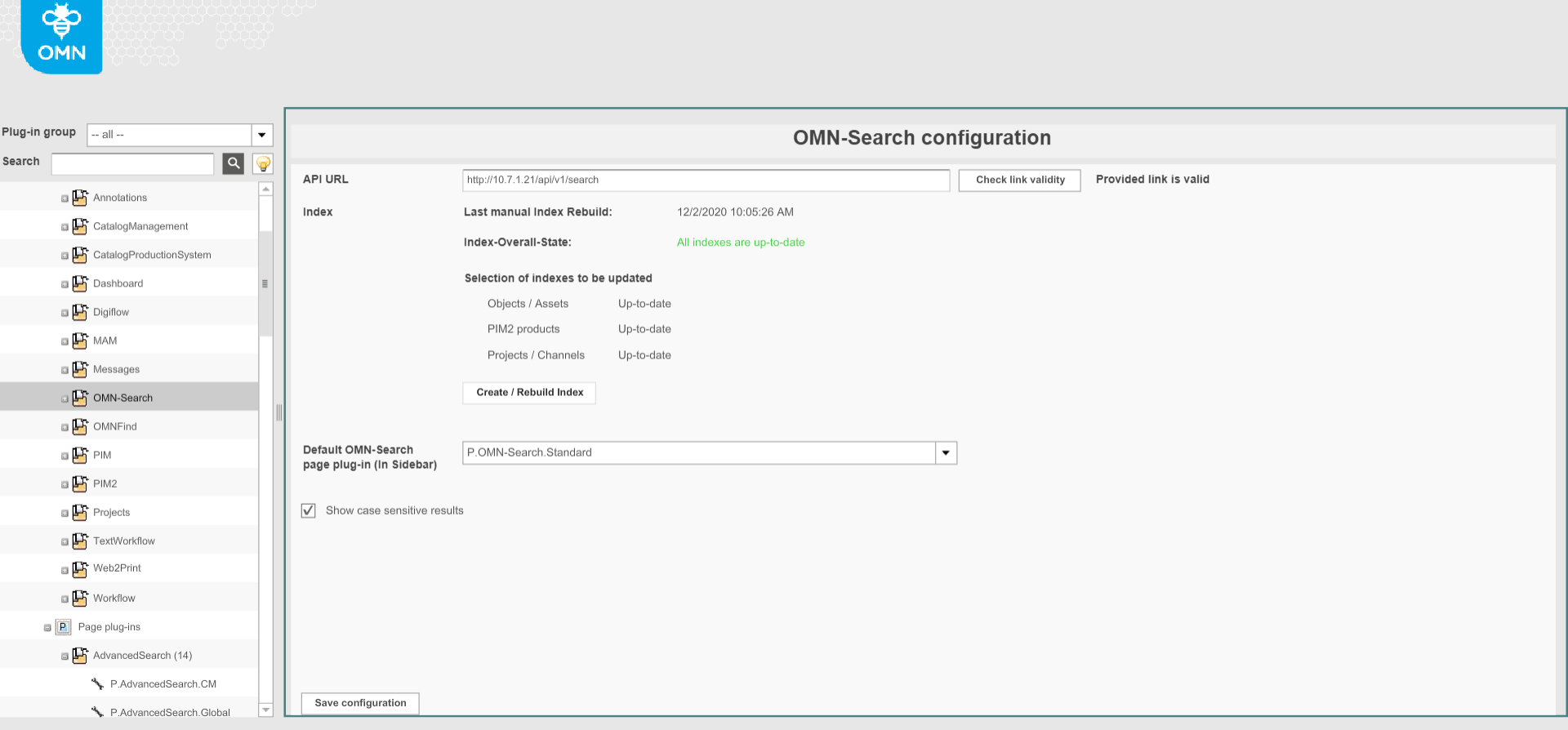
-
"API URL" defines OMN-Search API (prefilled with https://elastic-onlinemedianet.de/api/v1/Search). If changed the informative message asking to use "Check link validity" button appears. It allows to get the information whether the provided link is valid. Depending on the result the message is shown close to the button: "Provided link is valid"/ "Provided link is invalid". There is no possibility to continue the configuration without such a check.
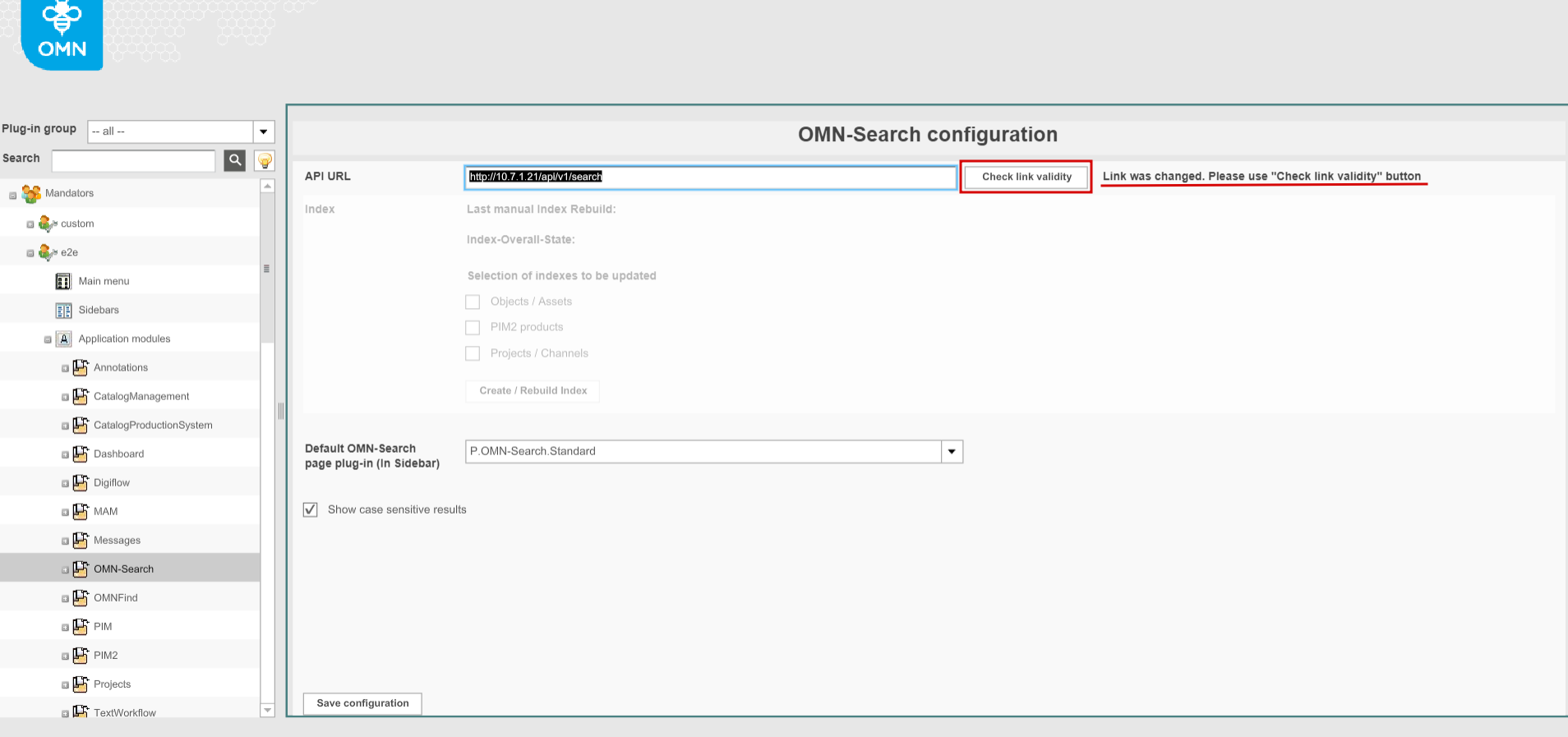

-
"Index" information:
-
"Last manual Index Rebuild" shows the date when the last rebuild was initiated by a user either in the current configuration in the backend or on the OMN-Search page in the frontend.
-
"Index overall state" shows cumulative information whether all existing indexes are up-to-date
-
"Selection of indexes to be updated" indicates the state of each specific index (Object/Assets, PIM2Products, Project/Channels) and allows to select the ones to update if some of them are outdated. Possible state values:
-
Up-to-date
-
Outdated
-
Create index
-
Rebuild in progress
-
Error
-
-
By clicking on "Create/Rebuild Index" option the rebuild process is started. It is not possible to cancel rebuild. After completion the index state is updated.
-
-
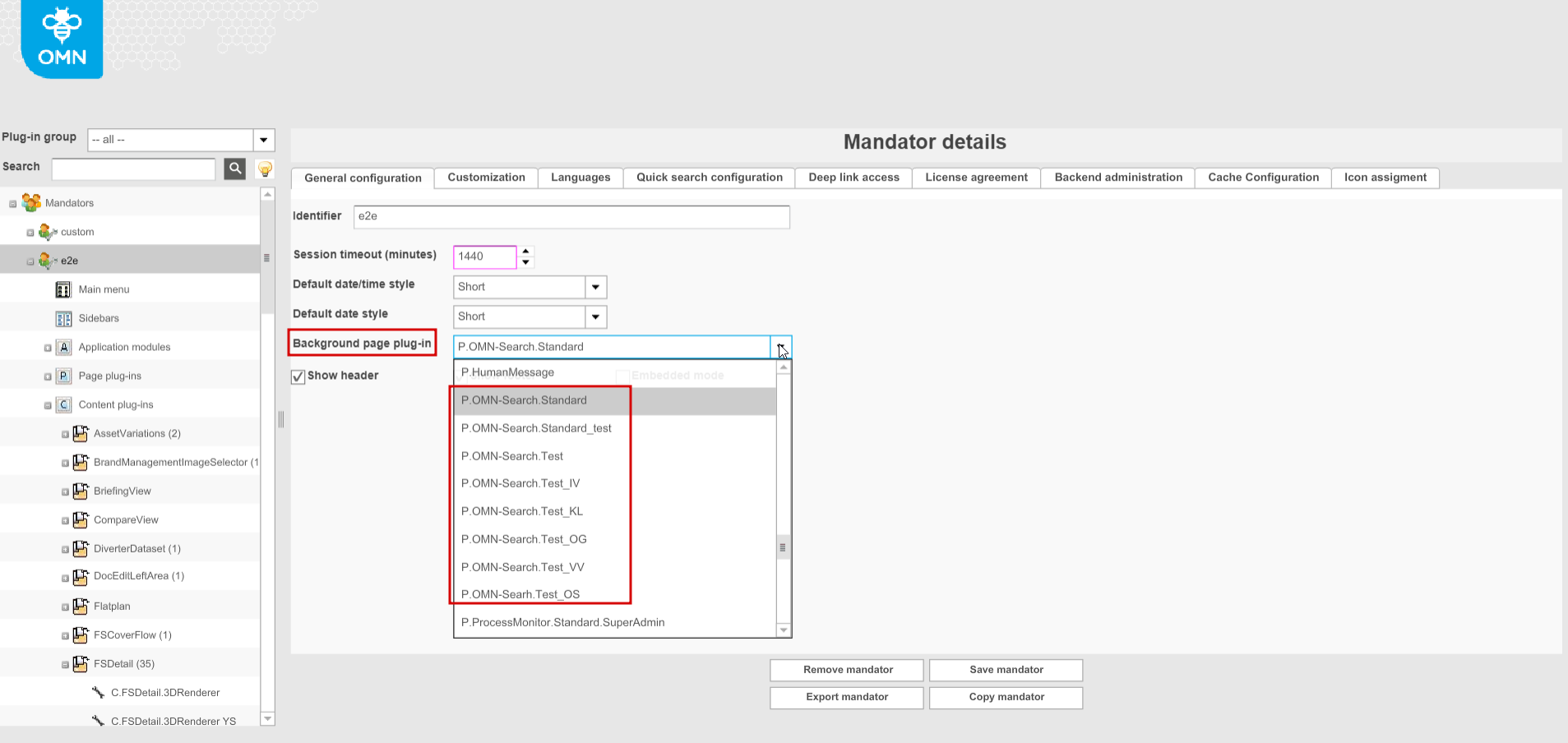
"Default OMN-Search page plug-in (in Sidebar)" defines one default OMN-Search configuration be used as sidebar item
The option was used to enable the specific configuration of OMN-Search page plugin in the sidebar until it became configurable in a general way . Seems that the option is not relevant for HTML5 client anymore with the new configurable Sidebar. -
If "Show case sensitive results" is activated the search results consider/depend on the case of a search query, otherwise case-insensitive results are shown.
when the state of 'Show case sensitive results' checkbox is changed in the backend users are informed that indexes have to be rebuilt (the changes won’t be saved until the indexes' rebuild is executed ("Rebuild All Indexes" option appears). 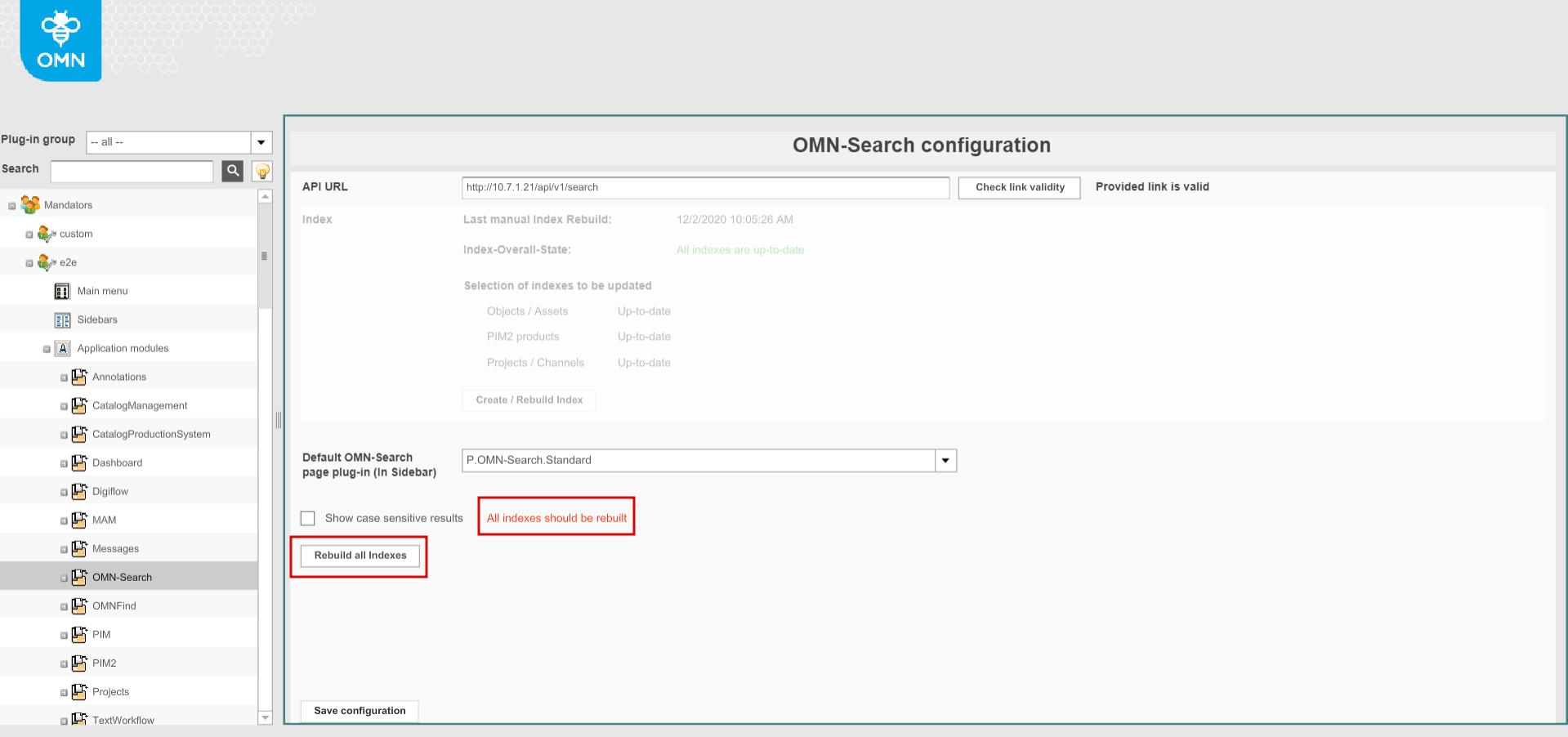
Access rights for searches
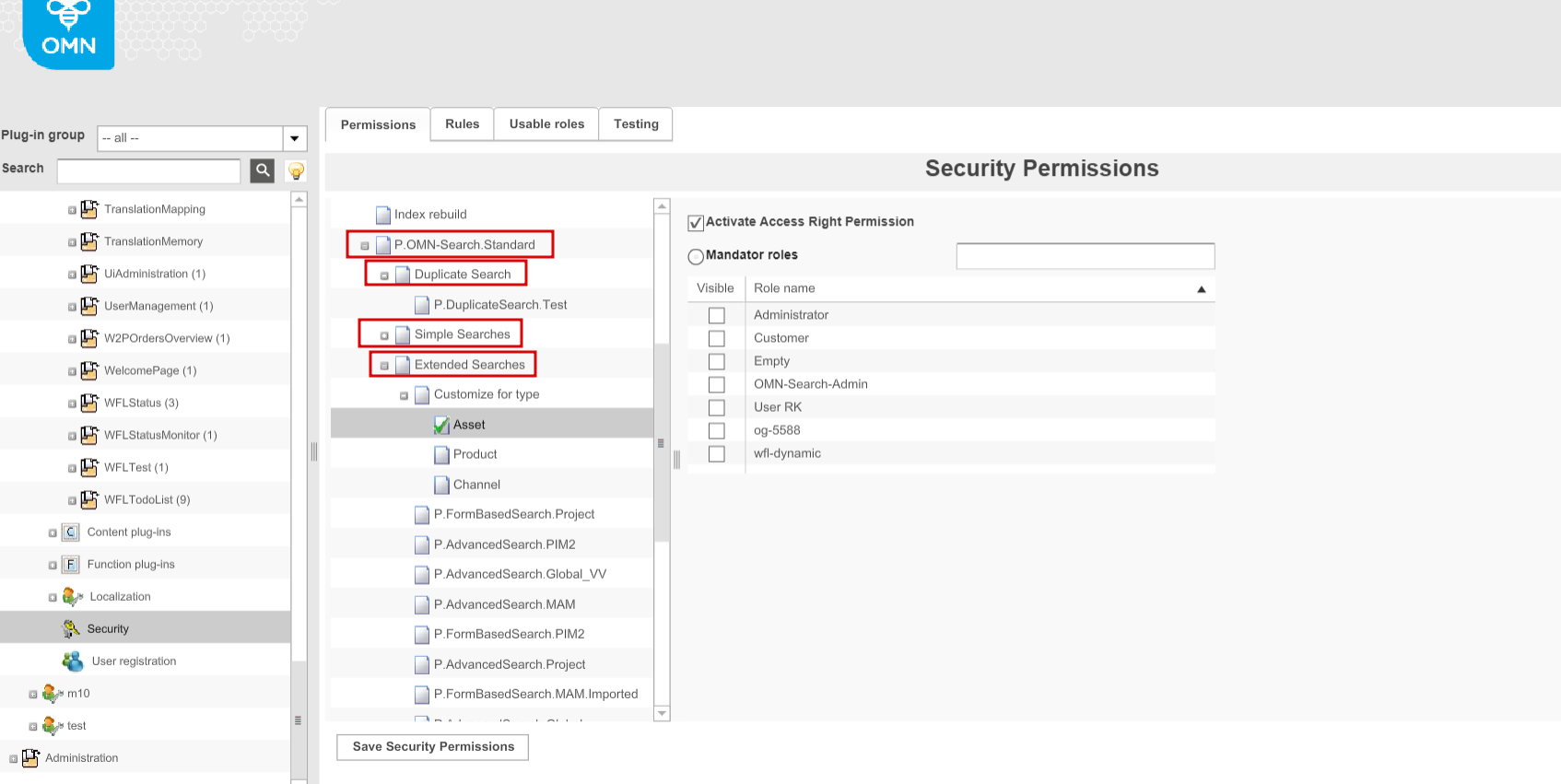
The access to the Search functionality on the OMN-Search page can be restricted for some users. For this, the separate section is available in the Security → Permissions → OMN-Search. Only access rights by roles can be configured here. The following restrictions by Access Rights can be set:
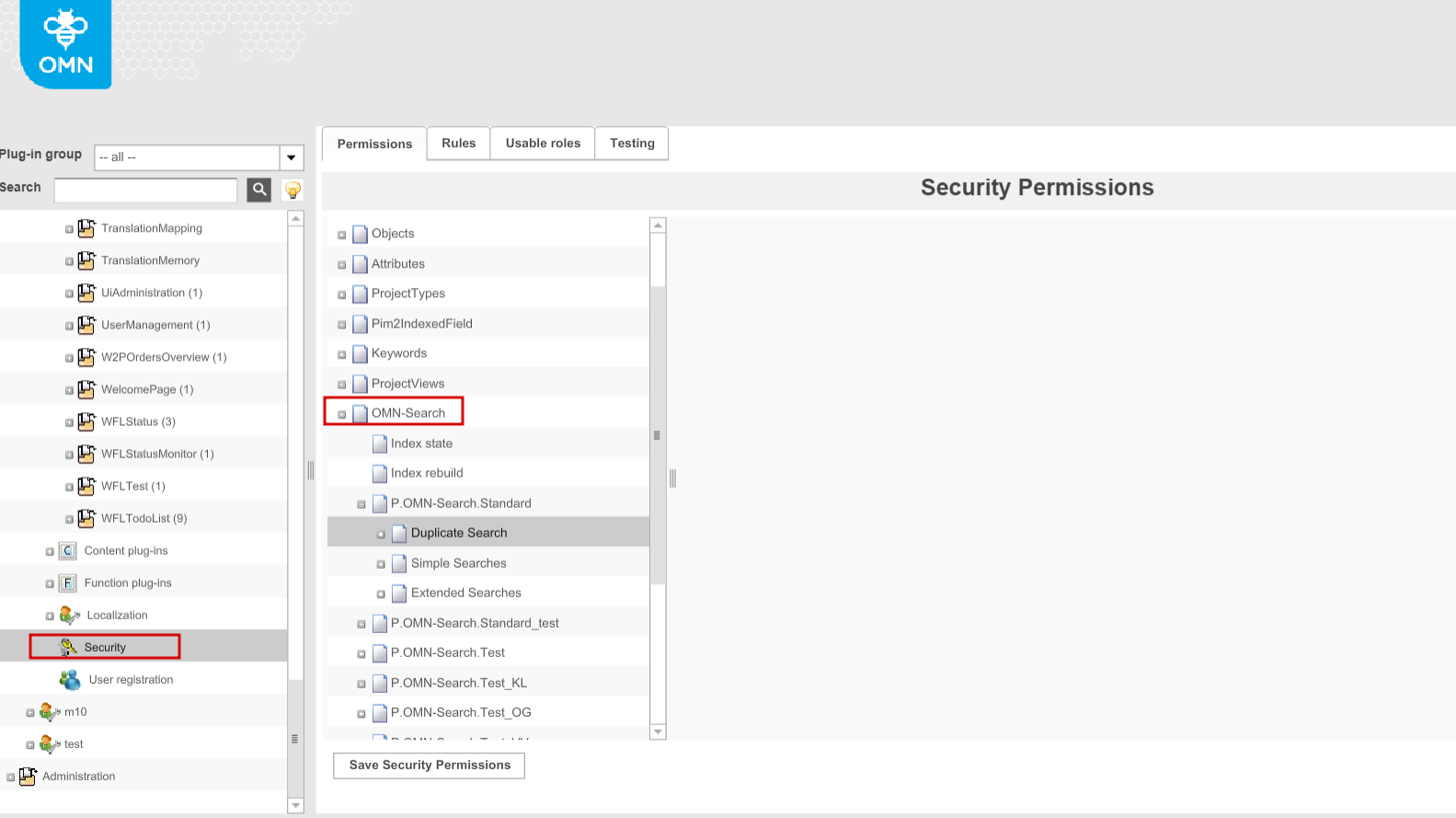
-
Index state - the visibility of indexes state on the OMN-Search page in the frontend.If restricted for some users, Index Rebuild is not available for them correspondingly
-
Index Rebuild - the availability of "Rebuild Indexes" button on the global OMN-Search page in the frontend
-
Specific search configurations from OMN-Search page plugin including:
-
Simple searches - the availability of tiles with simple searches (quick searches) includes SimpleSearch and PEOSearch function plugins' configurations enabled in OMN-Search page plugin
-
Duplicate searches - the possibility to search for duplicates from OMN-Search page (the icon in the frontend)
-
Extended searches - the availability of Extended Search as a link on the OMN-Search page in general or the availability of each specific configuration of Advanced/FormBasedSearch in the extended search modal window
-
"Customize for type" (for Asset/Product/Project separately) - the availability of "Custom" checkbox in the modal for extended search.If available, the search by all attributes from Elastic Index can be activated.
-
-
Obsolete functionality
The following options from the configuration are not relevant for HTML5 client:
-
"Show Language selector", "Show "No results" message", "Calculate results total count" options from Advanced/FormBasedSearch page plugins (language selector is configurable for each content view separately in the table; information about unavailable results and total count are is always available in the frontend)
-
"Show "No results" label" from DuplicateSearch page plugin
-
"Quick Searches configuration" from Mandator details (configuration of Simple Searches from OMN-Search page plugin is used instead)
-
"OMNFindIndex" type from AdvancedSearch page plugin configuration
-
"Rule values" configuration in AdvancedSearch/FormBasedSearch page plugins
-
"Background image", "Panel identifier" options from FormBasedSearch page plugin configuration
-
"PEO name compare" and "PEO name wildcard" options from PEOSearch function plugin
Information for migration
To perform successful migration to the new functionality :
-
OMN-Search package should be installed according to Requirements and installation, Development environment and systems and other documentation.
-
OMN-Search should be configured appropriately on the base of search-related plugins depending on the customers' needs. The current document can be used as a Configuration Guide.
Configuration Options
The search project could be configured and customized by setting the options in the file "elasticsearch.properties".
It supports following options:
| Name | Description |
|---|---|
es.index.asset.fields.aggregatable |
Aggregatable fields list in 'asset' index which are separated with ',' Field name must be the expression path in OMN. e.g. ISYVideo.videoStorageInfo.title,ISYVideo.videoStorageInfo.name |
es.index.channel.fields.aggregatable |
Aggregatable fields list in 'channel' index which are separated with ',' Field name must be same as which defined in elastic search channel index. e.g. Configuration~MAM_CONFIG_REMOVE_BG_API_KEY |
es.index.product.fields.aggregatable |
Aggregatable fields list in 'product' index which are separated with ',' Field name must be same as which defined in elastic search product index. e.g. STRING_SINGLE_DOMAIN_ANV_LAZY_5_10 |
es.omn.operator.like.tokenized |
Accept the boolean value and default value is 'true'. Make the backend rule of operator 'like' to work on the tokenized text or not. @Deprecated Because the database based search cannot do tokenization. |