Adding content views
Described on the example of Advanced Search configuration:
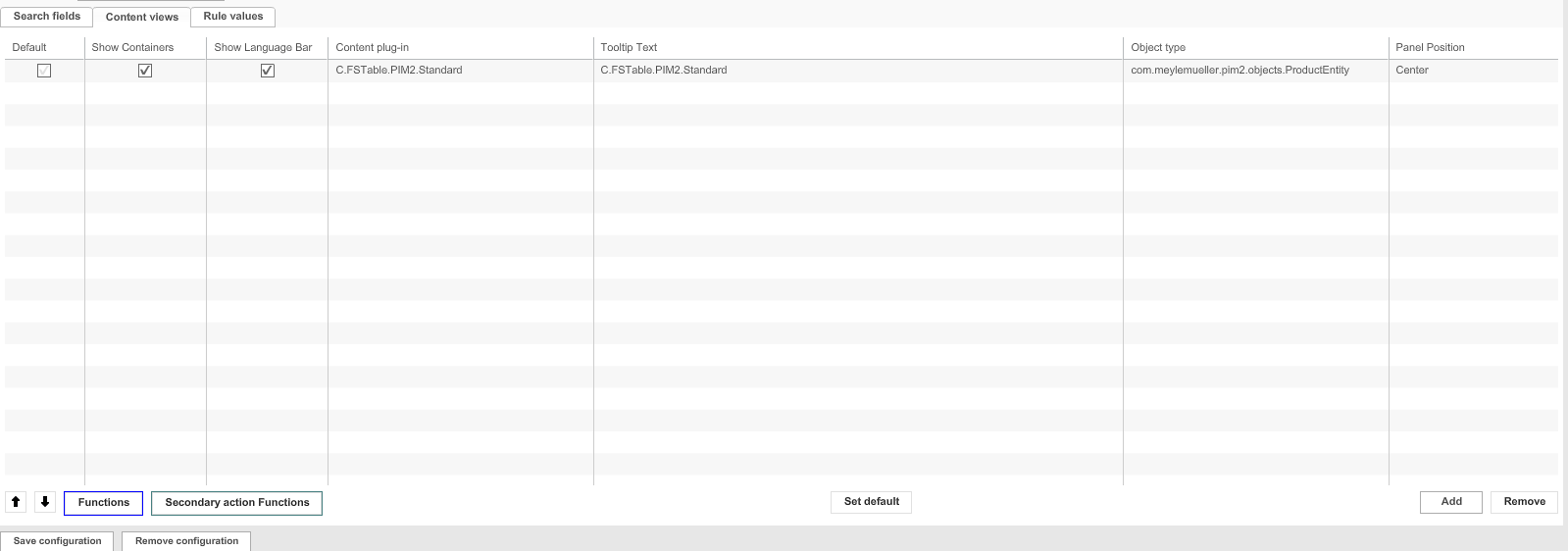
1. Open the tab Content views
2. Click Add
3. Open the dropdown menu for the content view in the column Content plug-in
4. Choose the desired content view, e.g. FSTable
The name of the chosen content view is automatically added as Tooltip Text for the search field.
5. Click Tooltip Text and enter another text, to change the tooltip text
The tooltip text is needed as soon as there is more than one content view. The user at the Frontend can then decide which content view he wants to use.
6. Highlight the content view and click Set default, to set a content view as default when opening the search (or another page plug-in)
7. To save the configuration and all changes made, click Save configuration