Main menu
-
Access the Main menu configuration via Mandators → <Mandator name> → Main menu
Make sure that you have at least one Page plug-in available before configuring the Sidebar.
All page-plug-ins can be used, e.g.:
✓ Page plug-in "FSNavigation"
| This configuration is for old OMN client frontend only. |
For HTML5 Frontend the new Sidebar configuration need to be used (see Sidebar).
This is how configuration of Main Menu looks like:
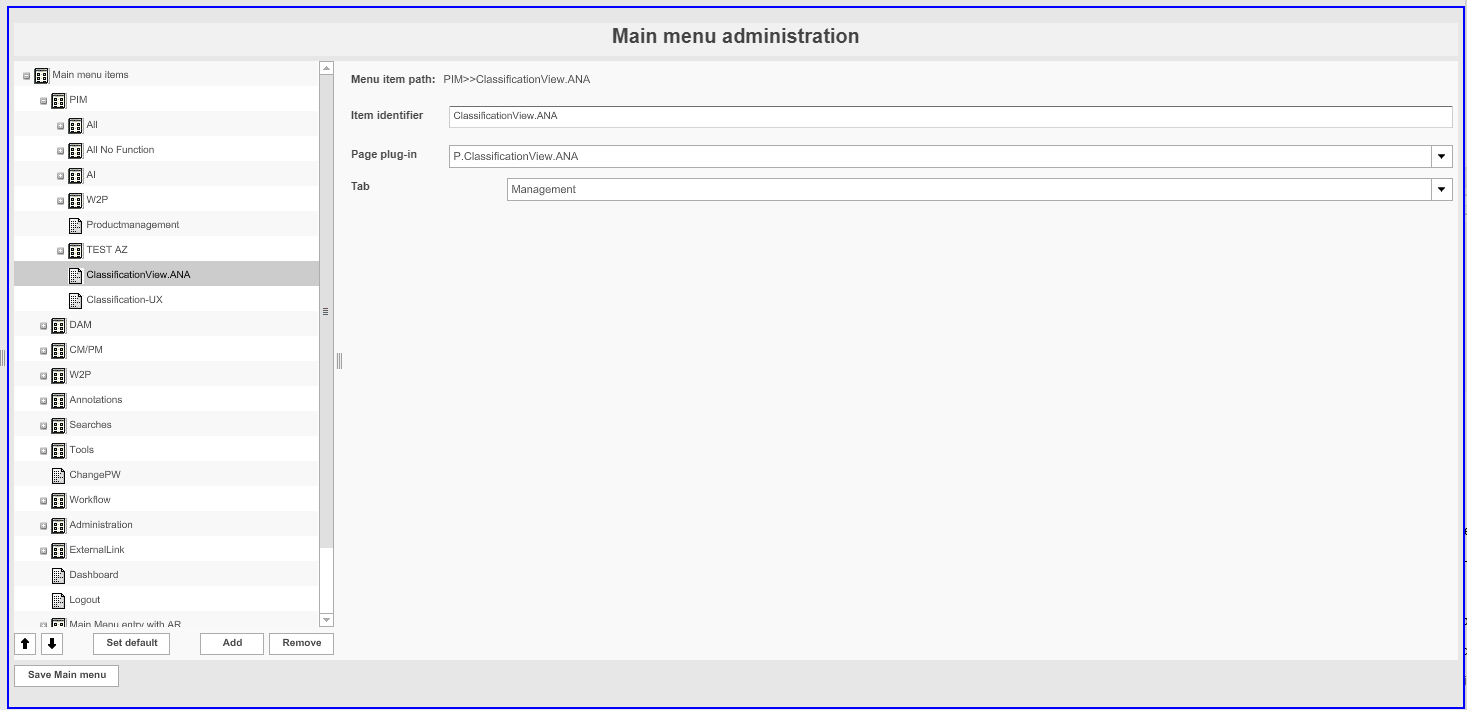
| Field | Description | Notice |
|---|---|---|
Item identifier |
Name that is displayed in the Main menu at the Frontend |
|
Page plug-in |
Drop-down list that includes all configured Page plug-ins for the mandator. |
The plug-ins "LOGOUT-ACTIVITY" and "CHANGE PASSWORD" are preconfigured and cannot be changed. All other plug-ins must be configured. |
Tab |
Drop-down list allows to configure a special mode of the page plugin |
Only available for Page Plugin ClassificationView |
Configuring the Main menu
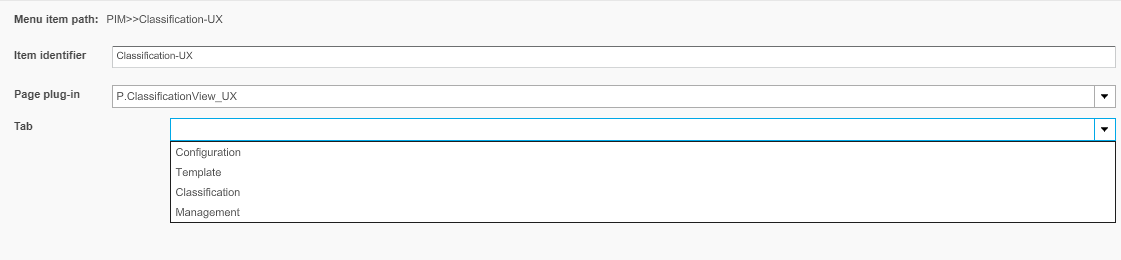
1. Open Main menu items by clicking +.
2. Click Add to add a Main menu item.
3. Enter a name for the item in the field Item identifier.
4. Choose the desired page plug-in in the drop-down menu.
Or:
To create a sub-item for the main menu, leave the drop-down menu empty.
5. To remove a main menu item, highlight it and click Remove.
6. To set a menu item to open directly after login at the Frontend, highlight it and click Set
default.
7. To save the configuration and all changes made, click Save Main menu.