Custom Transition Icons
The following steps describe how custom icons can be assigned to sequence flows in BPMN.
How to assign custom icons for Camunda
-
Open the Camunda Modeler and your workflow model.
-
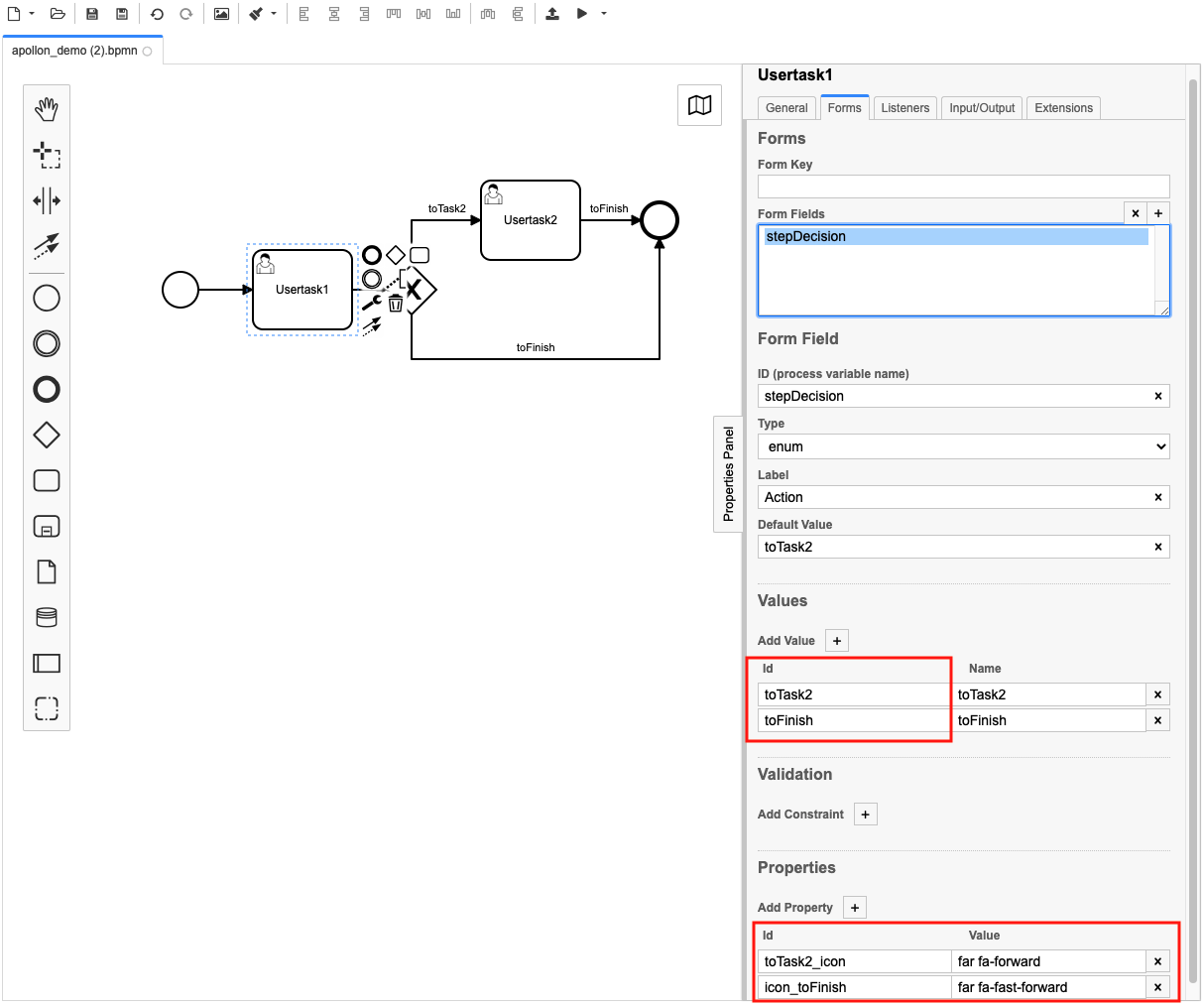
Select a user task and open the Forms tab in the Properties Panel on the right side of the modeler.
-
Make sure to have a Form Field configured for the outgoing transition(s) from the user task to another BPMN element.
-
If not, you need to create a new Form Field (see: Configuration with Camunda and BPMN)
-
-
At the bottom of the Form Field panel you will find the "Properties" section.
-
Add a new property using the id from the value section above as property id and add the suffix _icon.
-
E.g. task2_icon or icon_task2
-
-
Use your desired FontAwesome icon identifier as value.
-
You can find these identifiers in a Fontawesome browser in the OMN config client.
-
Or use the official fontawesome.com website to browse for the desired icons.
-
-
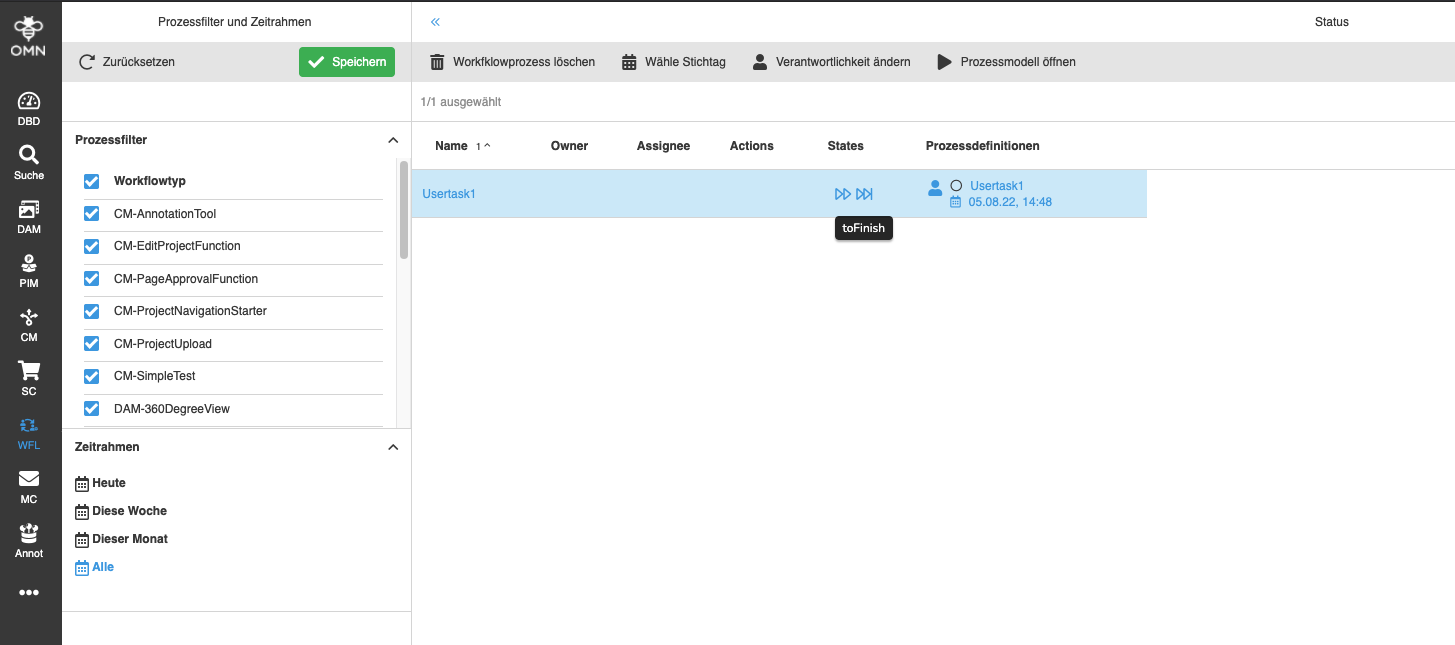
After the BPMN file has been deployed to the camunda instance and the process has been started via OMN, the icons are visible in the workflow views (e.g. in the WFLStatus overview).