Download (Function Plugin)
The plug-in results in a function which is only available for the shopping cart.The configuration is listed in the “Download functions” area of the shopping cart
-
Access the plug-in via Mandators → <Mandator name> → Function plug-ins → Download
Make sure that you have at least one of the following plug-ins available:
✓ FSNavigation Page Plugin with at least one related content Plugin
✓ ShoppingCart (belongs to MAM application module)
You can use the plug-in as follows:
-
ShoppingCart
General configuration
Here you can see how the general structure of Download function plugin’s configuration:
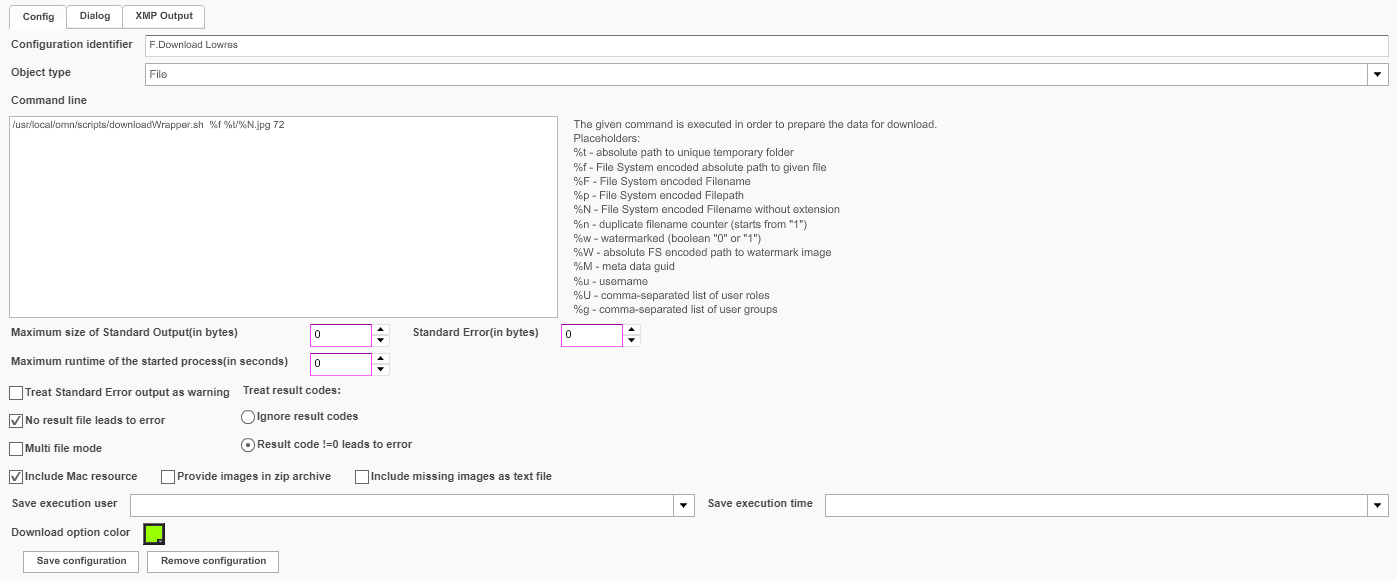
You can find the description of configuration areas in the table below:
| Field | Description | Notice |
|---|---|---|
Config |
General configuration of downloads |
|
Dialog |
Configuration of a download function that supports image cropping. |
|
XMP Output |
Configuration of XMP attributes for XMP supporting files |
see "XMP Output" |
Config tab
| Field | Description | Notice |
|---|---|---|
Configuration identifier |
Name of the specific configuration of the download plug-in |
|
Object type |
Available object types:
|
|
Command line |
The command for the operation is entered with the help of placeholders. |
All placeholders on the right side can be used. For a download function supporting apertures, additional placeholders are available to use Example: /usr/local/omn/scripts/downloadWrapper.sh %f %t/%N.jpg 72 |
Maximum size of Standard Output (in bytes) |
For setting the size of the STDOUT (standard output) buffer for external processes. |
All values in bytes |
Standard Error (in bytes) |
For setting the size of the standard error buffer (STDERR) for external processes. |
All values in bytes |
Maximum runtime of the started process (in seconds) |
For setting the maximum run-time of an external process to prevent that it runs into a deadlock. |
All values in seconds |
Treat Standard Error output as warning |
>> Activate the checkbox to write a STDERR as a warning in the process log file. Otherwise STDERR will be written as an error. |
|
Treat result codes |
The process returns a numeric code, which can be interpreted:
|
|
No result file leads to error |
>> Activate the checkbox to display an error if the external process does not return a file. |
|
Multi file mode |
>> Activate the checkbox to enable carrying out external processes for a sum of files. |
|
Include Mac resource |
>> Activate the checkbox to add resource files for Mac OSX to the download. |
|
Save execution user |
For choosing a metadata field in which the name of the user who downloaded an object last (with this configuration) is saved |
|
Save execution time |
For choosing a metadata field in which the last download date of an object (downloaded with this configuration) is saved |
|
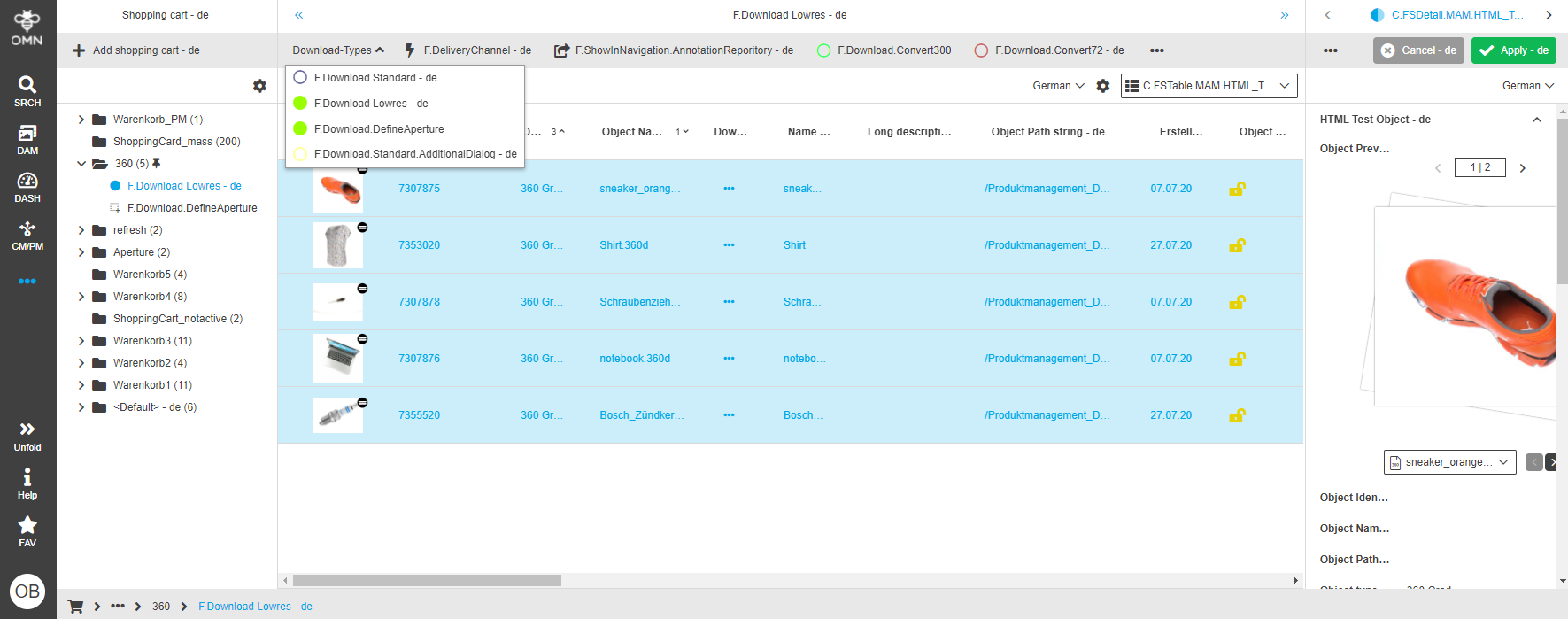
Download option color |
Configurable color with the help of color picker |
The color will be used in UI
|
This is how configured functions looks like in ShoppingCart on frontend:
(Download) Dialog tab
A Download plug-in can be configured to support apertures (image cropping) and user parameters.
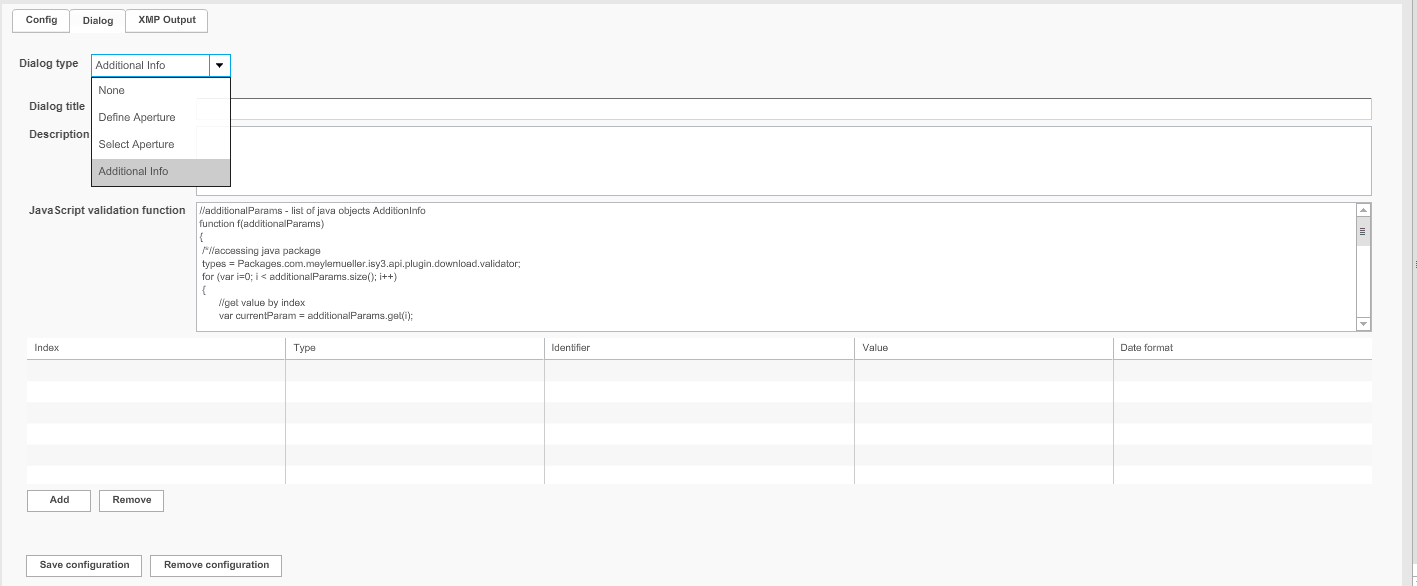
You can find the description of different modes of the dialog window in the table below.
| Field | Description | Notice |
|---|---|---|
None |
The user cannot define or select apertures or download additional information. |
|
Define Aperture |
Allows the user to define new apertures |
|
Select Aperture |
The user has the possibility to select an existing aperture for the download. |
|
Additional Info |
Allows the user to download defined user parameters. |
Download Dialog – Define Aperture
Allows the user to define new apertures with the download process.
The apertures can either created temporarily (for the download) or saved to the asset like there are created with the aperture plugin.
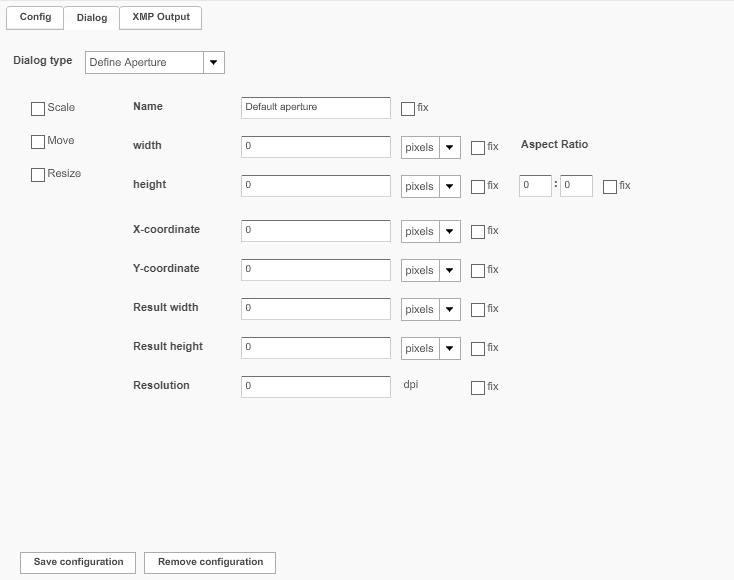
| Field | Description | Notice |
|---|---|---|
Scale Move Resize |
>> Activate the respective checkbox to allow scaling, moving or resizing the aperture frame |
|
Name Width Height Aspect Ratio X-coordinate Y-coordinate Result width Result height Resolution Checkbox fix |
See section "Templates for Apertures” on the page |
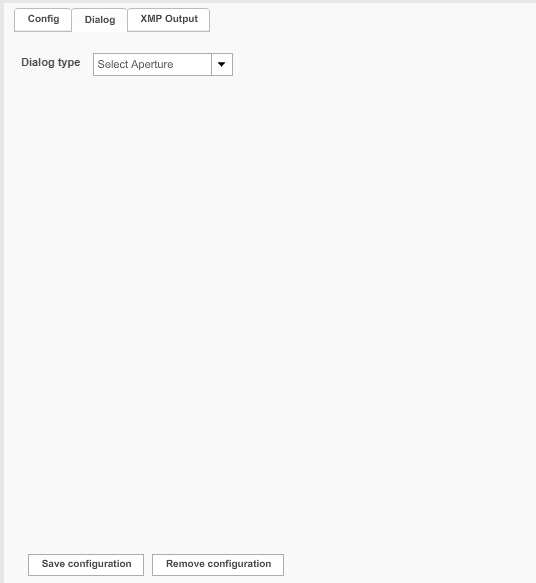
Download Dialog – Select Aperture
This option allows selecting available aperture which have been created for the asset with the help of aperture tool.This option does not allow creating new, temporary apertures during the download process.
There are no additional parameters to be set.
Download Dialog – Additional info
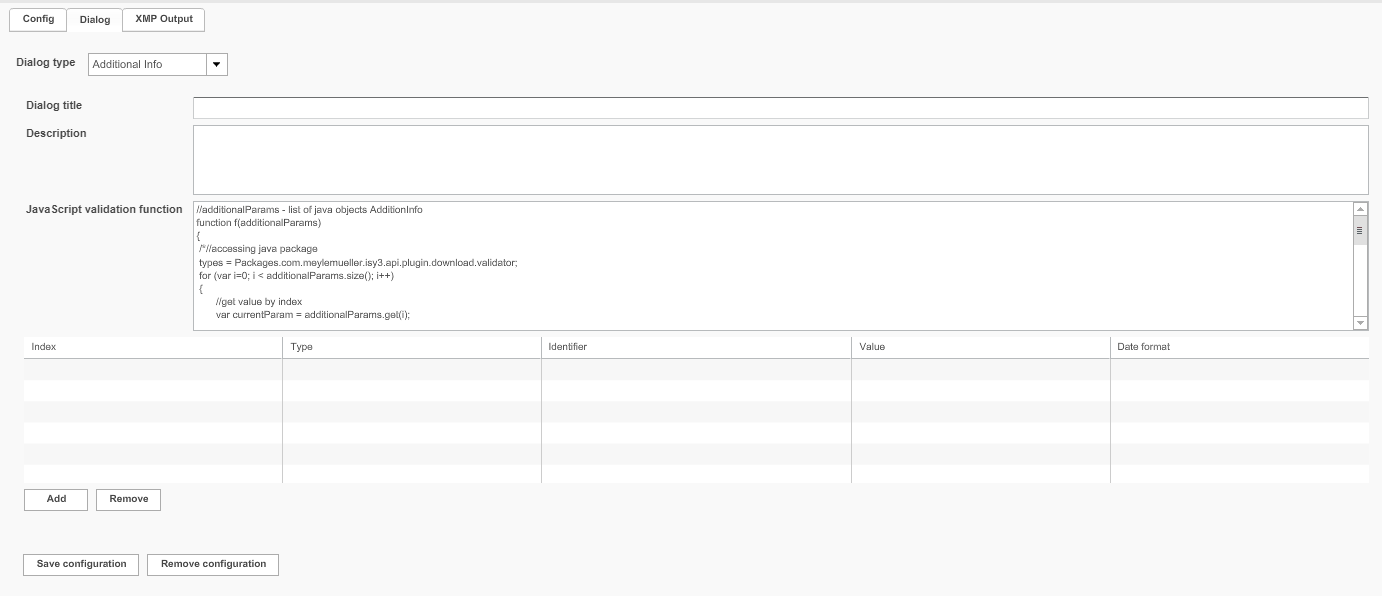
You can find the description of configuration option for 'Additional info' dialog type in the table below.
| Field | Description | Notice |
|---|---|---|
Dialog title |
For entering a title for the dialog |
|
Description |
For entering a description for the dialog |
|
Javascript validation function |
For entering a JavaScript text that validates the values which are entered in the Frontend dialog |
The JavaScript validation function checks the values of the user parameters in Frontend. They must result in “true”, otherwise the download will fail |
Parameter |
>> To add user parameters to the table, click on Add.Each parameter consists of three attributes:
|
For each parameter a placeholder index is used in the command line.The index starts with 0 |
XMP Output tab
Configuration of XMP attributes for XMP supporting files:
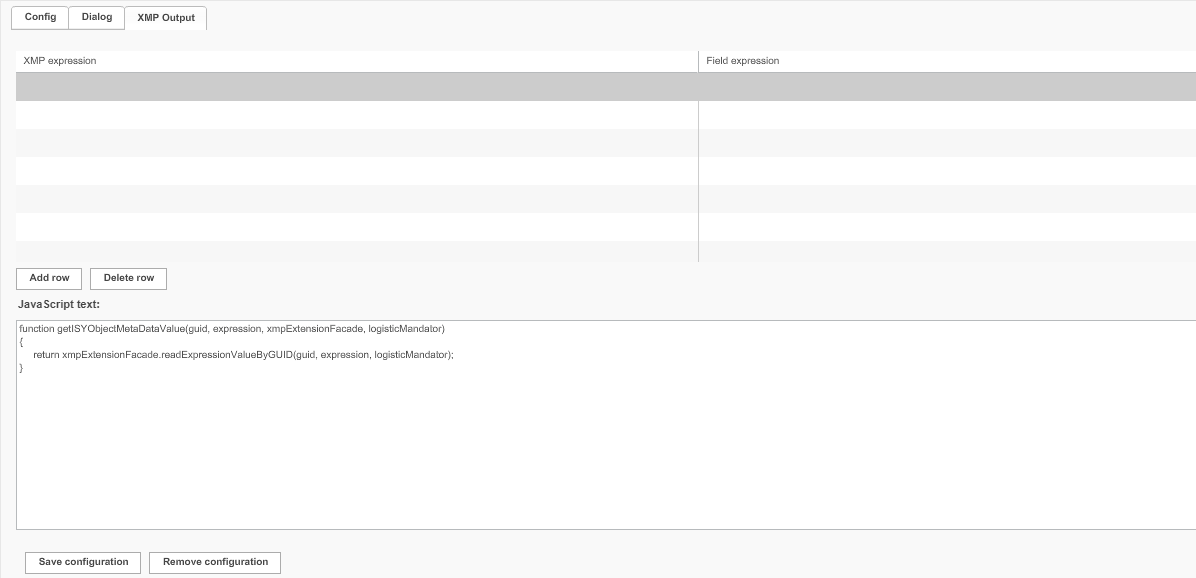
Here is the overview of configurable XMP expressions:
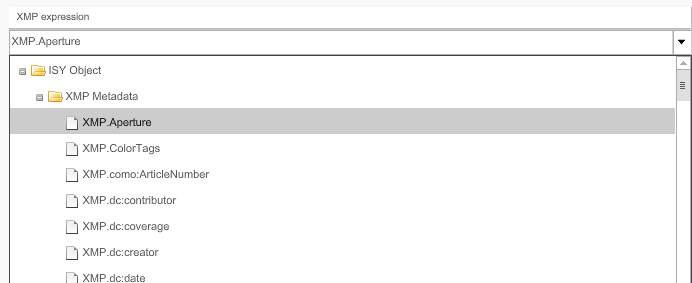
Here is the overview of configurable field expressions:
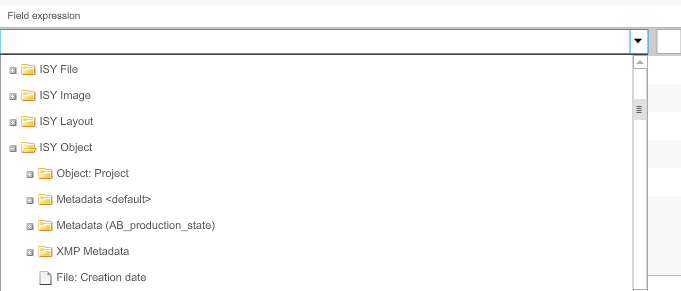
Also you can see the description of the configurable options in the table below:
| Field | Description | Notice |
|---|---|---|
XMP expression |
For choosing an XMP expression |
The list contains all available XMP expressions |
Field expression |
For choosing a field expression that shall be mapped to the chosen XMP expression |
The list contains all attribute expressions from the OMN database. |
JavaScript text |
If the XMP information value differs from the attribute expression of the OMN database: For entering a corresponding JavaScript to enable a correct mapping of the field. |
If the value of the XMP expression already exists properly, i.e. as required from the attribute expression of the database, mapping can be executed without any further scrip-ting. |