Annotation attributes
The annotation attributes are part of the 'Attributes' section. Attributes from the Annotation should be configured to use in the context of the Annotation tool.
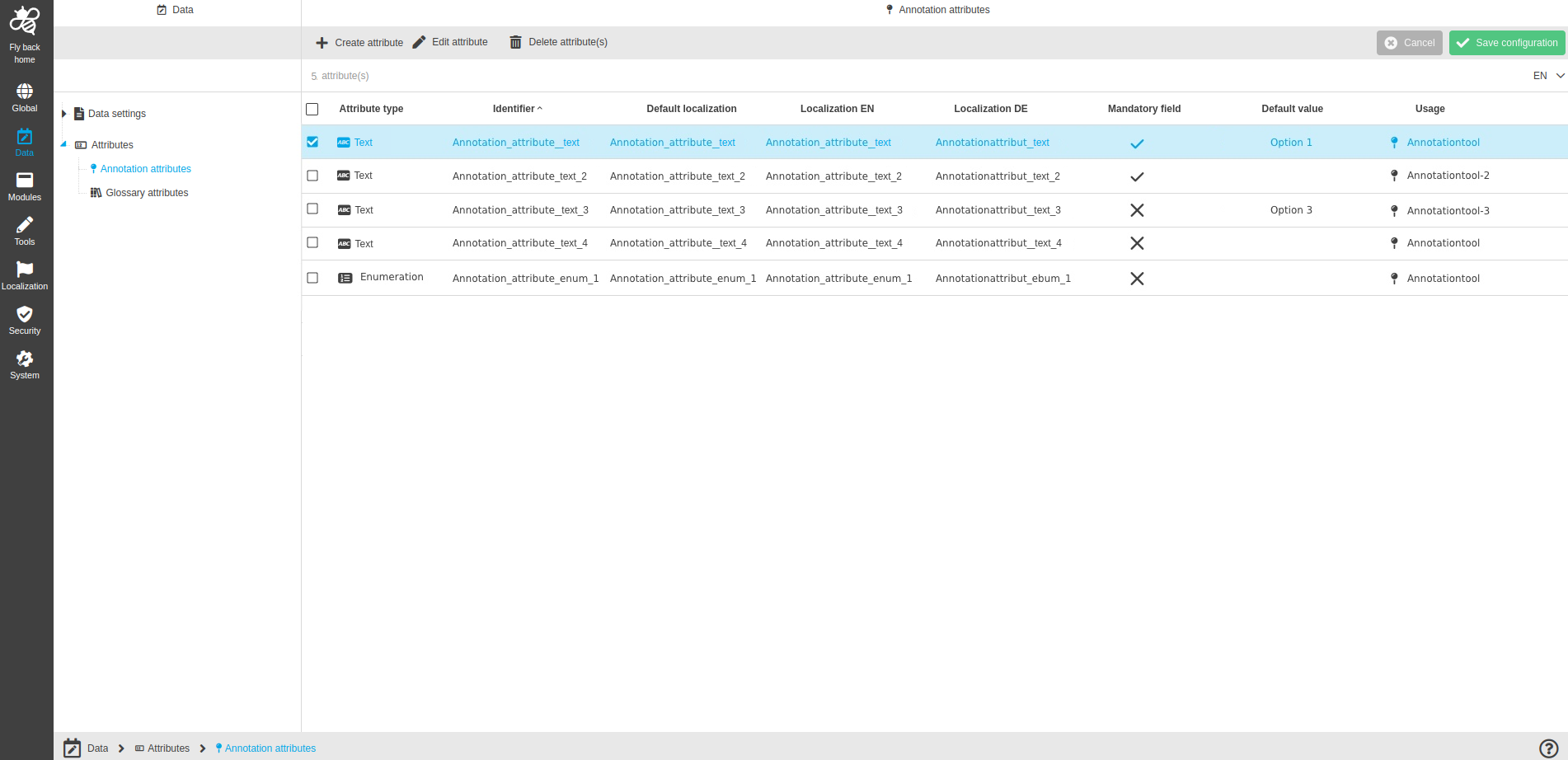
The page contains:
-
the following functions:
Function name |
Description |
Note |
Create attribute |
Function creates a new attribute from Annotation type |
see 'Create attribute' |
Edit attribute |
Function edits created attribute from the Annotation type |
see 'Edit attribute' |
Delete attribute(s) |
Function deletes created attribute(s) from the Annotation type |
see 'Delete attribute(s)' |
-
the table with the following columns and information about attributes:
Column name |
Description |
Note |
Attribute type |
Shows created attribute types by icon and name of type |
Available type of attributes:
|
Identifier |
Shows identifier (name) which is set during attribute creation |
|
Default localization |
Shows default localization which is set during attribute creation |
Has the same value as the 'Identifier' column |
Localization columns |
Shows language localizations which are set during attribute creation |
All languages which are available as system languages on OMN system are shown in their own column. For example:
|
Default value |
Shows the values that will be available by default in the UI |
|
Mandatory field |
When field is activate:
When field is inactivate:
|
|
Usage |
Shows where attribute is used |
-
the following data types:
Data type |
Description |
Text |
To enter a text value(s) |
Enumeration |
To enter dropdown value(s) |
|
The different data types are explained here: Data types |
Create attribute
-
Click 'Create attribute' function
-
Select Data type: Text or Enumeration
-
Turn on 'Leave modal open for further creation of attributes' toggle (if needed)
-
Function allows to stay the window open after clicking on the 'Create attribute' button to continue creating a new attribute.
-
-
Enter default Identifier
-
Name of Identifier needs to be unique
-
Mandatory field
-
-
Enter localizations for each available language in the system (optional), so this localization will be shown in case language is selected in the UI
-
Each language available on the system is listed
-
-
Enter texts for Tooltip (if needed)
-
Click on the 'Create attribute' button
|
Further configuration of annotation attributes differs per type. |
Edit attribute
-
Select attribute in the table
-
Execute the Edit attribute function
-
Change the available fields
-
Execute 'Save attribute' function
|
Delete attribute(s)
-
Select attribute (or several ones) in the table
-
Execute the Delete attribute(s) function
-
Click 'Confirm attribute(s) deletion'
| The function is available only when at least one attribute is selected. |
Appearance in the frontend
All details of the Annotation attributes in the frontend can be found here.