QRCode View
Introduction
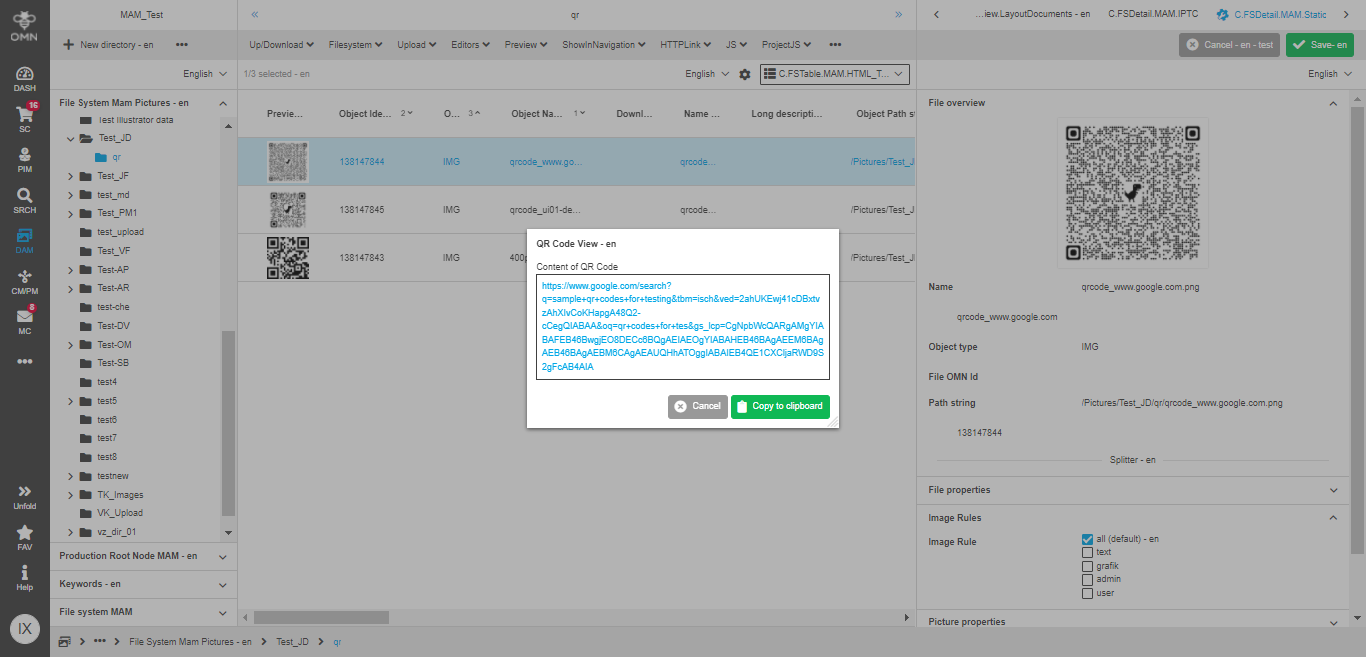
The "QRCode View" is a simple tool that allows you to recheck QRCode’s content via executing a function.
Now you don’t need to use external QRCodes-readers, because you can do it inside OMN.
Opening of QRCode Viewer
The QRCode Viewer can be opened from several contexts for QRCode images.
Content views of FSNavigation
-
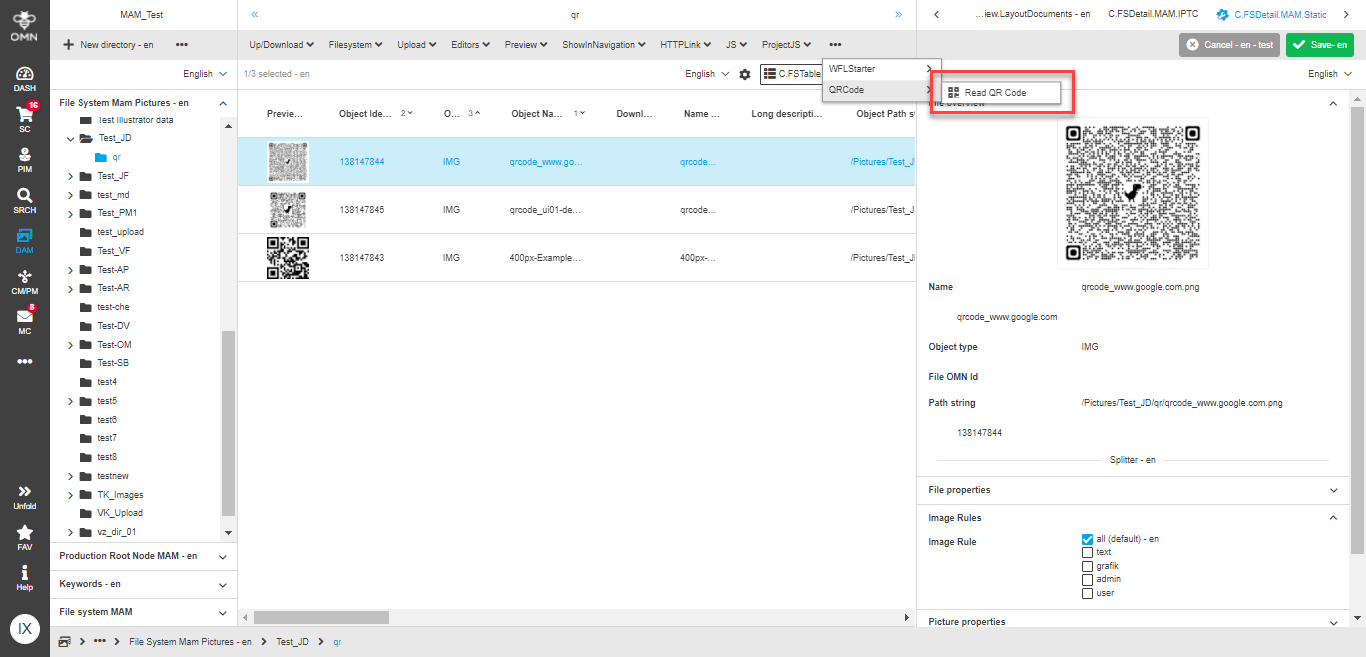
Select a needed QRCode asset in the central view.
-
In the toolbar of central view, click on the "QRCodeView" function.
-
The "QRCode View" modal is opened.
ProjectAssetView
-
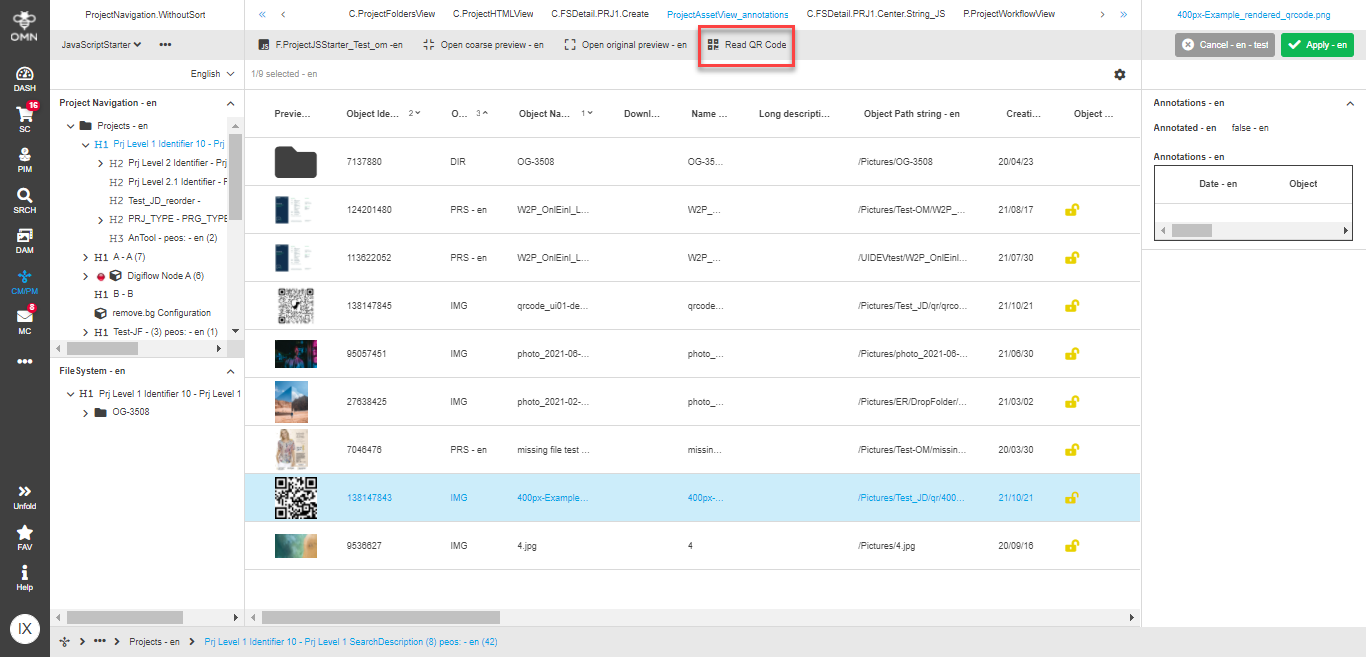
Select a project with a linked QRCode asset in the left view.
-
Open ProjectAssetView in the central view.
-
Select the needed QRCode asset in the central view.
-
In the toolbar of central view, click on the "QRCodeView" function.
-
The "QRCode View" modal is opened.
OMNSearch
-
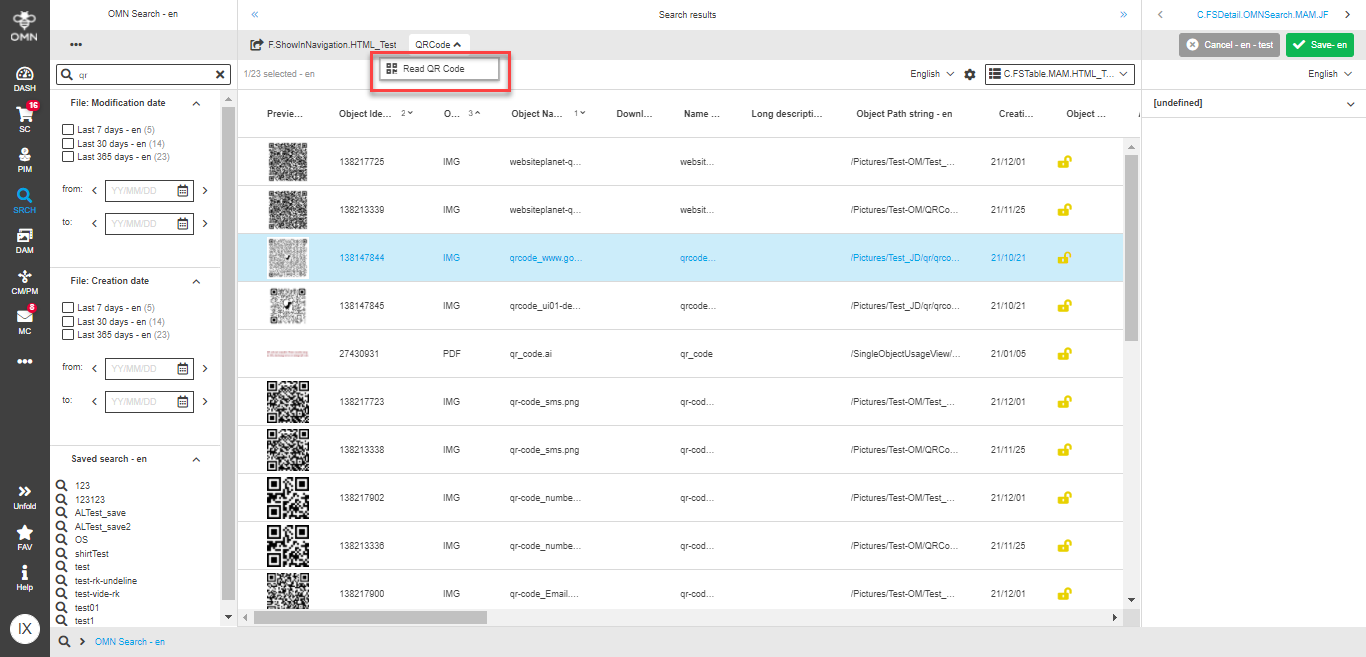
Search for a needed QRCode asset using Simple Search with AdvancedSearch as results page.
-
Select the QRCode asset in central view.
-
In the toolbar of central view, click on the "QRCodeView" function.
-
The "QRCode View" modal is opened.
| The function can be executed only on one asset at a time. |