AI Image - autoRetouch
Description
The AI Image Processing autoRetouch service is an AI-powered image editing platform. The OMN integration works together with autoRetouch via an API.
Users can call an autoRetouch workflow on images in OMN DAM. This is done by using a preconfigured workflow of the autoRetouch service.
To use autoRetouch in the OMN context, a paid subscription must be purchased.
After successful login auoRetouch workflows can be configured here.
All information about autoRetouch API can be found here.
| The output file format and name can be controlled by the autoRetouch "Export" and "Edit Filename" components. |
Configuration Parameters
Workflow-Name: ai-imageprocessing-autoretouch
| Key (* = required) | Type | Default | Description | Example |
|---|---|---|---|---|
ext.ai-imageprocessing.autoretouch.refreshtoken* |
string |
autoRetouch refresh token |
||
ext.ai-imageprocessing.autoretouch.workflowname* |
string |
AutoRetouch workflow name (use the name here, not the id) |
||
ext.ai-imageprocessing.autoretouch.organizationid |
string |
AutoRetouch organization id used for billing (use the id here, not the name). Though this parameter is optional it is strongly recommended to set it! |
||
ext.ai-imageprocessing.overwrite |
boolean |
false |
If true, the returning image will overwrite any image of the same name. If false a numeric counter is used as suffix for the new name |
false |
ext.ai-imageprocessing.autoretouch.apiurl |
string |
autoRetouch api url |
||
ext.ai-imageprocessing.autoretouch.authurl |
string |
autoRetouch auth url |
||
ext.ai-imageprocessing.autoretouch.maxretries |
long |
10 |
Max number of retries to ask if wfl is completed |
10 |
ext.ai-imageprocessing.autoretouch.secondsbetweenretries |
long |
30 |
Number of seconds to wait between retries |
30 |
ext.ai-imageprocessing.autoretouch.audit.attribute.startTime |
Date |
The MAM attribute identifier where to store the start time of the process. The attribute should be of type "Date" (language independent). |
AR_AUDIT_START_TIME |
|
ext.ai-imageprocessing.autoretouch.audit.attribute.endTime |
Date |
The MAM attribute identifier where to store the end time of the process. The attribute should be of type "Date" (language independent). |
AR_AUDIT_END_TIME |
|
ext.ai-imageprocessing.autoretouch.audit.attribute.processName |
String |
The MAM attribute identifier where to store the name of the process. In this case this will always be 'ai-imageprocessing-autoretouch'. The attribute should be of type "String" (language independent). |
AR_AUDIT_PROCESS_NAME |
|
ext.ai-imageprocessing.autoretouch.audit.attribute.processParameters |
String or Clob |
The MAM attribute identifier where to store the name of the process parameters. The attribute should be of type "String" or "Clob" (language independent). The text be written as an HTML table so the field to display should be "String richtextlabel". |
AR_AUDIT_PROCESS_PARAMETERS |
|
ext.ai-imageprocessing.autoretouch.audit.attribute.status |
String |
The MAM attribute identifier where to store the status of the process. The attribute should be of type "String" (language independent). |
AR_AUDIT_STATUS |
Example configuration
The following image shows what a sample configuration for AI Image might look like.
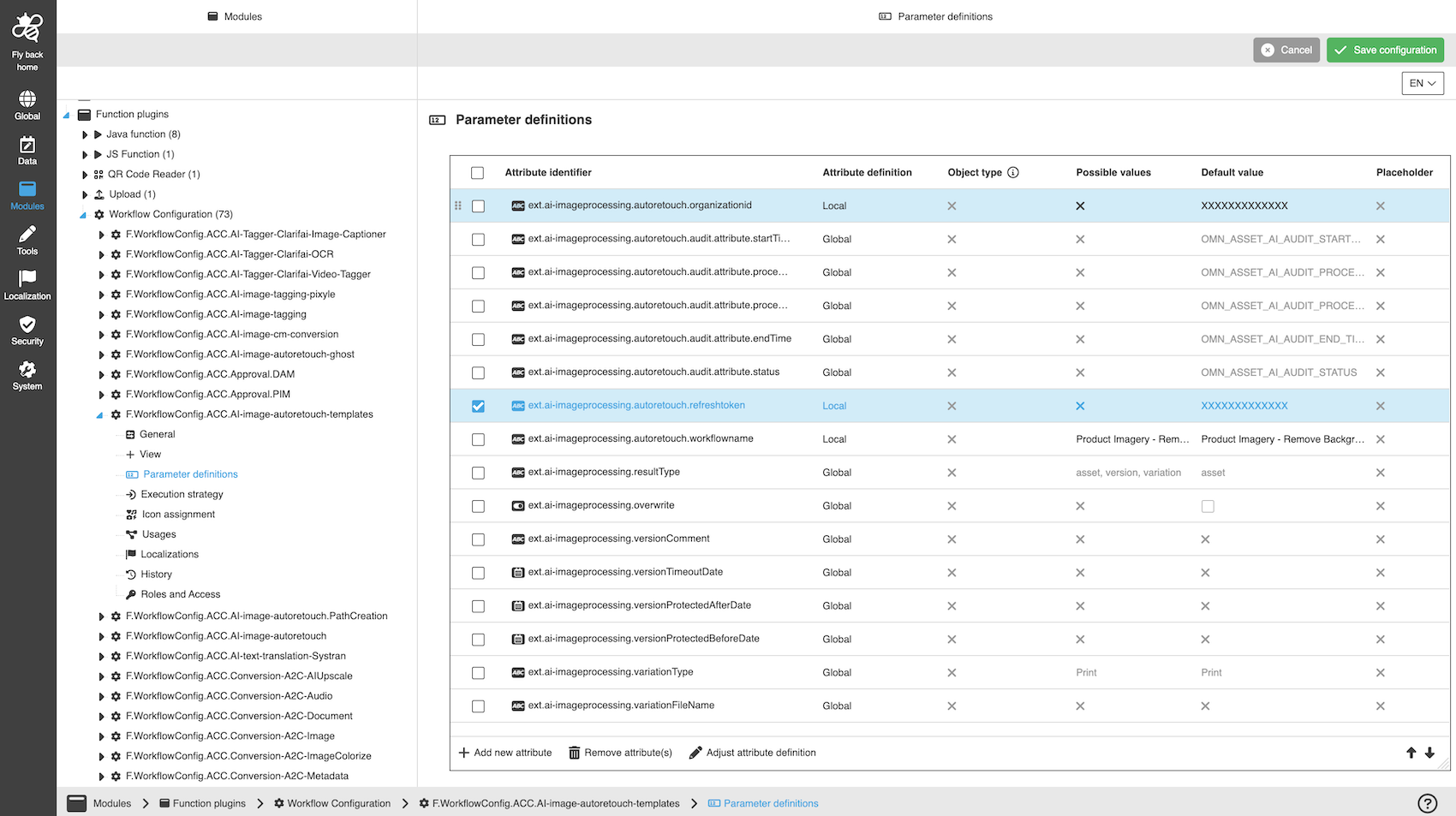
A detailed step-by-step guide to the configuration of the Workflow Config Function plug-in can be found on this page.
AI Image workflows and components
AI Image allows processing images on base of different smart AI components, which can be combined in a kind of workflow directly out of OMN.
Triggering an AI process over OMN will initiate a workflow execution which will manipulate the image on base of the AI-Service
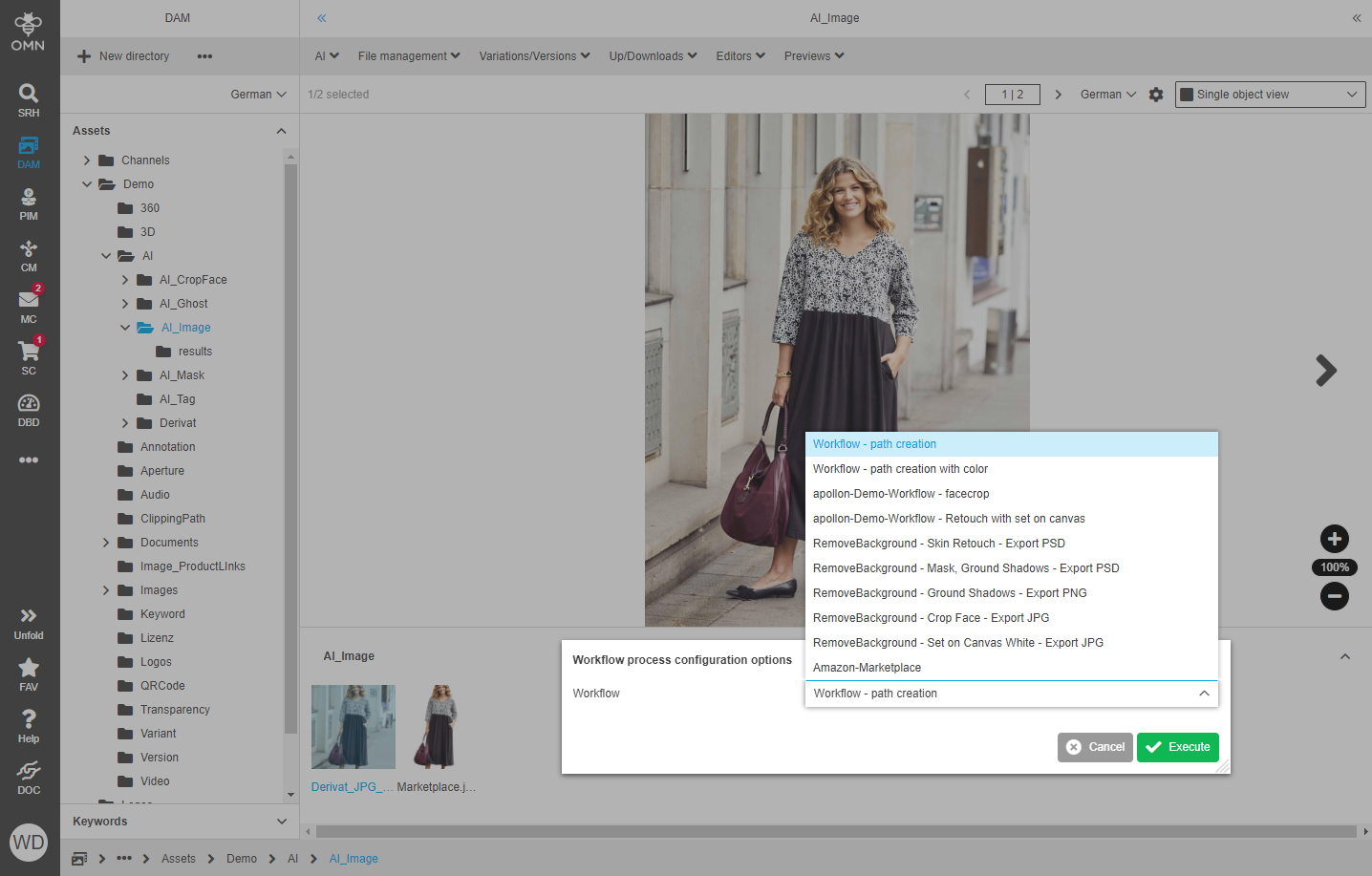
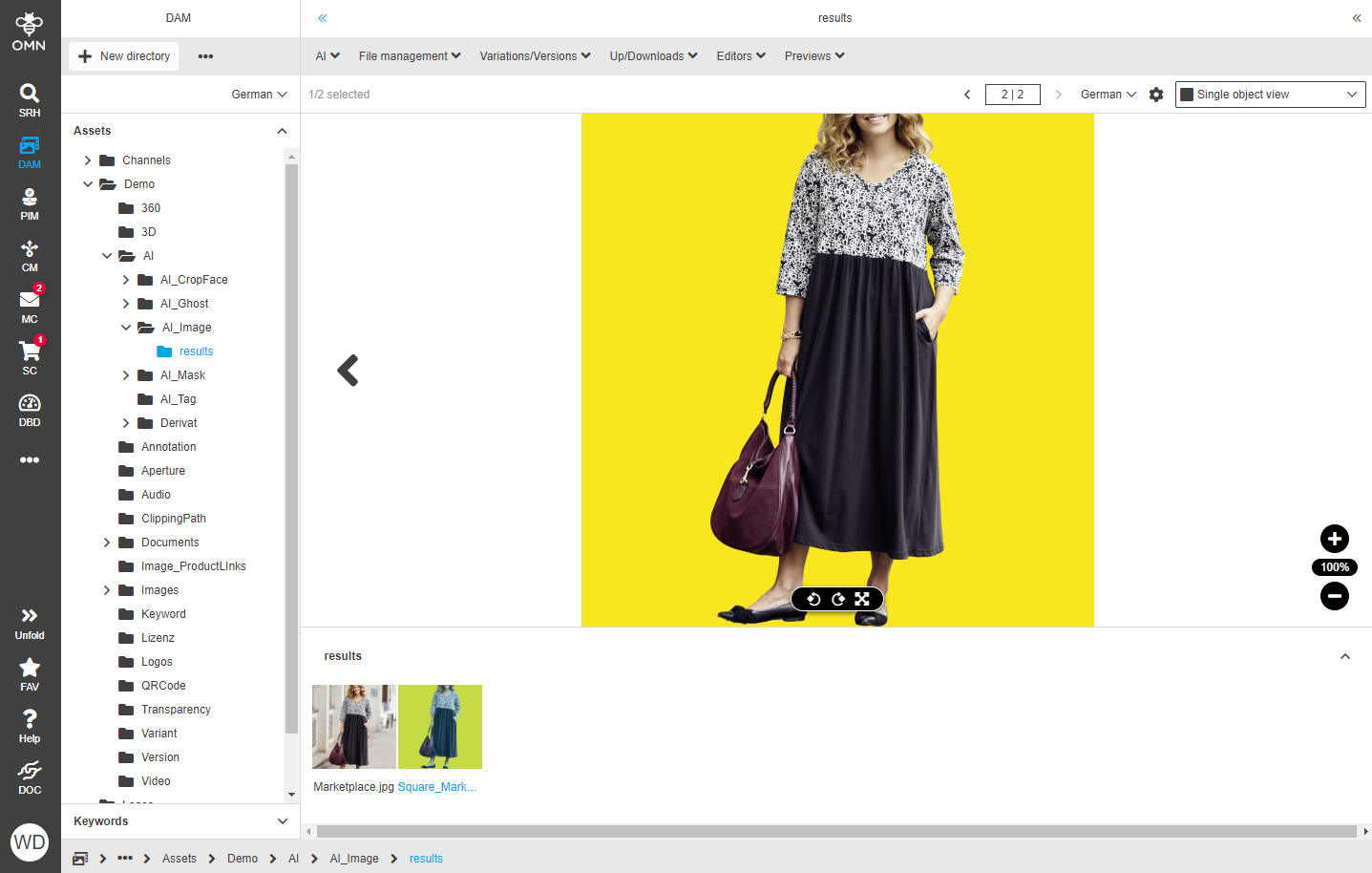
Workflow Execution
A workflow execution occurs when you’re running a workflow to process an image (or multiple) and the image(s) is/are subsequently available to you for download (regardless of whether you actually download it/them or not).
The workflow execution price is automatically deducted from your credit balance.
AI-Components
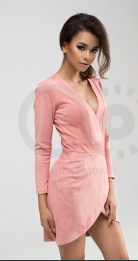
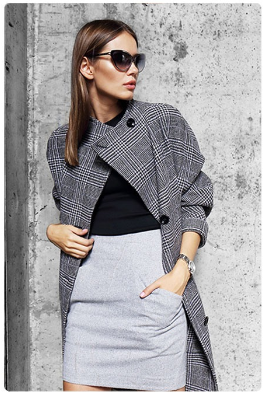
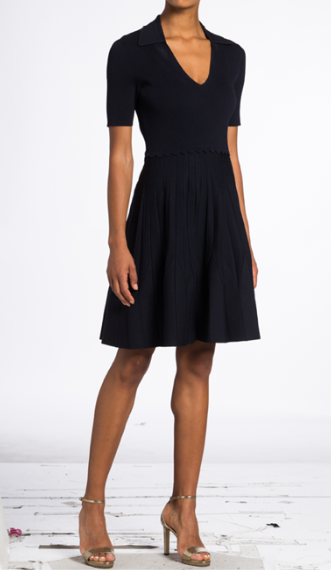
The following AI components are currently specialized for retouching Fashion product images like human models wearing clothing or clothes on humans or mannequins
1. The main input files should be Fashion product images (Apparel/Clothing).
2. Supported file formats: JPEG, PNG, TIFF with a maximum file size of 50MB
| Component | DE | EN | Example |
|---|---|---|---|
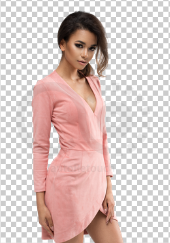
Remove Background
|
Available Settings
Best results
|
|
|
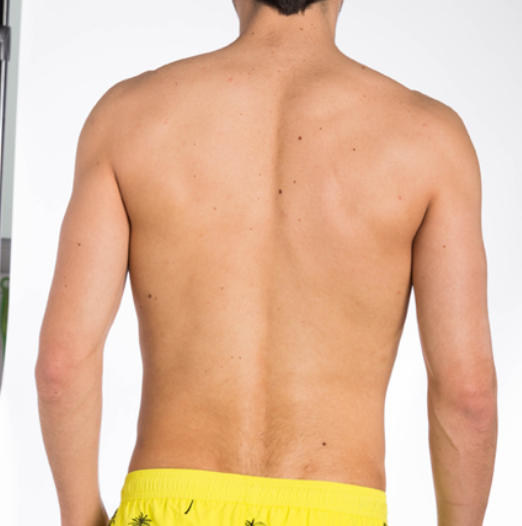
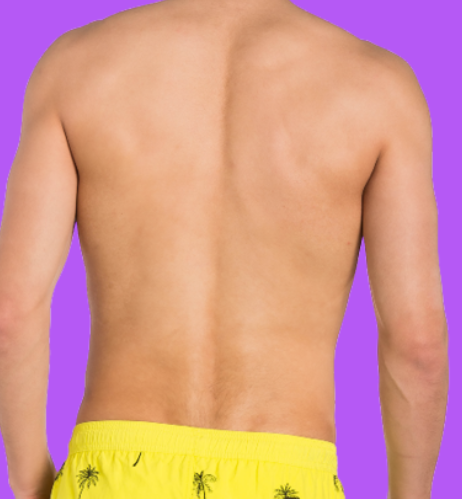
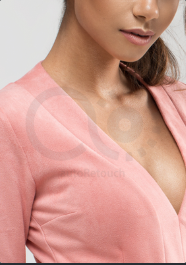
Skin Retouch
|
Available Settings
|
|
|
Set on Canvas
|
Available Settings
PREREQUISITES + Conditions
|
|
|
Crop
|
Available Settings
Best Results
|
|
|
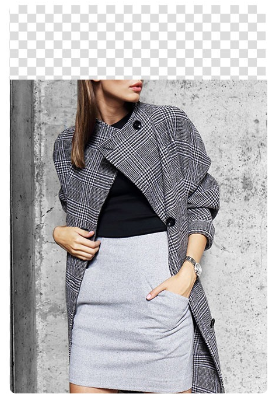
Crop Face
|
Best Results
|
|
|
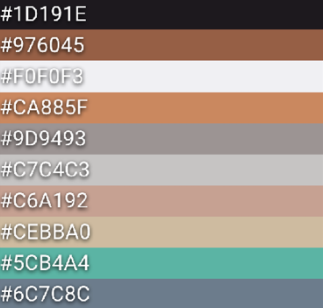
Color Palette
|
Available Settings
PREREQUISITES + Conditions
|
|
|
Extract Patch
|
Available Settings
PREREQUISITES + Conditions
Best Results
|
|
|
Trim2Content
|
Cuts the image to the border/content Available Settings
PREREQUISITES + Conditions
|
|
|
Cleanup Background (Beta)
|
Available Settings
Best Results
|
|
|
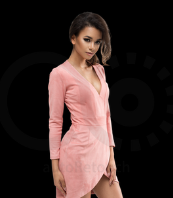
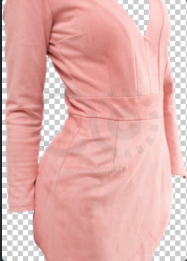
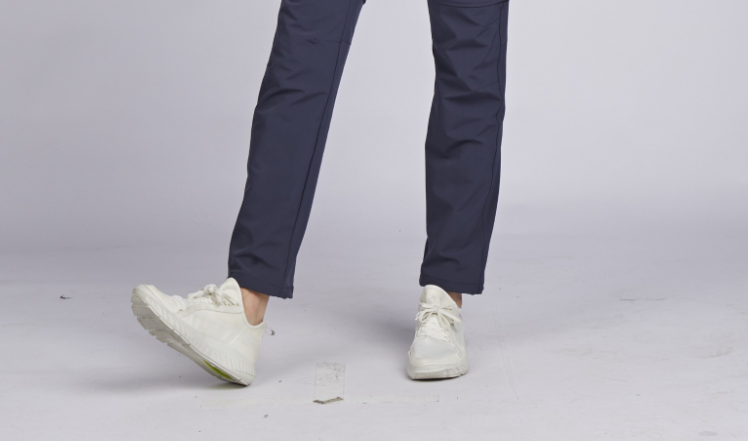
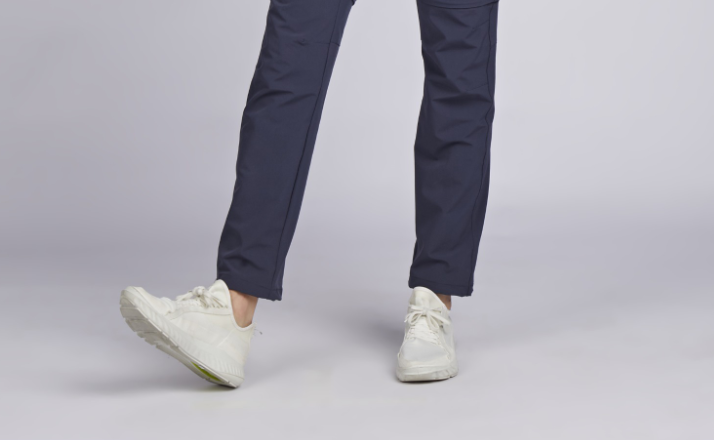
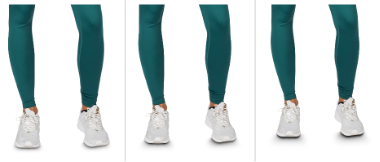
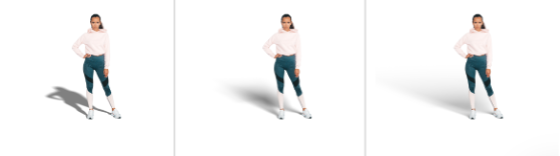
Add Ground Shadows
|
Available Settings
PREREQUISITES + Conditions
|
|
|
Add Drop Shadow
|
Available Settings
PREREQUISITES + Conditions
Best Results
|
|
|
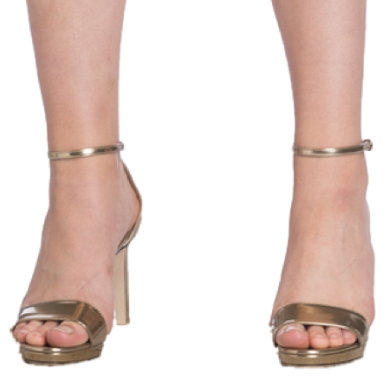
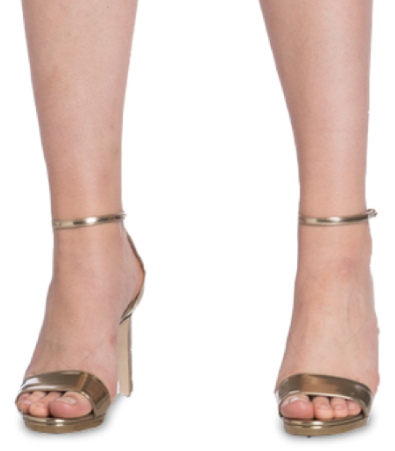
Add natural shadow
|
Available Settings
PREREQUISITES + Conditions
Best Results
|
|
|
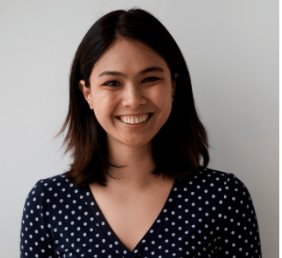
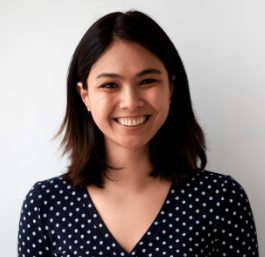
Fix Portrait Exposure
|
Available Settings
Best Results
|
|
|
Edit Filename
|
Available Settings
PREREQUISITES + Conditions
|
Original image: testimage.jpg Adjusted Image testimage_manipulated.jpg (“_manipulated = postfix) |
|
Export
|
Define the export file type for output file like
PSD Output format allows postprocessing images in tools like Photoshop and offers following additional options to be included in the export
|
||
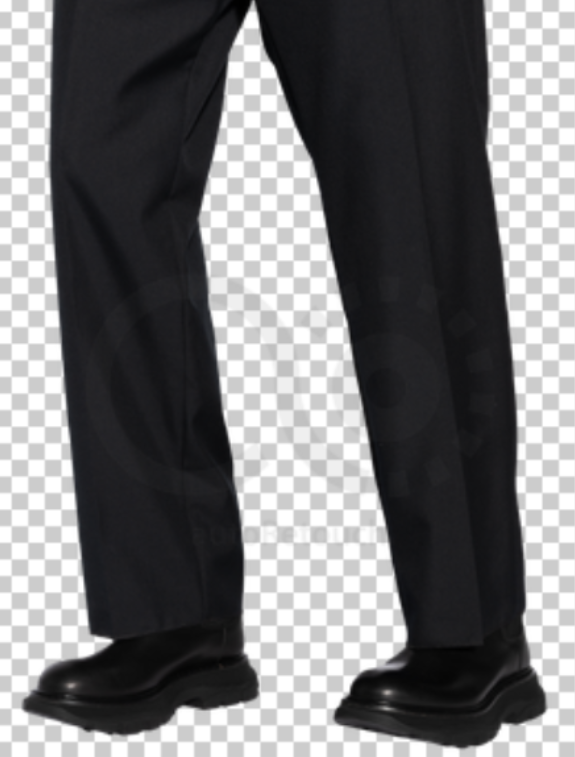
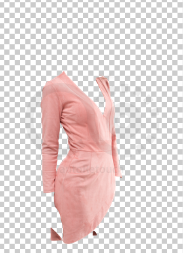
Ghost |
Best Results
For more information also see here. |
|












Additional information
autoRetouch Service always reduces image size to 4 k even if "keep original dpi" flag is set in autoRetouch configuration.

Technical service conditions
autoRetouch is currently specialized in retouching Fashion product images.
Therefore please follow these instructions to receive the best possible results:
-
The main input files should be Fashion product images (Apparel/Clothing).
-
Files can be uploaded in the following formats:
-
JPEG, PNG, TIFF or WEBP with a maximum file size of 100MB
-
-
Maximum Input Size: 10k x 10k px (Images will be scaled down to 4096x4096)
Further information can be found in official AutoRetouch documentation