Adding content views
Tutorial
Described on the example of Terminology page plugin.
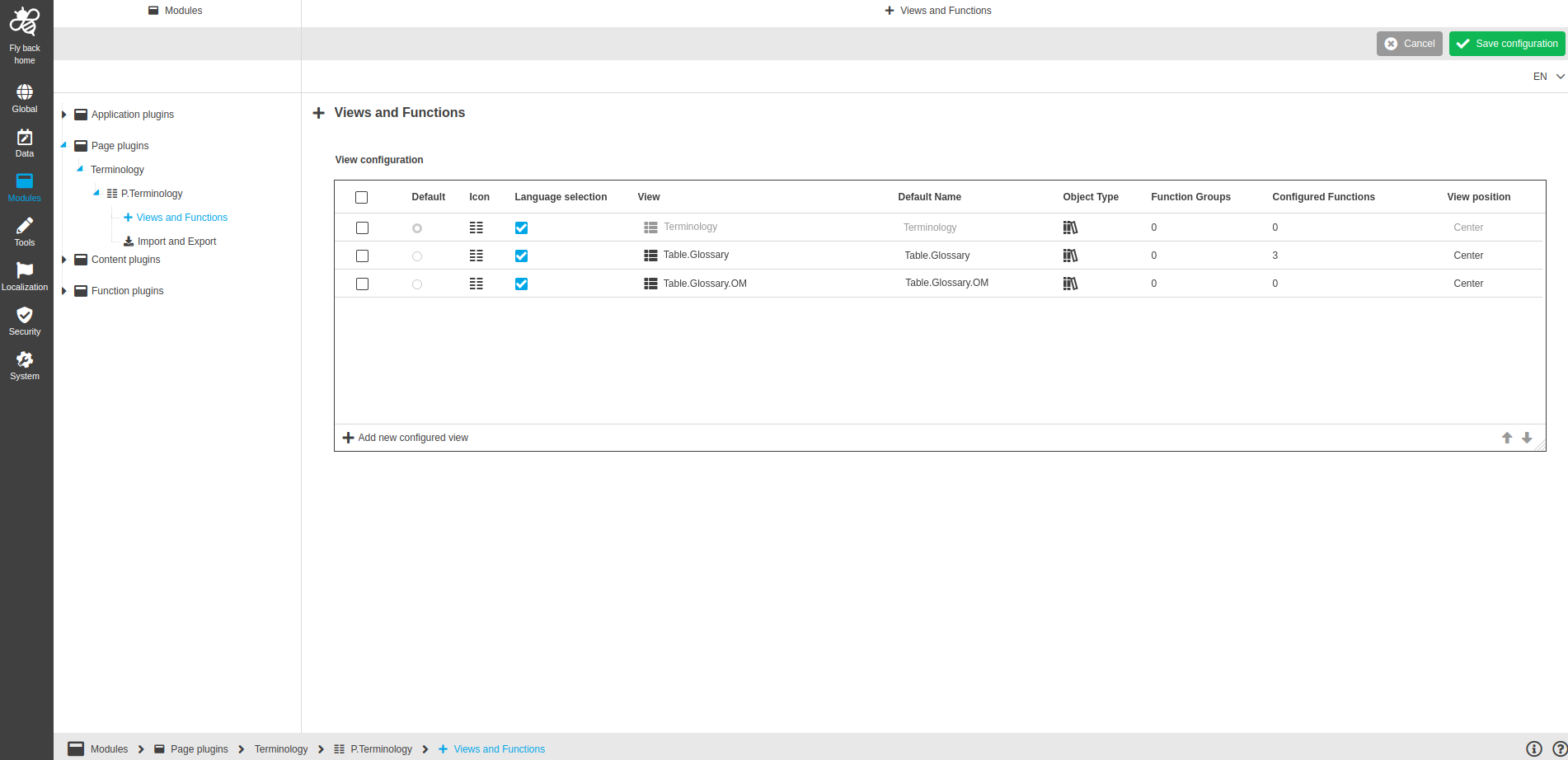
Image 1 Adding content views (e.g. Terminology plugin)
The table contains:
-
the following columns with the information about content view:
Column name |
Description |
Note |
Default |
Shows which content view is selected in the UI application by default |
|
Icon |
Shows the icon that is selected in the content plugin instance |
Read-only column |
Language selection |
Checkbox when activated, the language switcher will be available for the content view in UI and provided all configured content languages |
|
View |
Provides the possibility to select configured views |
|
Default name |
Name that will be shown in the content switcher in the UI |
Field is configurable, but by default the 'Default name' will be the same as the name of the selected configured view |
Object type |
Shows the icon and a tooltip with the name of the object type that is selected in the content plugin instance |
Read-only column |
Function Groups |
Shows the number of function groups added to the content view |
Read-only column |
Configured Functions |
Shows the number of functions assigned to the content view |
Read-only column |
View position |
Position where the view is shown in the UI when configured. Dropdown is provided entry:
|
-
the following functions:
Function name |
Description |
Note |
Arrow up |
Function changes its position to one position above |
The function is available:
|
Arrow down |
Function changes its position to one position below |
The function is available:
|
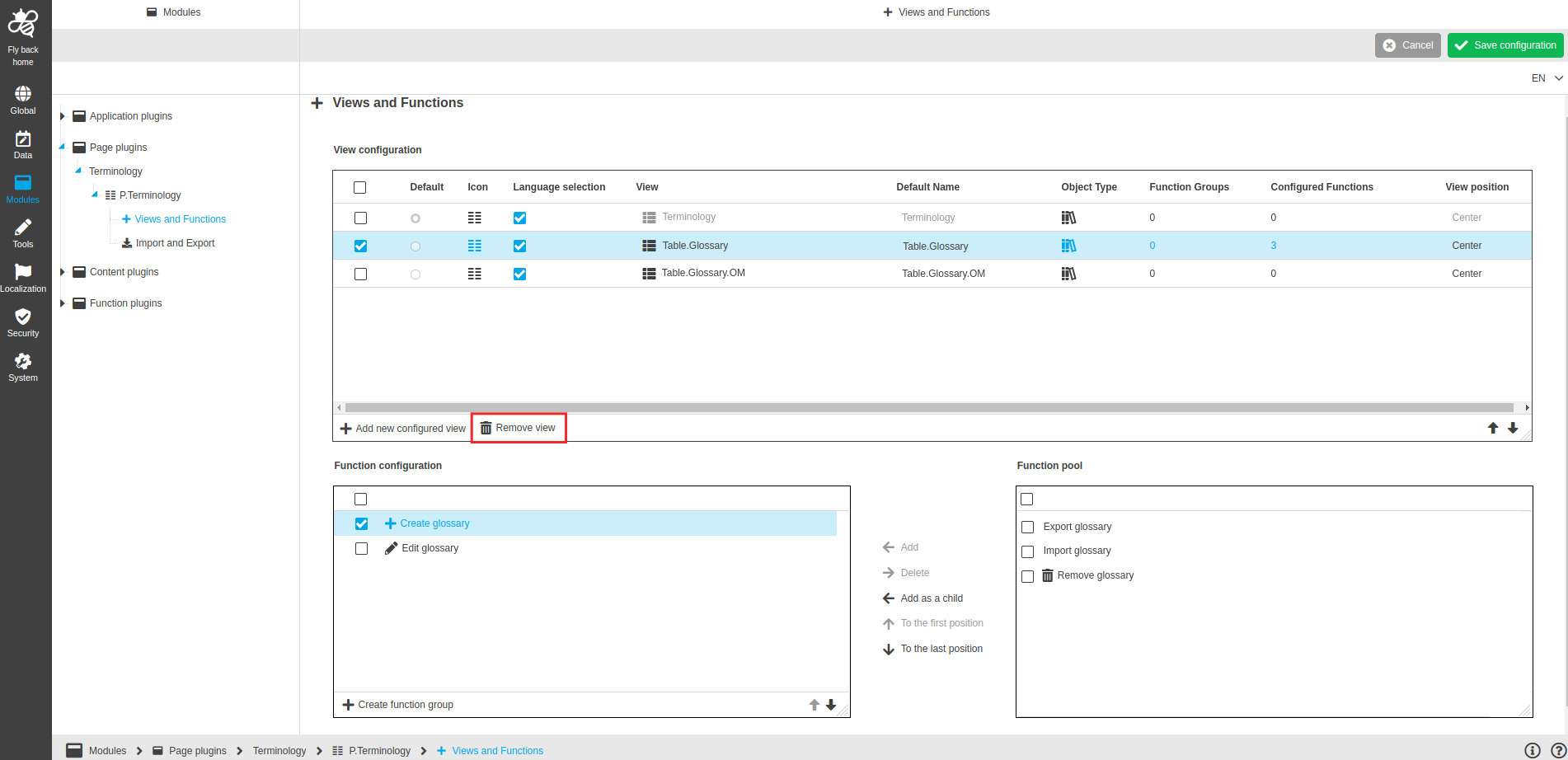
Add new configured view |
Function adds a new configured view |
see 'Add new configured view' |
Remove view |
Function removes the added view |
see 'Remove view' |
Add new configured view
Here are the steps you need to do, if you want to add existing content plugin instance.
-
Execute Add new configured view function.
-
In the newly added table row you should:
-
Select a needed content plugin instance in the dropdown in the View column.
-
Activate the checkbox if the language switcher should be available for the content view in the Language selection column.
-
Select in which panel the content view should be shown in the View position column.
-
-
Additionally in the table you can decide which content view should be selected in the UI application by default – via radio button in the Default column.
-
If needed, you can change the order of the content views with the up and down arrows in right-bottom corner of the table – the content views are shown in the same order in the content view switcher in the UI.
-
Don’t forget to Save configuration.