PIM (Product Information Management)
Product Information Management (PIM) is a tool for the central creation, maintenance, management and enrichment of product information for all output channels. It includes the display and maintenance of product features (texts, attributes, properties) as well as the display of item master data transferred from ERP systems and their enrichment with PIM-specific marketing features. The goal is to create a "golden record" from rudimentary master data that can be used in all channels. Another function is DQM processes, which are used to achieve and monitor channel-specific data quality. In addition, product-related content such as images, videos, audio files or documents can be referenced to products there and prepared for output to the various marketing channels.
It is also possible to define classifications and attributes, create and group products, articles and variants (one- to three-level hierarchy), assign the created attributes to classes (so that they are only displayed for the articles of this class) and maintain field contents/attributes.
For more information, visit apollon | PIM
Structure
The PIM module can be accessed via the sidebar. To do this, the associated menu item is selected, and up to four different views, known as views, can be displayed. These are:
-
Configuration View: Configuration area for creating the PIM data model with associated attributes.
-
Classification View: Classification area for classifying unclassified articles.
-
Management View: Maintenance of attributes for products based on the underlying data model.
-
Template View: Area for creating PEO templates for different output channels and defining relevant attributes and their behavior.
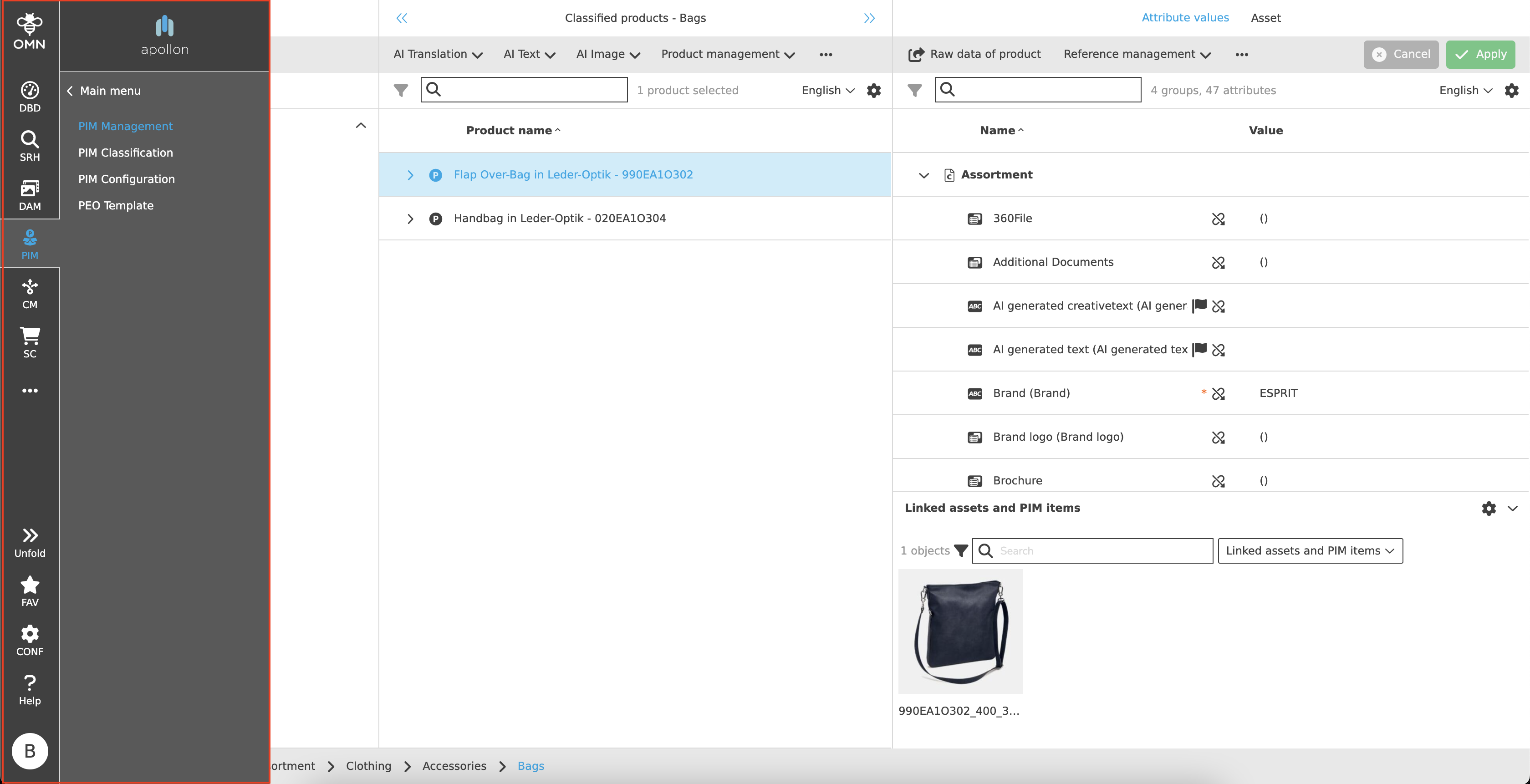
Each view is divided into three columns, as described in the general structure. The left column shows the classification nodes, and the middle and right columns are used for configuration, classification and maintenance of products. More details are given in the respective subchapters:
Configuration View
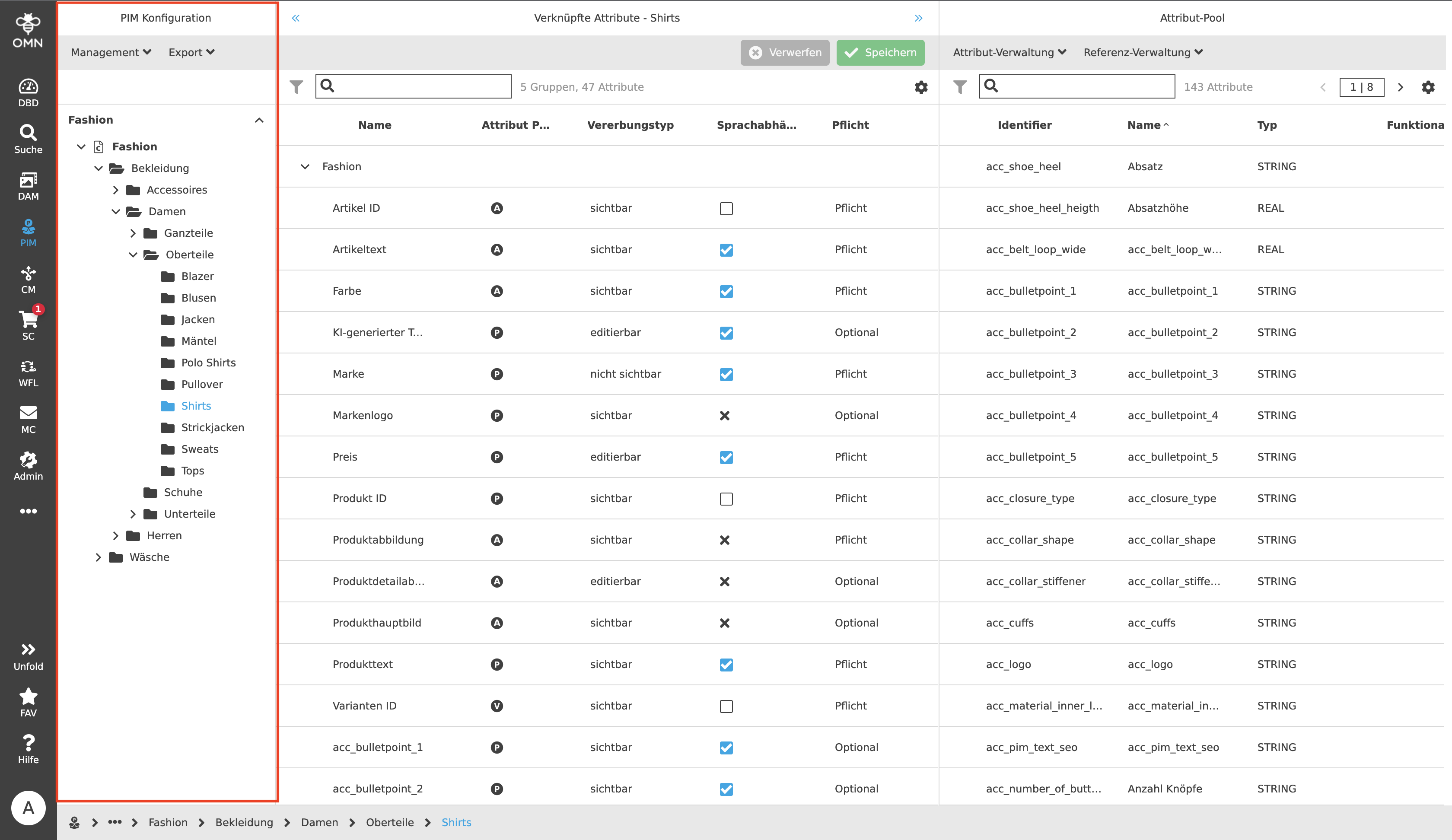
With the help of the configuration view attributes can be created and linked. In the left column of the configuration view the classes can be administered in the classification nodes. Here the creation of nodes and subnodes is possible.
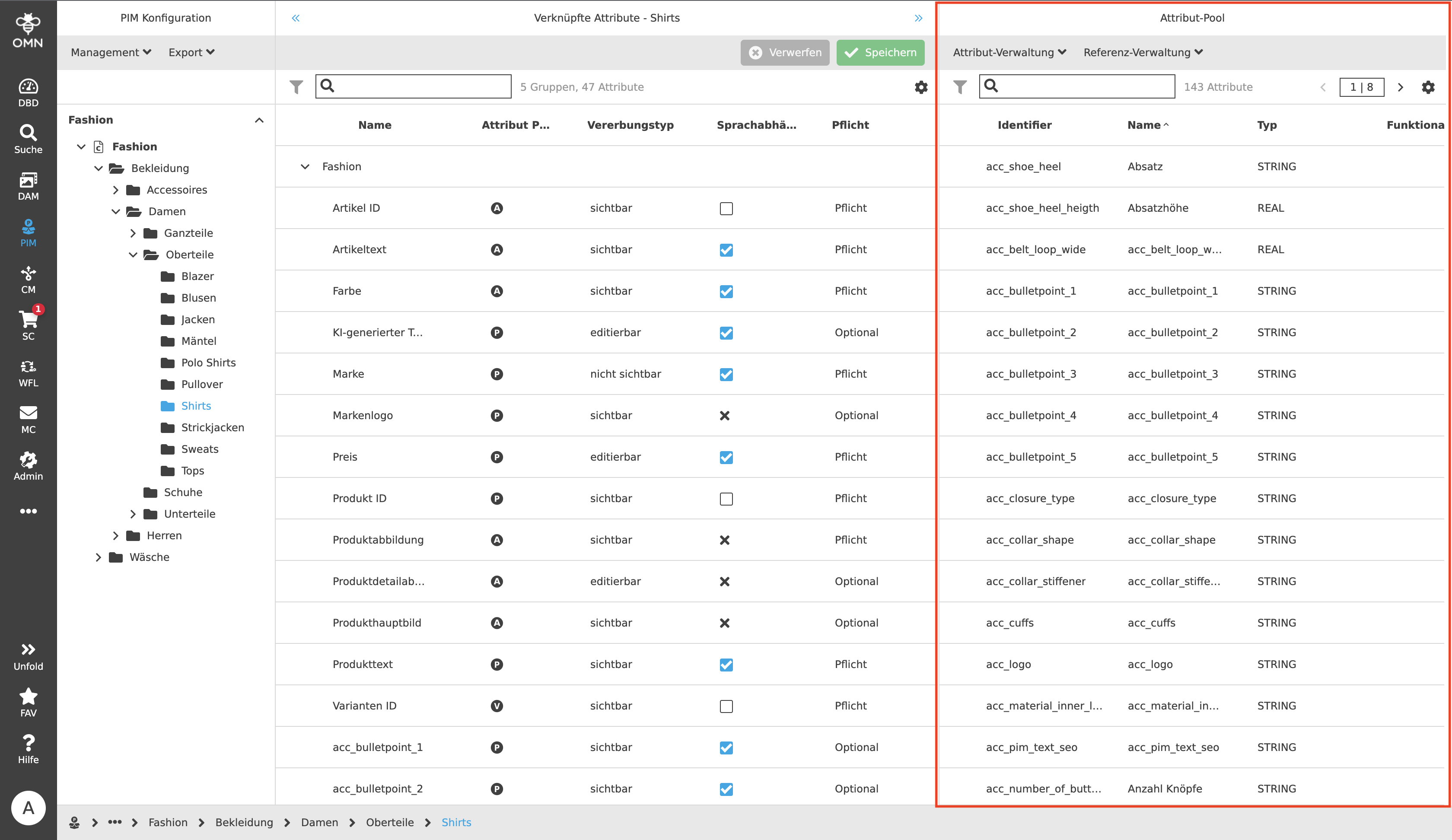
In the right column "Attribute Pool" attribute definitions (independent of the assigned classes) can be viewed and changed. New attributes can also be created and existing ones deleted. If an attribute is newly created under "Add Attribute Definition", it must be assigned to a specific type, which generates one of the following input fields:
-
String: For filling text fields
-
Real: For adding numerical values
-
Date: Allows the input of a date
-
Boolean: If there are only two choices like right or wrong, yes or no, with or without sleeve
-
Table: For the maintenance and structuring of attributes that need to be structured in more detail in columns and rows.
-
Reference Table: Used to link images or assets to products, articles or variants later in the maintenance view.
It should be noted that attributes can only be changed and deleted if they are no longer in use (i.e. assigned to a class). However, individual settings or characteristics are excluded from this. Changes made to the attribute in the center view do not apply to the right side (e.g. changes to the domain are not transferred to the right side). It works the other way round, if an attribute has already been assigned and changes are made later, these are not transferred to the attribute in the center view.
In the middle column, attributes can originate from the attribute pool, which can be assigned to the classification nodes. Furthermore, the behavior of the attributes, e.g. domains and behavior of the attributes, can be defined in the assignment to the node.
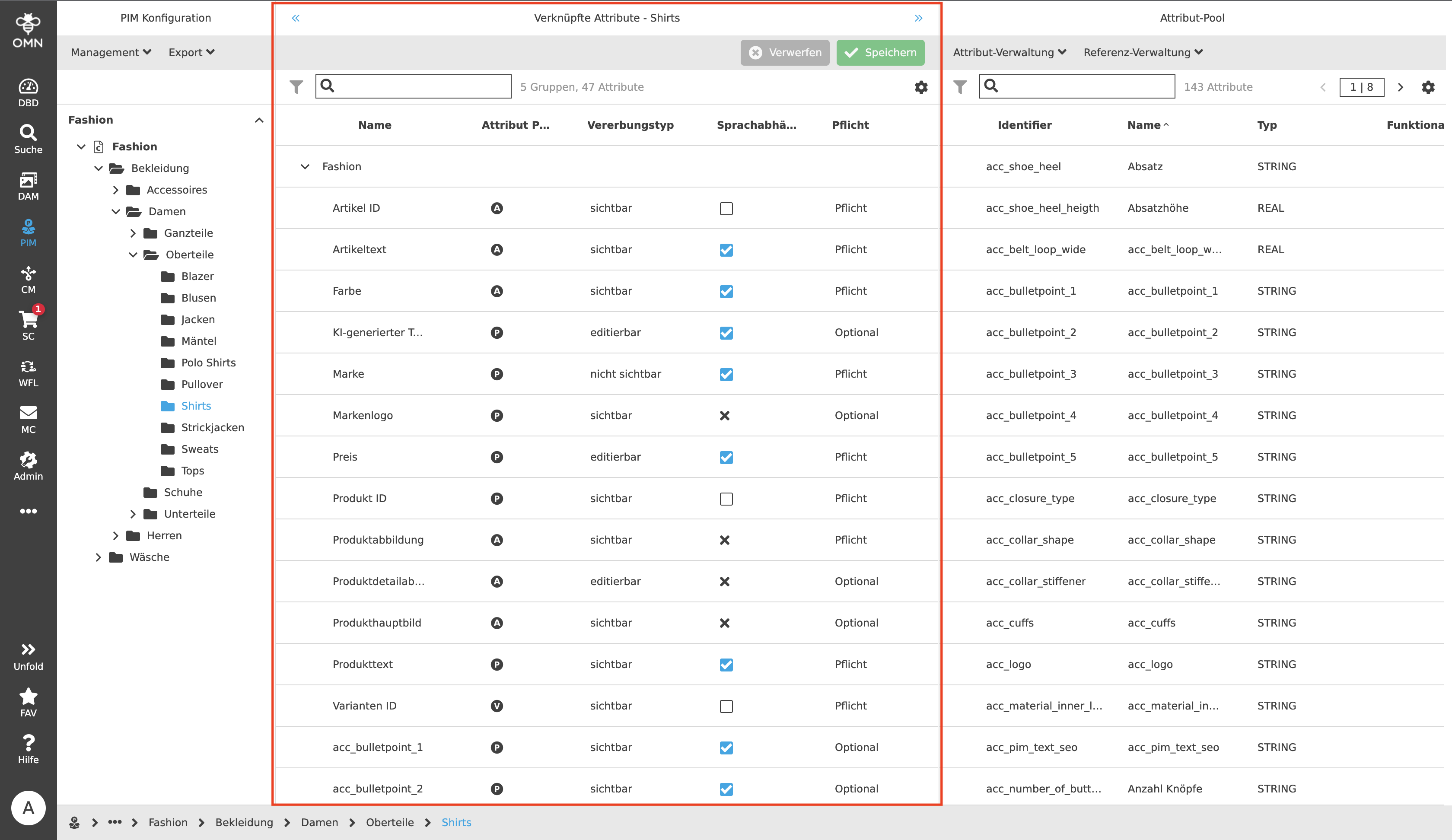
In order to be able to maintain the products later better, a specification of the attributes is necessary. This is done in the table of the configuration view by defining the attributes. The following configurations are possible:
Specialization of the product type:
-
P (Product): Top level on which values are maintained at product level (e.g. name and item number of a shirt).
-
A (Article): Middle level between product and variant. Cannot be maintained at product level but only at item level (e.g. color of the shirt)
-
V (Variant): Bottom level and can therefore only be maintained at variant level (e.g. size of shirt).
-
Inheritance: Display on the deeper levels:
-
Visible: attribute is displayed in deeper levels
-
Not visible: Attribute is not displayed in deeper layers
-
Editable: attribute is displayed in deeper levels and can be edited
-
-
Language dependency:
-
Yes (means "true" and is a checked checkbox): a value can be inserted for all languages available in the system.
-
No (means "false" and is an empty checkbox): attribute is maintained only in the default language
-
-
Domains: Are characteristics of a product such as different patterns of a shirt: houndstooth, herringbone, stripes, pinstripes, etc.
-
Mandatory character of the attribute:
-
Optional: Attribute can be edited (no marking)
-
Required: Attribute should be edited, hint when saving if not filled (is marked as orange asterisk)
-
Mandatory: Attribute must be edited, saving only possible if filled (is marked as red asterisk)
-
Classification View
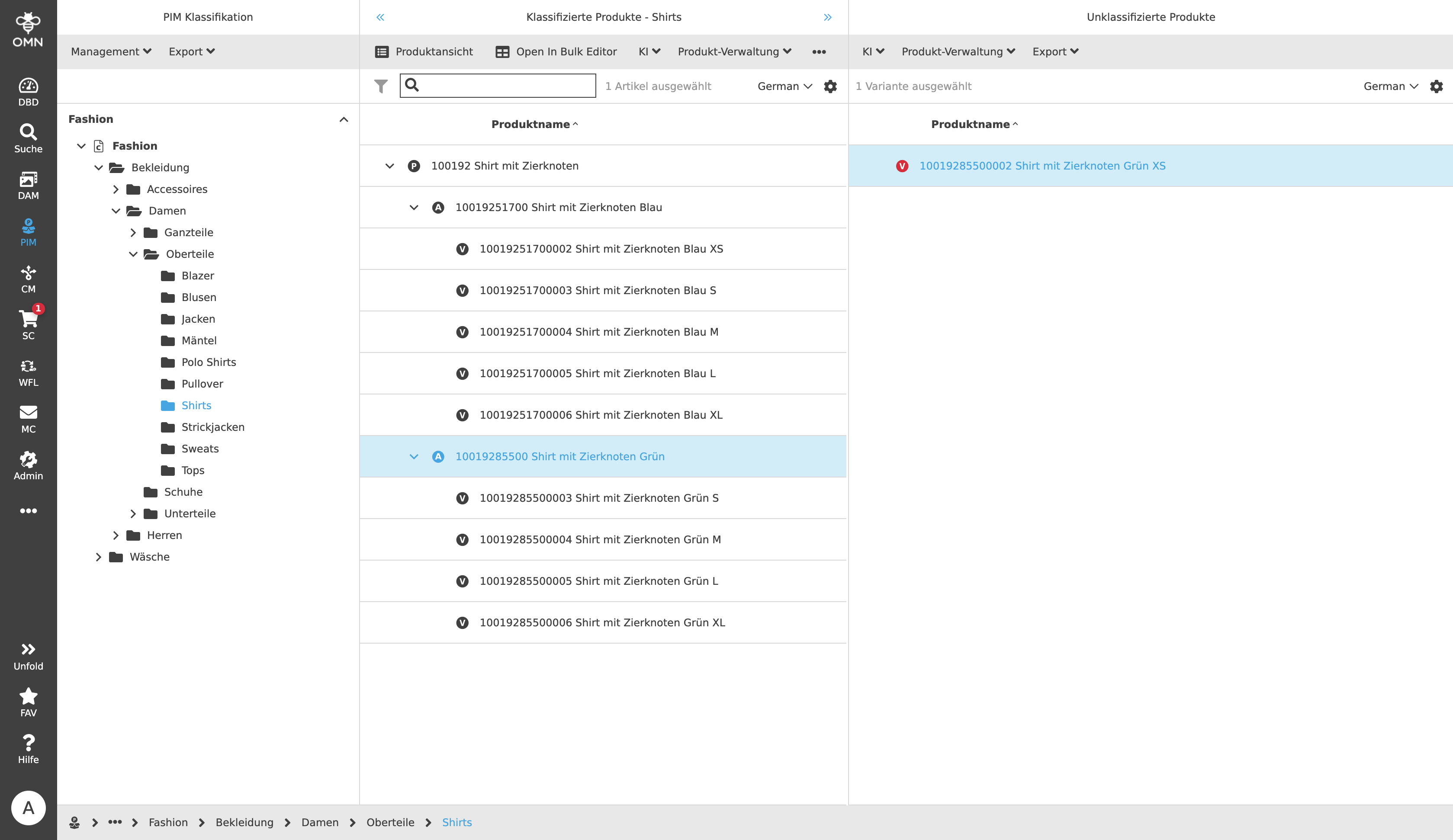
The classification view allows users to classify products from the pool of unclassified products by drag and drop. New classified and unclassified products, articles and variants can be created, and the classification of already classified products can be changed. In the left column the classification is shown with its nodes. Using this structure, these can be selected and made visible in the middle column. There the classified products of the selected node are available.
In the right column all unclassified products are shown. This can either be due to the fact that they were freshly imported from the ERP system without information about the correct class, or because a user has removed the link to the class.
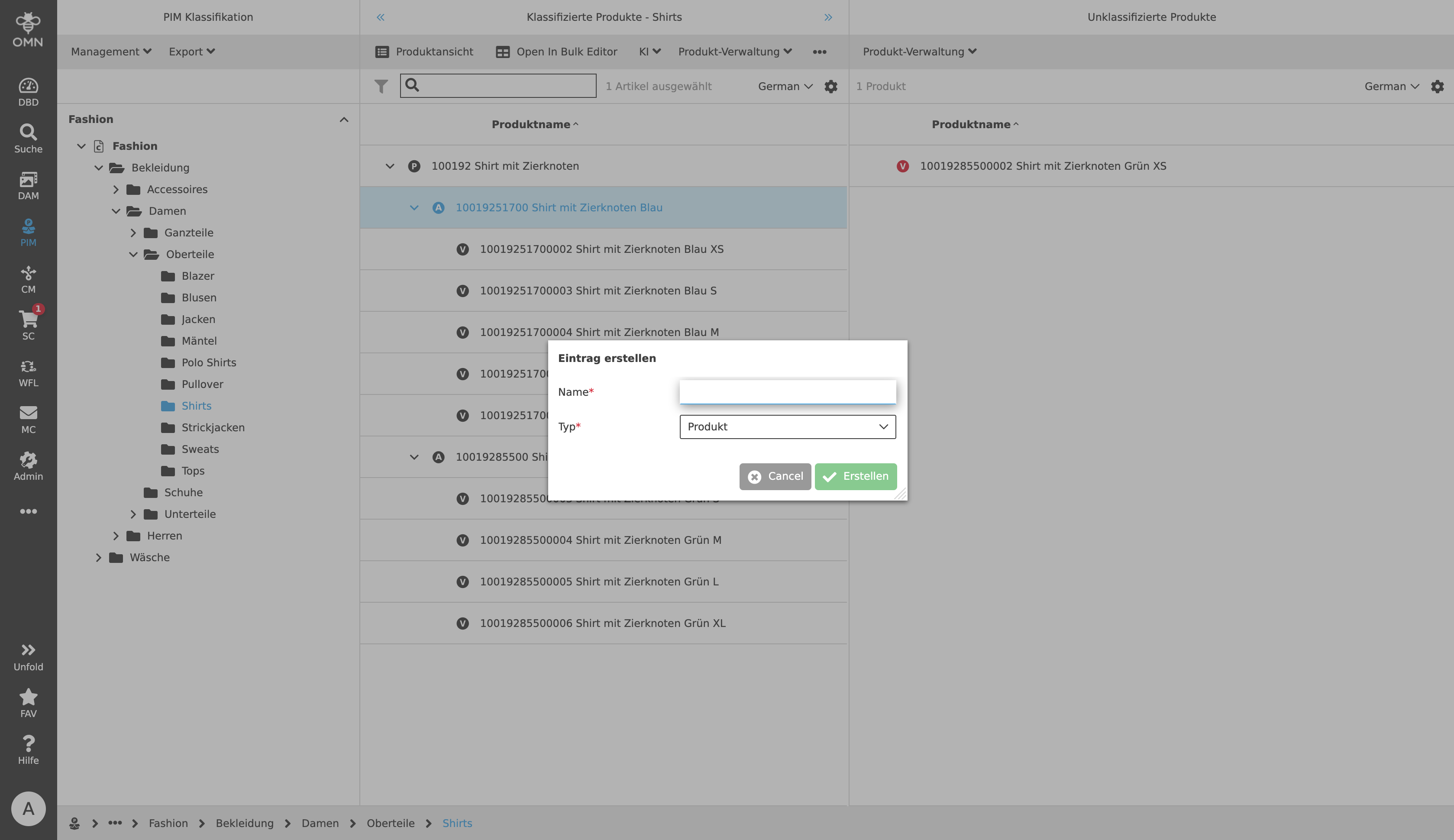
Classification is possible by drag and drop. To do this, the user simply has to drag the unclassified product to the desired class in the left column to make it a classified one. Associated articles are automatically classified as well. If an article or variant does not have a parent product ("Parent-Object"), the user will automatically be notified and the product will be created automatically after assigning a unique name. A unique name means that the assigned product name may only exist once.
The direct link between class and object must always be the "product" level. It is not allowed to link articles or variants without a product to the classes. The product name serves as identification within the system and must therefore be unique.
Management View
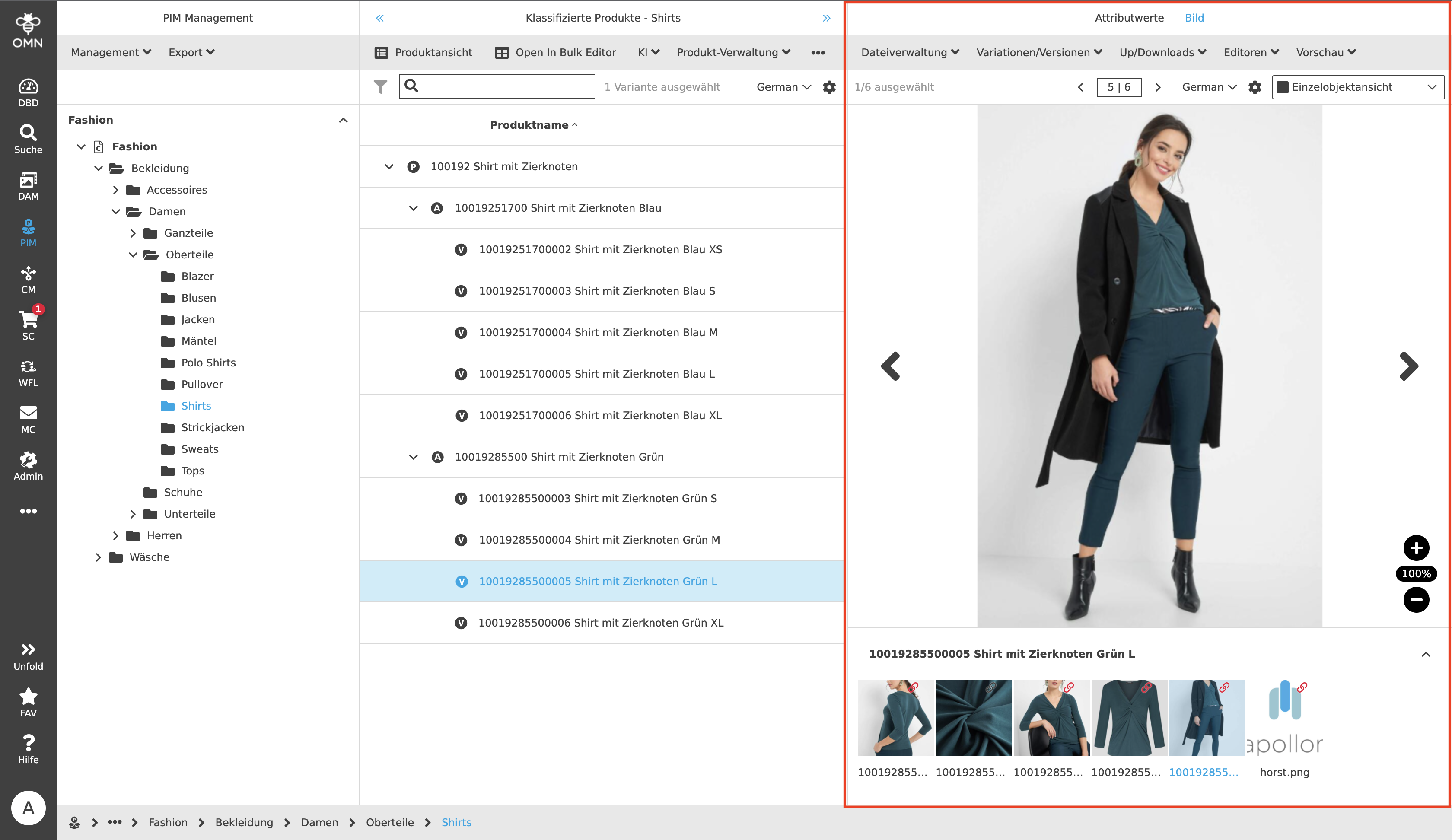
Using the Management View, PIM users can easily and directly maintain the attributes of the products/articles/variants in the right column. In the left column, as in the classification view, the classifications of their nodes are visible.
In the middle column, the products, articles and variants of a selected node of the left view can be selected in a hierarchical and grouped display (expand and collapse possible). Furthermore, various functions and editors such as the product view, the bulk editor, AI services, product management and export functions can be executed via the toolbar.
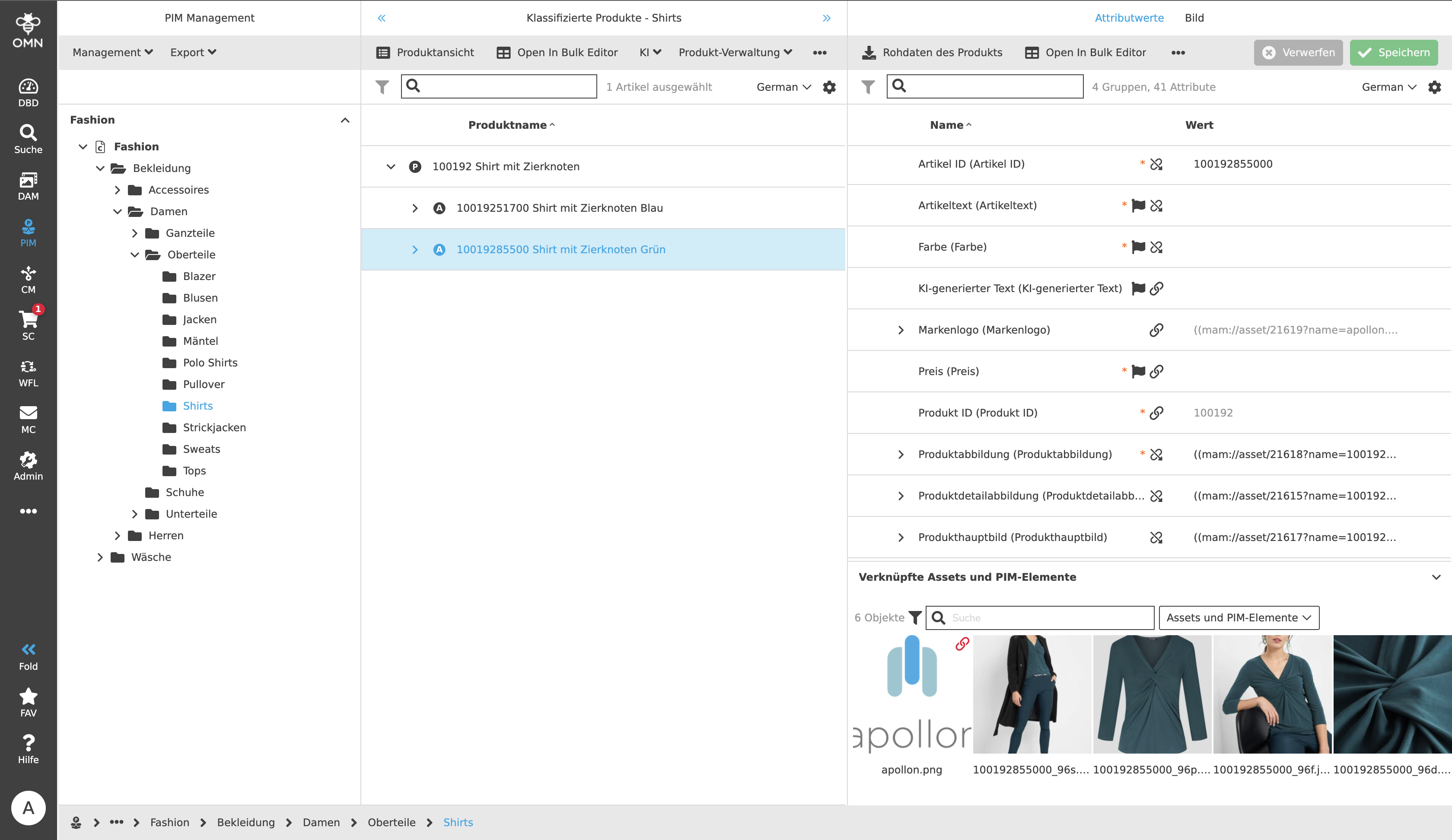
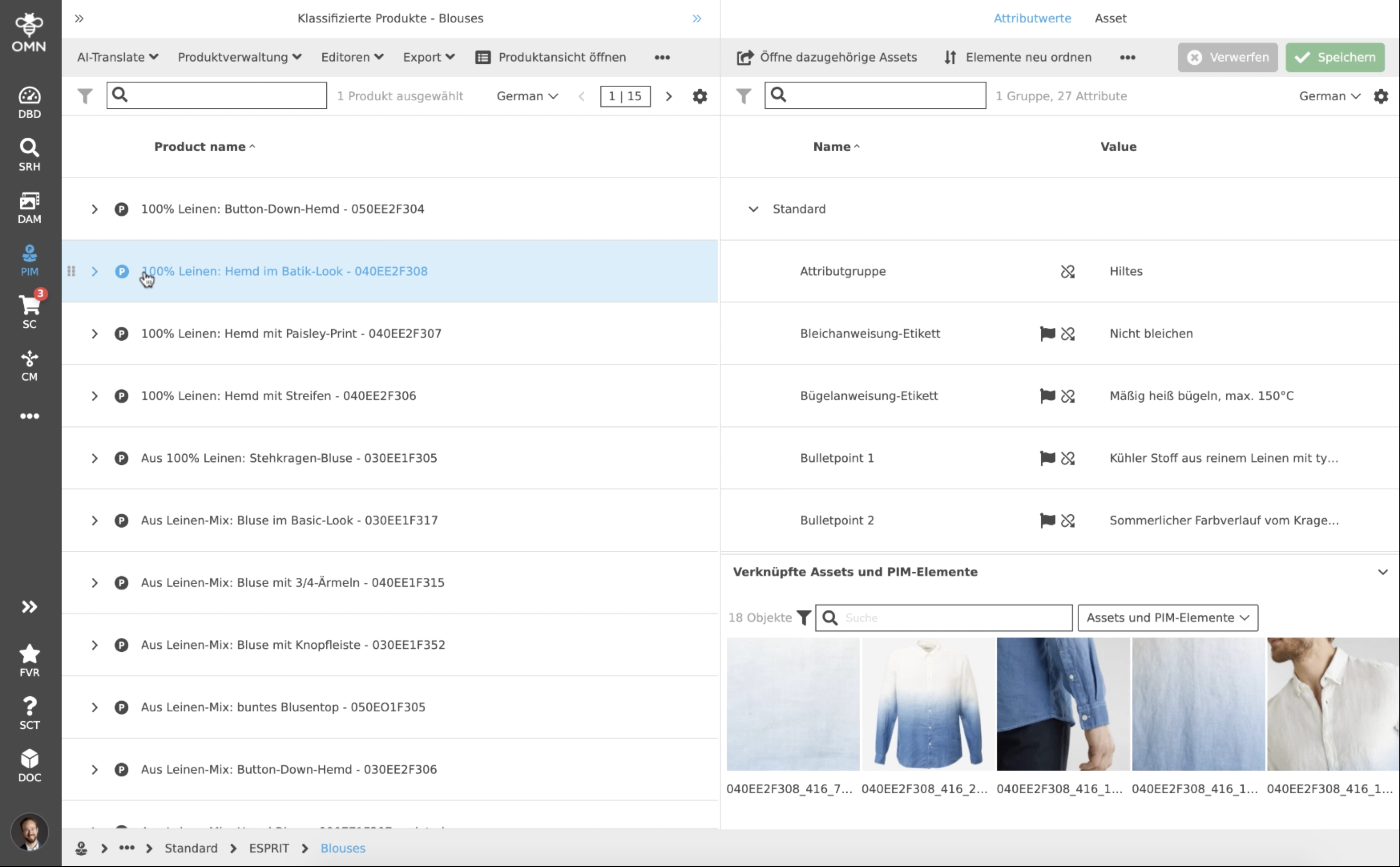
In the right column, the classified attributes are visible and editable (depending on the selected inheritance). Via the flag symbol it is quickly visible for each attribute whether it is a language-dependent field. The language selection (content language) is done via the dropdown in the upper right corner. Text and numerical values can be entered directly into the input fields. Saving should take place regularly via the green "Save" button.
In the lower area of the right column, the referenced objects (assets or articles) can be viewed. These can be previews of main, secondary images or linked articles (such as spare parts, similar articles), which are displayed with a "link icon".
Template View
In the Template View, users can configure the rejection of products/articles in defined channels, e.g. print rejection or web store, by creating PEO templates. The PEO templates can be created in the Left View. In the Center View the attribute settings can be adjusted for each template and the behavior (PEO behavior) can be set.
A PEO (Product Export Options) is a "filter" over the complete article data master. Only the explicitly allowed attributes are transferred to the target channel. This reduces the amount of data and ensures that sensitive attributes are not transferred to every channel. In addition, it is possible to specify per attribute and channel which attributes are transferred 1:1 (read-only) and which may still be edited per channel in deviation from the article master.