User profile
In the user profile, users can edit their personal user data (profile image, personal data) or change their password.
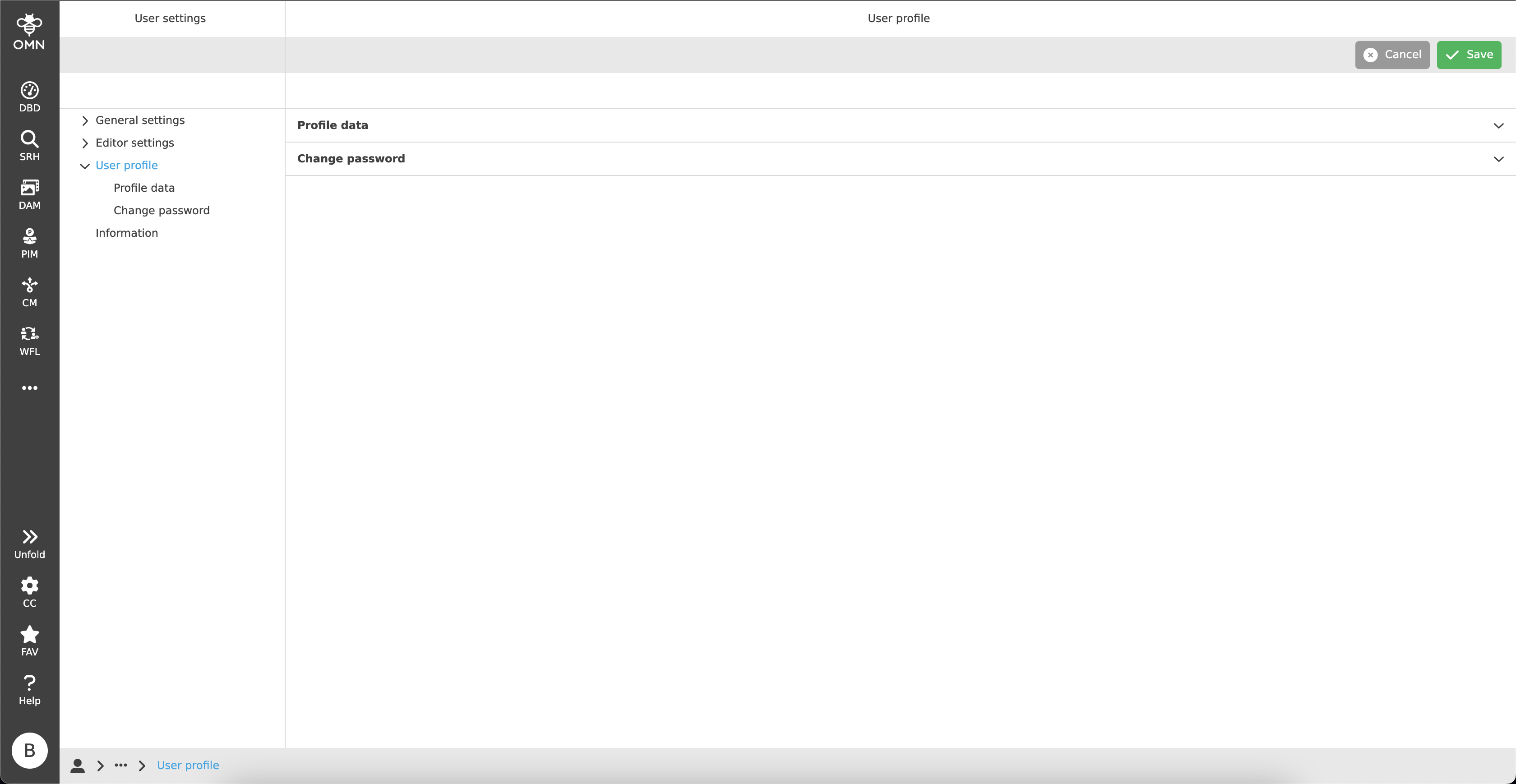
Profile data
Within the profile data, users can view and manage their personal data.
For this purpose, there are some fields (for example, the name, e-mail address, etc.) that can be edited.
Afterwards, all changes can be saved by clicking on the "Save" button in the toolbar.
The login name is fixed and therefore cannot be changed.
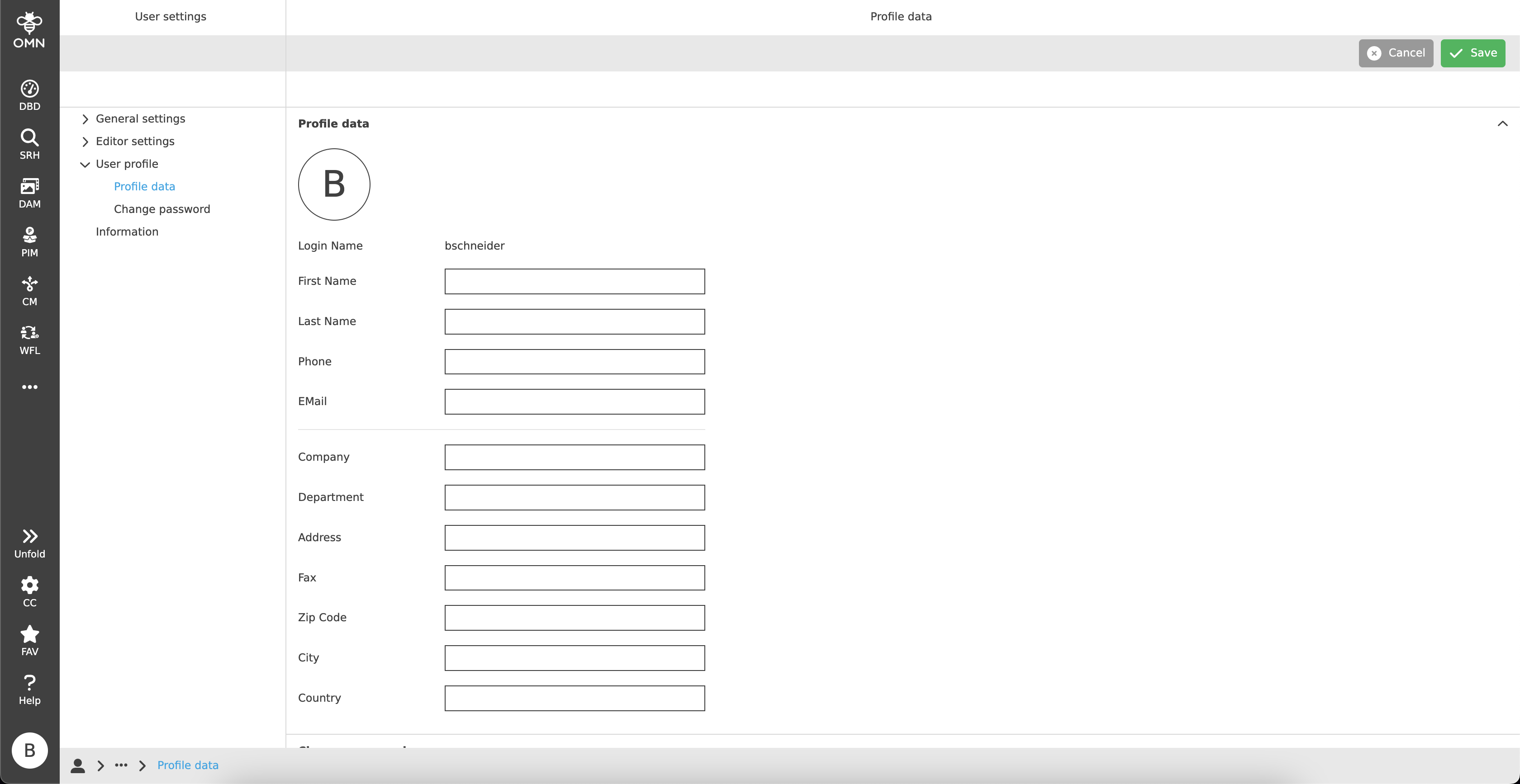
Additionally, each user has a predefined profile picture.
By default, this consists of the user’s initials and can be exchanged for their own profile picture if desired.
To do this, users must click on the circle with the initials. This opens an upload window where the desired picture can be uploaded and inserted.
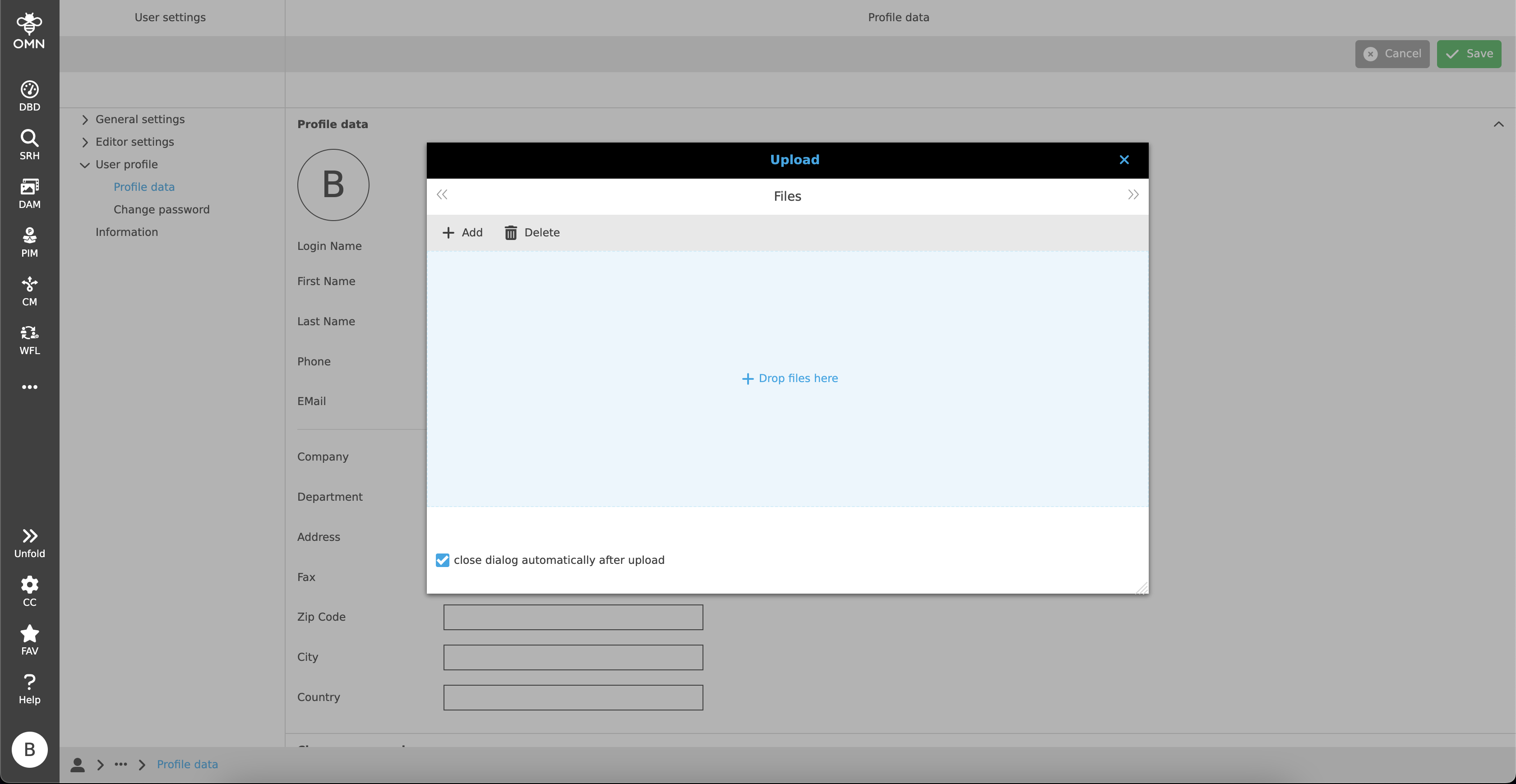
To edit or delete the assigned profile picture afterwards, the user has to hover over the profile picture. If he does so, he can upload another profile picture with the help of a pencil icon and delete the profile picture with the trash can icon.
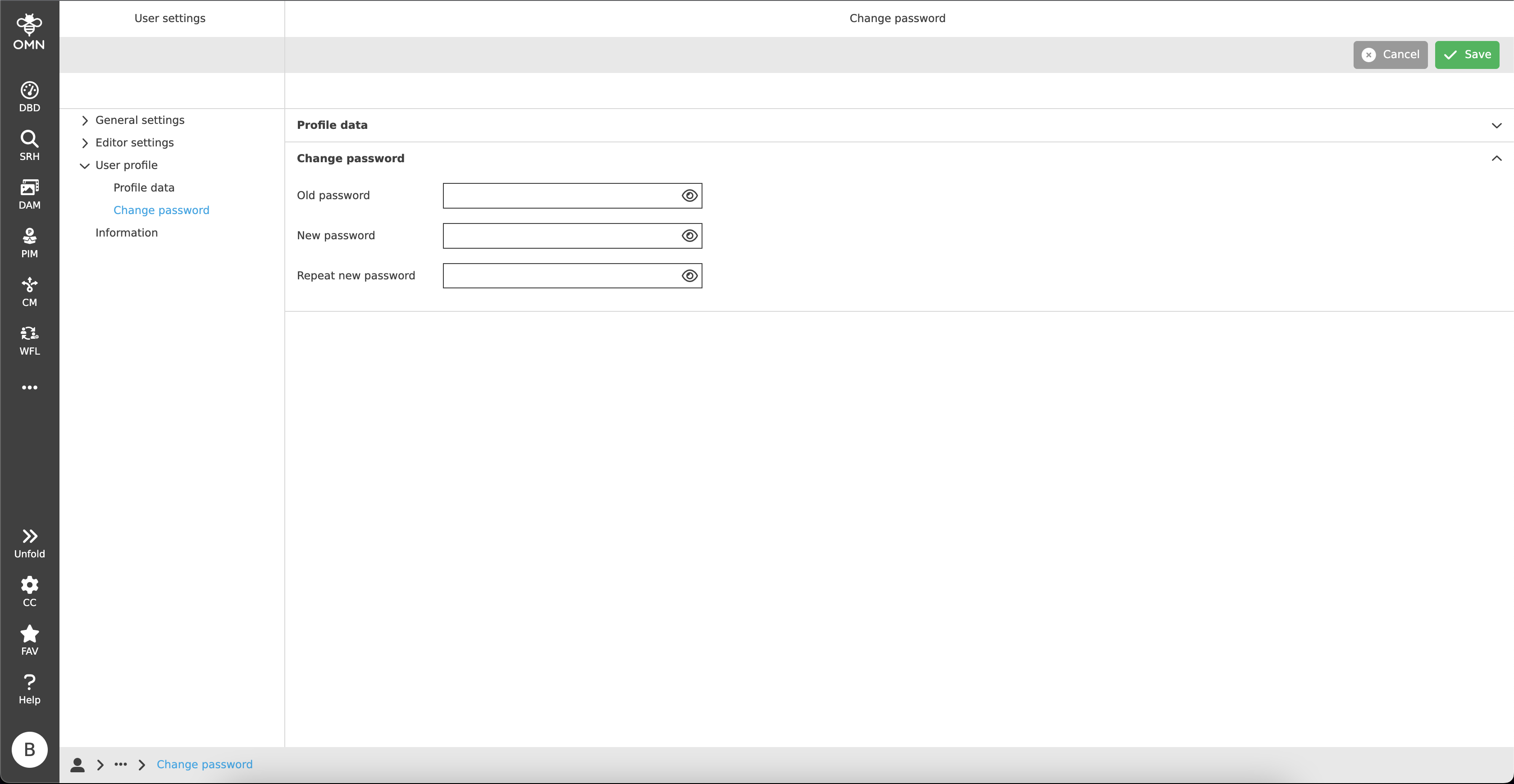
Change password
In the "Change password" area, the user can create a new password.
To do this, the old password must first be entered and the new password entered twice below it.
With the help of the "eye" icon, the respective fields can be made visible.
For security reasons, this setting is deactivated by default.
Then the user must click on "Save" in the toolbar to save the changes.