Configuration Automatic Linking and Tagging
For configuring an automatic process on files based on specific rules to:
— Link asset to existing PIM objects
— Tag images by extracting information from the file and write it to MAM object metadata
-
Access the configuration via Mandators → <Mandator name> → Application modules → MAM → Automatic Asset Linker and Tagger
Requirement Linker and Tagger
-
see OMN Plugin for Automatic Image linking to PIM products and tagging
-
Example set of rules using the AGS as an example AGS: Specification Automatic image linking with article and keywording
-
Example test cases using AGS as an example AGS: Testcase - image linking and tagging
Backend configuration settings - Asset locations for automatic tagging and linking
The admin has the possibility to configure multiple asset locations in MAM (RNC+path) in form of a table.
For each asset location he can configure, if configured area is relevant for automatic linking and / or automatic tagging and give the configuration a name (location name).
E.g. Backend-Admin will configure, that in RNC "digistoff", asset with type JPG+TIF should be linked but not tagged. He gives the configuration the name "digistoff".
Furthermore, the admin is able to specify allowed/ relevant file types, in each configured asset location which should be taken into account.
Furthermore, he can filter files and folders from processing by definition of filename pattern on base of regular expression (e.g. only files which contain term EAN in filename) or exclude folders (folder names are separated by ",")

-
Location name:
-
The name of the configuration. Usually it will be renamed with the name of the content of the configured RNC.
-
The name must be unique
-
-
RNC: selector for configured root nodes of the mandator
-
Relative path: Selector for path within the selected rootnode
-
Automatic Linking: boolean attribute . If Value is set to YES, location name is configured for automatic linking. In this case linking rules must be configured
-
Automatic Tagging: boolean attribute . If Value is set to YES, location name is configured for automatic tagging. In this case tagging rules must be configured
-
Allowed file extensions:
-
configuration of file-Suffixes which are used to identify file type.
-
example: if file type is set to jpg, only jpg Files will be used for automatic tagging and linking in the configured location
-
it is possible to define more than one suffix, list of suffix separated by "/". case sensitiveness should be considered
-
-
Allowed file name pattern:
-
with allowed file name pattern, admin can specify, that files must fulfill a special naming convention, e.g. filename must contain a fixed termin like DSM.
-
file name pattern are defined on base of regular expressions
-
-
Exclude folder:
-
with exclude folders configuration, the backend admin can exclude files, which are stored in specific folders and must not be considered for tagging and linking.
-
it is possible to define multiple folders separated by ;
-

work with multiple files
-
File types separated with / ( not with , )
-
Excluded folders with ;
-
Input is not case-sensitive
Execution types of tagging and linking
The admin can configure allowed execution types for tagging and linking
The following types are available.

-
Execution allowed by:
-
automatic: on interval:
-
This execution type allows to process tagging and linking periodically on intervals.
-
The interval can be defined
-
in hours (the admin will set a number like 2, the routine will run every 2 hours)
-
at specific hour (the admin will set a time like 23:23 in 24h Format), the routine will then run every day at specified hour)
-
-
-
from external application:
-
This execution type allows to start the routine by external service for a specific element (e.g. a PIM product import should trigger the linking process for imported articles)
-
example: a PIM import routine need to import article 123456 and should search, if corresponding image is available in specific RNCs.
-
The external routine should be able to address specific configurations (1..n) from asset location table (see requirement 1) by using the location name as parameter.
-
-
manual on file/folder (function):
-
if this function is set, the user is able to execute tagging and linking function in OMN frontend
-
in this case the function can be executed on asset object (File or folder) - see requirement - manual execution of automatic linking and tagging
-
if the admin has configured the function plugin for asset linking and tagging in navigation plugin, but not allowed manual file/folder execution in configuration of execution types, the frontend user will be informed by frontend notification that he is not allowed to execute automatic tagging and linking after he has triggered the function (including information about the reason, why execution of this feature is not allowed).
-
-
Backend configuration settings - Linking
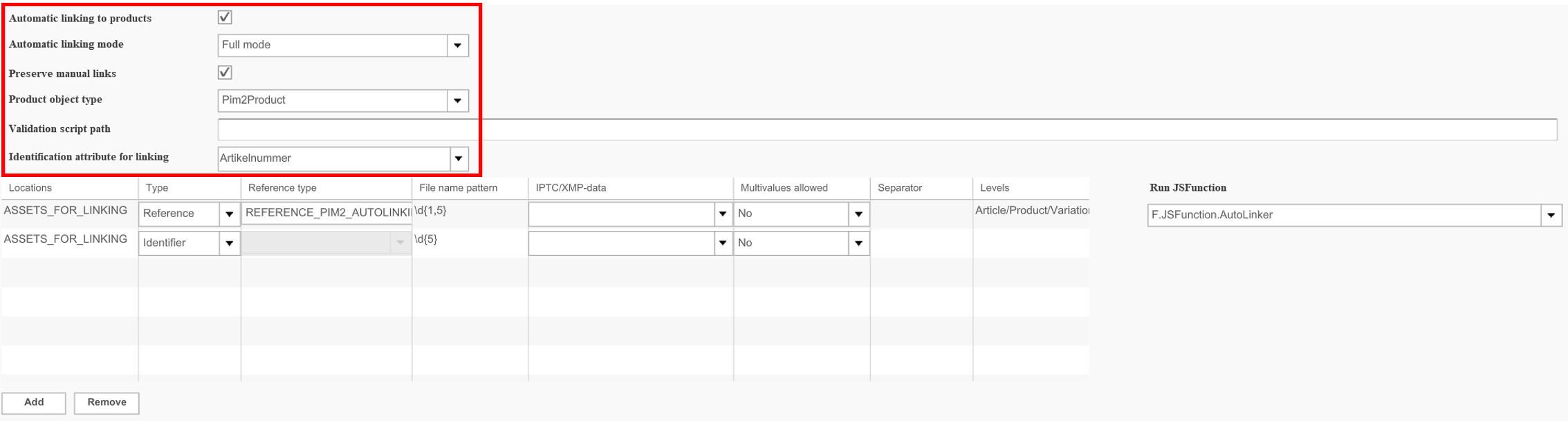
The backend admin can configure specific rules for automatic linking of assets to PIM products.
The configuration is mostly aligned to configuration of rules in F.Upload plugin
-
Automatic linking to products:
-
checkbox activates automatic linking to products and its rules
-
further preconditions for execution:
-
asset location is configured with Automatic linking = yes
-
at least one execution type is set
-
-
-
Automatic linking modes: modes for tagging and linking
-
In case of reprocessing but also in case of first processing an image can already have tags and links
-
created by image tagger plugin automatically
-
created manually by the user in frontend
-
-
The global configuration of image linker and tagger should be extended to manage the following modes for tagging and linking. The following options are available
-
| rule for linking | outcome |
|---|---|
full mode |
if this option is set, existing linking will be reset, before file will be reprocessed if option preserve manual links is set, only links are reset created by image tagger plugin before |
differential mode |
if this option is set, only tag values are touched which must be changed according to configuration -see example under area questions |
-
Preserve manual links: manual set links will not be touched by image linker and tagger
-
Product object type:
-
backend admin can configure, if asset with be linked to PIM 1 or PIM 2 products.
-
This configuration is relevant, which reference types will be shown in Rules table
-
-
Validation script path:
-
Script path, where validation script can be placed, if article for corresponding image was found/exists
-
With validation script it can be checked, if corresponding Product/ article exists in PIM.
-
For searching within the script, the (PIM) identification attribute for linking is used to find the product/article.
-
The value of this attribute used for searching must come from configuration of Rules with type = identifier, which defines where to find the key attribute value in file name or IPTC/XMP field
-
e.g. key attribute is PIM attribute EAN, in the asset, The ean Number is the first 8 digits of the filename
-
-
Identification attribute for linking: selection of PIM attribute (from selected product object type) which is used as the key to find the product / article (e.g. "ARTICLENR")
With the rule table for automatic linking, the backend admin can configure rules for automatic linking:

-
Locations:
-
selector for location name configuration (req#1) for which the linking rules are configured/used
-
it is possible to select multiple location names
-
-
Type:
-
defines, if the extracted information from filename / IPTC attribute is the identifier information for linking assets or reference information
-
type = identifier
-
reference type: selector is not available / can not be selected
-
filename pattern: can be defined on base of regular expressions (example: reference information is part of filename for instance the first 4 digits are representing the Article number). Specification of the key in the image name (type identifier e.g. ^\d{5} searches for the first 4 digits as number
-
IPTC/XMP: can be defined by giving the attribute name (e.g. if reference information is part of the metadata)
-
multi values allowed: defines, if there could be more than one identifier in the filename and /or IPTC/XMP metadata, which should be considered for linking (e.g. one image is showing 3 articles (model with shoes, a bag and a dress) and therefore the same image should be linked with 3 different articles (in this case there will be 3 identifiers)
-
Example: IPTC Field 1 is defined to be the metadata attribute, which contains the article numbers as identifier
-
if this fields contains several article numbers separated by "," multi value option must be set to allowed in order to consider all appearances for linking
-
if multi values is set to allowed, separator like "," , ";" , "/", "-" can be defined in the same dialog
-
-
Separator: if multi values is set to allowed, separator like "," , ";" , "/", "-" can be defined in the same dialog
-
levels: selector ist not available / can not be selected
-
-
type = reference
-
reference type: admin can select a configured (PIM) reference type by selector (selection depends on selected product object type)
-
filename pattern: admin can configure a regular expression to identify the reference information in the filename
-
IPTC / XMP data: admin can configure metadata field, to identify the reference information in the filename
-
multi values allowed: defines, if there could be more than one reference information in the filename / IPTC which should be considered for linking (eg. the image should be linked with 3 different reference types)
-
Example: IPTC Field 12 is defined to be the metadata attribute, which contains the reference type identifier - for instance VA which stands for Front View
-
if this fields contains several reference types separated by "," multi value option must be set to allowed in order to consider all appearances for linking
-
if multi values is set to allowed, separator like "," , ";" , "/", "-" can be defined in the same dialog
-
-
Separator: if multi values is set to allowed, separator like "," , ";" , "/", "-" can be defined in the same dialog
-
levels: selector, if the image should be linked to product / article or variant level (available levels depends on selected product object type and is showing only available levels for selected attribute). E.g. Default is linked on product level
-
-
-
Run JSFunction:
-
With the JS function, the admin can select a script which should be run, when configured rule will match.
-
The existing script from uploadclient to link objects to products should be available by default
-

Note: if multiple images with the Default type are attached to the product, the cardinality is broken by the linker
| the JS-Function for linking must be stored in the system |
Rule values
With the help of rules values the backend admin can set further rules for linking, e.g. only link asset, if product state attribute has value "not approved"
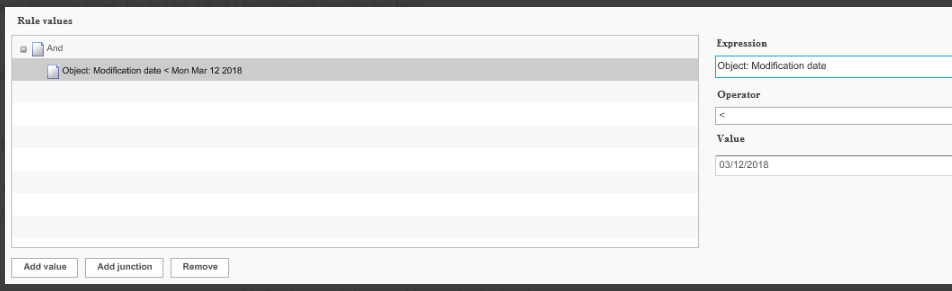
The rule configuration allows working with compare rules
-
if modification date is newer than image tagging /image linking date (req 2), set status to nonprocess / reprocess file
-
if modification data is ⇐ image tagging /image linking date, skip the file
The general aim of this rule is to reduce enduration time of image linking by focusing on files to be processed / reprocessed
In case of renaming a file it must not be processed immediately but in the configured tagging intervals.
By rule configuration the preprocessor will detect that modification date is newer than e.g. tagging date and set this file to reprocess
If the customer want to execute tagging immediately after renaming, he has to use the manual tagging function which is already implemented.
Backend configuration settings - Tagging
The backend admin can configure specific rules for automatic tagging of assets
The admin can configure rules for automatic tagging

The following can be set in the backend
-
Automatic tagging of assets:
-
checkbox activates automatic tagging for assets and its rules
-
further preconditions for execution
-
asset location is configured with Automatic tagging = yes
-
at least one execution type is set
-
-
-
Automatic tagging mode:
| rule for tagging | outcome |
|---|---|
full mode |
if this option is set, existing tag values will be reset, before file will be reprocessed if option preserve manual tags is set, only tag values are reset filled by image tagger plugin before |
differential mode |
if this option is set, only tag values are touched which must be changed according to configuration -see example under area questions |
-
Preserve manual tags: manual set tag values will not be touched by image linker and tagger processing / reprocessing
Also the following can be set in the table in the backend:

-
Tag identifier:
-
name of the rule configuration
-
the tag identifier should help the backend admin to identify the main purpose of tagging rule
-
-
Tag group:
-
name of tag group
-
the tag group is additional information which should help to group tag rules
-
-
Locations:
-
selector for location name configuration for which the linking rules are configured
-
it should be possible to select multiple location names, for example if same rules must be applied on several locations
-
-
Source information (file name):
-
This option is configured, if the source information for tagging is part of the filename of an asset
-
the identification of an information can be extracted on base of regular expression
-
Example: the first 6 digits are representing the article number
-
-
Source information (meta data):
-
This option is configured, if the source information for tagging is part of an IPTC/XMP attribute of an asset
-
the identification of an information can be extracted by defining the metadata field, in which the information can be found
-
Example: the first 6 digits are representing the article number and can be found in xmp attribute imageKorr:korr1
-
-
Mapping value:
-
it should be possible to define mapping values, if the value coming from file name or metadata cannot be used 1:1 but should be replaced by a value coming from a mapping table
-
example: file name pattern extraction searches for first 2 digits of the filename, but the value which should be used for tagging itself should be used from a mapping table
-
if the value found in filename is "VA", the mapping value "Vorderansicht should be used for tagging
-
if the value found in filename is "RA", the mapping value "Rückansicht should be used for tagging
-
-
-
Value:
-
with the value selector dialog, the backend admin can configure, if the original value found in filename or Metadata field will be taken 1:1, if a value from mapping table should be used
-
or if a static value should be used, if no source information is available
-
The following selections are possible
-
source (filename): content from the filename will be used, which is extracted with source information file name pattern
-
source (metadata): content from metadata will be used, which is extracted with source information (metadata)
-
source (mapping table): mapping value from mapping table will be used
-
static:
-
it there is no source information which can be considered, it is possible to use a static value
-
Static values can be used, to tag images without any source information: e.g. tag all files from asset location "Logo" with specialization attribute "Logo"
-
the value itself will be taken from default value
-
-
-
-
Default value:
-
admin can define a default value, which will be used, if file doesn’t match the rule or value type = static
-
example 1 : if file name contains the abbreviation "OUT" , OMN attribute outline should be set to TRUE, otherwise value default should be used
-
example 2 all files in a configured location should be tagged with one static value (e.g. mark all files in Logo folder as
-
-
-
Object type:
-
admin can define the object type, where the metadata attribute which should be used for tagging can be found
-
following object types should be available
-
isy object
-
isy image
-
isy document
-
isy file
-
-
-
Specialization:
-
defines the specialization for the selected object type, in which the metadata attribute which should be used for tagging can be found.
-
standard is set to <default>
-
| Specialization is only available in PIM1. In PIM2 we have to use level P/A/V of "PIM2Product". |
-
OMN attribute identifier:
-
selector for the expression / OMN attribute for selected object type and specialization

-
this attribute will be used for tagging
-
In the following there are some configuration examples:
-
Line 1: static value based on folder
-
Line 2 : Occurrence of a string, if string exists, mapping value is to be set e.g. VA.
-
It is important that the same regular expression is used for the mapping value before the = character as in the source information
-
-
Line 3: Occurrence of 8 characters in a row and writing into a field e.g. \d{8}
-
Line 4: Occurrence of 5 characters at the beginning and writing into a field e.g. ^\d{5}
-
Line 5 occurrences of v + 2 numbers _v\d{2}\. If rule applies, Default Value is to be set off-corrected

-
set checkboxes

-
for cases like this a location should be created with a corresponding regex, because the Source information column is not used for Static values.

Specification of XMP / IPTC fields

Rules usage

-
no use of filters for file modification date (OMN-4876)
-
For automation linking there is a rule configured that only Product should be considered which FILE_MODIFICATION_DATE is greater than 23.08.2018. Problem is Products does not have a FILE_MODIFICATION_DATE in DB it is always set to NULL. Therefore no product is returned, even if it exists for the specified article number. The right field to use for check is MODIFICATION_DATE
-
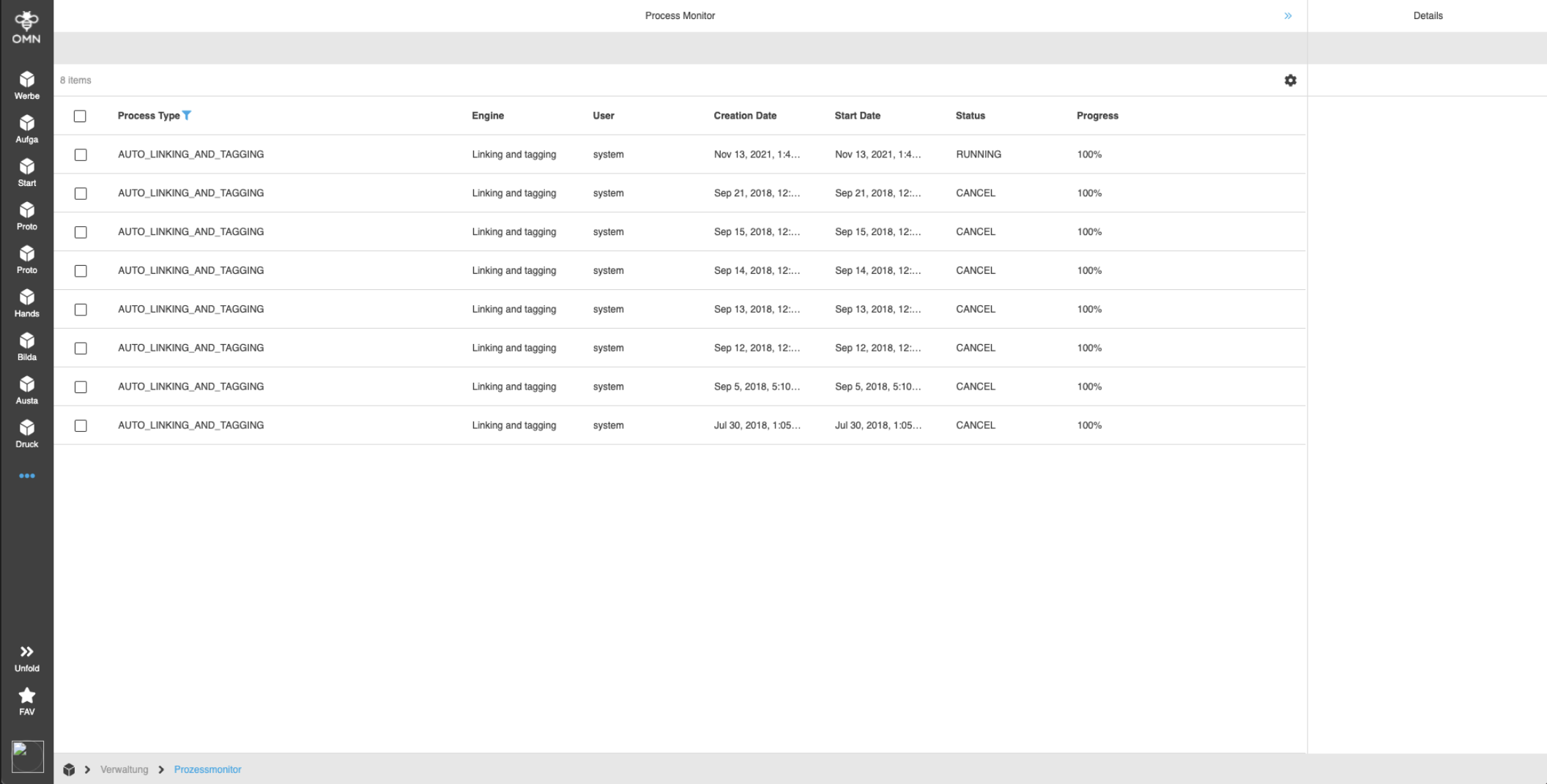
Show in the process monitor
Show in process monitor:
-
If the option is activated, asset tagging and linking processes can be displayed in standard monitor client.
-
Therefore new process types "Auto linking and tagging" were introduced which are then selectable in process monitor with attribute processtype
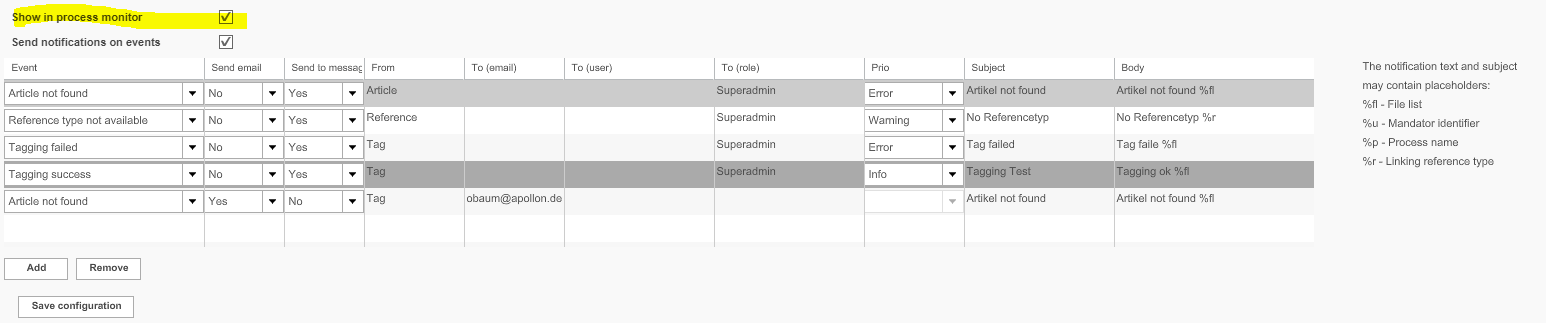
Linking and Tagging must be selected in the Process Monitor plugin

There is also an option to show processes which are restricted for the current user:
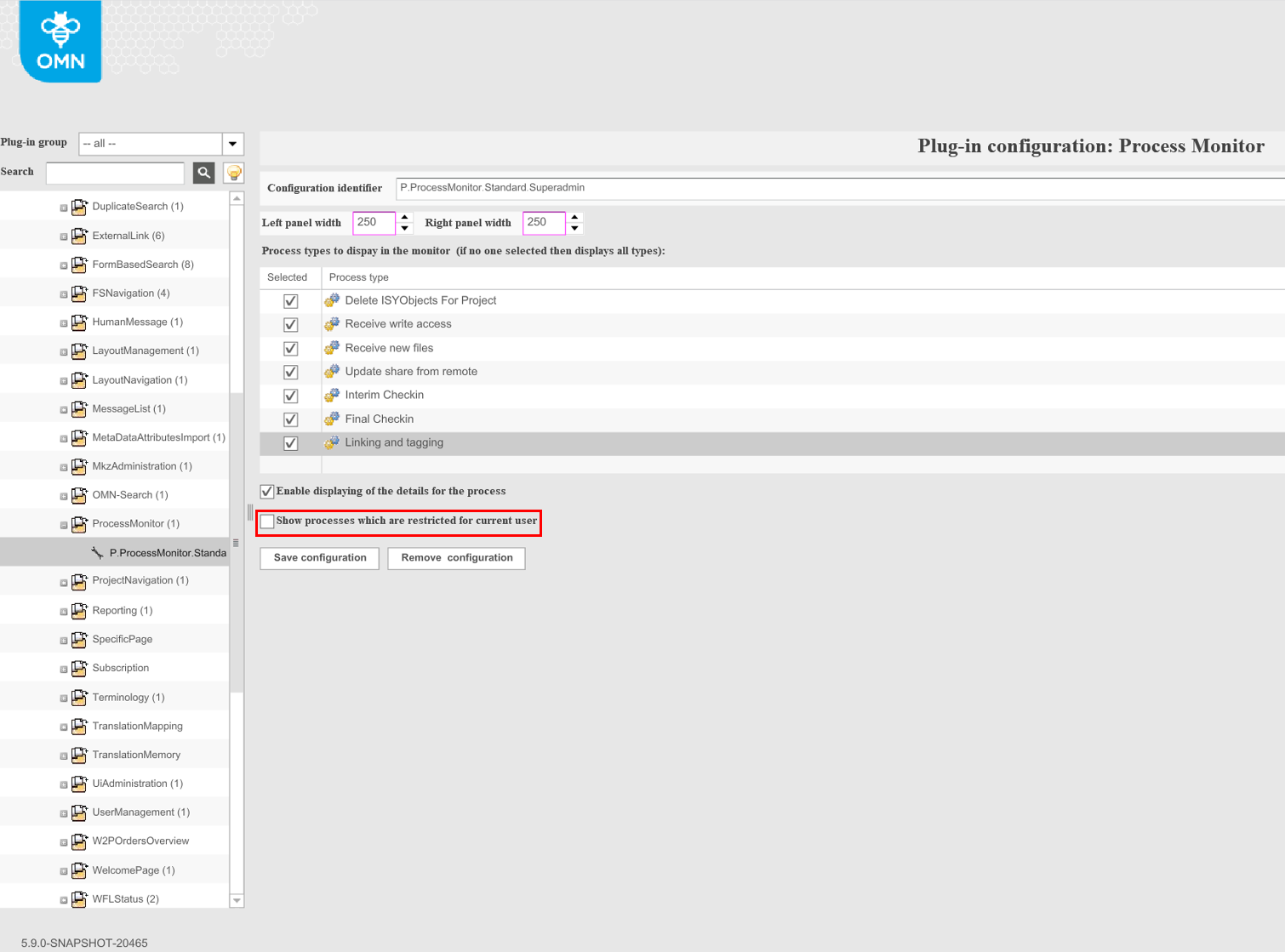
The process status is displayed in the process monitor (frontend) (always a running process)
Messaging

-
Send notifications on events:
-
It is possible to inform about certain activities of tagging and linking processes with notifications
-
The notification should be able to allow sending direct notifications for defined events or sending notifications to omn message client
-
-
Event: name of the event, for which notification should be sent
-
Send email:
-
if attribute "send email" is set to yes, email will be sent to (email) addresses on base of attributes
-
from
-
to (email)
-
subject
-
-
-
Send to message client:
-
if attribute "send to message client" is set to yes, notification will be sent to (users) and/or to(roles) on base of attributes
-
from
-
to (email) selector for the OMN user
-
to (role) selector for the OMN role
-
Prio
-
Subject
-
-
-
From:
-
name of the process which sends the message
-
in case of message is sent to notification client
-
"from " will be used as sender plugin
-

-
-
To (email):
-
in case of sending an email message, it will be sent to specified (1..n email addresses) configured in this dialogue.
-
Email addresses must be separated by ;
-
-
To (user): Selector for 1..n OMN users, who should receive the message in message client
-
To (role): Selector for 1..n OMN roles, who should receive the message in message client
-
Prio: Selector if message is from type Info, Warning or Error
-
Subject: Subject of the message
-
Body:
-
Body text of the message
-
it is allowed to work with placeholders, where as following placeholders should be available
-
%f file
-
%fl list
-
%location name
-
% process name (tagging or linking)
-
%identifier (linking)
-
%reference type (linking)
-
%tag identifier (tagging)
-
-
Manual execution linking
If execution type is set to manually, the frontend user can execute automatic tagging and linking in frontend if the corresponding Function plugin is configured.
The new Function plugin therefore can be configured in FSNavigation for FS Table
Tagging/linking can be performed manually on one or more files

The following JS script must be available for this:
logger.info("LINKING START") var linkApi = entryFacade.lookupBean( "AutomationLinkingFacade" ); linkApi.processObjects(objectIds, mandatorId);


User settings
The automatic linking process is executed in the background and there is no real logged-in user, but some parts of Suite/MAM API require a logged-in user e.g. to take user roles and calculate ARs. So in our case before the start of the linking process - a system login is invoked (this is part of Suite core) and as a result this user is used to calculate ARs during search of objects.
So we analyzed 3 systems (ap-omn-test-rh6-03, ap-omn-test-rh6-04, local one) with different DB dumps, but with the same sources and found that problem was reproduced only on ap-omn-test-rh6-03, where Oracle DB engine is used. After detailed investigation and remote debug of the system, it was detected that it is not a DB specific problem, but a configuration related one.
There is the rule 'Admin_See_All' which allows users from the selected roles (e.g. Frontend Administrator) to see all files. It means that only users from the selected roles will see all files. The user 'system' does not belong to the selected roles and as a result files could not be found.
There are 2 ways how to solve it:
1) Add user 'system' to administrative roles
2) Make rule 'Admin_See_All' as global mandator rule.
The 2-nd configuration can be applied to test system, but not for production one because everybody can see everything.
Setting Process Pools for the Image Linking Process
related ticket: OMN-4561
To let a worker remotely process the Image Linking and Tagging, the Process Pool has to be configured like this:

-
Pool identifier needs to be named like the process, in this case "automation-linking-processing"
-
Host needs to be the ip address of the worker that should run the process
-
Active size is the number of threads that should be used for this process, in this case we used 10
-
Queue size and User size are the default values
Trouble Shooting
Strange behavior: If it is a cloned system, check the SUI table, not that the old system is still in there and the linker still communicates with it. Remember that the linker also runs on the synchronizer. i.e. you also have to configure a logger so that you can see logs from it,since the synchronizer also fetches threads and processes them. This is otherwise not visible in the normal log.
Check the Java/JScript, because there are known errors already in the original of WRU.