DAM attributes
The DAM attributes are part of the 'Attributes' section. Attributes from the DAM type should be configured to use in the context of the DAM module and related plugins.
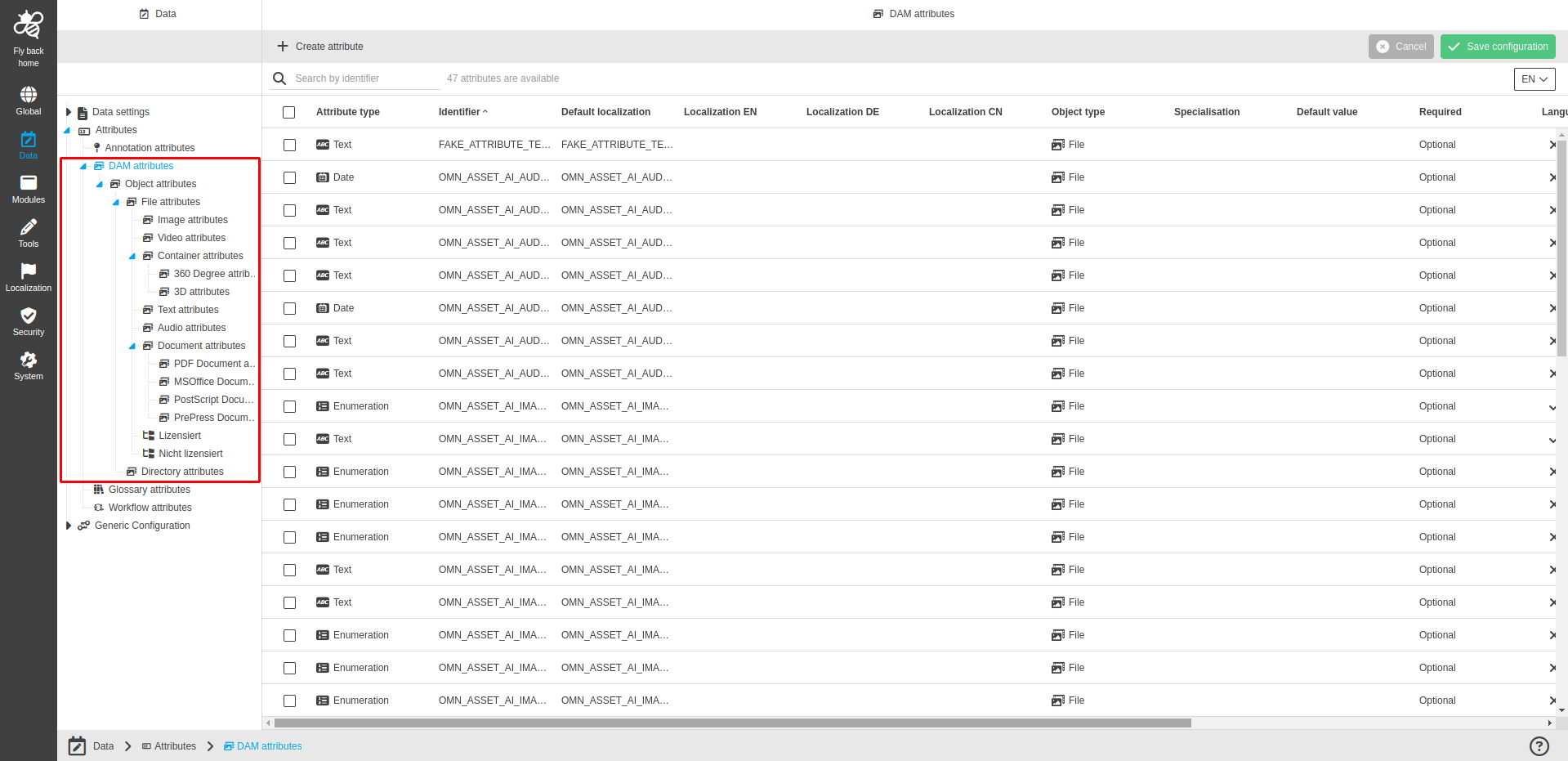
The tree contains:
-
the following functions:
Function name |
Description |
Note |
Create specialisation |
Function creates a new specialisation from selected object type |
see 'Create specialisation' |
Delete specialisation |
Function deletes selected specialisation |
see 'Delete specialisation' |
-
the tree structure with available sub-object types and created specialisations
|
With a specialisation, you can assign special attribute properties to the selected DAM sub-object type. |
Create specialisation
-
Select sub-object type where specialisation should be created in the tree
-
Click 'Create specialisation' function
-
Enter Specialisation name
-
Mandatory field
-
-
Click on the 'Create specialisation' button
| The function is available only when sub-object type tree node is selected. |
Delete specialisation
-
Select a specialisation to delete in the tree
-
Execute the Delete specialisation function
-
Click 'Delete specialisation' button
| The function is available only when specialisation tree node is selected. |
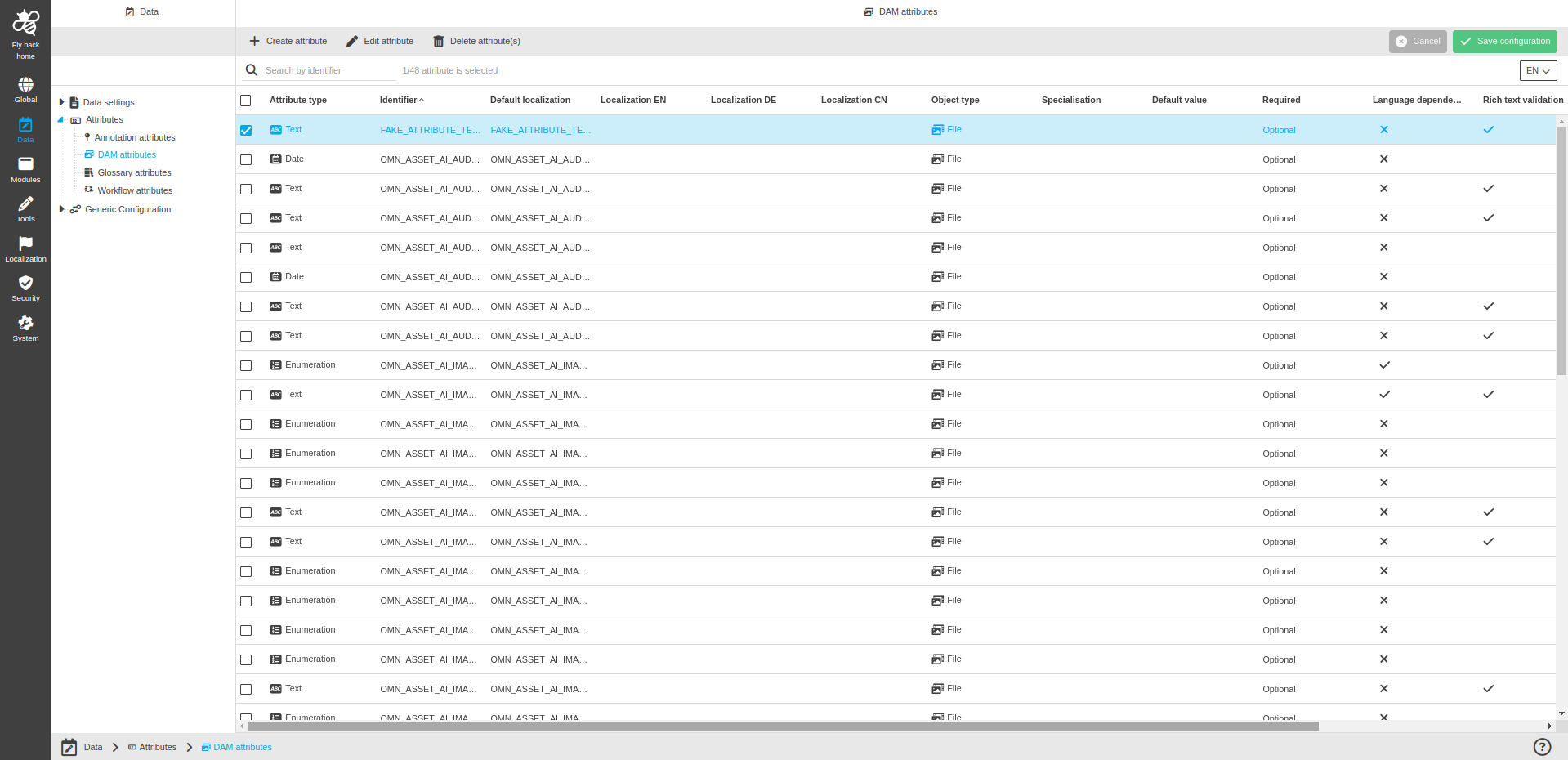
The page contains:
-
the following functions:
Function name |
Description |
Note |
Create attribute |
Function creates a new attribute from DAM type |
see 'Create attribute' |
Edit attribute |
Function edits created attribute from the DAM type |
see 'Edit attribute' |
Delete attribute(s) |
Function deletes created attribute(s) from the DAM type |
see 'Delete attribute(s)' |
|
The table supports move attributes via DnD functionality. See 'Move attribute(s)' |
-
the following statusbar items:
Statusbar item |
Description |
Note |
Search |
The field is used to find attribute(s) by identifier |
|
Show inherited attributes |
The toggle is used to determine whether the inherited attributes should be displayed in the table or not |
If the toggle is on, inherited attributes are shown and those attributes are highlighted with an inheritance icon in the dedicated table column. An attribute cannot be edited if it is displayed as inherited. |
-
the table with the following columns with the information about created attributes:
Column name |
Description |
Note |
Attribute type |
Shows created attribute types by icon and name of type |
Available type of attributes:
|
Identifier |
Shows identifier (technical name) which is set during attribute creation |
|
Default localization |
Shows default localization which is set during attribute creation |
|
Localization columns |
Shows language localizations which are set during attribute creation |
All languages which are available as system languages on OMN system are shown in their own column. For example:
|
Object type |
This column shows the selected DAM sub-object type that has been selected during the creation. |
Object type restricts that attribute is only available in the UI in case asset from this object type has been selected for example 3D File. |
Specialisation |
The column shows the name of the specialisation of the attribute. |
This column value could be empty if selected Object type doesn’t have any Specialisation created. |
Default value |
Shows the value that will be available by default in the UI |
In case that no default value has been defined the value is shown as empty for the attribute. |
Required |
Shows whether the attribute has been defined as optional, mandatory or mandatory in all languages |
Mandatory in all languages is only available for language dependent attributes For more details see Required field description in Data types |
Language dependence |
Shows whether the attribute has been defined as language dependent or not |
In table attributes itself language dependence cannot be configured, but the attributes used in the table have this information, means if at least one used attribute within the table is language dependent the column should show the check icon |
Rich text validation |
Shows whether the attribute has been defined with rich text validation or not |
Only text attributes contain the possibility to configure rich text, for other attributes the table row cell is empty |
Usage |
The column shows where the attribute is used. Shows plugin instance name with related icon. |
Usage can be none, one, or multiple plugins. |
Usage count |
The column shows the number, how many times the attribute has been maintained in the UI. |
-
the following data types:
Data type |
Description |
Text |
To enter a text value(s) |
Boolean |
To enter one of 'true'/'false' |
Date |
To enter a date value |
Enumeration |
To enter dropdown value(s) |
Number |
To enter a numeric value(s) |
Label |
To enter a color value from dropdown |
Language |
To fill the table with values from other data types |
|
The different data types are explained here: Data types |
Create attribute
-
Click 'Create attribute' function
-
Select Data type: Text, Boolean, Date, Enumeration, Number, Label or Table
-
Turn on 'Leave modal open for further creation of attributes' toggle (if needed)
-
Function allows to stay the window open after clicking on the 'Create attribute' button to continue creating a new attribute.
-
-
Enter Identifier (technical name of the attribute)
-
Displayed as Identifier in the table
-
Name needs to be unique
-
Mandatory field
-
-
Enter Default for attribute as human-readable fallback option if the selected language is not available in the UI
-
Displayed as Default in the table
-
Name needs to be unique
-
Mandatory field
-
-
Enter localizations for each available language in the system (optional), so this localization will be shown in cas language is selected in the UI
-
Each language available on the system is listed
-
-
Click on the 'Create attribute' button
|
Further configuration of DAM attributes differs per type. |
Edit attribute
-
Select an attribute in the table
-
Execute the Edit attribute function
-
Change the available fields
-
Execute 'Save attribute' function
|