Permissions
The Permissions tab in the configuration allows the user to restrict items by access rights permissions, so certain
areas, functions, objects etc. are not visible for specific users and roles.
OMN provides two ways to restrict items:
|
The permission items can be restricted by roles OR by rules. Please make sure that only permission items restricted with roles or restricted with rules are selected in the permission item table widget. |
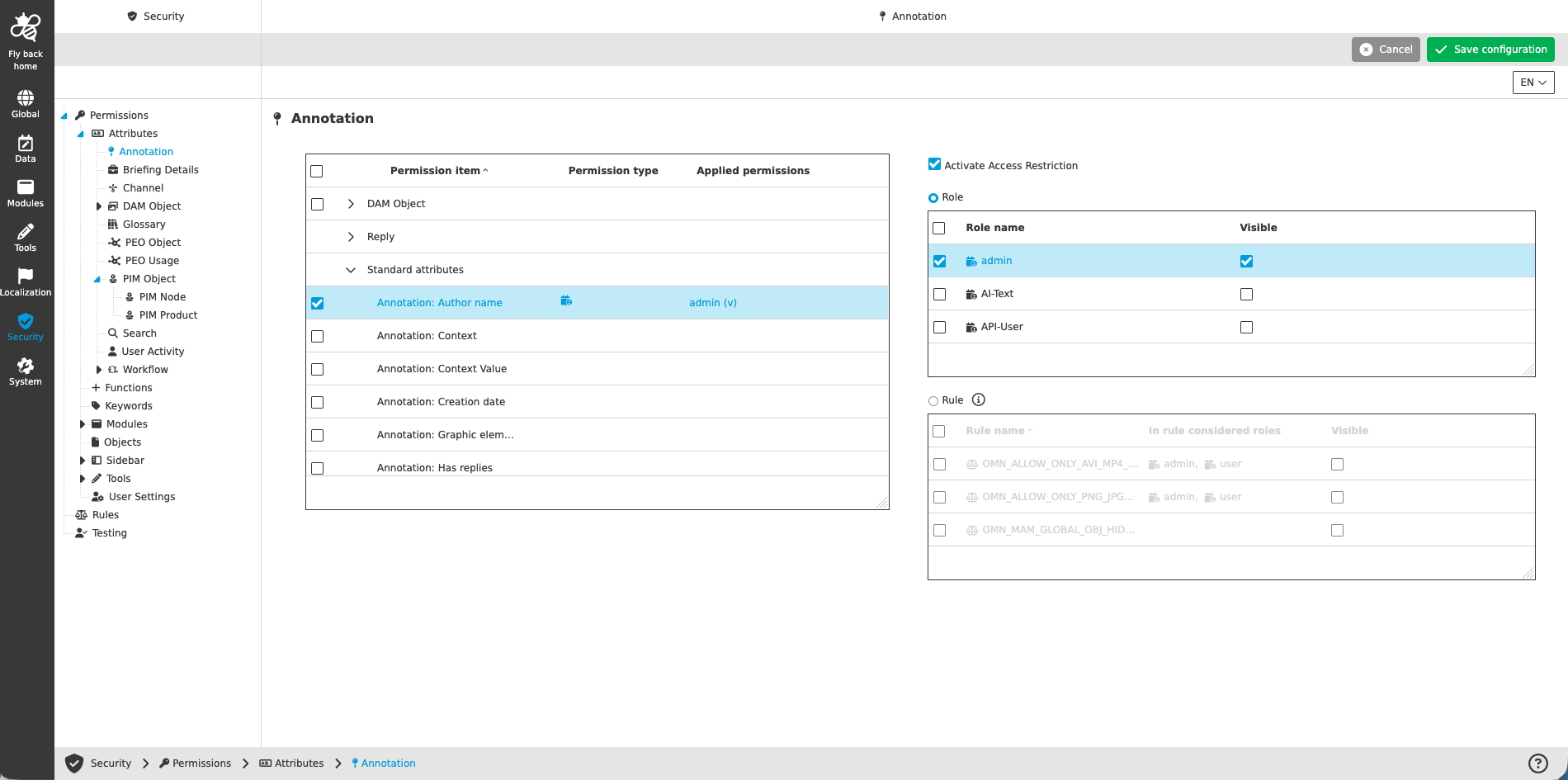
The permission items are structured in the following groups:
| Tab name | Description | Note |
|---|---|---|
Attributes |
Allows to restrict custom and standard attributes for all object types. |
See more details 'here' |
Functions |
Allows to restrict functions with no clear plugin-relation. Functions (permission items), which belong to a certain plugin are listed within the plugin (under modules). |
See more details 'here' |
Keywords |
Allows to restrict keywords created in the UI of DAM module. |
See more details 'here' |
Modules |
Allows to restrict permission items of application, page, content and function plugins. |
See more details 'here' |
Objects |
Allows to restrict object permission items (assets, products, channels, etc.) |
See more details 'here' |
Sidebar |
Allows to restrict page plugins configured in the top or bottom sidebar navigation. |
See more details 'here' |
Tools |
Allows to restrict permission items of tool plugins. |
See more details 'here' |
User Settings |
Allows to restrict panels within the user settings. |
See more details 'here' |
Activate Access Restrictions via roles
If the permission item can be restricted by mandator roles, table widget on the right side is available.
| Name of column | Description | Note |
|---|---|---|
Checkbox |
The checkboxes allow to bulk select permission options (visible, editable, executable) |
|
Role name |
The column lists all available mandator roles. |
Mandator roles can be maintained 'here' |
Visible |
|
In case that multiple permission items are selected in the left table widget, the checkbox could show an intersect state. By clicking on the intersect checkbox the permission option 'Visible' is checked for all selected permission items. |
Editable |
|
In case that multiple permission items are selected in the left table widget, the checkbox could show an intersect state. By clicking on the intersect checkbox the permission option 'Editable' is checked for all selected permission items. |
Executable |
|
In case that multiple permission items are selected in the left table widget, the checkbox could show an intersect state. By clicking on the intersect checkbox the permission option 'Executable' is checked for all selected permission items. |
| Access Restrictions via roles allows multi-selection of permission items in the left table widget. |
Activate Access Restrictions via rules
If the permission item can be restricted by rules, table widget on the right side is available.
| Name of column | Description | Note |
|---|---|---|
Checkbox |
The checkboxes allow to bulk select permission options (visible, editable, executable) |
|
Rule name |
The column lists all available rules. |
Rules can be configured 'here' |
In rule considered roles |
The column lists all mandator roles, which are configured within the related rule |
If the rule applies on the permission item, the UI restricts access according to the defined permission option (visible, editable, executable) for the defined mandator roles. |
Visible |
|
|
Editable |
|
|
Executable |
|
|
Access Restrictions via rules doesn’t allow multi-selection of permission items in the left table widget. Please make sure that only one permission item is selected in the permission item table widget. |