Sidebar
Purpose of the sidebar
The sidebar is the central control element in OMN. The sidebar can be used to access the main modules (e.g. DAM, PIM, CM etc.) as well as other page plugins. Additionally, the sidebar provides useful functionality such as a help for available shortcuts within OMN, a favorite function, the user profile and the access to the Configuration Client.
Possible usage of the plugin
The sidebar is an embedded part of the OMN UI and is the fixed element on the left side. The functionality of the sidebar can be influenced by the configuration. It is possible to add page plugins and some special functions in the configuration of the top or bottom bar and to define the structure of the entries.
Supported plugins
The sidebar supports the following plugins:
-
All page plugins for which a plugin instance has been created can be configured in the sidebar
-
With the following restrictions:
-
the Advanced Search and Formbased Search are page plugins but can only be configured within the OMN-Search Plugin
-
There are some configuration options that are not based on page plugin instances (marked with capital letters):
-
SOPPING_CART - The Shopping cart is no Page Plugin in the current configuration structure, but can be added to the sidebar
-
WORKFLOW - to configure a workflow cockpit
-
CONFIGURATION - to access the HTML5 Configuration Client
-
FAVORITES - to access the favorite functionality in the UI
-
HELP - to access a list of shortcuts which can be used in OMN
-
CHANGE_PASSWORD - to open a change password mask in the UI
-
-
| The static entries 'TASK_LIST' and 'SEARCH' are no longer available in the new Configuration Client, because they have been replaced with configurable plugins. |
General configuration
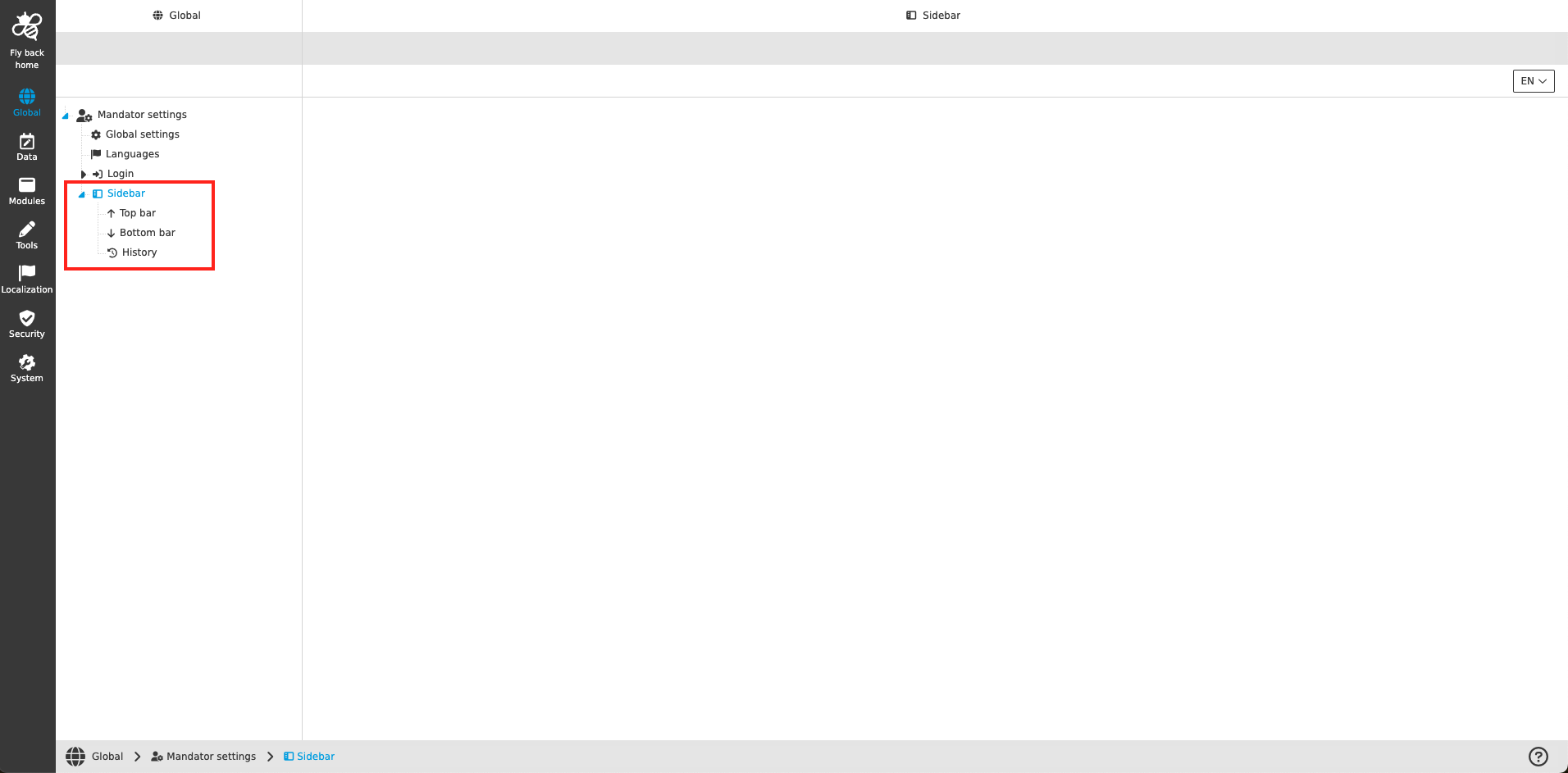
The configuration of the sidebar includes the following parts:
| Tab name | Description | Note |
|---|---|---|
Top bar |
|
|
Bottom bar |
|
|
History |
On this page the user can overview all modifications made in the sidebar and have an initial state available as a file to understand who, when and what changed within the configuration. |
Content is coming soon… |
Appearance in the frontend
All details of the sidebar in the frontend can be found here