Detail View
The Detail View is the detailed display of files (products, images, etc.). The Detail View is often found on the right-hand side (right view), e.g. in DAM, but the Detail View also exists as a center view element, e.g. in editors such as Asset View. Here the details can be viewed at a glance and edited if possible. For the general structure of OMN, the General Principles can be consulted.
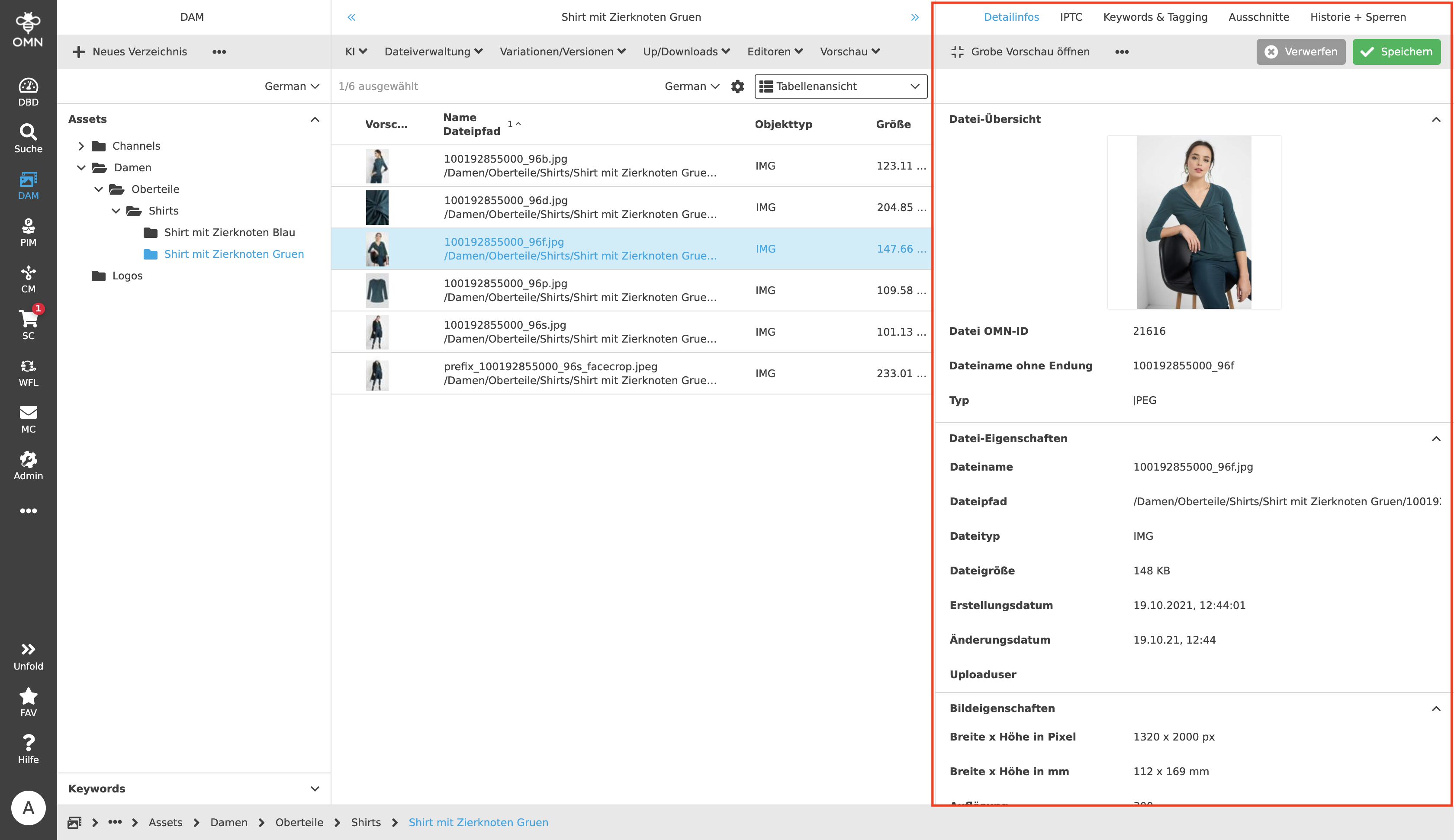
In the right detail area, general properties of a selected file from the content view are displayed. The display depends on the selected object type (e.g. product, media file, etc.) In the case of a media file, for example, this can be information such as file path, file size or tagging; in the case of a product, it can also be product information. The following topics are explained in more detail in this chapter:
-
Detail view
-
IPTC-Attributes
-
Keywords & Tagging
-
Aperture
-
History & Lock-Status
Detail view
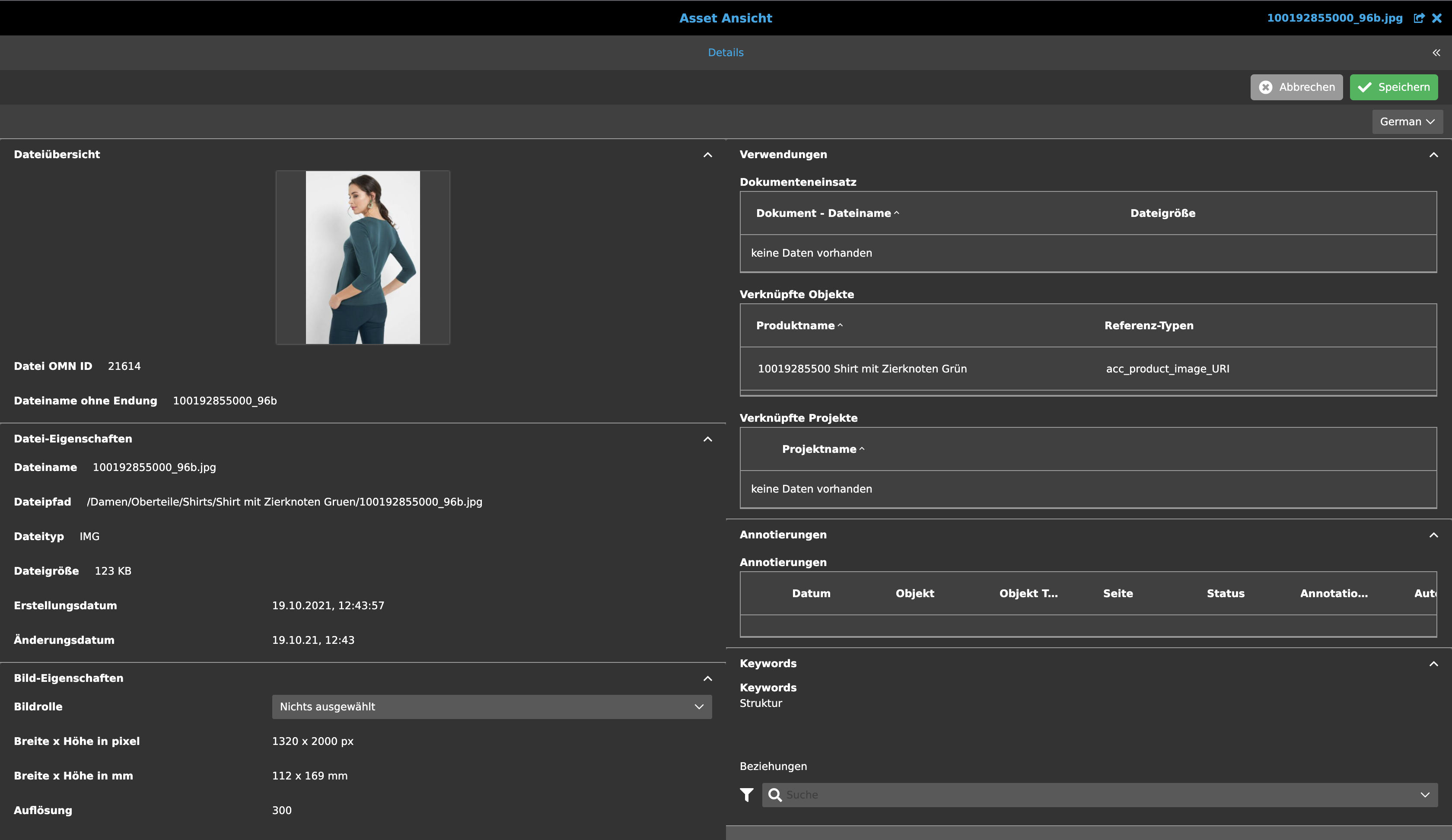
The detail view is divided into accordions, in which the following items are located, which can be folded in and out:
-
File Overview: With a preview image, OMN ID and the file name and type (e.g. jpeg).
-
File Properties: Contains the file name and, as mentioned above, the file path and size. Also included are the creation and modification dates and which user uploaded the media file.
-
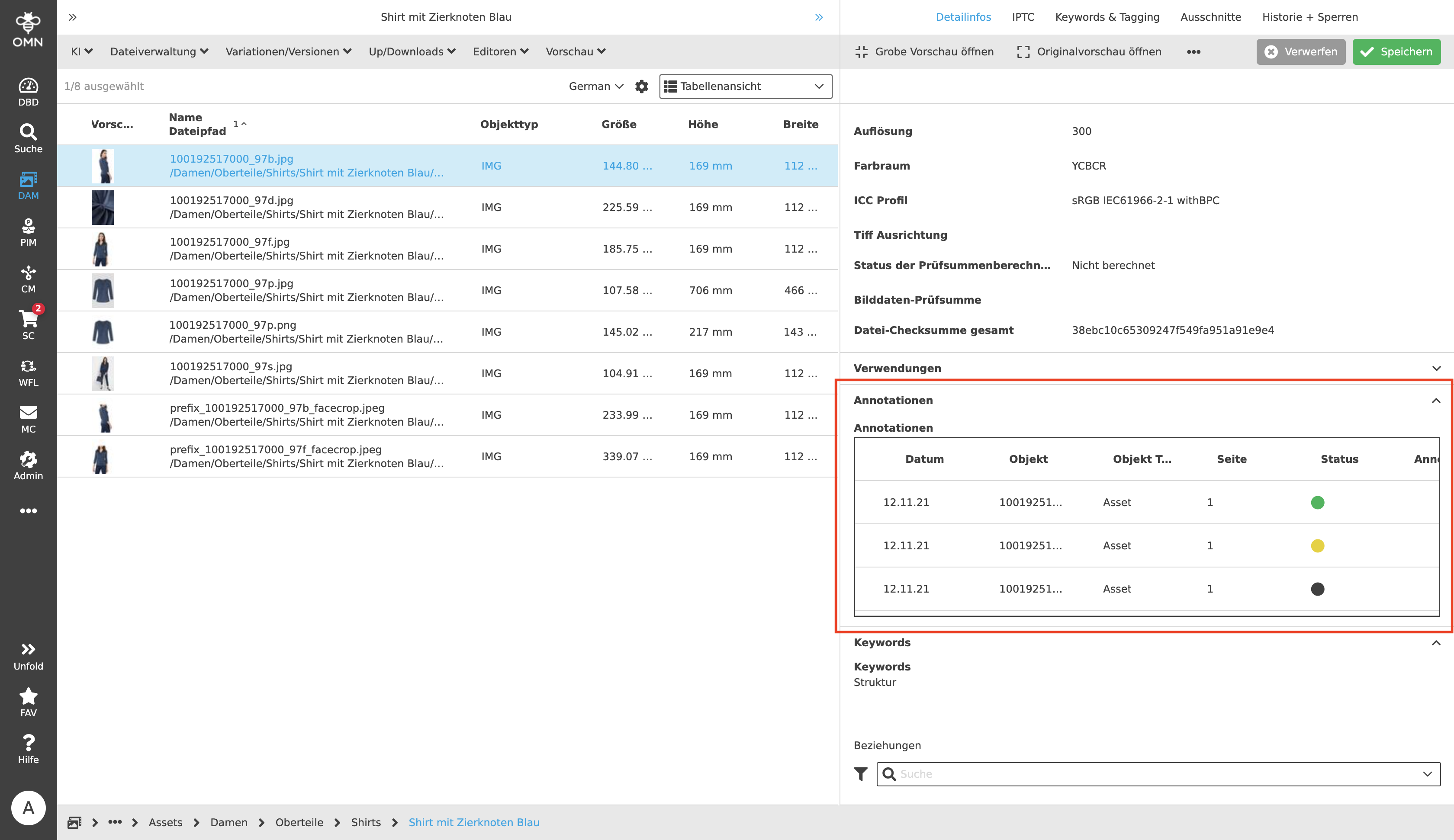
Image Properties: The image properties are different from the file properties. Here, information specific to the image file is displayed, such as width and height in pixels and millimeters, resolution, color space, ICC profile and checksum.
-
Usage: This detail area shows links between the selected file and other files (e.g. between document and image or product and image in PIM).
-
Annotations: In the detail view, the annotations and their date, status, author and the comments can be viewed. More about this topic can be read under Annotation Tool.
-
Keywords
IPTC-Attributes
In this section, the IPTC metadata can be viewed and edited. This includes, for example, the city, postal code and email address of the creator. Further metadata concerning the image, such as creation date and location and even keywording are available in the IPTC. More information about IPTC and other data formats can be found in the glossary.
Keywords & Tagging
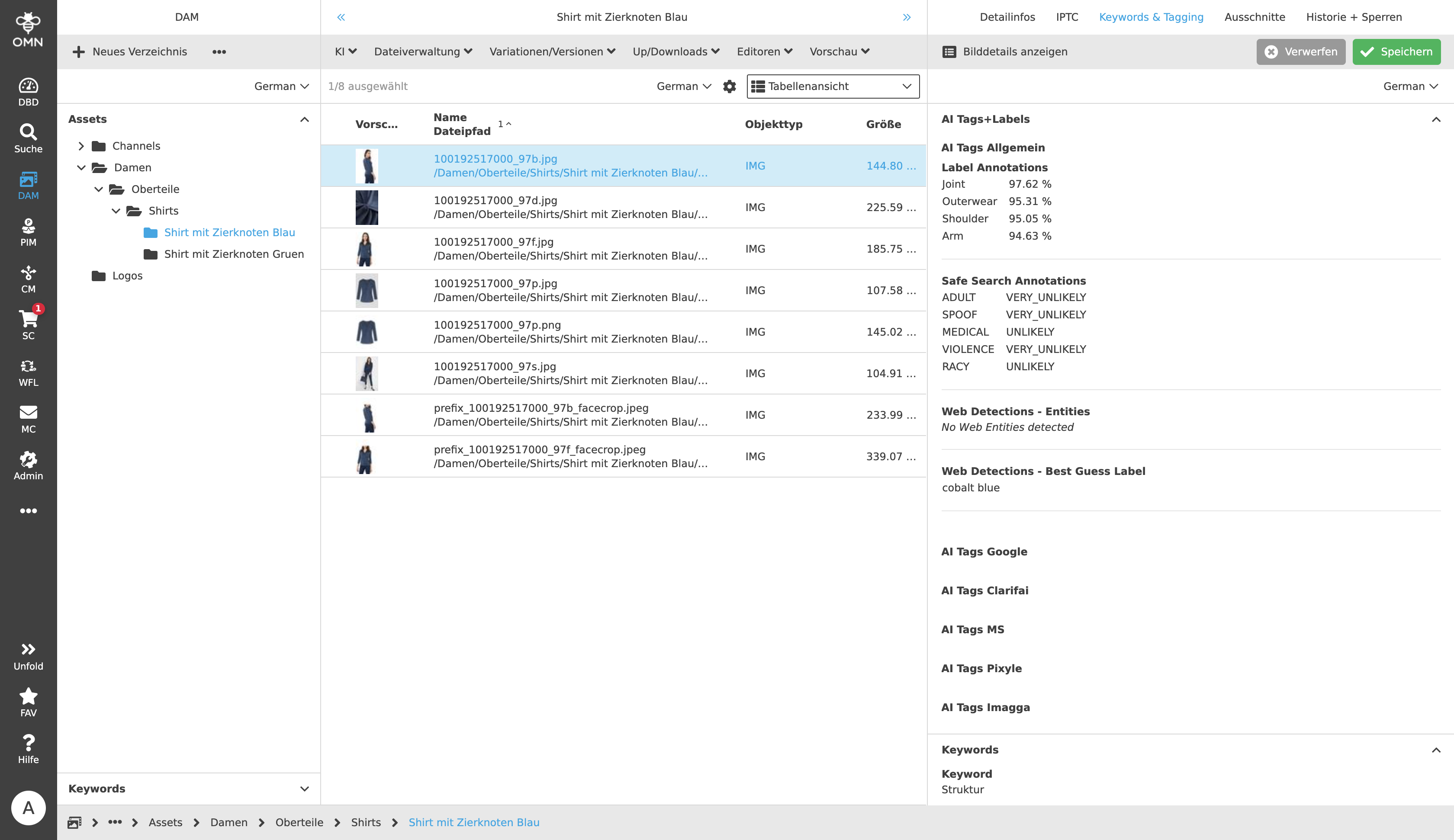
Keywords and taggings can be viewed. For example, when tagging files, it recognizes what type of garment (e.g. top) and what body parts (e.g. shoulder and arm) are visible in the image. For more information, see AI Tagger and AI Services.
Apertures
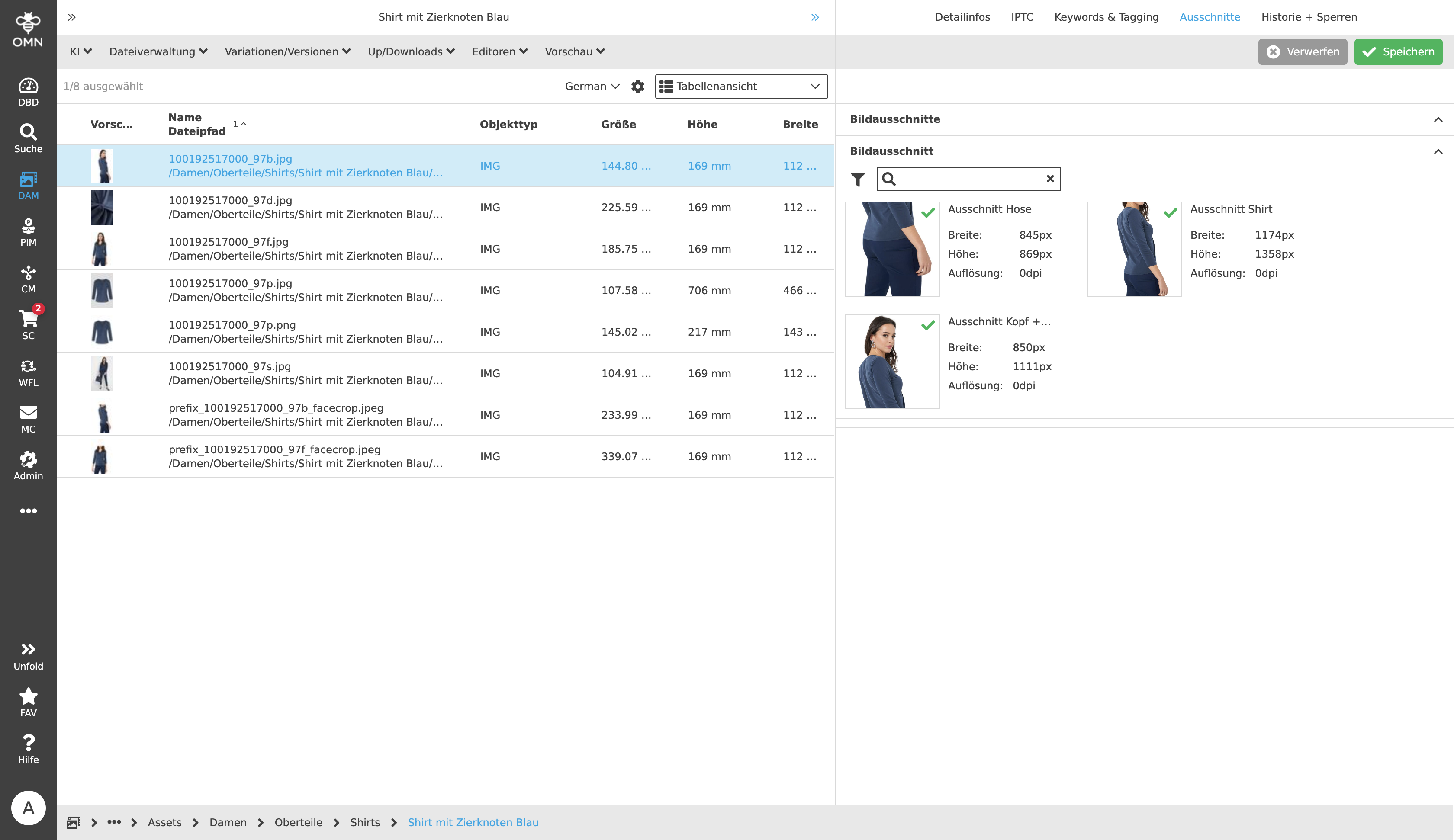
In the detail view, under "Apertures", you can view the image clippings that were previously created with the Aperture-Tool. In addition, the name, size and resolution of the clippings are displayed.
History & Lock-Status
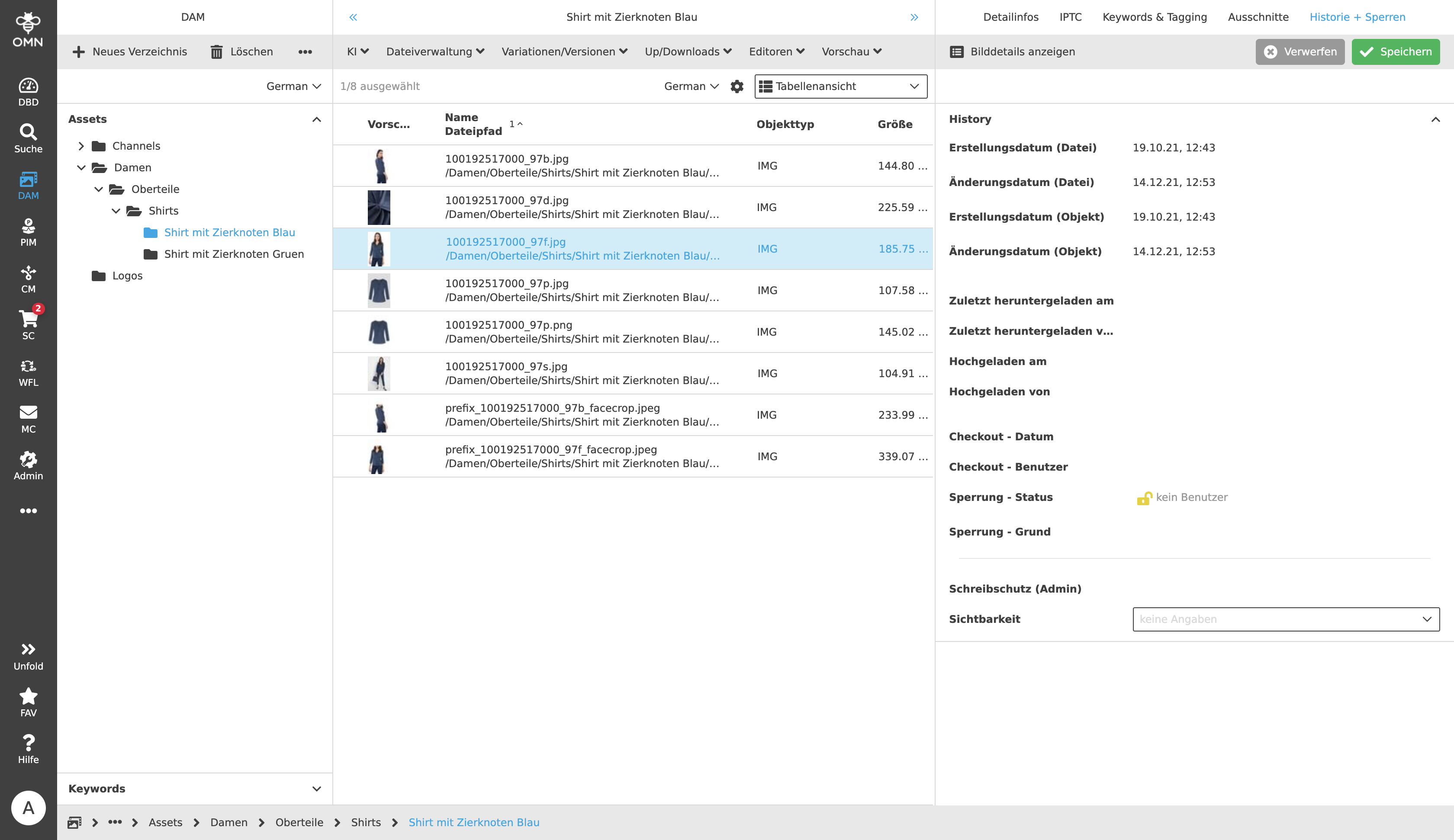
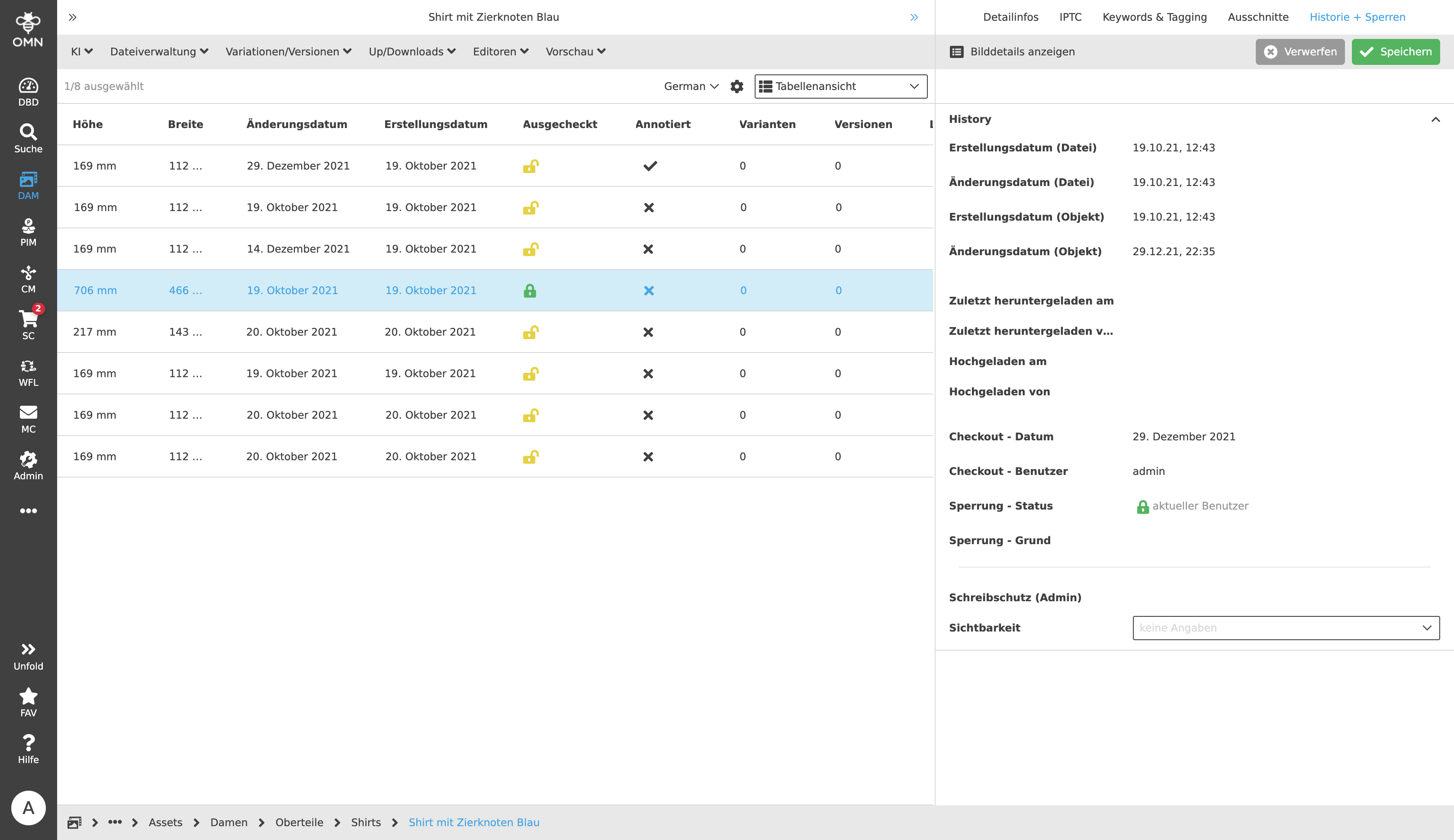
The last section shows the creation and modification date of the file or image. It can be looked up when and by whom the file was last downloaded or uploaded. Likewise, under Checkout and Lock, you can see whether the image file is checked out or checked in.
If the image file is checked out or locked, this is indicated by a green lock symbol. Under Checkout - Date and - User it says when it was done and who did it. A yellow lock icon means that the file is still checked in, i.e. still editable.