Upload
Purpose of the plugin
With the Upload function, locally stored files can be inserted into folder structures to make them available in the OMN system.
Uploads can be configured very specifically beyond the simple Upload function, e.g. the user can specify which sizes or file formats should be permitted. It is also possible to start various processes automatically after the upload.
Possible usage of the plugin
The Upload function plugin can be used in:
-
DAM Navigation content plugins
-
Table
-
Single Object
-
Lighttable
-
-
Advanced Search content plugins
-
Table
-
Single Object
-
Lighttable
-
-
Formbased Search content plugins
-
Table
-
Single Object
-
Lighttable
-
-
Channel Navigation content plugins
-
Channel Asset View
-
-
Workflows
Preconditions
There must be at least one page plugin with one corresponding content plugin that presents asset items in a content view
-
DAM Navigation with Table content plugin
-
Advanced Search with Table content plugin
-
Channel Navigation with Channel Asset View content plugin
At least one Upload function plugin must be configured and executable on the content plugin, e.g. Table in DAM Navigation.
Supported plugins
The Upload function plugin supports the following plugins:
-
DAM Navigation
-
Search
-
Channel Navigation
-
Workflows
General configuration
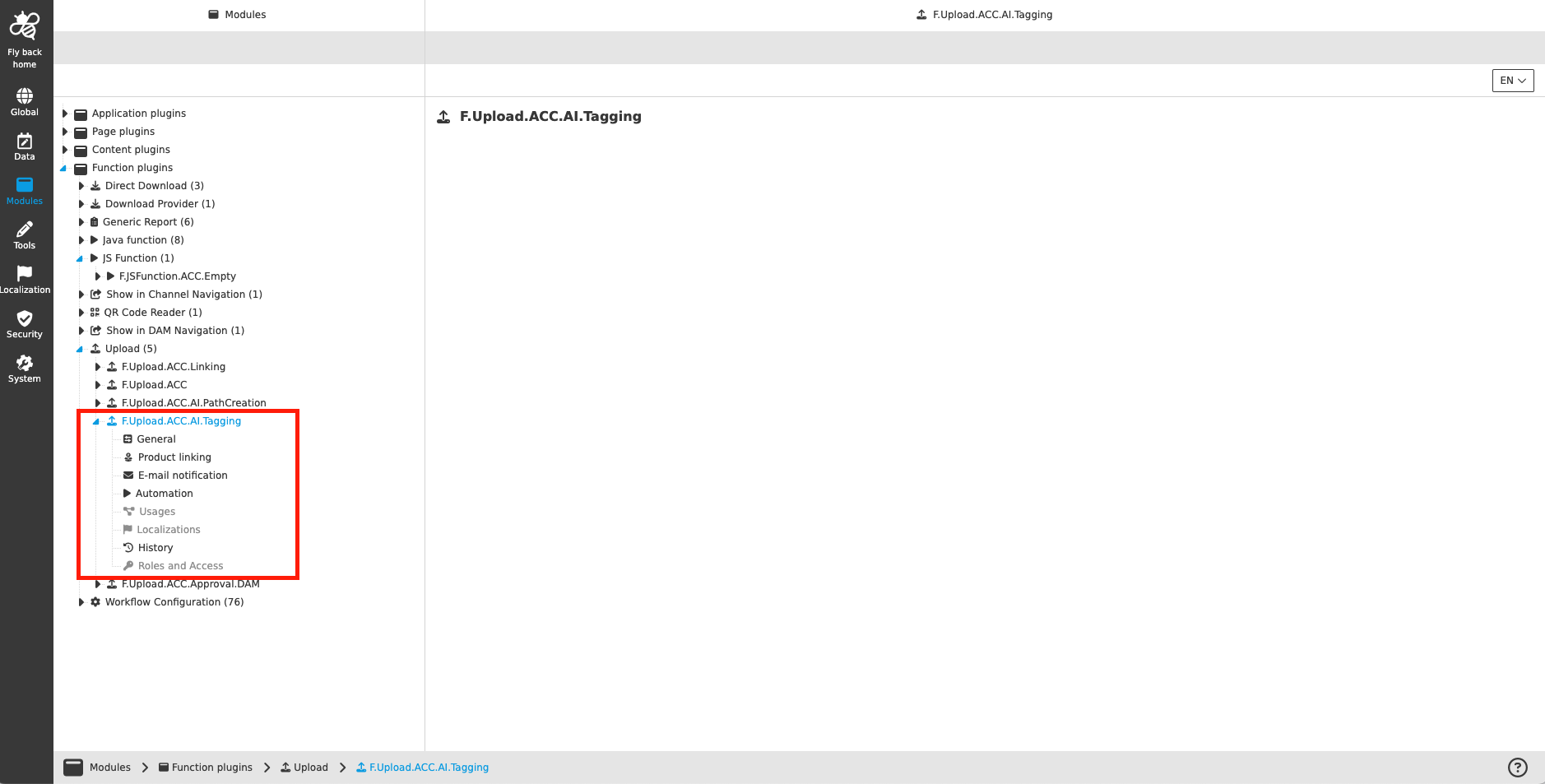
The configuration of the Upload function plugin includes the following parts:
| Tab name | Description | Note |
|---|---|---|
General |
Content coming soon… |
See more details 'General' |
Product linking |
Content coming soon… |
See more details 'Product linking' |
E-mail notification |
Content coming soon… |
See more details 'E-mail notification' |
Automation |
On this page an automation is configurable, which is executed after uploading asset(s). |
See more details 'Automation' |
Usages |
On this page the user can see the relations of the Upload plugin to other plugins. |
Content coming soon… |
Localization |
On this page the user can localize his/her own Upload plugin to see wished terms in the UI of the Upload modal. |
See more details Localization tab of the plugin instances |
History |
On this page the user can overview all modifications made in Upload and have an initial state available as a file to understand who, when and what changes within the configuration. |
See more details 'History tab of the plugin instances' |
Permissions |
On this page the user can restrict the access to the plugin for certain roles. |
Content coming soon… |
Appearance in the frontend
All details of the Upload in the frontend can be found here.