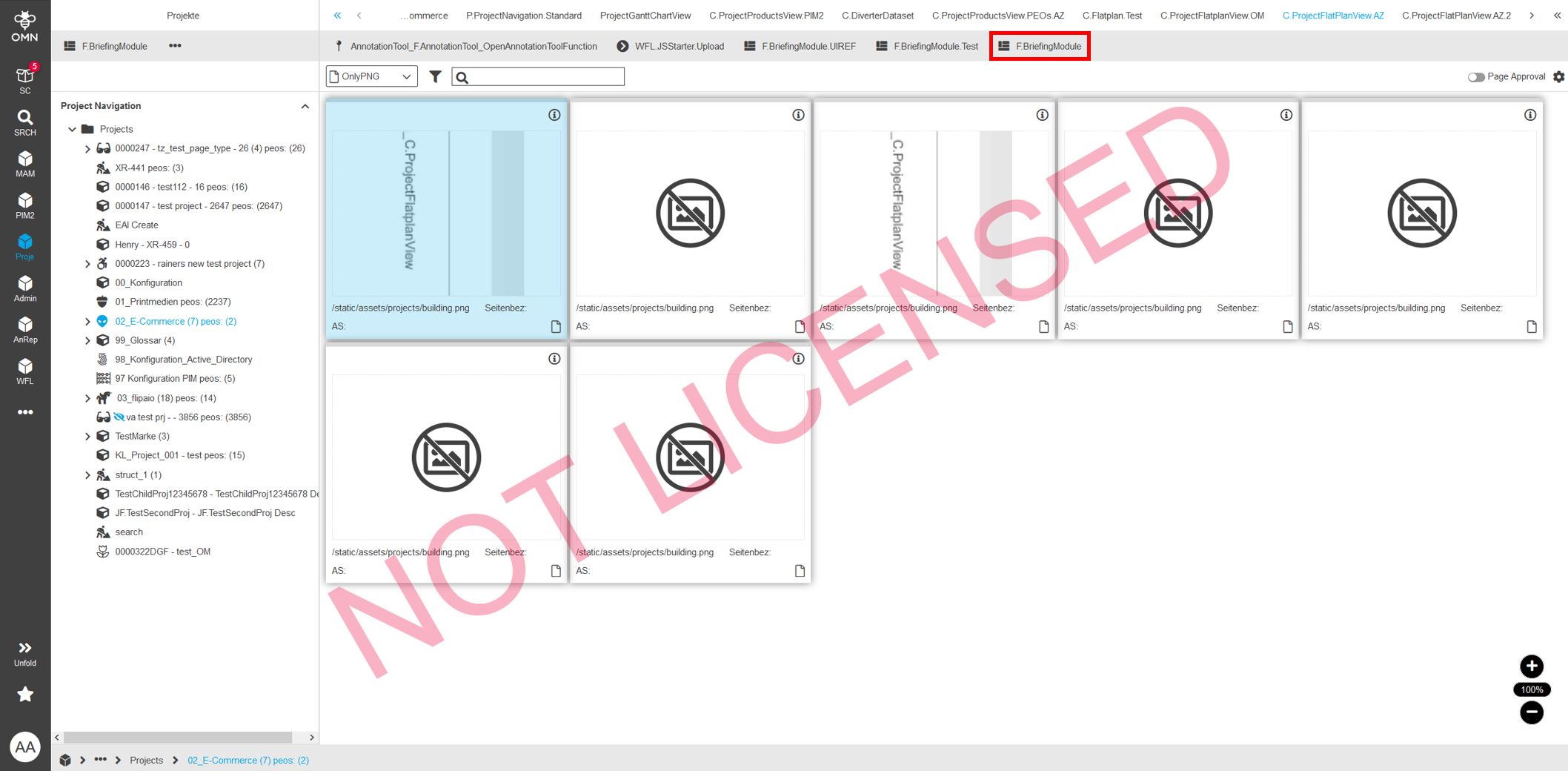
Briefing Module (Patch+Brief module based on Angular-JS)
FSDetail in BriefingModule
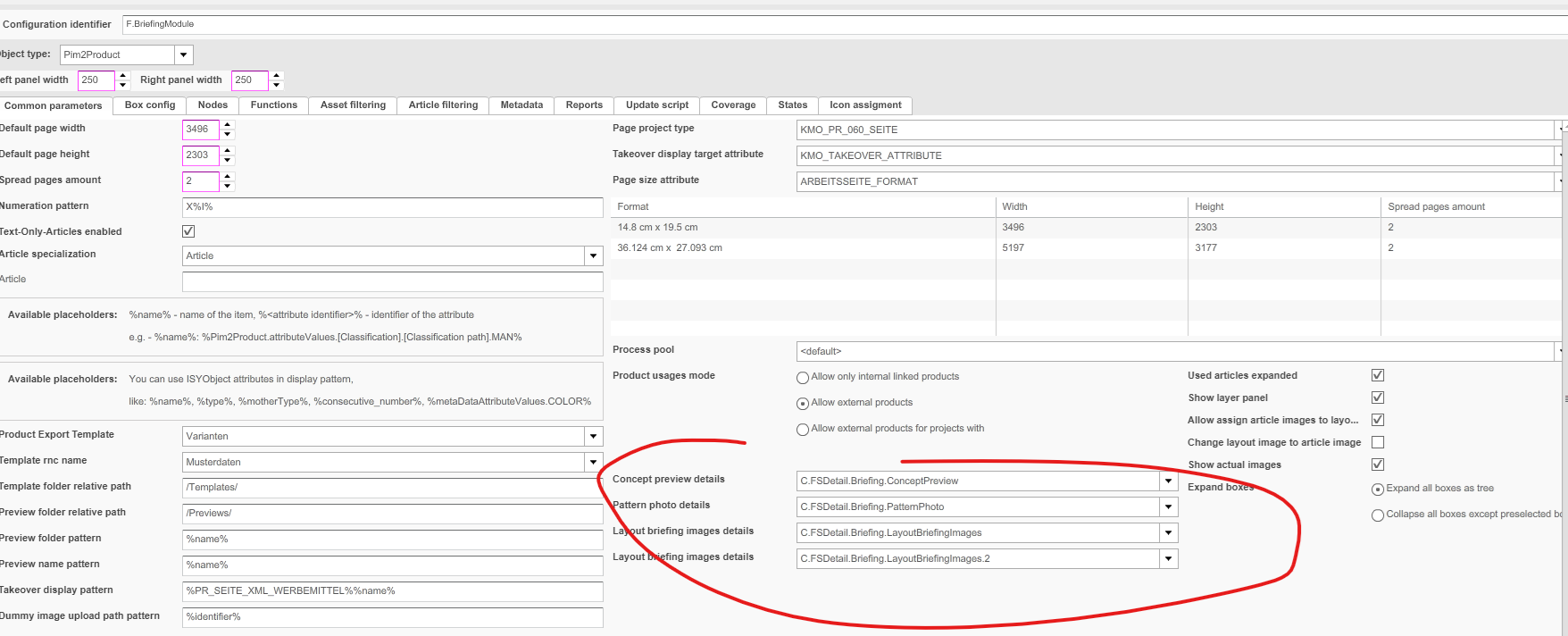
The BriefingModule allows to configure this maximum 4 predefined FSDetail-areas:
-
Concept preview details
-
Pattern photo details
-
Layout-briefing image details (1) - for buyer
-
Layout-briefing image details (2) - for advertising
Momentary FSDetails cannot be extended.
The following image shows the 4 list-fields for selecting the FSDetails:
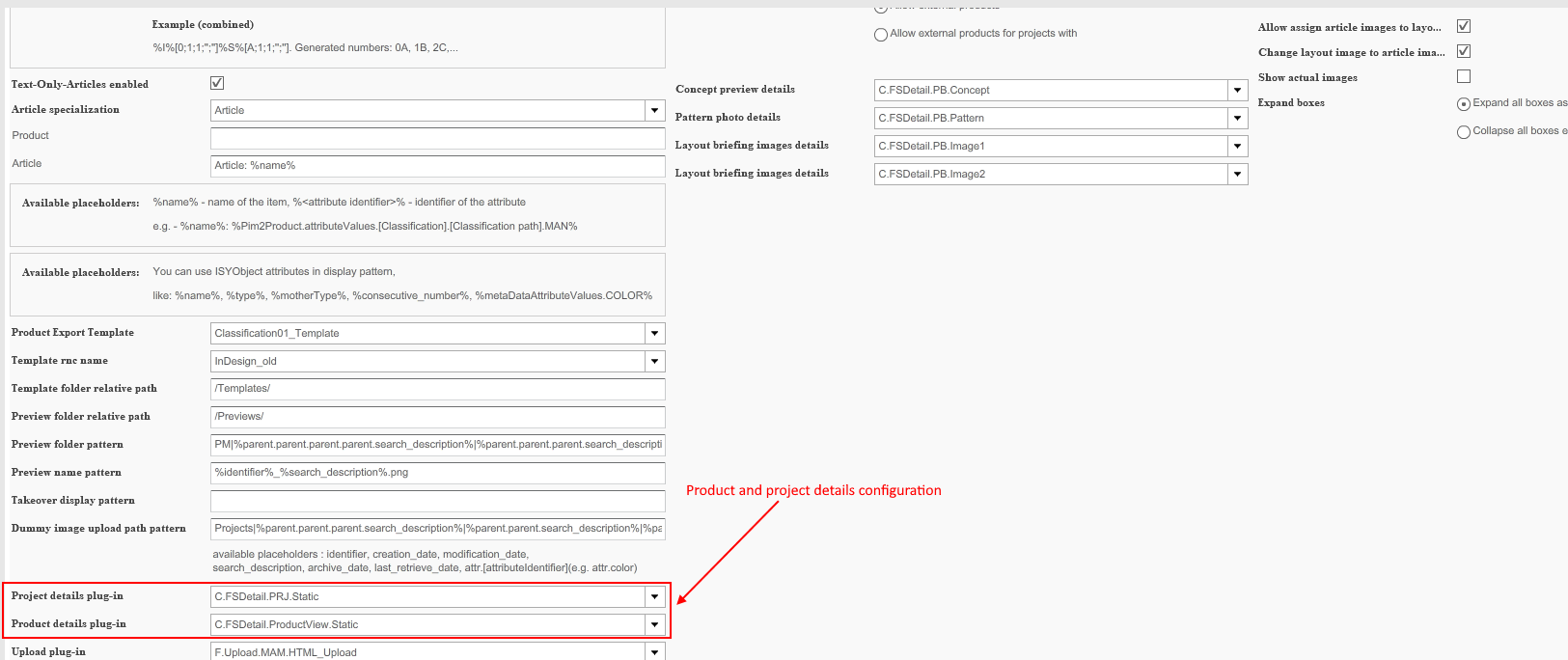
A FSDetail-area can contain widgets with the possibility to add images. Beside these widgets it is possible for 1 FSDetail-panel to configure both, a project details plugin and a product details plugin:
Concept preview
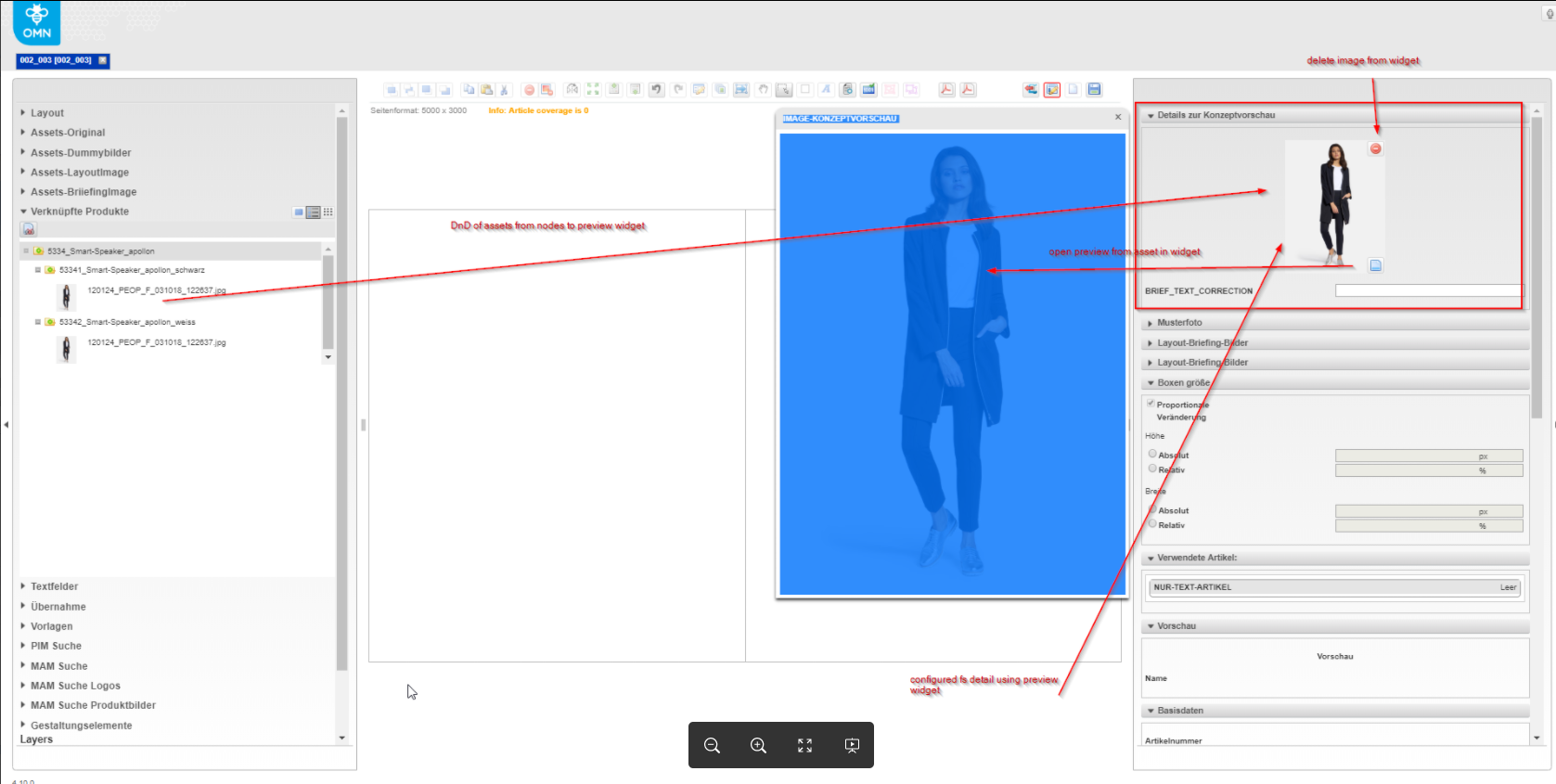
It is possible to deposit an image for the layout at the briefing. This should be displayed as a preview-image for the respective layout.
Beforehand, concept images must have been uploaded to the OMN.
How to drag assets from node to the preview-widget, is shown here:
The following image shows the list-field "Information Type" with the choice "Preview widgets".
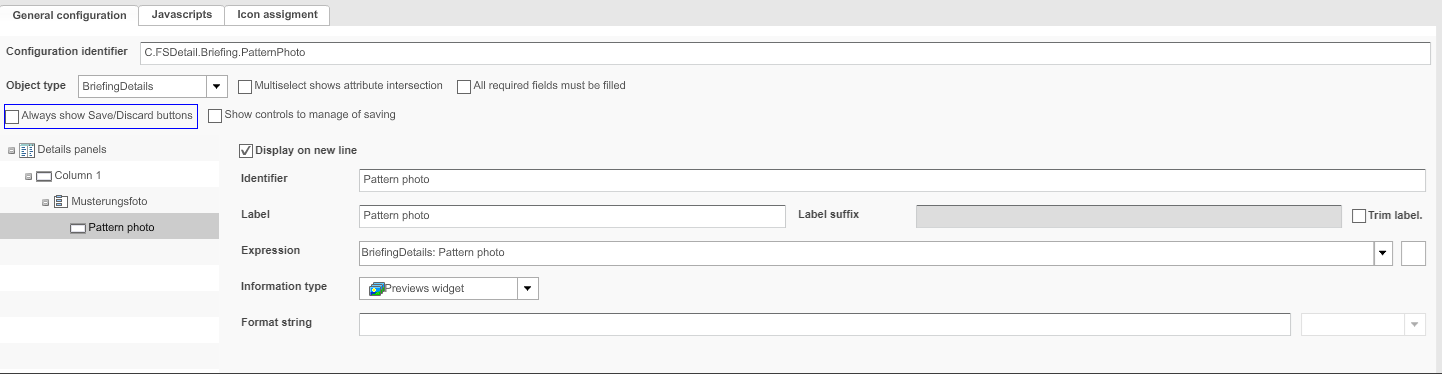
For the preview of widgets, there are several possible handlings, described below.
|
Concept Preview Widget The concept-preview-widget has a preview-function to enlarge the preview-size. |
The following image shows the image-concept-review:
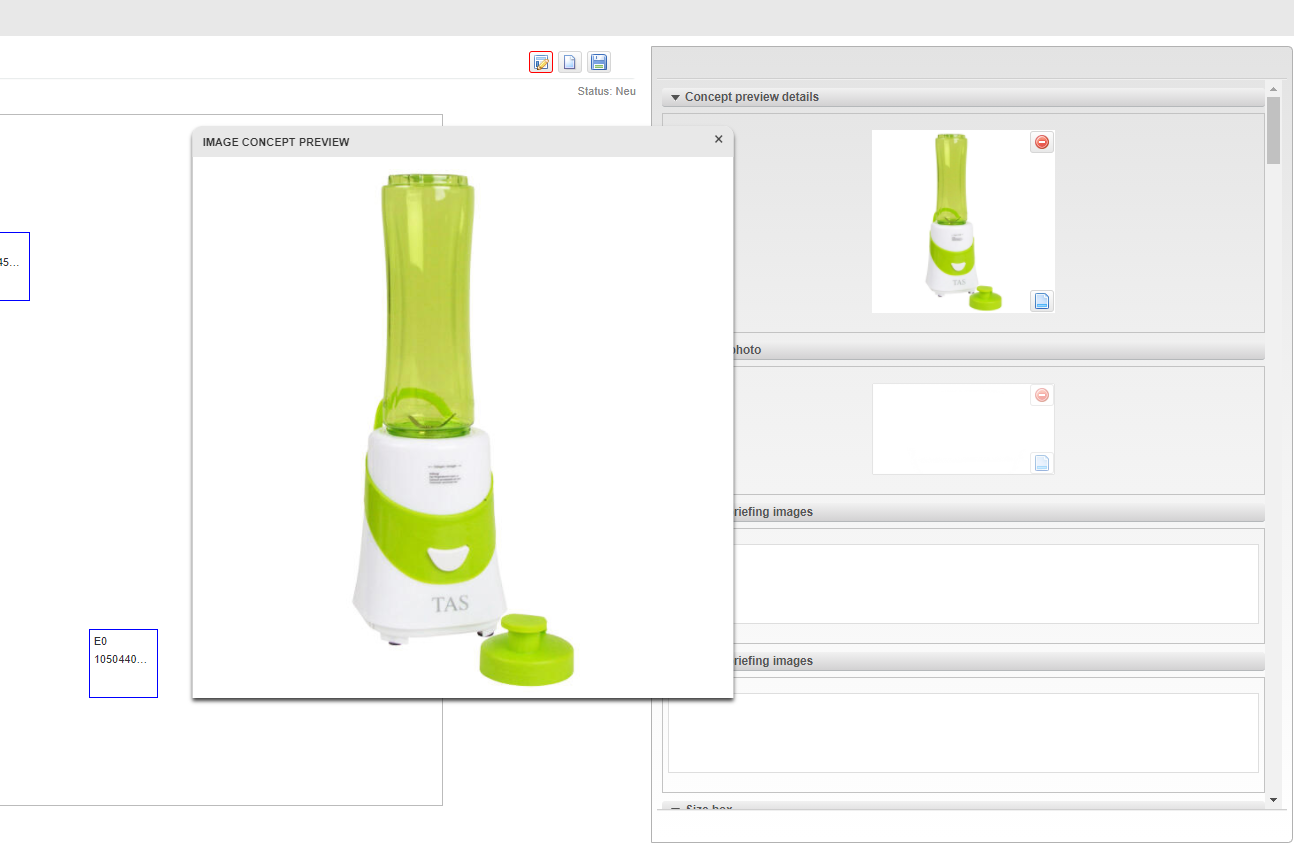
|
To the concept-preview-widget, assets can be added from the left-hand view. There this node-types can be chosen:
|
Pattern-Photo (Musterfoto)
Via Drag&Drop from datapool, an image can be assigned as pattern-photo to an item-independent image-placeholder.
The function pattern-photo is intended for creative purchasing.
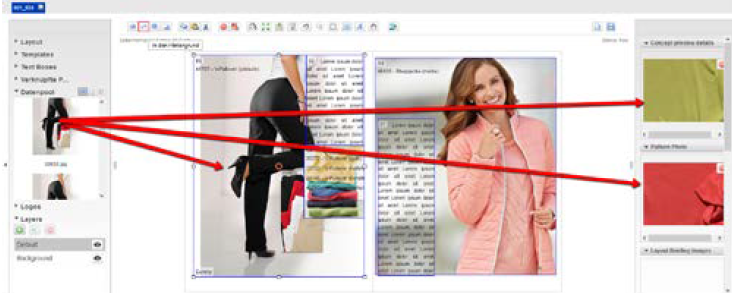
The following image shows the image-placeholder:
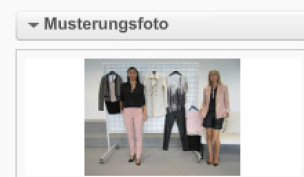
The following image shows the "Image Concept Preview" and "Concept preview details":
How to configure details of pattern-photo, is shown by this image:
|
Pattern Photo Widget
|
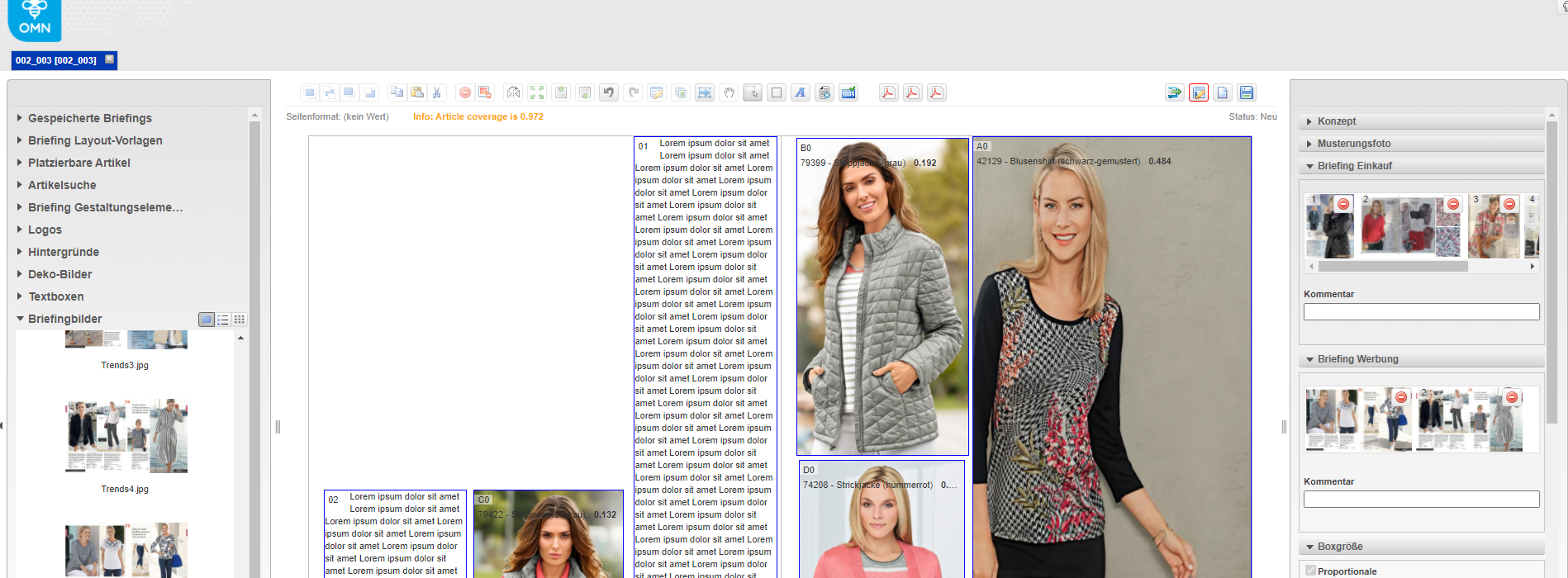
Briefing image
It is possible to deposit one or more briefing-images on one side via a corresponding widget.
|
Another function also allows the deposit of briefing-images on the article level. This is independent of the function Briefing-Image to be deposited on a page. To distinguish purchasing and advertising briefing-images, there are 2 panels with elsewhere same functionality:
|
The following image shows briefing widgets for buying as well advertising:
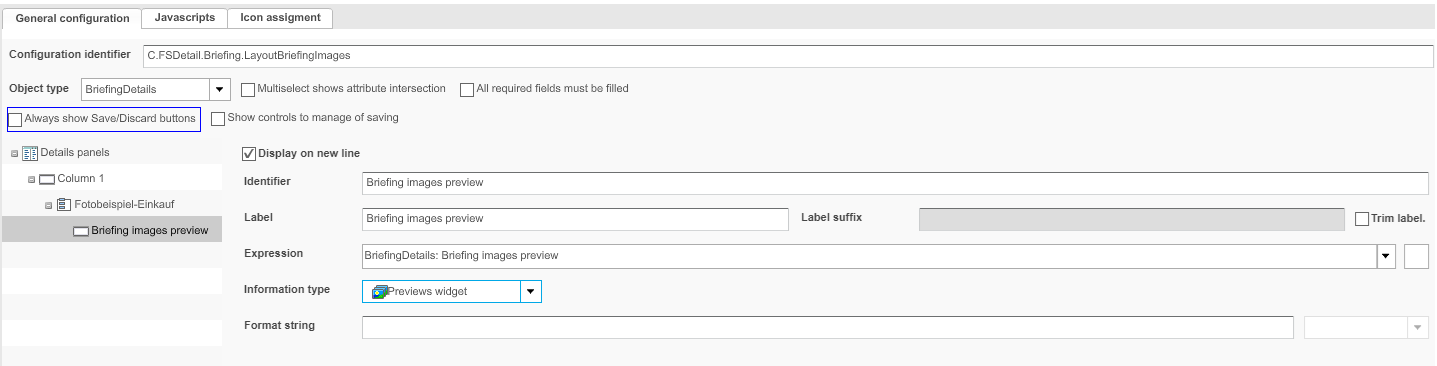
The following image shows a buying-configuration of briefing-images preview:
When adding images to widget, then note the following:
|
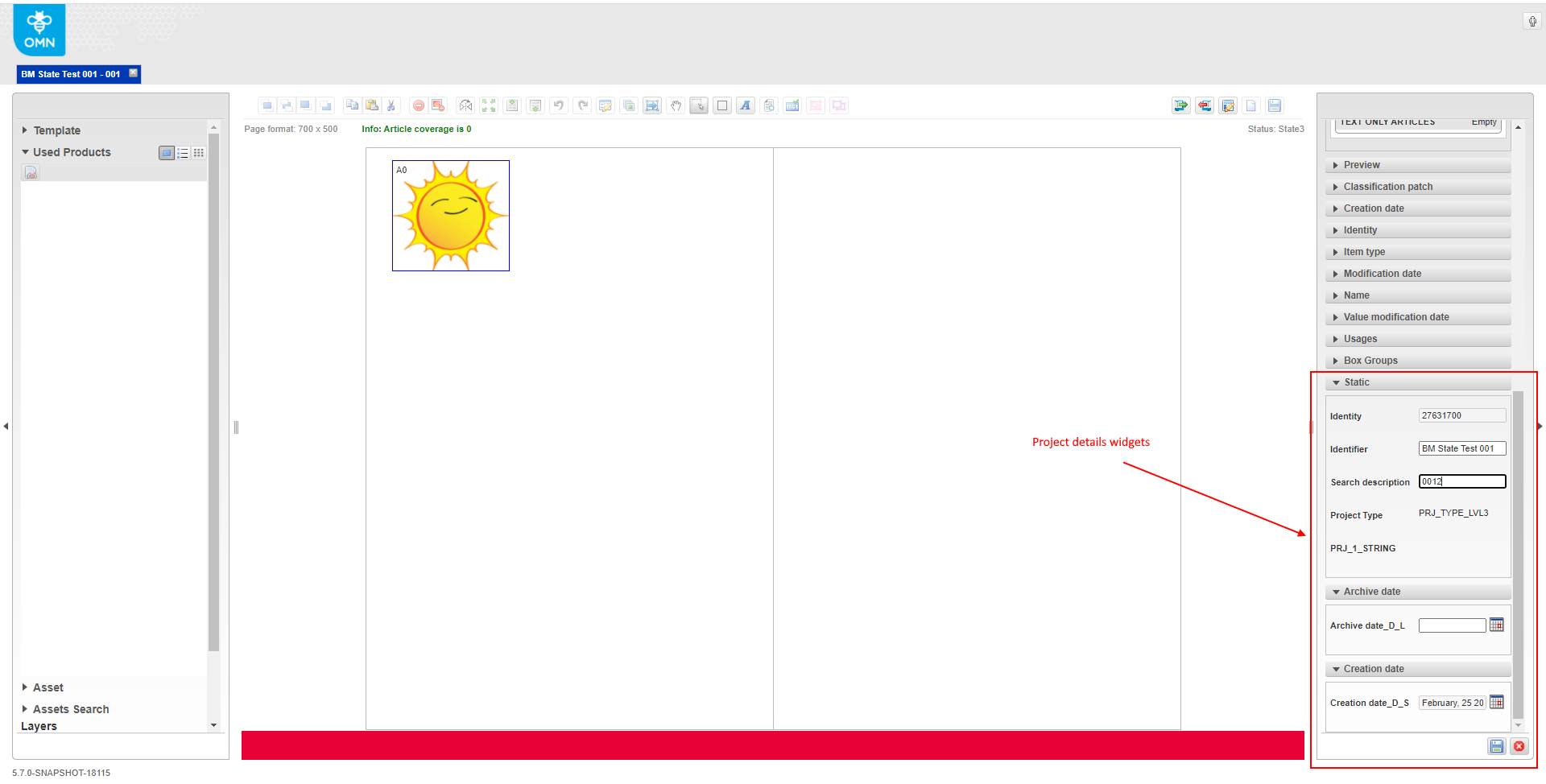
Project details
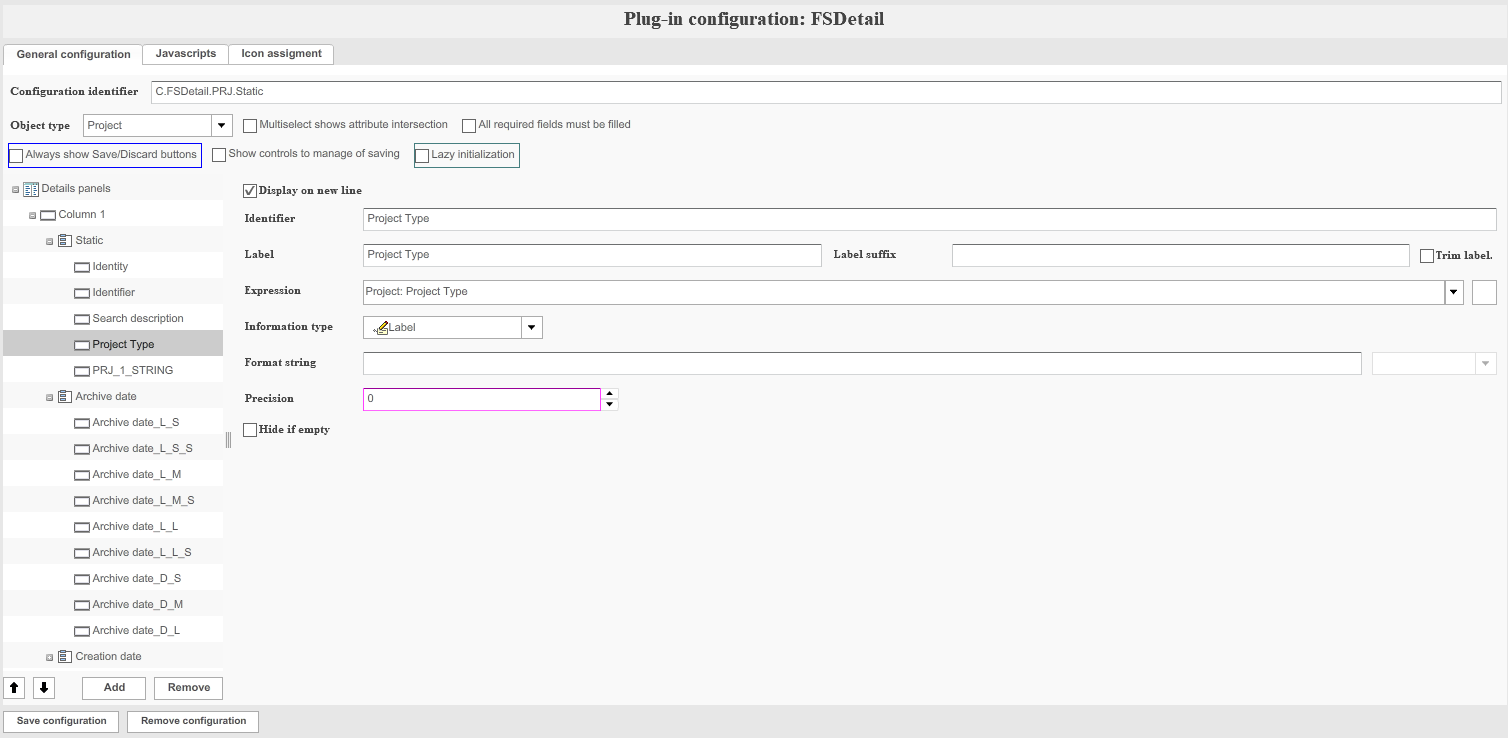
The BriefingModule can show details of project for which it was opened. This details-widget can be configured as usual Project FSDetails plug-in (see image below):
Details widget allows not only reading but also changing and saving the configured project attributes.
|
It is not possible to display project-information from parents of the project. |
Product details
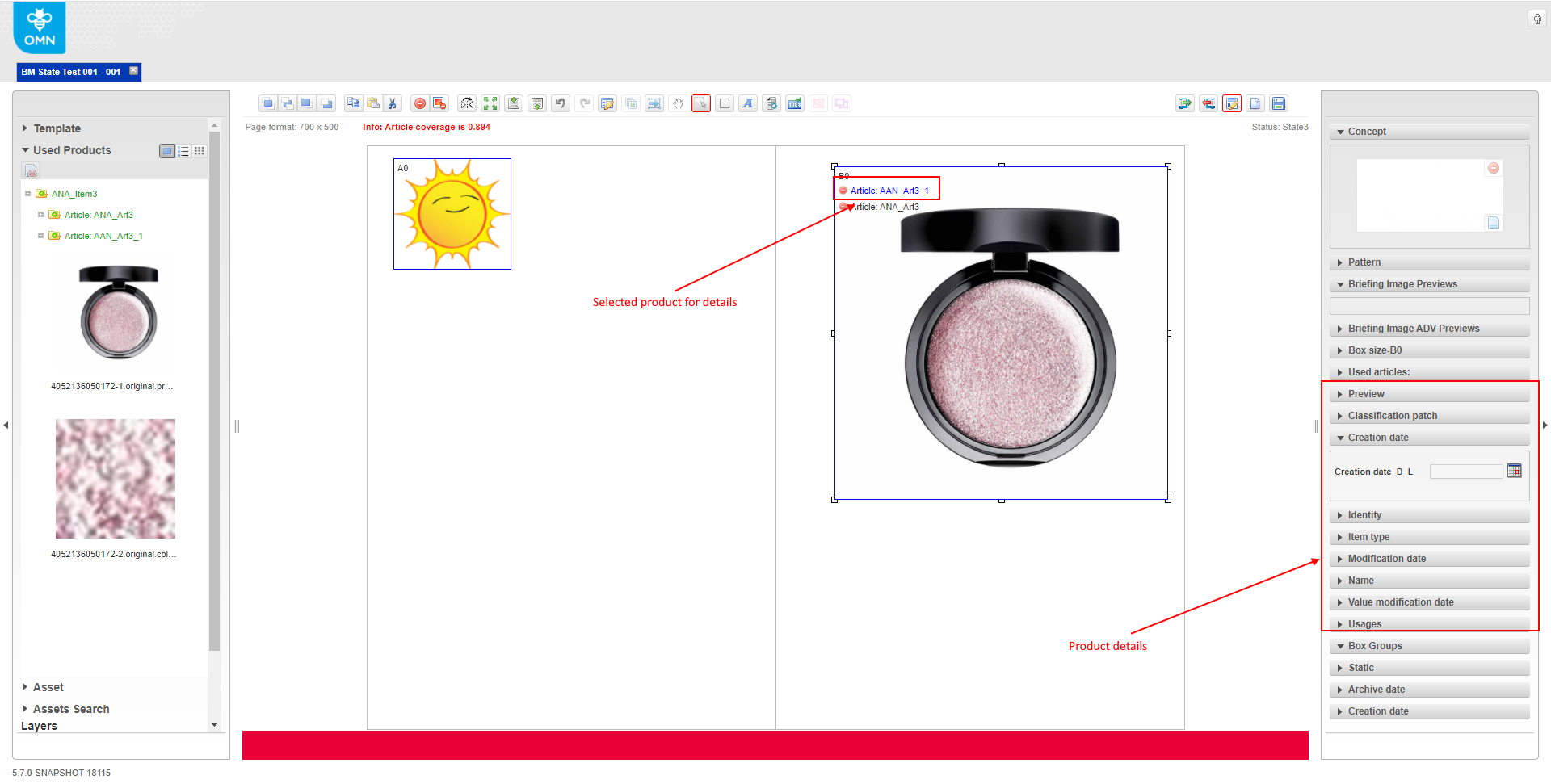
The Module Briefing can show product-details, for which it was selected in the box in center canvas. This details-widget can be configured as usual Product-FSDetails-plugin as shown in the following image:
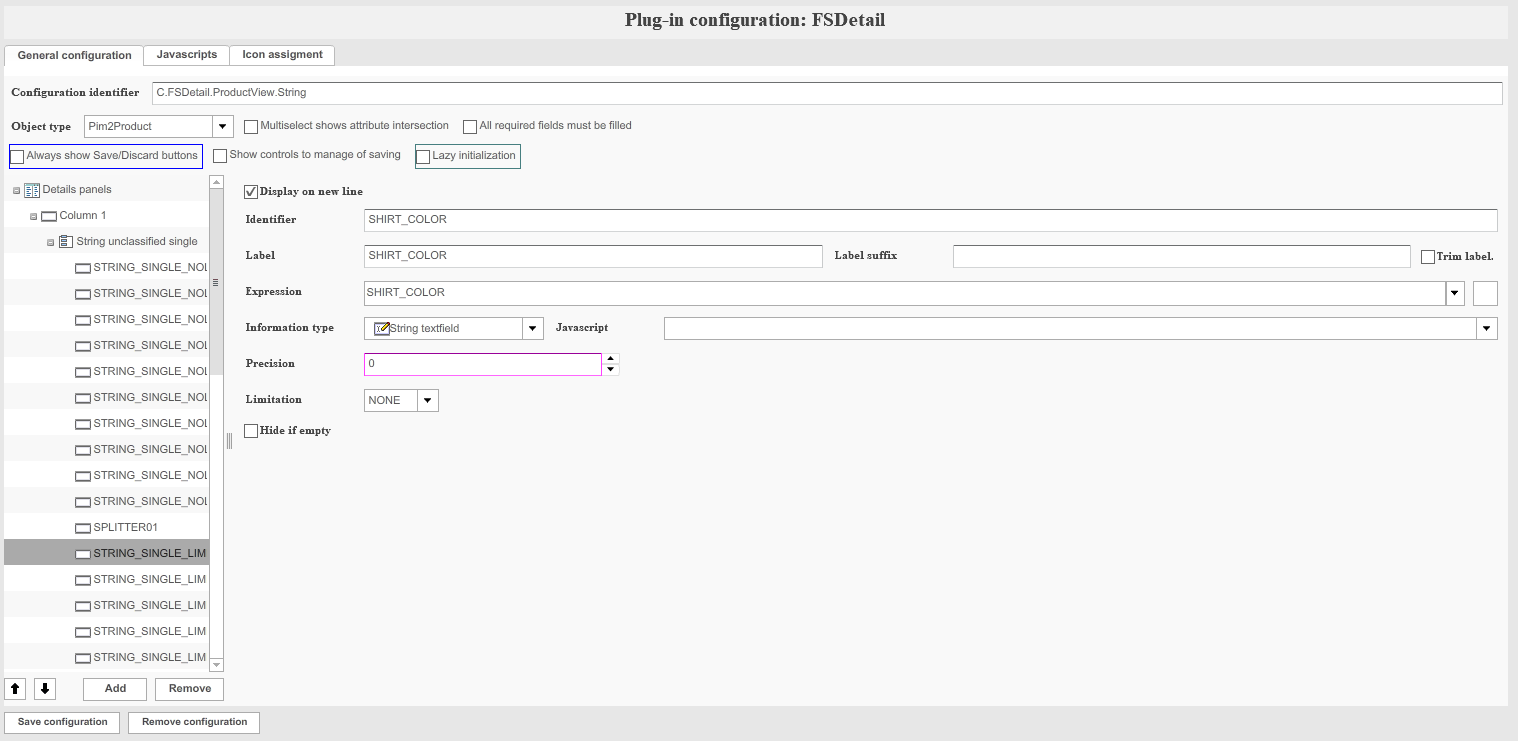
Product-attributes can be configured in the details-widget. There you can read, change and save these product attributes.
Layout Image Box in the BriefingModule
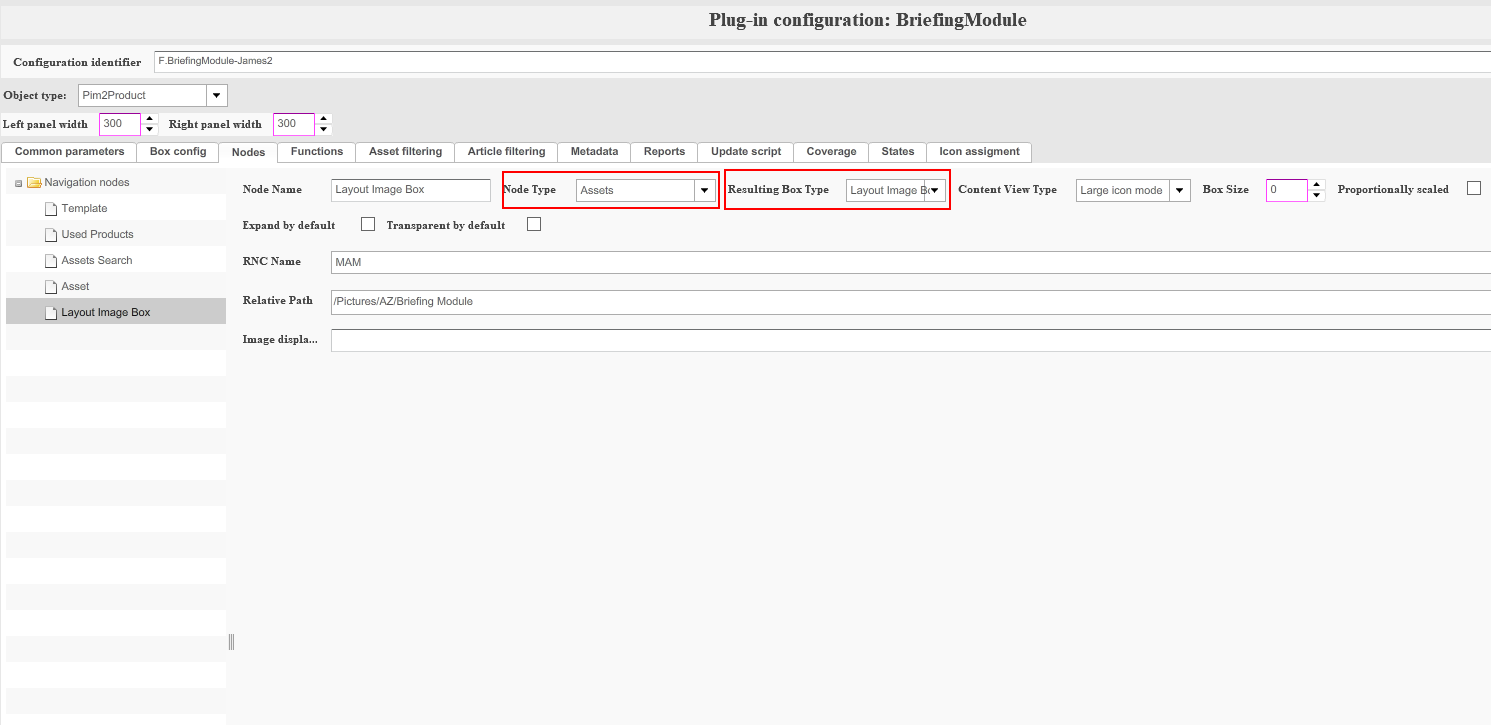
To add layout-image-box to the BriefingModule-layout, the node for layout-image-box must be configured in the backend. The layout-Image-Box has a usual node-type with type "Asset". The type of the Resulting-Box should be "Layout Image Box" (see image below):
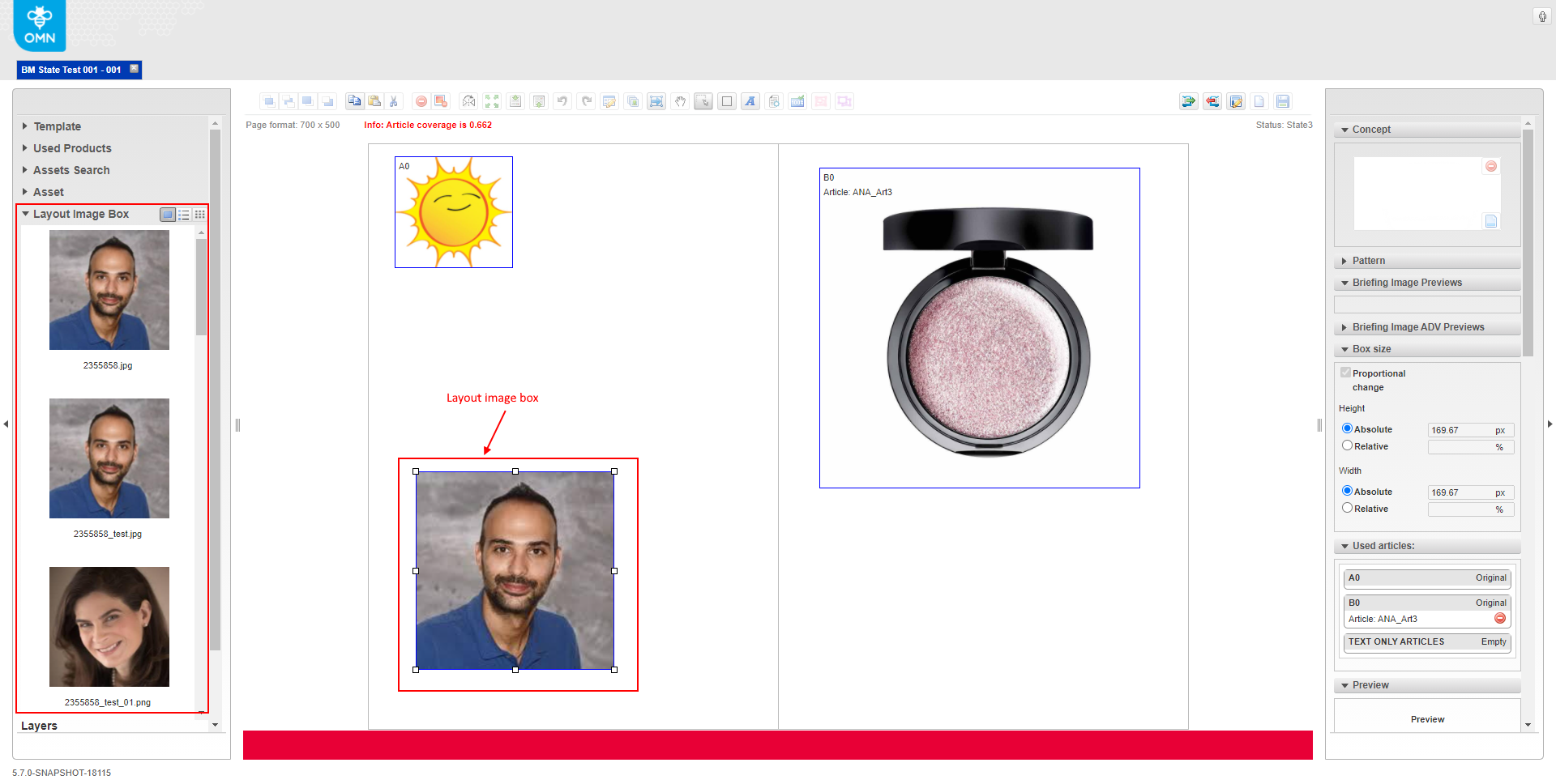
In OMN frontend the layout-image-box can be created as follows:
By DragNDrop the image can be moved from this node to the layout. After dropping, the layout-image-box will be created. Such box will have only image as content, will not have a name. Details widget also cannot be opened for such box. Also this box will not be displayed on the right panel in section "Used Articles".
Configuring BriefingModule in ProjectFlatplanView
The BriefingModule can be opened from the ProjectFlatplanView. Therefore the following needs to be configured:
Navigate to the back-end configuration.
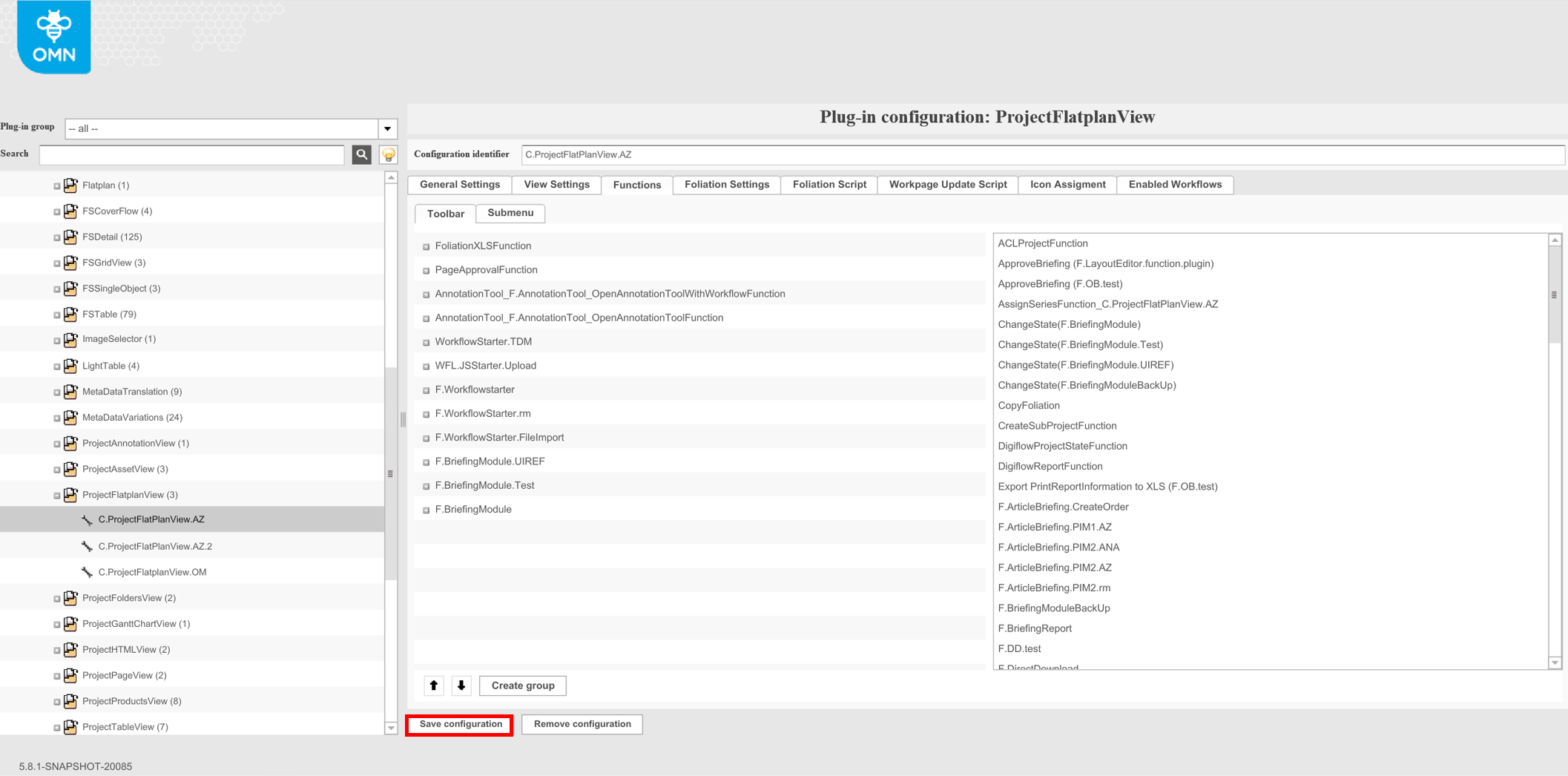
In the left view expand "Mandators" → "<Mandator name>" → "Content plug-ins" → "ProjectFlatplanView"
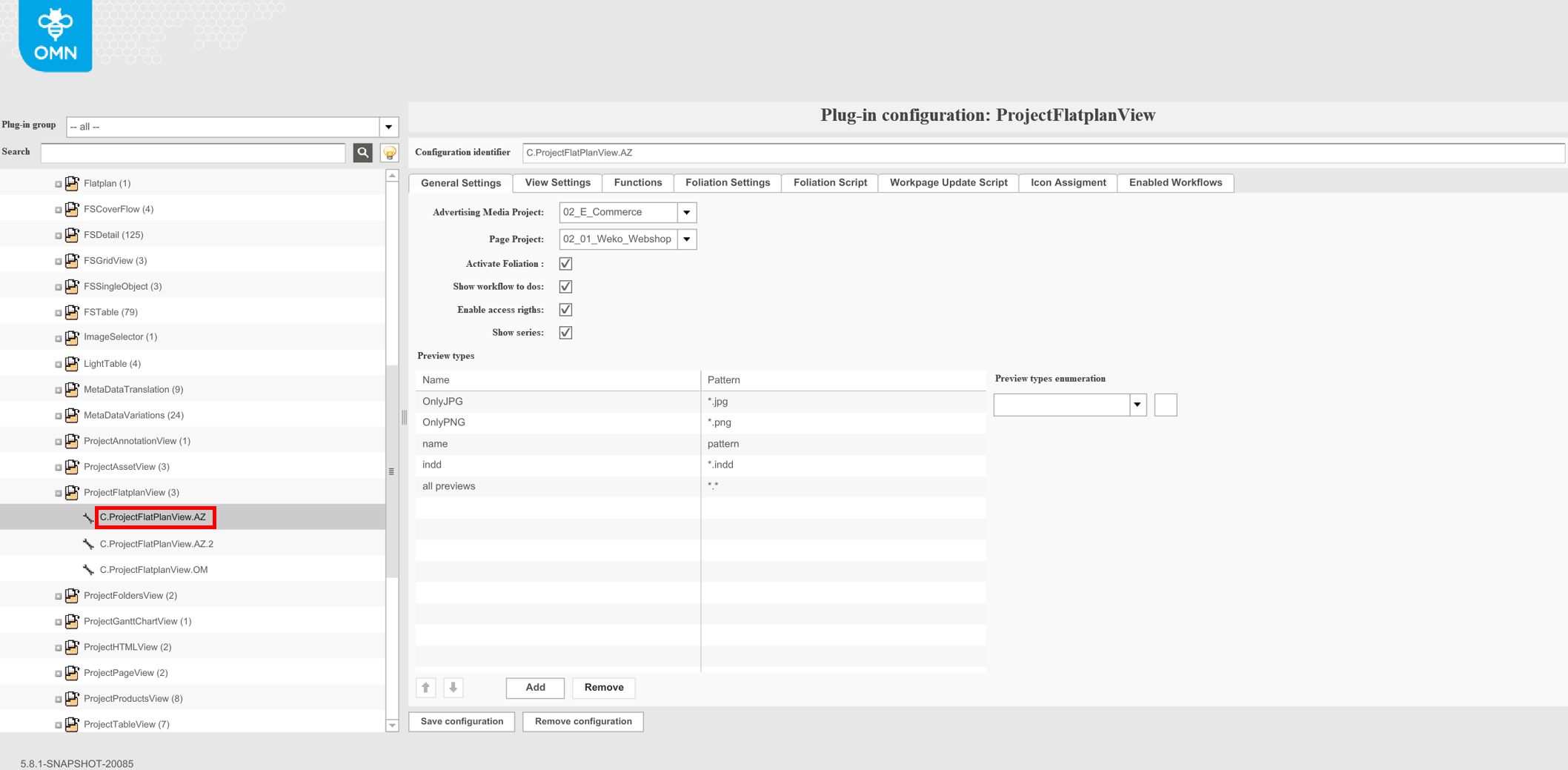
Open the "Functions"-tab.
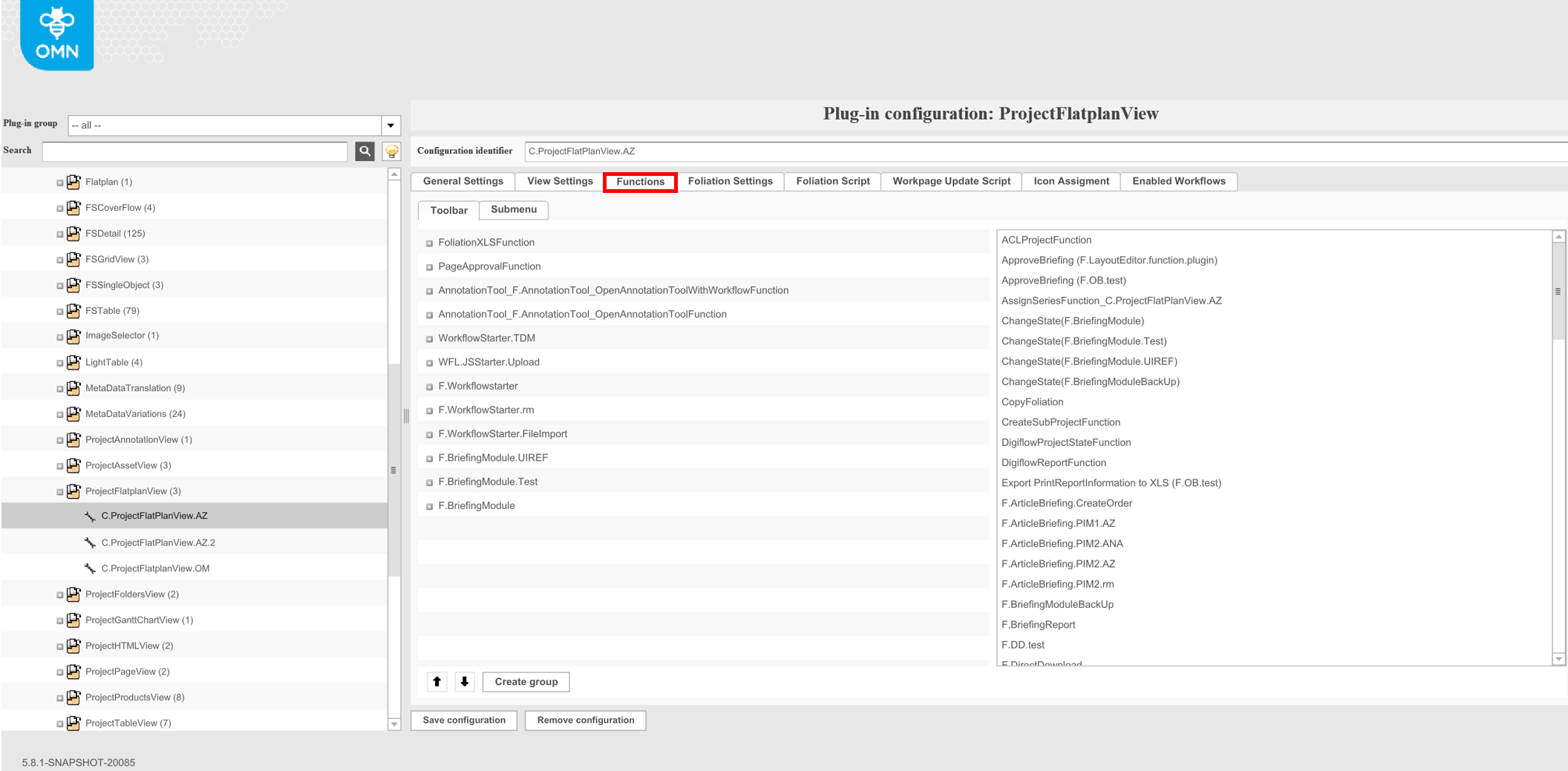
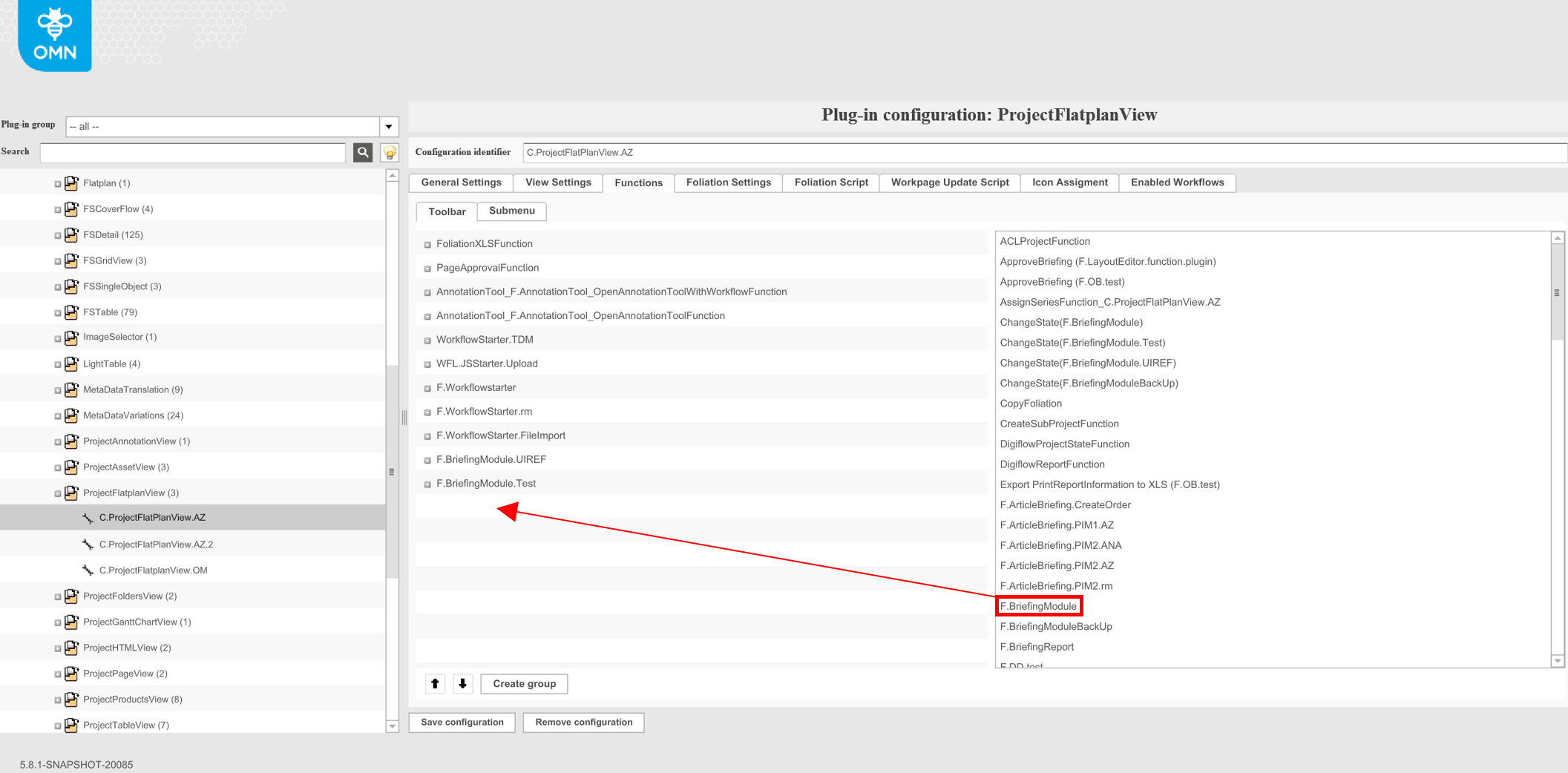
Drag and drop the "BriefingModule"-function from the right side to the left side
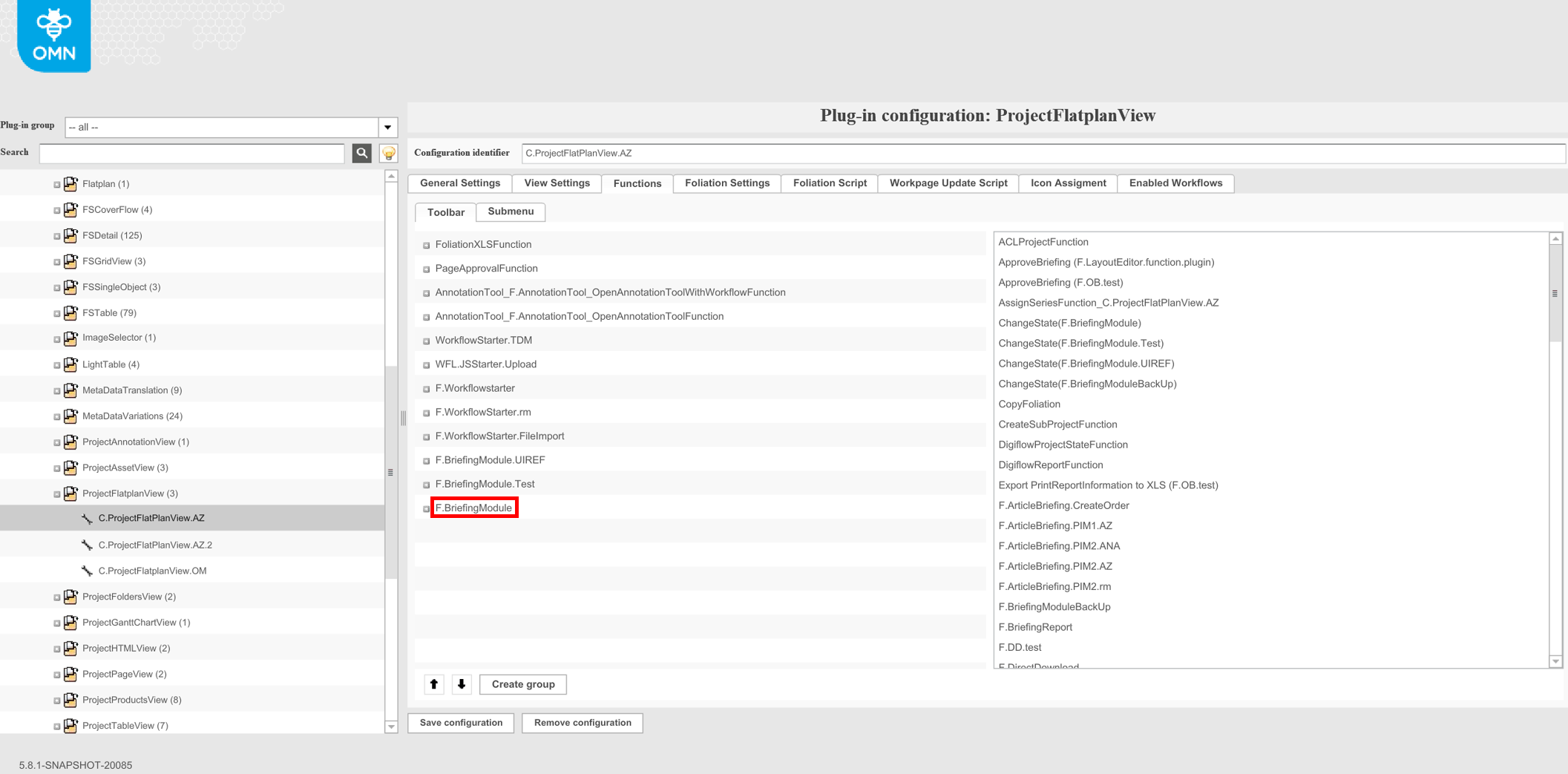
Save the configuration
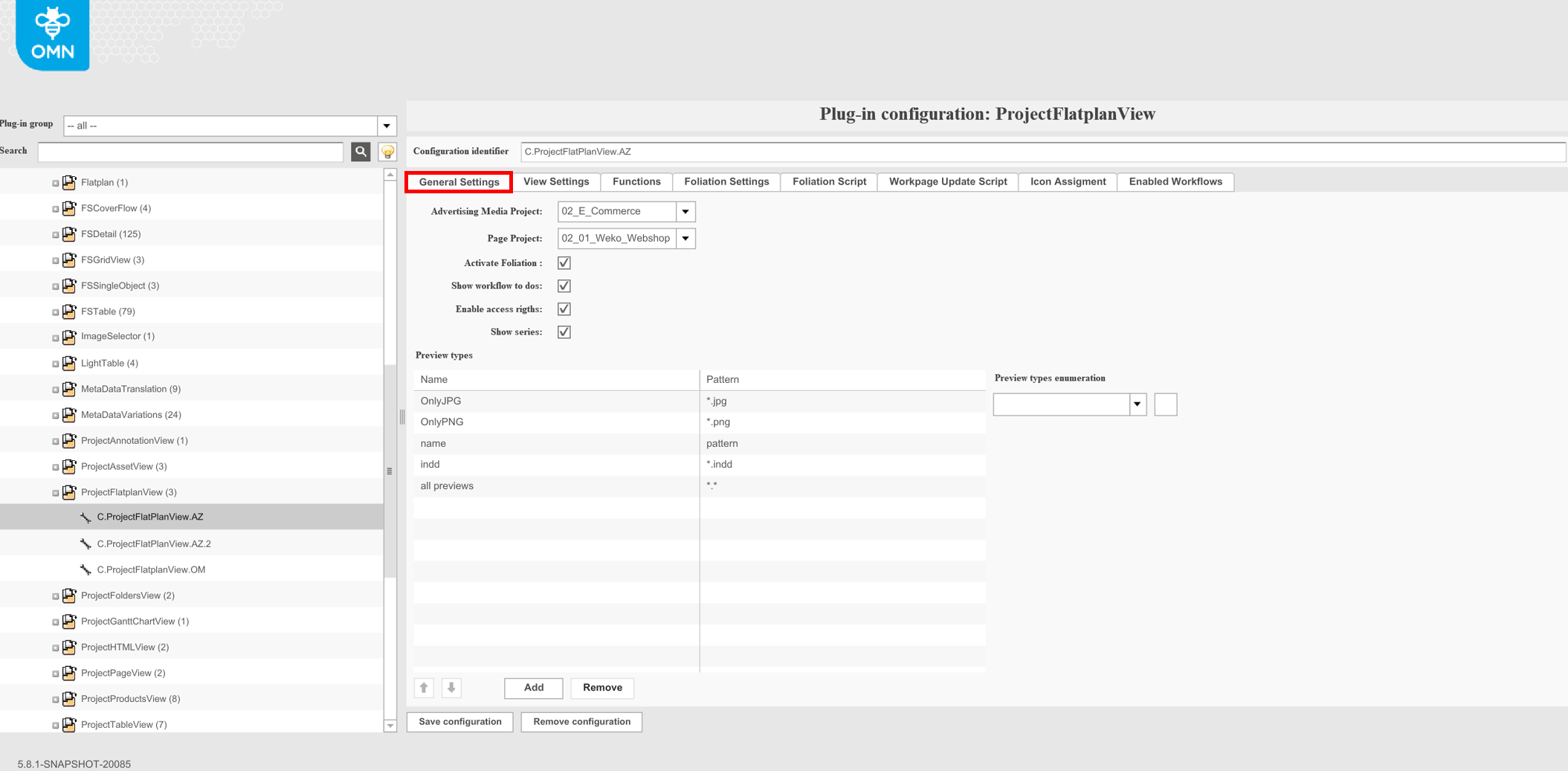
Open the "General settings"-tab
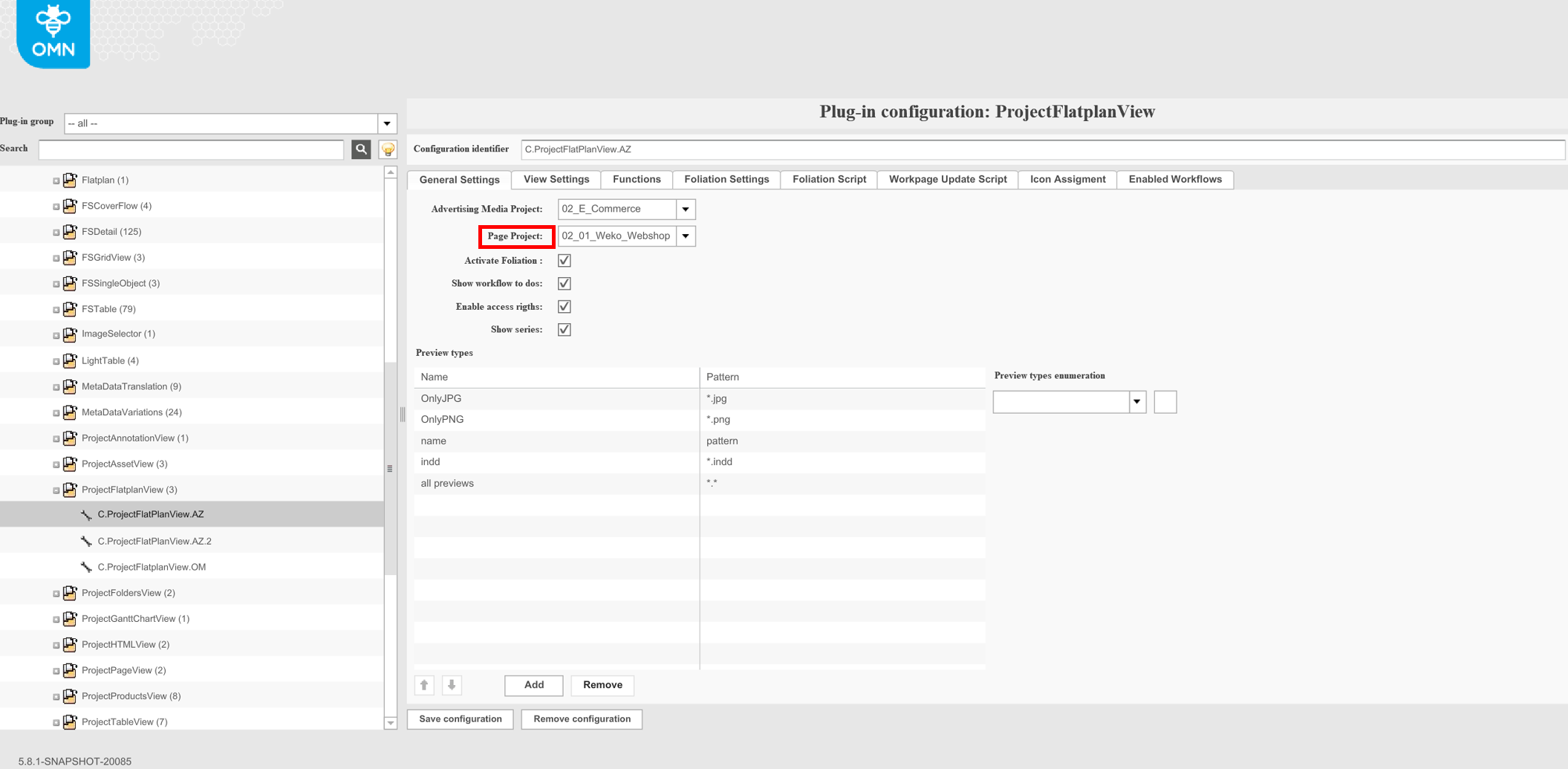
To enable the "BriefingModule"-function in the ProjectFlatplanView of a project, select the desired project in the dropdown "Page Project"
In the left view expand "Mandators" → "<Mandator name>" → "Application modules" → "Projects" → "ProjectTypes"
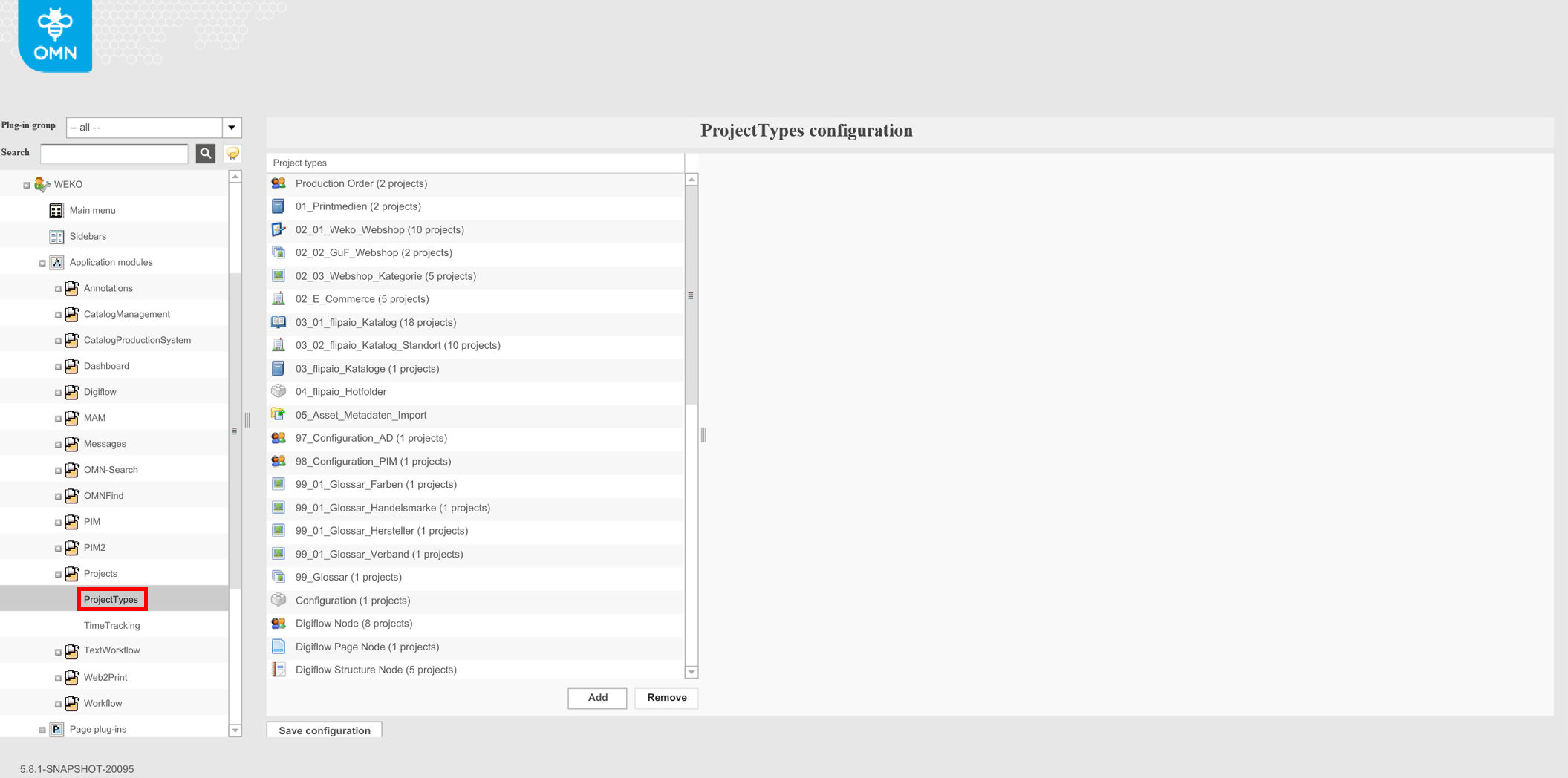
Select the project which is set as "Page project" in the ProjectFlatplanView
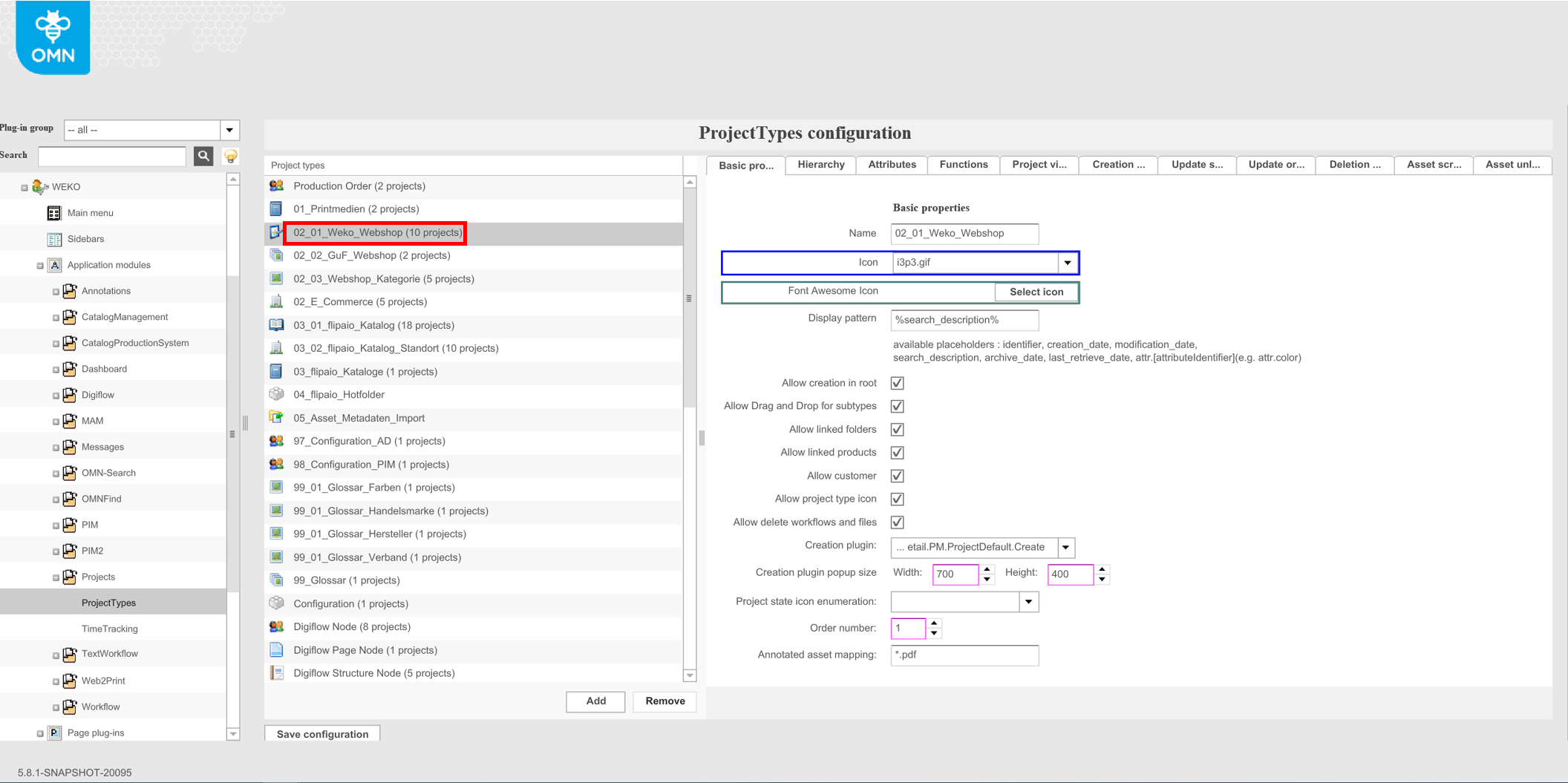
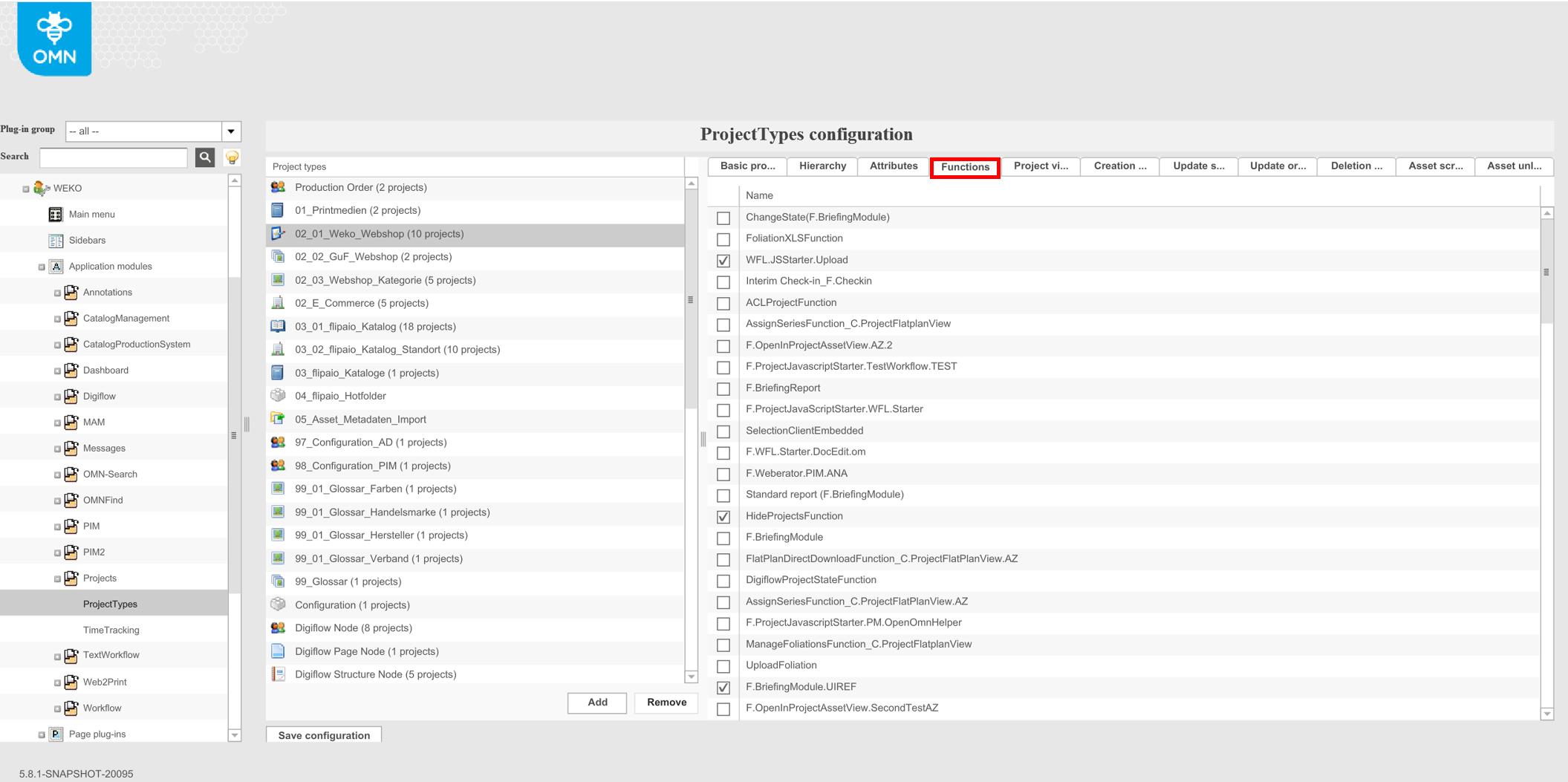
Open the "Functions"-tab
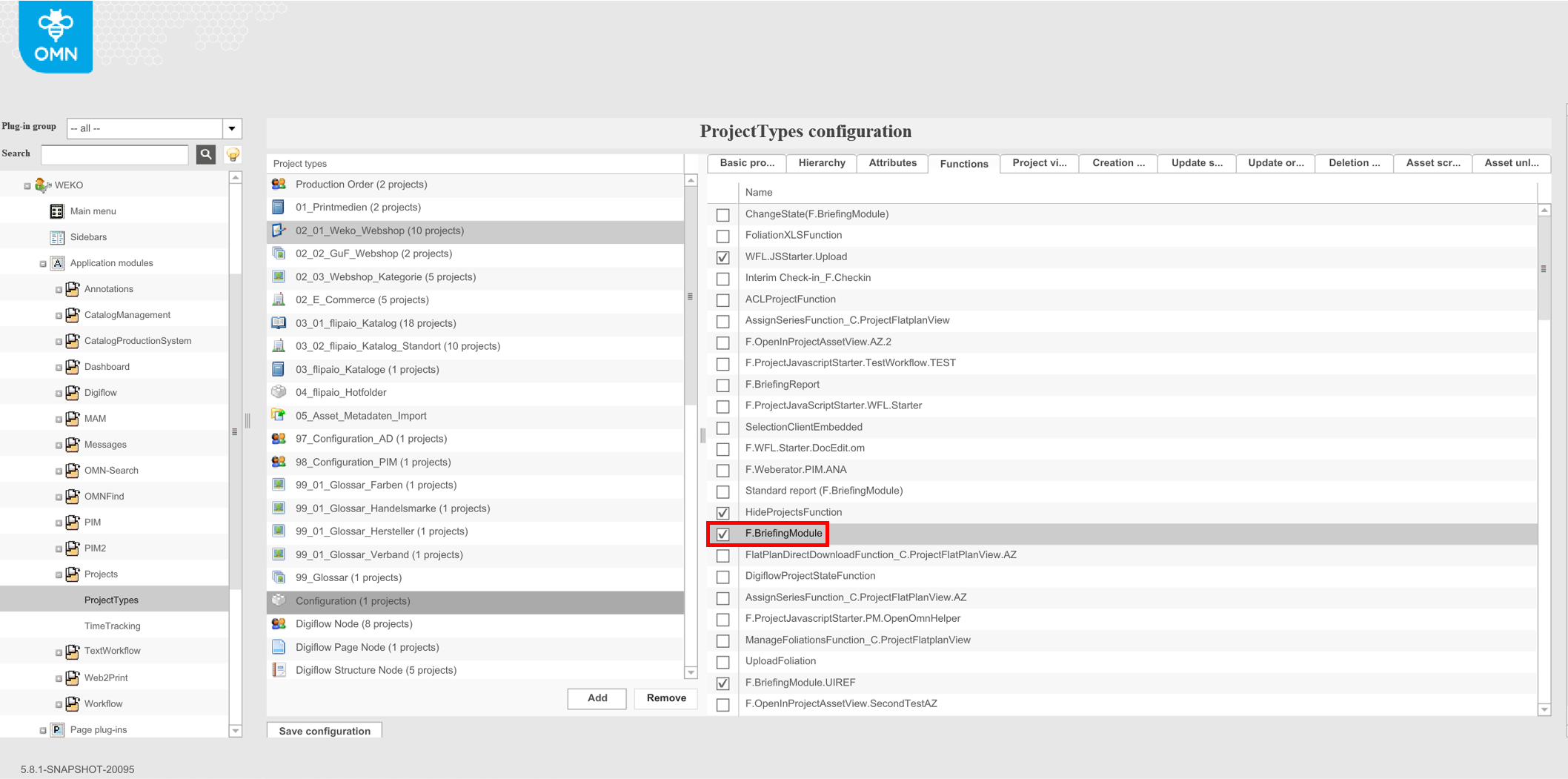
Activate the checkbox of the "BriefingModule"-function
Save the configuration
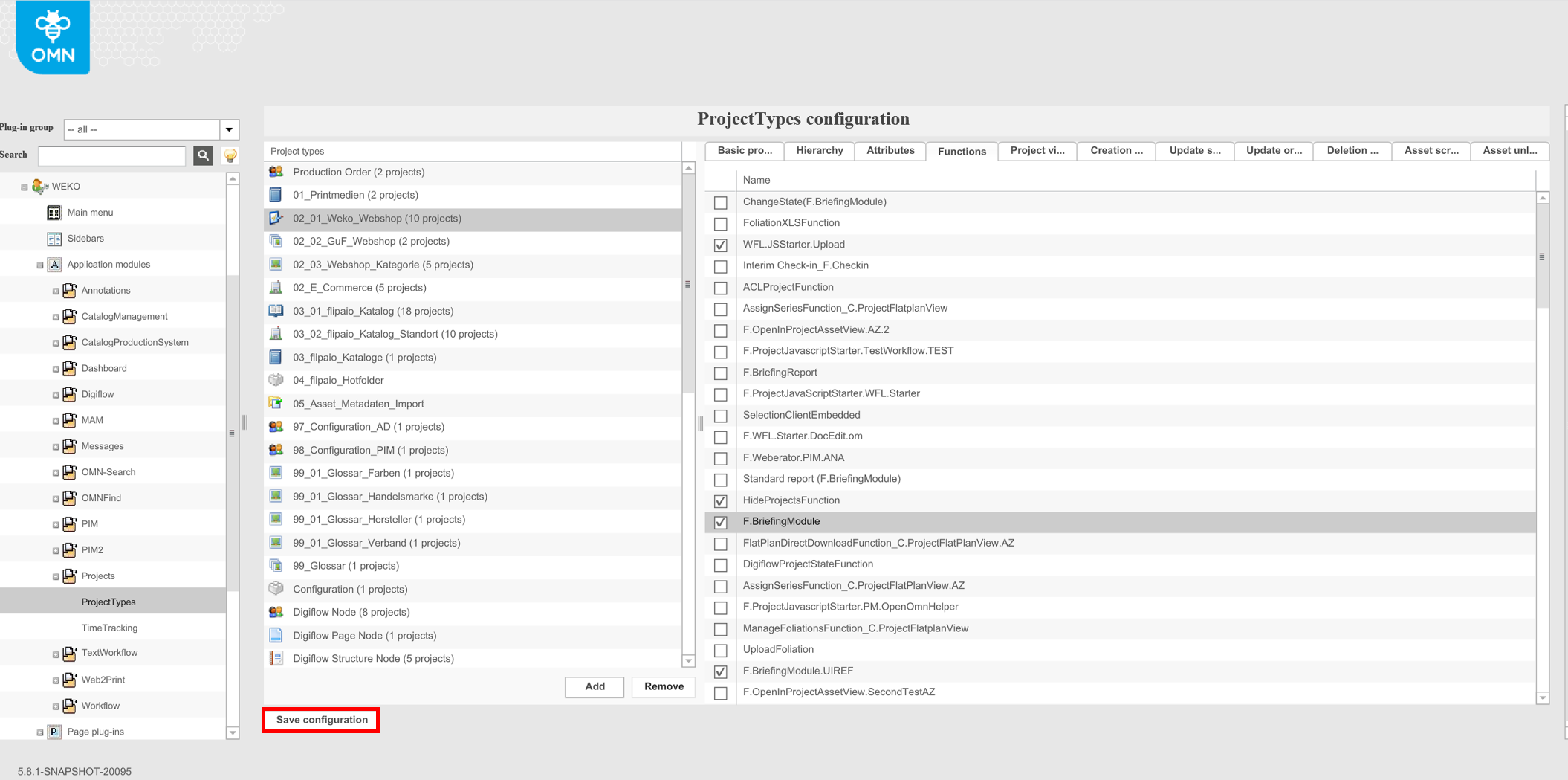
Now the "BriefingModule"-function can be used