Adding Menu Items of the Type PM Objects to a ProductView
This overview is only valid for menu item of the type of PM Objects.
For being able to add a Search Plugin make sure that you have the following plug-in available:
✓ Content plug-in “FSTable”
✓ Content plug-in “FSDetail”
Make sure that you have the following prerequisites ready:
✓ PM Project with product reference attribute is configured (see detail config steps)
This is how configuration of PM Objects menu item looks like:

In the table below you can see descriptions for configuration options of the PM Objects menu item:
| Field | Description | Notice |
|---|---|---|
Identifier |
Name of the specific menu item. |
|
Type |
For choosing a type for the menu item: PM Object |
|
Right panel width |
Width of the right area can be modified |
All values in pixels |
Product Attribute |
Define the reference product attribute |
|
Content Views |
For adding a content view from Type FSTable or FSDetail. If necessary, for adding functions to the content view |
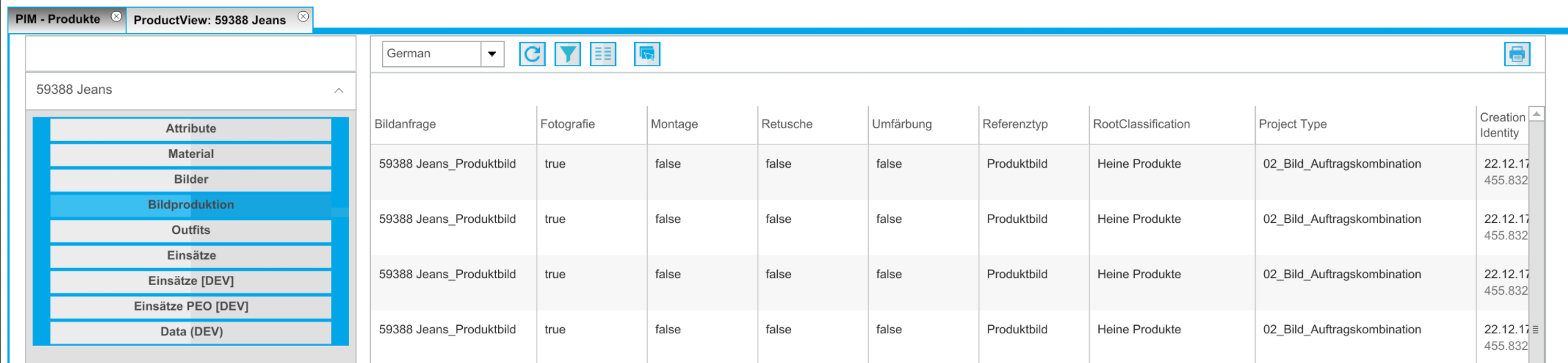
Here you can see the example of PM Objects menu item on the frontend client:
Config Steps of project/product reference attribute
-
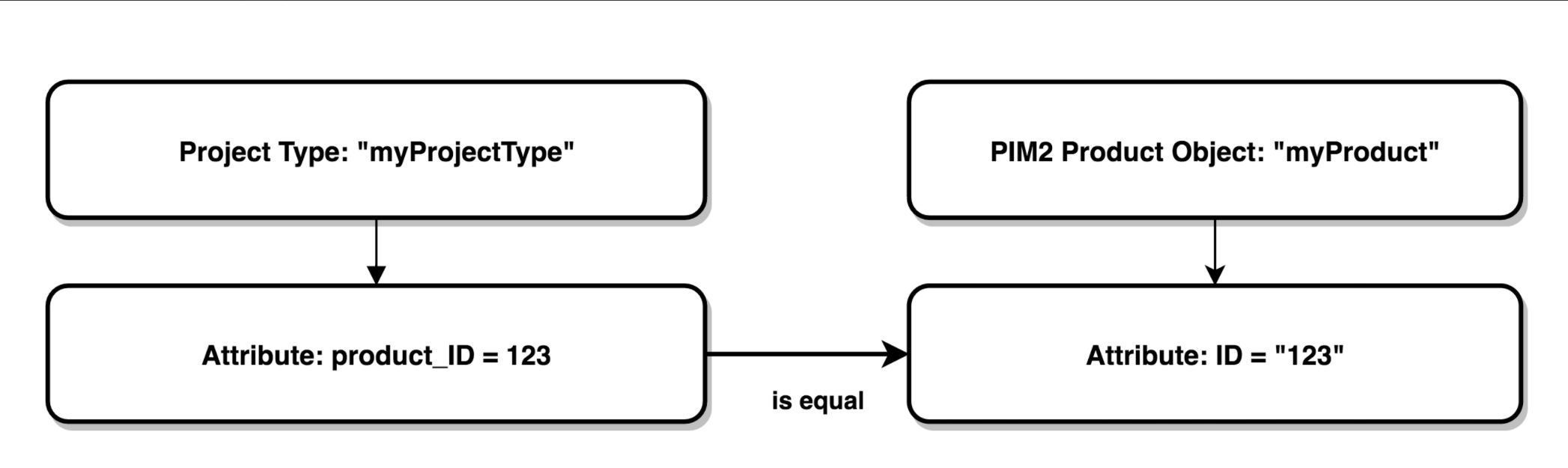
Create a project type with an attribute to save related pim2 product id.
-
For example: MY_PRJ_TYPE.product_id
-
Create a PIM2 ProductView and add a new Tab of type "PM Objects"
-
Choose MY_PRJ_TYPE.product_id as the value of "Product attribute"
-
Add a FSTable to show a list of PM Objects of type "MY_PRJ_TYPE"
-
Result: The ProductView of PIM2 Product with the ID "12345678" will show a list of PM-Objects, which PM attribute "product_id" has the value "12345678"