OMN Versioning Configuration Guide
General Configuration of Versioning
1. Configuration of Versioning for internal use
As well as OMN you need to copy the "config.samples" directory located at "/usr/local/omn/versioning/" and rename it to "config" after the installation of Versioning.
Inside the "config" folder, open the configuration file "versioning.properties" and adjust the values of the properties for your needs!
You may have a look at the sample configuration below!
| Required Properties: Make sure to add the properties: "rmi.host" and "service.version.storageAlertSize" to the properties file as shown in the configuration sample below |
versioning.properties sample
rmi.registry.port=4794
rmi.registry.lookup.port=0
rmi.registry.lookup.logpath=/usr/local/omn/versioning/log
service.version.rootfilesystem=/usr/local/omn/versioning/storage
rmi.host=localhost
service.version.storageAlertSize=1000000000
2. Adjust File Permissions
Make sure the defined directory for the property "service.version.rootfilesystem" is writable for the OMN user (tomcat).
If you are using the example configuration change the owner like this (create the folder "storage" if it does not exist):
File Permissions
chown -R tomcat:tomcat /usr/local/omn/versioning/storage
3. Set JAVA_HOME for Versioning
Create a new file at "/etc/omn" named "versioning.conf" and set the variable "JAVA_HOME" to the local JRE installation directory within this file.
E.g:
versioning.conf
JAVA_HOME=/usr/lib/jvm/jre-1.8.0-openjdk.x86_64/
4. OMN Configuration
For the RMI communication between Versioning and OMN you need to inform OMN on which host and port the versioning is running.
If your versioning configuration differs from the default values provided by OMN:
omn_versioning.properties sample
Versioning.RmiHost=localhost #Versioning running on the same machine
Versioning.RegistryPort=4794 #Default registry port for versioning
You will need to navigate to the OMN configuration directory "/usr/local/omn/config" and create a new property file e.g. "omn_versioning.properties".
Open the properties file with an editor of your choice and set your custom properties according to your versioning configuration.
Storage system configuration and Migration
You need to specify service.version.rootfilesystem otherwise the application is unable to operate.
| In case of a migration from DSS, just specify the location which DSS used and start versioning service. |
Since version 4.4.2, the configuration service.version.storageAlertSize is required. See example configuration below:
service.version.rootfilesystem=/omn/versioning
rmi.host=localhost
rmi.registry.port=4794
rmi.registry.lookup.port=0
rmi.registry.lookup.logpath=/var/log/omn/versioning
service.version.storageAlertSize=5000000000
There are some things you have to do for a migration to OMN Versioning:
-
The DSS uses a GUID (e.g. „/omn/versions/2616039A-C008-B096-ACF4-E8991830E58C/“) which has to be appended to the path of the attribute service.version.rootfilesystem. Or you have to move the files to the new location: "mv /omn/versions/2616039A-C008-B096-ACF4-E8991830E58C/* /omn/versions/"
-
Change the rights of the folder "/omn/versions" from "root:root" to "tomcat:tomcat" otherwise no new versionized files will be created.
RMI configuration
You need to specify the property rmi.host otherwise the application will fail to start.
Deletion of asset versions
When the user deletes an asset, it is marked as deleted and exists some time. Later a special job vanishes all assets marked as deleted.
Activate automatic version creation on upload of duplicate file
Open the config client.
Go to Administration → FileSystems Administration → Open the affected root node
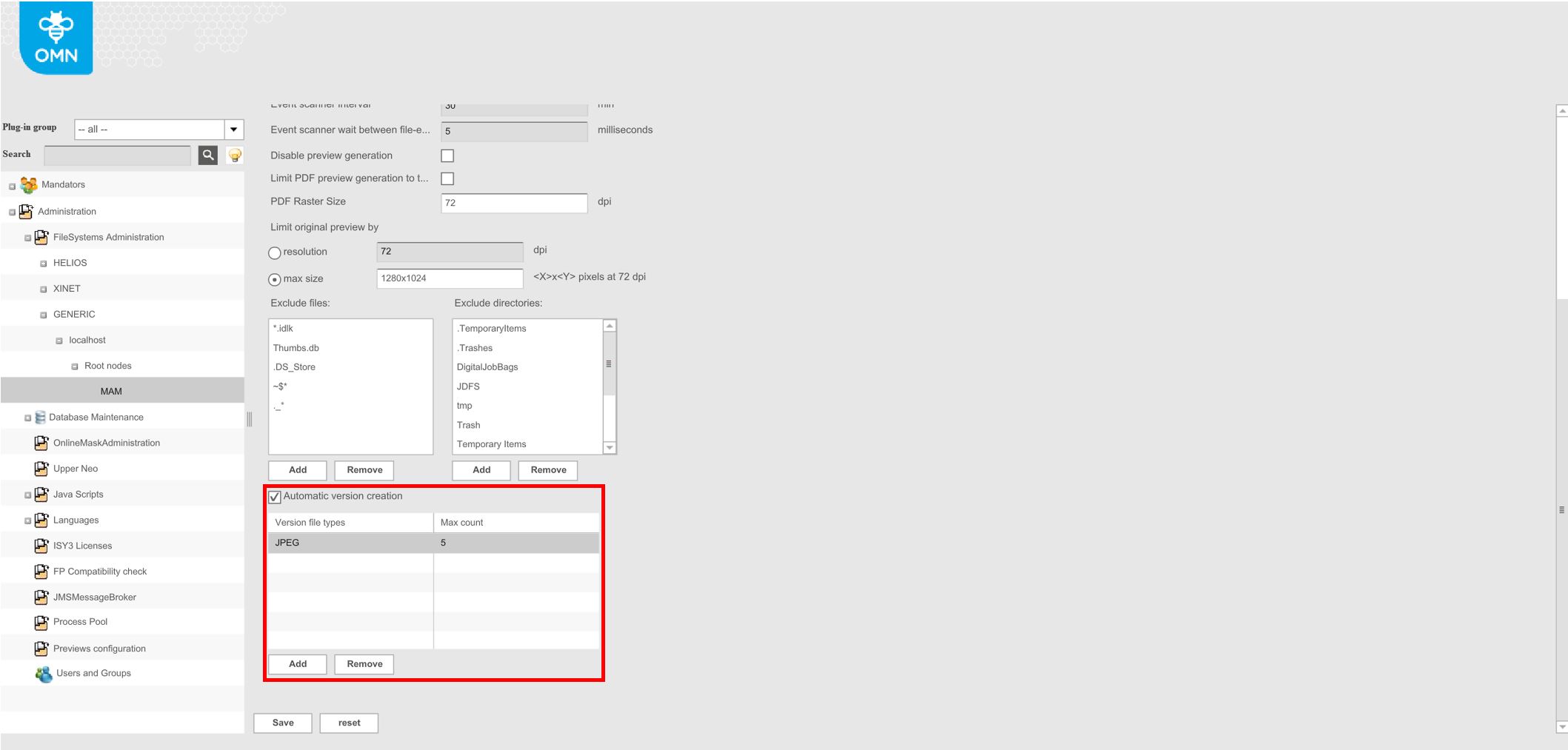
Activate the checkbox "Automatic version creation"
Enter the version file types, for which versions shall be created when uploading duplicate files. File-Types are "dynamic", basically they reflect the current state of what have been imported to the system. You can get them by this sql: select SHORT_NAME from FILE_TYPE The version file type needs to be written like the short name in the database table.
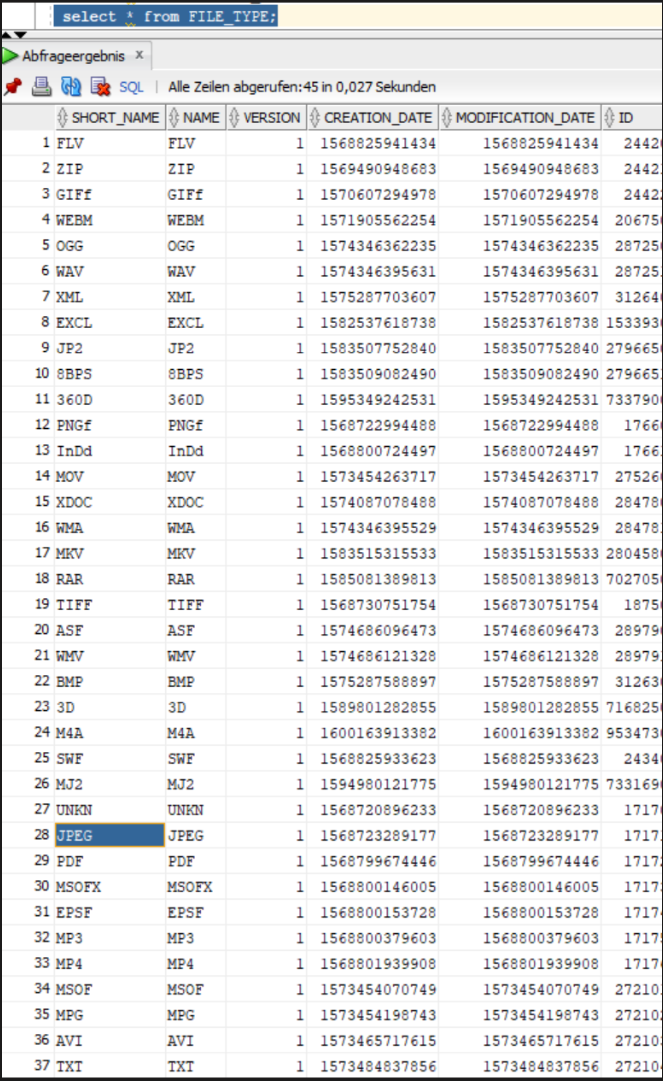
The following file types are supported:

Enter a number in the column "Max count". When the "Max count" of versions for a file is reached, no more versions are being created automatically for this file.