Collective Jobs
Purpose of the plugin
Collective Jobs are used to combine Export Profiles and Selectors in order to create an export.
A decision is made as to which constellation is to be executed at which time.
Introduction
Collective Jobs can be created within this plugin.
A Collective Job can contain one or more Export Jobs (Sub-Tasks).
A Sub-Task consists of a Selector (selection of products/articles/variants) and an Export Profile (selection of attributes). This defines the export scope.
The time and storage location of all export jobs contained in the Collective Job are defined.
In addition, it can be defined for each Sub-Task whether a delta export should be performed.
Prerequisites and relations to other modules
A Sub-Task can only be created if at least one Selector and one Export Profile (with the same classification) exist.
How to use
The Collective Jobs consist of a center and a right view.
-
Center View
Display of Collective Jobs and their Sub-Tasks. -
Right View
Details on Collective Jobs, Sub-Tasks and Export Rules.
Center View
In the center view, Collective Jobs and Sub-Tasks can be created and displayed.
The exact structure and its functionalities are explained in more detail in the following chapters.
Toolbar & Functions
The toolbar contains the following functions:
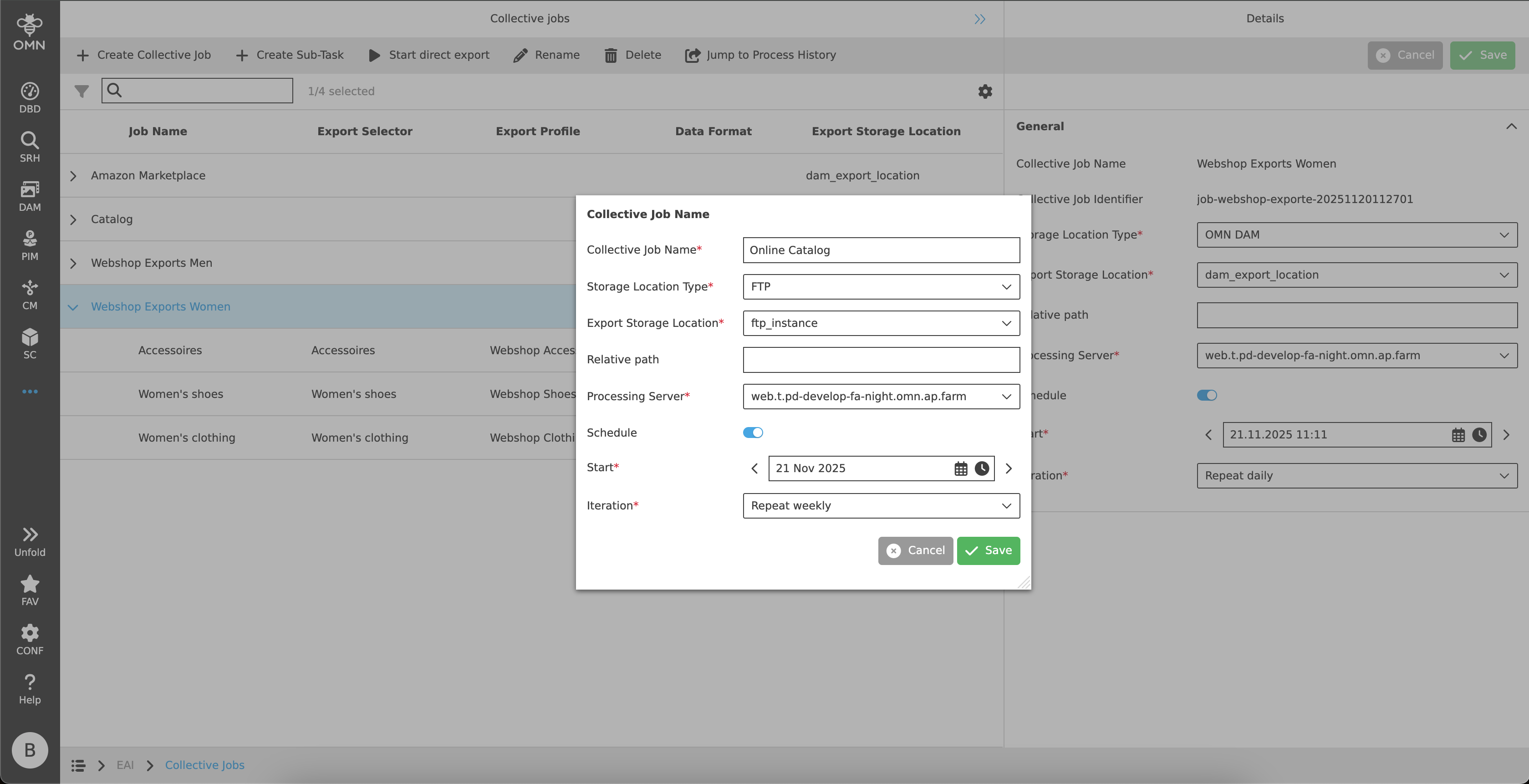
Create Collective Job
The Collective Job serves as a parent object that bundles all underlying Sub-Tasks, thereby offering the option of executing a function, such as immediately starting an export, on all underlying objects simultaneously.
When executing the function, a dialog opens with the following setting options:
-
Collective Job Name
-
Storage Location Type
Dropdown showing the different options for where exports are saved.
FTP and OMN DAM are available by default. -
Export Storage Location
Dropdown which can display different values (FTP instances and DAM paths) depending on the “Storage Location Type” selection and the configuration in the Configuration Client.
By default, one FTP instance and one DAM path are defined via the “generic configuration”. Additional instances and paths can be configured here. -
Relative path
Input field that can add additional folders to the stored “Export location”.
For DAM paths, for example, additional folders are added to the stored path. -
Processing Server
-
Schedule
Toggle that activates or deactivates the schedule.
By default, the schedule is deactivated. -
Start
If the schedule is activated, this date field can be used to specify the start of the first execution.
The user must specify a date and time. -
Iteration
Dropdown that specifies the execution interval. The export can be performed once (does not repeat) or multiple times (daily, weekly, monthly).
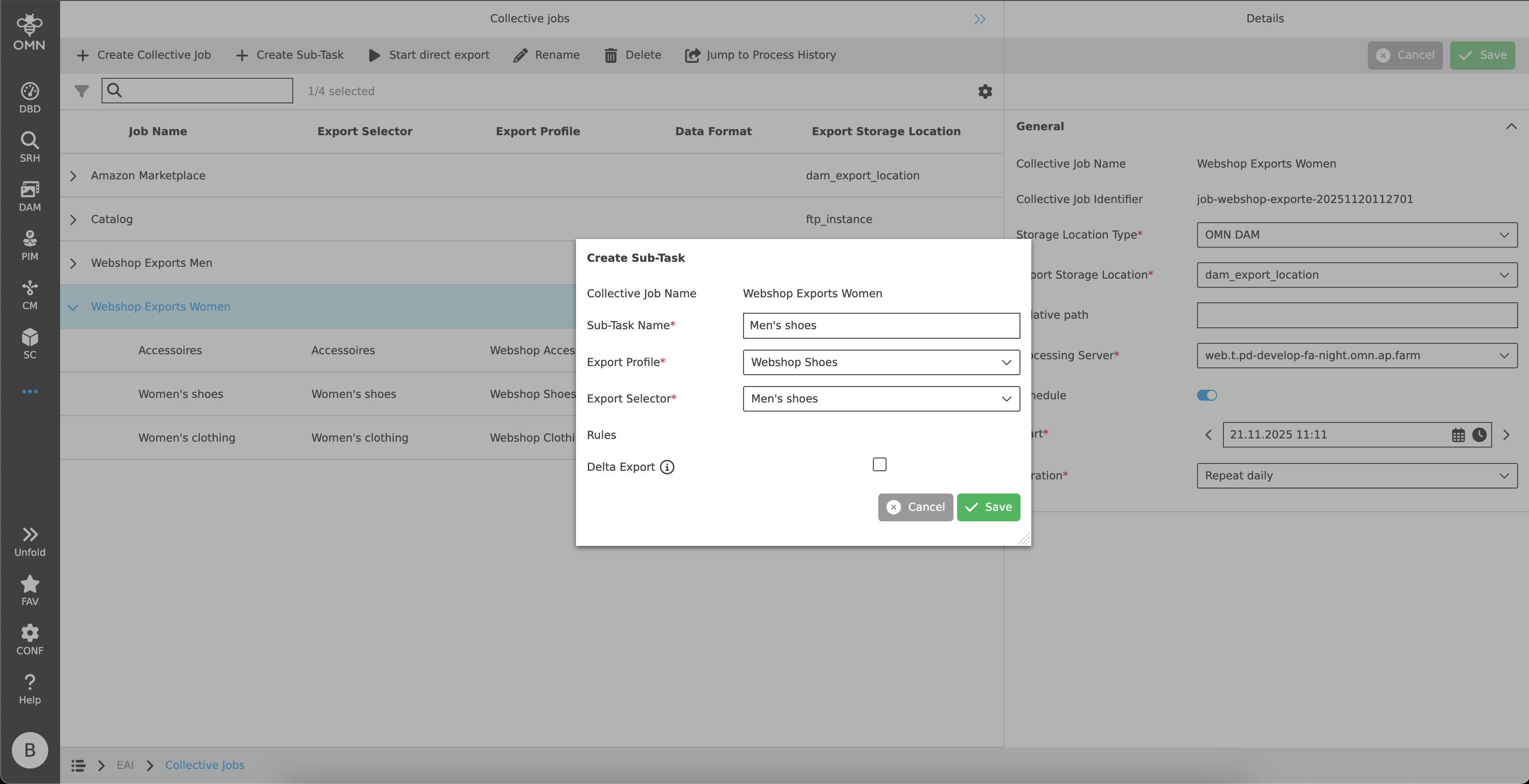
Create Sub-Task
Sub-Tasks combine a Selector and an Export Profile, bringing together the products, articles and variants, as well as the desired attributes for export.
When executing the function, a dialog opens with the following setting options:
-
Collective Job Name
Name des Sammelauftrags, unter dem der Sub-Task erstellt wird. -
Sub-Task Name
-
Selector
Dropdown with all Selectors. -
Export Profile
Dropdown mit allen Export Profilen. -
Rules
-
Delta Export
Only data that has been newly created or changed since the last export will be exported.
-
Statusbar
The statusbar contains a quick search with object counter as well as the statusbar settings.
Canvas
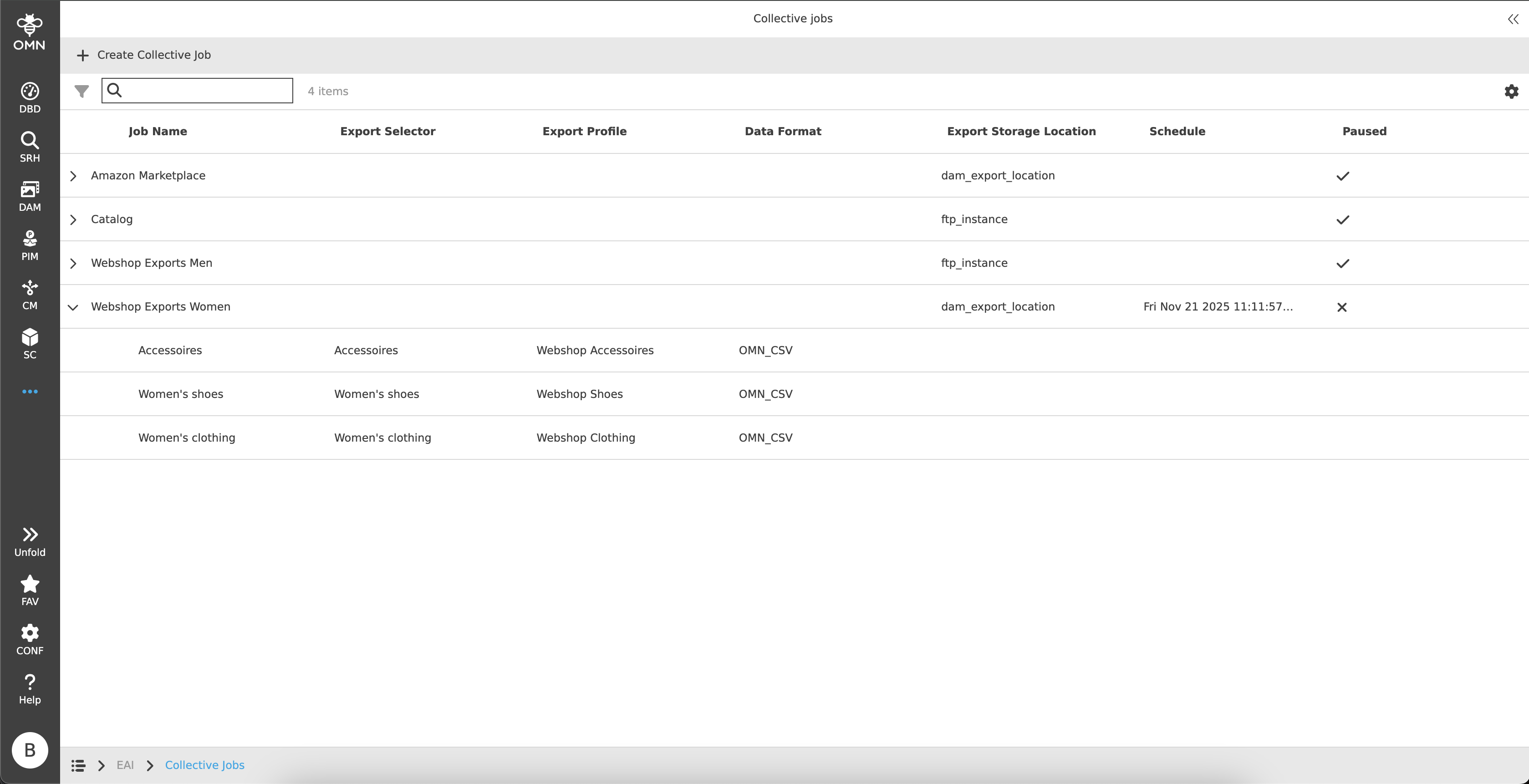
The canvas displays a table showing all Collective Jobs and Sub-Tasks.
The table contains the following headings and content:
-
Job Name
-
shows both the name for Collective Jobs and for Sub-Tasks
-
-
Identifier
-
hidden by default
-
-
Export Selector
-
only for Sub-Tasks
-
-
Export Profile
-
only for Sub-Tasks
-
-
Data Format
-
only for Sub-Tasks
-
-
Export Storage Location
-
only for Collective Jobs
-
-
Schedule
-
only for Collective Jobs
-
-
Paused
-
only for Collective Jobs
-
uses an icon to indicate whether the entire Collective Job is paused or not
-
-
Processing Server
-
hidden by default
-
only for Collective Jobs
-
Right View
The right view shows detailed information about Collective Jobs, their Sub-Tasks and rules.
It consists of up to two accordions, which are described in more detail in the following chapters.
General
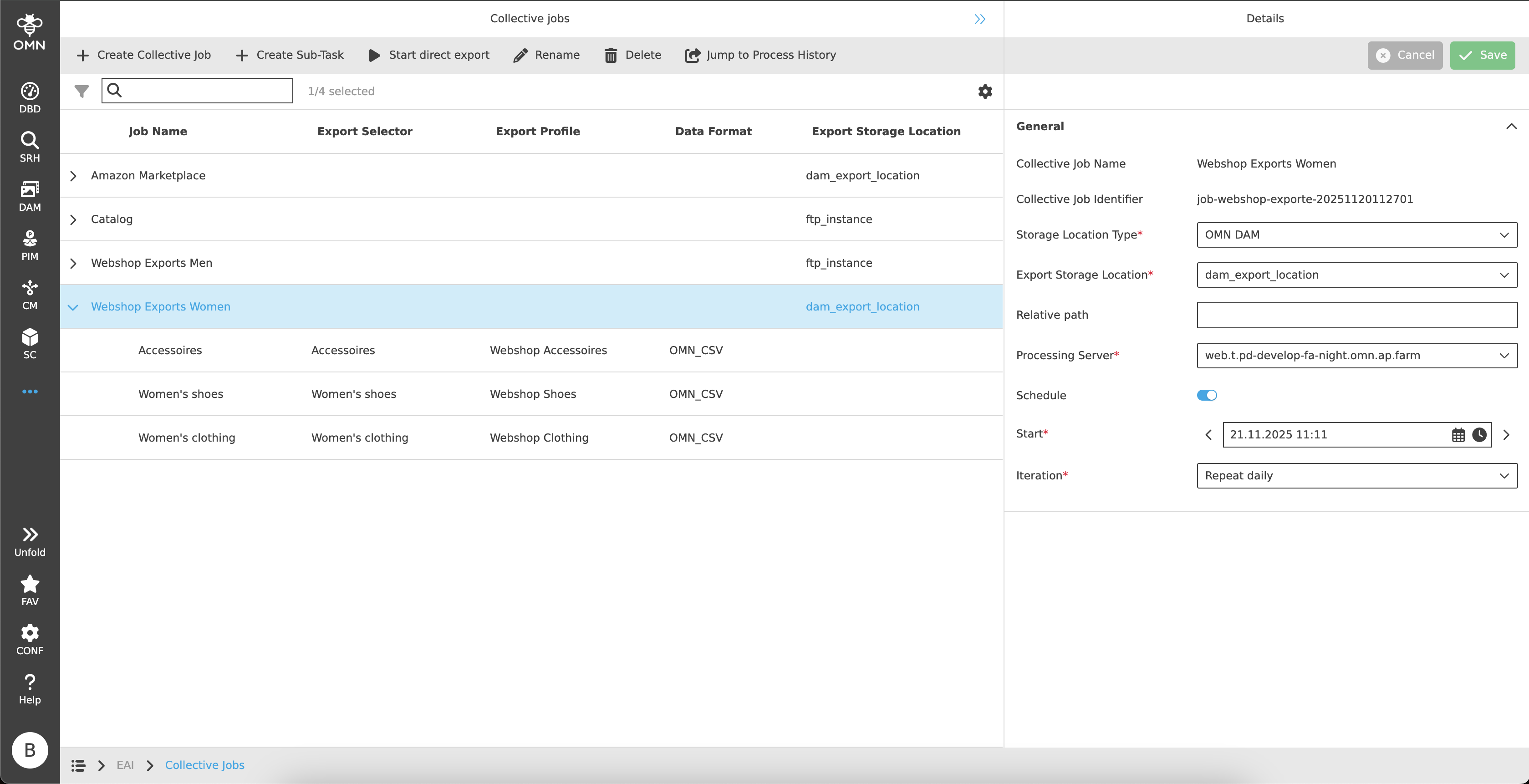
1st Level, Collective Jobs
As soon as a Collective Job is selected in the center view, details about this job are displayed on the right side, some of them can be edited.
The following fields are displayed:
-
Collective Job Name
-
Collective Job Identifier
-
Storage Location Type
-
Export Storage Location
-
Relative Path
-
Processing Server
-
Schedule
-
Start
-
Iteration
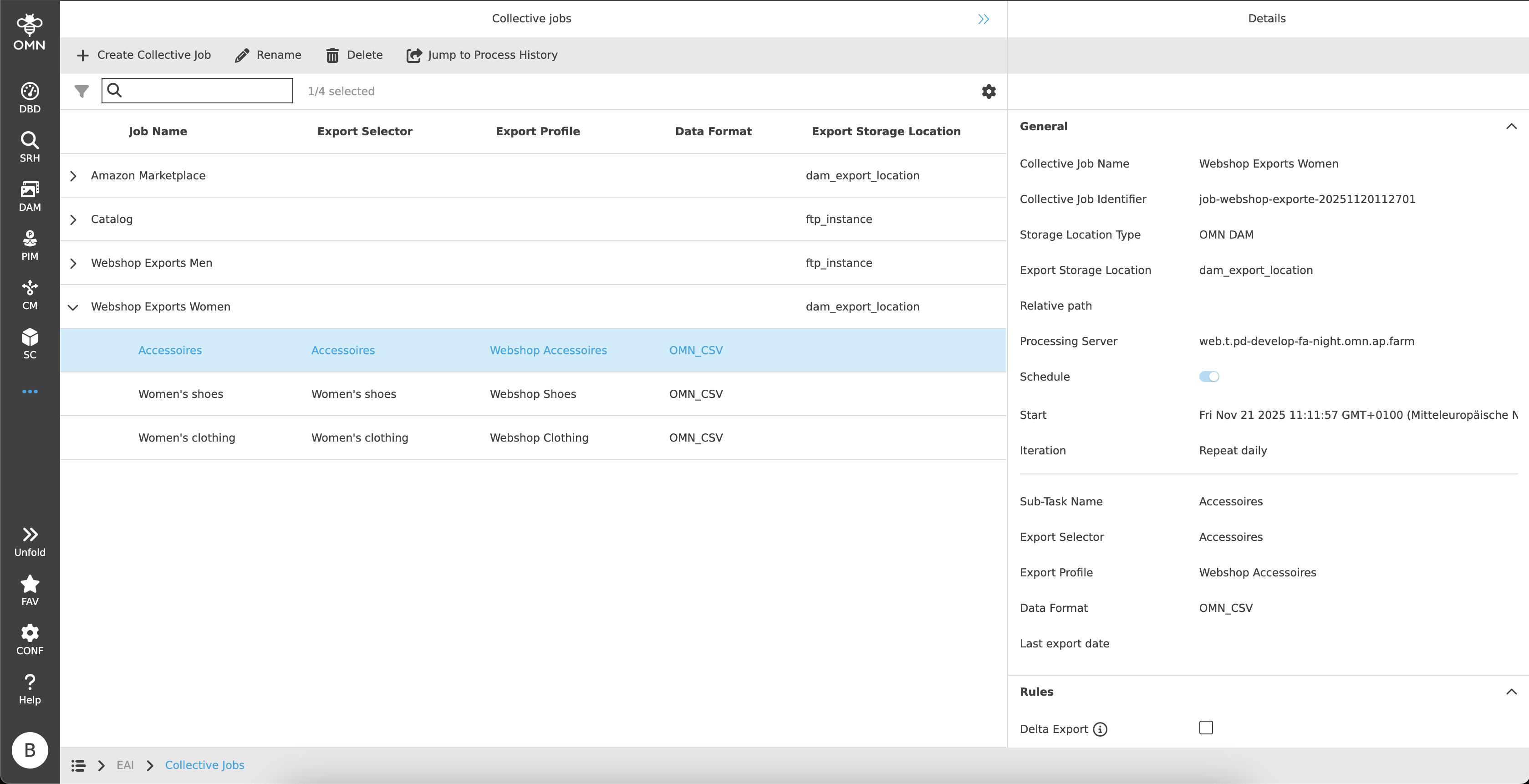
2nd Level, Sub-Tasks
When selecting a Sub-Task, the same information is initially displayed as for a Collective Job, but the fields cannot be edited.
Below the fields is a splitter, and below that is Sub-Task-specific information.
This information is:
-
Sub-Task Name
-
Export Selector
-
Export Profile
-
Data Format
-
Last export date