Digiflow Sync Client with SSL and Proxy
1) Requirements
This document describes how to configure Digiflow Sync Client behind a proxy accessed via SSL. The following image illustrates the assumed general network setup:
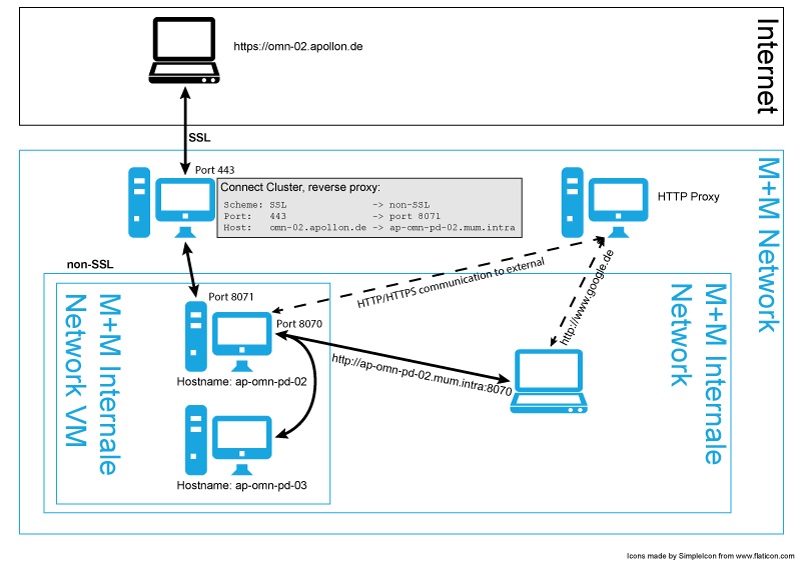
3) OMN Configuration
3.1) Tomcat Connector
In order to support proxy settings, the following settings in the Tomcat Connector have to be added (located in file $OMN_HOME/catalinabase/conf/server.xml):
-
proxyName
-
proxyPort
-
scheme
This is important as the JAX-WS will generate the WSDL file automatically, however this implementation does not know that the system is accessed via a proxy and thus need to use the proxy host name and port instead of the local one. This can be achieved by specifying the above properties in the connector configuration.
|
The above mentioned properties will change the behaviour of the following functions: ServletRequest.getServerName(): Returns the host name of the server to which the request was sent (or the name of the proxy if property is set) ServletRequest.getServerPort(): Returns the port number of the server to which the request was sent (or the port of the proxy if property is set) |
E.g.:
<Connector port="8070" redirectPort="8443" connectionTimeout="20000" disableUploadTimeout="false" URIEncoding="UTF-8" proxyName="omn-02.pd.apollon.de" proxyPort="443" scheme="https" />
In case the system will be accessed internally (external URL is not exclusive) by users or other systems, it is advised to copy the connector configuration and adjust it accordingly (Do not forget to adjust the Connect Cluster Settings accordingly).
E.g:
<Connector port="8070" redirectPort="8443" connectionTimeout="20000" disableUploadTimeout="false" URIEncoding="UTF-8" />
<Connector port="8071" redirectPort="8443" connectionTimeout="20000" disableUploadTimeout="false" URIEncoding="UTF-8" proxyName="omn-02.pd.apollon.de" proxyPort="443" scheme="https" />
4) Check the Configuration
-
Check if the Digiflow Sync system is accessible via "external name" and SSL (e.g.: https://omn-02.pd.apollon.de/webstart/MANDATOR/digiflow.jnlp)
-
Save the resulting JNLP file and open it in a text editor. Make sure the "codebase URL" points to the external (SSL) URL. In case it points to the wrong URL, make sure the property Client.WebClientURL is set correctly (tomcat restart required)
-
Check if the WSDL is properly generated. (e.g. https://omn-02.pd.apollon.de/ws/DigiflowUploadWebService?wsdl) Important is that the soap:address (end of the WSDL file) points to the external URL. In case this is wrong, make sure the Tomcat Connector configuration is configured correctly (and the right port is used)
-
Start DigiflowSync Client and try to create a project and/or login respectively.
| More information can be found in Tomcat 7 Proxy Support HOW-TO |
|
The above description has been verified to work in a test system only. There might be unknown side effects to system-to-system communication. Therefore it is advised to properly test all systems involved in order to guarantee expected behaviour. Currently, these adjustments will be overwritten by an update. |