Product View
Purpose of the plugin
The Product View is an editor that makes it easier to maintain products. With the help of different views, relationships between a product and its assets or relationships between different products can be established.
Content coming soon…
How to use
Content language
An opened product has one leading content language that applies to all tabs of the editor. This prevents different tabs from showing – and being edited in – different languages without the user noticing.
| This behavior is available as of OMN 6.4.2 and all subsequent versions. The Asset View and the PEO View have no left panel; there the content language is handled as described on the respective page. |
Central content language dropdown in the left panel
The status bar of the left panel contains a content language dropdown. It controls the content language of the whole editor: all tabs, all content views in the center and all related right panels.
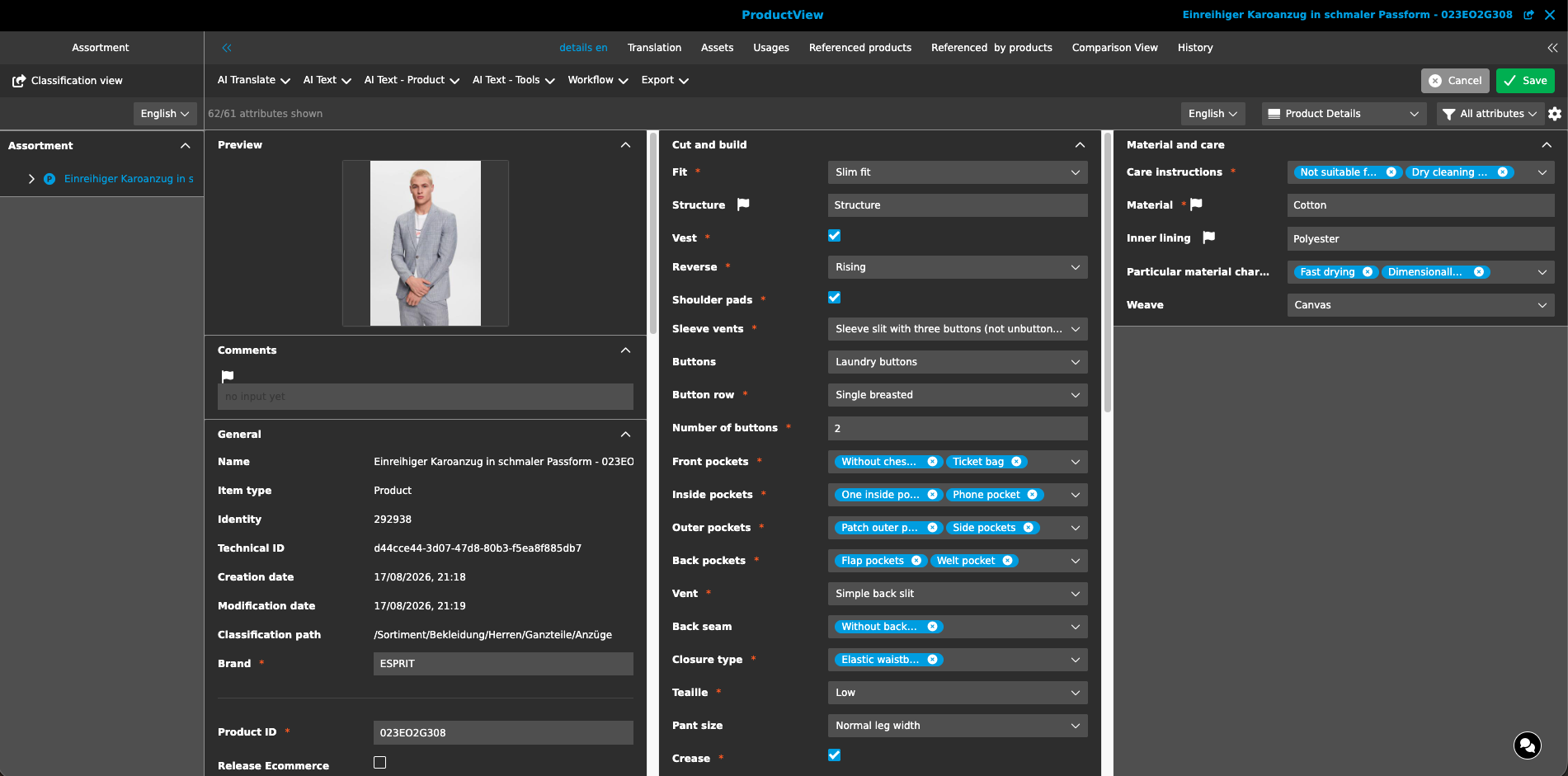
Initial content language
When the editor is opened, the content language is taken over from the panel in which the "Open product view" function was executed (for example the content language that was active in the Management View or in OMN Search).
If several products were selected and opened at once, the same rule applies to each product: when switching to another product via the dropdown in the title bar, the left panel shows the content language of the panel the products were opened from. If the content language of a product was changed in the editor before, this selection is restored when switching back to that product.
Hierarchy of the content language dropdowns
The content language dropdowns in the editor inherit from left to right, as in the FS Navigation:
| Changing the content language … | updates … |
|---|---|
in the left panel |
all tabs, all content views in the center and all related right panels |
in a content view in the center |
all content views of the same tab and the related right panels of this tab |
in a content view in the right panel |
all content views of the right panel of the current tab |
The center and right panels can still be set to a different content language than the left panel, for example to compare two languages temporarily. This selection is not stored per user anymore (see below).
Translation tab: the status bar of the Translation view contains a source language and a target language dropdown. The content language of the left panel is used as source language: when the editor is opened and whenever the content language is changed in the left panel, the source language of the Translation view is set accordingly. The target language can be selected independently.
Warning for different content languages
As soon as at least one content view in the center or in the right panel uses a different content language than the left panel, the left panel indicates this:
-
The content language dropdown gets a yellow border and a warning icon.
-
The tooltip of the warning icon reads: "Min. one view contains a different content language setting."
-
The closed dropdown shows no value, because there is no single content language for the whole editor.
-
The warning remains when switching to another tab as long as a view still uses a different content language.
Selecting a content language in the left panel again synchronizes all views to that language and removes the warning.
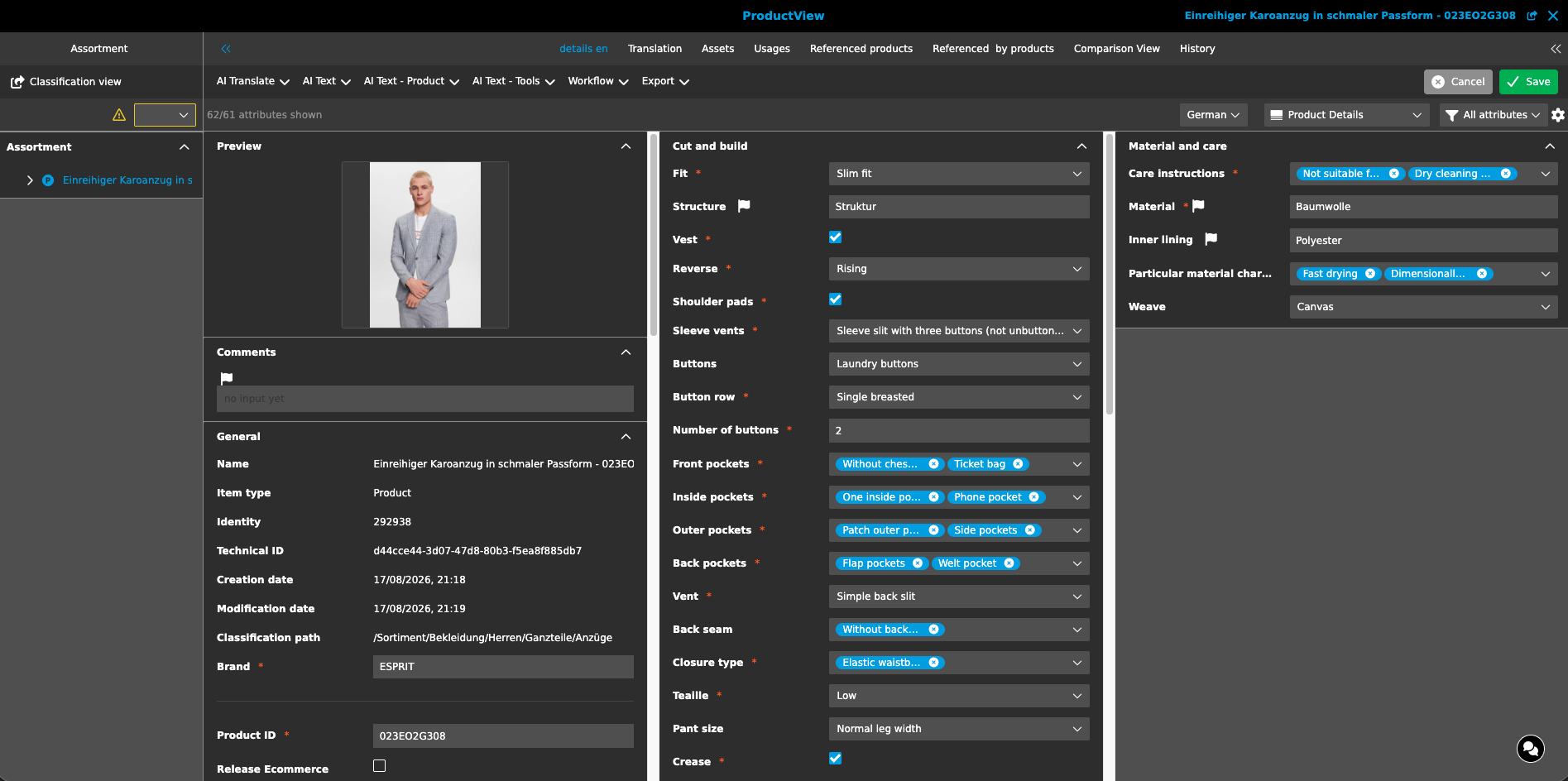
No user-based storage of the content language
Before OMN 6.4.2, a changed content language of a content view was stored per user at the content plugin. Since the same content plugin can be used in several Product Views, this changed the content language in all of them. The content language selected in the editor now applies to the currently opened product only and is not stored in the user-based settings.