User Registration
Purpose
The 'User Registration' page is a part of the login to the OMN system. If User Registration is activated it is possible for users to register to the system.
Possible usage of the plugin
The User Registration configuration is used on the login page of the OMN system. The user needs to maintain the required information. Afterward the administrator needs to activate the user. This can be done in the User Management in the frontend or in the Authentication in the Config Client.
General configuration
This is how the configuration looks like:
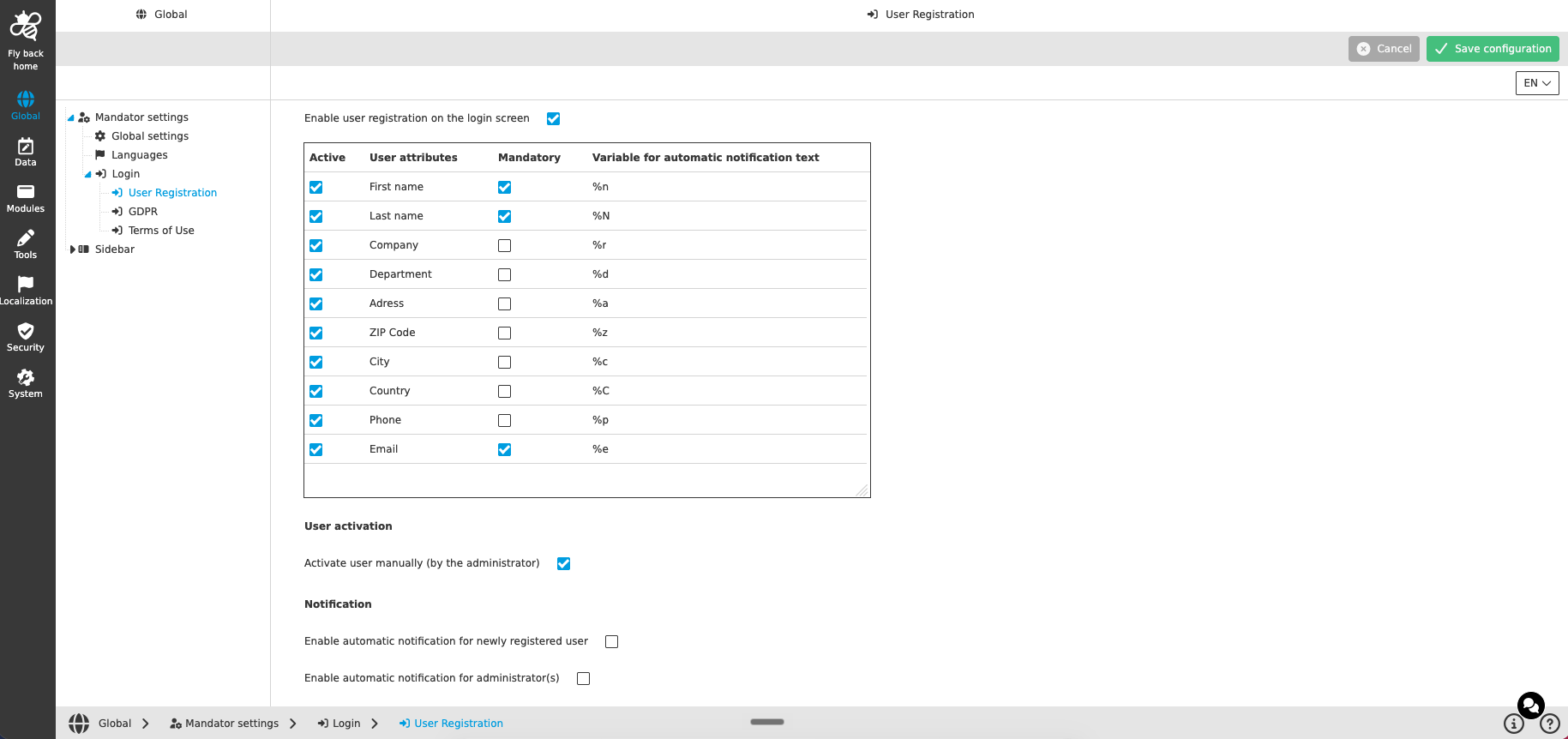
The configuration of User Registration includes the following parts:
-
Enable user registration and configuration of User attributes
-
User activation
-
Notification
Enable user registration and configuration of User attributes
| Name of option | Description | Note |
|---|---|---|
Enable user registration on the login screen |
Activates the registration option on the login screen of the OMN system. |
By default the checkbox is unchecked. Only if the checkbox is checked, the further configuration sections (User attributes, User activation, Notification) are available. |
Table widget for User attributes |
Configures which user attributes are part of the registration form. |
See the description of the table columns below. |
The table with the available User attributes contains the following columns:
| Name of column | Description | Note |
|---|---|---|
Active |
If checked, the attribute is shown in the registration form on the login screen and the entered value is available in the User Management in the frontend and in the Authentication in the Config Client afterward. |
If unchecked, the attribute is not shown in the registration form. |
User attributes |
Contains all registration relevant attributes: First name, Last name, Company, Department, Address, ZIP Code, City, Country, Phone, Email. |
|
Mandatory |
If checked, the corresponding input field in the registration form is marked as a mandatory field and is validated. |
If unchecked, the field is optional and can be filled or left empty. |
Variable for automatic notification text |
Shows the variable that can be used in the 'Notification' email texts for personal addressing: First name (%n), Last name (%N), Company (%r), Department (%d), Address (%a), ZIP Code (%z), City (%c), Country (%C), Phone (%p), Email (%e). |
The variables are identical for all languages. |
User activation
| Name of option | Description | Note |
|---|---|---|
Activate user manually (by the administrator) |
If checked, a user can register a new account, but the administrator needs to activate the newly created user manually in the User Management and check the role responsibility. |
The checkbox is enabled by default. If unchecked, the newly registered account is activated automatically and the user can log in right after the registration. In this case the assignment of the default role should be correctly configured. |
Notification
| Name of option | Description | Note |
|---|---|---|
Enable automatic notification for newly registered user |
If checked, each newly registered user receives an email with the configured message. |
By activating the checkbox, the attribute 'Email' in the User attributes table is automatically set to active and mandatory. An info icon next to 'Email' explains this behavior. |
Subject |
The entered text is used as the subject of the generated email to the newly registered user. |
|
Email text |
Inline editor to write the email message for newly registered users. |
The variables from the User attributes table can be used for personal addressing. Mandatory field. |
Enable automatic notification for administrator(s) |
If checked, an automatic notification with the configured information is sent to the entered email addresses whenever a user has registered. |
The notifications work independently from the setting whether the administrator has to activate newly registered users manually. |
Addresses |
The email addresses of the administrator(s) that should be notified. The entered emails are visualized as chips. |
Mandatory field. The entered email addresses are validated. |
Subject |
The entered text is used as the subject of the generated email to the administrator(s). |
|
Email text |
Inline editor to write the email message for the entered administrator emails. |
The variables from the User attributes table can be used for personal addressing. |
Appearance in the frontend
All details of the login of the OMN system can be found here.