CI HUB Drive
Introduction
CI HUB Drive is an application that is directly integrated into the Finder and Explorer applications of the operating systems and allows access to data stored in OMN. Since it uses the most commonly used tools in an organization, MacOS Finder and Windows Explorer, no training is required to use CI HUB Drive.
The Online Media Net DAM is virtually mounted via CI HUB Drive and displayed as an external server/external hard disk in MacOS Finder or Windows Explorer. The directory structure can be easily navigated, always based on the existing roles and rights within the connected system.
Images, entire folder contents and collections can be made available locally by double-clicking on the corresponding element. Thanks to multi-threading, the synchronization process achieves astonishing performance.
Information on how to install CI HUB Drive can be found here: Installation for CI HUB Drive.
CI HUB Drive Application
The CI HUB Drive application can be opened via the MacOS TopBar menu.
There are three areas in the application:

Connections
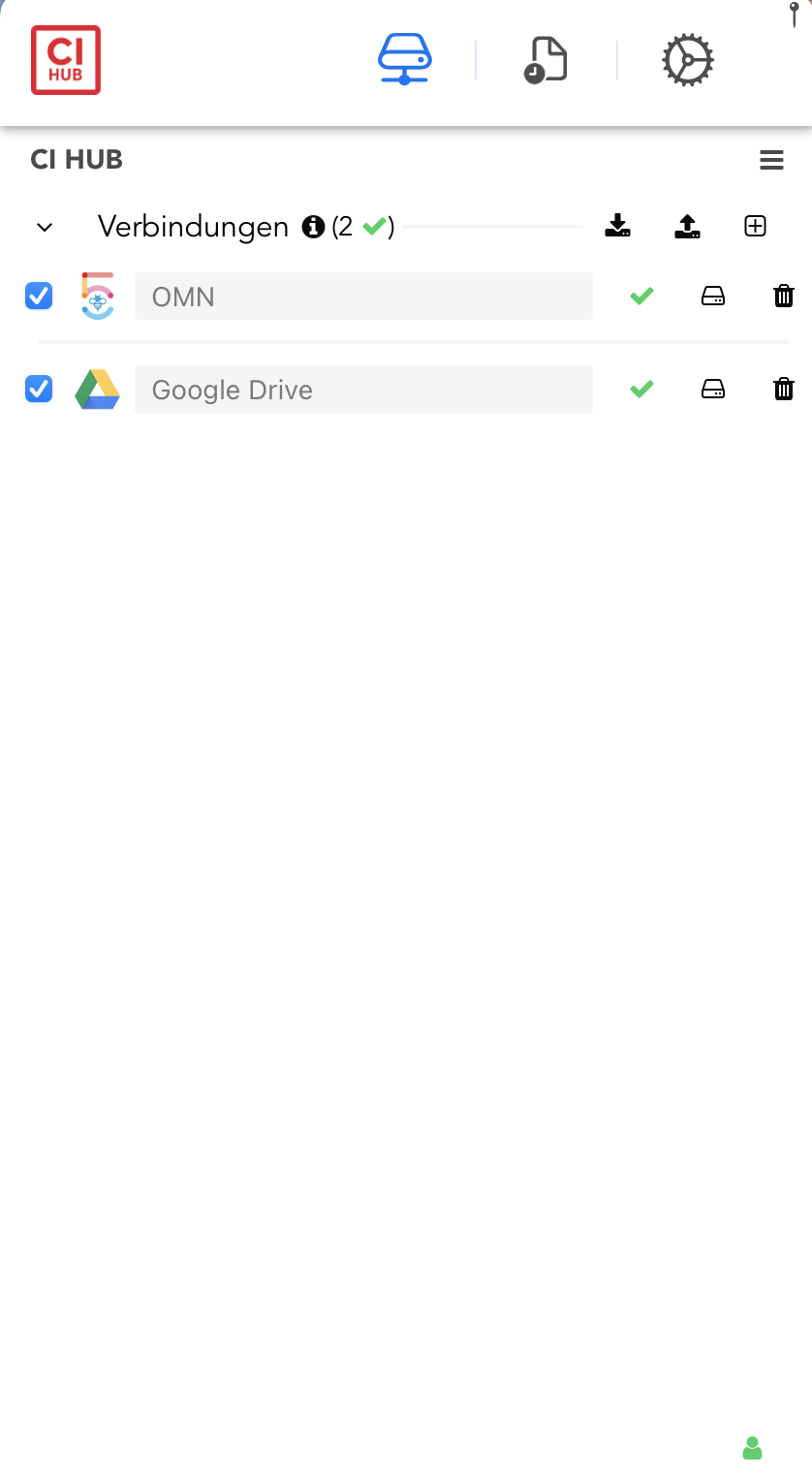
A connection with one or more DAM systems can be established in this area.
For more information, see: Installation Guide
An active connection can be recognized by the green checkmark.
|
The Connections area works in the same way as the various CI HUB plugins for desktop tools such as Adobe Photoshop or Microsoft Powerpoint. A detailed description can be found in the official CI HUB manual. |
Monitor
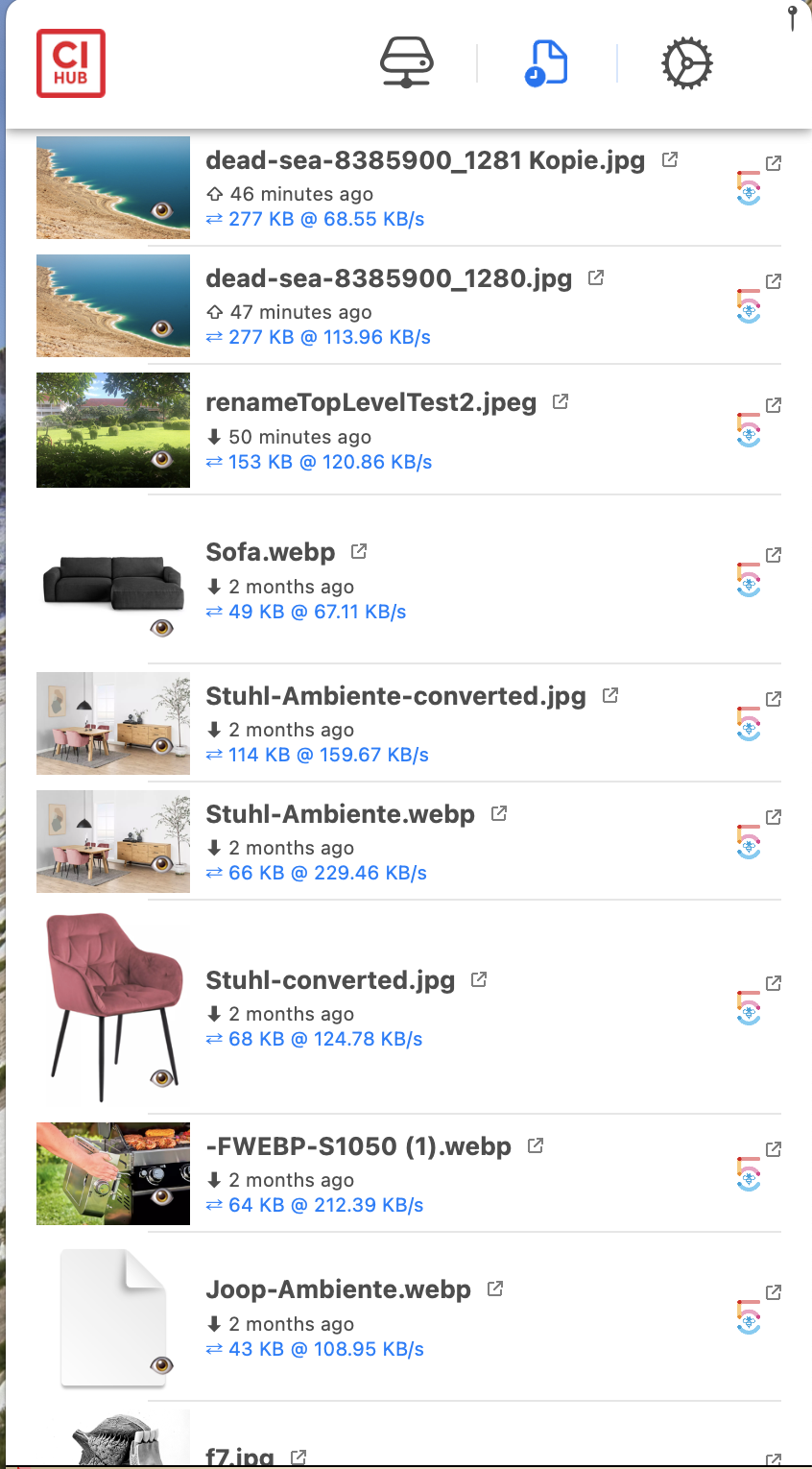
In the CI HUB Drive Monitor, all file system operations, such as upload and download, performed by CI HUB Drive are displayed manually.
For example, an entry appears when a file is copied to a drive volume or opened from the drive volume, as in this case files are transferred to or from Online Media Net.
Settings
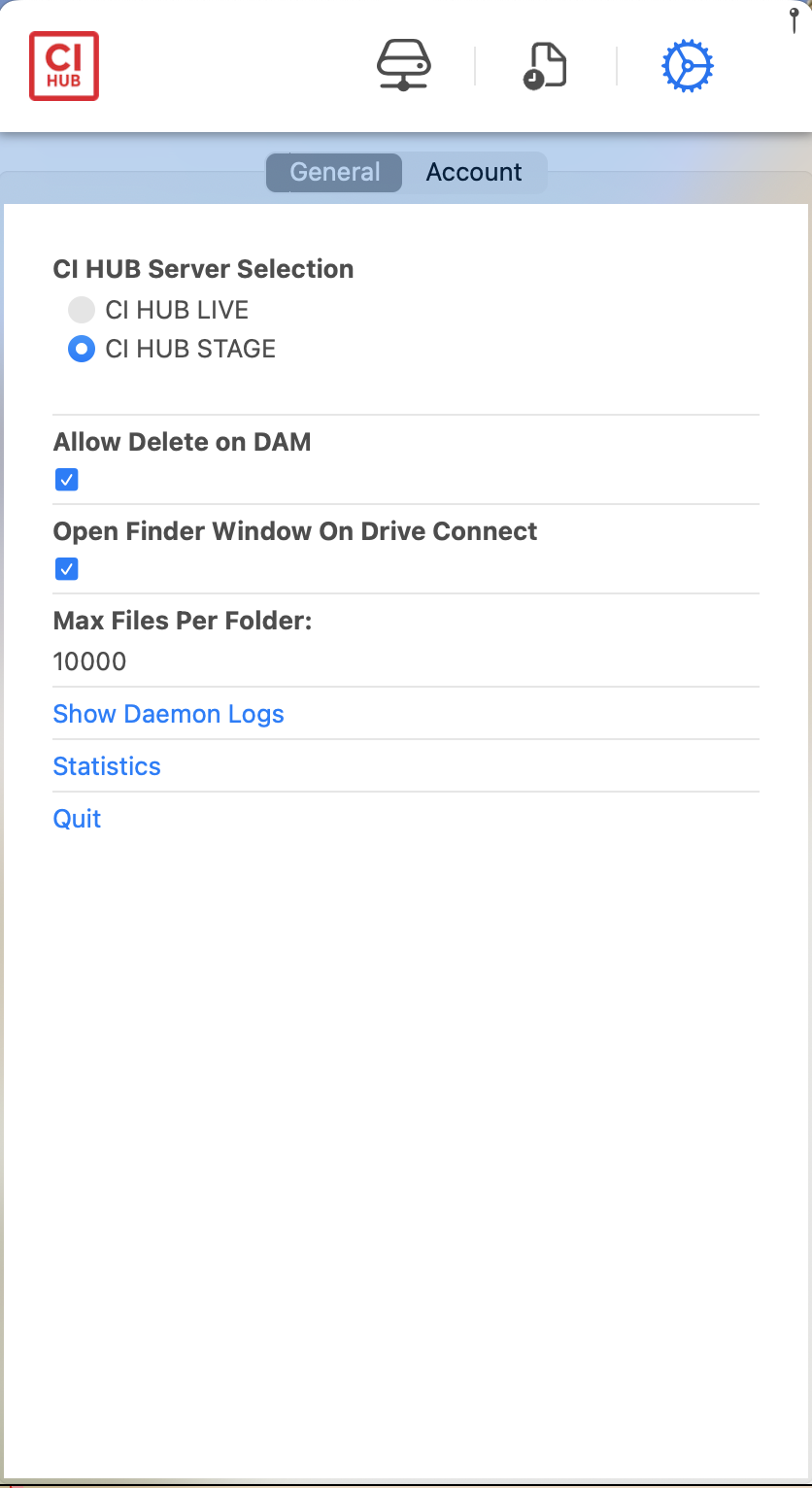
Specific settings can be made under Settings.
If the user is activated for testing beta versions, he can select a test server (e.g. CI HUB Stage).
If he is not activated for this program, the user may not see these settings.
Users can allow CI HUB Drive to delete files directly in the DAM when deleting files on the volume.
This setting is switched off by default, as the data is irretrievably deleted when this function is switched on when a deletion is carried out.
For more information also see: Important information about the settings
Important information about the settings
There is a basic rule for CI HUB Drive to prevent any data corruption on the source repository (the OMN DAM).
For this reason, CI HUB has introduced several mechanisms that prevent some file system manipulation operations from being performed, which can have very unpleasant consequences if used incorrectly or accidentally.
There are technical differences between Mac and PC:
-
On the Mac there is the technical possibility to support all file system operations, while CI HUB has narrowed down the possibilities to the lowest common denominator of all platforms supported by OMN.
Some operations, such as “reparenting”, are very dangerous for the integrity of the DAM folder structure. -
There are less powerful operating systems on PCs, so CI HUB has made a compromise between what is possible and supporting all platforms.
The following file system operations are therefore not allowed or behave non-destructively:
For Mac
-
Moving folders within the DAM volume results in a copy of the folder structure in the target folder
-
Deleting folders moves the content to the trash, but is not transferred to the DAM.
-
Deleting files is only transferred if the option “Allow deletion in DAM” is activated in the CI HUB Drive settings.
For PC
-
Moving folders is not supported
-
Deleting folders is not supported
-
Deleting files is only transferred if “Allow deletion in DAM” is activated in the CI HUB Drive settings.
Move and delete
-
Deleting folders is only performed via the CI HUB API if they are empty.
-
Deleting folders, including files, is not allowed.
-
Only files can be deleted from the drive if the option is activated in the settings.
-
Deleted files are moved locally to the recycle bin so that a safety net is also in place when deleting files.
Working with CI HUB Drive drives
The actual work with CI HUB Drive takes place via the integrated drive (several drives are also possible).
These drives can be found in MacOS under Places with the corresponding CI HUB logo.
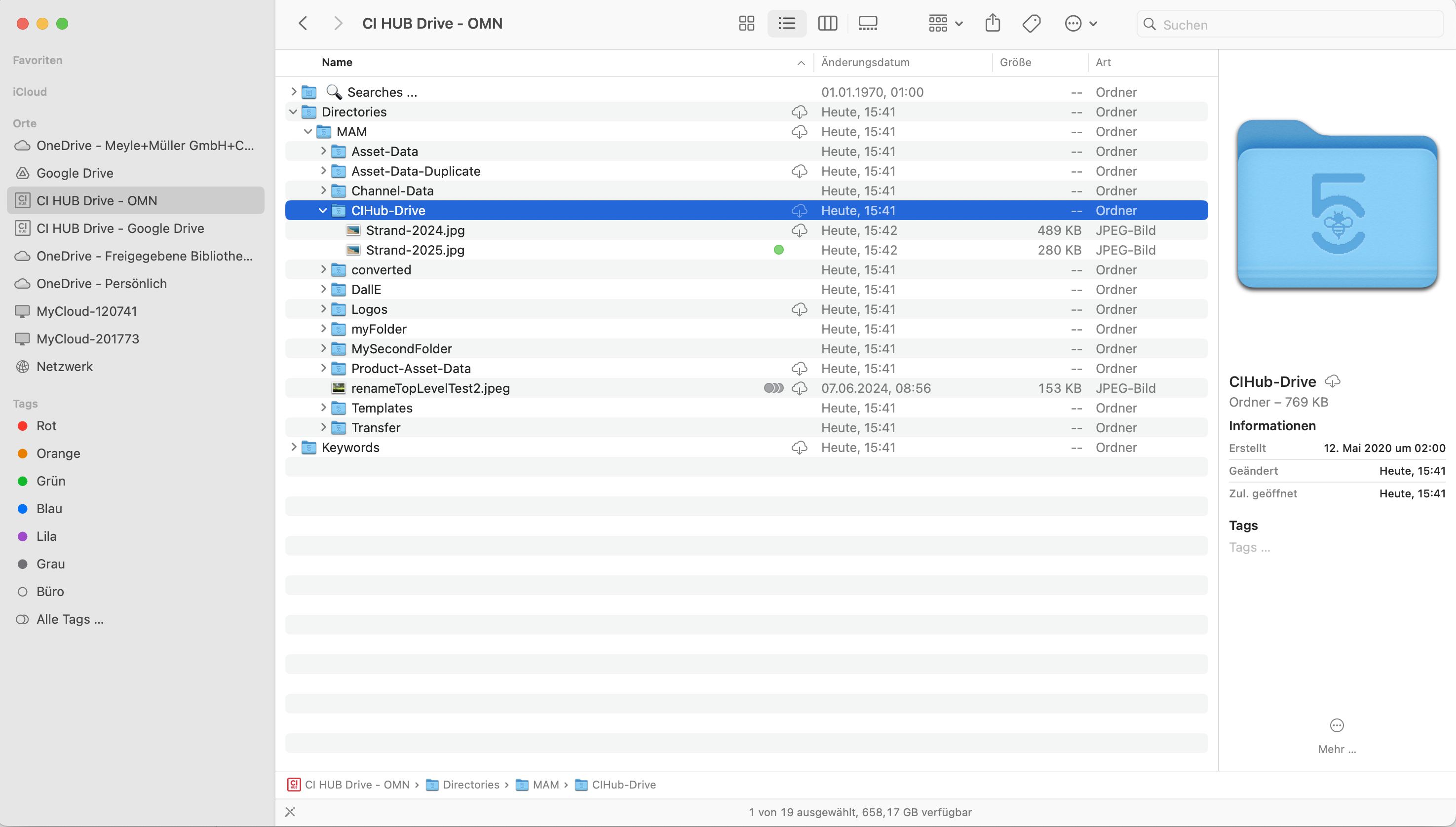
In the screenshots below, there are two CI HUB Drive drives, one connected to OMN, the other to Google Drive.
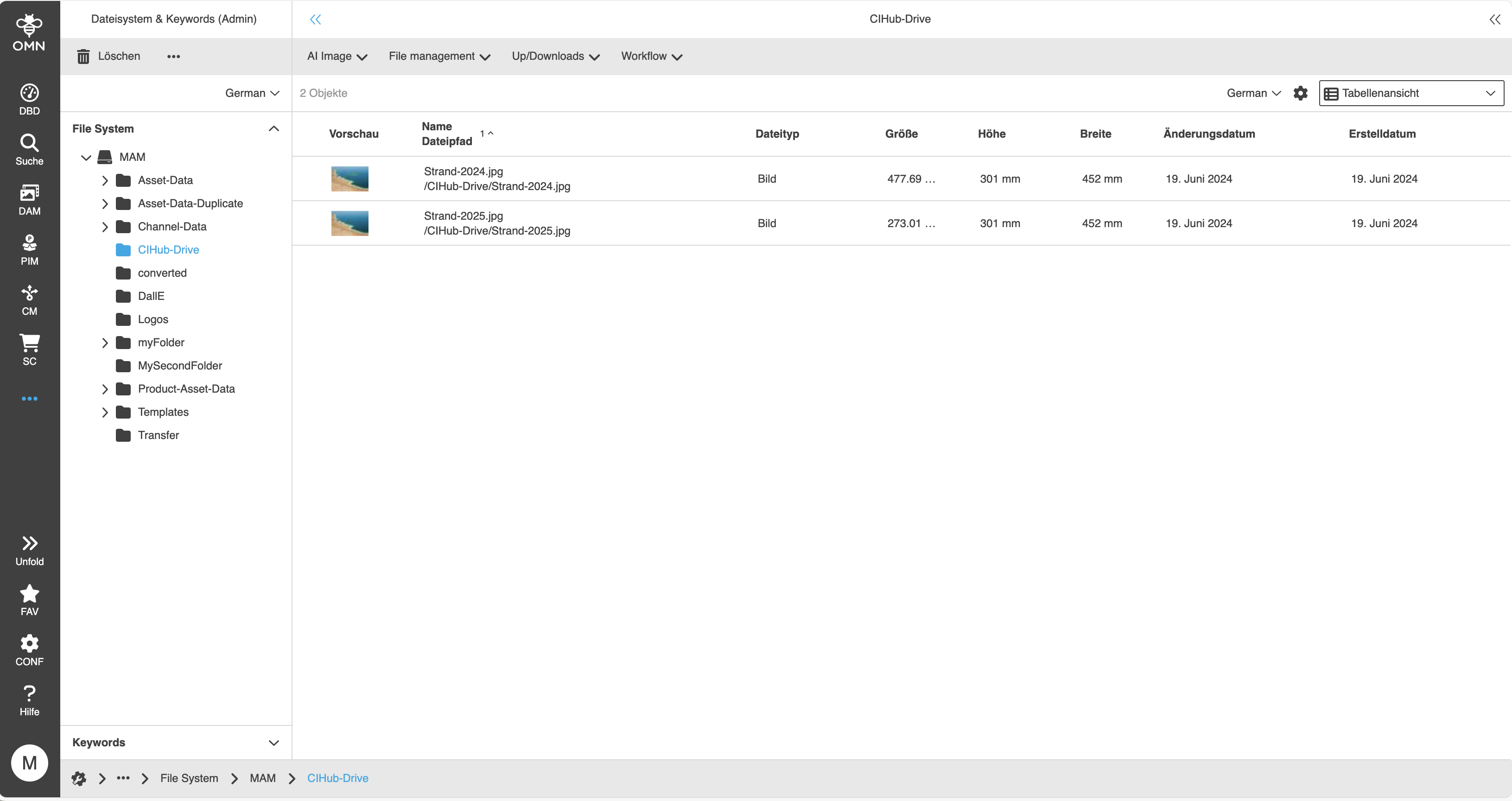
In the Finder view, the same directory structure is displayed as in the DAM system.
The structure distinguishes between:
-
(Physical) file system structure ("Directories" folder and below)
-
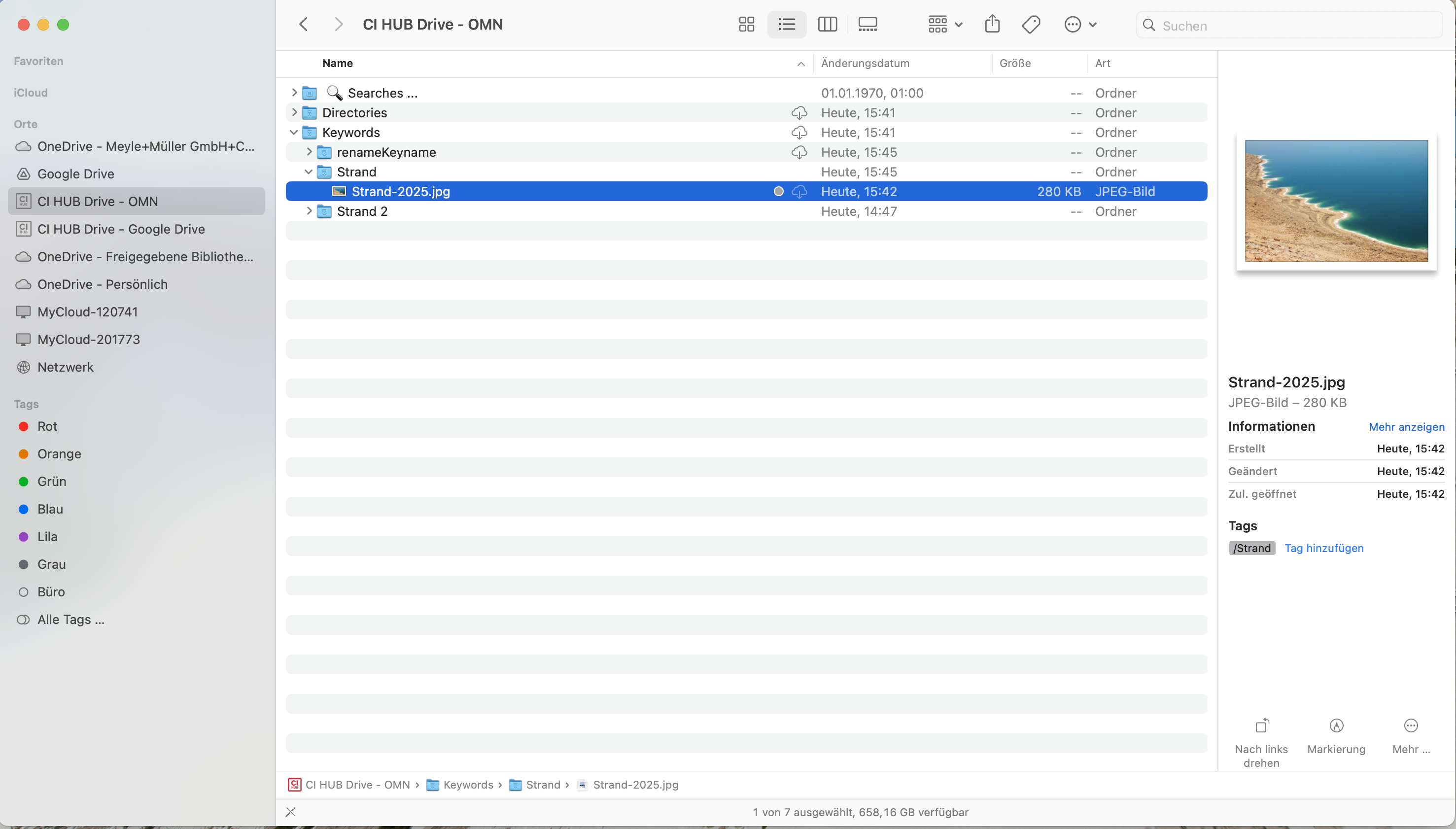
Virtual keyword structure (folder "Keywords" and below)
-
Searches ("Searches" folder)
Working with the file system structure
Under "Directories" a user can navigate in the filing structure exactly as it was created in the DAM system.
If a new folder is created and a file is loaded into the structure, it is automatically synchronized with OMN.
A file can be downloaded and opened locally by double-clicking or using the "Load now" function.
Working with the keyword structure
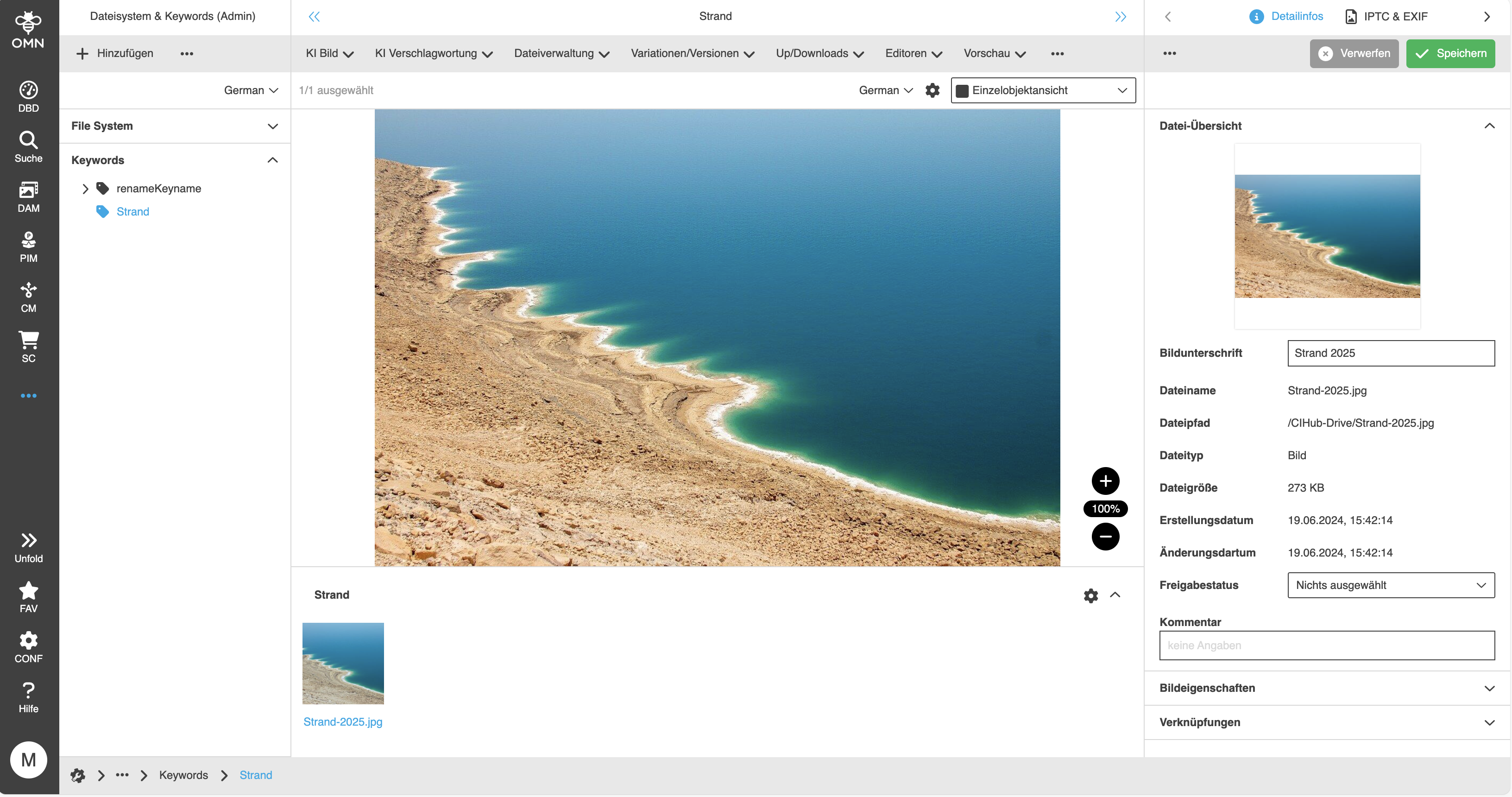
Under Keywords, a user can navigate in the virtual structure exactly as it was created in the DAM system.
If a new keyword folder is created, it is automatically synchronized with OMN.
A file can be downloaded and opened locally by double-clicking or using the "Load now" function.
General CI HUB Drive functions
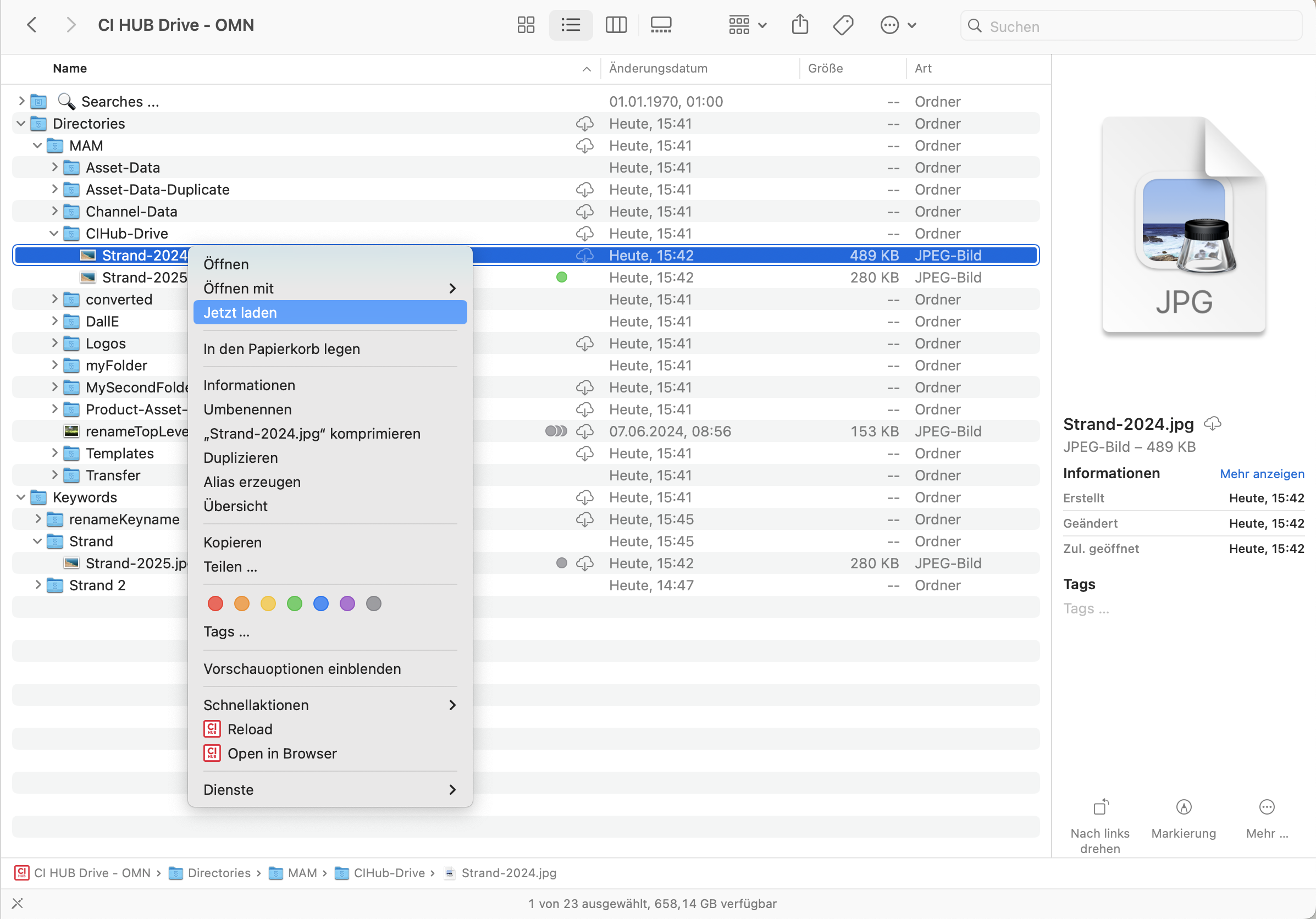
Download now (Jetzt Laden)
With this function (accessible via the context menu), a file saved in OMN can be downloaded locally to CI HUB Drive and edited, for example.
All changes are automatically transferred back to OMN.
The file remains locally until the "Remove download" function has been executed.
As an alternative to the context menu, users can also double-click on a file or an entire folder, which in this case also downloads the files locally.
Remove download (Download entfernen)
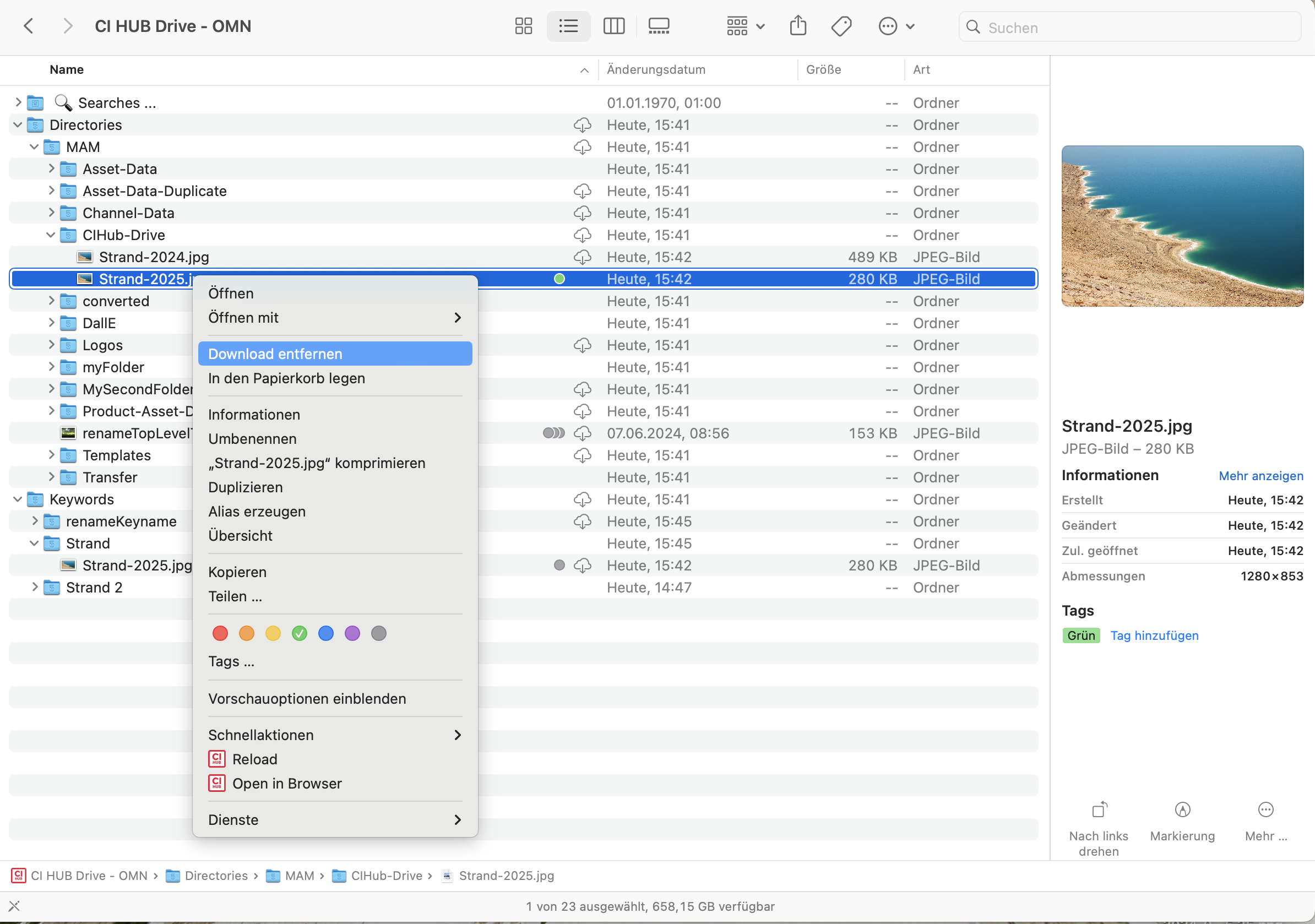
The Remove download function ensures that a file opened via CI HUB Drive (the file has been downloaded locally in this case) is deleted locally and all local changes are transferred to OMN.
After executing the function, the cloud symbol appears after the file name, which means that the file is now only in OMN, but no longer on the drive.
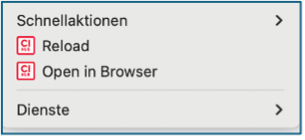
Reload
The structure of the OMN Drive can be reloaded using the reload function.
If, for example, a file has been uploaded via the OMN web client but is not visible in the CI HUB Drive, the structure can be reloaded using the reload function (in case this does not happen automatically).