Selectors
Purpose of the plugin
Together with the Selector Editor, the Selector plugin is used to pre-select products for export and thus limit the export.
Introduction
Any number of selectors can be created in the Selector plugin.
Generally, not many settings are made here; the main work is done in Selector Editor.
The view itself serves more as an overview, and each selector serves as a kind of profile for later export.
Prerequisites and relations to other modules
The Selector plugin is closely connected to the Selector Editor. Without post-processing in the editor, no restrictions are applied to the export.
Selectors must be associated with an Export Profile in the Collective Jobs in order to perform an export.
How to use
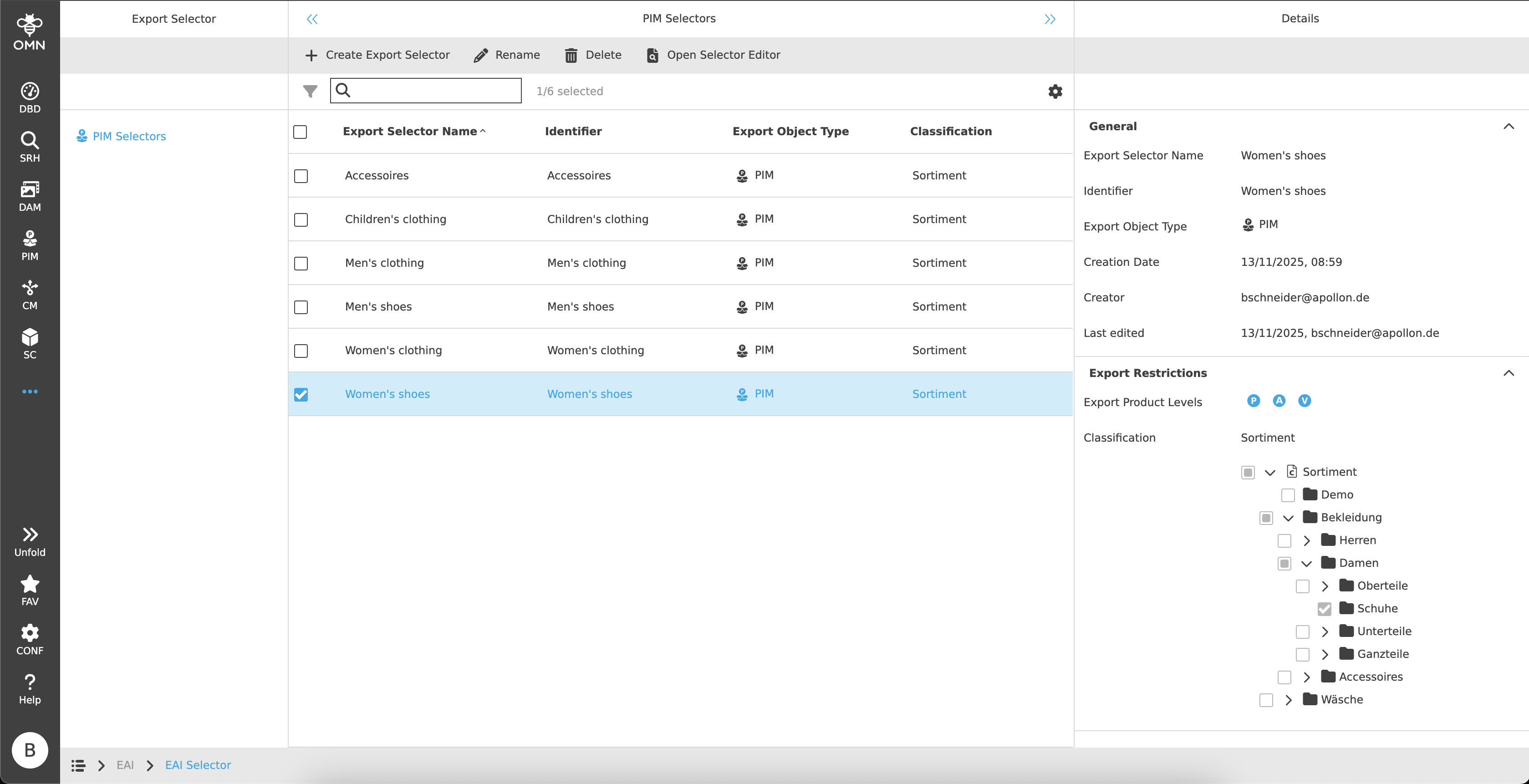
The Selector plugin consists of a left, center and right view.
-
Left View
Display of Selector types -
Center View
Display of the Selectors -
Right View
Details of the Selectors
Left View
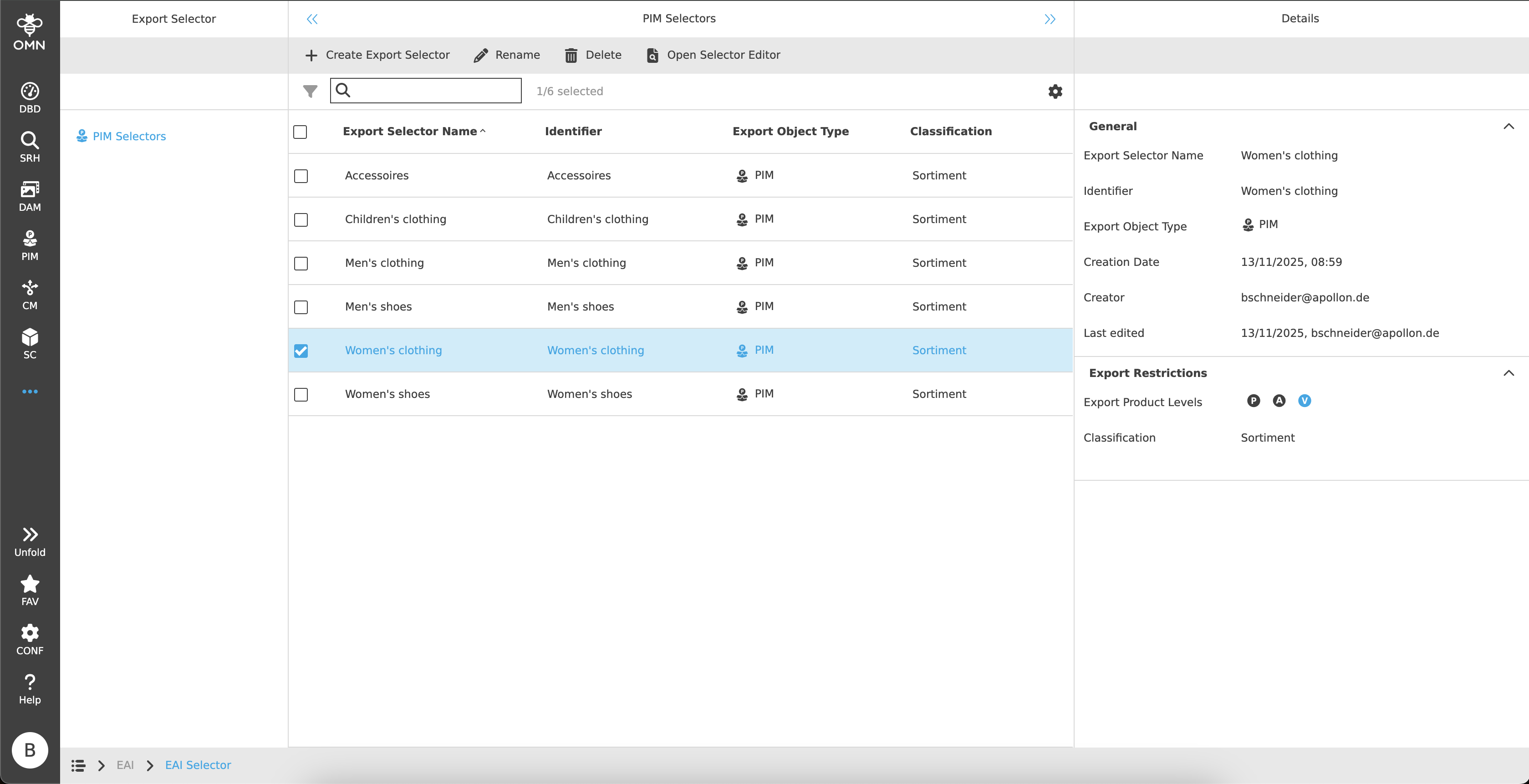
The left view represents Selector types.
Currently, selectors of the type “PIM” are available. The selectors therefore refer to products, articles, and variants.
Later, additional types, such as DAM or CM, will be available to the user.
Center View
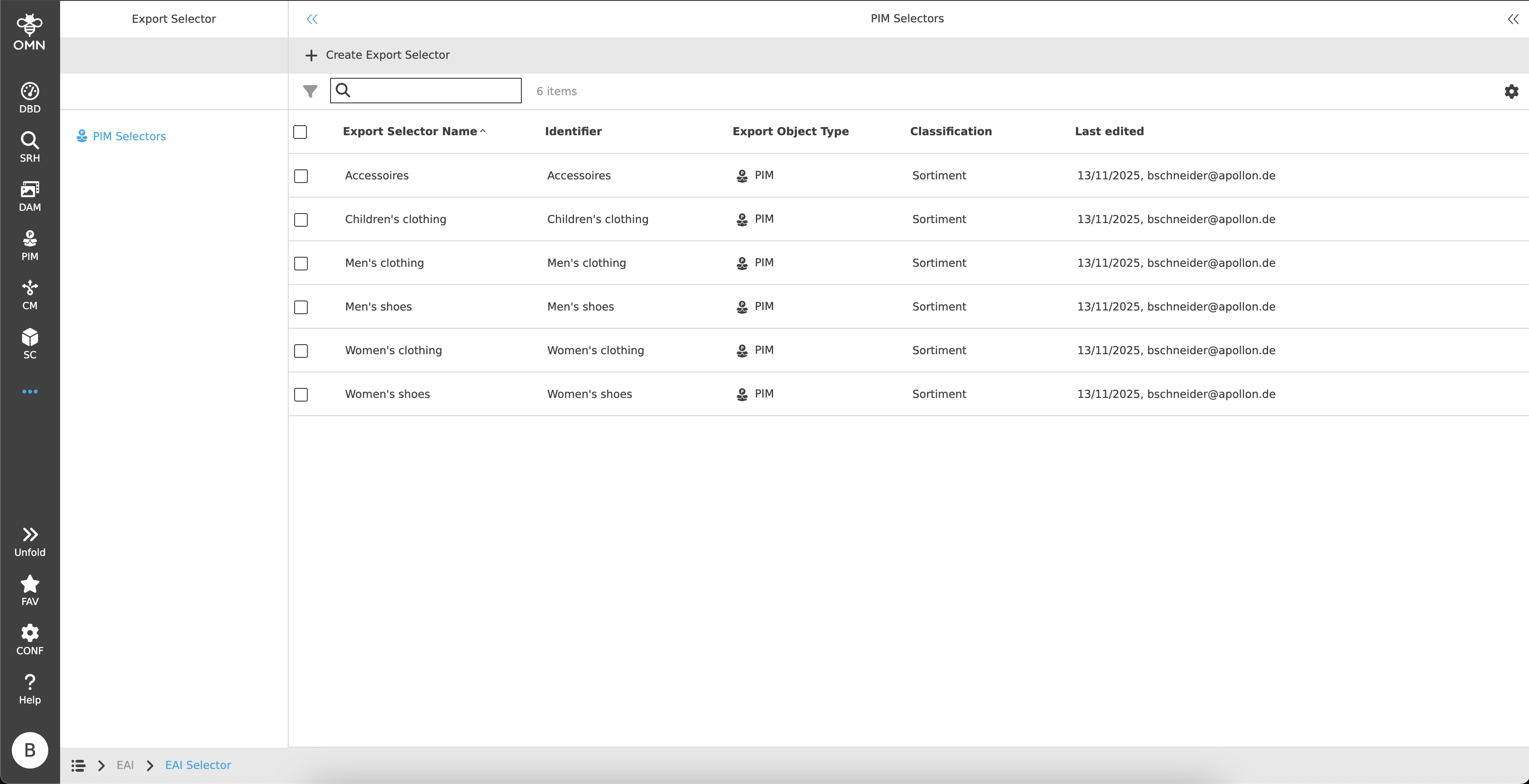
Selectors can be created and displayed in the center view.
The exact structure and its functionalities are explained in more detail in the following chapters.
Toolbar & Functions
The toolbar contains the following functions:
Create Export Selector
When the function is executed, a dialog opens with the following setting options:
-
Export Selector Name
-
The name entered must be unique.
-
-
Identifier
-
The identifier entered must be unique.
-
-
Export Object Type
-
The export object type is PIM.
-
-
Classification
-
Dropdown menu with all available PIM classifications for restricting products, articles and variants.
-
| Unless a Selector is edited in the Selector Editor, all variants of the classification are exported by default. |
Open Selector Editor
The Selector Editor will be opened.
Statusbar
The statusbar contains a quick search with object counter as well as the statusbar settings.
Right View
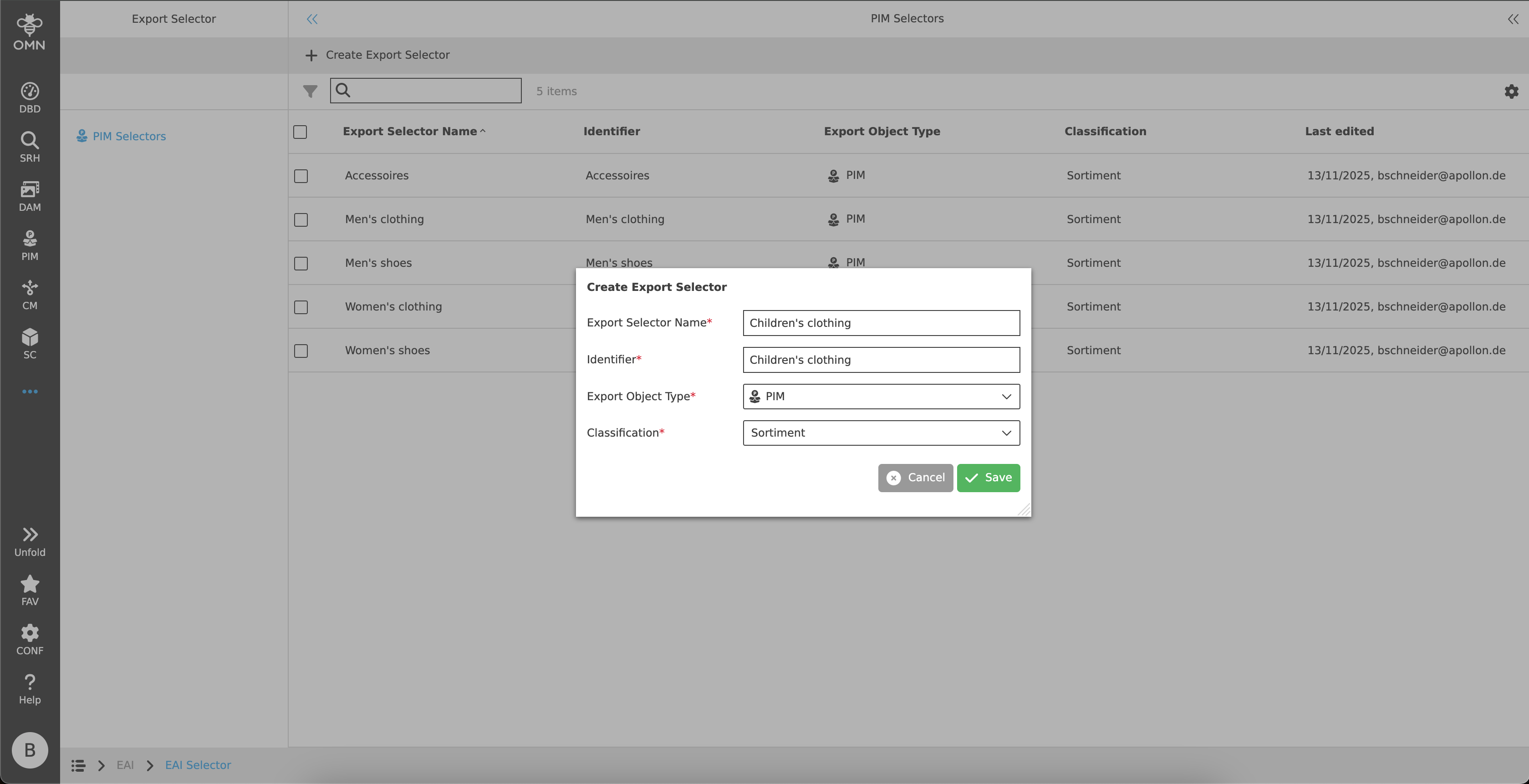
The right view is a detailed overview for the selected Selector and consists of two accordions.
The respective accordions are described in more detail in the following chapters.
General
The first accordion contains general information about the Selector. This includes:
-
Export Selector Name
-
Identifier
-
Export Object Type
-
Creation Date
-
Creator
-
Last edited
Export Restrictions
The second accordion shows the export restrictions made in Selector Editor.
| The settings can only be changed in the Selector Editor. |
The following information is displayed:
-
Export Product Level
-
By default, the lowest level (the variant in a three-level structure) is preselected.
-
-
Classification
-
By default, the entire classification defined when the Selector was created is selected.
-
If restrictions have been applied to the classification in the Selector Editor, the tree is displayed with the selected and unselected nodes.
-