Human function
This page provides an overview of all available human functions on an OMN system with a description and parameter details.
Additionaly it allows to lock specific human functions and download Camunda templates.
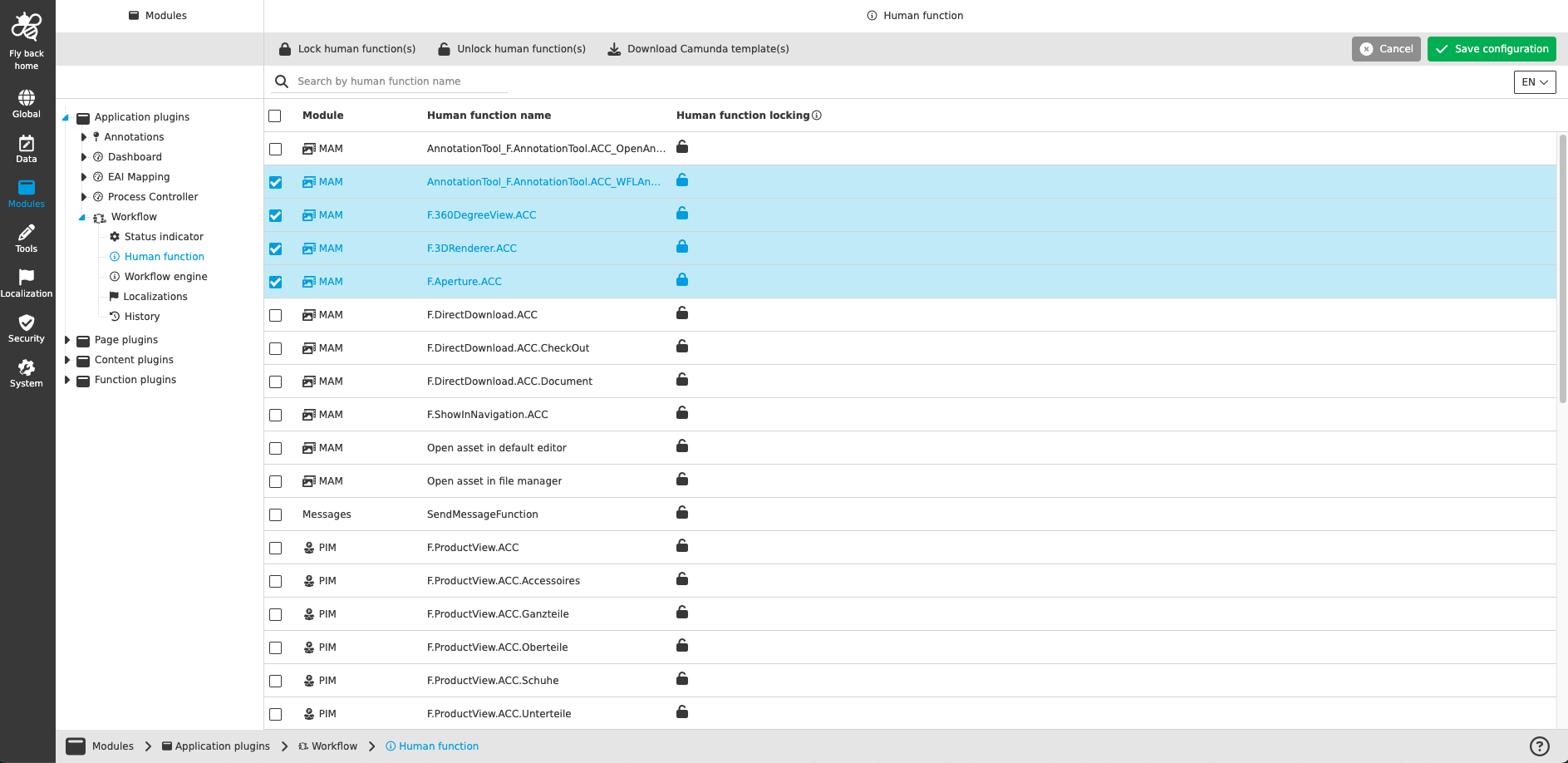
The table provides the following information:
| Name of column | Description | Note |
|---|---|---|
Module |
The value of this column indicates to which module the corresponding human function belongs. |
|
Human function name |
Name of the human function |
|
Human function locking |
Lock, which provides information about the locking status of the human function. An open lock means that the human function is not locked once a user has executed it first. Other users can still execute the human function. A closed lock means that the locking function is active. If this is the case, other users can no longer access the function once it has been executed by another user before. |
The icon is clickable (change lock icon from closed to open and vice versa) |
The following functions are available if human function(s) is/are selected in the table:
| Name of function | Description | Note |
|---|---|---|
Lock human function(s) |
Function is available, in case that unlocked human function(s) is/are selected in the table. When user executes the function the locking status changes from unlocked to locked. |
Function supports multiselect |
Unlock human function(s) |
Function is available, in case that locked human function(s) is/are selected in the table. When user executes the function the locking status changes from locked to unlocked. |
Function supports multiselect |
Download Camunda template(s) |
Function is available, in case that at least one human function is selected in the table. When user executes the function a json file is downloaded. |
Function supports multiselect and is described in more detail below |
Download camunda template(s)
The function is available in the toolbar and downloads a json file, which can be used as template in the camunda modeller to assign human functions to user task, which allow to open for example tools. Depending on the selection in the table the camunda template contains one or multiple human functions.
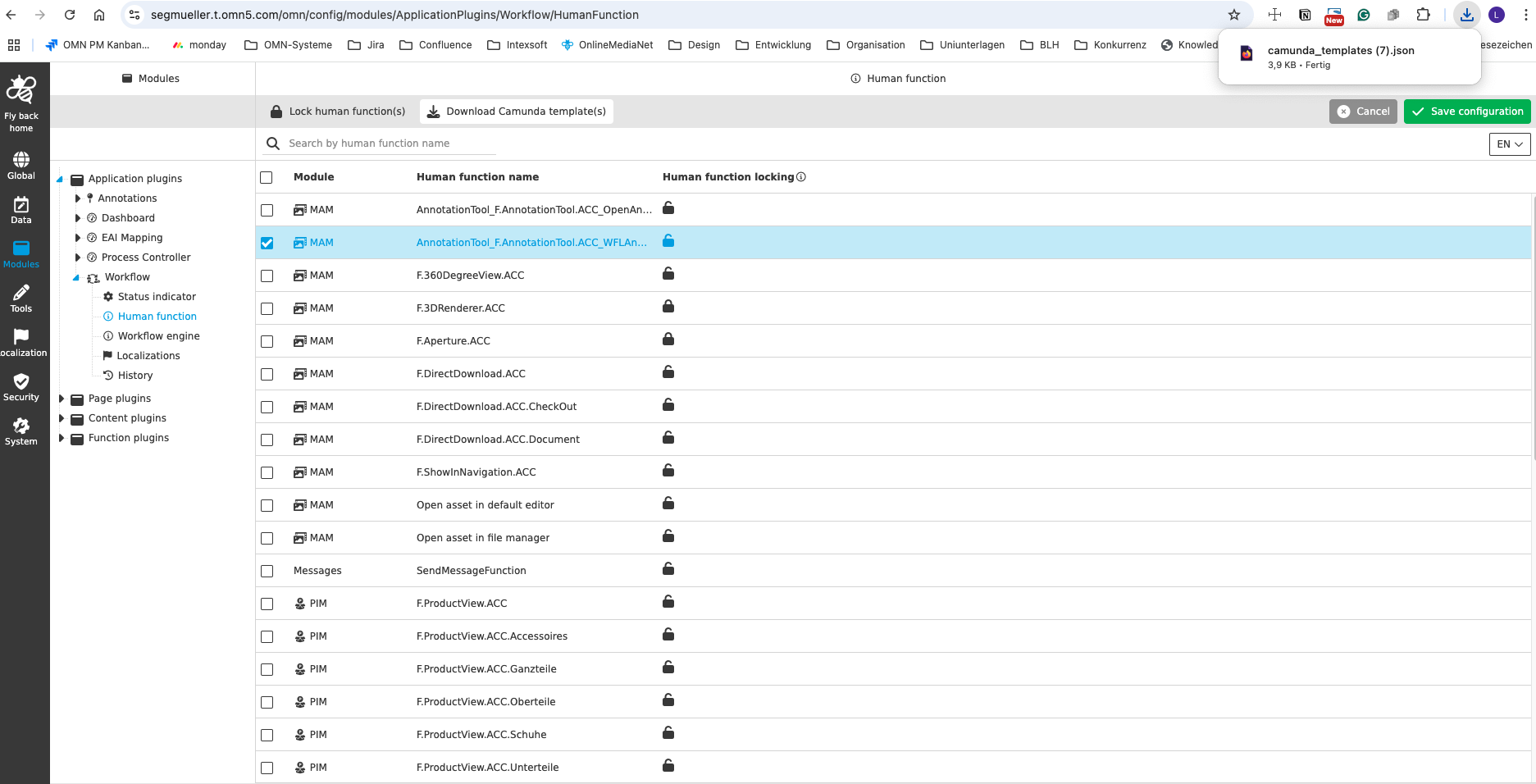
Execute Download camunda template(s) on one human function
-
Select human function in the table
-
Click function 'Download camunda template(s)' in the toolbar
-
See that json file is downloaded
Execute Download camunda template(s) on multiple human functions and don’t combine them
-
Select desired human functions in the table
-
Click function 'Download camunda template(s)' in the toolbar
-
Confirm Download in the modal with unchecked checkbox (Combine selected functions)
-
See that json file is downloaded
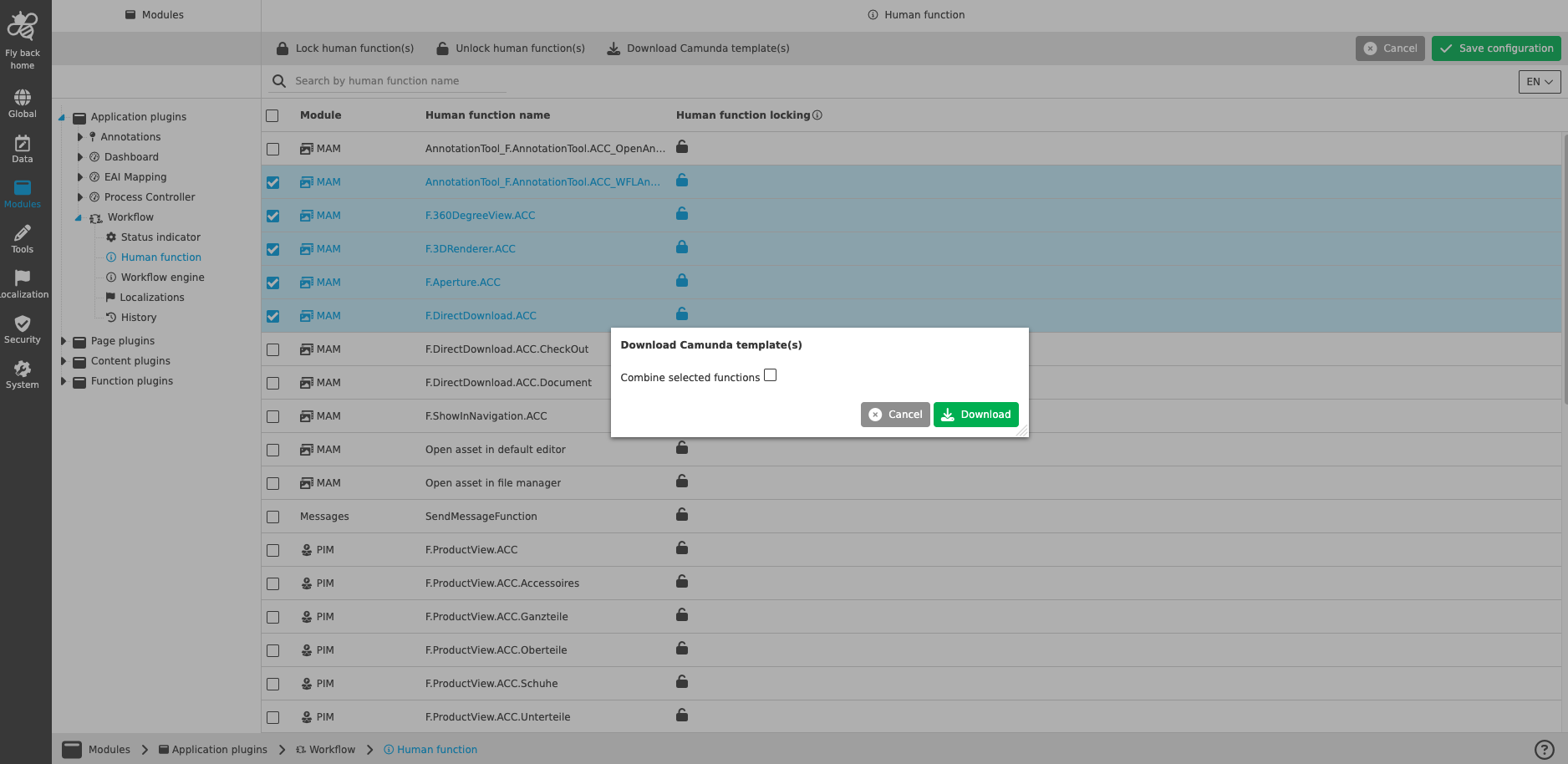
| The downloaded json file is organized in a way that import in camunda modeller will lead to several camunda templates, which can be assigned to a user task. |
Execute Download camunda template(s) on multiple human functions and combine them
-
Select desired human functions in the table
-
Click function 'Download camunda template(s)' in the toolbar
-
Check the checkbox 'Combine selected functions' in the modal
-
Define a 'Template Name'
-
Confirm Download
-
See that json file is downloaded
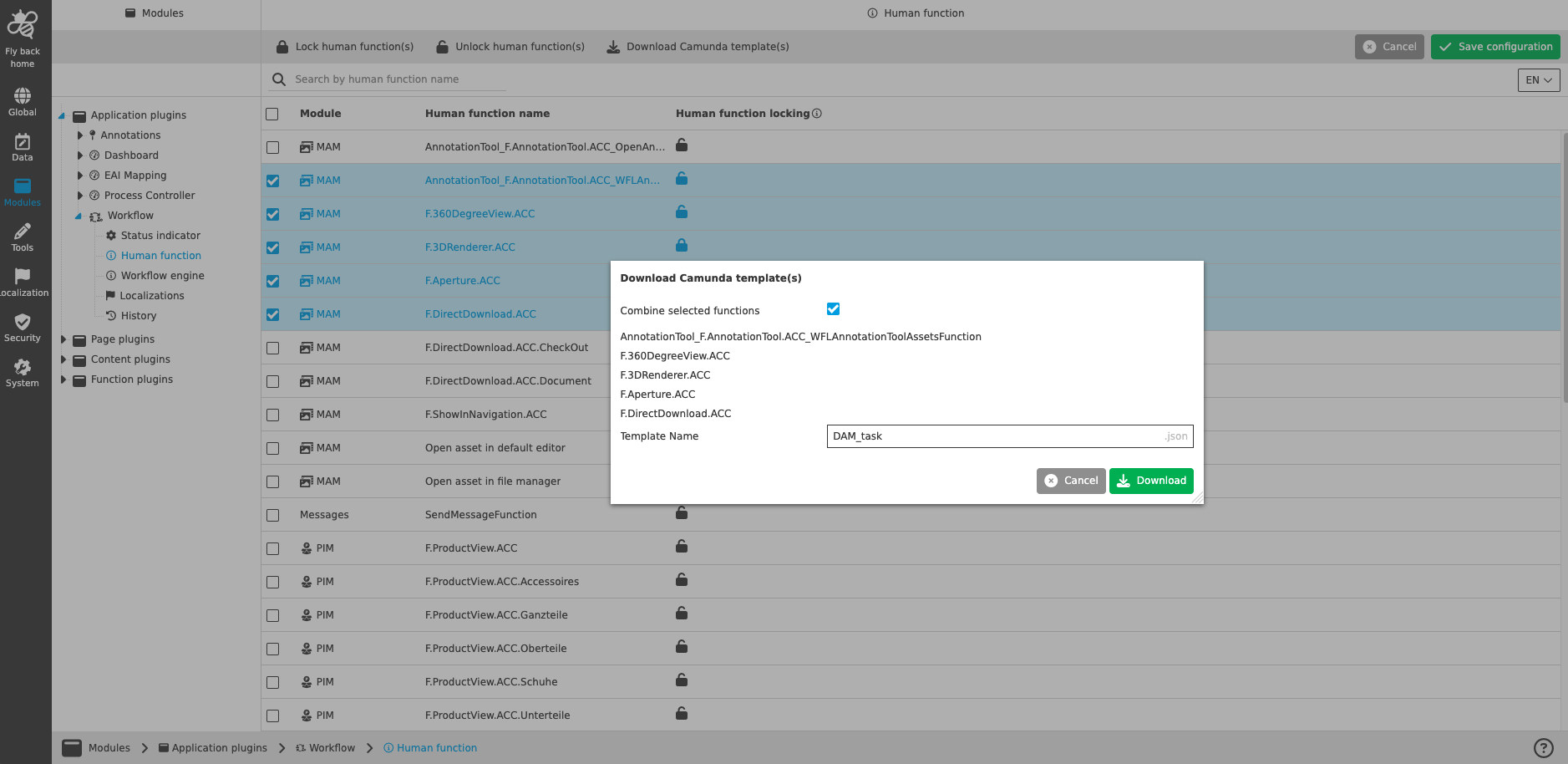
| The downlaoded json file is organized in a way that import in camunda modeller will lead to one camunda template, which includes all human functions. After deploying the process to a OMN System, the included human functions are shown in a dropdown. More details can be found in: WFM (Workflow Management) |
| In a later version, detailed information (description and parameter details) of a selected human function can be viewed in the right panel. |