Plug-in Concept
Within the Configuration Client, plug-in configurations can be opened on two elements in the sidebar. On the one hand via 'Modules' and on the other via 'Tools'. The 'Tools' menu item contains all the plugins that can be opened in the client as an editor.
| Background information about editors and how they can be operated in the UI can be found here |
The 'Modules' are structured in two ways:
-
Classic configuration structure
-
Main module configuration structure
| The main module configuration structure in the Configuration Client is not available yet. For this reason, only the classic configuration structure is explained at this point. |
The classic configuration structure
Understanding the client layout
In order to understand the classic configuration structure an understanding of the client structure is necessary.
The frontend is made up of different areas and panels to which will be referred throughout this documentation.
At the left of each client page, resides the main menu (also called sidebar). Beside this, the software parts are divided in three areas:
-
Left Area for navigation or other options like filters, having influence on the Center Area
-
Center Area to view content in an overview
-
Right Area to show details on content view items
| More detailed information about the principles of frontend structure can be found here |
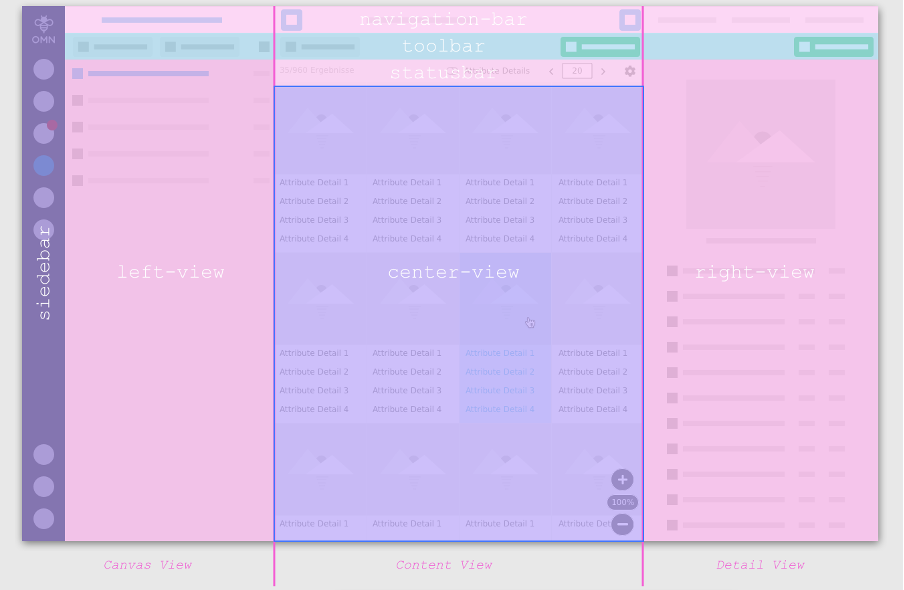
The sidebar allows the user to access the different client pages, in other words, each entry points to a page plug-in.
On clicking a sidebar entry, the corresponding page plug-in appears within the same or new browser tab, so the user can
easily switch between pages and last but not the least, use Drag & Drop functionality between the different page
plug-ins.
Example: The DAM navigation sidebar item (Button) leads you to the DAM navigation page plug-in.
Understanding the configuration structure
When opening 'Tools' in the classic configuration structure, all tool plugins regardless of their module affiliation are listed.
When opening 'Modules' in the classic configuration structure, which displays all plugin types regardless of their module affiliation, 4 different plugin types are listed:
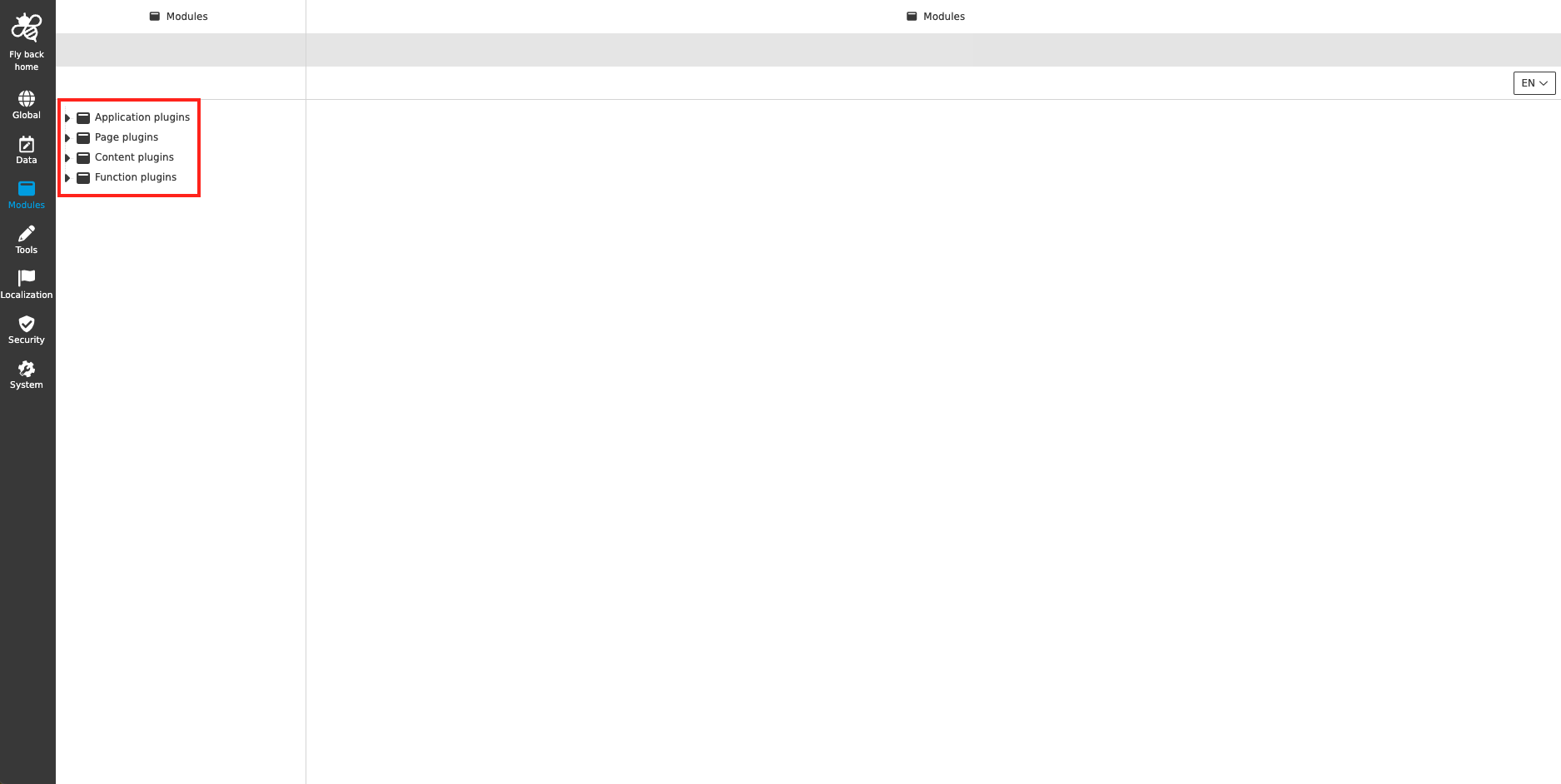
Application plugins
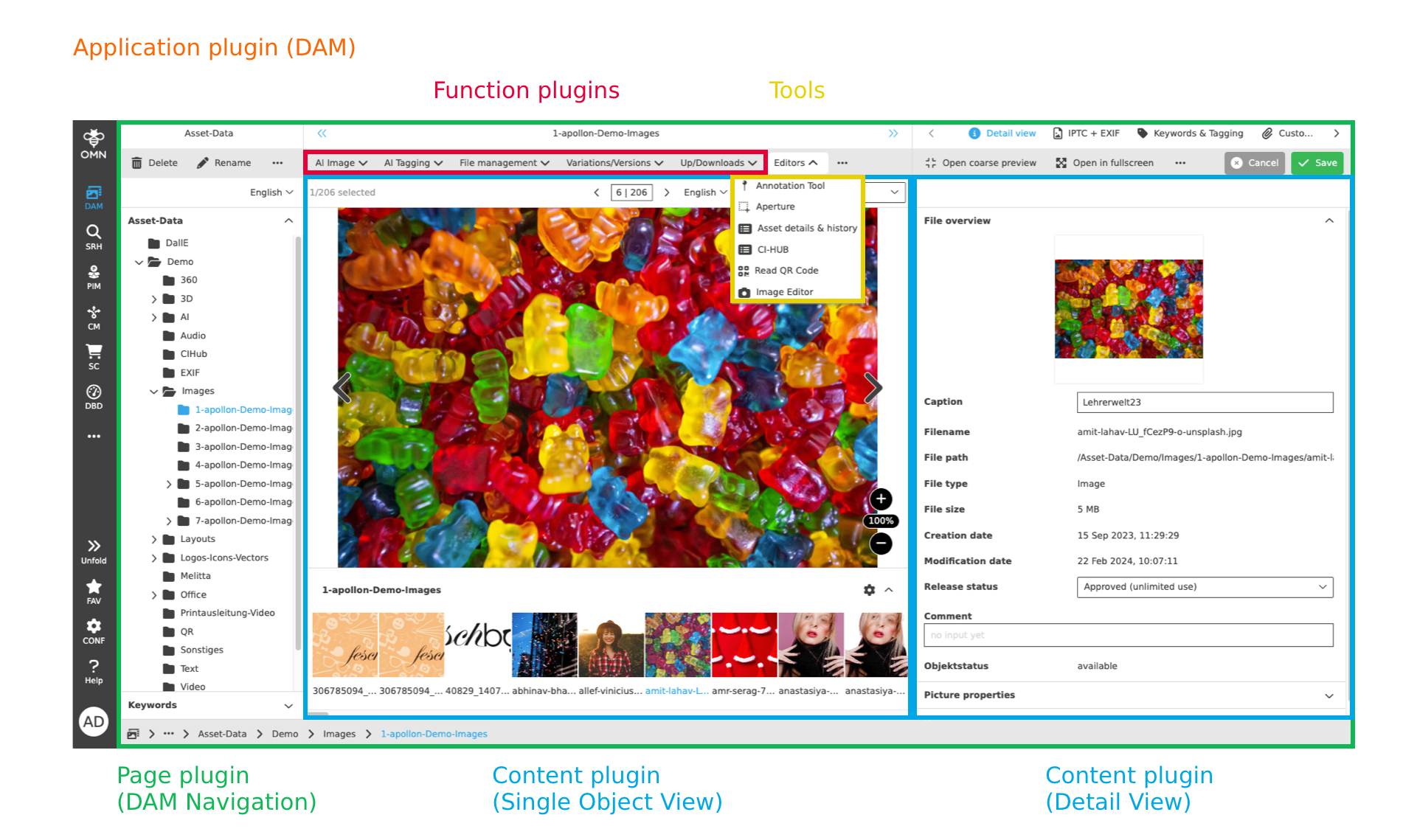
The Application plugins node contains all those modules (DAM, PIM, CM, Annotations,…) for which there are overarching configurations that are valid for the module as a whole.
For example, this could be a root node configuration for Digital Asset Management (DAM), which is used across all DAM navigations (Page plugins).
Page plugins
The Page plugins have a clear module reference and can be integrated into the sidebar. This allows them to be opened as a page.
The Page plugins determine how the navigation within the page looks and works. This means that they define the left area in the interface together with its toolbar functions.
In addition, various views (content plugins) and toolbar functions (function plugins and tools) can be stored in a page plugin.
Content plugins
The Content plugins define the views that are stored on a page (plugin). Several content plugins can be stored in a page plugin in order to visualize the elements in a variety of ways and to be able to offer a different level of detail.
Content plugins contain view-specific configurations.
Function plugins
The Function plugins, as the name suggests, allow functions to be configured flexibly. There are functions that OMN comes with predefined (without configuration) and functions that can be set individually. These functions can be created as function plugin instances and assigned to a view or a page.
The plugin instances
Plugin instances are instances of a plugin, i.e. several configuration states can be created for a plugin and these can all be integrated into the OMN Client at the same time if desired. For example, several upload function plugins can be configured and each of these upload instances has a specific configuration. For example, the first upload uploads assets without further modification, the second upload links the uploaded asset directly to a product, the third upload performs an automation after the asset has been uploaded, etc. This means that functions, editors, views and pages can be expanded in many ways and adapted to customer-specific needs.
Plugin instances can be created for page plugins, content plugins, function plugins and tools. Application plugins do not have any instances, as global module properties are defined once here (see Application plugins).
| The number behind a plugin indicates how many plugin instances are configured on the system. |
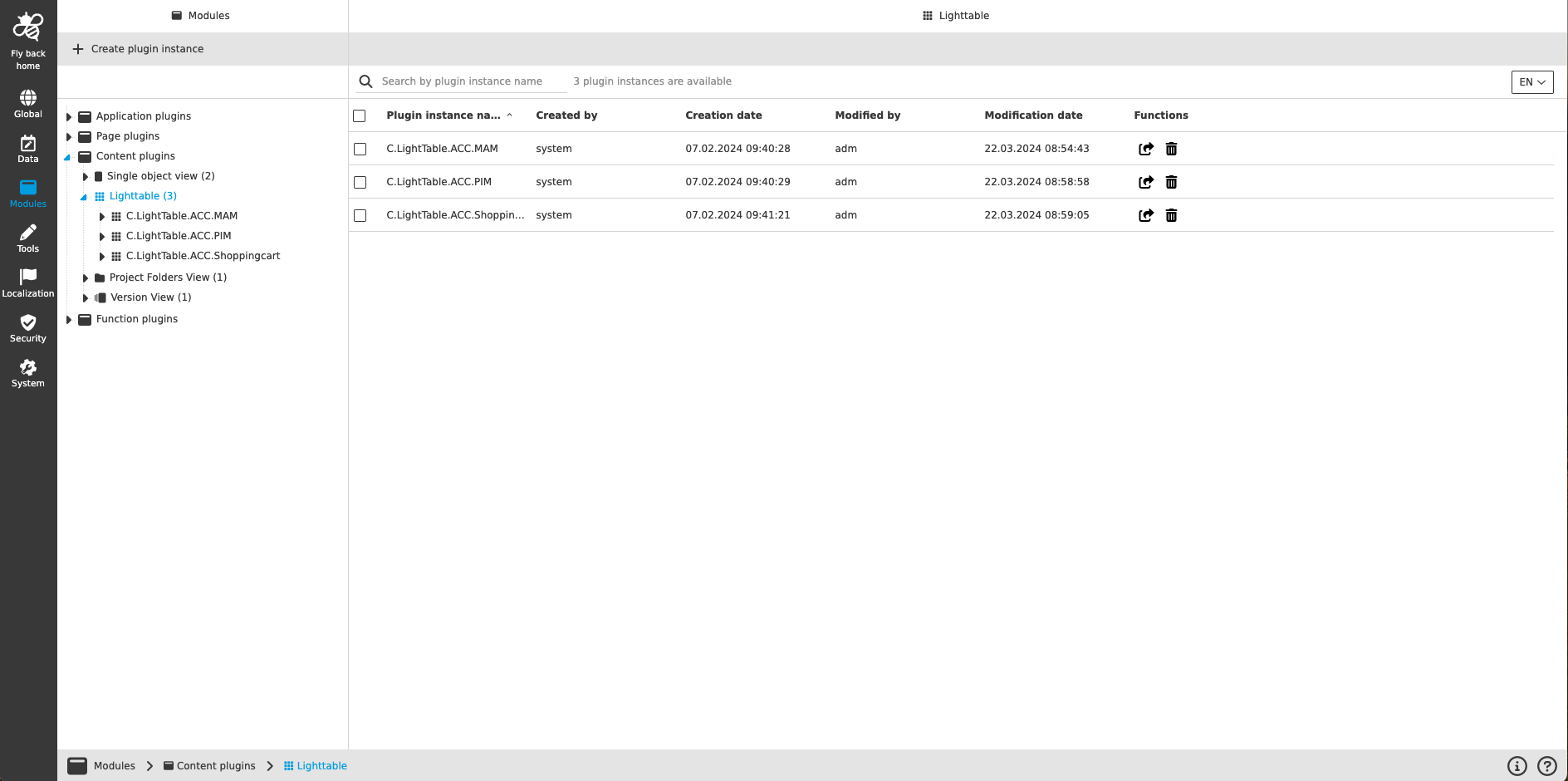
You can find out more about creating and managing plugin instances here.
The object type of a plugin instance
Plugins are always thematically assigned to one or more so-called object types. An object type determines which type of object a page / view / function / editor (depending on the plugin type) can handle. The following object types are available within OMN:
-
PIM objects
-
CM objects
-
Workflow objects
-
PEO objects
| Each object type has its own characteristics, which are described in more detail on the subpages. |