Name of the plugin
Purpose of the plugin
The plug-in makes it possible to load one or more selected assets into a file system folder.
Possible usage of the plugin
The Upload can be used in:
-
FSNavigation content views
-
FSTable
-
SingleObject
-
Lighttable
-
-
AdvancedSearch content views
-
FSTable
-
SingleObject
-
Lighttable
-
-
FormBasedSearch content views
-
FSTable
-
SingleObject
-
Lighttable
-
-
ProjectNavigation content views
-
ProjectAssetView
-
-
Workflows
Preconditions
There must be at least one PagePlugin with one corresponding ContentPlugin that presents asset items in a ContentView
-
FSNavigation with FSTable
-
AdvancedSearch with FSTable
-
ProjectNavigation with ProjectAssetView
At least one Upload Function plugin must be configured and executable on the ContentPlugin e.g. FSTable in FSNavigation
Supported plugins
The Upload supports the following plugins:
-
FSNavigation
-
Search
-
ProjectNavigation
-
Workflows
General configuration
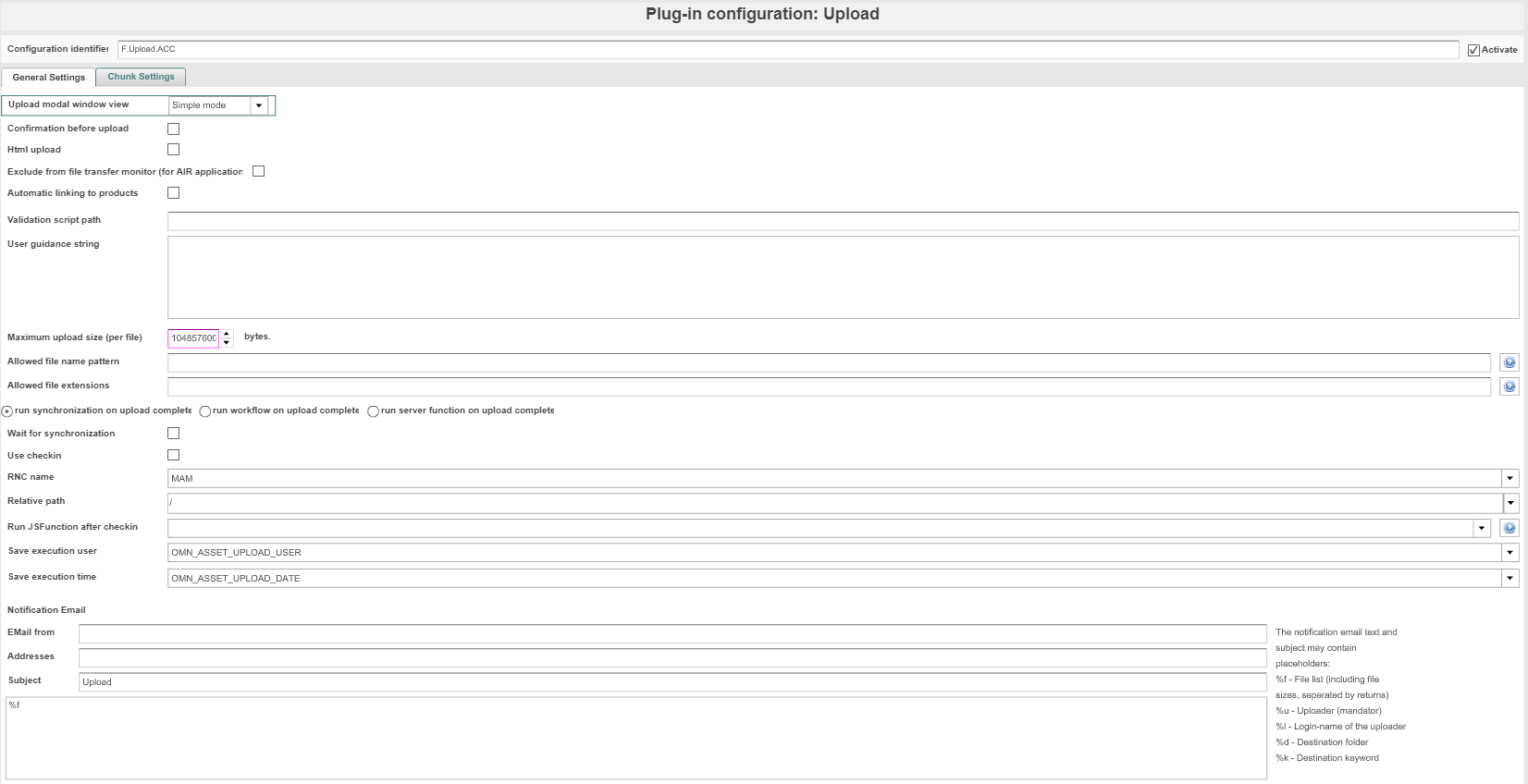
The configuration of Upload includes the following parts:
| Tab name | Description | Note |
|---|---|---|
General settings |
||
Upload modal window view |
Extended mode for upload with reduced client CPU usage |
Extended or Simple mode |
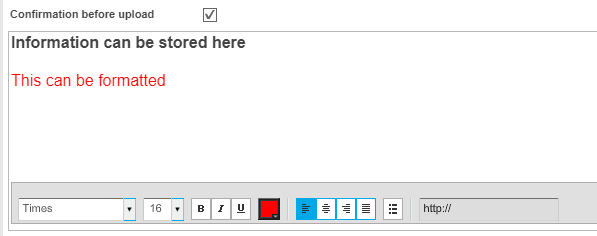
Confirm before upload |
Show popup with specific information before the upload window is displayed |
|
Html upload |
outdated as only for old configuration |
|
Exclude from file transfer monitor (for AIR application) |
outdated as only for old configuration |
|
Automatic linking to products |
Automatic linking of file to product |
Following attributes can be defined: • Product object type (required) • Identification • Reference Type • Rule values Last three are shown in modal and can be changed there |
Validation script path |
Execution of a groovy script stored in config/groovyscripts/ (‘MandatorIdentifier’) |
Field must contain only file name with extension, e.g. validationScript.groovy |
User guidance string |
Show popup with user guidance information |
|
Maximum upload size (per file) |
Maximum size of uploaded file in bytes |
If it is not working check nginx property |
Allowed file name pattern |
Possible to upload only files that matches to typed pattern |
String is regexp for file name |
Allowed file extensions |
Possible to allow uploading only files with specific file extensions |
Extensions must be separated by semicolon Example: jpg;jpeg;tif;png |
Run synchronization on upload complete |
Synchronization is executed after the upload is complete |
|
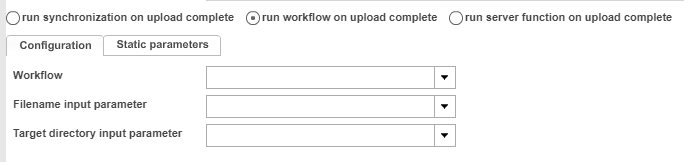
Run workflow on upload complete |
Workflow is executed after the upload is complete |
Configuration for workflow |
Run server function on upload complete |
Function is executed after the upload is complete |
Configuration for function |
Wait for synchronization |
Upload is only complete when synchronization is also complete |
If this option is not selected, synchronization takes place after the upload |
Use checkin |
Possibility to unlock file with upload of locked file |
|
Allow the upload of variations |
No functionality (see OG-6624) |
|
RNC name |
Target RNC for upload |
This RNC is used when uploading in the search |
Relative path |
Target relative path for upload |
This relative path is used when uploading in the search |
Run JSFunction after checkin |
Run selected function after checkin |
Result of JavaScript function execution can be represented in frontend as list of formatted lines of text with different colors |
Save execution user |
Executing user is saved in attribute |
The OMN_ASSET_UPLOAD_USER attribute is used by default |
Save execution time |
Upload time is saved in attributes |
The OMN_ASSET_UPLOAD_DATE attribute is used by default |
Notification Email |
||
Email from |
Sender |
|
Addresses |
Receiver |
Comma separated |
Subject |
Subject of Email |
|
Notification email text |
Text of EMail |
|
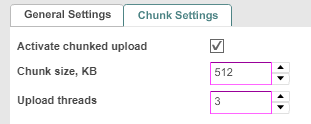
Chunk Settings |
||
Activate chunked upload |
Activate/deactivate chunked upload function |
|
Chunk size, KB |
Chunk size in KB |
|
Upload threads |
Number of used threads for uploads in parallel |
0 or not set means 1 thread |