UI - SelectionClientPrint function
General Information
The function "Print images" is needed for printing previews of the items (not the whole browser page).
Now the function "Print images" is configurable for the SelectionClient.

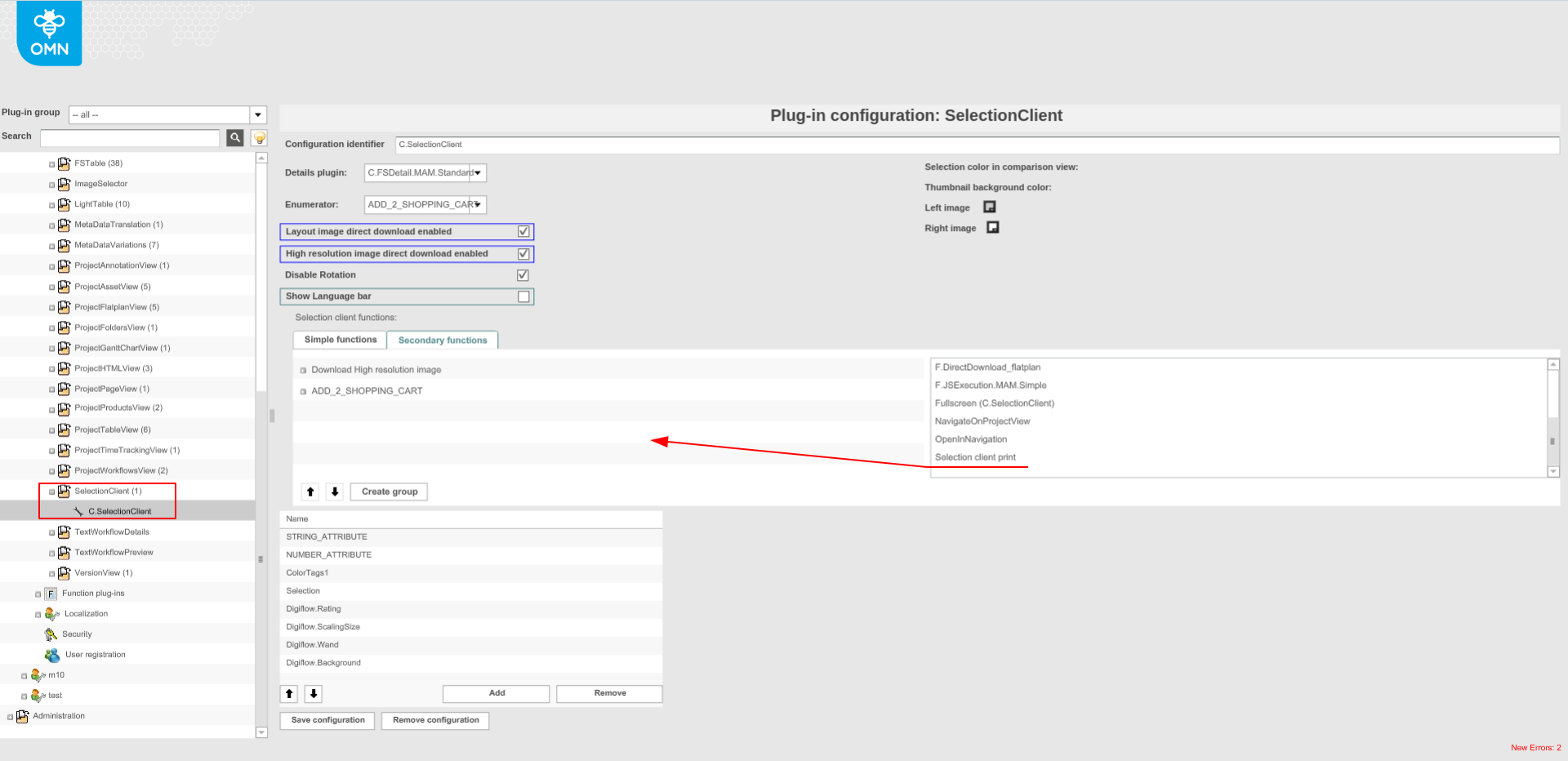
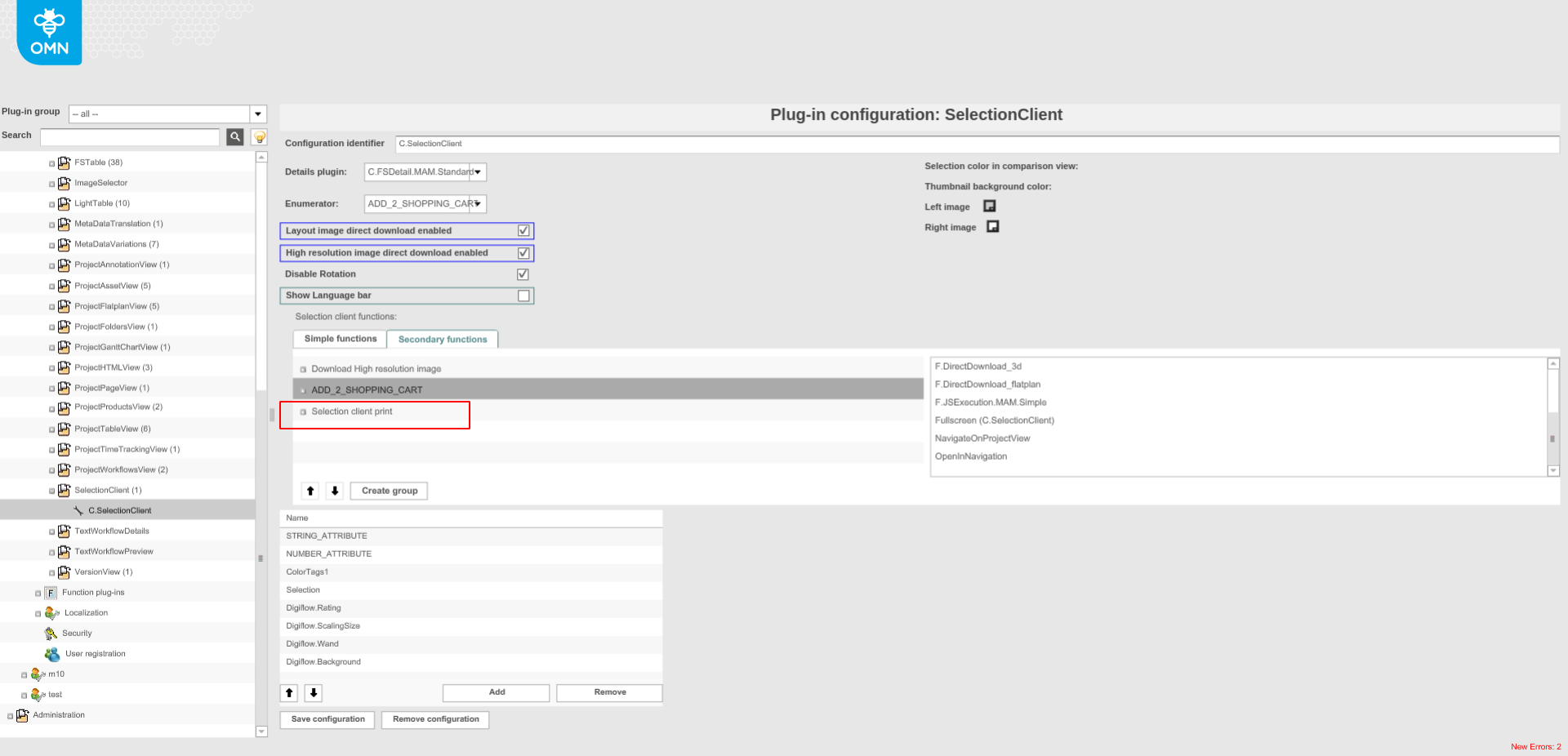
How it works in HTML5
Without selection
-
Open the front-end
-
Open the Project Navigation
-
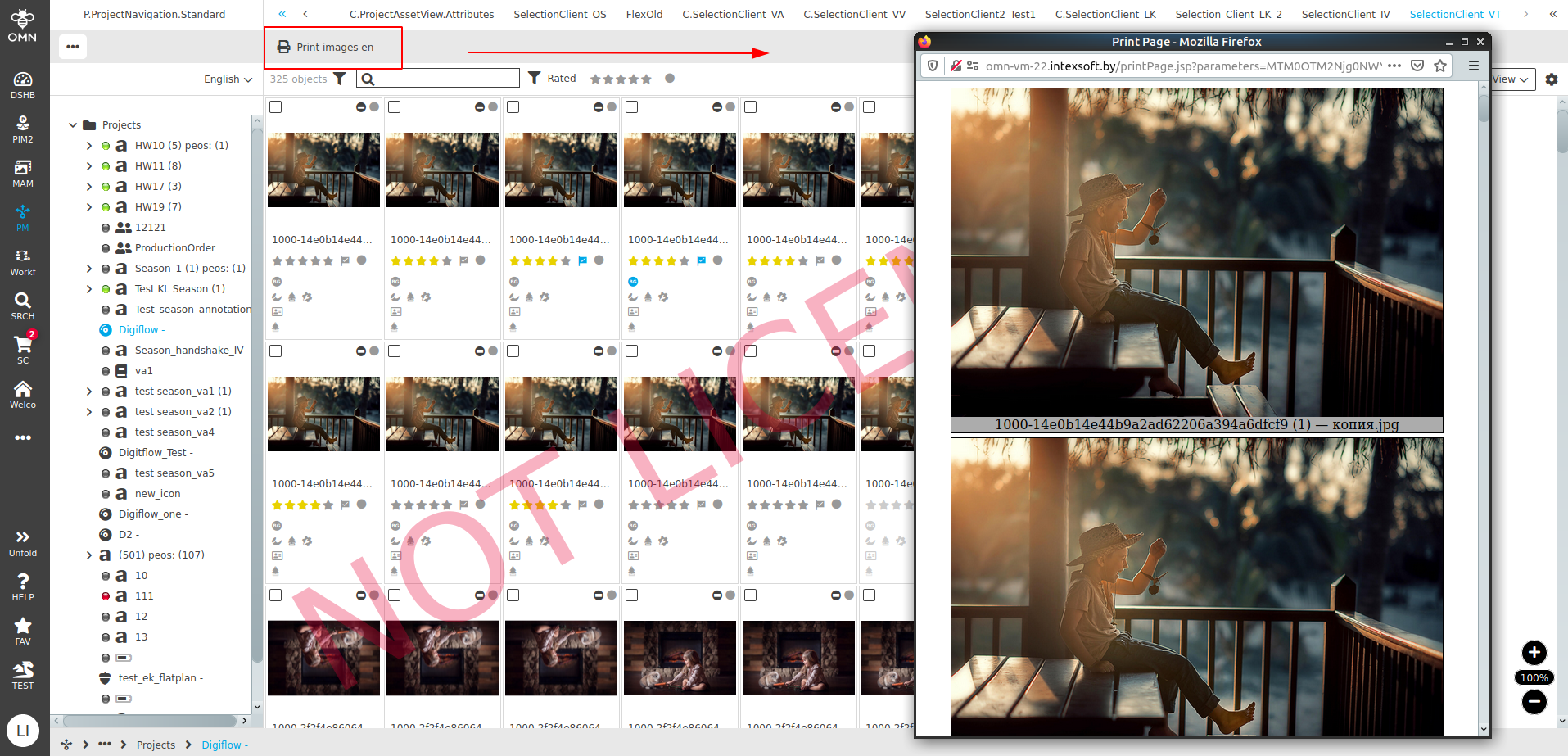
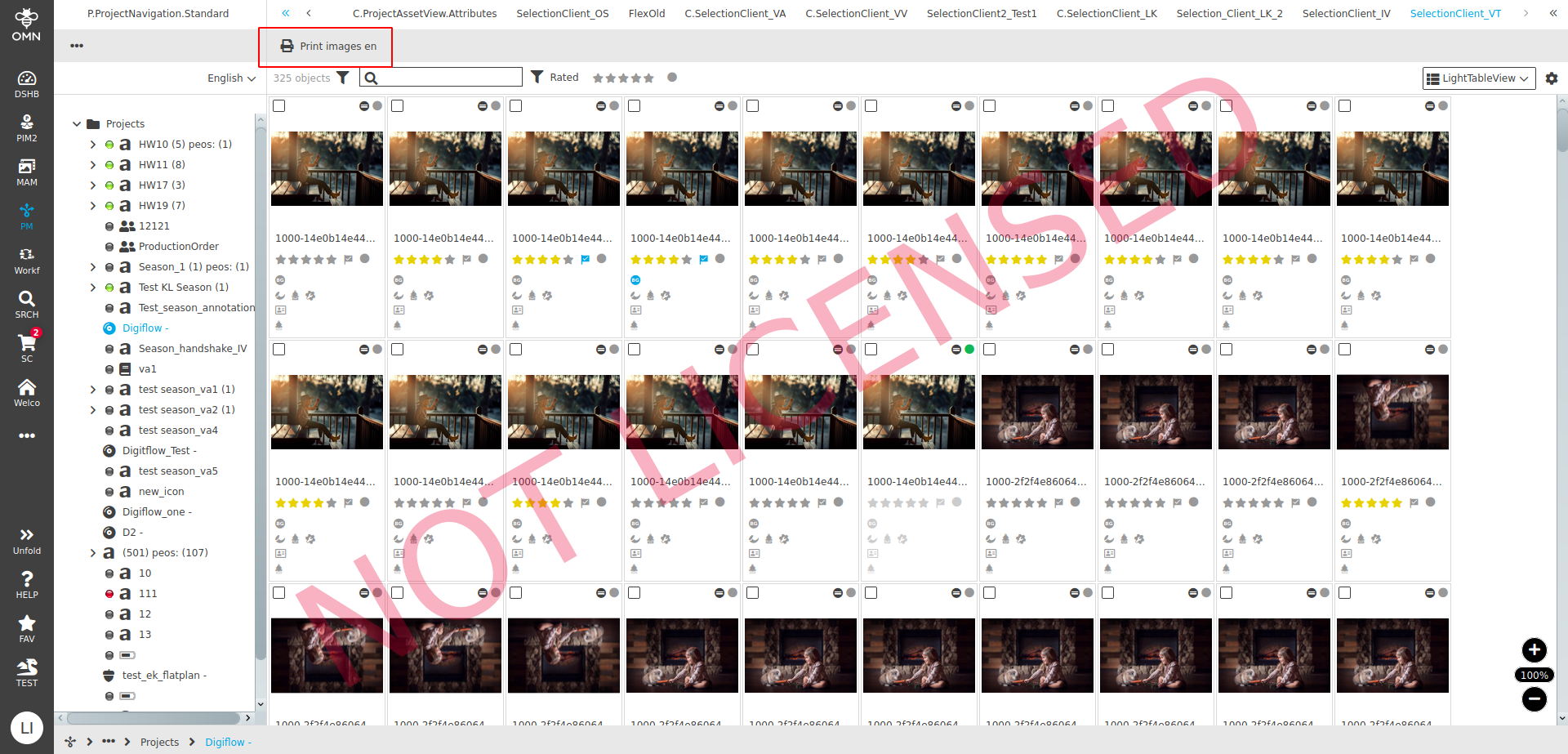
Select the tab "SelectionClient" → The function "Print images" is available in the toolbar
-
Click on the function "Print images" → A browser window with previews of all assets in the current project appears
-
Use the shortcut "Ctrl+P / CMD+P" → A modal appears, on which the available printers can be selected.
With selection
-
Open the front-end
-
Open the Project Navigation
-
Select the tab "SelectionClient" → The function "Print images" is available in the toolbar
-
Select one/multiple assets → The function "Print images" is available in the toolbar
-
Click on the function "Print images" → A browser window with previews of the selected asset/assets appears
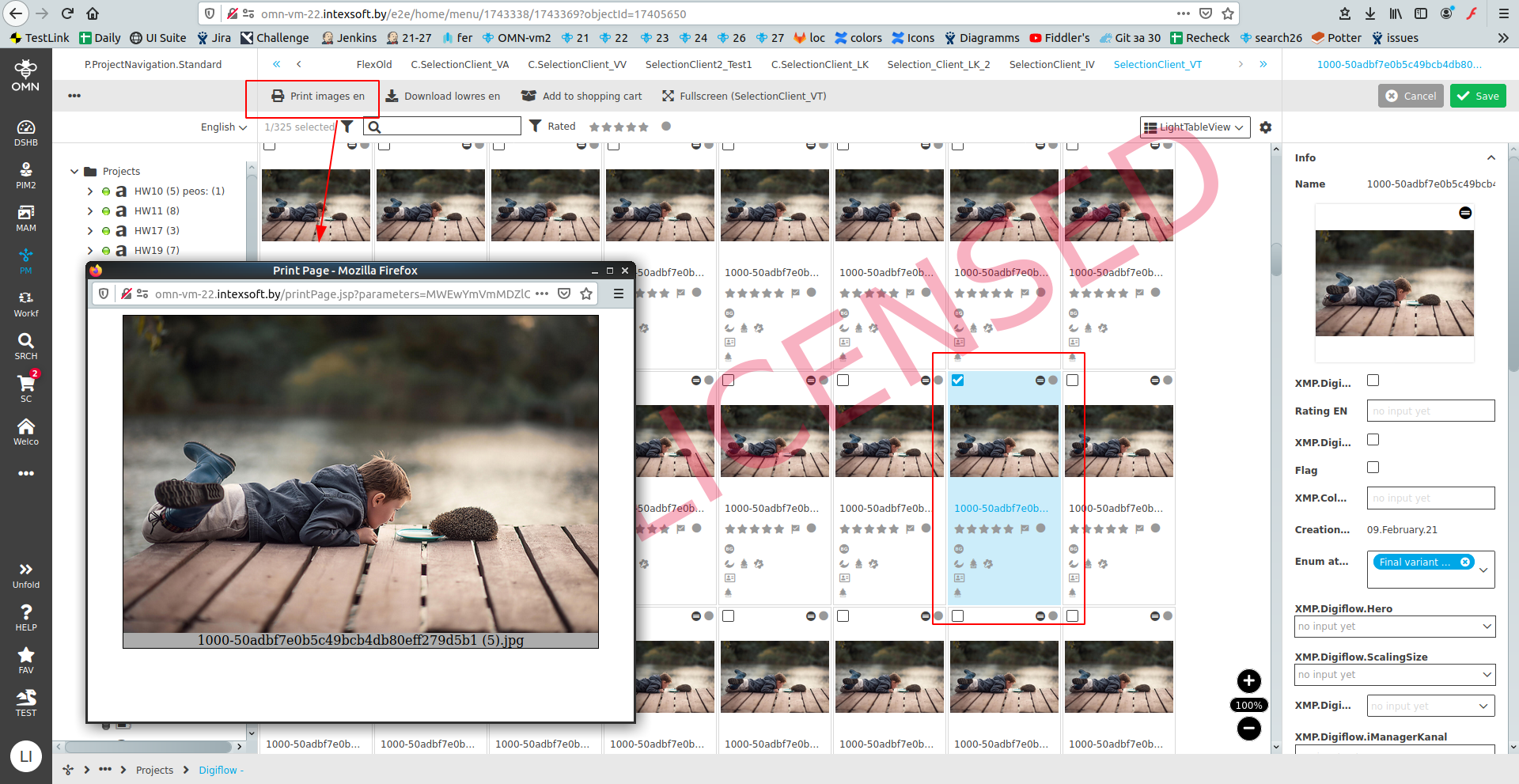
-
Click Ctrl+P / CMD+P → Modal for "Print" window for selection available printer appears.
| It is possible to execute the function by using the shortcut "Ctrl+P / CMD+P" |
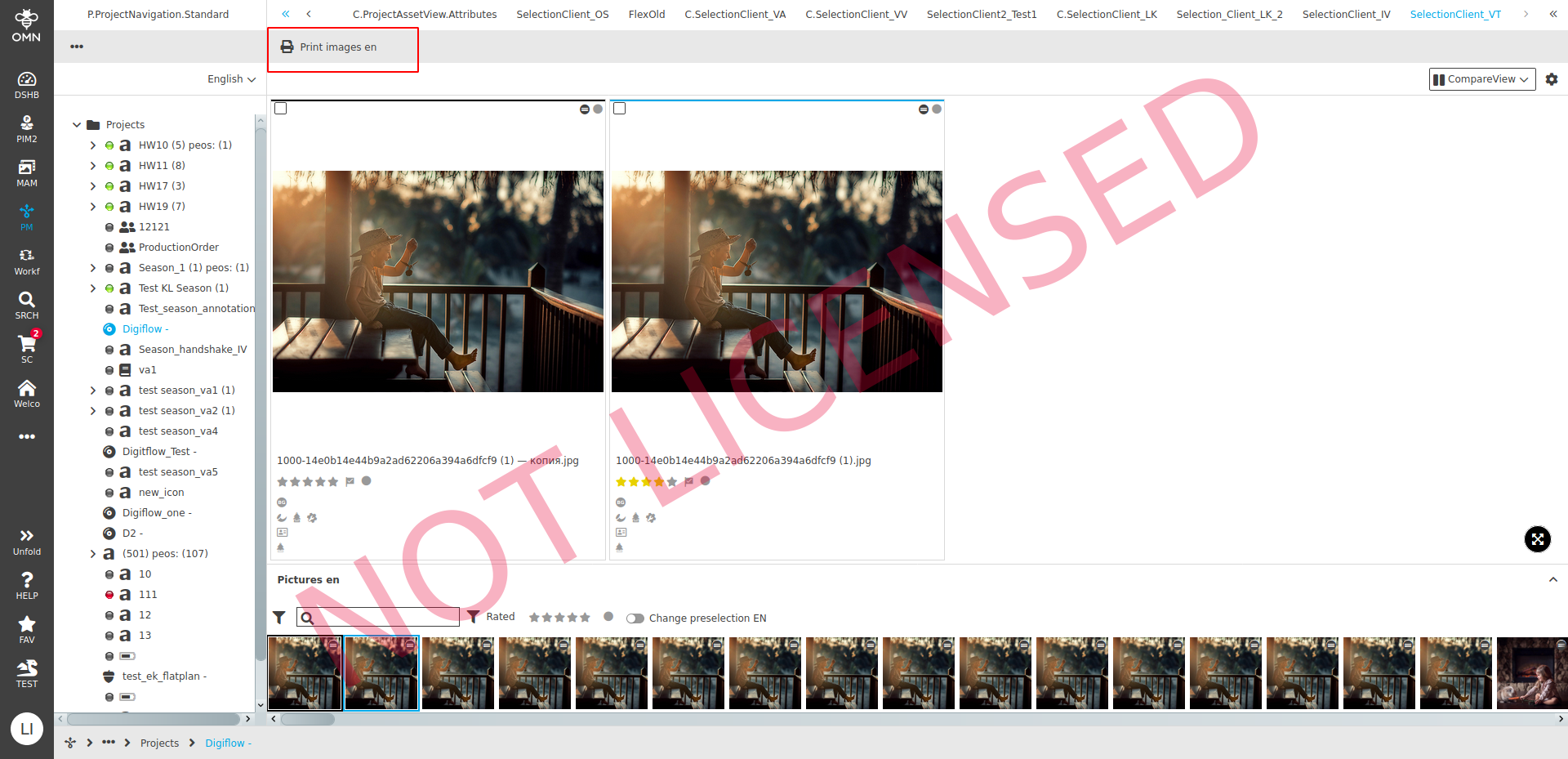
| The function works in the Light Table and the Compare view in the SelectionClient |
How it works in old client
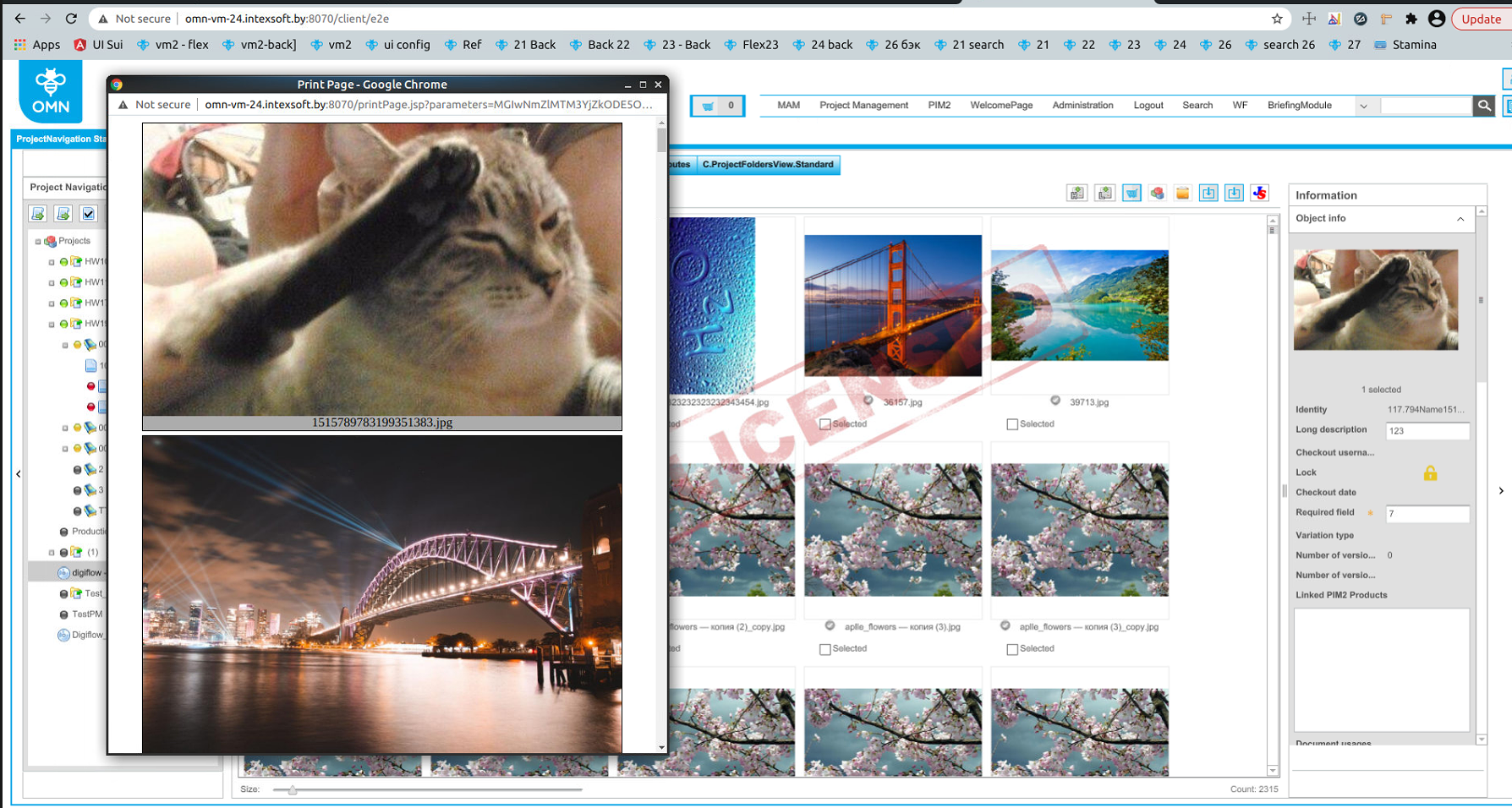
It is not needed to configure the function for the old client.
The function "Print images" is not shown in the toolbar in the old client. The browser window "Print Page" opens by using the shortcut "P/Ctrl+P (CMD+P)".
The selection does not affect the function: all previews from the project appear in the modal (not only the selected ones).