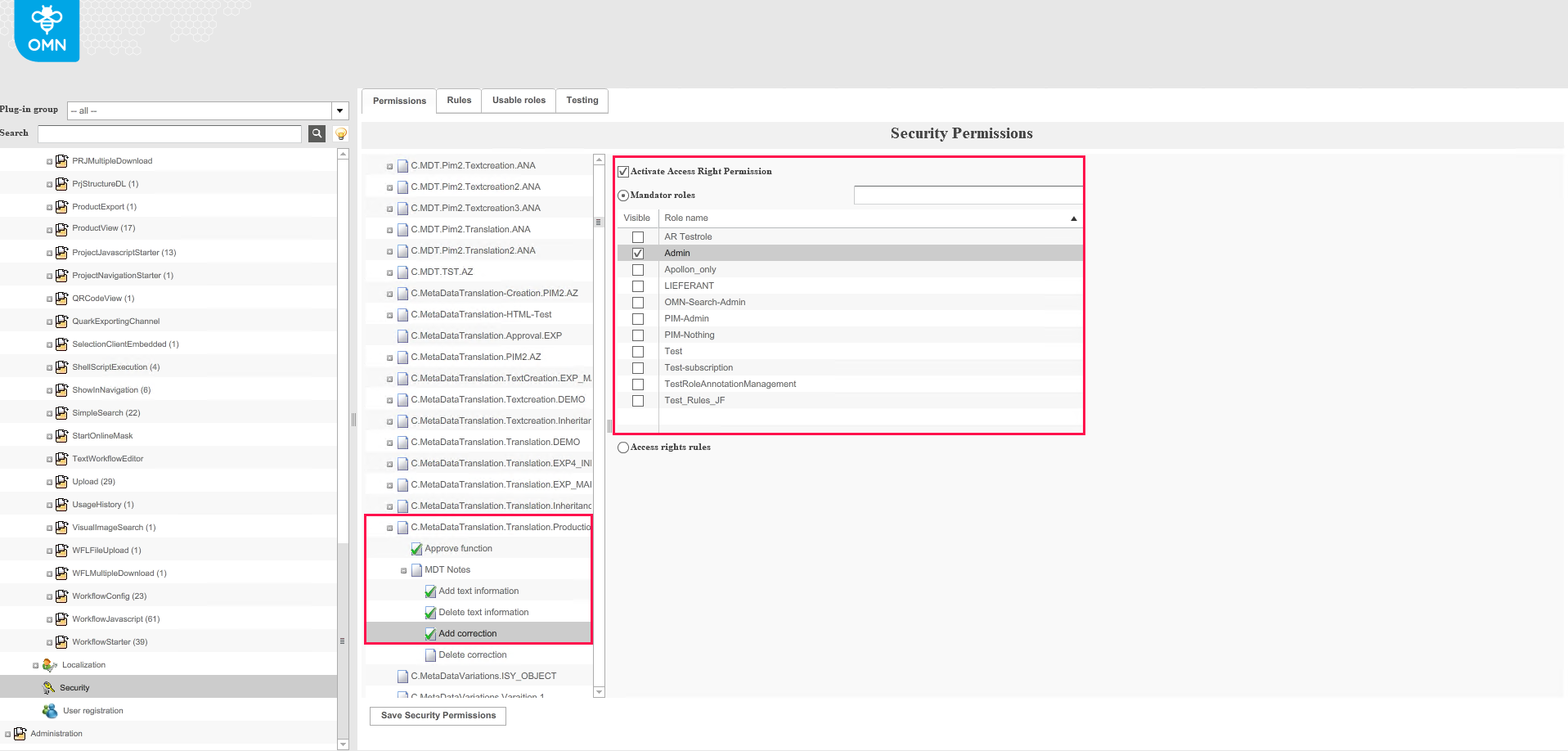
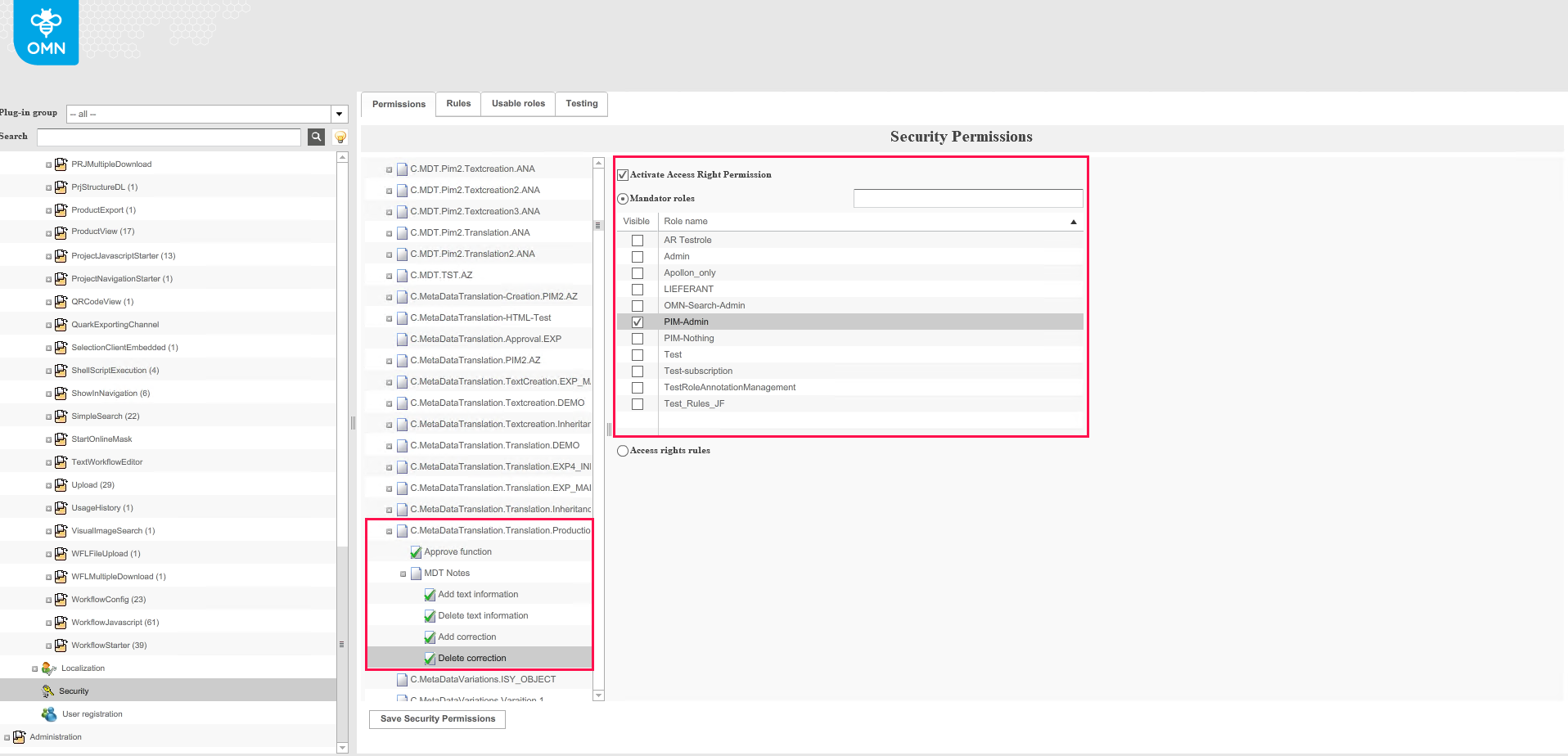
Access Rights for Metadata Translation
General security permissions
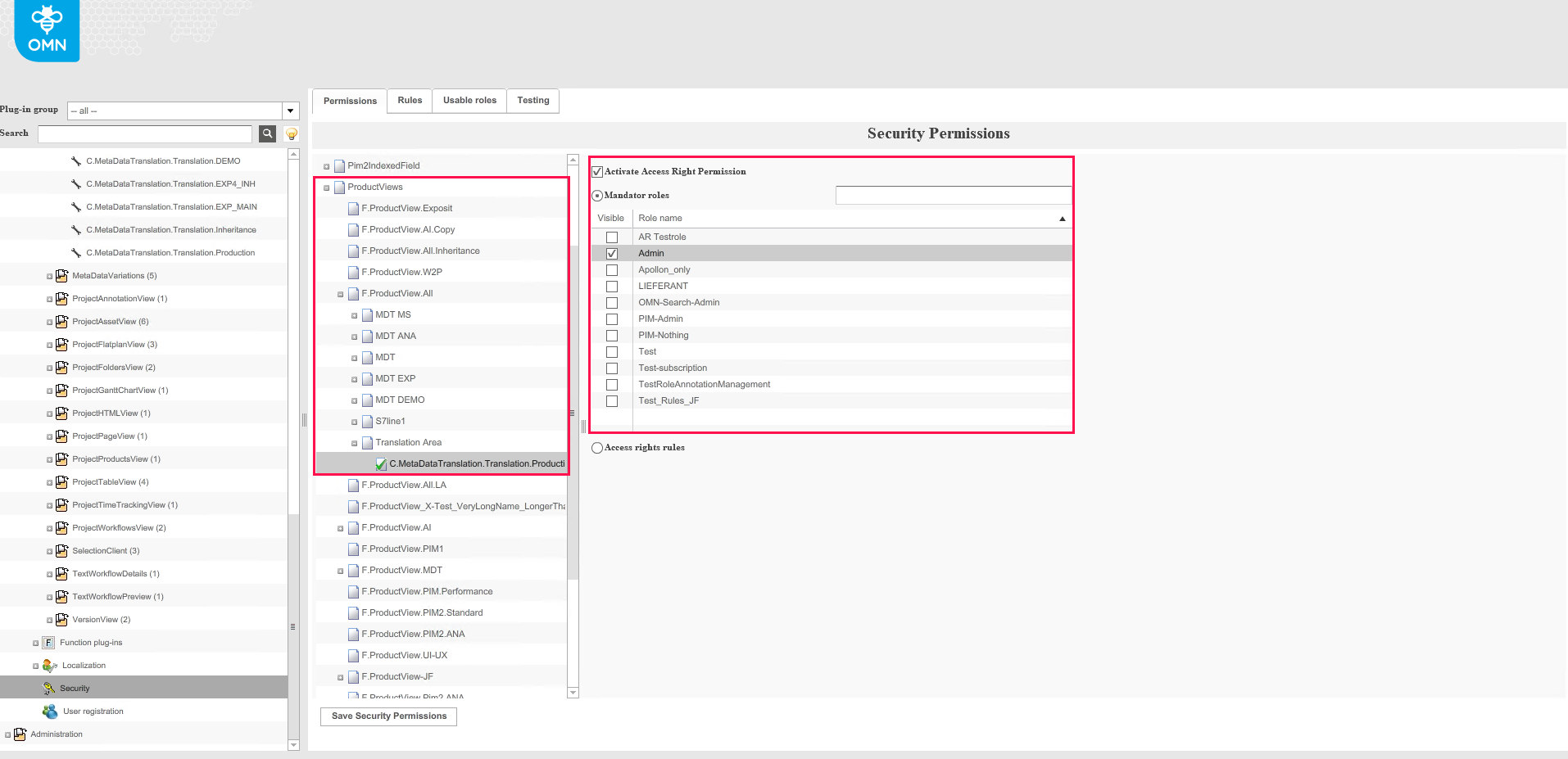
A user can specify the user roles who will have an access to the Metadata Translation and who will not:
-
Navigate to the “Security” node
-
Expand the “ProductViews” section
-
Find the target Product View entity and expand it
-
Find the target menu item with MetaDataTranslation, expand it and select the desired MetaDataTranslation configuration
-
Enable the “Activate Access Right Permission” checkbox
-
Mark the roles which should have an access to the Metadata Translation configuration
-
Save the security permissions
As a result, the roles which are marked will have an access to the Metadata Translation plugin.
The rest of the roles will not be able to open Metadata Translation.
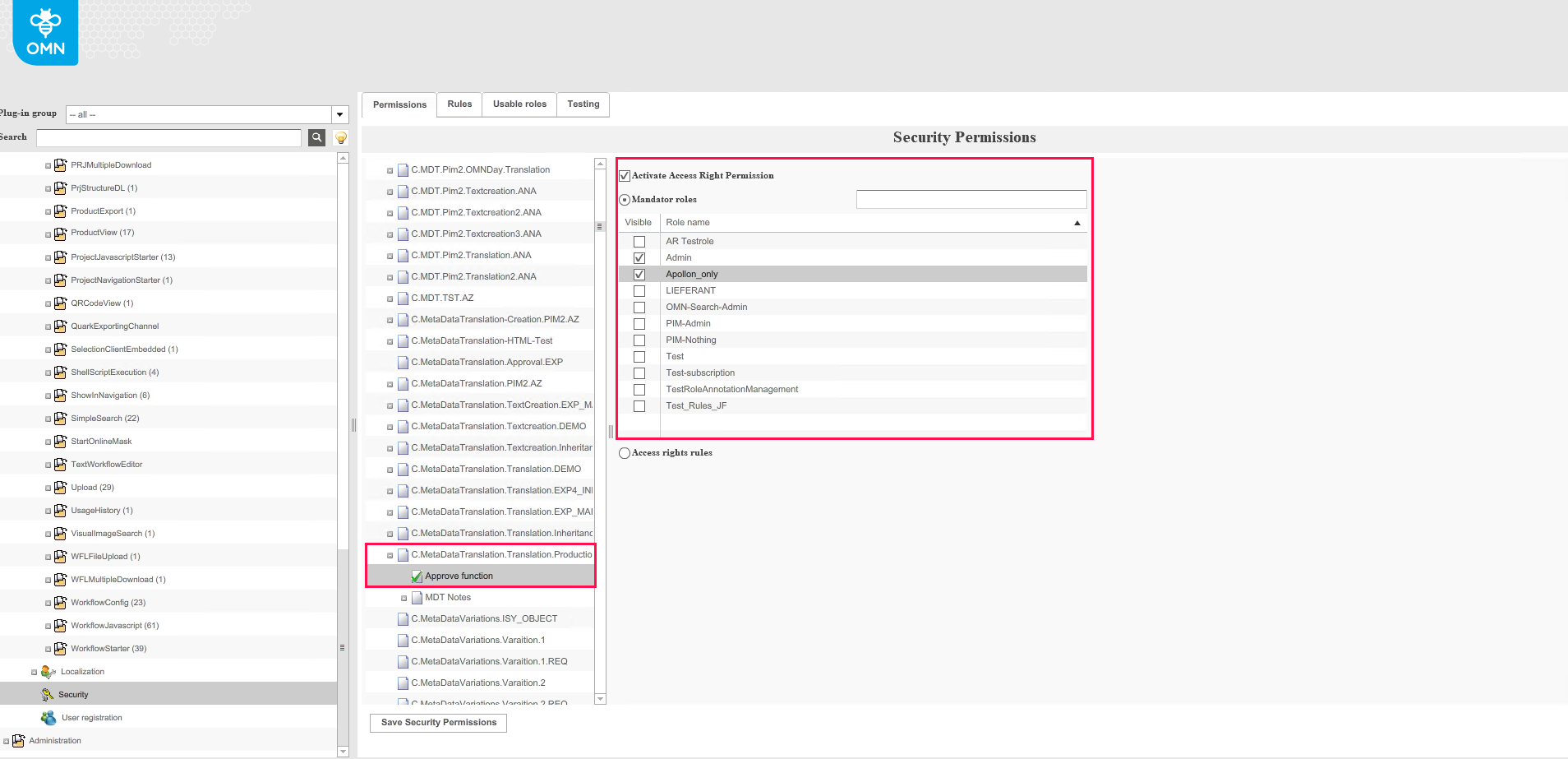
Access rights for the Approve function
The user can specify the user roles who will be able to use the “Approve function" within a Metadata Translation configuration and who will not:
-
Navigate to the “Security” node
-
Expand the “Functions” section
-
Find the target Metadata Translation configuration and expand it
-
Select the “Approve function” item
-
Enable the “Activate Access Right Permission” checkbox
-
Mark the roles which should be able to use the “Approve function" in this Metadata Translation configuration
-
Save the security permissions
As a result, the roles which are marked will have an ability to use the “Approve function" in Metadata Translation.
For the rest of the roles the button “Approve” will not be visible.
Access rights for the text information function
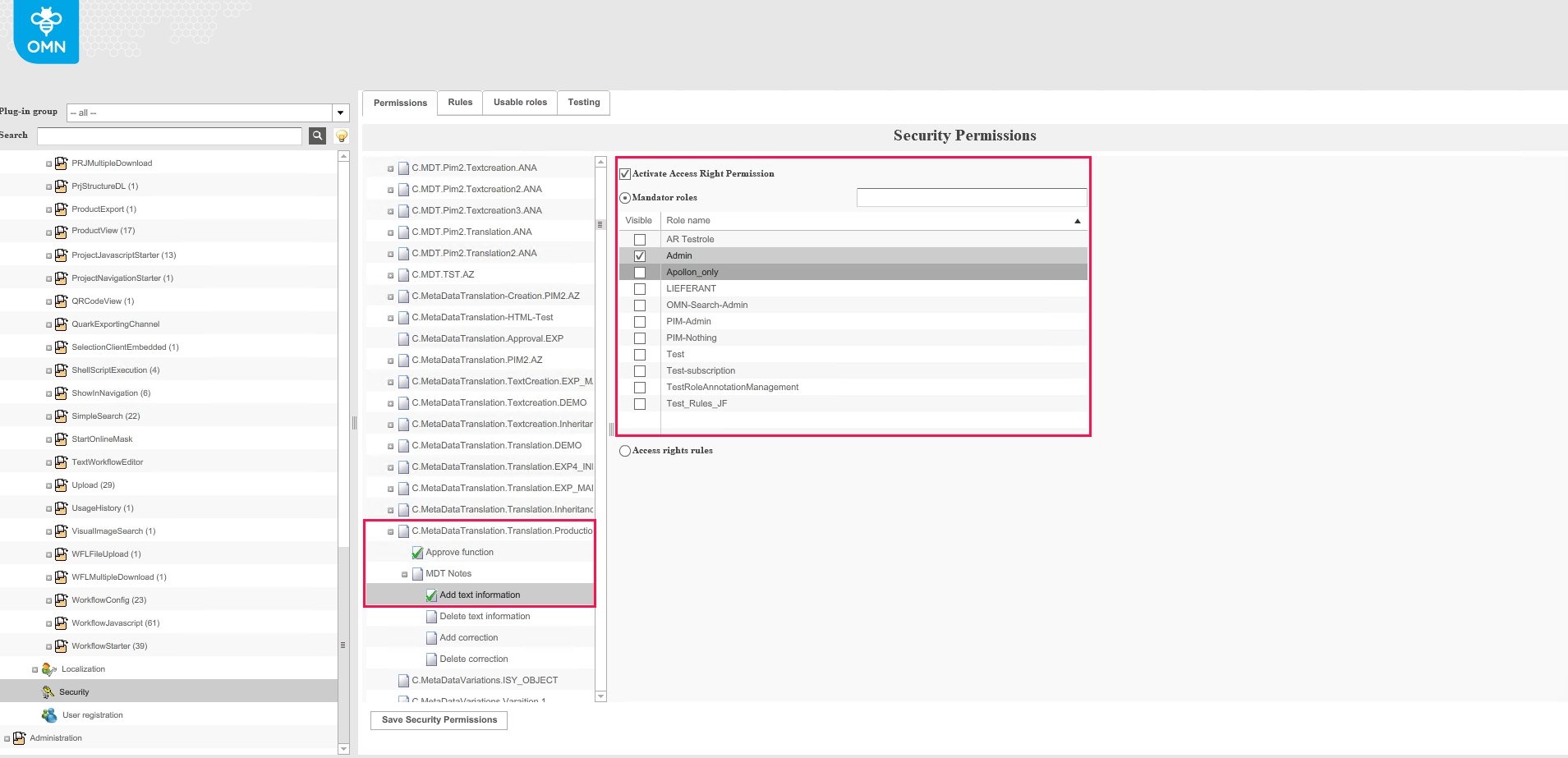
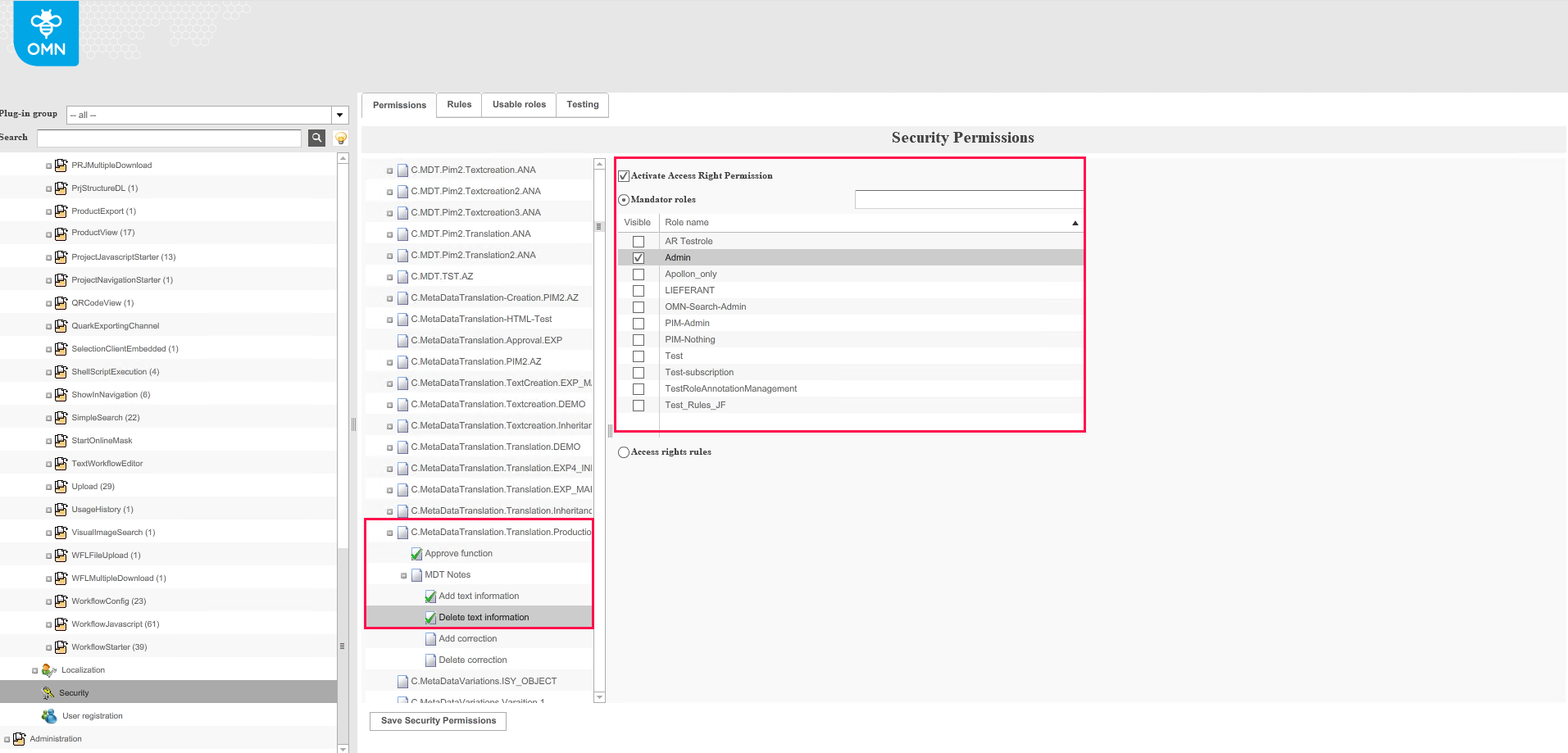
The user can specify the user roles who will be able to add or delete Text notes in a specific Metadata Translation configuration and who will not:
-
Navigate to the “Security” node
-
Expand the “Functions” section
-
Find the target Metadata Translation configuration and expand it
-
Expand the “MDT Notes” item
-
Select the “Add text information” or “Delete text information” item
-
Enable the “Activate Access Right Permission” checkbox
-
Mark the roles which should be able to add or delete text information
-
Save the security permissions
As a result, the roles which are marked will have an ability to add or delete text information (text notes) in Metadata Translation.
For the rest of the roles the button to add or delete text information (text notes) will not be available.
Access rights for the correction function
A user can specify the user roles who will be able to add or delete corrections in Metadata Translation and who will not:
-
Navigate to the “Security” node
-
Expand the “Functions” section
-
Find the target Metadata Translation configuration and expand it
-
Expand the “MDT Notes” item
-
Select the “Add corrections” or “Delete corrections” item
-
Enable the “Activate Access Right Permission” checkbox
-
Mark the roles which should be able to add or delete corrections
-
Save the security permissions
As a result, the roles which are marked will have an ability to add or delete corrections in Metadata Translation.
For the rest of the roles the button to add or delete corrections will not be available.